Seats
Learn how full and lite seats work in Featurebase.
Written By Markus Palm
Last updated 4 days ago
This article refers to our new pricing plans. Log in to view our legacy plans (before Dec 2025) or contact us via live chat.
Overview
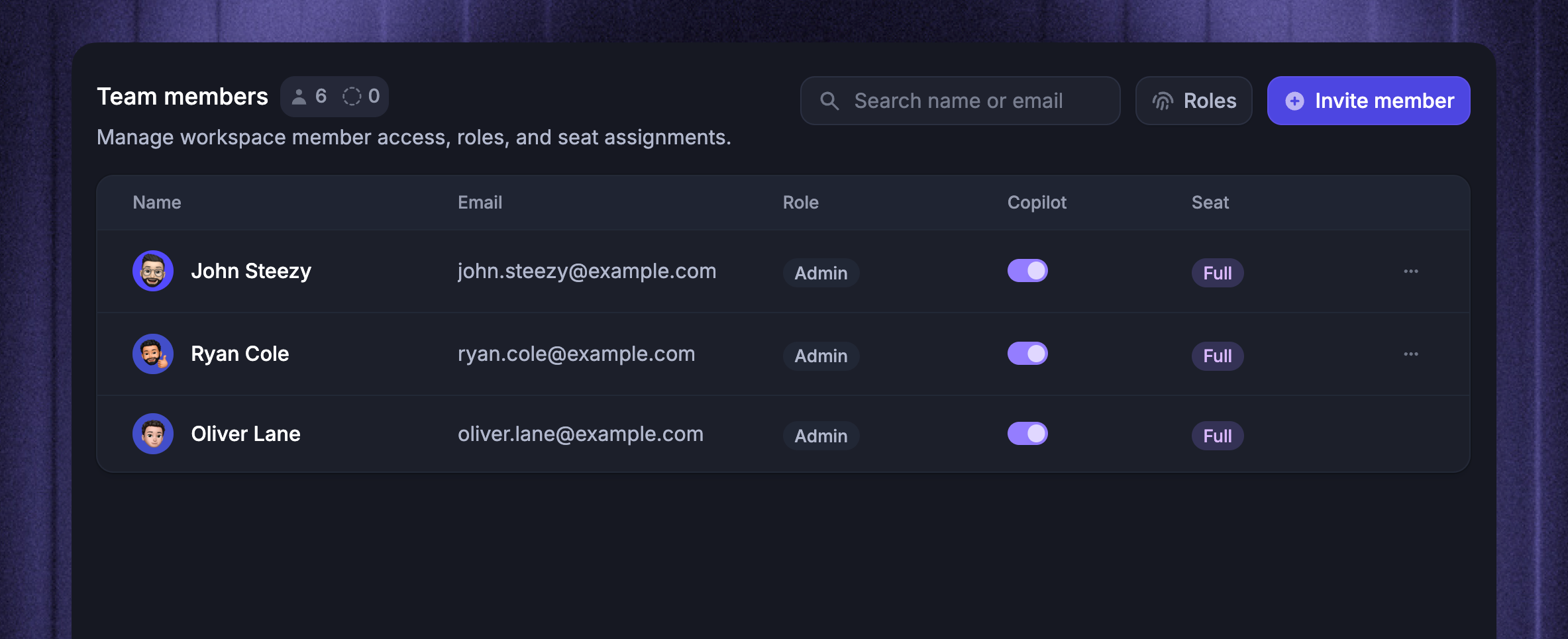
Every teammate who accesses your Featurebase dashboard requires a seat. There are two types:
Full seat – billed, full access to all capabilities
Lite seat – free, limited access for collaborators outside your core team
You can view and manage seats from Settings → Members and teams.
Notes:
Your end-users never need any seats. You can always have unlimited end-users to support and get feedback from!
Teammates who use Featurebase through any integration (e.g., HubSpot, Salesforce, Slack, Linear, etc.) don’t need seats.
Admin roles are a separate feature that lets you limit teammates’ access to specific features if needed.
Full seats
Full seats provide unrestricted access to all capabilities in your plan. Pricing per full seat (billed yearly):
Free – 1 full seat included
Growth – $29 / seat
Professional – $59 / seat
Enterprise – $99 / seat
Lite seats
Lite seats provide limited access for cross-functional collaborators (e.g., sales, marketing, legal, engineering, design).
Included Lite seats per plan:
Free - no lite seats included
Growth - no lite seats included
Professional - 20 lite seats
Enterprise - 50 lite seats
Lite seats do not cost anything - they’re included for free on the Professional and Enterprise plans.
Lite seat teammates can view a support conversation only after another teammate @mentions them in an internal note. They cannot be assigned conversations. Once mentioned, the conversation appears in their notifications inbox, where they can view it and reply with internal notes, but they cannot reply to the customer.
The tables below show what each seat type supports. Access also depends on your plan and admin role permissions.
Note: For feedback collection, you only need a Lite seat for teammates who need to submit feedback on behalf of customers. All other teammates can submit feedback on their own behalf for free!
Full vs Lite seat comparison
A full comparison of workspace and product permissions is provided in the table below:
How seats are managed
You can see how many full or lite seats are in use and remove seats by going to Settings → Members and teams:
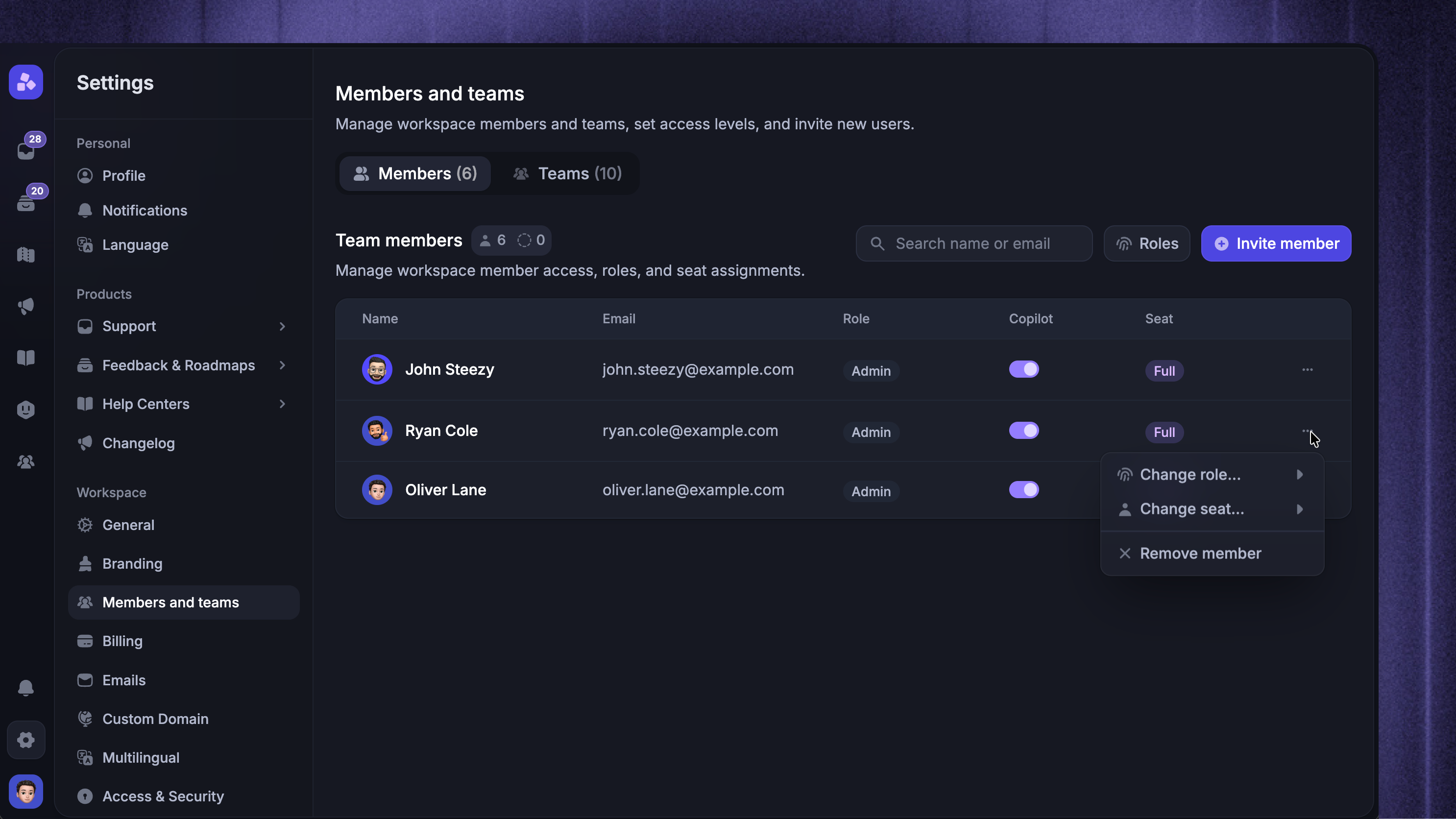
Note: If you change seats during a monthly billing period, your invoice may differ from the cost shown on the Subscription page:
Your invoice includes prorated charges or credits for seat changes.
The Subscription page shows the cost of your current subscription.
Example of prorated billing
Example of prorated billing
On monthly billing, charges adjust when your Full-seat count changes. For example:
You start the month with 1 Full seat, billed upfront.
On Day 14, you add 5 more seats.
Your next invoice will include prorated charges for those 5 seats based on the number of days they were active.
Seat refunds and credits
Seat refunds and credits
On monthly billing, removing a Full-seat teammate or changing their seat to Lite creates a prorated credit for unused time on your next invoice.
On annual billing, removing a teammate does not create a credit. The purchased seat stays available until renewal. Schedule a seat reduction in Billing to lower your seat count at renewal.
How does removing teammates work?
How does removing teammates work?
Removing a teammate with a Lite seat will free up one of the Lite seats included in your Professional or Enterprise.
Removing a teammate with a Full seat affects billing differently on monthly and annual subscriptions.
When removing a teammate, you can reassign their conversations to active teammates to maintain continuity.
All messages and conversations from the removed teammate will remain in your workspace’s shared history, so they can still be accessed as part of existing records.
Was this helpful?
Still need help? Ask the team