Dynamic and Locked audiences
Understand when Outbound audiences update dynamically and when to lock recipients at activation.
Written By Markus Palm
Last updated 19 days ago
Overview
With Outbound, you can send outgoing messages to engage your customers. There are 2 ways you can send them:
Dynamic audience means the message will be sent to everyone who matches the rules now and anyone who matches the rules in the future.
Locked audience means the message will only send to people who match your audience rules now.
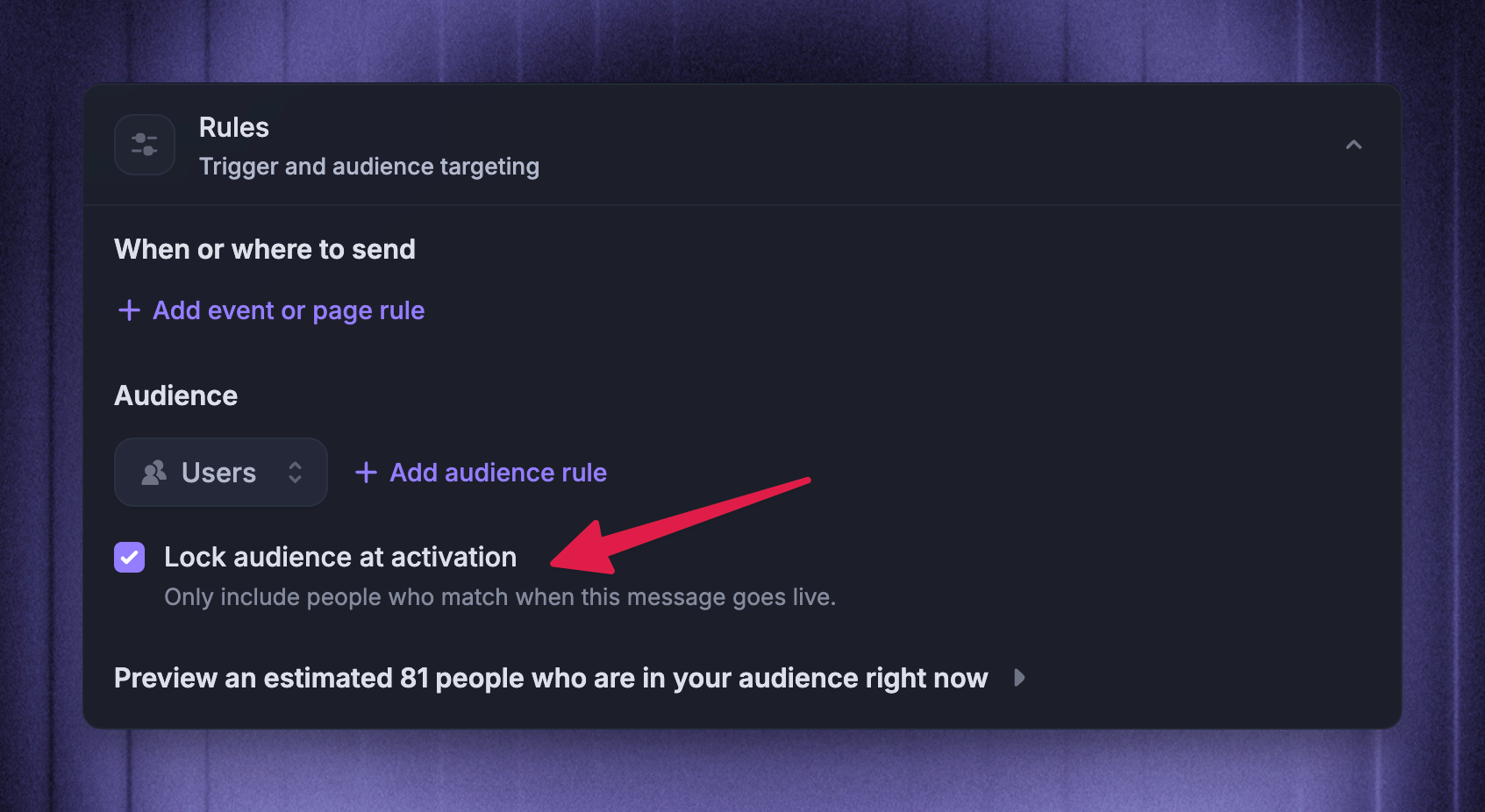
When composing an Outbound message, scroll down to the Rules → Audience section and check/uncheck “Lock audience at activation".
Note: You can’t change the way a message will send after it has been set live.
Audience support by message type
Dynamic audiences
A Dynamic audience keeps updating as people match or stop matching your rules.
By default, Outbound messages use a Dynamic audience. Dynamic audiences work with the message's frequency and scheduling settings, so you can send:
Once
On a recurring schedule
Every time someone matches your rules
Note: When a Chat or Email with a Dynamic audience is live or paused, you cannot switch it to a Locked audience. If you need a different match behavior, duplicate the message and choose the audience behavior before activating the new version.
Dynamic audiences are great for
Dynamic audiences are great for messages that should keep running over time, such as:
Onboarding messages for new users
Lifecycle emails based on user or company attributes
Messages that should appear while someone matches the current rules
Follow-up messages for people who match your rules later
Helping customers at key moments (e.g. when they take action in your product)
When Dynamic messages send
Dynamic messages are not sent or shown just because someone matches the audience rules. The message also needs to be active, within its schedule, and allowed by its frequency settings.
Chat, Banner, and Survey
Chat, Banner, and Survey messages with a Dynamic audience can show when:
The person is using your site or product
They match the selected audience type and audience rules. Unfinished Surveys can continue after a person's audience data changes
Any page URL, time-on-page, or CSS selector trigger matches
The current time matches the schedule, delivery window, and frequency settings
Any dismissal, response, match limit, or stop condition has not already ended delivery for that person
Product Tours
Product Tours use a Dynamic audience for automatic display. The customer must match the audience and page rules, and the tour's schedule and frequency must allow it to start.
Shared tours bypass automatic audience rules. A shared link is not a way to test automatic targeting.
Email messages with a Dynamic audience can send when:
The user matches the audience rules when the message first goes live, or starts matching them later
The current time matches the schedule, delivery window, and frequency settings
Email-specific checks pass, including approval, subscription topic, unsubscribe, suppression, and sending limits
Locked audiences
A Locked audience is finalized when a Chat or Email is activated. Only people who match your audience rules at that moment are included. People who match later are not added to that message.
To use a Locked audience, enable ‘Lock audience at activation’ in the Rules section. The checkbox explains the behavior in the editor: only people who match when the message goes live are included.
Note: When a Chat or Email with a Locked audience is activated, its audience behavior cannot be changed. Duplicate the message if you need a different match behavior later.
Locked audiences are great for
Locked audiences are great for one-off messages where the recipient list should stay unchanged, such as:
Announcing a feature to a specific group
Sending a one-time email to users who match a lifecycle rule today
Testing a message with a small group before creating a broader Dynamic audience version
When Locked messages send
Locked messages are one-off Chat or Email messages. They do not keep checking for new people after activation.
Chat and Email
Chat and Email messages with a Locked audience can send or show when:
The message is activated with Send now, or reaches its scheduled start date
The person matched the selected audience type and audience rules when the audience was locked
Delivery checks for the message type pass
For messages with a Locked audience:
Recurring frequency and ongoing stop dates do not apply
The message moves to Sent after activation
The message configuration becomes read-only after activation
A paused message with a Locked audience cannot be set live again
If you need to send the same content to a different Locked audience later, duplicate the message, adjust the rules, and send the new version.
Preview the audience
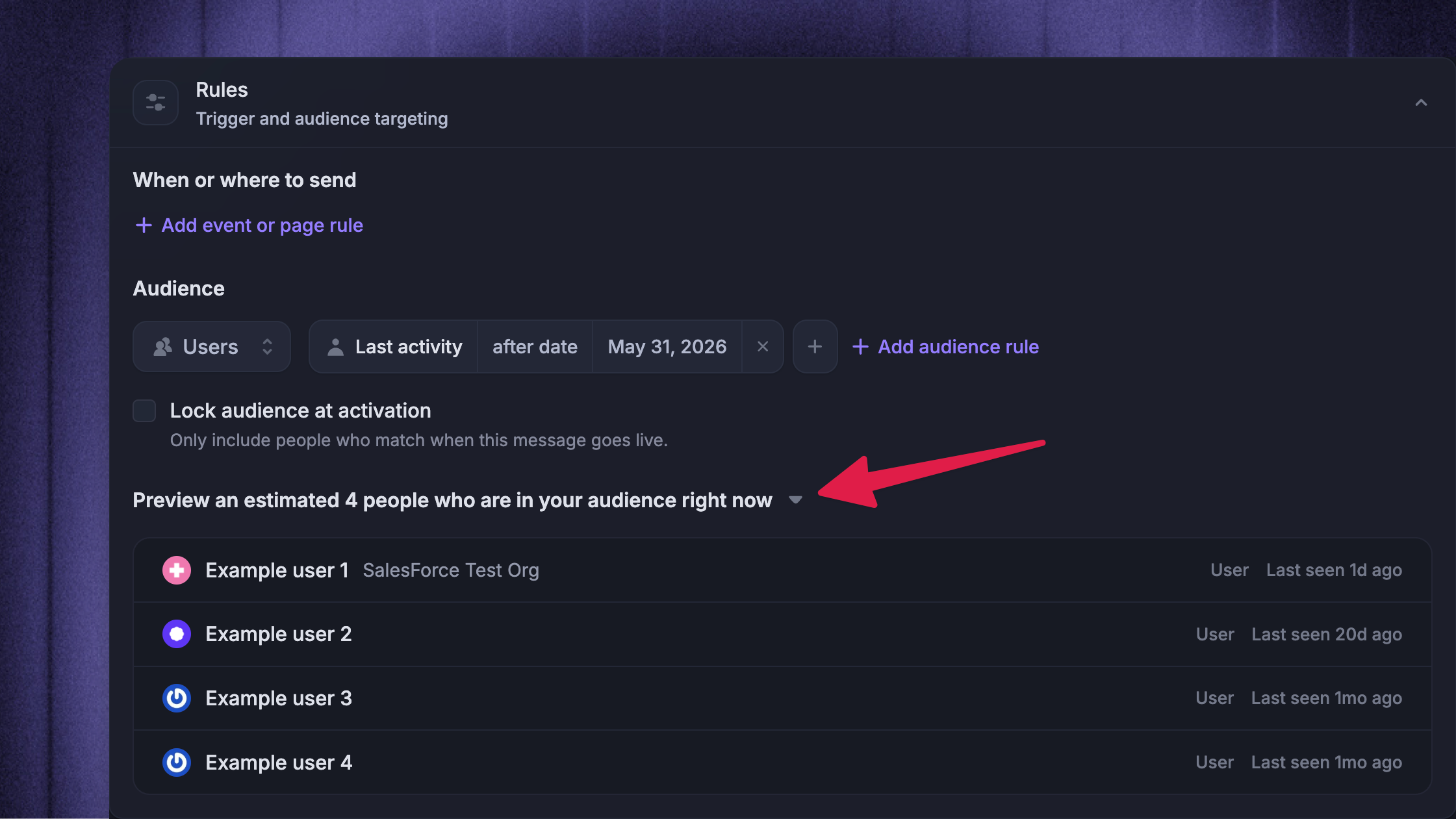
Use ‘Preview audience’ in the Rules section to estimate who matches your current audience type and audience rules.
The preview shows a current estimate and a sample of matching people. For a Dynamic audience, this is a snapshot of who matches right now. For a Locked audience, it helps you check who would be included if the message were activated with the current rules.
Audience preview does not check every delivery condition. It does not confirm:
Page URL, time-on-page, or CSS selector triggers
Start date, delivery window, frequency, match limit, or stop condition
Whether the message is Draft, Scheduled, Live, Paused, Sent, or Suspended
Email approval, subscription, unsubscribe, suppression, or sending-limit checks
Whether someone already received, dismissed, replied to, or responded to the message
Tip: If you are troubleshooting delivery for a specific person, check the audience preview first, then review the message rules and schedule.
Find Dynamic and Locked messages
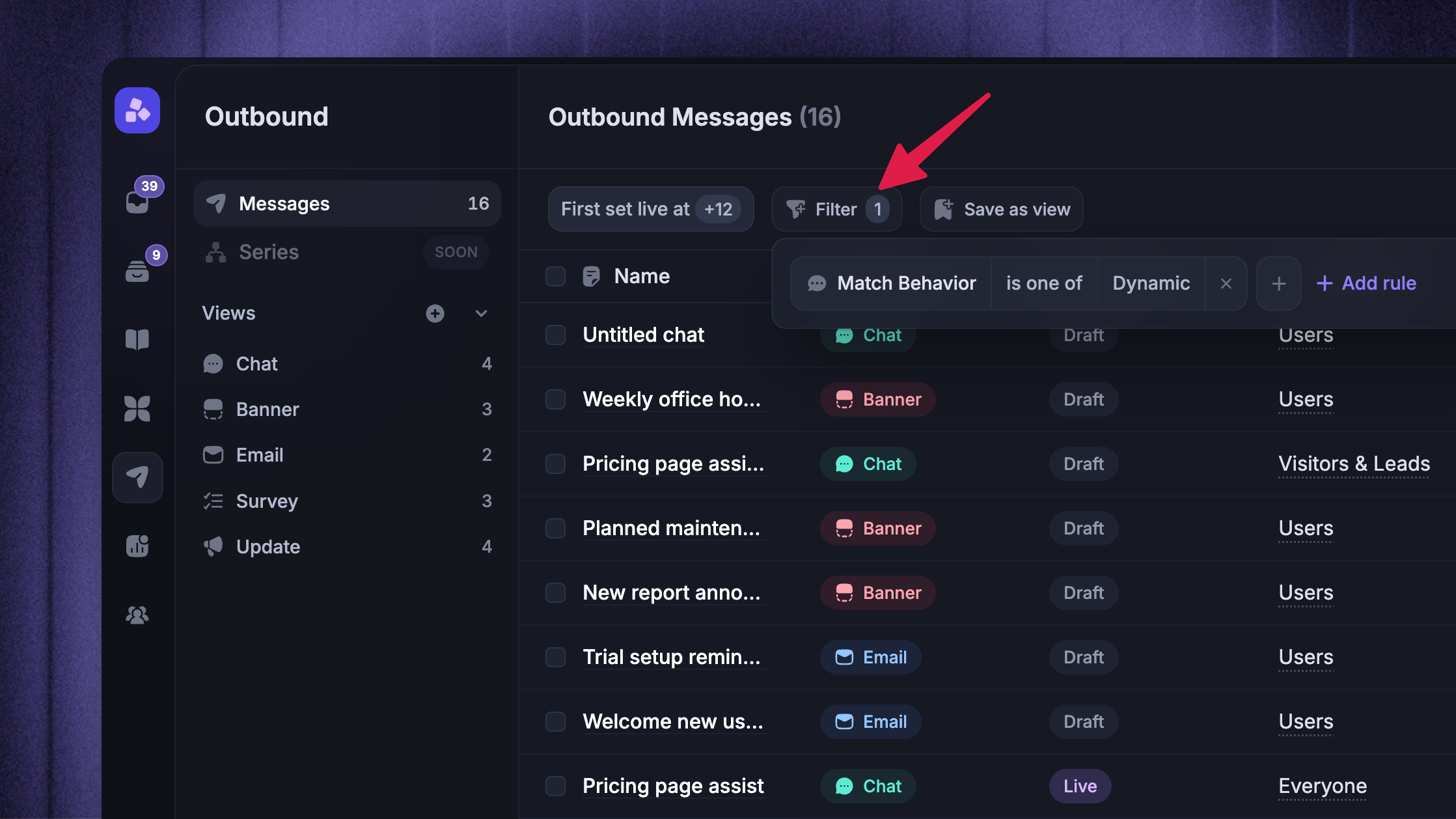
To see all your Dynamic or Locked messages in one place, go to the "All messages" list under Outbound and add the ‘Match behavior’ filter.
FAQs
Can I change a Dynamic audience to a Locked audience after the message is live?
Can I change a Dynamic audience to a Locked audience after the message is live?
No. Choose the audience behavior before activation. Once a message with a Dynamic audience is live or paused, Featurebase does not let you change its match behavior.
If you need a version with a Locked audience, duplicate the message, enable Lock audience at activation, and activate the new message.
Can I edit a Locked audience after sending?
Can I edit a Locked audience after sending?
No. The audience is locked when the message is activated, and the message configuration becomes read-only after activation.
Duplicate the message if you need to change the audience, content, or schedule.
What happens if someone starts matching after a message with a Locked audience is activated?
What happens if someone starts matching after a message with a Locked audience is activated?
They are not added to the Locked audience for that message.
Use a Dynamic audience if you want people to become eligible later as their attributes or activity change.
What happens if someone stops matching after a message with a Locked audience is activated?
What happens if someone stops matching after a message with a Locked audience is activated?
Changing attributes after activation does not remove them from the Locked audience.
Delivery checks can still skip someone when another condition prevents delivery. For example, an Email recipient can be skipped because of unsubscribe, subscription, suppression, or email eligibility checks.
Was this helpful?
Still need help? Ask the team