Scheduling outbound messages
Schedule a message to send at a specific time, or set a wider delivery window during which your emails can send.
Written By Markus Palm
Last updated 19 days ago
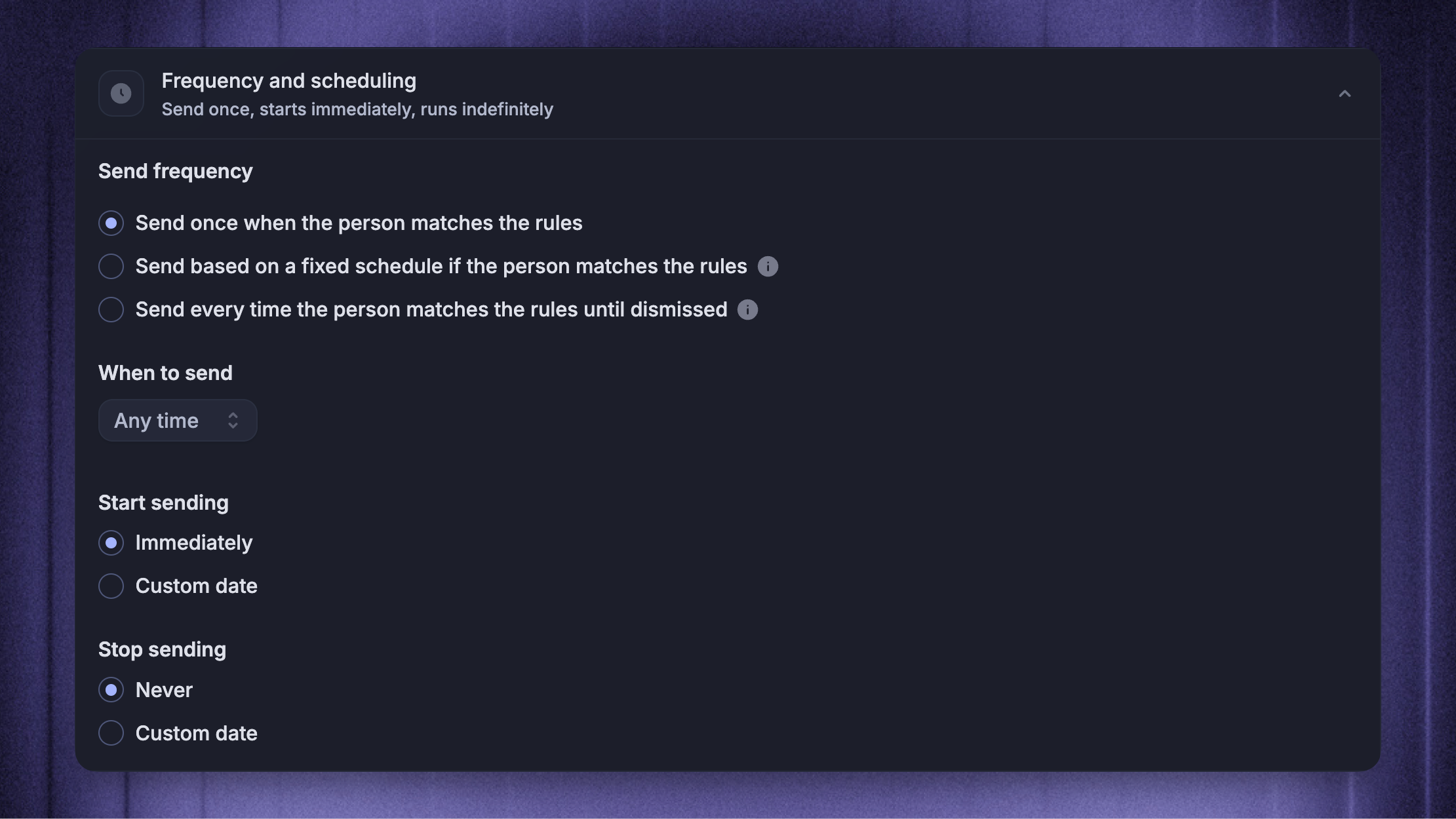
Overview
With Featurebase, it's easy to schedule a message to send at exactly the right time.
There are 3 main ways to schedule Outbound messages:
Send messages during or outside your team's office hours
Choose custom days and hourly windows when messages are allowed to run
Schedule a specific date and time for a message to start, and optionally stop
Scheduling works together with Outbound message rules: rules decide who is eligible, while scheduling decides when eligible people can receive the message.
For Product Tours, scheduling controls automatic display. Pausing a previously live tour does not disable shared links. Turn off Start your tour from anywhere as well to stop shared starts.
Schedule your message to send when your team is available
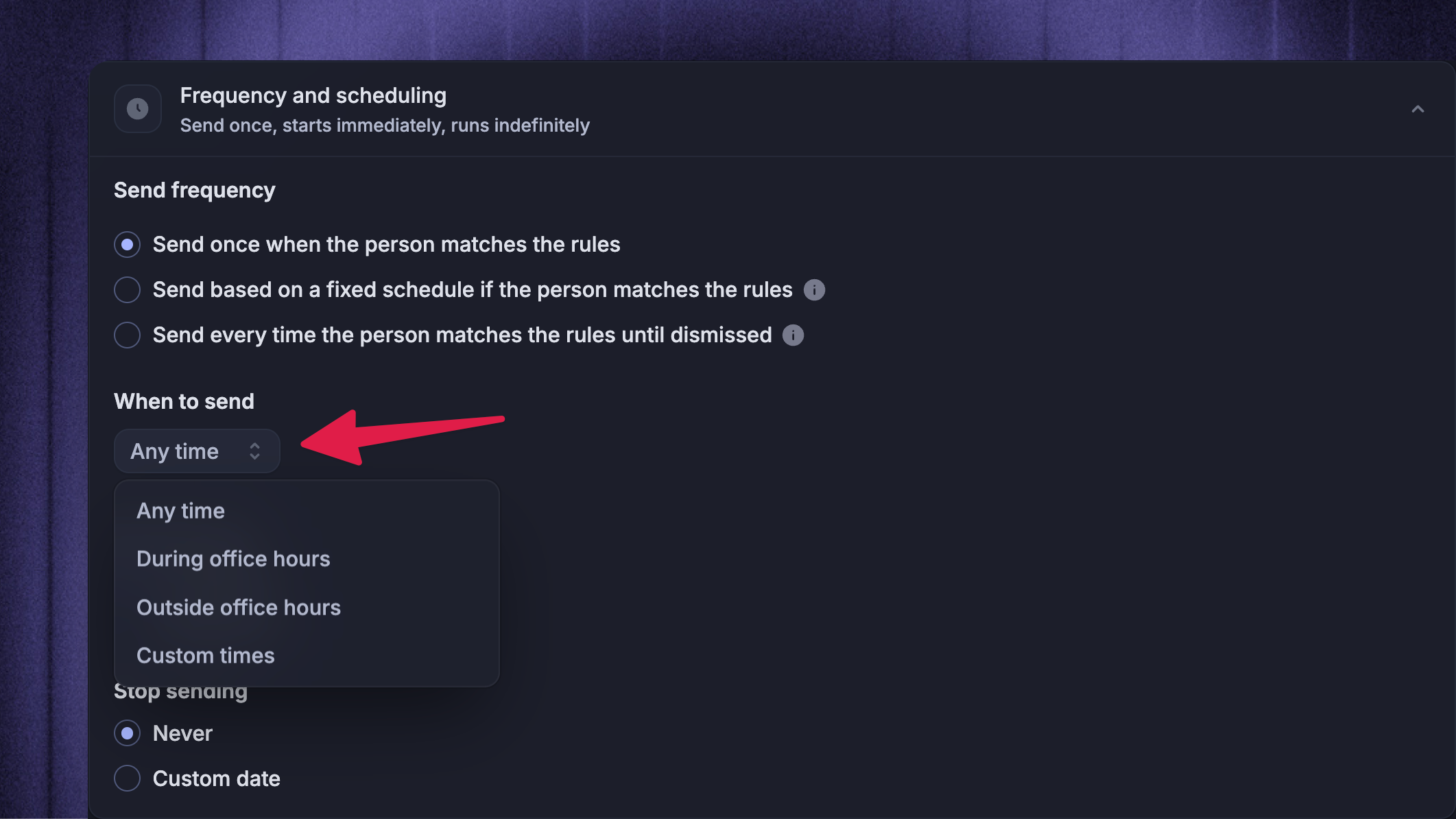
You can schedule messages to send only when your team is available to reply. This ensures users get a quick response, and no leads are left behind.
To configure it:
Open a message, or create one from New Message
Open Frequency and scheduling
Under ‘When to send’, choose one of the available delivery windows:
Any time - the message can run whenever the person matches your rules
During office hours - the message can run only during your workspace office hours
Outside office hours - the message can run only outside your workspace office hours
Custom times - the message can run only during the days and hours you choose
Where possible, we recommend scheduling your message to send during your office hours.
Note: If your workspace has no office hours configured, ‘During office hours’ messages will not send. ‘Outside office hours’ messages run without an office-hours restriction.
Scheduling a date and time for your message to go live
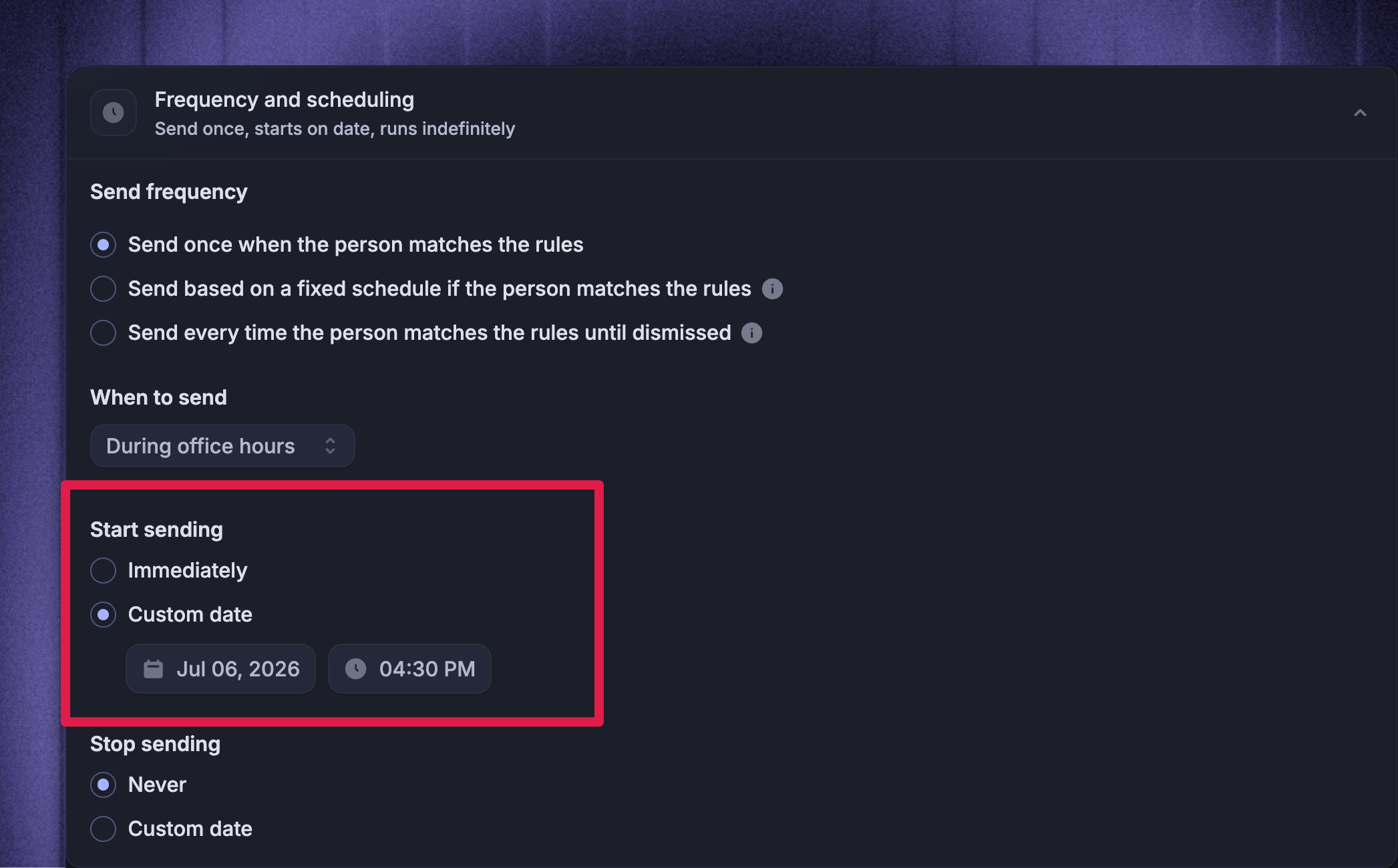
It's easy to schedule when your message should go live. Your message will begin sending at that time, assuming that customers match the other filters that you set. When creating a message, you will see the option to schedule a time for your message:
Immediately - the message can start as soon as you set it live
Custom date - the message starts at the date and time you choose
For Dynamic audiences, the message becomes live at the scheduled start date and can keep reaching people who match your rules. For Locked audiences, the message sends once to the people who matched when the message was activated.
Use Stop sending when a Dynamic message should stop automatically. Choose Never to keep the message running until you pause it, or Custom date to stop the message at a specific date and time.
Note: Live and paused messages keep their original start condition and start date. If you need a different start time, duplicate the message and schedule the new version.
Sending messages during specific times
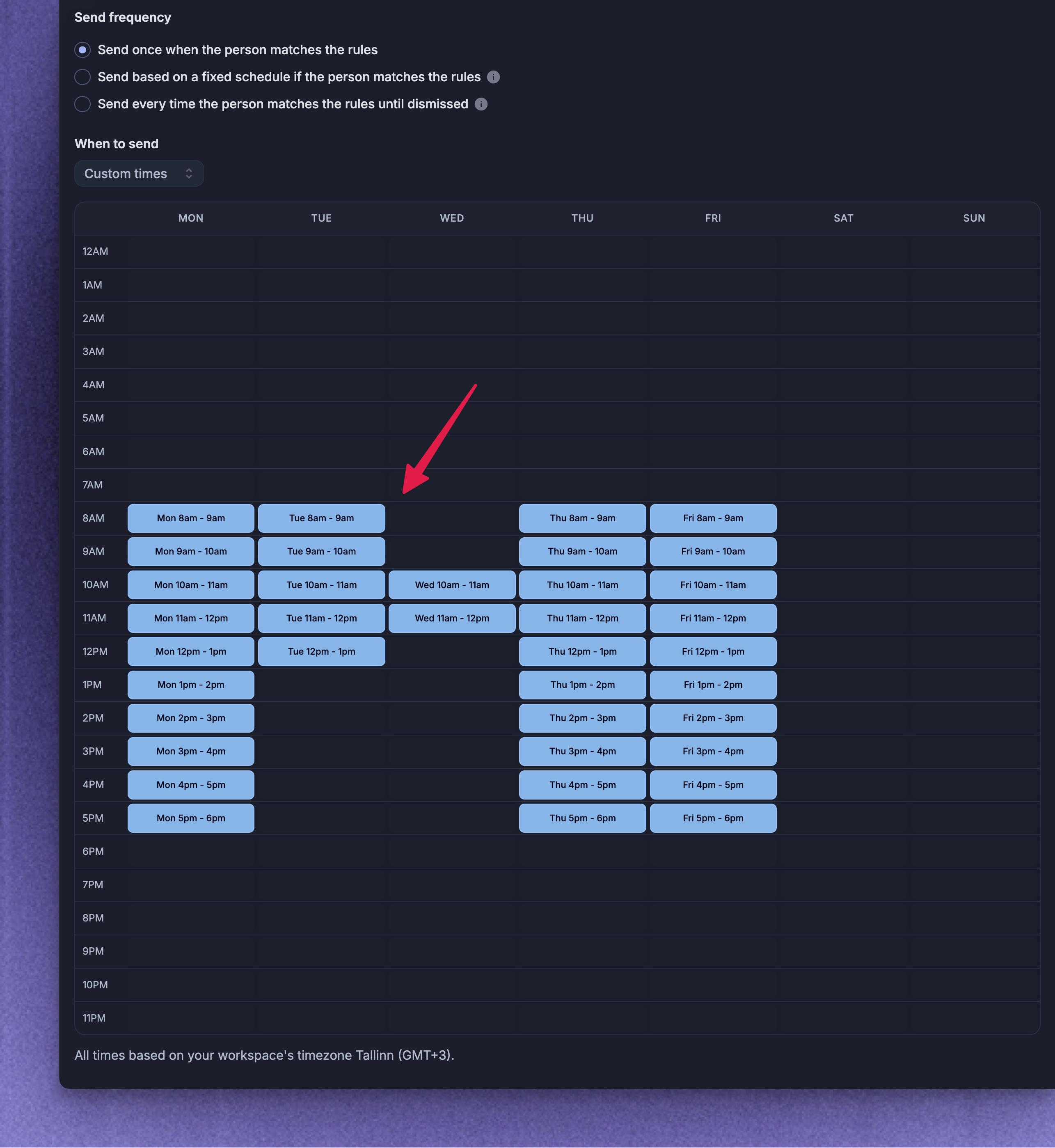
Use ‘Custom times’ when a message should run only on selected days and hours. For example, you can:
Send an onboarding Chat only Monday to Friday during your team's working hours
Show a Survey only during the day in your workspace timezone
Keep an Email from sending outside a specific weekly window
When you choose Custom times, Featurebase checks whether the current day and hour are inside one of the windows you selected. If the window is open, the message can be sent or appear for people who match your rules. If the window is closed, the message stays live but waits until the next matching window opens.
To use custom times:
Open Frequency and scheduling
Under When to send, choose Custom times
Select the days and hourly windows when the message is allowed to run
Save the message, then use Set live, Send now, or Schedule, depending on the message setup
Custom times only control the delivery window. A person still needs to match the message's audience rules, trigger rules, frequency settings, and message state before they can receive it.
Note: All scheduling times use your workspace timezone. If your browser timezone is different, Featurebase shows a warning in the editor so you know the selected dates and times use workspace time.
FAQs
Which timezone does Outbound scheduling use?
Which timezone does Outbound scheduling use?
Outbound scheduling uses your workspace timezone.
This applies to custom start dates, custom stop dates, recurring schedules, office-hours restrictions, and custom time windows.
Why did nobody receive my scheduled message?
Why did nobody receive my scheduled message?
Check the message state, schedule, and rules. A message will not send or appear if:
It is still Draft, Paused, Suspended, or scheduled for a future start date
The current date does not match its recurring schedule
It is outside the allowed delivery window
No one matches the audience rules
Chat, Banner, Survey, or automatic Product Tour trigger rules are not matched
A person has already reached the frequency limit or maximum send limit
Use Preview audience to check who matches your audience rules right now. Then review Frequency and scheduling to confirm the message is allowed to run.
Was this helpful?
Still need help? Ask the team