Create outbound Chat messages
Create targeted Outbound Chat messages to reach the right visitors and users with Messenger conversations.
Written By Markus Palm
Last updated 24 days ago
Overview
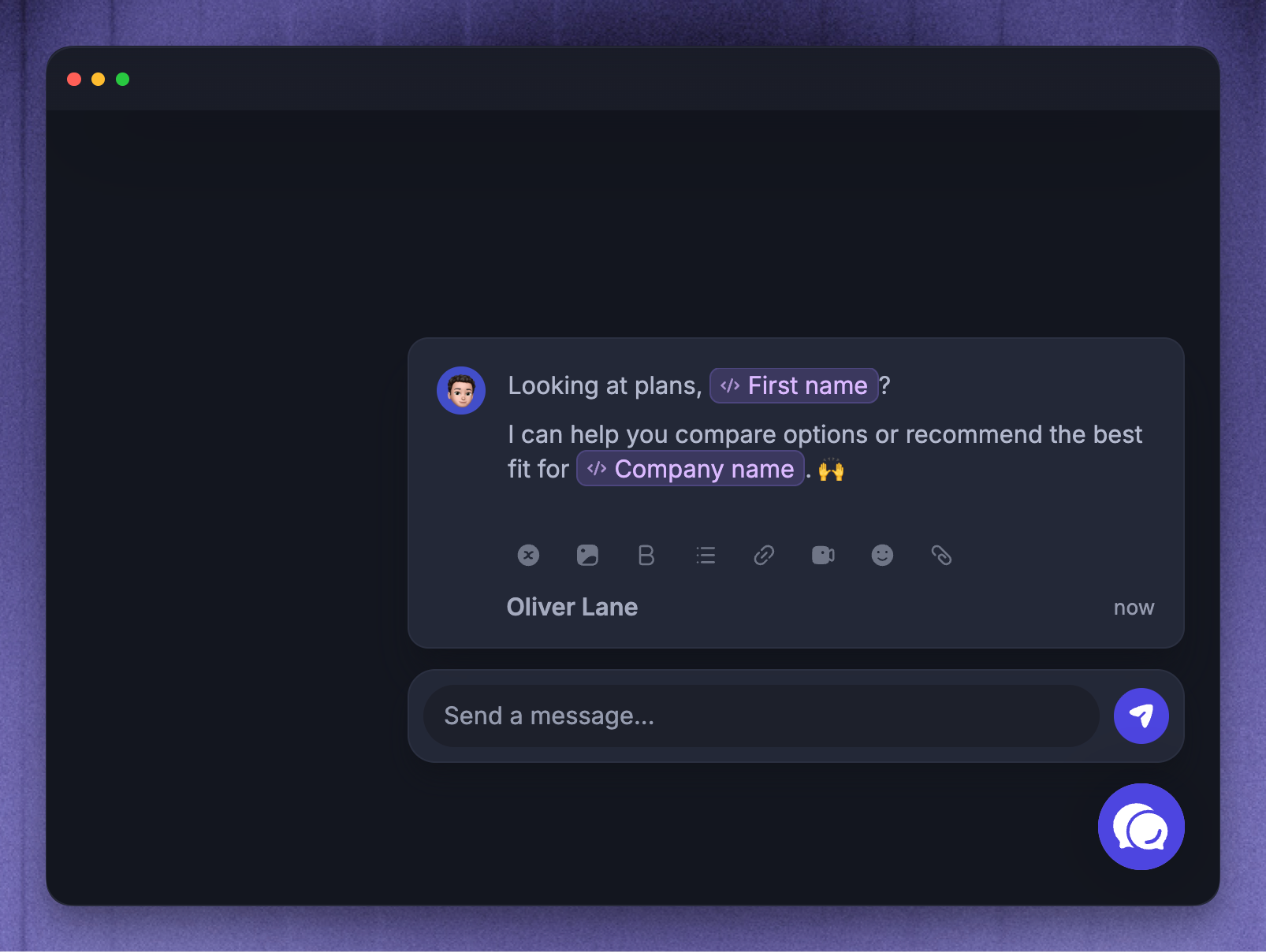
Outbound Chat messages let you start targeted Messenger conversations while people are using your website or app. Use them to offer onboarding help, answer pricing questions, guide customers through a feature, or route visitors to support at the right moment.
When someone matches your Chat rules, Featurebase creates an in-app Messenger conversation for them.
Common Chat use cases:
Welcome new users after they first open your product
Offer help on pricing, upgrade, or checkout pages
Prompt customers who spend time on a setup page
Let Fibi answer common questions before your team joins
Create a Chat message
To create a new Outbound Chat message:
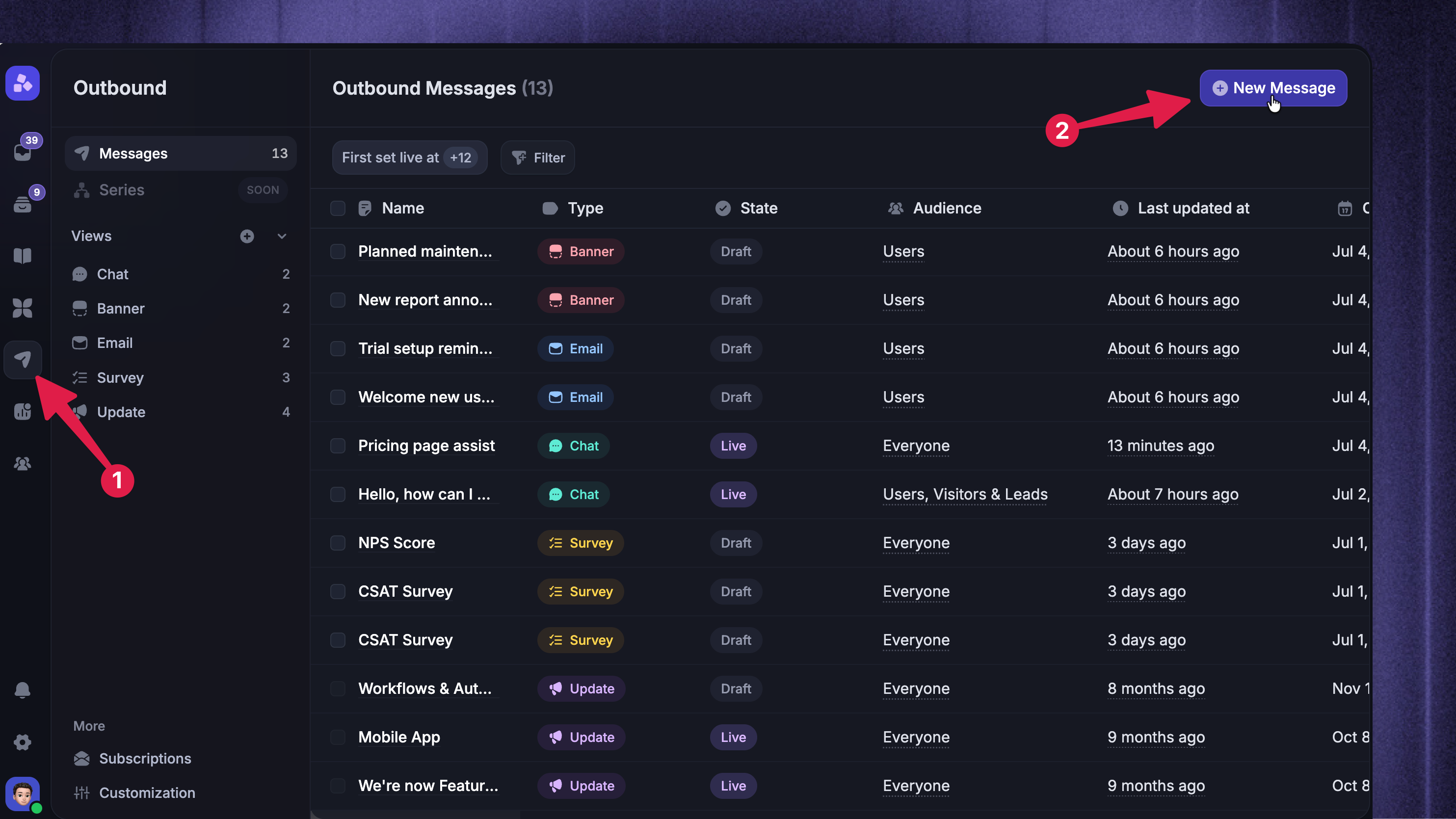
Go to Dashboard → Outbound
Click New Message
Select Chat
Choose Start from scratch or use a Chat template
Give the message an internal name in the header
Click Save at any time to save the message as a draft.
Tip: Browse templates in the left sidebar while creating a new message for quick starters covering common use cases like welcoming new users, offering help in customers' languages, or increasing newsletter subscriptions.
Configure the Content section
Use Content to write the Chat message and decide how it should appear in the Messenger.
Write the message
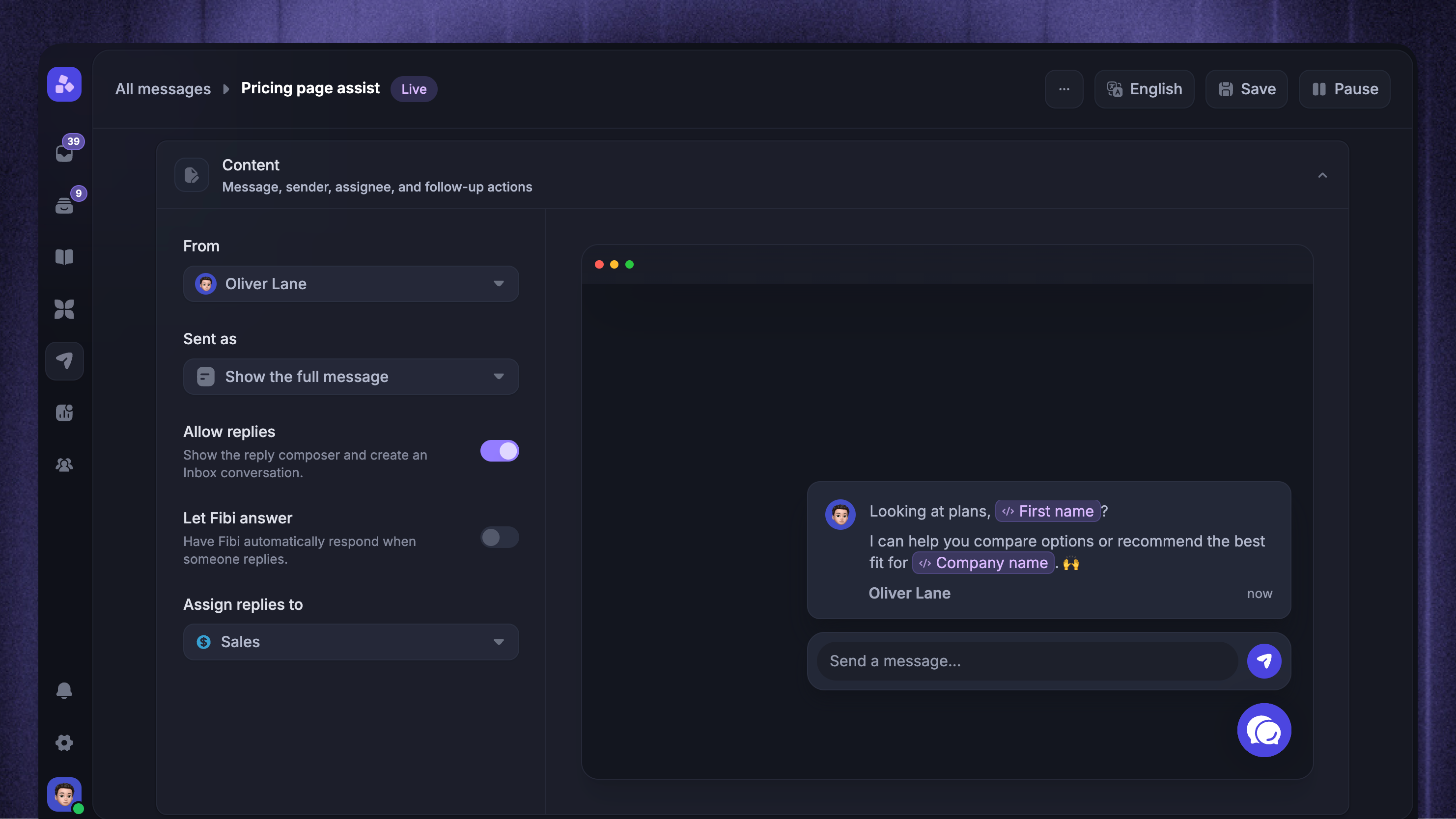
Write your message directly in the preview editor. You can format text, add links, and personalize the message with dynamic variables.
Chat content supports multiple languages. Featurebase shows users the correct translation based on their browser language.
Choose the sender
Use From to choose who the Chat appears to come from. You can send the message as:
A teammate
A team
Fibi
The selected sender is shown in the Messenger next to the message.
Choose how the Chat appears
Use Sent as to choose the display mode:
Badge - shows a badge on the Messenger launcher so the customer can open the message when they are ready
Show the full message - displays the full Chat message immediately
Use Show the full message for short, timely messages where you want the customer to notice the content right away. Use Badge when the message can be less interruptive.
Configure replies and routing
Use ‘Allow replies’ to control whether customers can reply from the Chat message.
When replies are allowed, you can also configure:
Let Fibi answer - lets Fibi automatically respond when someone replies
Assign replies to - routes replies to a teammate or team, or leaves them unassigned
If replies are turned off, the reply composer is hidden and the Chat works as a one-way message.
Configure Rules
To only send your outbound chat message to specific customers, you'll need to configure the Rules section below your message content:
Here, you can define:
When to send
Where to send
Audience
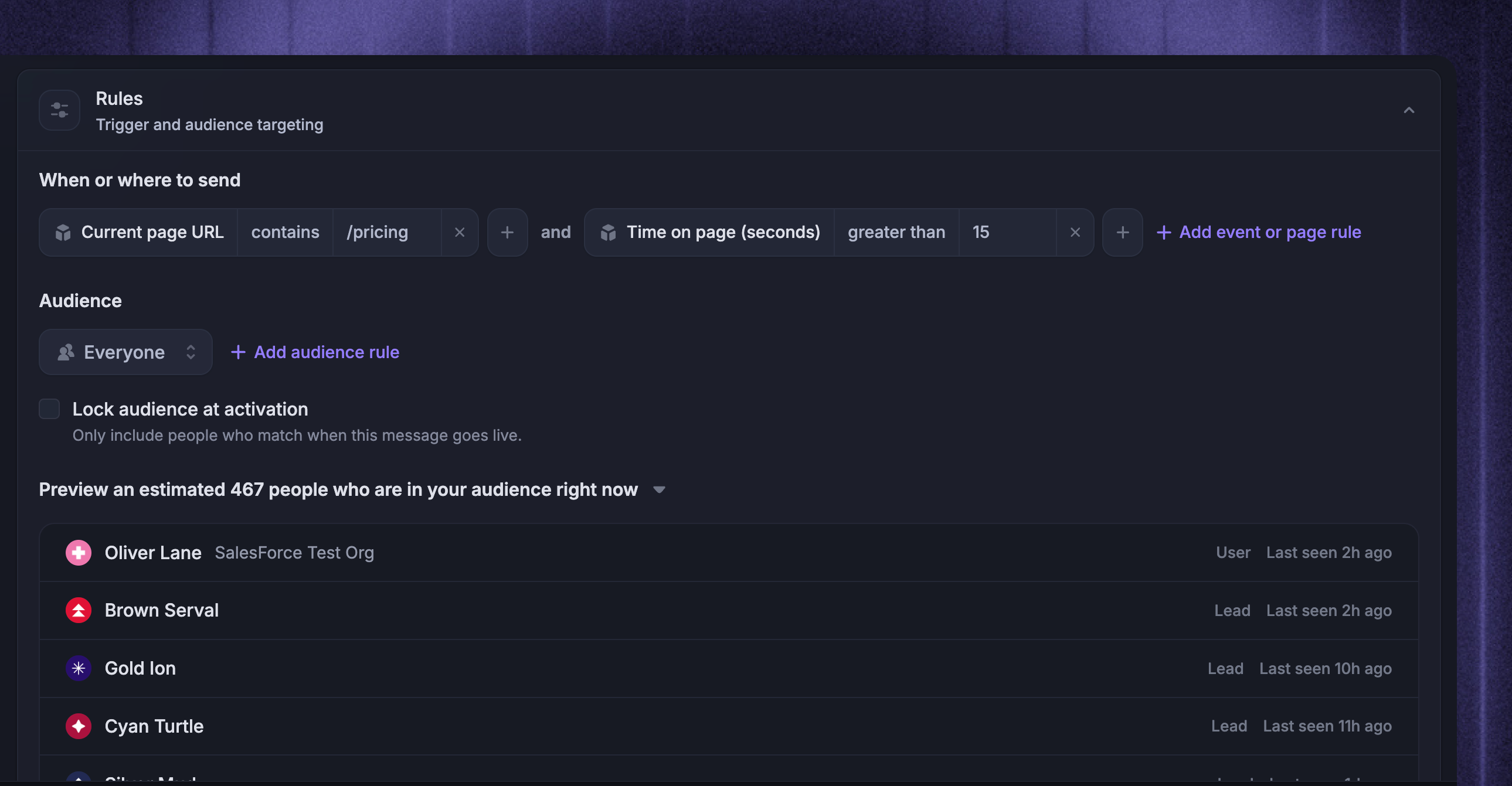
Tip: Use Preview audience to estimate who matches your current rules before you set the message live.
Configure Frequency and scheduling
Next, you can schedule your chat message to send at exactly the right time. There are 3 ways you can do this:
Set specific dates and times for your message to start and stop sending.
Schedule messages to send during or outside your office hours.
Set a custom delivery times during which your message will send.
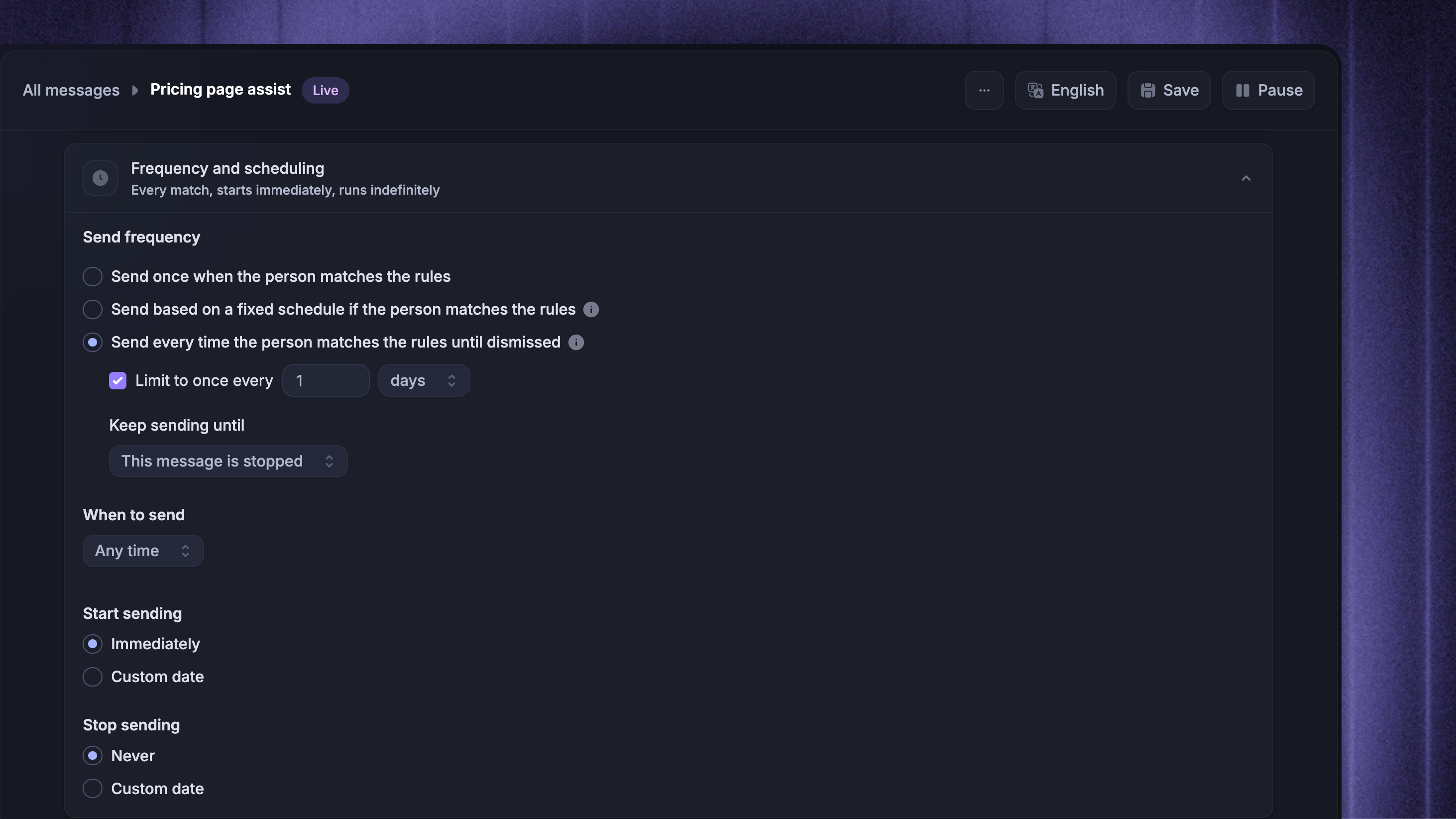
Note: If a user does not interact with an outbound chat, they will continue to see that chat when they move to different URLs.
Publish the Chat message
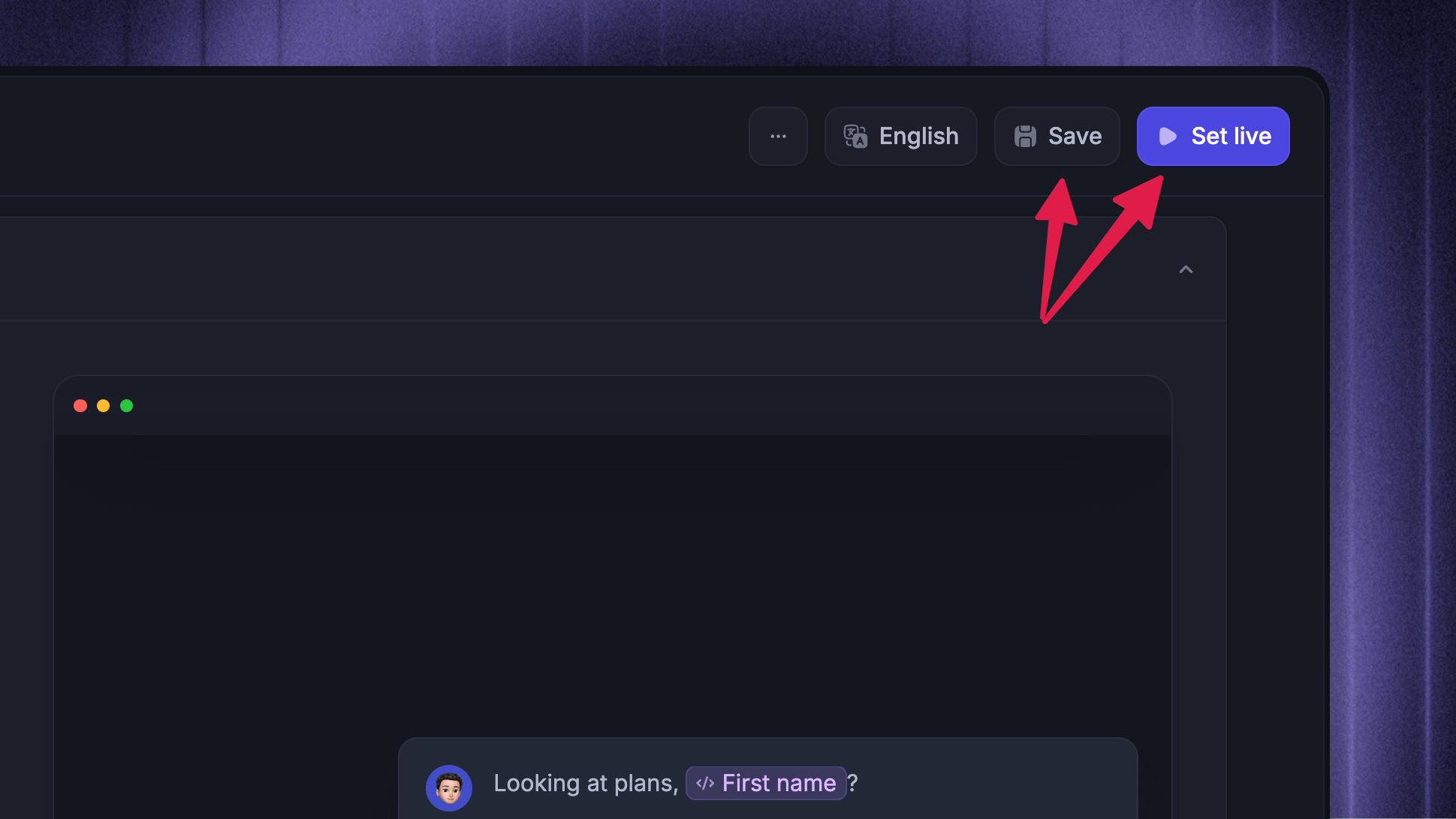
When the message content, rules, and schedule are ready, use the action button in the header (either one depending on your configurations):
Set live - activates a dynamic Chat message
Schedule - schedules the Chat for a custom start date
Send now - sends a Locked-audience Chat immediately
After publishing your Message, you can pause or unschedule it at any time.
How Chat delivery works
When a matching person receives the Chat, Featurebase creates a Messenger conversation with the message content, sender, display mode, and routing settings you configured.
If Allow replies is on, the customer can reply from the Messenger. Their reply is tracked as Replied and the conversation becomes available for your team to handle in the Inbox.
If Let Fibi answer is on, Fibi can respond automatically when the customer replies. If you also assign replies to a teammate or team, they remain responsible for the conversation when human follow-up is needed.
Use Outbound analytics to review Chat performance and individual recipients' activity.
FAQs
Can I retract a Chat message that a user has already received?
Can I retract a Chat message that a user has already received?
Once a user receives the message, it will be available indefinitely in their "Messages" tab in the Messenger.
There isn't a way to retract the message for a user, but you can delete the message in Featurebase and this will remove it from the Messenger for all users who received it.
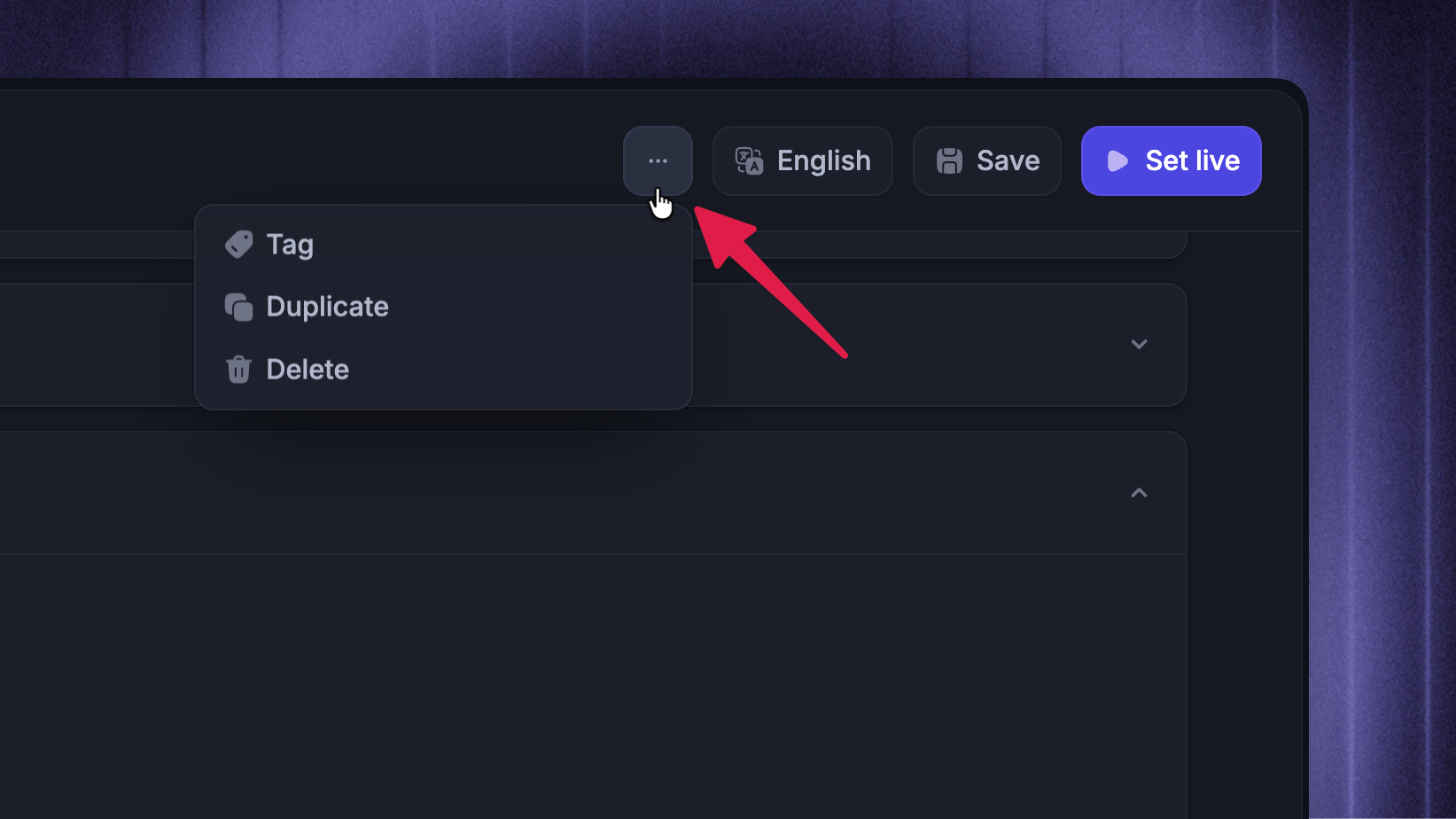
To delete a message, open the message, click the three dots, and click Delete:
Can I send a Chat without allowing replies?
Can I send a Chat without allowing replies?
For Chat messages, yes. In the Chat message content settings, turn off Allow replies.
To turn off replies:
Go to Dashboard → Outbound
Open the Chat message
In Content, turn off Allow replies
Save your changes
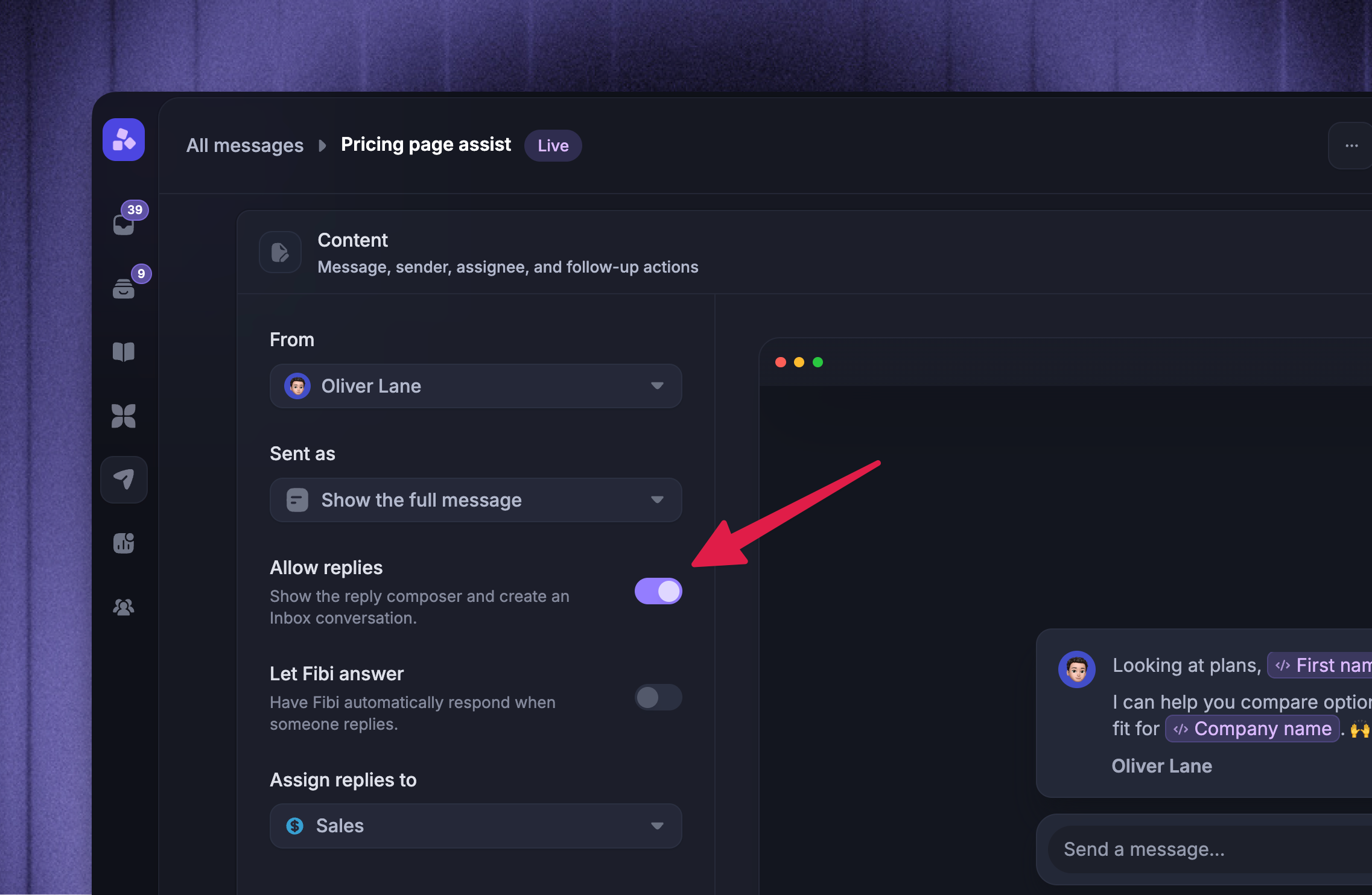
When replies are off, the Chat message does not show the reply composer to the recipient. When replies are on, you can assign replies to a teammate or team, or let Fibi answer when someone replies.
Can the same person receive a Chat more than once?
Can the same person receive a Chat more than once?
It depends on the Frequency and scheduling settings. A Chat can send once, on a recurring schedule, or every time someone matches the rules until the configured limits stop it.
What happens if I edit a live Chat?
What happens if I edit a live Chat?
Saved edits apply to future deliveries. People who already received the Chat keep the conversation content that was delivered at the time.
Can I change a Locked audience after sending?
Can I change a Locked audience after sending?
No. A Locked audience is locked when the message is activated. If you need a different audience, duplicate the Chat, adjust the rules, and send the new version.
Was this helpful?
Still need help? Ask the team