Assigning conversations to teammates and teams
Assign specific conversations to teammates or teams in the Inbox.
Written By Markus Palm
Last updated 5 days ago
Overview
If you want to make sure a conversation gets answered by the right person in your company, you should assign it to a particular teammate or team. You can assign Conversations in the following ways:
Manually assign conversations to a team and teammate
Automatically assign conversations to a team or teammate with Workflows
Assign Conversations to a teammate or team when sending a Macro
Manually assign conversations
When you need to pass a conversation to someone else you can quickly manually assign the conversation to the best teammate or team who can answer it:
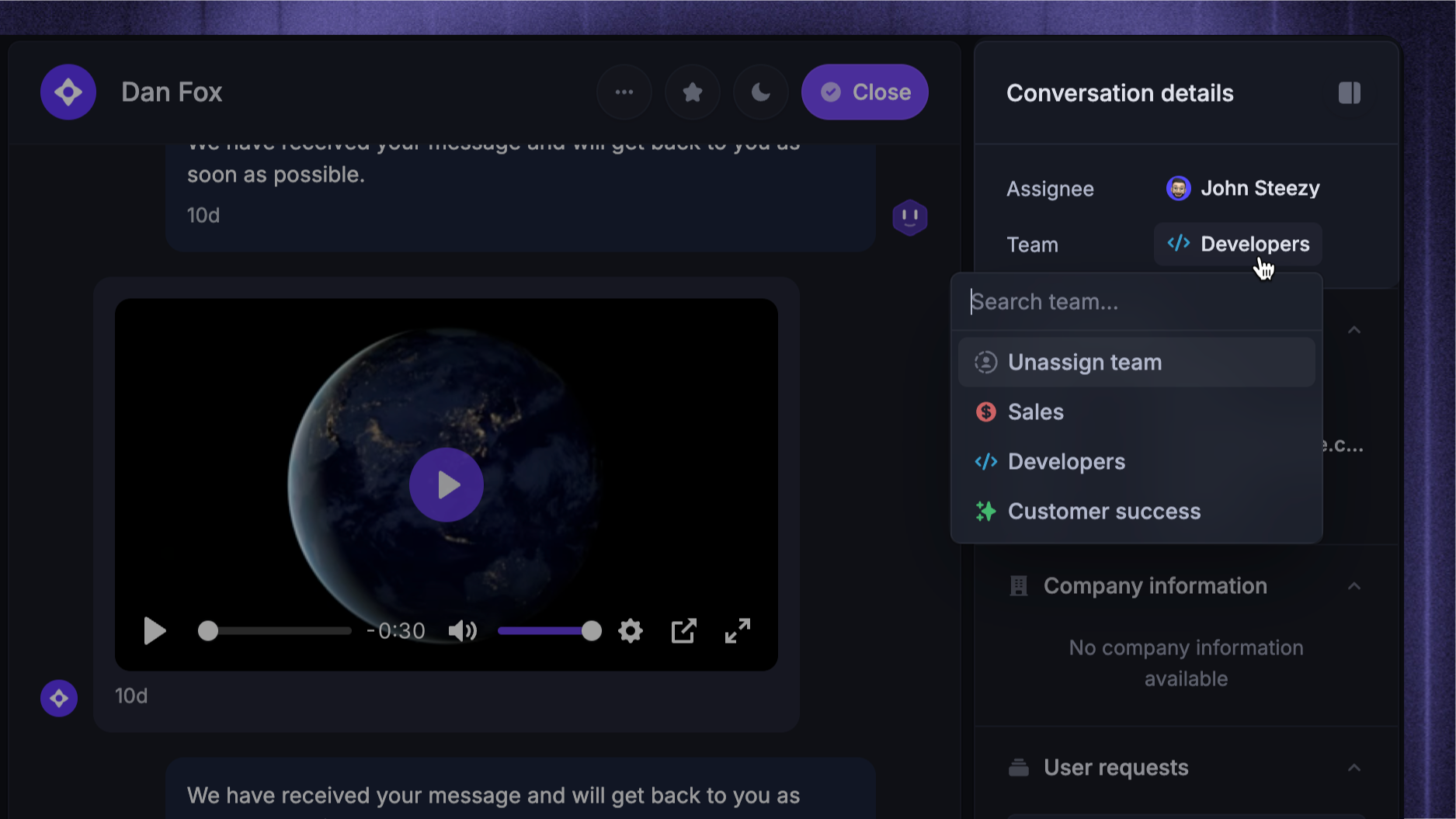
In the Inbox, open the Conversation details panel
Click the Assignee or Team option at the top
Choose the right teammate or team
And you’re done – now the conversation is visible in your teammate’s or team’s inbox view!
Note: Lite seat teammates cannot be assigned conversations. To give them access, add an internal note and @mention them instead.
Assign conversations in bulk
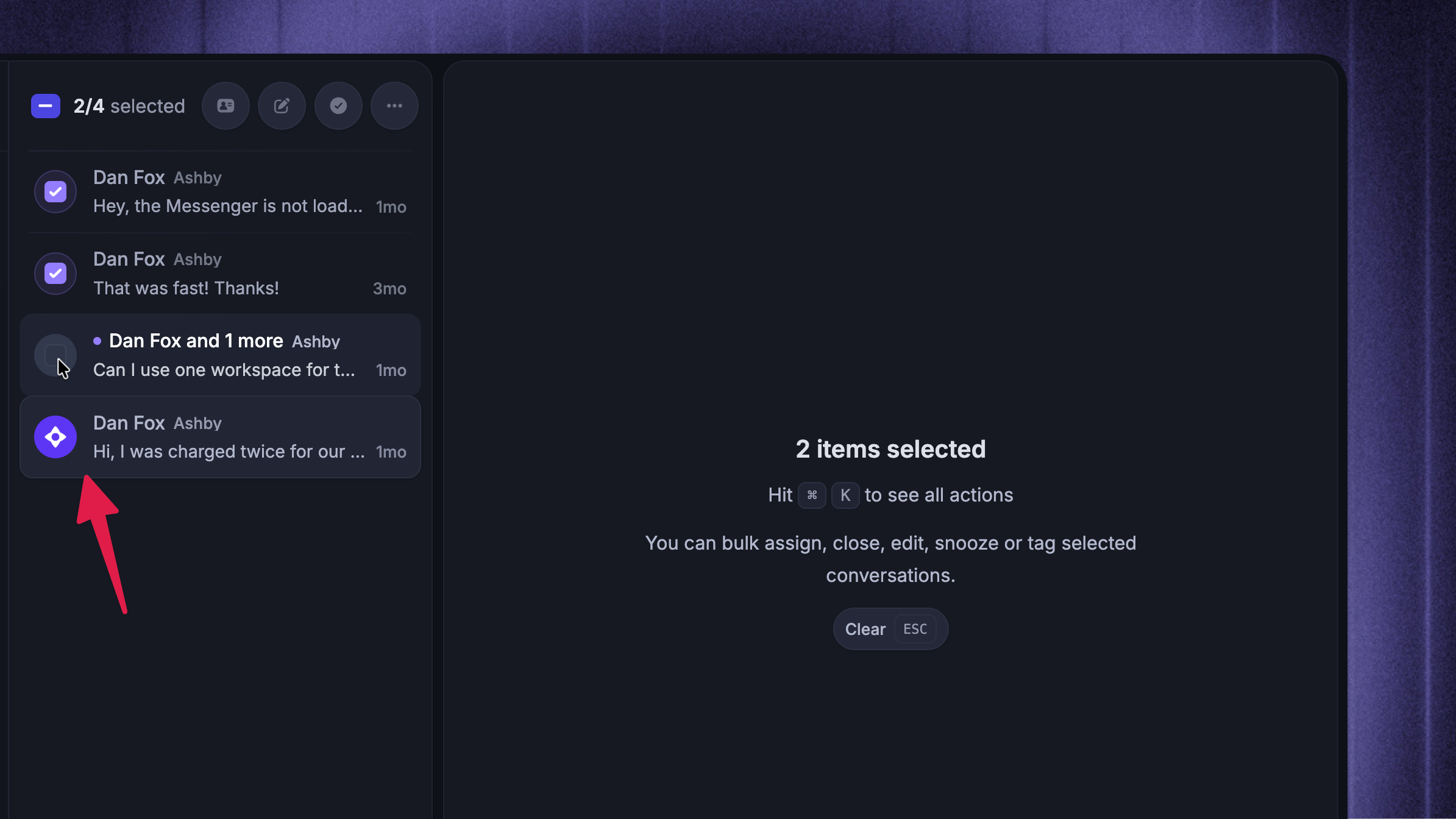
You can also assign several conversations at once. Select the conversations using their checkboxes, press ⌘/Ctrl K, and choose Assign.
You can assign them to yourself, another teammate, or a team, or set them back to Unassigned. Assigning conversations to a team removes any individual assignee.
Automatically assign conversations
Conversations can also be assigned automatically using Workflows:
Go to Automations → Workflows
Click + New Workflow in the top-right corner and select Start from scratch
The best triggers to use for this kind of Workflow are:
Customer opens a new conversation in the Messenger
Customer sends their first message
Customer sends any message
Use the ‘Apply rules’ block to automatically decide which conversations should be assigned to which team or teammate based on rules
Rules can be based on the content of the messages, conversation attributes, how long a customer has been waiting and/or any information about the lead, user or company that you track in Featurebase.
For example, if Plan is
Starterand Message Content containsupgrade, then Assign toCustomer Success
You can then click Save and close and set your Workflow live
Workflows can also automatically tag conversations, mark them as priority, or set conversation attributes & SLA rules.
FAQ
How to see who a conversation is assigned to?
How to see who a conversation is assigned to?
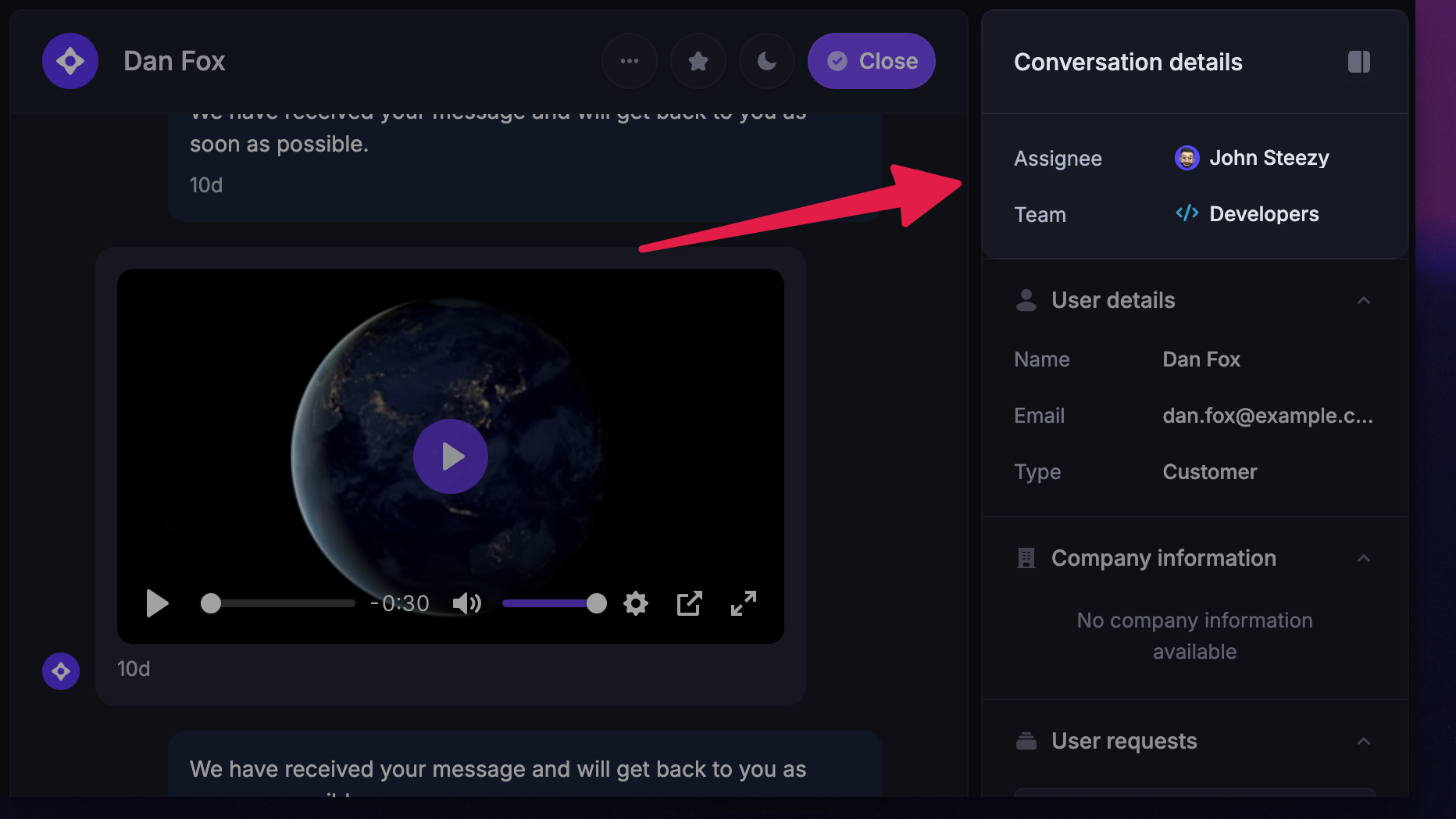
You can view which teammate and team inbox a conversation is assigned to under the Conversation details section, which is permanently placed at the top right when using the Inbox:
How do I download a transcript of a conversation?
How do I download a transcript of a conversation?
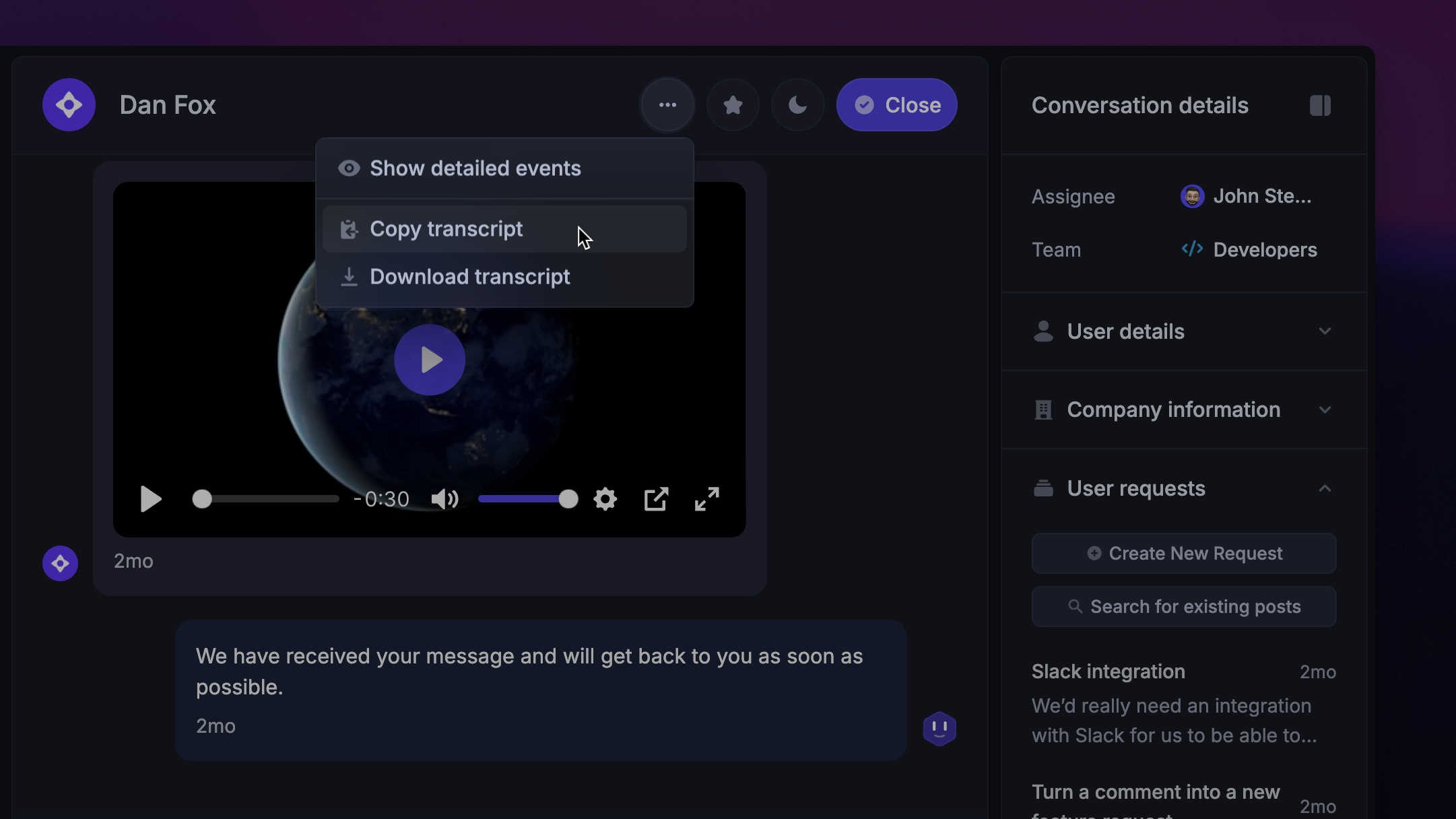
If you need to share a conversation, feed it to external AI, or keep a record of it, you can easily copy or download its transcript as a .txt file.
Just go to a conversation and click the three dots to see options, then click “Copy transcript or “Export transcript”:
What’s included in the transcript?
All replies in the conversation
The timestamps of every reply
The date and time the conversation was created (in your workspace’s timezone)
AI agent’s replies
The customer and teammate’s names
What’s not included?
The different states of the conversations (snoozed, unsnoozed, closed)
Internal notes
How and when the conversation was assigned
CC/BCC
Images
Attachments
GIFs
Articles
Images, attachment, GIFs, articles and apps will be labelled as text in the file, like [GIF] and [Article - article name], for example.
Where do conversations appear?
Where do conversations appear?
Regardless of the assigned state - all conversations appear in All messages
No assignee + no team → Unassigned inbox
No assignee + team → Team inbox
If both are set, the last action wins:
Team set last → shows in Team inbox and assignee is cleared
Assignee set last → shows in All messages, not in Team inbox (team stays set)
Was this helpful?
Still need help? Ask the team