Troubleshooting Product Tours
Fix builder connection problems, missing tours, incorrect targets, and steps that do not continue.
Written By Markus Palm
Last updated About 6 hours ago
Overview
Use this guide when the builder does not open, a tour does not appear, or a tooltip cannot find the right element.
Start by checking where the problem occurs: in the builder, during automatic delivery, from a shared link, or at a particular step. For a live tour, open Dashboard → Outbound → your tour → Analytics and review Issues for the affected step and page.
The builder does not open or connect
Check these in order:
Confirm that the Messenger is installed on the exact page you are opening, including pages behind sign-in
Check that the website's installation uses the same Featurebase workspace as the tour
Allow the builder window to open and keep the dashboard tab open
Sign in to your product in the builder window and return to the page where you want to build
Check the connection message in the dashboard, then use its retry or reopen action
If the problem remains, ask your developer to check whether the browser blocks the Messenger from loading. Include the exact dashboard message when you contact support.
The builder disconnects after navigation
Check that the new page also runs the Messenger for the same workspace. If you moved to a page where the builder cannot run, go back or reopen the builder from the dashboard.
If the connection drops on every page change, ask your developer whether the site clears session storage during navigation. This can remove the builder's saved connection details.
Builder changes do not appear in the dashboard
Click 'Save' in the builder, then check the dashboard. If a review panel appears, click 'Apply changes' and save the tour there. Keep the builder window open until the dashboard confirms the changes.
The tour does not appear
Automatic display
Check these settings and conditions:
State - The tour is live and Show your tour automatically is on
Audience - The test user matches the audience rules and has the required attributes
Page triggers - The current URL, time on page, and element conditions match
First tooltip - Preview the tour on the target page and check that the first tooltip's element is present and visible
Frequency and schedule - The start date has arrived, the send window permits delivery, and no repeat wait or send limit blocks it
Previous views - A Send once tour does not start again after the first view, even if the person closed it early
Other tours - Another tour is not already running. If several eligible tours match, the most recently updated one takes priority
Device and installation - You are testing in a desktop browser with the Messenger installed for the correct workspace
Test in a normal product window. Automatic tours do not run in the builder window.
Use 'Preview audience' to check the audience, then test the actual page. An audience match alone does not confirm delivery. The targeting guide explains how these checks combine.
Shared links or app buttons
Check that Start your tour from anywhere is on and the tour has been set live. Confirm that its stop date has not passed.
Open the link with a customer test account and check that:
The URL reaches the correct product page
Sign-in or other redirects preserve the tour link
The customer has access to the page and its controls
The Messenger runs there for the same workspace
A tooltip points to the wrong element
A tooltip uses a CSS selector to identify its target on the page. A selector can break when your website changes or match the wrong control when several elements share the same classes.
Select the element again
Open the affected step in the builder
Go to the correct page and open any menu needed to reveal the element
Click 'Choose element' and select the intended control
Click 'Done', then preview the tour from the preceding step
Save the builder changes and apply them in the dashboard if prompted
Test with the same role and account state as the affected customer. An element visible to an admin may be absent for another role.
Edit the CSS selector
If selecting the element again does not give a reliable result:
Open the tooltip's Advanced controls
Edit CSS selector of the element
Check the validation message beneath the field
Click 'Use this selector', then finish and preview the step
Aim for One element matches. If several elements match, the tour uses the first visible one, which may vary across pages. A hidden match is not enough; the customer must be able to see the intended target.
Use a stable target
Ask your developer to add a unique data-featurebase-target attribute to an important element:
<button data-featurebase-target="create-project">Create project</button>
Then select the button again, or use this selector in the step's Advanced controls:
[data-featurebase-target="create-project"]
Keep the value stable across releases and accounts. Avoid targets based on a generated class name, a customer-specific URL, or the item's position in a changing list.
The tour stops between steps or pages
Test the transition from the last working step:
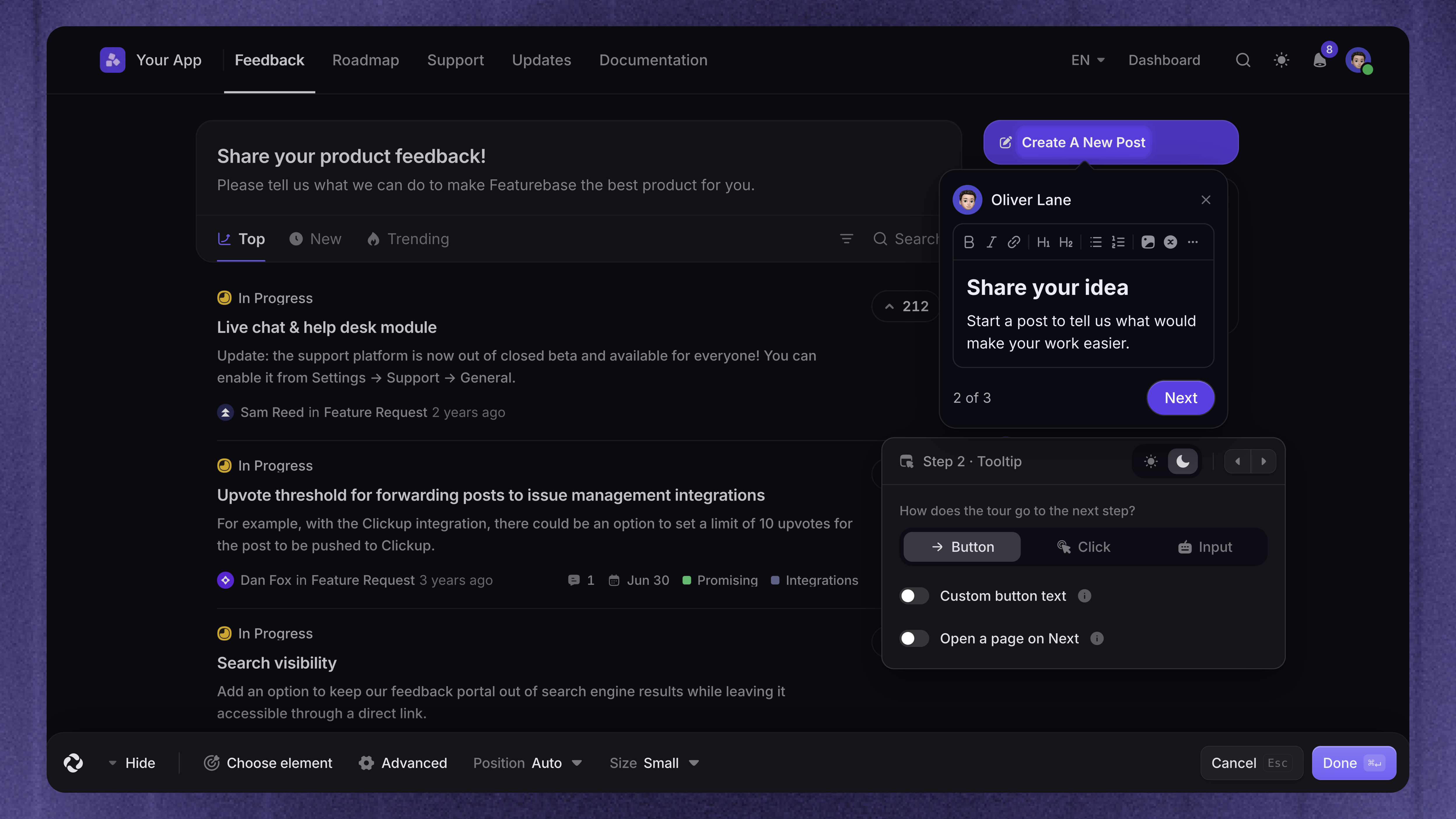
Check its progression mode. A menu or link that must be clicked needs Click, unless you use Open a page on Next instead
Follow the action as the customer would, without manually opening extra menus
Confirm that the next page has the Messenger installed and the customer can access it
Check that the next target exists and is visible in that page state
Preview the complete tour again after the fix
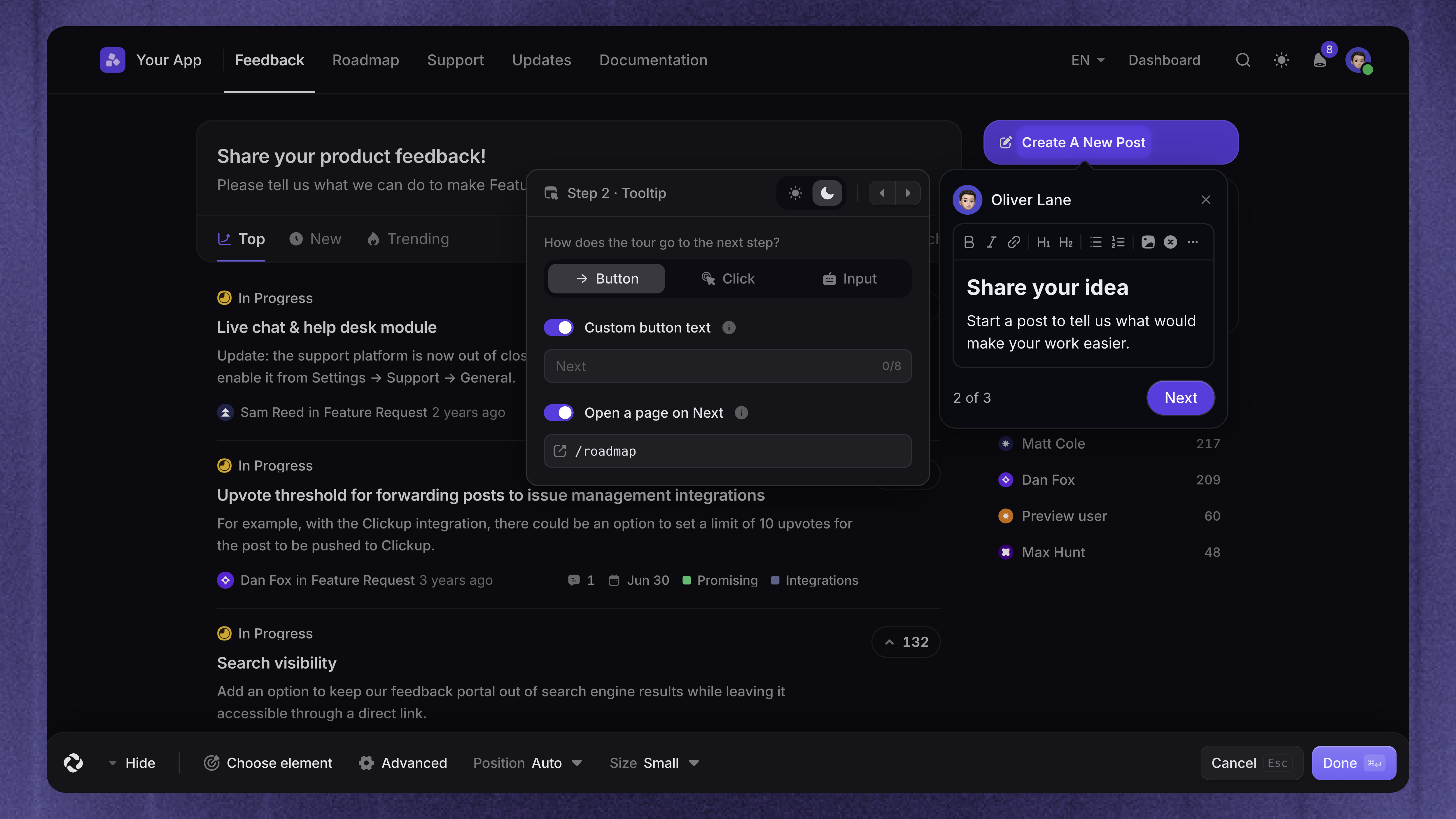
If an Input step does not allow Next, check the selected target. Selecting a container with several fields can require several values. Select the individual field when that is the intended task.
Find and verify a fix from Issues
In the tour's Analytics → Issues, use What happened, Target not found, and Page to identify the failing step. Count and Last seen help you judge whether the problem is still occurring.
A missing target can cause a tooltip to appear centered instead of pointing to the page. This does not mean its selector is correct. Check and repair the target even if the customer can continue.
After saving a fix, test the affected route and review a recent date range. Old issue records remain in analytics, so check whether new instances appear after the change.
Still need help?
Send support enough context to reproduce the problem:
The tour name and dashboard link
The affected step and page URL
Whether the problem occurs in preview, automatic delivery, or a shared start
The test account's role and relevant page state
The exact builder message or issue shown in analytics
A screenshot or short recording of the behavior
Contact us through the Messenger or email support@featurebase.app.
Was this helpful?
Still need help? Ask the team