Sharing Product Tours
Share tour links in messages and guides, or start a tour from a button in your app.
Written By Markus Palm
Last updated About 6 hours ago
Overview
Share a Product Tour when a customer needs help with a specific task. A link can take them from an email, support reply, or Help Center article to the tour in your product.
Sharing works separately from automatic targeting. You can offer a tour on demand without making it appear automatically.
Create a share link
Before sharing, build and test the tour. The page you share must have the Featurebase Messenger installed for the same workspace.
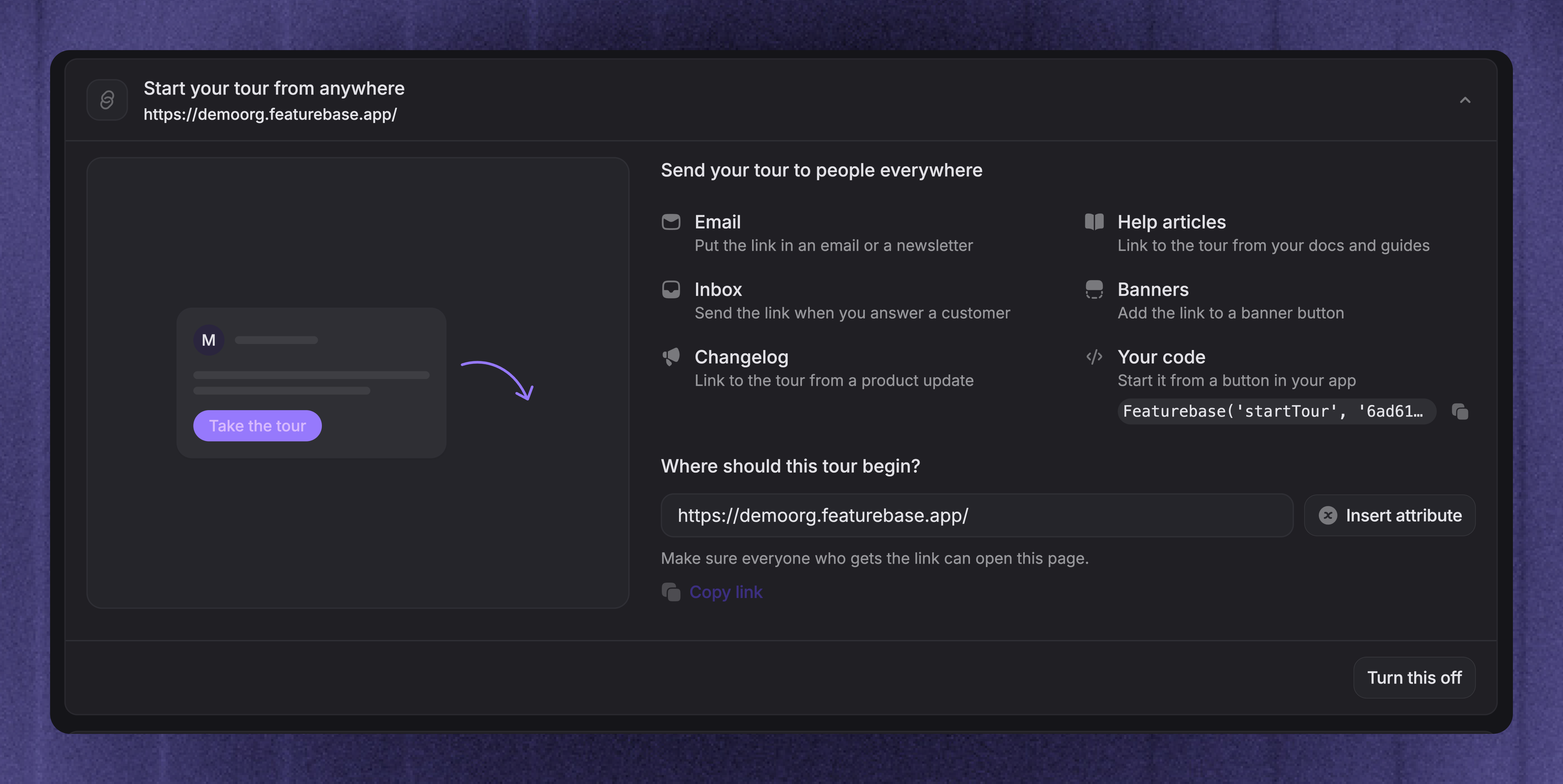
Open your tour from Dashboard → Outbound
Turn on Start your tour from anywhere
Under Where should this tour begin?, enter the full URL of the page where customers should start
Save and set the tour live
Return to the sharing section and click 'Copy link'
Choose a page that the intended customers can open. Avoid a URL that belongs only to your account or points to a staging environment. Customers may need to sign in to your product before they can reach it.
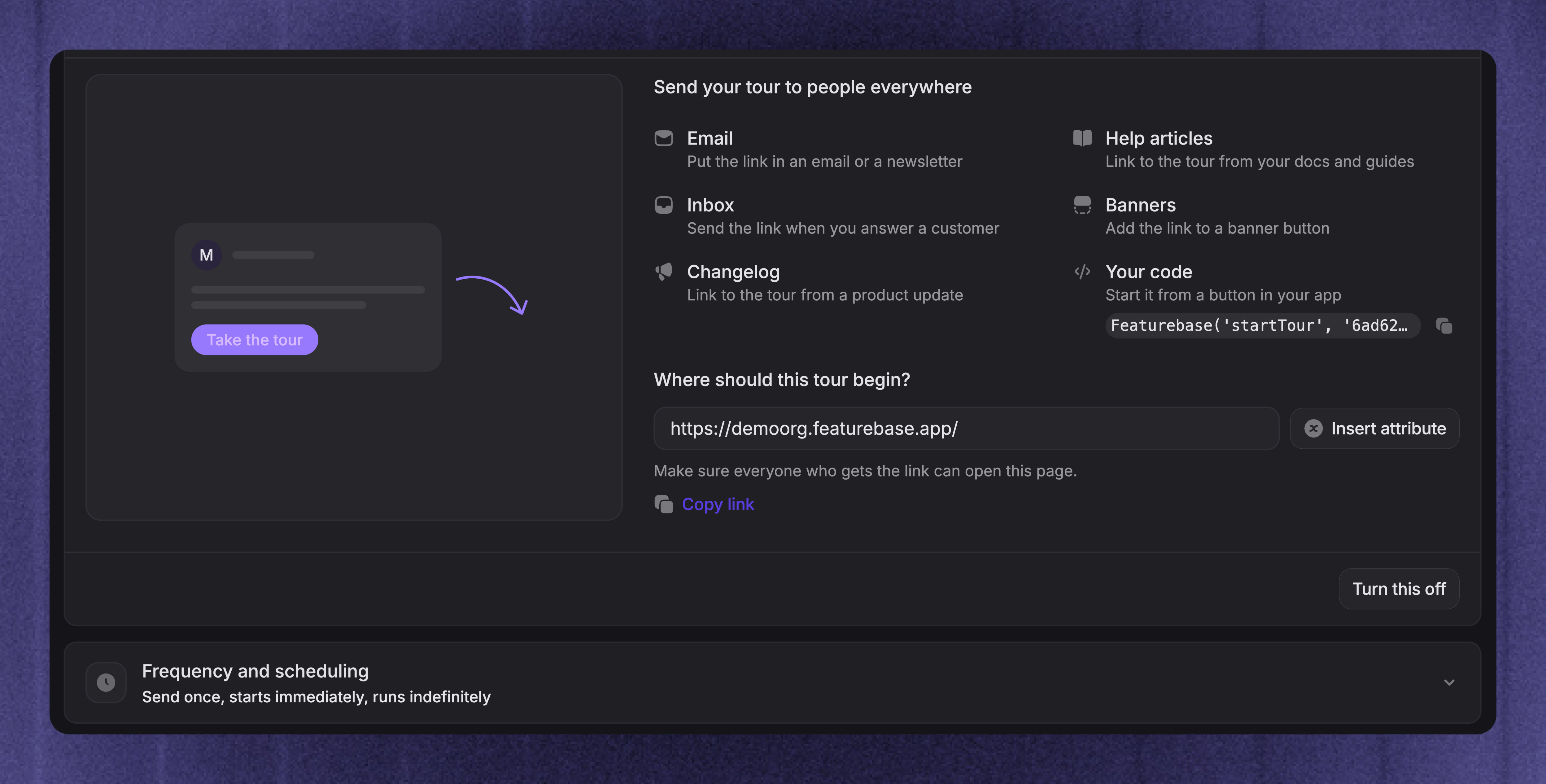
A tour that is still a draft cannot be shared with customers. Use the preview to review it before launch.
Important: Shared tours bypass automatic audience rules and repeat limits. Share the link only in contexts where the tour is relevant, and use your product's own permissions to control access to its pages.
Use a customer-specific start URL
If the page URL contains a customer or company ID, click 'Insert attribute' to add a value you track in Featurebase. This lets a Workflow tour card open the relevant page for that customer. Make sure the attribute is available for everyone who receives the tour.
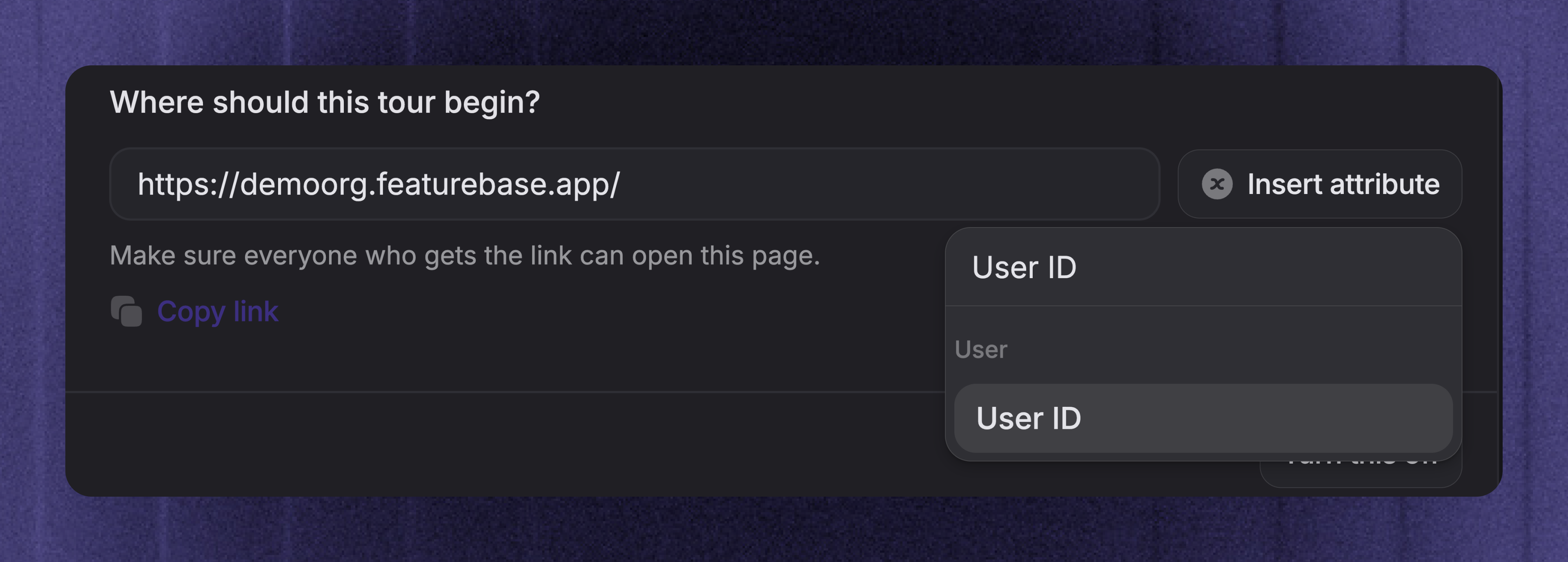
Before sending a copied link, replace any remaining {{...}} placeholders with the recipient's actual values. A link pasted into another tool must already point to a page the customer can open.
Share the tour with customers
Use the copied URL as a normal link:
Support replies - Send it when a customer asks how to complete a task
Emails - Link from an onboarding email or feature announcement
Help Center articles - Put it beside instructions that customers can follow in your app
Banners - Use it as the destination for a button that offers a walkthrough
Updates - Let customers try the feature described in a product update
Give the link a clear action label, such as Create your first project or Show me the new reports. The tour runs on your website; it does not play inside the email or article.
Test the link with a customer test account. Check sign-in redirects, page access, and the first tooltip's target before you send it more widely.
Start a tour from your app
Add a button or help link inside your product so customers can start a tour when they need it. Copy the tour's code from Your code and give it to your developer to connect to the button using your existing Featurebase installation.
Keep sharing enabled and the Messenger installed for the same workspace. Test the button from the pages where customers will use it.
Send a tour from a Workflow
The Send a product tour action lets a Workflow send a tour card in the web Messenger. Choose a live tour with sharing enabled. The card shows the tour's name and a 'View tour' button, so use a name that makes sense to customers.
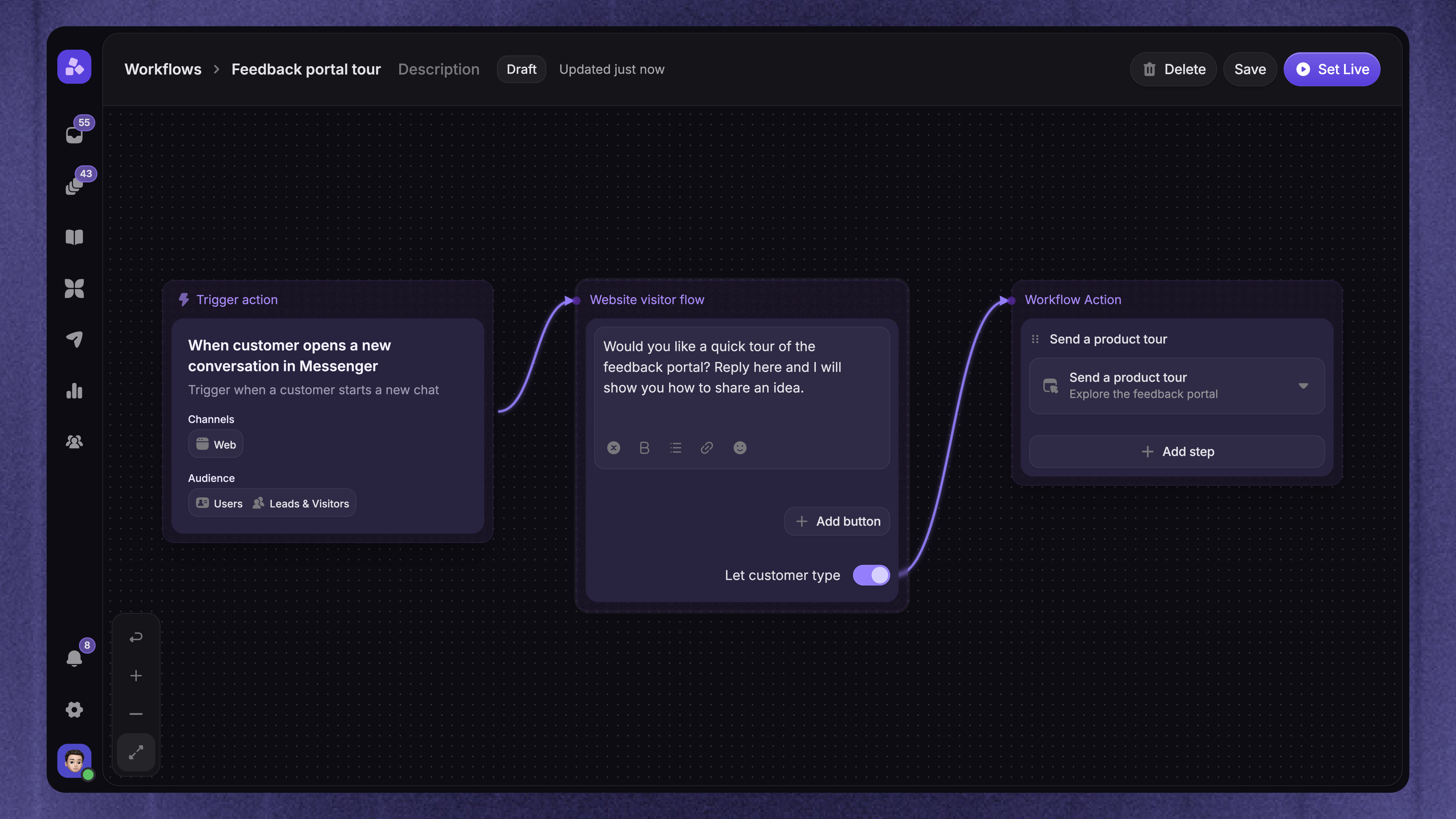
Use this for a support or onboarding flow where the customer has already chosen what they need help with. Tour cards are for the web Messenger; they are not sent through email or native mobile channels.
FAQ
Does pausing a tour disable its shared link?
Does pausing a tour disable its shared link?
Was this helpful?
Still need help? Ask the team