Product Tour best practices
Create focused tours that help customers complete useful tasks in your product.
Written By Markus Palm
Last updated About 6 hours ago
Overview
A useful Product Tour helps a customer reach one clear outcome. Keep the steps short, show them at the right moment, and make each action easy to follow.
Use a tour for a task customers can finish in a few minutes inside your product. For longer tasks or work in another tool, use a Help Center article and link to it from a message.
Choose one useful outcome
Decide what the customer should be able to do after the tour. Create your first project gives you a clearer scope than Learn everything about the dashboard.
Keep only the steps needed for that outcome. A feature that is useful later can have its own tour on the relevant page.
Use the opening message to explain the result. For example: Create a project and invite your team so you can start working together.
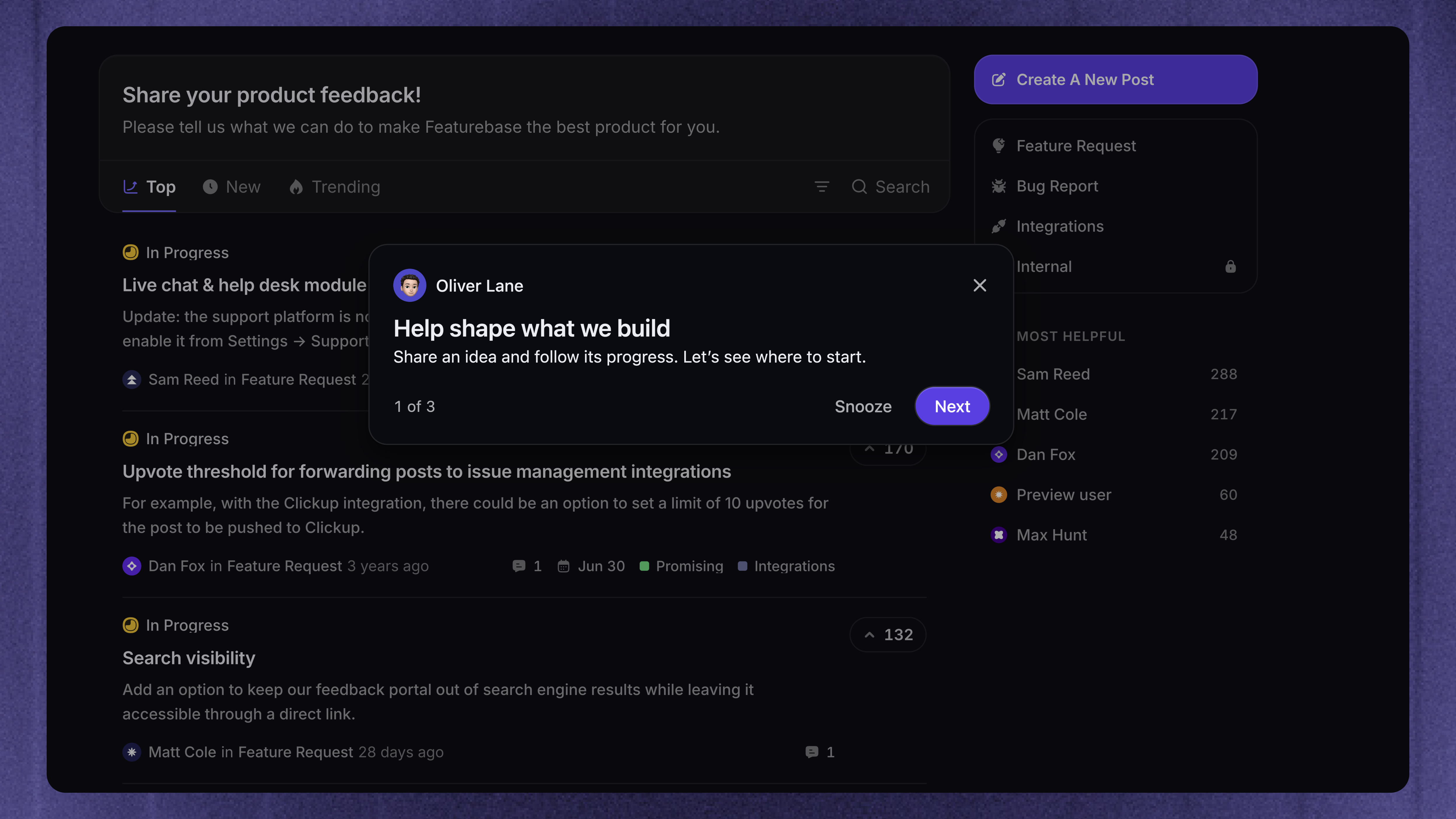
Give the tour a short, customer-facing name that matches that result. Workflow cards show the name, so avoid internal labels such as Draft or Do not delete.
Write short, clear steps
Each step should explain one thing or request one action. Aim for one or two short sentences that add information beyond the text already visible in your interface.
For example:
Explanation - Projects keep related work together.
Action - Click Create project to add your first one.
Name the control instead of using directions such as above, on the left, or an arrow emoji. Tooltip positions can change with the available space.
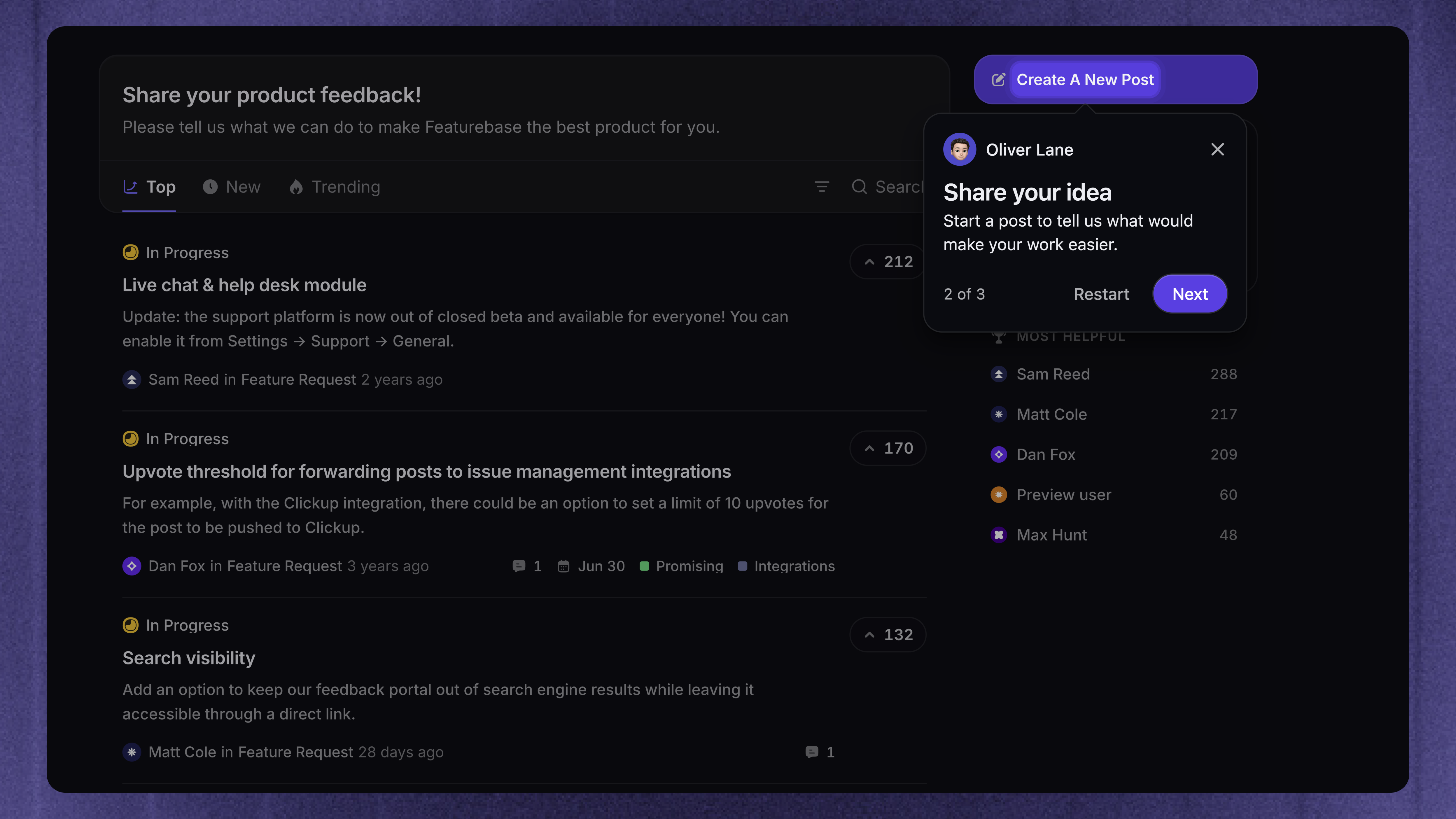
Use images when they explain something the text cannot. Check the result in the builder so a large image does not hide the action or make the step difficult to scan.
Match the step to the task
Message - Introduce the outcome, explain context, or give a final next step
Tooltip with Button progression - Explain an element without requiring a change in your app
Tooltip with Click progression - Guide customers through a menu or ask them to use a control
Tooltip with Input progression - Ask customers to fill in a field before continuing
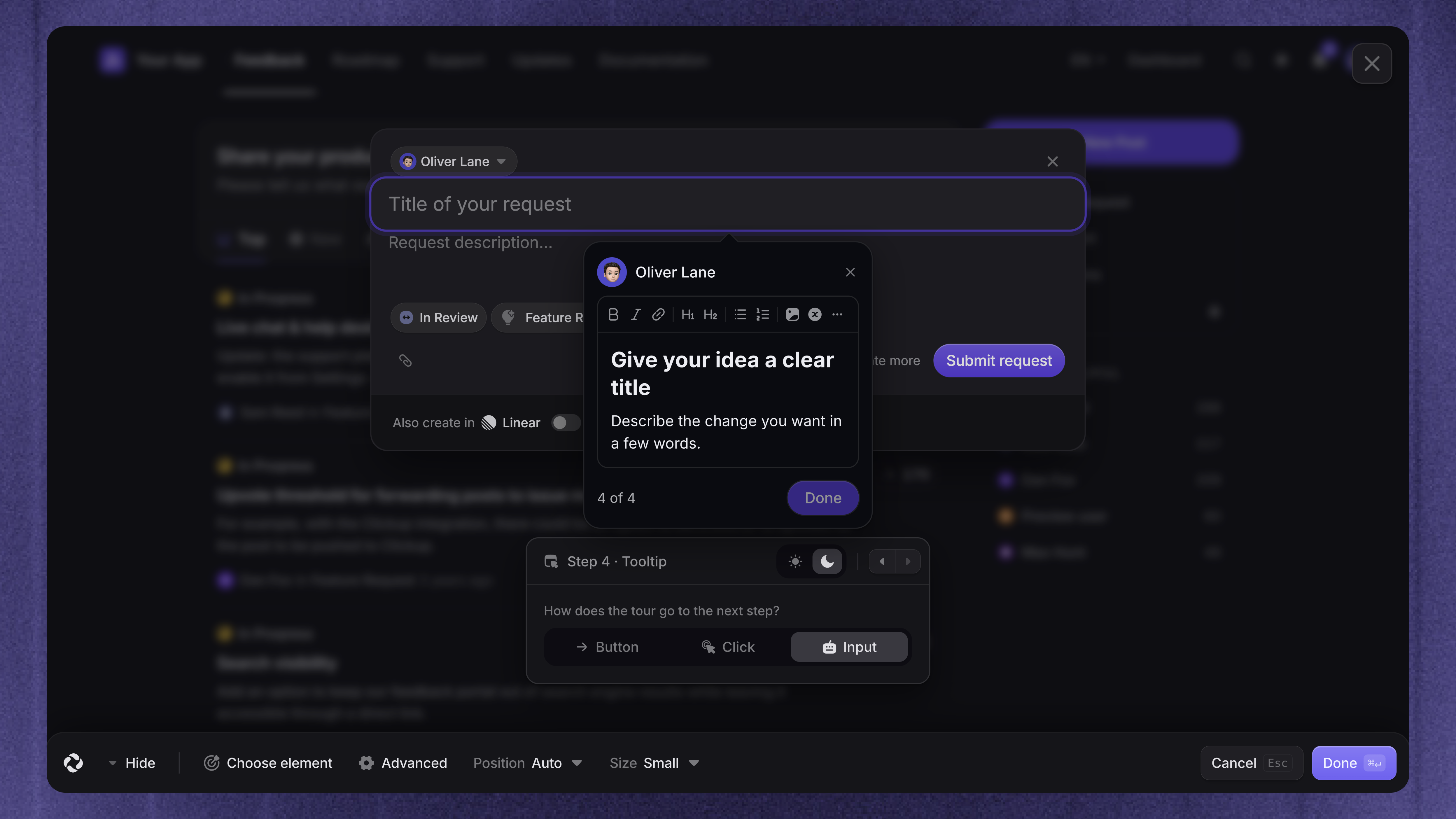
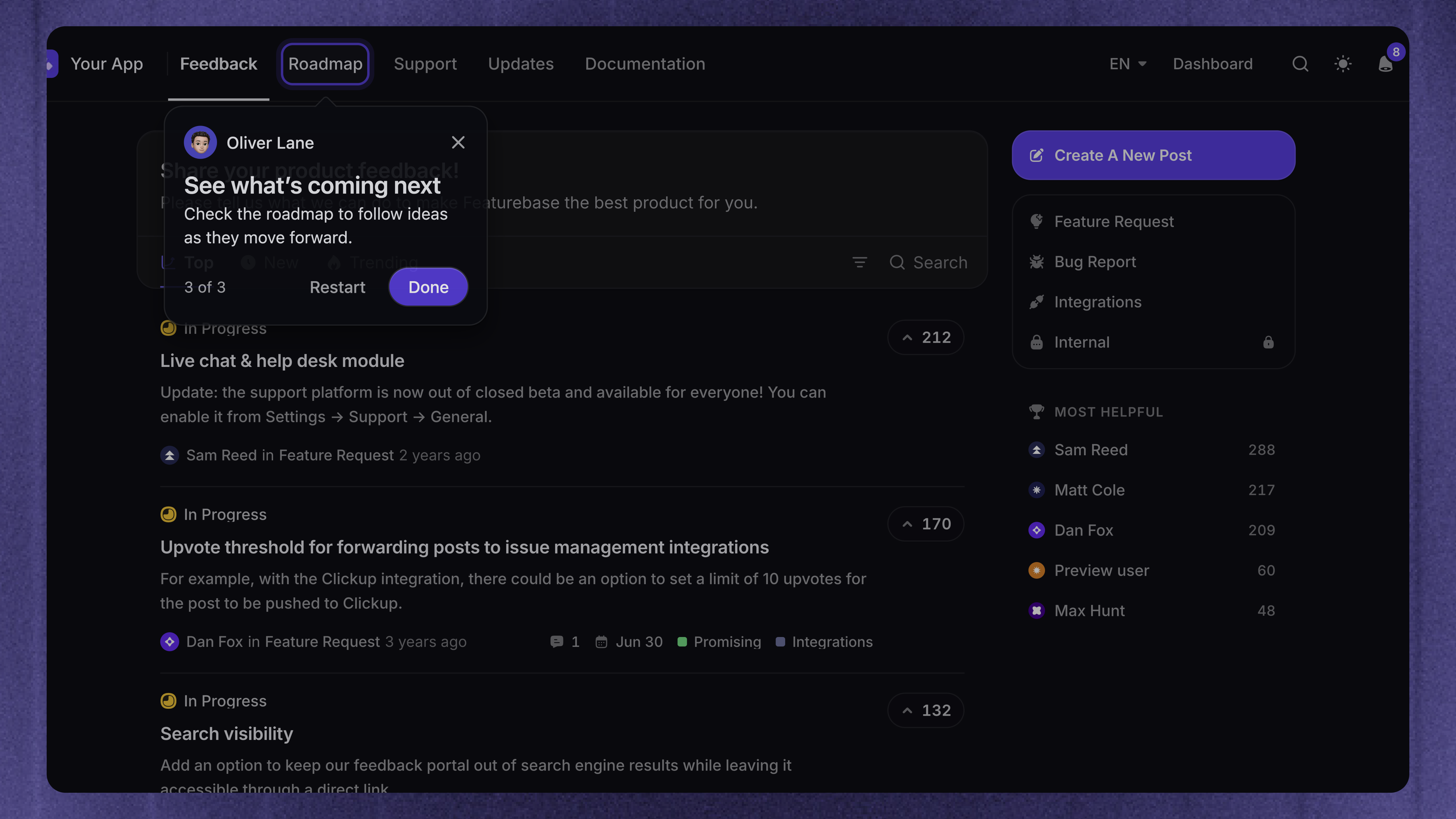
For a sequence that depends on opening a menu, use a Click step on the menu first. Do not assume the customer already has it open.
Finish with a clear next action or a link to further help. Place the final message after the main task so tour completion reflects useful progress.
Show the tour at the right moment
Target customers who can use the feature and have a reason to use it now. Combine audience rules and page triggers so a tour appears in the relevant part of your product.
Check the experience for different roles and account states. A new account may not have the project, report, or menu item that you selected while building with your own account.
For non-urgent guidance, enable snoozing. For help customers may need again, share a tour link or add a button in your app.
Keep tour audiences distinct so several tours do not compete for the same moment.
Start with a simple tour pattern
Welcome new customers
Start with a short message that explains the outcome. Use a few tooltips to guide the first useful task, then finish with a clear next action or a link to more help.
Test with a new account. A welcome tour should work before customers have created data or configured optional features.
Introduce a new feature
Use a short tooltip beside the new control. Explain what it enables and invite the customer to try it. A single step can be enough when the interface already makes the next action clear.
Target customers who have access to the feature. Use a separate guide if the setup needs a longer explanation.
Answer a support question
Build a short sequence of Click steps that follows the task. Share it in the reply where the customer asked for help, so a long introduction is unnecessary.
End with the expected result and a useful next step. Keep the written explanation available for customers who prefer to read or cannot use a desktop tour.
Test and maintain the tour
Use the creation guide's test checklist before launch. Test different permissions, empty states, languages, and desktop window sizes.
Check analytics during the first few days and after product changes. Fix broken targets first, then use the step funnel to identify unclear or unnecessary steps.
Was this helpful?
Still need help? Ask the team