Targeting & triggering Product Tours
Choose who sees a tour, where it starts, and how often it can appear.
Written By Markus Palm
Last updated About 6 hours ago
Overview
Show a Product Tour automatically when the right customer reaches the right page. Audience rules choose the people, trigger rules choose the page context, and frequency and scheduling control when a new tour can start.
Tour audiences are dynamic. New people can become eligible while a tour is live as their attributes change.
Set up automatic display
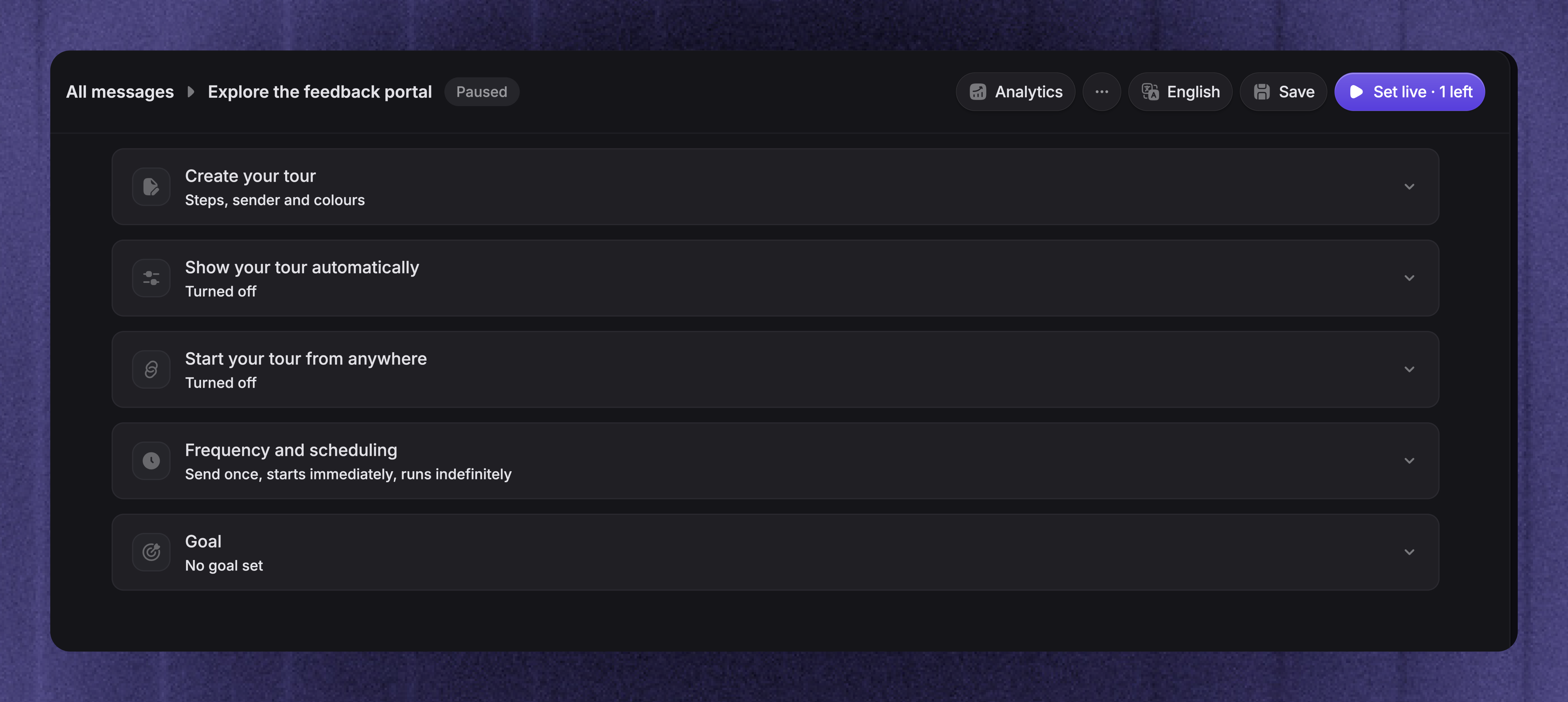
Open your tour from Dashboard → Outbound, then turn on Show your tour automatically.
Choose where the tour appears
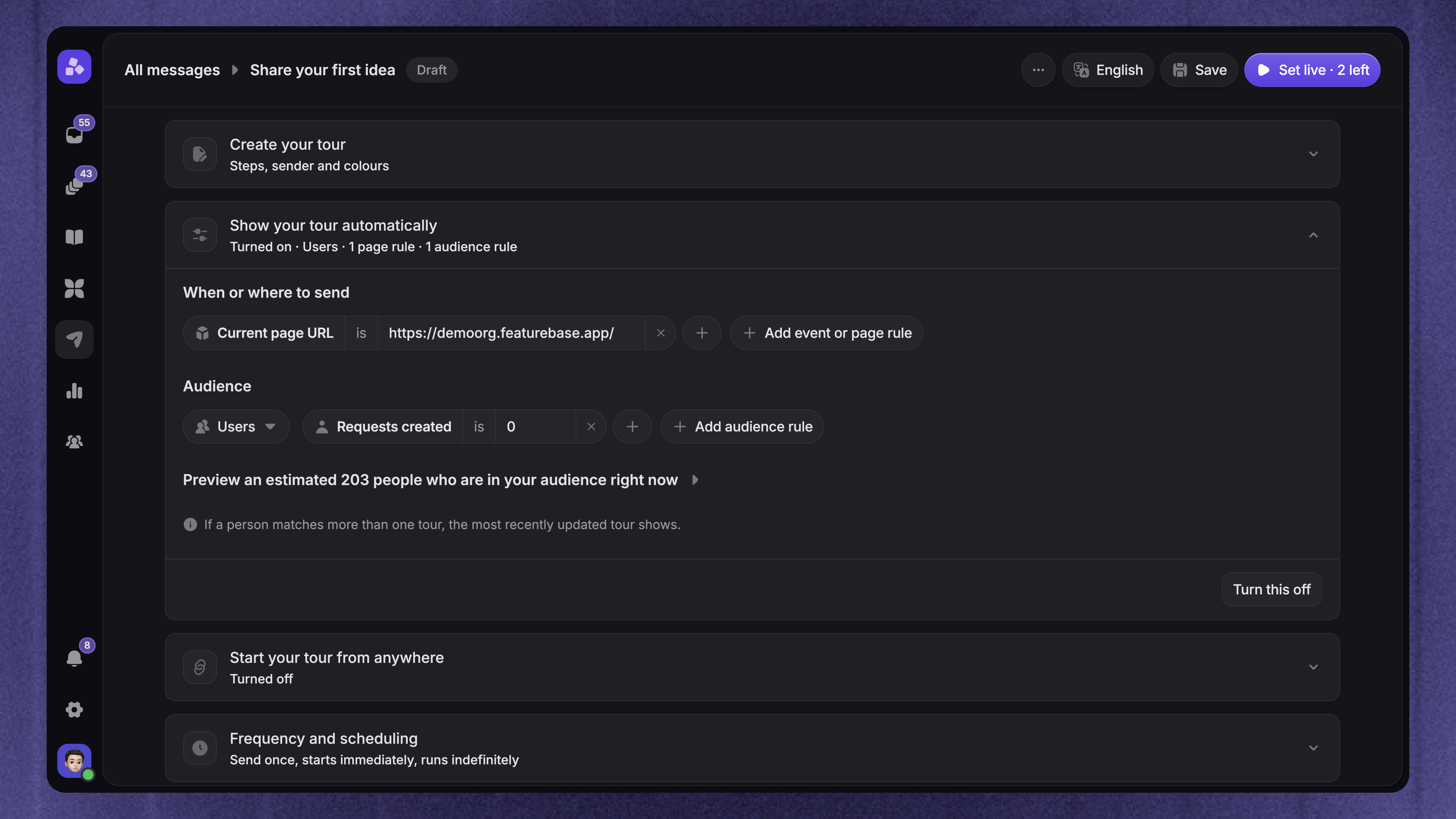
Add trigger rules for the page where the tour should start:
Current page URL - Show the tour on a matching page or group of pages
Time on page (seconds) - Wait until the customer has spent enough time on the page
CSS selector - Check whether a particular element is present on the page
Use a specific page rule when the tour depends on controls that are not available everywhere. For URLs that contain a customer or workspace ID, a contains condition can match the shared part of the path.
For example, use a URL containing /reports to introduce a reporting feature. Check that the first tooltip's target exists on every page the rule can match.
The URL used to build the tour does not replace these trigger rules. Without trigger rules, the tour can become eligible on any page where the Messenger runs, subject to its audience and schedule.
Choose the audience
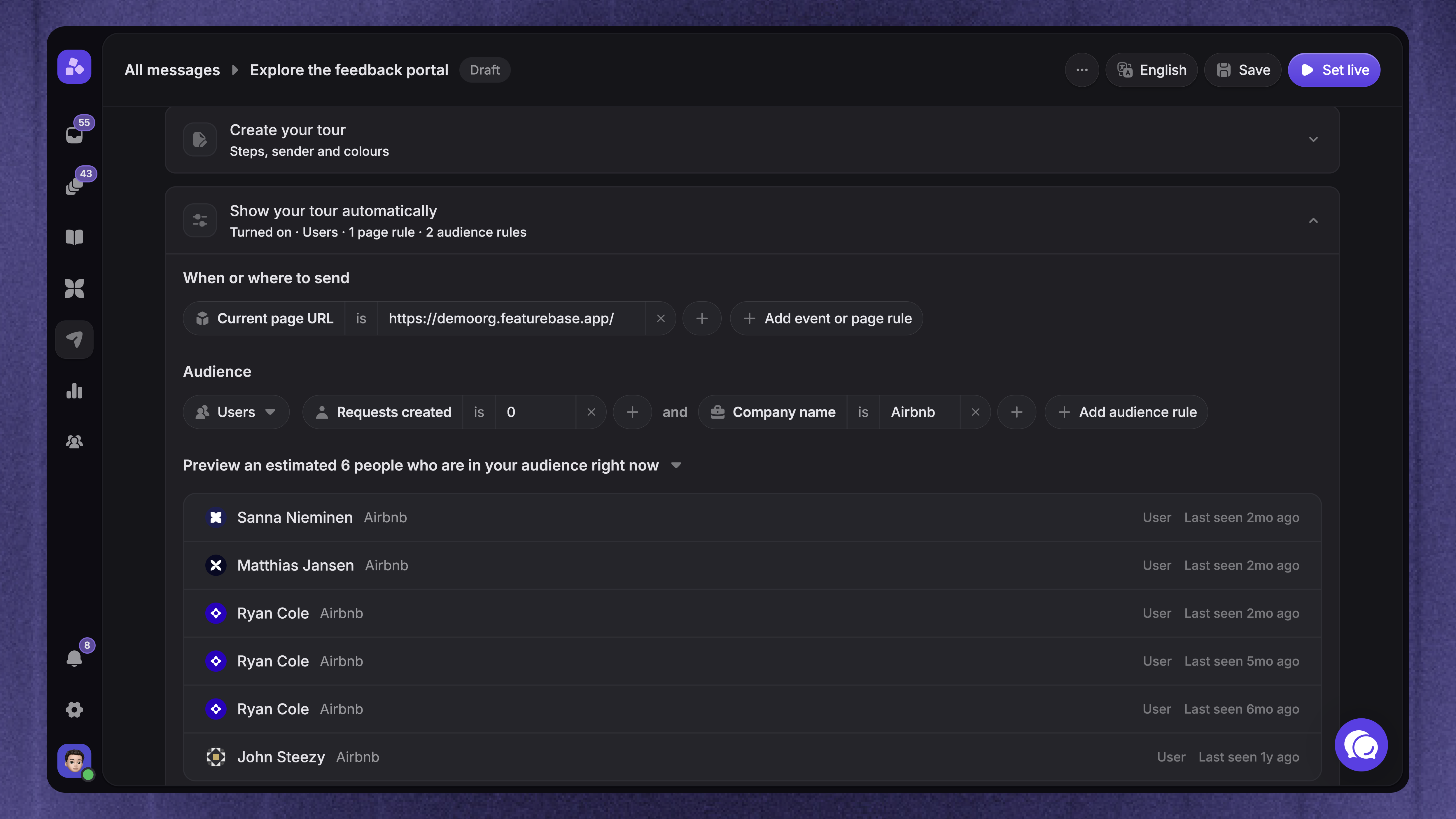
Select the audience type, such as Users, Visitors & Leads, or Everyone, then add rules using the available user and company attributes.
For example:
Welcome new users based on their signup date
Introduce a feature to customers who have access to it
Show a setup tour only to people with the role needed to complete it
Use grouped AND/OR conditions when several rules define the audience. The shared Outbound message rules guide explains how to combine them.
Use 'Preview audience' to check who currently matches. This estimates the audience; it does not confirm that each person's page, timing, or previous tour activity permits delivery.
Set the frequency
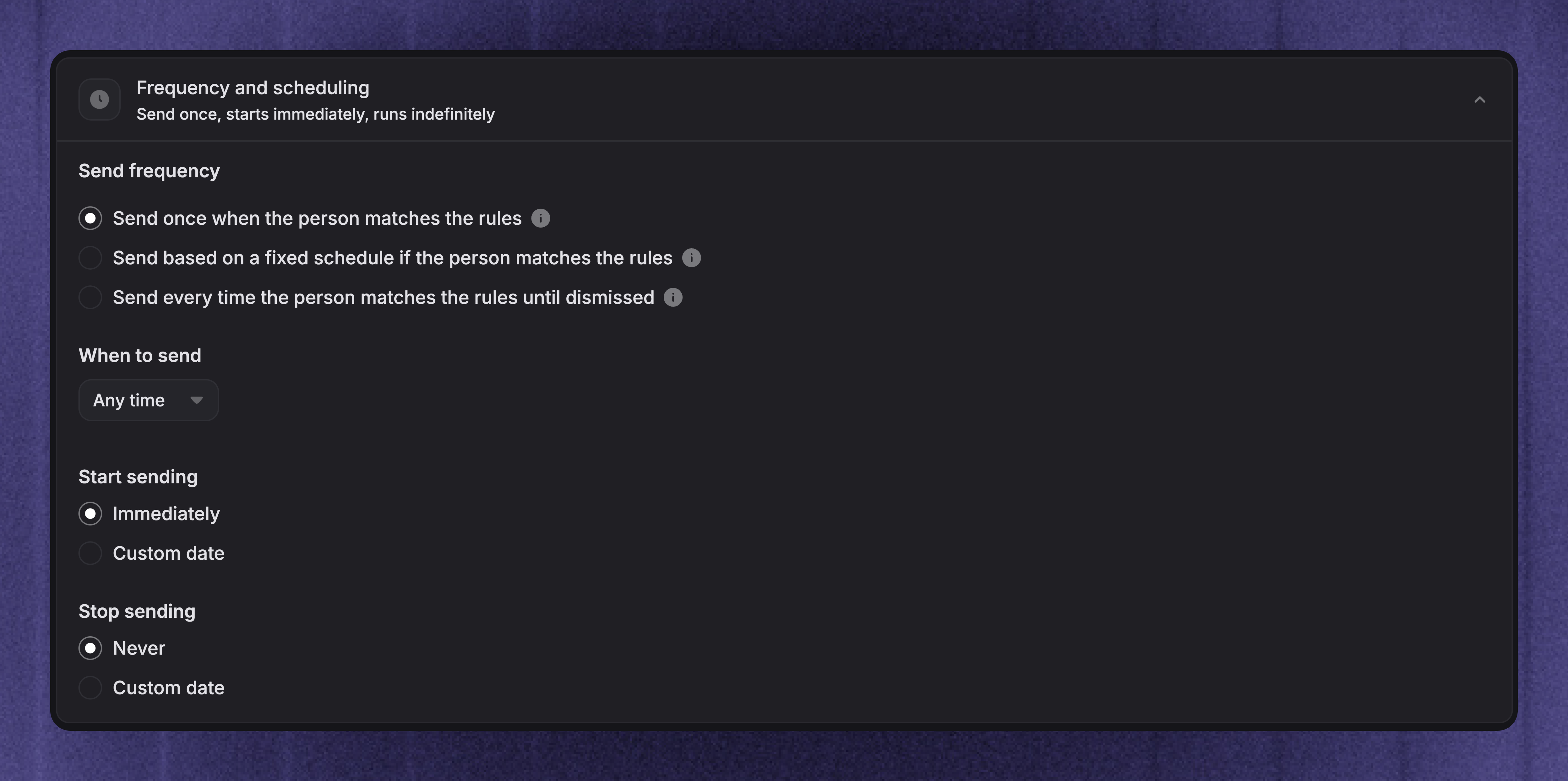
In Frequency and scheduling, choose how new automatic starts should work:
Send once when the person matches the rules - Once the first step has appeared, the tour does not start automatically for that person again, even if they close it early
Send based on a fixed schedule if the person matches the rules - Use a weekly, monthly, or yearly schedule
Send every time the person matches the rules until dismissed - Allow repeat starts after the configured wait. For tours, closing a run does not permanently prevent another scheduled appearance
For repeat starts, set the wait between appearances and the maximum send limit. Every-match delivery requires at least a one-day wait.
Set the schedule
Review the remaining timing controls:
When to send - Allow any time, office hours, outside office hours, or custom times
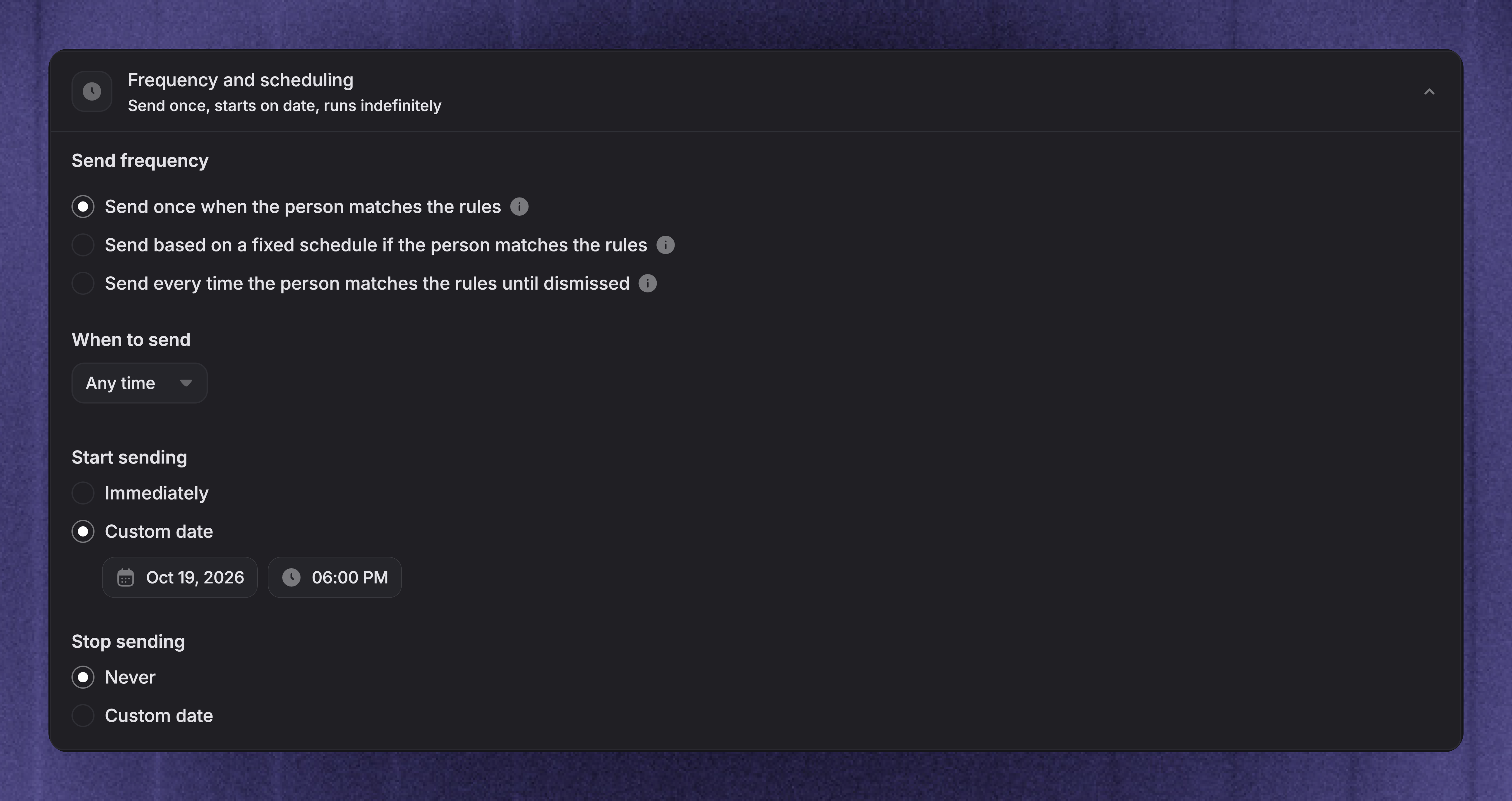
Start sending - Start immediately or on a custom date
Stop sending - Keep sending or set an end date
Dates and time windows use your workspace timezone. The shared scheduling guide explains the common controls.
Save your changes, then set the tour live or schedule it. Test with an internal user who matches the rules before expanding the audience.
How automatic display works
When several tours match
Only one tour runs at a time. If a person matches several eligible tours, the most recently updated tour takes priority.
Keep audiences or page rules distinct when the tours serve different tasks. For example, show a welcome tour on the dashboard and a reporting tour on the Reports page.
When a customer starts a shared tour
Shared links and app buttons do not use the automatic audience, page trigger, or frequency checks. They are a separate way for customers to request the tour.
Important: Automatic targeting is not an access restriction for a shared tour. Customers still need access to the pages and features in your own product.
Stop automatic display
Turn off Show your tour automatically and save to prevent new automatic starts while keeping sharing available. You can also pause the tour.
Pausing does not disable shared links when Start your tour from anywhere remains on. To stop both delivery methods, pause the tour and turn sharing off.
FAQ
Does setting a tour live again resend it to everyone?
Does setting a tour live again resend it to everyone?
No. A Send once tour keeps its previous view history. Pausing and setting it live again does not make people who already saw it eligible for a new automatic start.
Was this helpful?
Still need help? Ask the team