Creating surveys
Learn how to create and customize surveys in Featurebase.
Written By Kateryna Babenko
Last updated 4 days ago
Overview
Surveys are Outbound message types that ask targeted, multi-step questions through the Featurebase Survey widget and collect structured responses. Use them to gather feedback from the right customers at the moment when their answers are most useful.
You can start from a blank Survey or use a template, then configure the Survey pages, audience, trigger rules, frequency, schedule, and launch state.
Tip: Before creating a Survey, decide what you want to learn, whether you already have that data elsewhere, and what action your team will take based on each answer.
Create a Survey
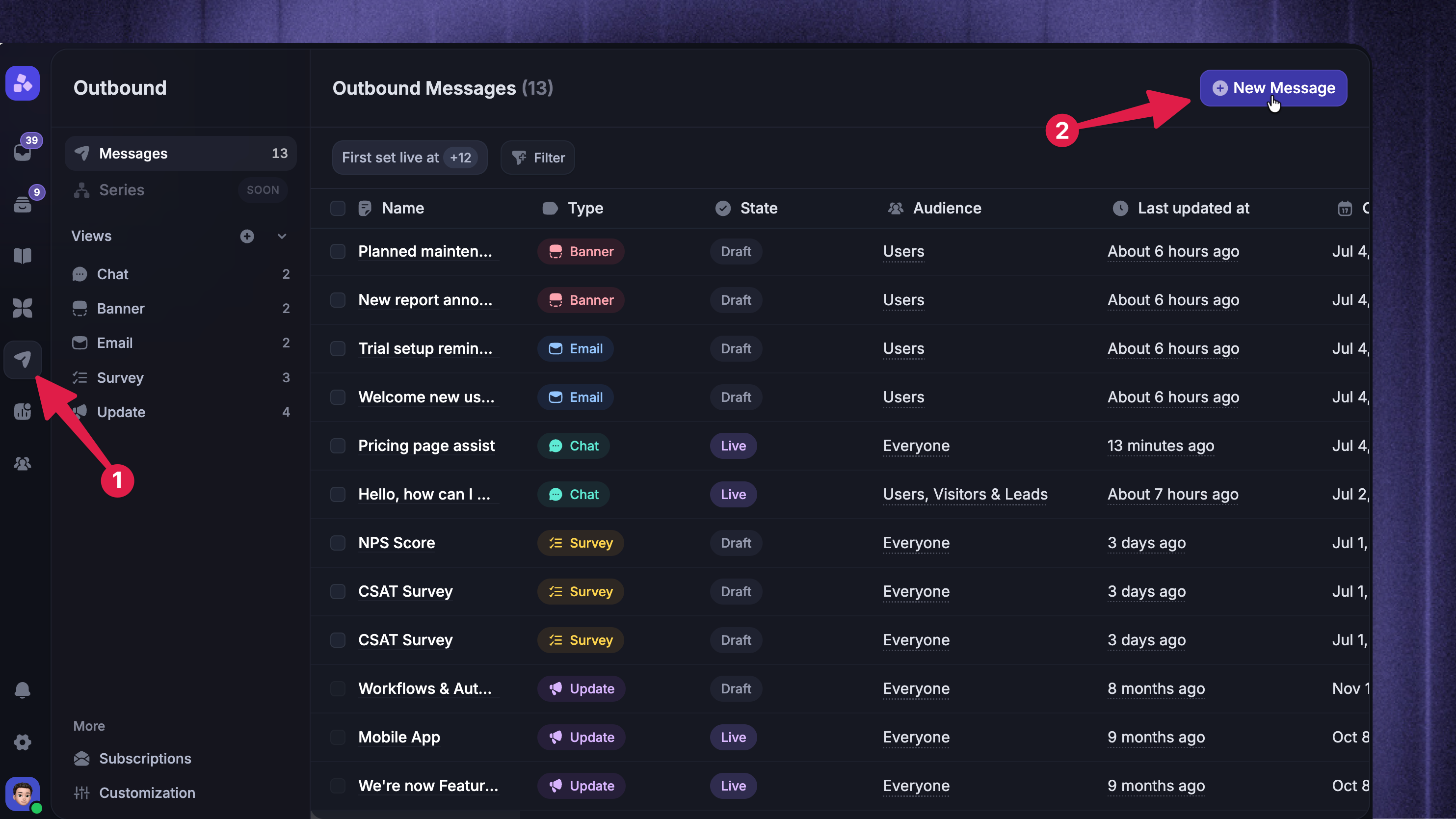
After you have installed the Survey widget, you can start creating surveys:
Start a Survey
Go to Dashboard → Outbound
Click New Message
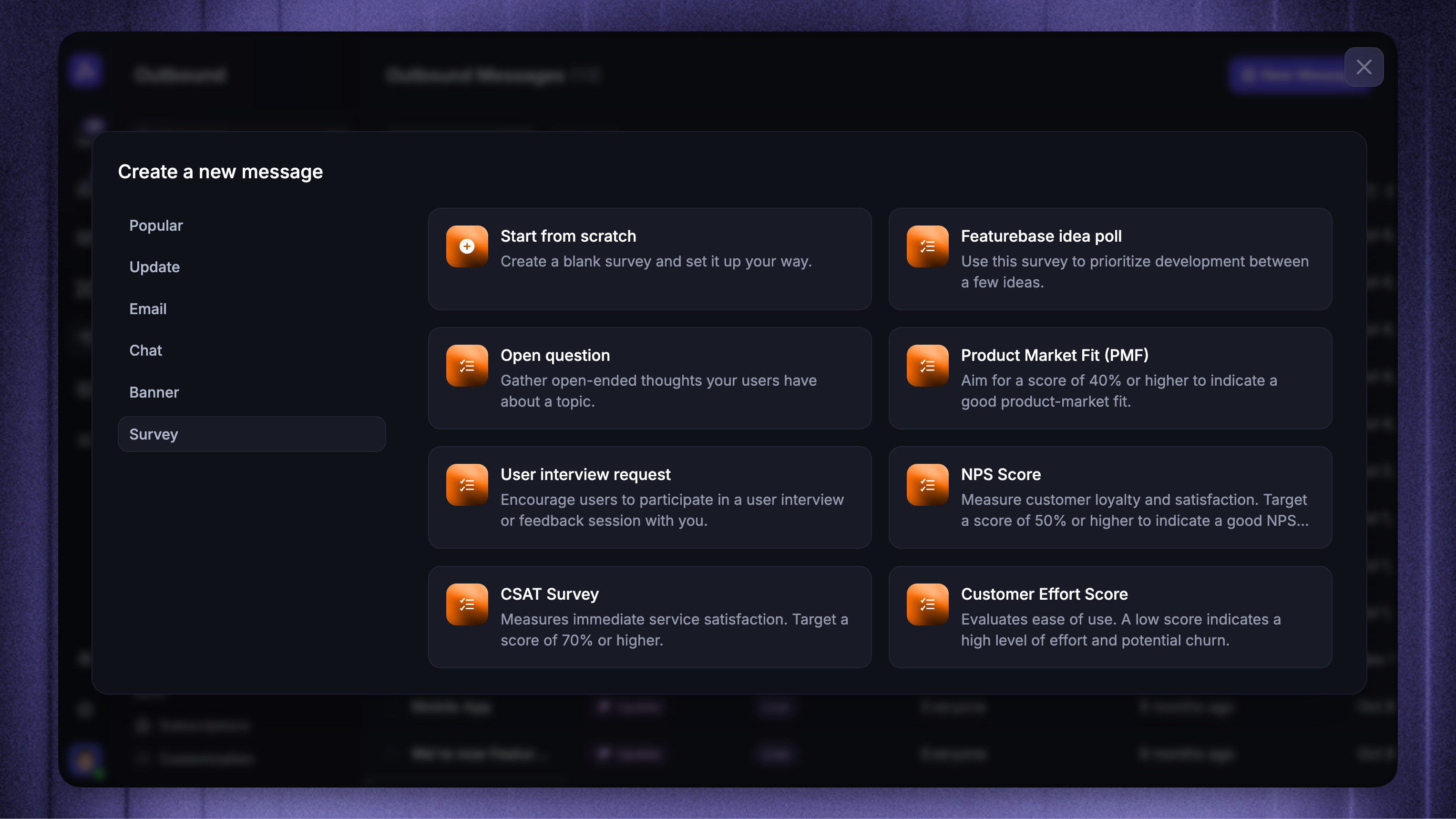
Choose Survey
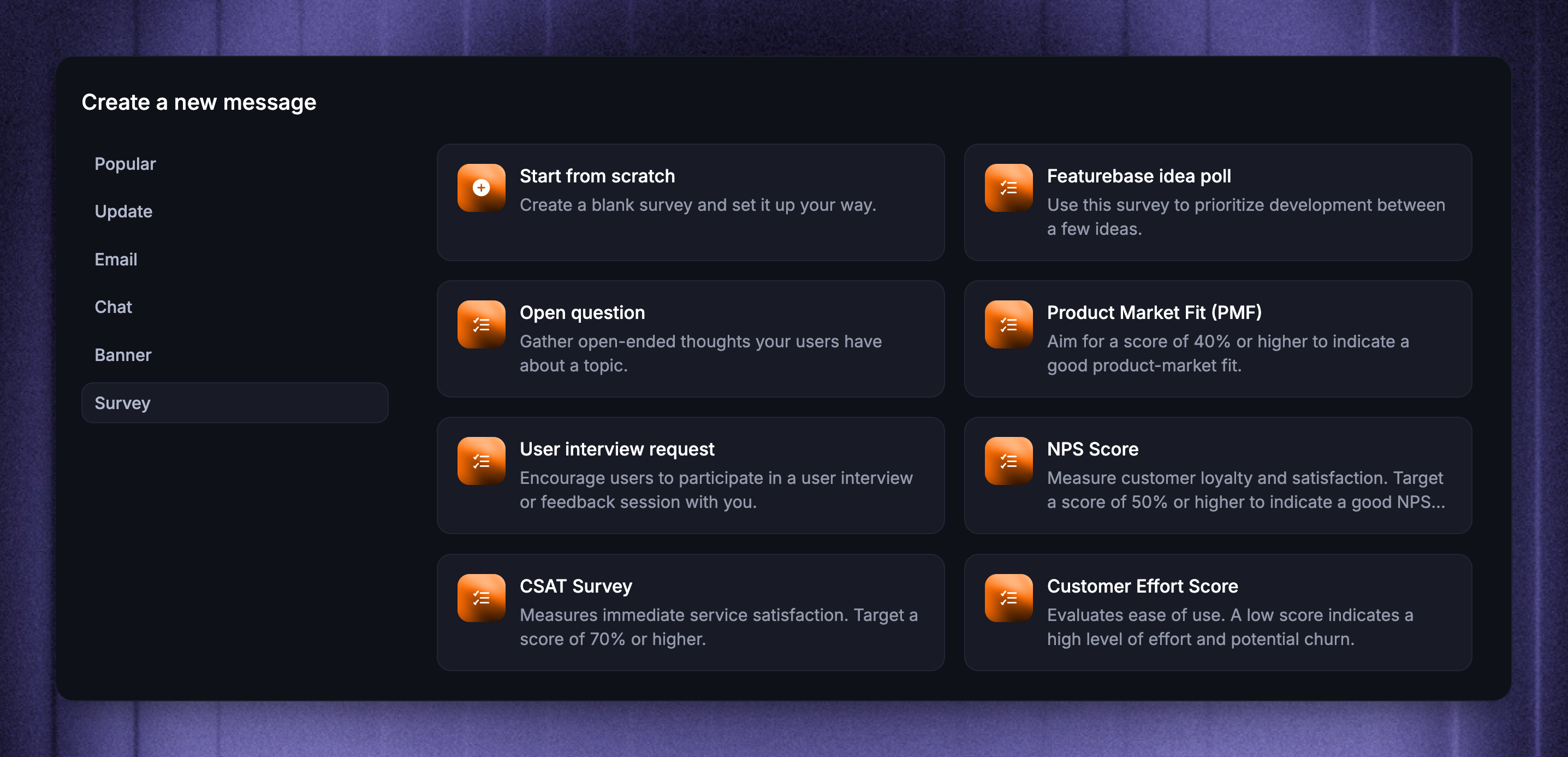
Select Start from scratch, or choose a Survey template
Build the Survey content
Start building out the Survey:
Choose the Survey type (text, link, rating, multiple choice)
Add the title, description, and placeholder that will be visible to your users
Add follow-up questions by clicking ‘Add new page’
Set up conditional logic to show different Survey pages based on users’ answers
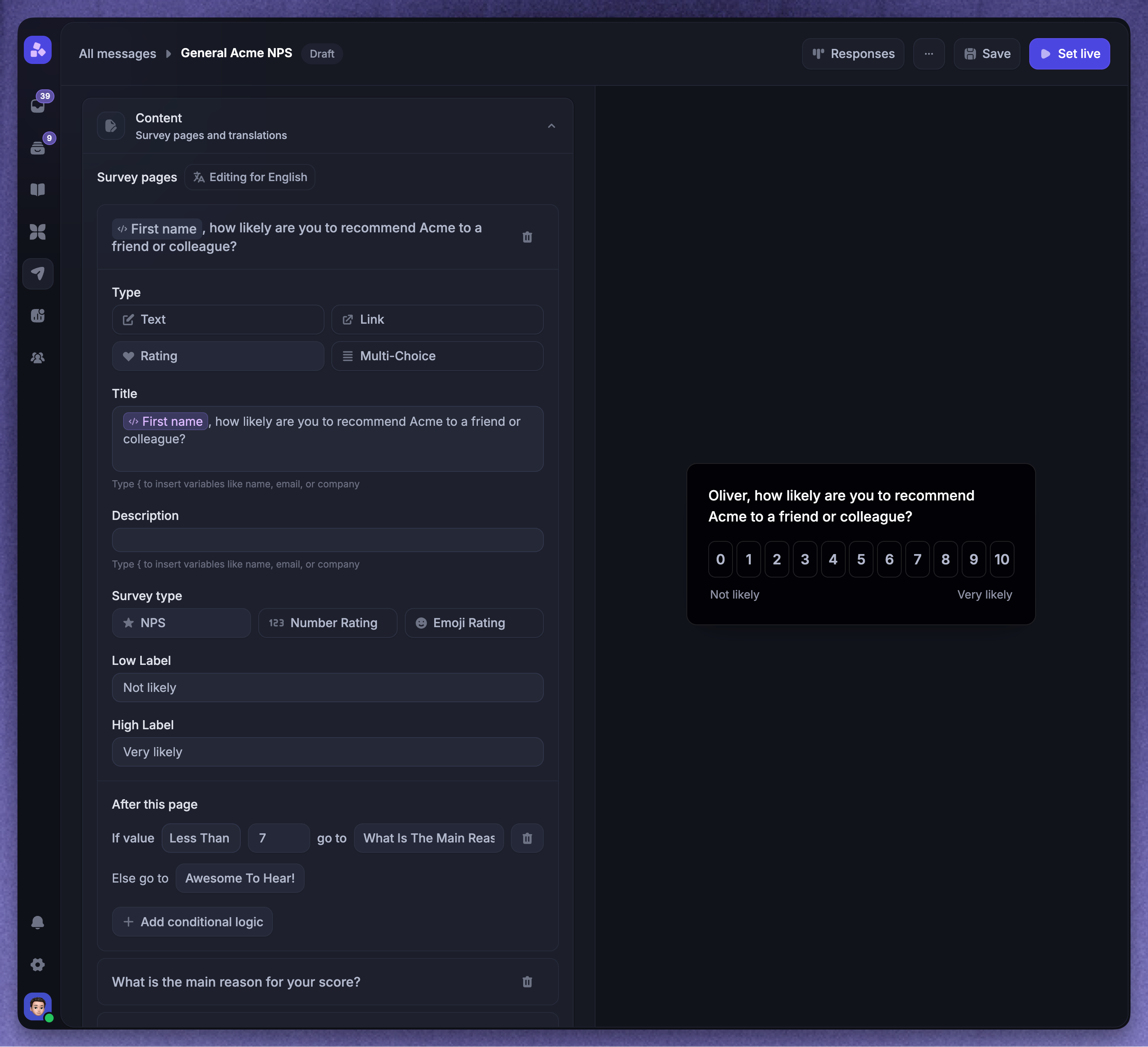
Tip: You can use dynamic variables like {First name} to make your surveys more personal to users
Add translations
Survey messages support multilingual content.
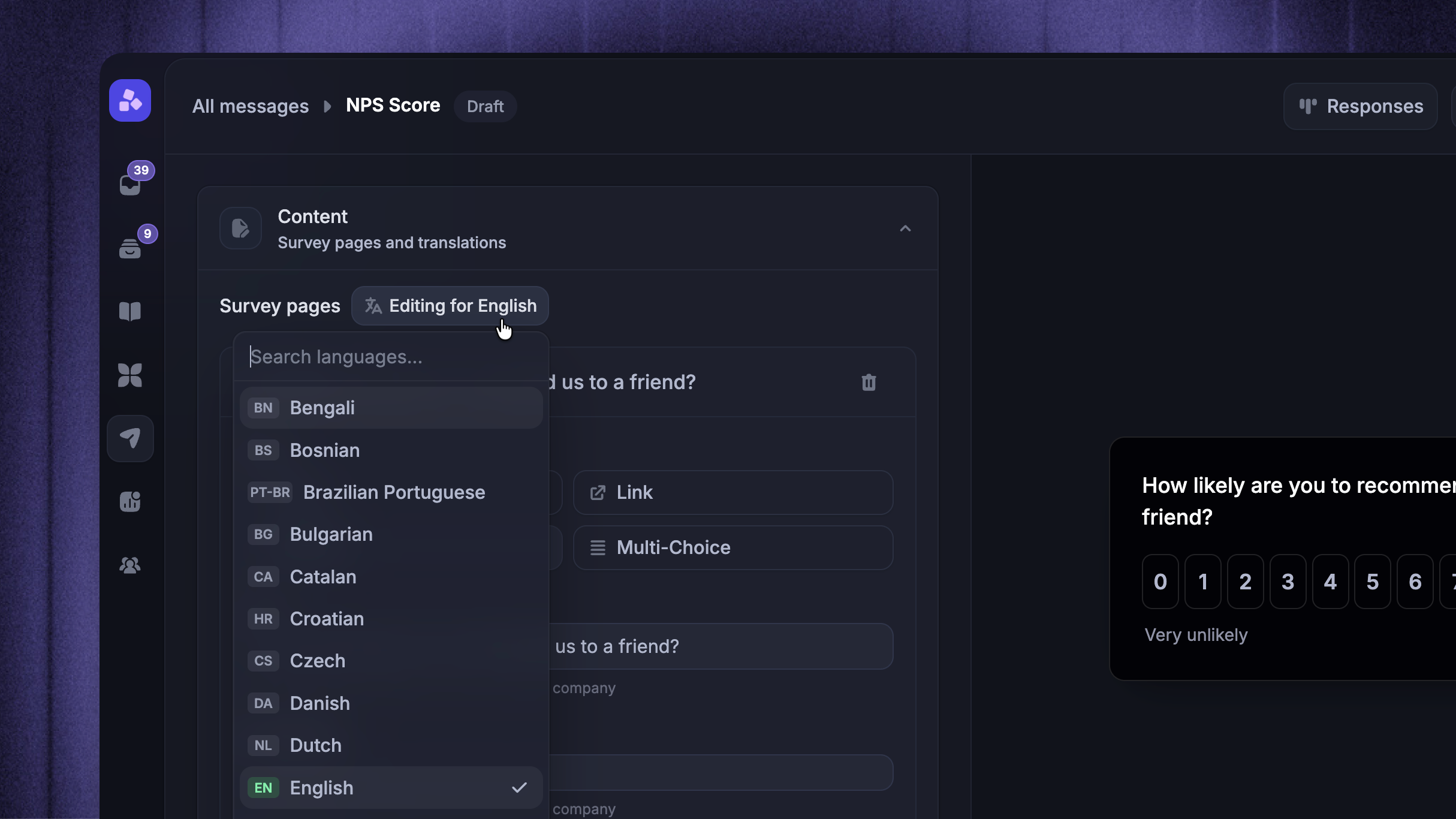
In Survey pages, use Editing for [language] to switch the language you are editing
Translate the customer-facing fields that appear in your Survey:
Page titles
Descriptions
Text placeholders
Rating labels
Multiple-choice options
Link button text and redirect URLs
If a translated field is missing, Featurebase falls back to English for that field. Review every language before setting the Survey live so customers do not see mixed-language content.
Set rules and audience
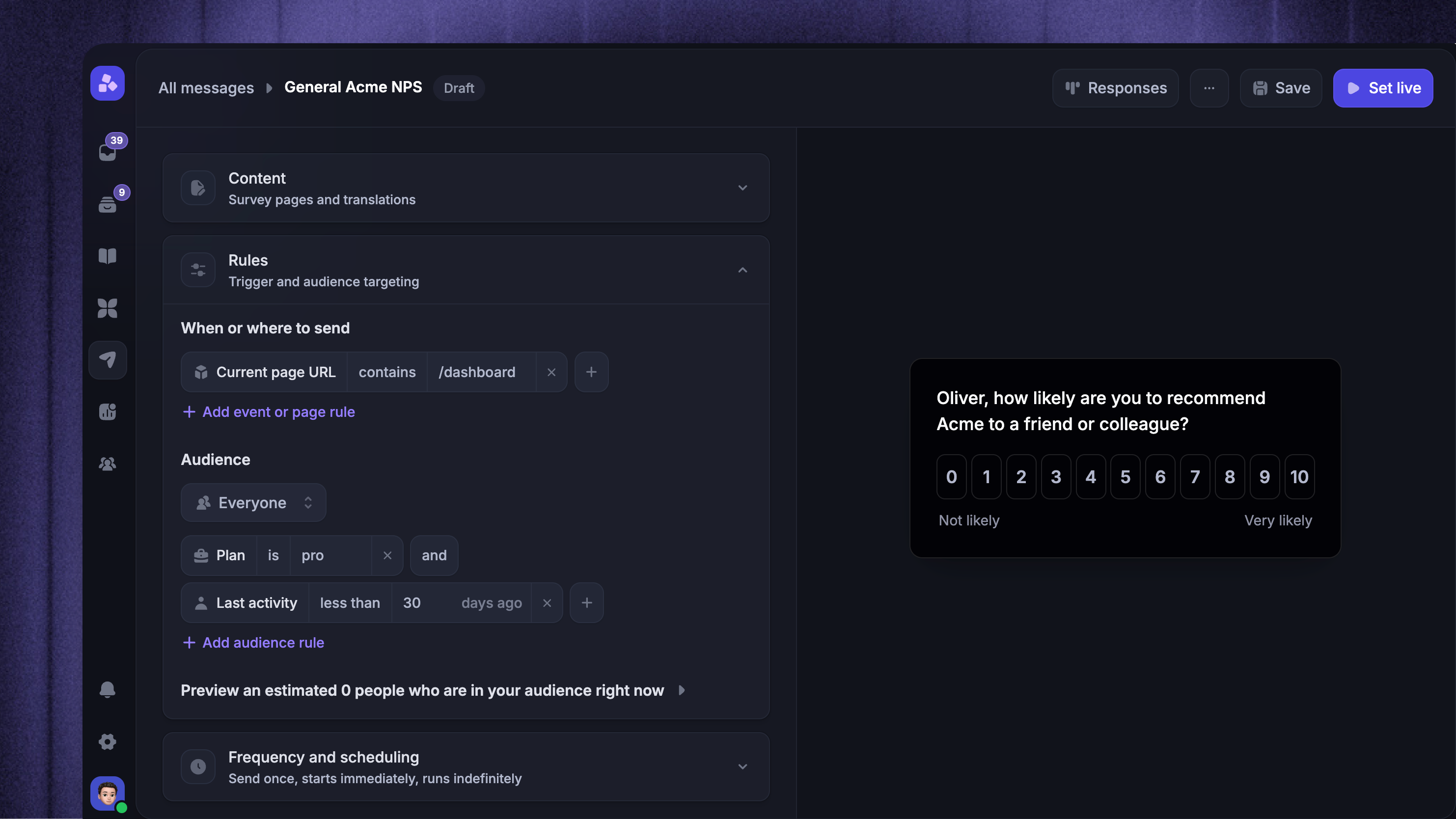
Use the Survey targeting rules to choose who can receive the Survey and where it can appear. Surveys include a Last survey received audience rule to space out Survey deliveries.
Use Audience to choose the audience type and audience rules. Then use the trigger condition to control when the Survey can appear in your product:
Current page URL - show the Survey on matching pages
Time on page (seconds) - wait until the customer has spent enough time on the page
CSS selector - show the Survey when a specific page element is present or not present
Notes:
Survey audiences are dynamic, so new people can become eligible as their attributes change.
If you leave the trigger condition empty, the Survey can be eligible on every visit for people who match the audience and scheduling rules.
Configure frequency and scheduling
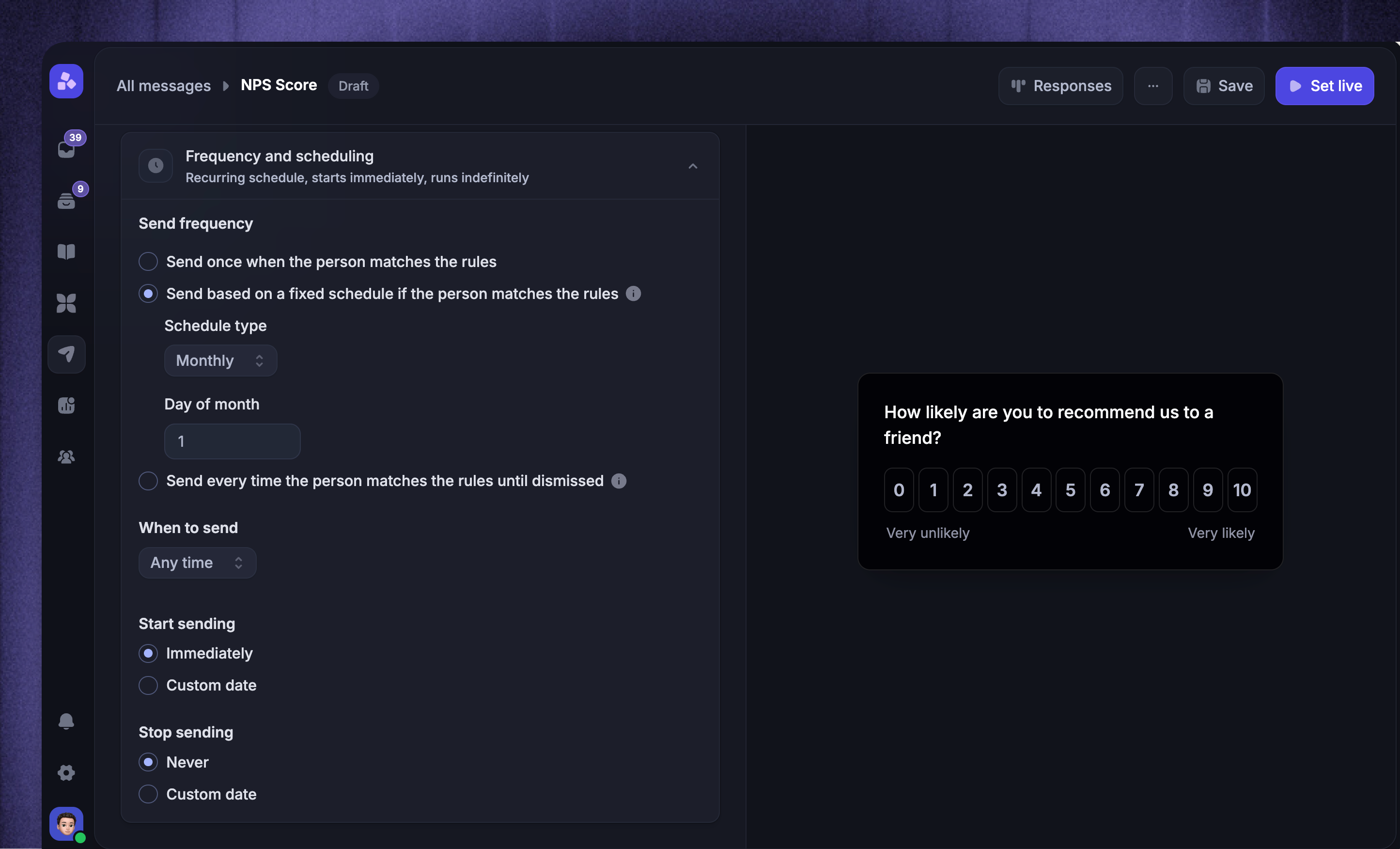
The Survey's frequency settings control whether it runs once, on a fixed schedule, or repeatedly.
Repeat Surveys - By default, Surveys are set to repeat after a wait. Adjust the wait or choose a fixed schedule to match your research
One-time research - Choose Send once when the person matches the rules. The Survey can still reappear until the person completes or dismisses it
Check When to send, Start sending, and Stop sending before launch.
Save and launch
Use the preview to check the whole Survey flow, page order, translations, and answer options before customers see it.
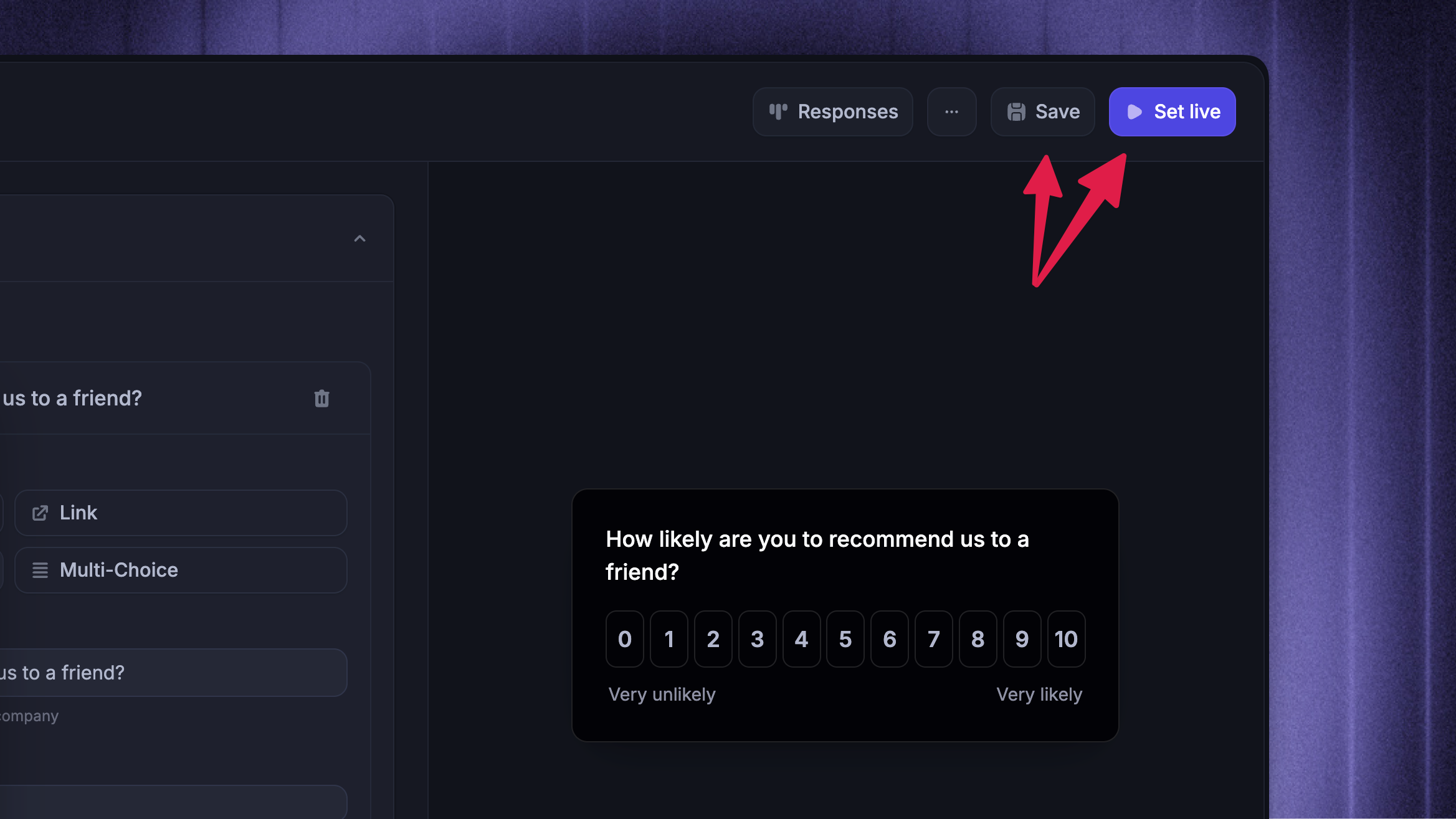
If everything looks good, you can choose to either:
Save - saves the survey version without publishing it to your users
Set live / Schedule - starts a Survey with an immediate start date (Schedule is only available if ‘Start sending’ is a date in the future)
After a Survey is live, use Responses to review results.
FAQ
Can I send the same Survey more than once?
Can I send the same Survey more than once?
Yes. The Survey frequency settings let you choose a fixed schedule or repeat the Survey after a wait. A dismissed Survey does not appear again for that person.
Can I edit a Survey after it is live?
Can I edit a Survey after it is live?
You can save changes while the Survey is editable, but avoid changing the meaning of questions after responses have started coming in.
Changing questions or answer options can make older and newer responses harder to compare.
How can I delete surveys?
How can I delete surveys?
Yes, to delete a Survey:
Open the Survey
Click the three dots on the top right
Choose Delete
You can also bulk delete Surveys together with the rest of the Outbound message types from the Outbound dashboard.
Deleting a Survey cannot be undone, so pause it first if you only want to stop it from reaching new people.
Was this helpful?
Still need help? Ask the team