Outbound messages in multiple languages
Localize Outbound messages to automatically be in your customers' native languages.
Written By Markus Palm
Last updated 19 days ago
Overview
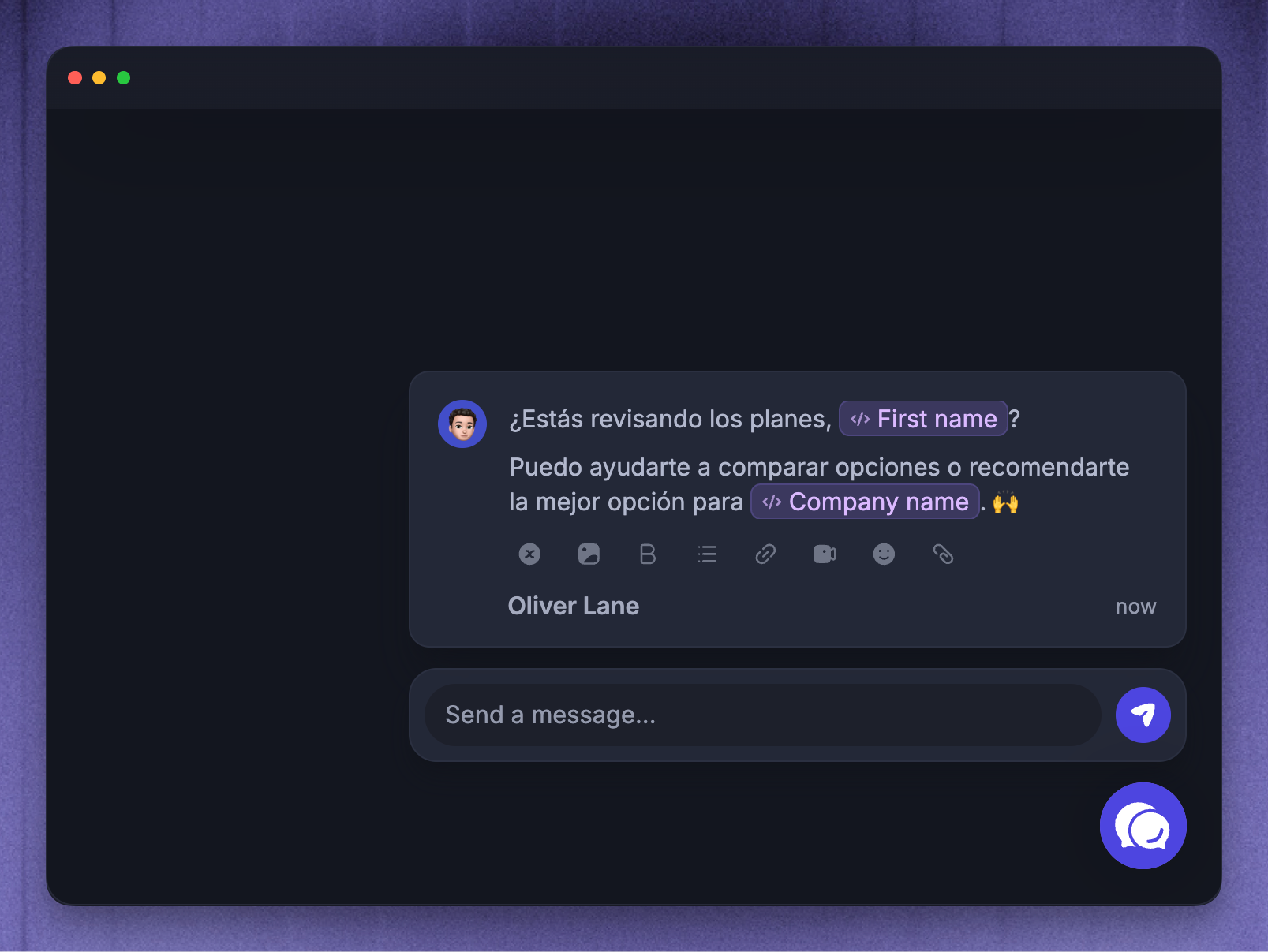
Write Outbound content in multiple languages to reach your customers in the language that best matches them.
Add the language versions you want to support, and Featurebase automatically shows the best available version for each customer based on the message type, their saved language, their browser language, and the versions available for that content.
This helps announcements, onboarding messages, Surveys, and Updates feel more personal for different audiences without creating separate messages for each language. If no matching translation is available, customers see the default or first available version.
Here are the languages we currently support →
Note: Although the correct Outbound message translations are automatically shown to the appropriate users, the messages must be translated manually by your team.
Translate Chats, Banners, and Emails
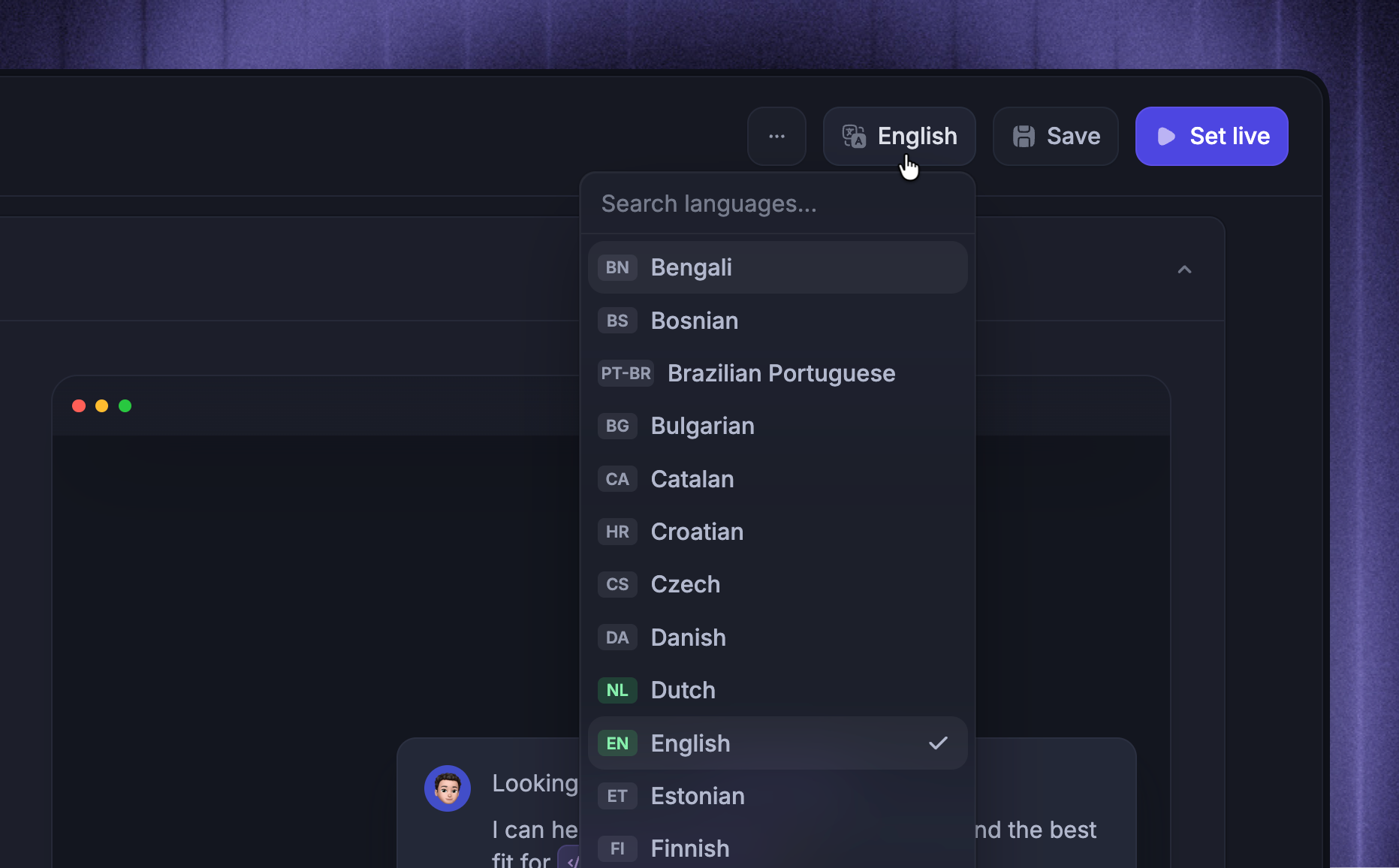
Chat, Banner, and Email translations let you keep one message setup while showing the correct language for each customer. This is useful for announcements, onboarding prompts, and email campaigns where customers should receive the same message in their own language.
To translate your message into different languages:
Open a Chat, Banner, or Email message
Click the language picker in the message header
Select the language you want to edit and add the translations
Repeat for each language you want to support
The fields you translate depend on the message type:
Chat - Message
Banner - Banner Text, and Text plus URL if the Banner uses Open a URL
Email - Subject and body
Featurebase chooses the best available language when the message is delivered. Chat and Banner can use the customer's saved language or browser language. Email uses the recipient's saved language. If that language has not been added, Featurebase falls back to the default or first available message version.
English is required as the default version for Chat, Banner, and Email messages. Other language versions are optional.
Tip: Check the preview after switching languages. It shows the currently selected language, so you can quickly spot missing or incorrect translated copy.
Translate Surveys
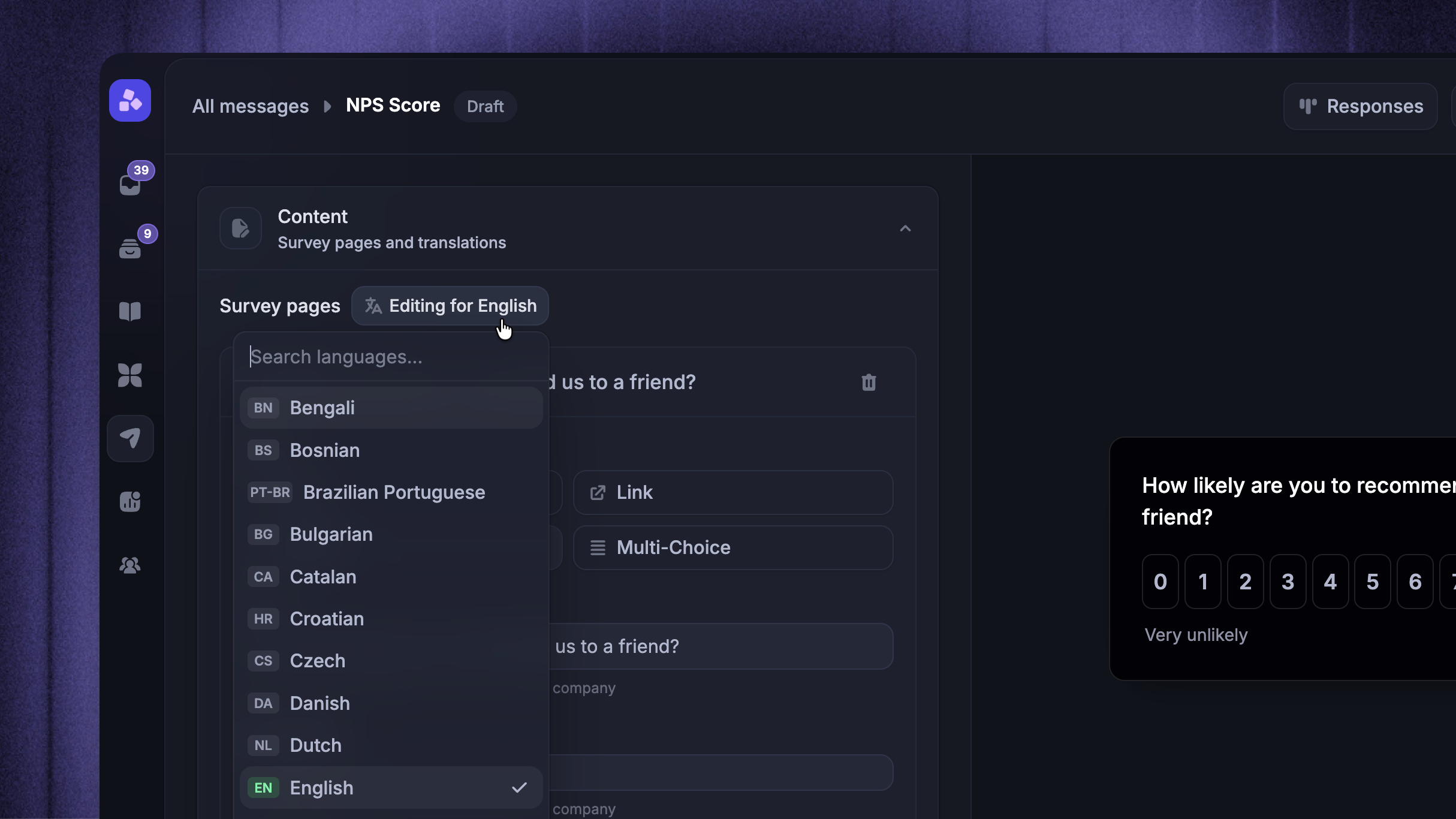
Survey translations let you use a single Survey across multiple languages while keeping responses together within the same Survey. This is useful when you want comparable answers from customers who use different languages without creating separate Surveys for each language.
Survey messages use a separate language picker inside the Survey editor because each Survey can include multiple pages, question types, choices, labels, and links.
To translate your Survey into different languages:
Create or open a Survey
In Survey pages, use Editing for [language] to switch the language you are editing
Translate the page content for that language:
Page titles
Descriptions
Text placeholders
Rating labels
Multiple-choice options
Link button text and redirect URLs
Repeat for each Survey page and language
The preview follows the language you are currently editing, which makes it easier to check every translated page before setting the Survey live.
Good to know: If a Survey page does not have a translation for the customer's language, Featurebase falls back to the default page text for that field.
Translate Product Tours
Product Tour translations let you guide customers through the same task in their own language.
Create or open a Product Tour
Choose the language you want to edit in the dashboard, then open the builder
Translate each step and any custom button or header text
Save the builder changes, apply them in the dashboard if prompted, and save the tour
Build the English version first, then add the other languages. The builder edits the language selected in the dashboard. Preview the full tour in each language to check for missing translations.
Translate Updates
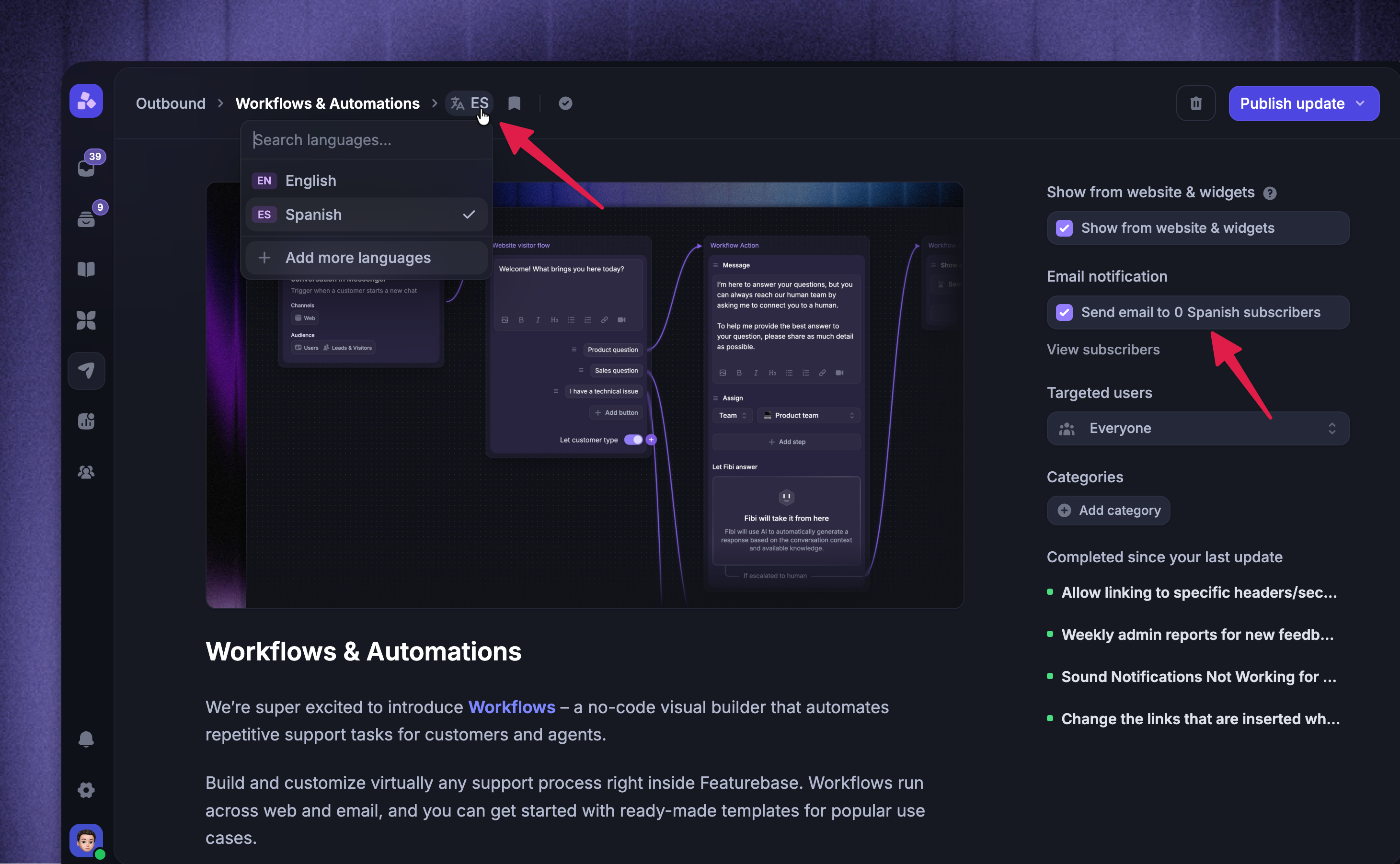
You can set up your Updates to support multiple languages and publish announcements in your customers' native languages.
The public Updates page and widgets automatically default to the users’ language based on their browser’s language settings. They can also switch between languages manually. The notification emails will also be correctly sent to users in the set language.
To translate your Update into different languages:
Create or open an Update
Once you’re done with the first language, you can switch to the next language version from the top left next to the title
Write the Update in each language you want to publish
Publish or schedule the selected language versions
You can see which articles have been translated (purple) and which ones have not (gray).
You can also see how many subscribers in that language you have when you choose to send an email notification.
The releases will automatically be shown only to speakers of the language. If the user’s language is not supported, they’ll see the updates in the default language that you’ve selected.
Sending email updates based on the user’s language
You can subscribe your users to Updates based on their language preference in your app to ensure they receive the correct version of the Update.
For this, make sure to include the locale field when identifying the user via any of the following methods:
FAQs
How does Featurebase choose the customer language?
How does Featurebase choose the customer language?
Featurebase picks the best available language for each recipient.
For Chat and Banner messages, Featurebase checks:
The customer's saved language
The customer's browser language
The default or first available message version
For Email messages, Featurebase checks:
The recipient's saved language
The default or first available email version
For Survey messages, Featurebase uses the active language available to the Survey widget. If a translated field is missing, the Survey falls back to the default field value.
For Updates, Featurebase uses the customer's language for the public Updates page, widgets, and notification emails when a matching published version exists. If the customer's language is not supported or that Update is not published in their language, Featurebase falls back to the default or available language version.
Do I need to translate every language before setting a message live?
Do I need to translate every language before setting a message live?
No. You can set a message live with only the default language.
Only add extra languages when you are ready for customers to see those translated versions. If a customer's language is not available, Featurebase shows the fallback version instead.
What happens if one translated field is empty?
What happens if one translated field is empty?
Blank translated fields can block saving when that language has been added to a required field.
Fill in the required text for that language or remove the incomplete translation before saving.
Can I use different links for each language?
Can I use different links for each language?
Yes, for message types (Banners & Surveys) that support localized URLs.
Banner action URLs and Survey link redirect URLs can be different per language. Each URL still needs to be valid for that field.
Was this helpful?
Still need help? Ask the team