Subscribing users to Updates
Manage your Updates Subscription, subscribe customers, and check who receives product Update emails.
Written By Markus Palm
Last updated 4 days ago
Overview
Subscribing users to your Updates enables you to send them email notifications about new releases. This is one of the most effective ways to keep users informed and close the feedback loop.
Subscribing someone does not send an email immediately. They only receive one when you publish an Update with Email notification enabled and they match its audience, language, and subscription rules.
Learn to sync your customers to Featurebase: Tracking user data
3 ways to subscribe users
Customers can join your Updates email audience in 3 ways:
Customers you have synced to Featurebase can receive Update emails when they are subscribed to Updates
Customers can subscribe themselves from your public Updates page
You can subscribe customers through the API
The premade Updates Subscription controls who receives Update emails. New Workspaces use Opt-in, so customers must be subscribed before they receive these emails. Existing Workspaces can have a different consent type.
Manage Update subscribers
1. Configure subscription settings
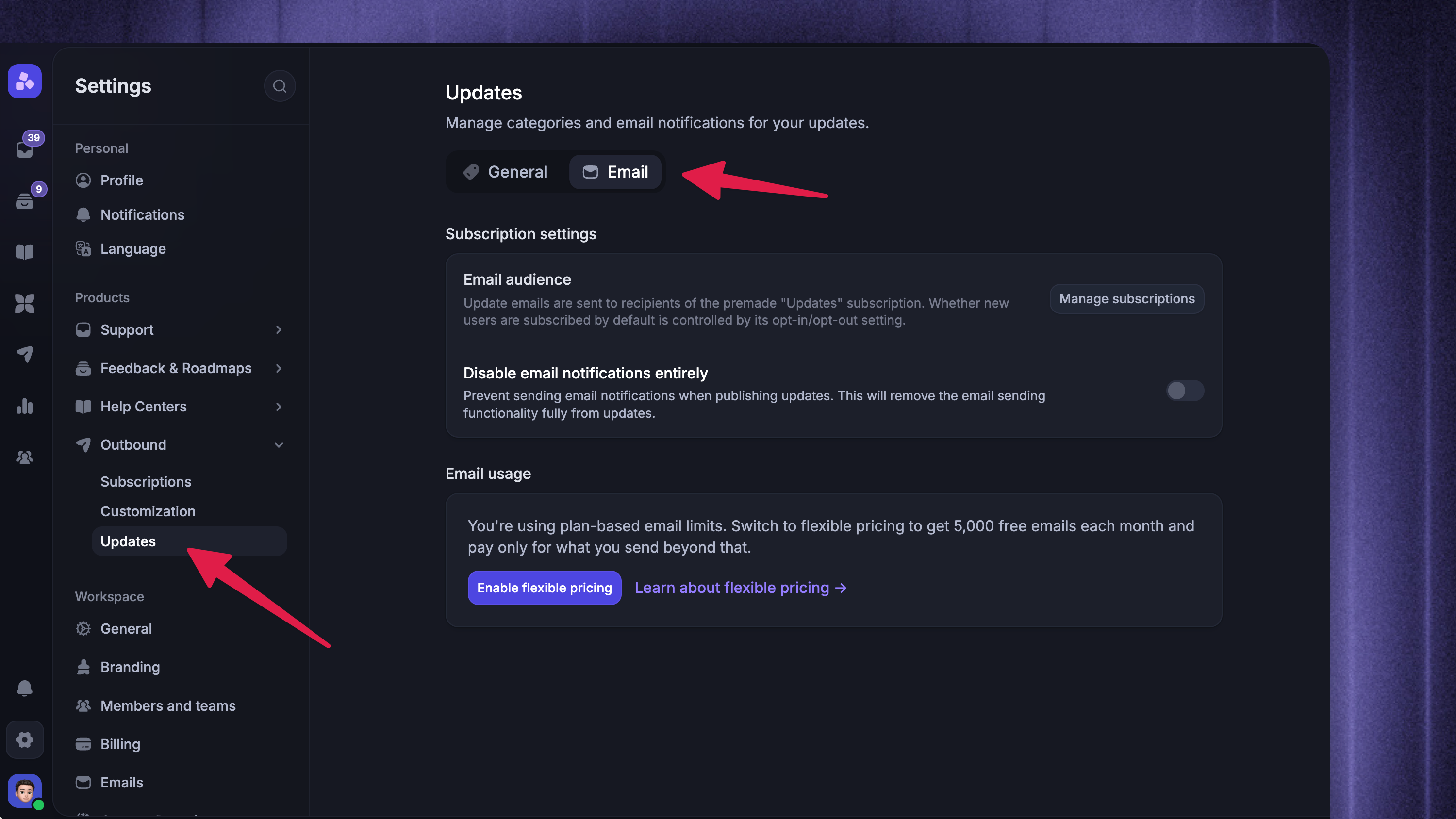
Open the Email tab
Under Email audience, click Manage subscriptions
Open the premade Updates Subscription to check its consent type and manage its settings. The consent type cannot be changed after creation. Use the Subscription preference controls to manage an individual user's choice.
The same Updates preference applies when a customer subscribes from your Updates page, your team updates their profile, or you subscribe them through a CSV import or the API.
Enable ‘Disable email notifications entirely’ if you never want Updates to send emails. Your public Updates page, widgets, and RSS feed will continue to work.
The Email tab also shows your current email usage and sending limit. Update notifications count toward your monthly Outbound email usage.
2. View and remove subscribers

To review the email audience for a specific Update:
Go to Dashboard → Outbound
Open the Update
Under Email notification, click View subscribers
When publishing or scheduling multiple languages, use ‘View all email recipients’ to review the combined recipient list.
You can search the list and remove customers who should no longer receive Update emails. Removing a subscriber unsubscribes them from the Updates Subscription but does not delete them from Featurebase.
Tip: You can also manage an individual customer's notification preferences from their profile in Dashboard → Users.
3. Subscribe customers through the API
The API supports 2 ways to subscribe customers:
Set
subscribedToChangelogtotruewhen creating or updating a contactUse the legacy subscriber endpoint to import email addresses in bulk
Some API fields and endpoints still use the legacy “Changelog” name, but they control Update subscriptions.
Important: If a customer manually unsubscribes from Update emails, the API cannot silently resubscribe them. They must opt back in themselves.
Update emails
Update notification emails play a vital role in communication and closing the feedback loop with your users. Whenever you publish a new update or release, you can send an email to your subscribed users.
Update emails are usage-based, with 5,000 free outbound emails per month and tiered pricing applied beyond that.
Who receives the email
A customer receives an Update email only when they:
Have an email address and are subscribed to the Updates Subscription
Have not unsubscribed from all Featurebase emails
Match the Update's targeted segments and any restricted categories
Match one of the selected language versions
Featurebase builds a separate recipient list for each selected language. Customers whose locale does not match an enabled Updates language receive the default-language version.
What the email includes
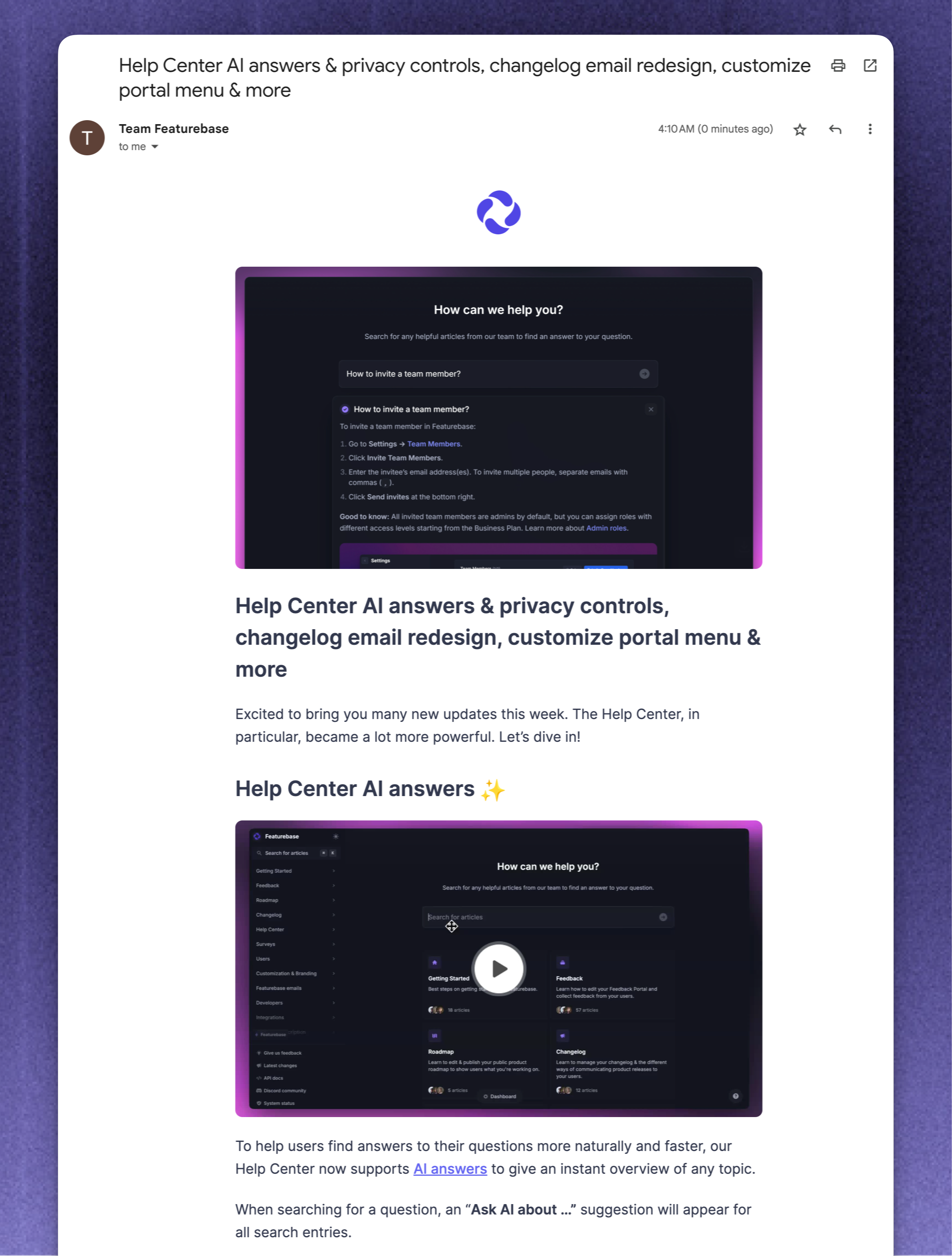
The Updates email mirrors the actual Update post, including any illustrations and formatting. For example, here's a snippet of the email for one of our Updates:
Customize Update emails
By default, all notification emails will be in your brand color but sent from our email domain.
With paid plans, you can add your own custom email sending address and further personalize emails by adding your logo and setting a custom Reply-To address, ensuring these updates perfectly match your brand identity.
Learn more: Email customizations
FAQs
Does subscribing someone notify them?
Does subscribing someone notify them?
No. They are only notified when you publish or schedule an Update with Email notification enabled.
Can customers unsubscribe themselves?
Can customers unsubscribe themselves?
Yes. Customers can unsubscribe from Updates or manage all their email preferences from the footer of Featurebase emails.
If a customer unsubscribes from all emails, Featurebase does not send them Update emails even if they are still listed as an Update subscriber.
What is the RSS feed button on the Updates page?
What is the RSS feed button on the Updates page?
RSS (Really Simple Syndication) is a popular web feed format that lets your users automatically receive updates from your changelog in real-time.
You can find it from the top left of your changelog:
Here are some useful things someone can do with your new RSS feed button:
1. Subscribe to an RSS Reader
Users can paste the feed link (e.g. https://feedback.featurebase.app/api/v1/changelog/feed.rss) into any RSS app to get automatic updates every time you post to the changelog (e.g. Feedly, NewsBlur, Inoreader, etc.) to get all changelog entries in one place, like a personal product inbox.
2. Embed in Slack or Discord
Teams can use an integration like Slack’s RSS app to push changelog posts into a #product-updates or #changelog channel and set up Discord bots to do the same. This helps internal teams (or your customers) stay in the loop.
3. Pull into Documentation or Custom Apps
Some technical users might
Fetch RSS entries and render them into a custom dashboard
Sync changelog posts into a knowledge base or internal status page
Automate tasks with tools like Zapier, etc.
Was this helpful?
Still need help? Ask the team