Custom email sending address
Verify a sending domain and add your own email address for customer notifications.
Written By Kateryna Babenko
Last updated 7 days ago
Overview
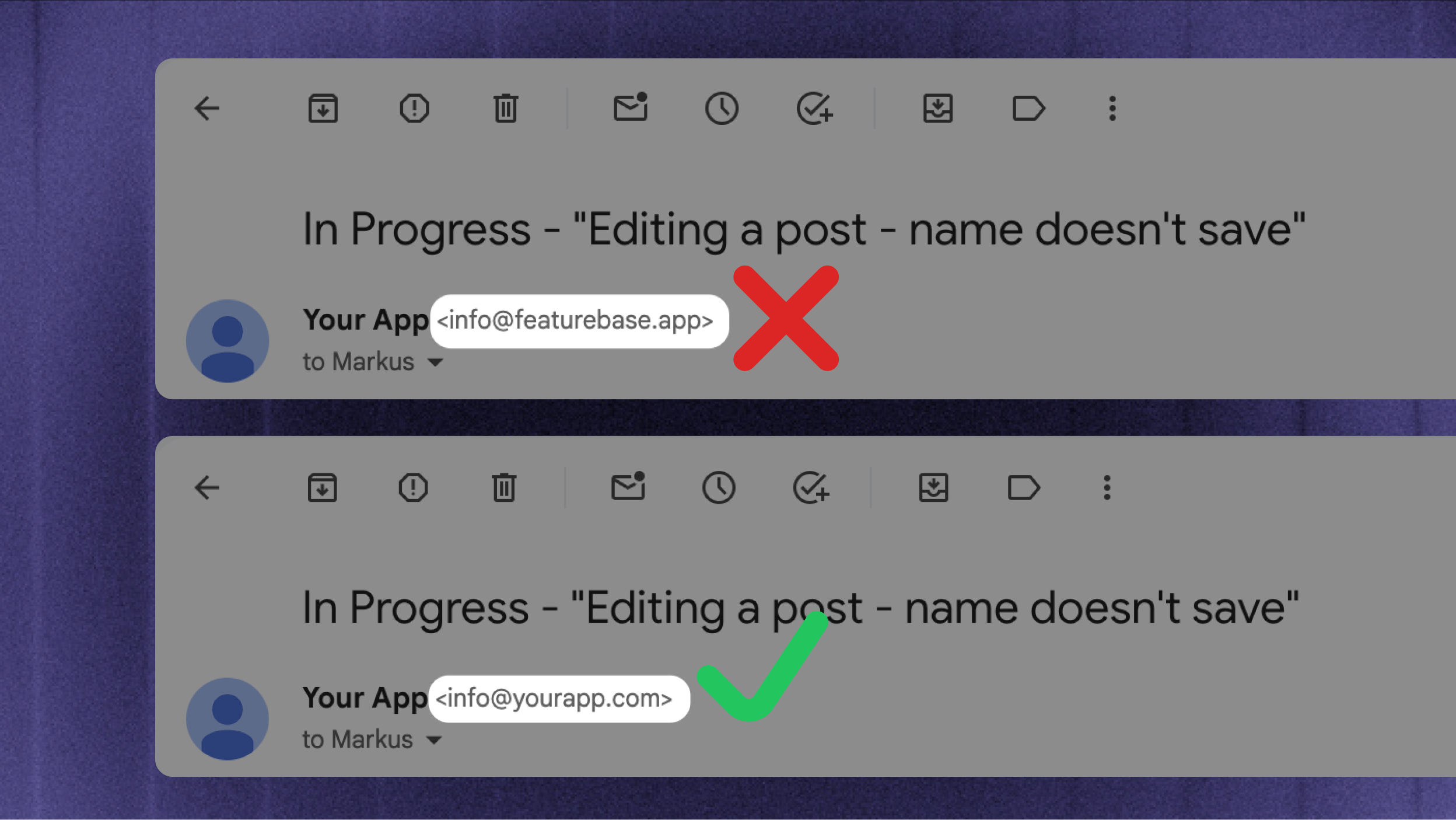
Use your own email address to send customer notifications from Featurebase. Verify a sending domain, then add an address from that domain.
Manage senders in Settings → Workspace → Email sending. The Who sends what section shows the address used for each email type. Support replies are managed in Support channels → Email.
Adding a custom email sending address
Add a sending domain
Under Domains and addresses, click 'Add domain'
Enter your domain and click 'Add domain'. Expand the domain to see its DNS records
Add each DNS record at your domain provider. Click 'Refresh status' and check that the domain shows Verified
Note: DNS changes can take time to appear. If the domain is not verified yet, check the record names and values, then refresh the status again later.
Add your sending addresses
After the domain is verified, add a sending address:
Click 'Add address' under Domains and addresses
Enter the Email Address and Sender Name. Use the domain you verified
Under Modules, choose the notification types that should use the address
Select a Brand, if you have a multi-brand setup (optional)
Click 'Add sender'
Check Who sends what to confirm the resulting senders. Use Brand notification senders for brand-specific notification addresses.
Tips & next steps
Set up email forwarding to receive your customers’ support emails automatically in your support Inbox
For the domain, we recommend using a subdomain (e.g.
notifications.example.com) to separate notification sending from your main domain
FAQs
What should I do if I already have existing SendGrid DNS records?
What should I do if I already have existing SendGrid DNS records?
If you have existing SendGrid DNS records (like s1._domainkey), the recommended solution is to use a subdomain for sending emails instead of your primary domain. For example, use info@notifications.example.com instead of info@example.com.
Was this helpful?
Still need help? Ask the team