Export your reporting data
Export your Featurebase reports data as CSV - download chart data, export full datasets with filters and columns, and schedule recurring exports.
Written By Markus Palm
Last updated 4 days ago
Overview
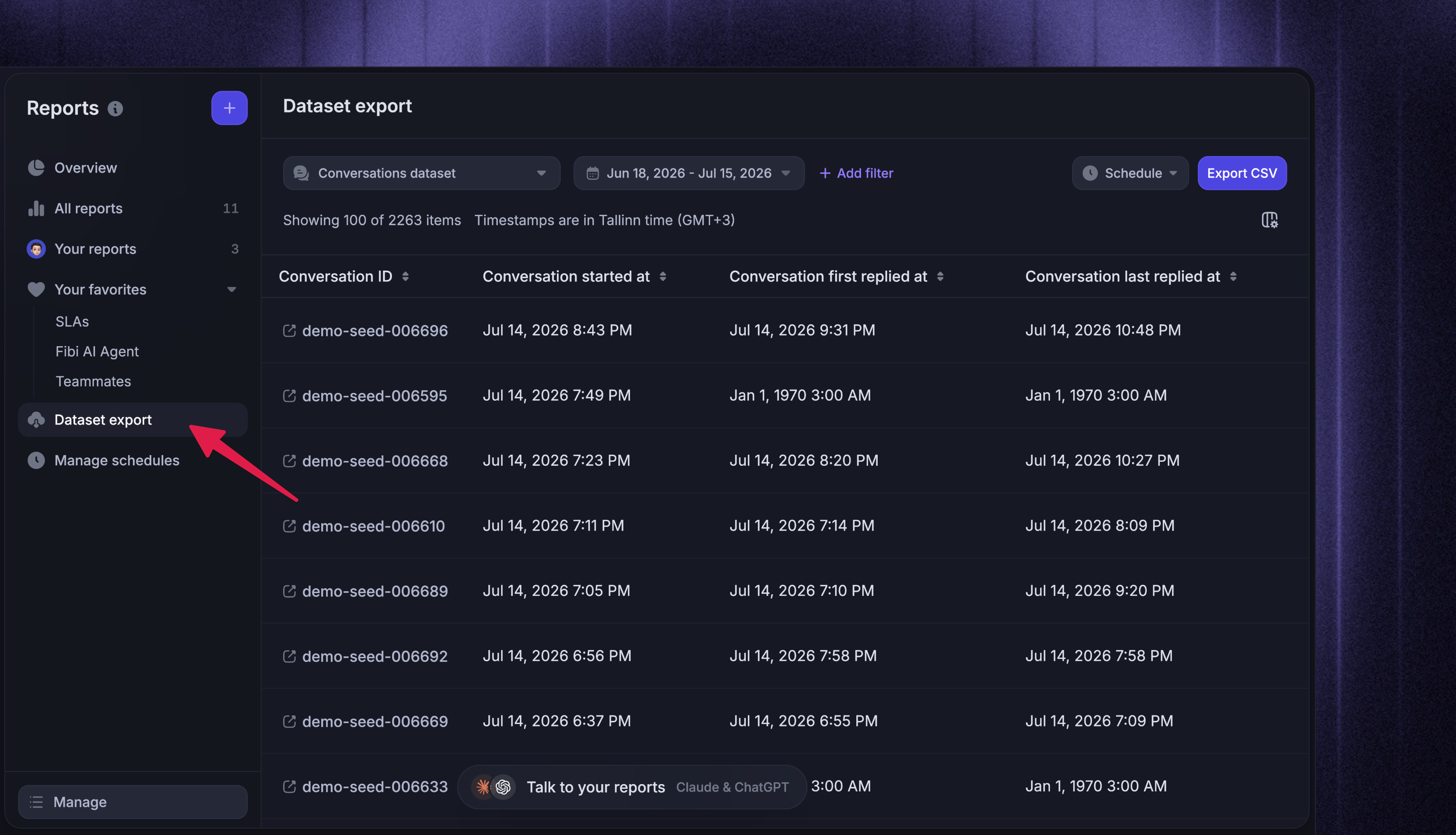
You can export your Featurebase Reports data as CSV to investigate results more closely, analyze them outside Featurebase, or send them to another system. Choose the smallest export that contains what you need:
Notes:
You can also use Featurebase MCP to ask Claude, ChatGPT, etc. questions about your support data, investigate trends, and turn your data into tailored analyses and artifacts.
Reports CSV exports contain structured reporting fields, not complete conversation or ticket transcripts. You can download a single conversation transcript as a text file, but bulk transcript and PDF exports are not available.
You need the Can export CSV workspace permission to download Reports CSV files. Drill-in also requires Can access Chart drill-in. Workspace admins manage both under Settings → Members and teams.
Export chart data
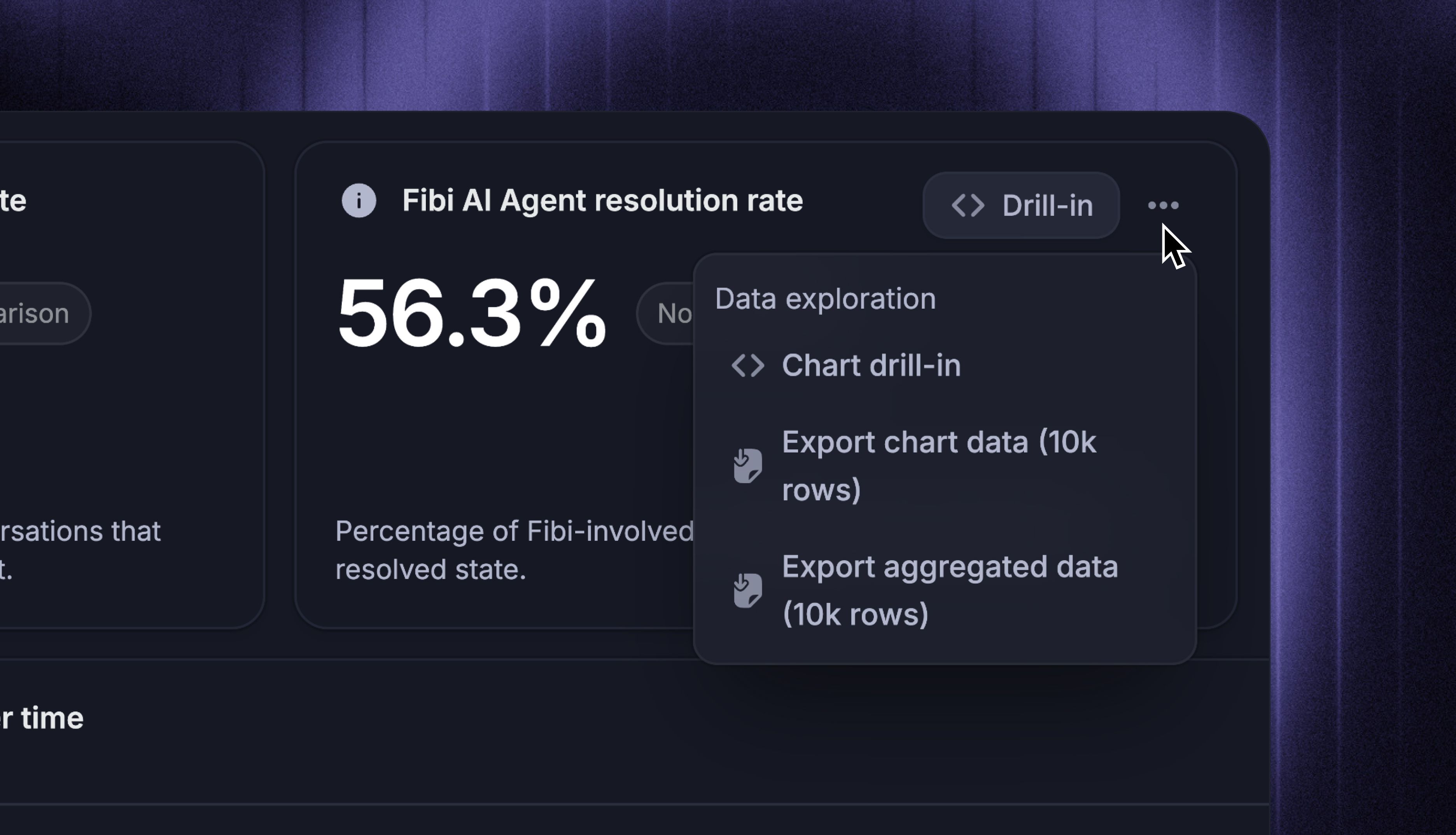
Charts in a report can export their data directly. Hover the chart, open its actions menu, and pick one of the two export options:
Export chart data (10k rows) - the raw rows behind the chart, one row per conversation, ticket, or other dataset record
Export aggregated data (10k rows) - the chart's calculated values as displayed, one row per time bucket or group
To inspect and shape the rows before exporting, open Drill-in instead:
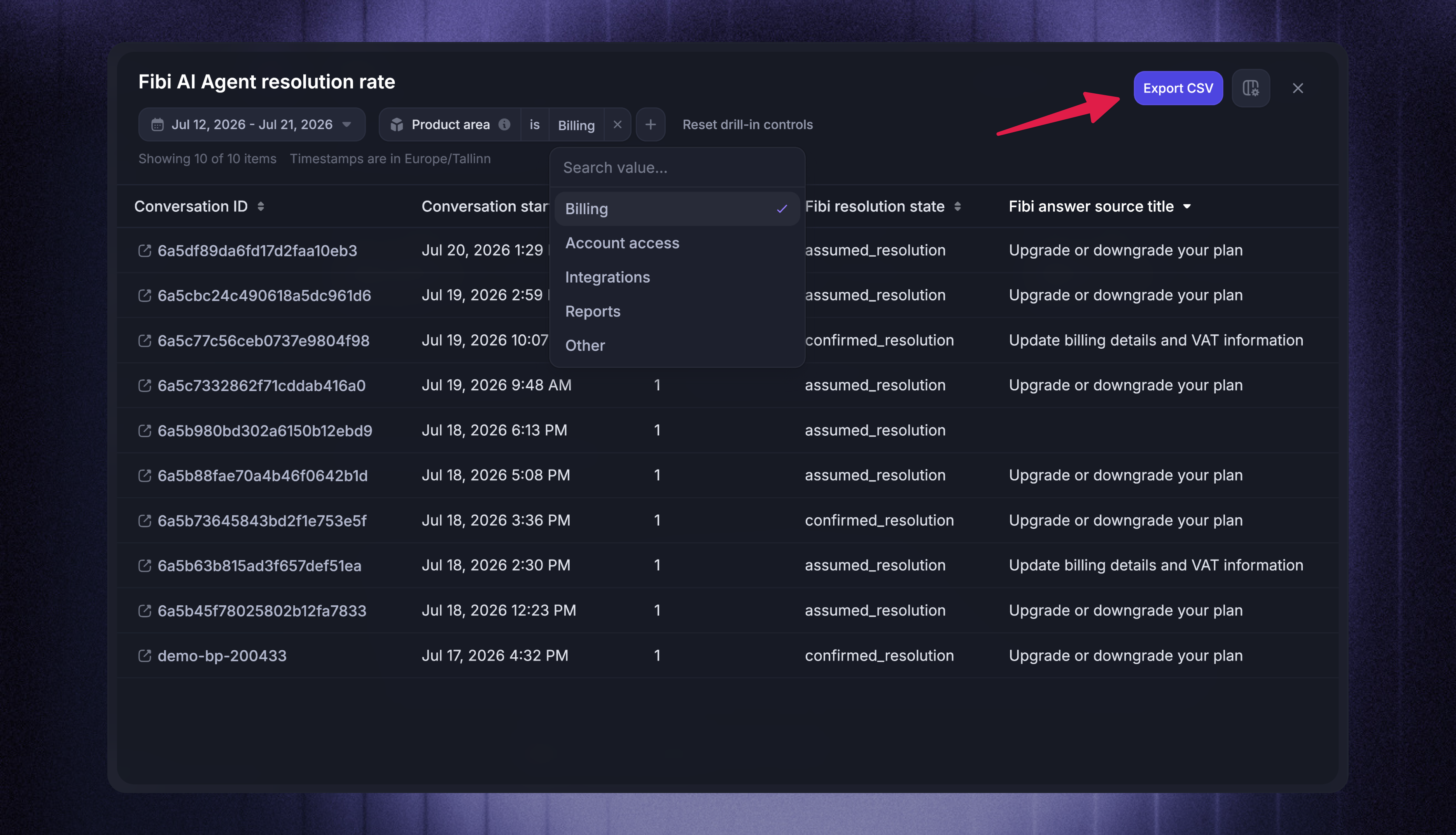
The drill-in table lets you filter, sort, and choose columns, and its ‘Export CSV’ button downloads exactly the columns you have visible. For a larger extract, export the dataset instead.
Note: Multi-metric table charts cannot be exported directly. Export each metric from a non-table chart instead, or export the underlying dataset.
Export a dataset
Dataset exports give you raw rows from one reporting dataset, independent of any chart or report.
Download a dataset as CSV
Go to Reports → Dataset export
Pick the dataset to export - every reporting dataset is available
Set the date range and add filters - narrow the rows, using the same match-all or match-any filter logic as reports
Choose visible columns - Use the column picker above the table to choose which columns the export includes (at least one column must stay visible)
Click ‘Export CSV’ on the top right
The table previews the matching rows before you export. Click a column header to sort, and click a conversation ID to preview the conversation without leaving the page. Timestamps in the preview and the CSV use your local timezone, shown above the table.
Notes:
Export download links are valid for 24 hours.
Customer, company, and custom attribute columns preserve the values captured for each historical reporting row. Conversation tag, priority, and conversation state columns reflect their latest values, so running the same historical export again after one of these changes can produce a different value.
Schedule recurring dataset exports
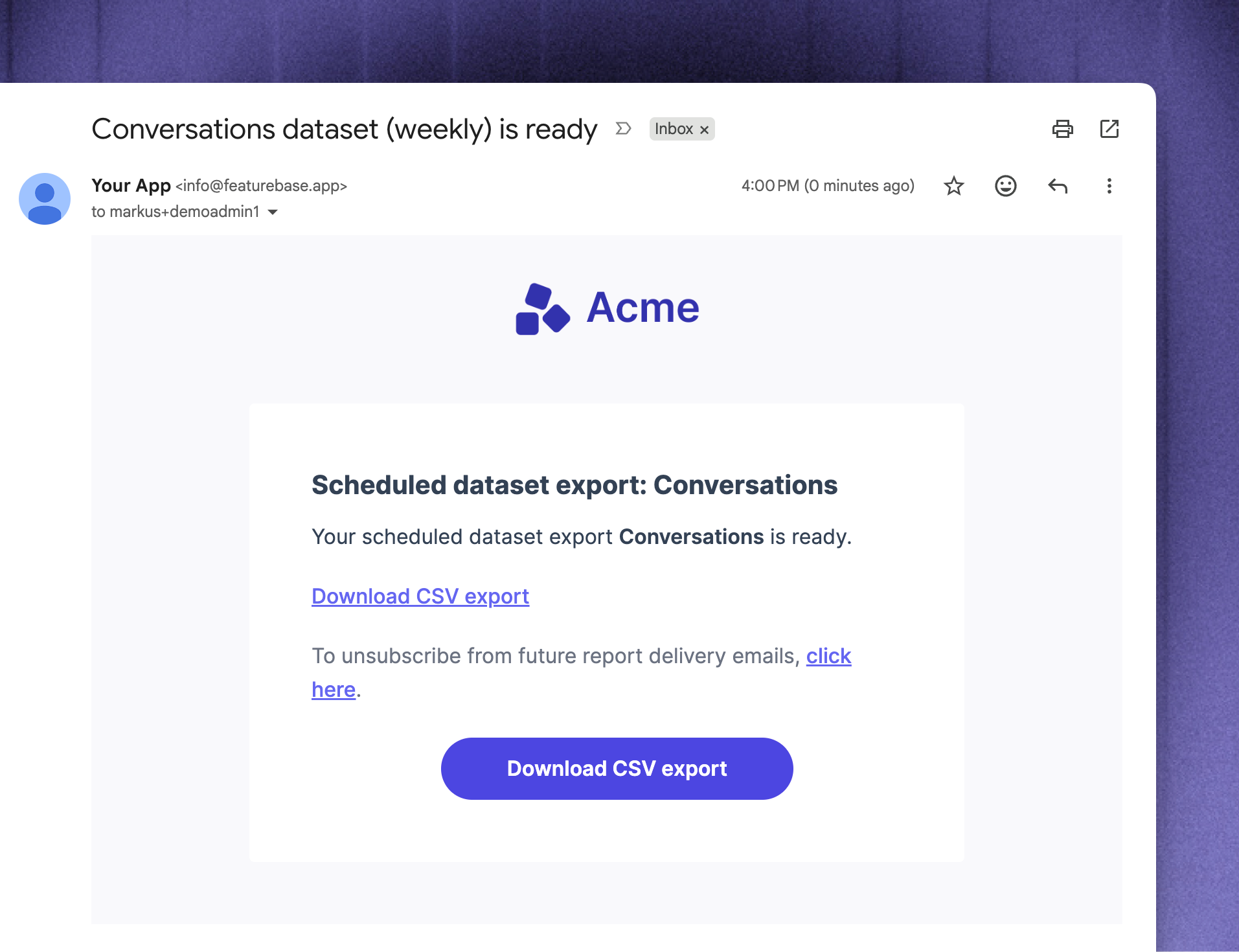
Scheduled exports send a dataset CSV by email on a cadence - useful for weekly team reviews or feeding an external system without manual downloads.
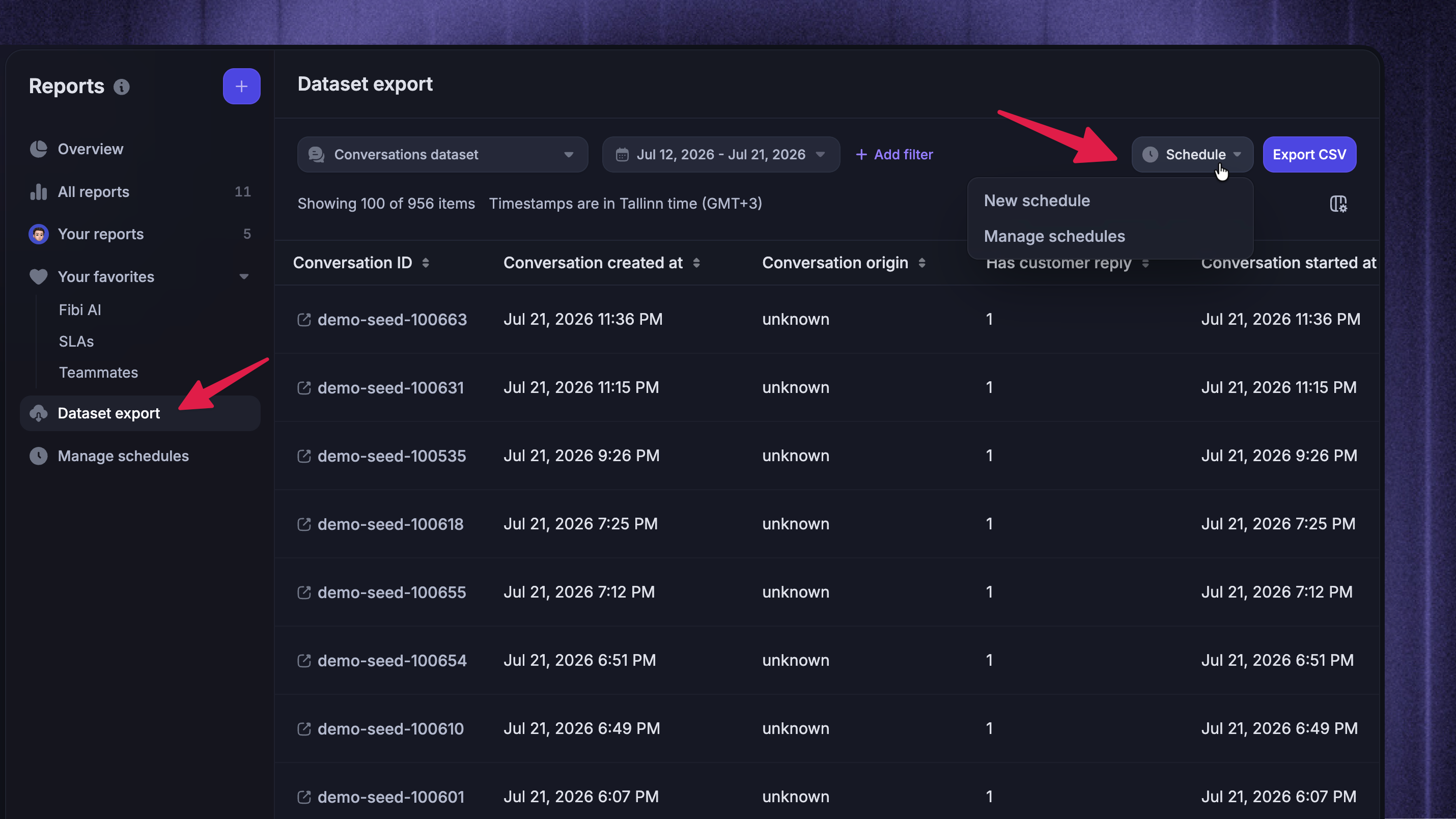
To set up a recurring dataset export:
On Reports → Dataset export, set up the export you want: dataset, filters, date range, and columns
Click Schedule → New schedule
Add one or more recipients - teammates, roles, or external email addresses
Give the schedule a name, optionally add a message, and pick the frequency: Every day, Weekly on Monday, Weekly on Friday, First day of the month, Last day of the month, or Custom for every few weeks or months on a specific day, along with the time of day
Click Create schedule
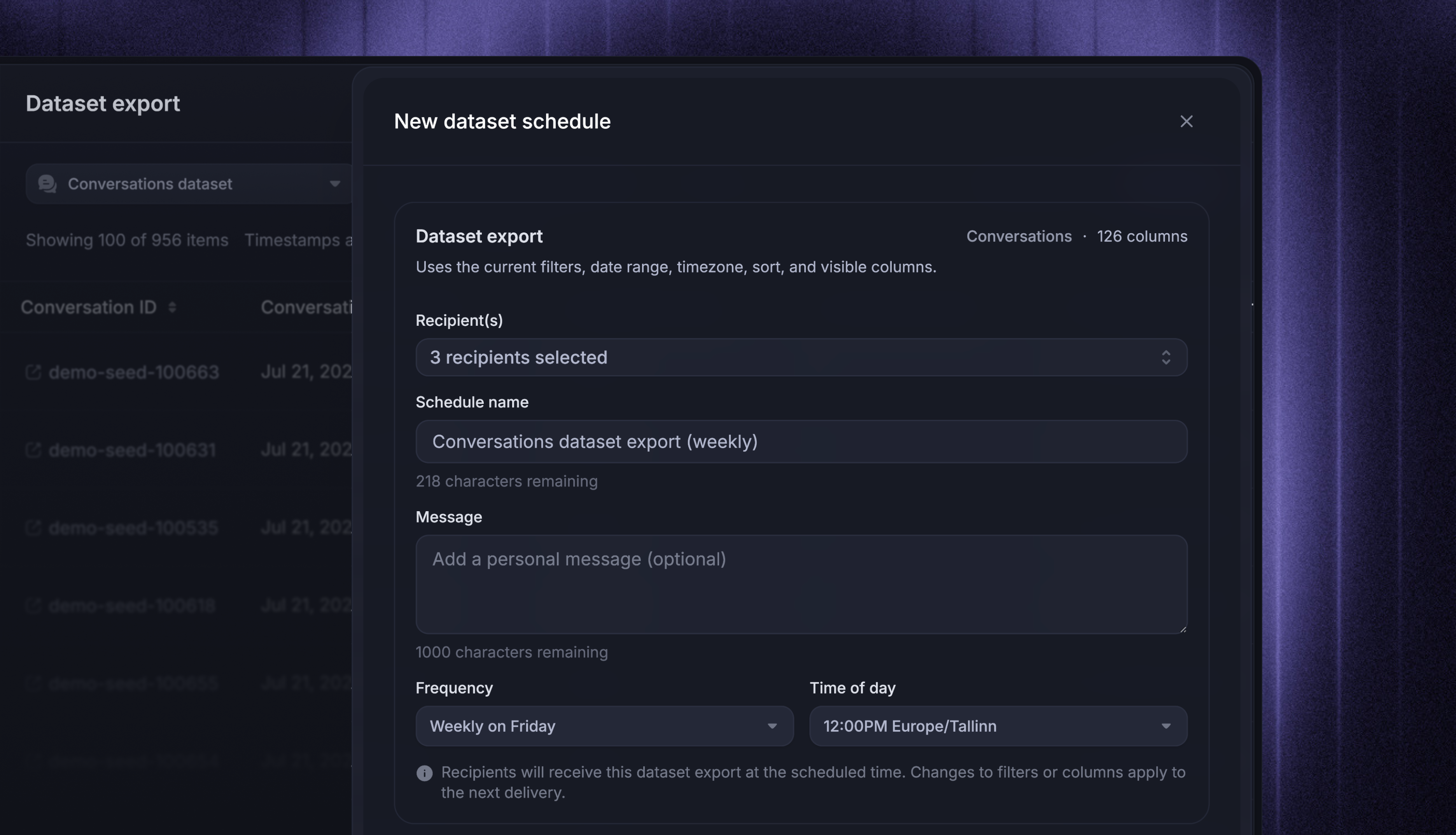
At each delivery, recipients get an email with a link to download the CSV. Relative date ranges are recalculated per delivery - a schedule set to Past 4 weeks moves forward with each delivery date.
Manage scheduled exports
To edit or delete schedules, open Reports → Manage schedules and select Datasets:
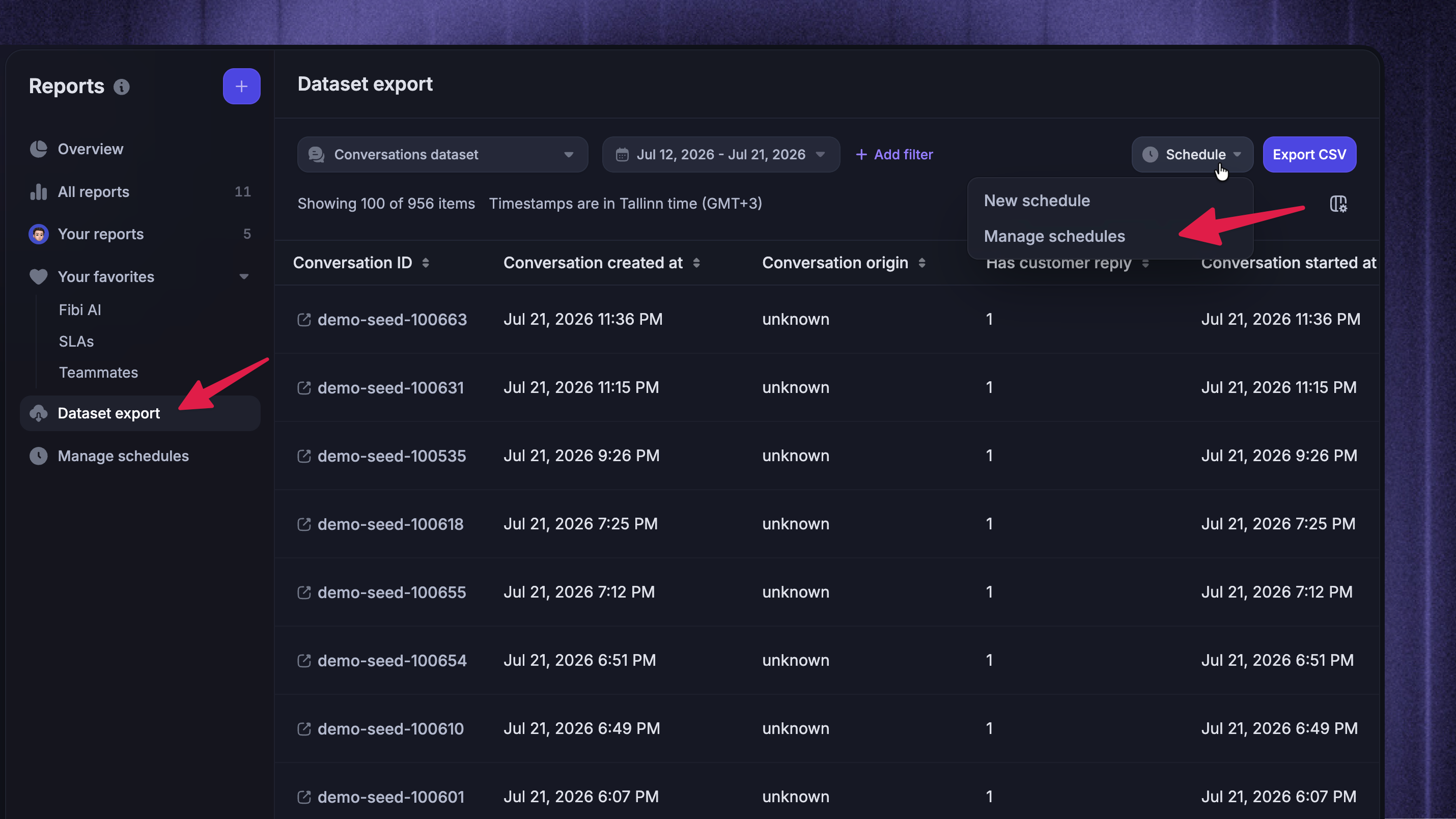
Notes:
You can edit a schedule's name, message, recipients, and frequency. To change its dataset, columns, or filters, rebuild the export on Reports → Dataset export and create a new schedule.
Scheduled dataset exports send raw CSV data. To deliver a visual snapshot of a saved report instead, use scheduled report delivery.
Download a conversation / ticket transcript
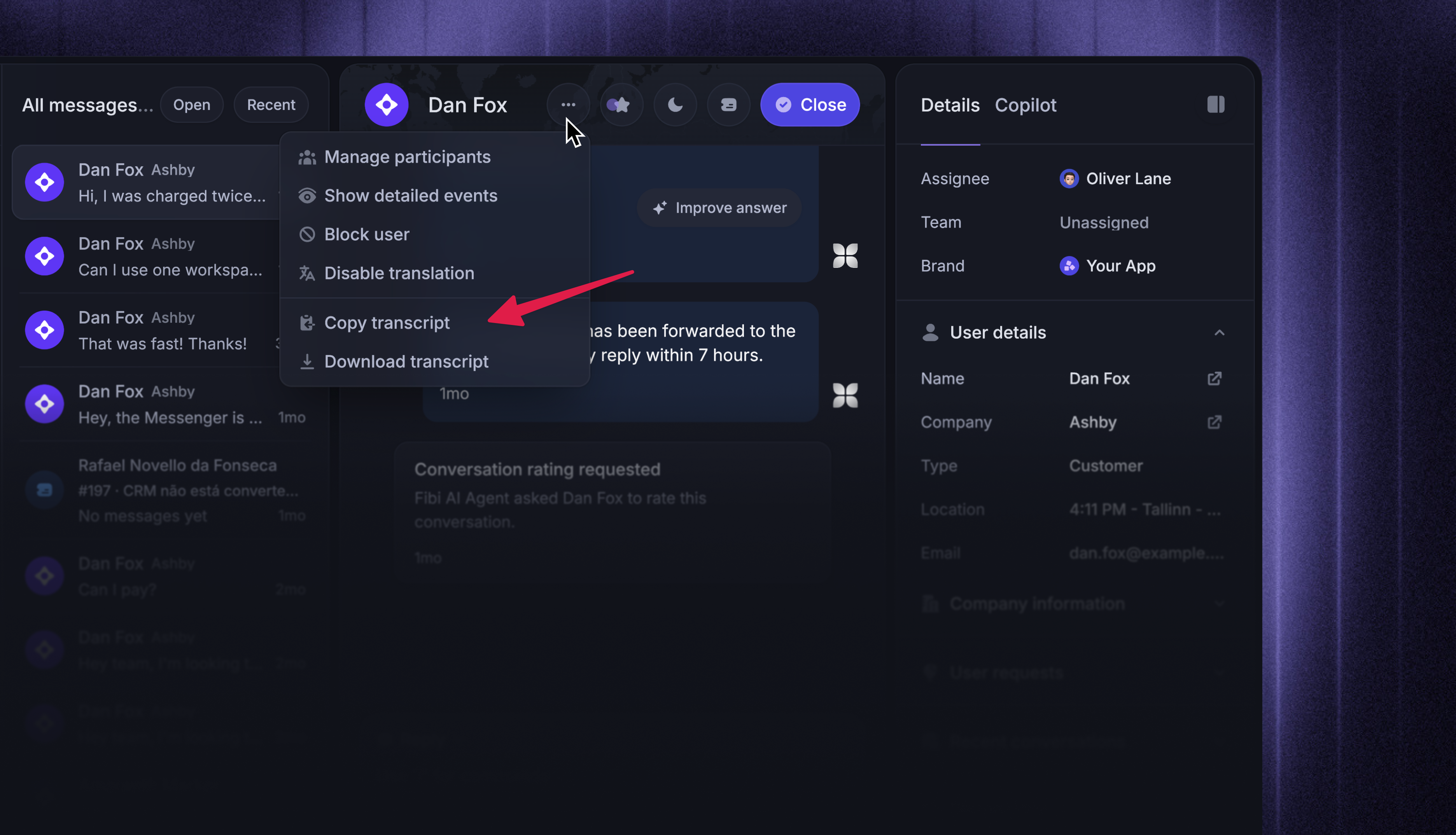
Reports exports contain structured reporting fields, not the message content from the Inbox. To download the visible transcript from one conversation or ticket:
Open the conversation or ticket in Inbox
Click the three dots in the top-right corner
Select ‘Download transcript’
Featurebase downloads a .txt file containing the title, start time, participants, and visible messages.
Transcript downloads do not include internal notes or ticket attributes. PDF and bulk transcript downloads are not available.
Tip: To analyze conversations and ticket content at scale, use our MCP to ask Claude or ChatGPT to analyze the data for you.
Export limits
Dataset exports, manual and scheduled, include up to 100,000 rows. A manual export above the limit fails with an error stating how many rows it contains, and a scheduled delivery above the limit is not sent - narrow the date range or add filters, or split the export into smaller ranges
Chart and drill-in exports include up to 10,000 rows
Reporting data starts on July 12, 2026, so exports cannot include data from before that date.
Access data programmatically
For programmatic access beyond CSV files, use the Reports API to query reporting datasets and metrics from your own tools, or connect AI tools through the Featurebase MCP.
FAQs
Which datasets and fields can I export?
Which datasets and fields can I export?
Every reporting dataset that powers custom reports is available. After you select one, the column picker shows the fields you can export from it.
Reporting metrics and attributes defines those fields and lists the datasets where each one is available.
Why is my export missing rows or conversations?
Why is my export missing rows or conversations?
Check the dataset, date range, and filters first. Each dataset includes rows whose own reporting timestamp falls in the selected range. In the Conversations dataset, that is when the conversation was created.
Reporting data starts on July 12, 2026, so earlier activity never appears. If the numbers themselves look off, see Troubleshooting custom reports.
Can I export a report as a PDF?
Can I export a report as a PDF?
No. Reports exports are CSV only. To share a formatted, read-only view of a report, share it externally or schedule a report delivery instead.
Was this helpful?
Still need help? Ask the team