Share reports externally
Create a public link that shares a read-only snapshot of a report with execs, clients, and stakeholders outside your Featurebase workspace.
Written By Markus Palm
Last updated 3 months ago
Overview
External sharing turns a saved report into a public snapshot link that anyone can open in a browser - no Featurebase account or login required. The snapshot is a read-only copy of the report's real charts and values at the moment you generate the link, so everyone you share it with sees exactly what you saw.
Common use cases:
Send a monthly support summary to executives who don't work in Featurebase
Share results with a client or external partner
Give stakeholders a stable snapshot to discuss in a meeting or review
To share a report with teammates inside your workspace, use access controls instead - they keep the report live and let you control who sees it.
Note: Public links expire automatically 30 days after they are created.
Create a public link
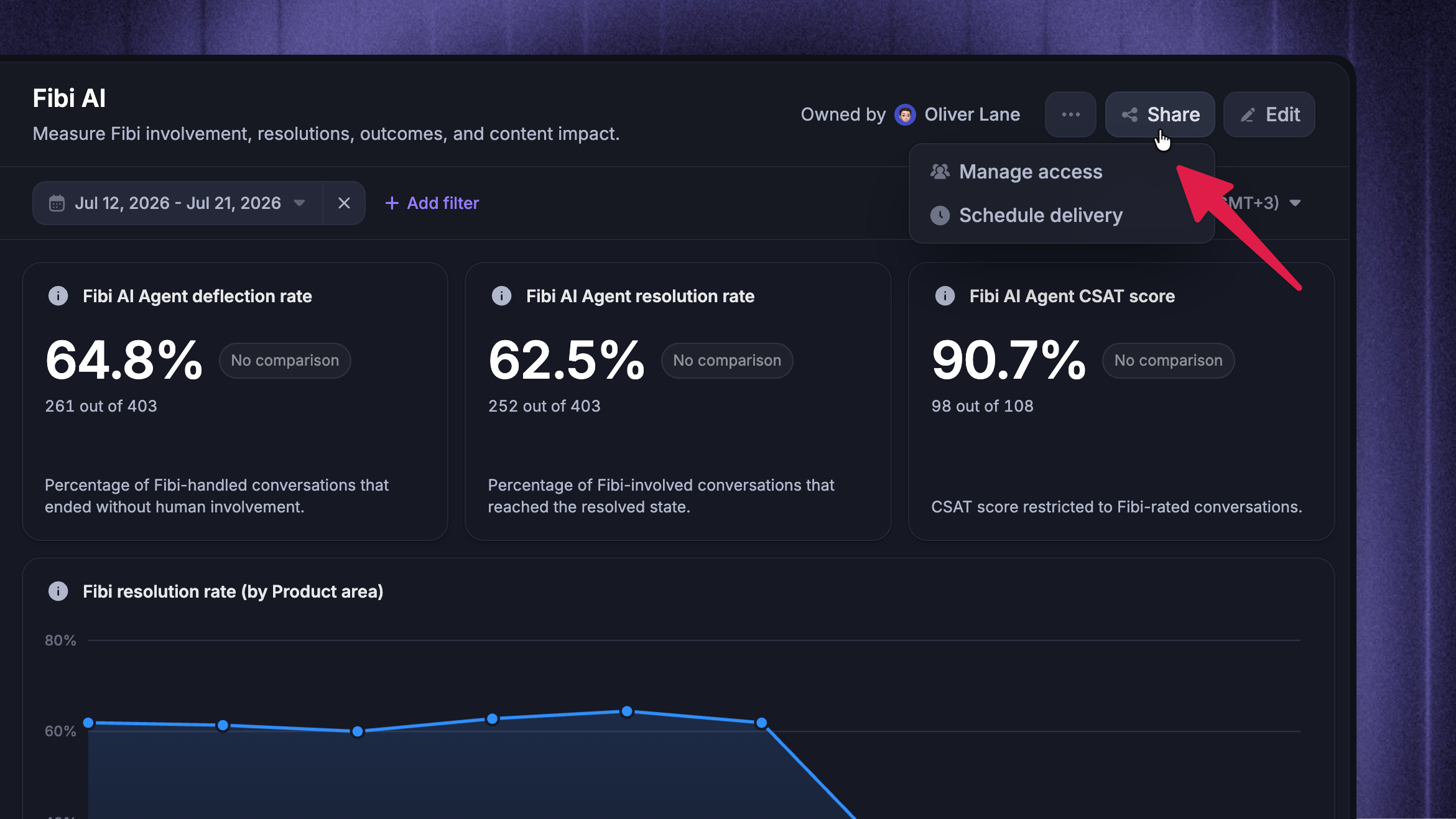
Open the report
Click Share → Manage access
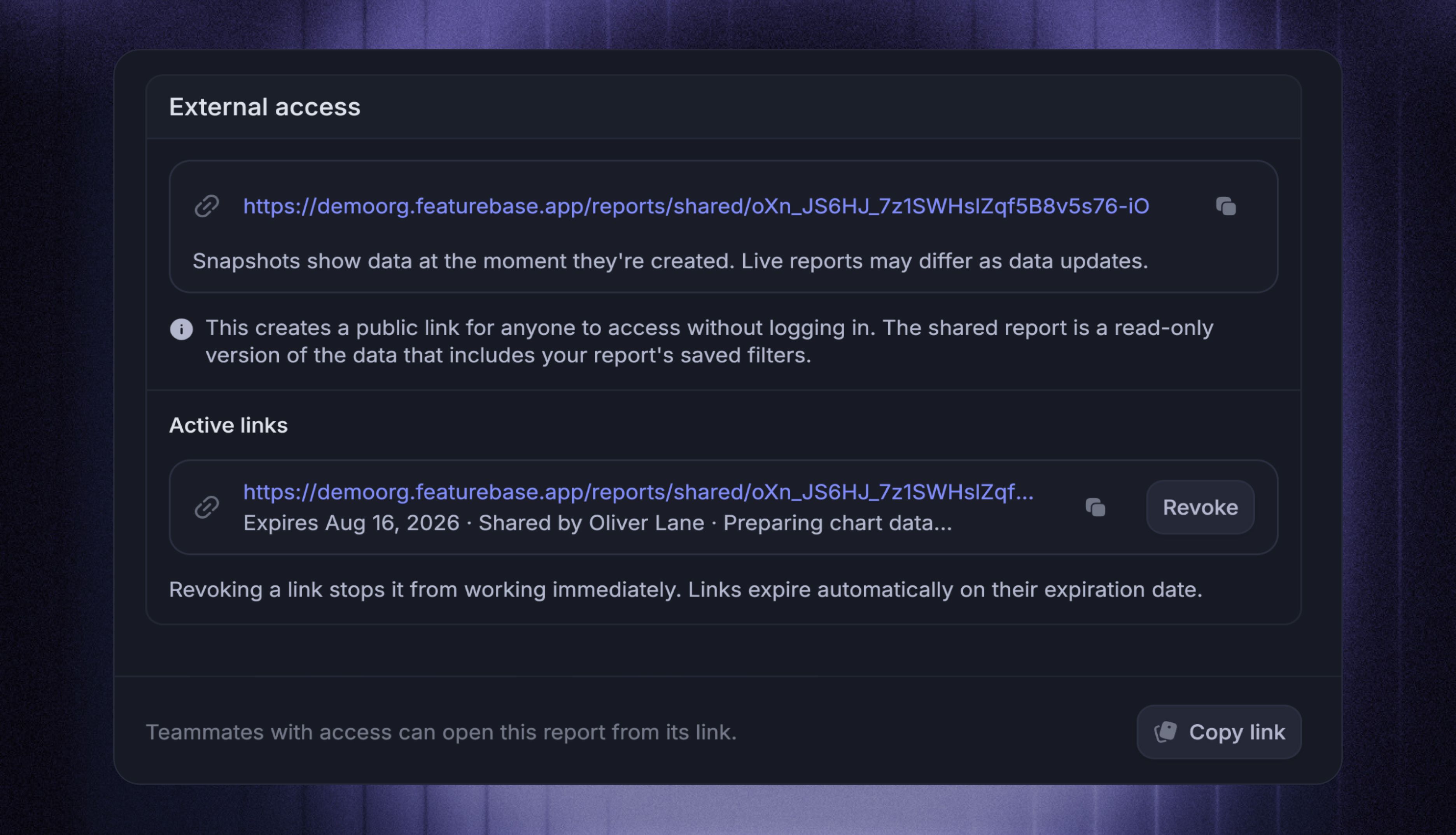
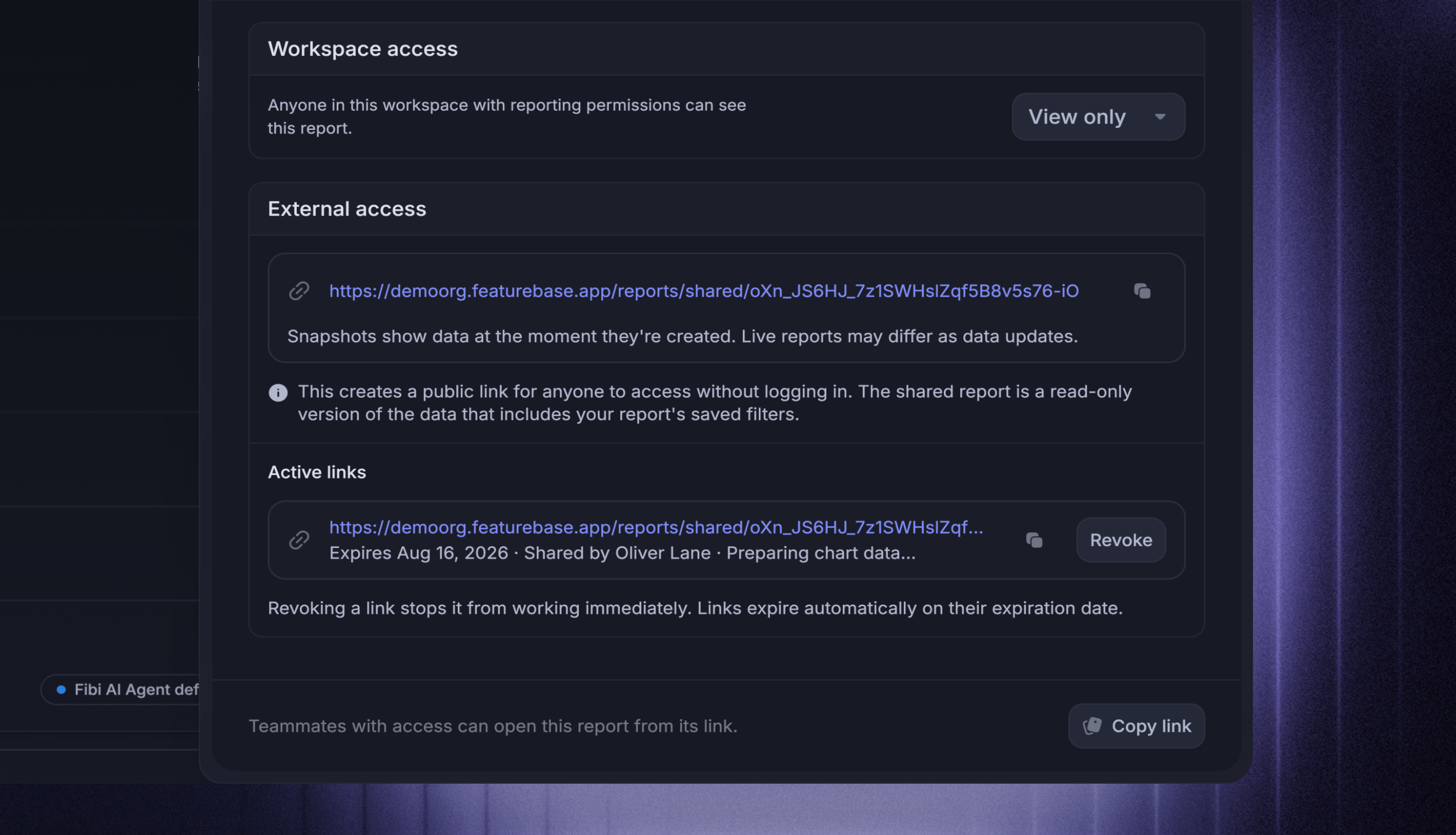
Find External access and click Generate & share link
Featurebase evaluates the report, saves the result as a snapshot, and copies the public link to your clipboard.
Notes:
Sharing externally requires ‘Full access’ to the report and the ‘Can create, edit and internally share Reports’ role permission. The owner has Full access automatically but still needs the role permission.
If ‘External access’ doesn't appear in ‘Manage access’ options, ask an admin to check your report access and role permissions. The snapshot captures the report filters, date range, comparison, and timezone currently shown when you generate the link, even if they differ from the report's saved settings.
Reports containing Table charts cannot be shared externally. Remove every Table chart before generating the public link.
What viewers see
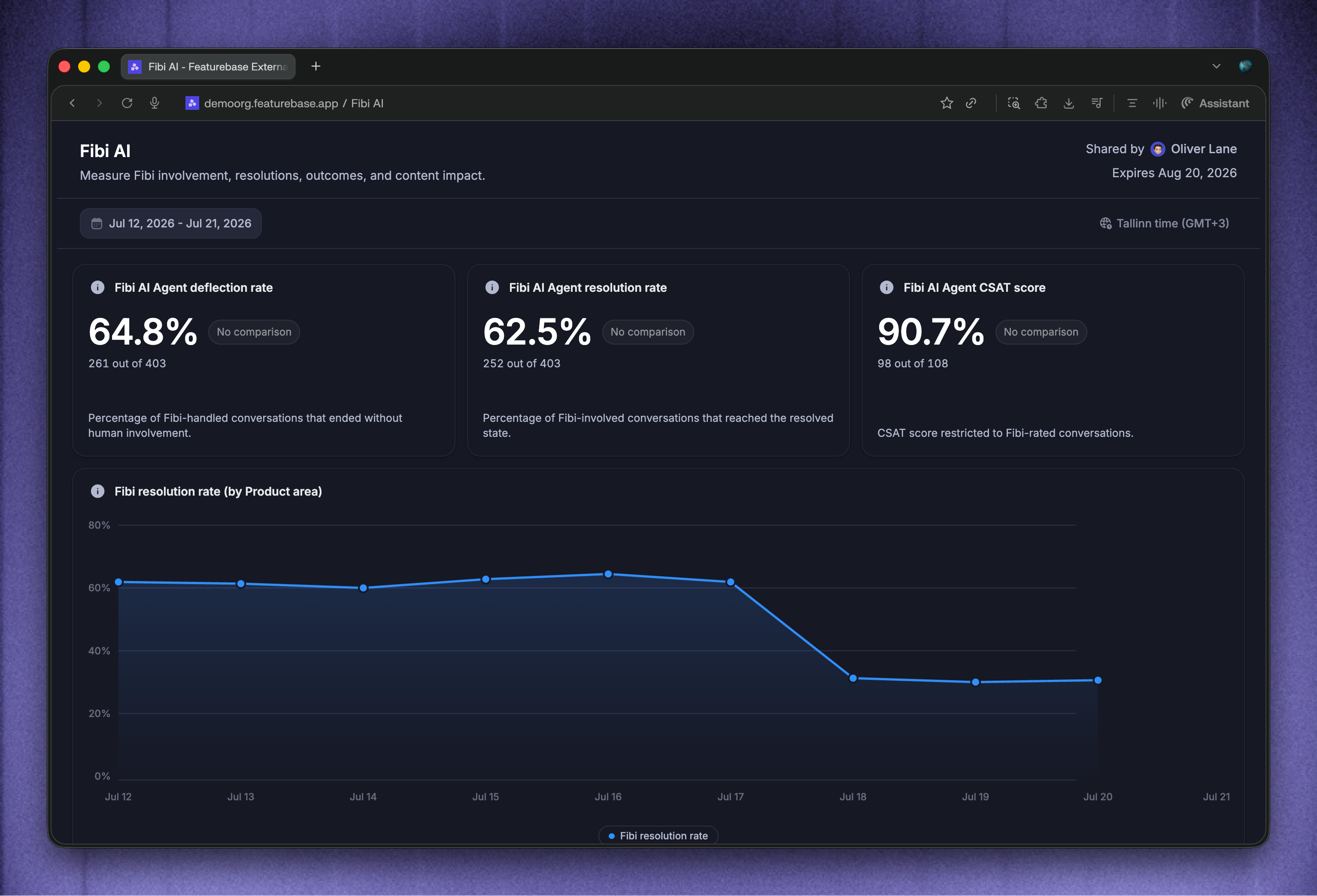
The link opens a read-only page with the report as it was when you generated the link:
The report's actual charts and values, fully rendered - not a live view
Saved chart titles, descriptions, layout, and breakdowns, plus the report filters, date range, comparison, and timezone shown when the link was generated
The report's name and description, who shared it, and when the link expires
Viewers can't change filters or the date range, drill in to the underlying conversations, export data, or edit anything.
The snapshot is frozen. Editing the report later or new conversations arriving never changes an existing link - generate a new link to share the current state.
Important: Anyone with the link can open the snapshot without signing in. Review the report before sharing it because charts may contain teammate names or values from custom attributes.
How long links stay active
Each public link expires automatically 30 days after it's created. Opening an expired link shows a notice that the link is unavailable or has expired.
You can also revoke a link before it expires.
Open Share → Manage access
Find the link under External access → Active links
Click Revoke.
Confirm Revoke public link to shut it off right away - anyone who opens it afterward sees the same unavailable notice.
Generating a new link doesn't turn off earlier ones, so revoke any link you no longer want people to open.
When you need more than a one-off link, schedule report delivery to email fresh snapshots to teammates, roles, or external addresses on a recurring cadence.
Was this helpful?
Still need help? Ask the team