Teammate filters in reports
Choose the right teammate or team filter in Featurebase Reports - dynamic, currently assigned, replied, closed, handled, rated, or SLA-attributed.
Written By Markus Palm
Last updated 4 days ago
Overview
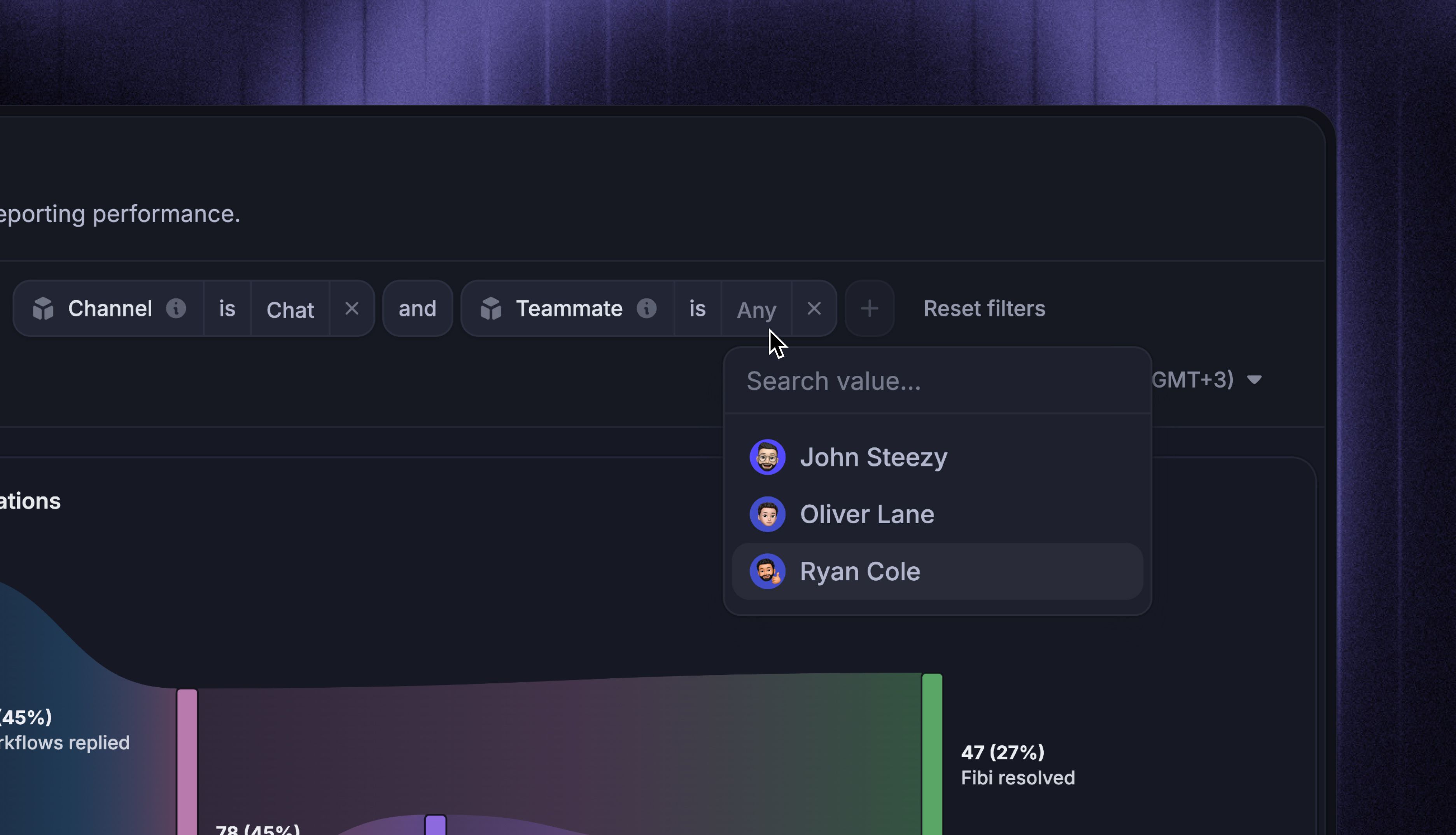
Use teammate and team filters to better understand teammate participation and its impact on the overall customer experience. They help you answer questions such as:
Who is currently assigned to a conversation or ticket
Who replied, handled, or closed it
Which teammate was rated by the customer or associated with an SLA evaluation
How an individual teammate or team performs across a report
Apply teammate attributes as report-level or chart-level filters, or use supported attributes as breakdowns. Each filter answers a different question, so two charts filtered to the same teammate may show different conversations. The available options depend on the metrics and datasets in the chart.
Report-level teammate filters
A report-level filter applies to every chart in the report. The filter must be supported by every chart's metrics, so changing a metric can remove a report filter that is no longer compatible.
Note: If no rows match the selected teammate or team, the affected charts show that there is no data for the selection.
How the dynamic Teammate filter works
The ‘Teammate’ filter is the best default for most report-level filtering. It changes meaning based on the metric instead of forcing every chart to use current assignment.
This lets one report answer "How did this teammate perform?" across response, close, handling, rating, and SLA charts without configuring a different filter for each one. When you need one fixed meaning instead, choose a specific attribute.
To compare one teammate across multiple metrics, start with the ‘Teammate Performance’ report and use the dynamic ‘Teammate’ filter in the report header.
To filter by current team membership, open the Teammate filter, select is a member of, and choose a team. The report includes the current members of that team, so its results update when teammates join or leave the team.
Chart-level teammate attributes
At chart level, use compatible teammate attributes as filters or breakdowns. A chart-level filter affects only that chart and only needs to be compatible with its selected metrics. Most filterable attributes can also be used at report level when every chart supports them.
Current assignment attributes
Current-assignment filters follow live ownership. If a conversation from last month is reassigned from Maria today, it leaves Maria's Teammate currently assigned results for that period and appears under the new assignee instead. Use action-based attributes when you need historical participation that does not move with current ownership.
Common use cases
Scenario: See how many conversations created during the selected period are currently assigned to a specific teammate.
How to apply:
Select metric: Choose New conversations
Apply teammate filter: Add Teammate currently assigned and select the teammate
Optional: Add Conversation state is Snoozed to focus on deferred conversations
Reply and close attributes
First-reply and first-close attributes stay fixed. Last-reply and last-close attributes update if a later matching action happens.
Common use cases
Scenario: Measure how quickly a teammate sends the first visible reply to new conversations.
How to apply:
Select metric: Choose the First response time metric with the timestamp basis you want to report on
Apply teammate filter: Add Teammate first replied and select the teammate
Scenario: Count the unique conversations a specific teammate replied to during the selected period.
How to apply:
Select metric: Choose Conversations replied to
Apply teammate filter: Add Teammate replied to and select the teammate
Rating attributes
Last teammate rated updates when a later rating is associated with another teammate. Use Teammate rated when you want the teammate directly associated with each rating.
Common use cases
Scenario: Review the customer ratings associated with a specific teammate.
How to apply:
Select metric: Choose CSAT score
Apply teammate filter: Add Teammate rated and select the teammate
Activity and attribution attributes
These attributes stay with the historical action, handling period, SLA evaluation, or Copilot prompt instead of following current ownership.
Common use cases
Scenario: Count the close actions performed by a specific teammate during the selected period.
How to apply:
Select metric: Choose Closed conversations
Apply teammate filter: Add Action performed by and select the teammate
Scenario: Measure the average time a teammate actively spends handling conversations.
How to apply:
Select metric: Choose Teammate handling time
Choose aggregation: Select Average
Apply teammate filter: Add Handled by teammate and select the teammate
Scenario: Review SLA performance for evaluations attributed to a specific teammate.
How to apply:
Select metric: Choose SLA hit rate
Apply teammate filter: Add SLA attributed to and select the teammate
Scenario: Count the questions a specific teammate asked Copilot.
How to apply:
Select metric: Choose Copilot questions
Apply teammate filter: Add Teammate who asked and select the teammate
Team filters
Team filters use either the current team, the team selected dynamically for a metric, or the team associated with a specific historical action.
Historical team attribution stays with the action even if the teammate changes teams later. Work Maria completed while she was on the Support team continues to count toward Support. The Teammate is a member of condition answers a different question by using the team's current members.
Common use cases
Scenario: Compare first-response performance for a specific team.
How to apply:
Select metric: Choose the First response time metric with the timestamp basis you want to report on
Apply team filter: Add the dynamic Team filter and select the team
FAQs
Why is a teammate filter missing?
Why is a teammate filter missing?
The filter picker only shows attributes supported by the selected metrics. Report-level filters must work across every chart, while chart-level filters only need to work with that chart.
The teammate picker lists current workspace members, and ‘Teammate is a member of’ uses current team membership.
Why does a teammate's closed count differ from their team's closed conversations?
Why does a teammate's closed count differ from their team's closed conversations?
The two charts can use different attributions. For Closed conversations, the dynamic ‘Teammate’ filter follows ‘Action performed by’, while dynamic ‘Team’ follows ‘Team at action time’. A chart using ‘Team currently assigned’ answers a different question by following current ownership.
Conversations closed without a teammate action have no teammate close actor. Use ‘Close actor type’ to separate teammate closes from Workflows, Fibi AI Agent, customer, or system closes.
Why does a breakdown by ‘Teammate replied to’ add up to more than my total?
Why does a breakdown by ‘Teammate replied to’ add up to more than my total?
‘Teammate replied to’ can hold several teammates for one conversation, so a breakdown counts the conversation once for every teammate who replied. This is expected.
What happens when a teammate leaves the workspace?
What happens when a teammate leaves the workspace?
Their reporting history stays. Past replies, closes, ratings, actions, handling periods, and SLA evaluations remain attributed to them, and saved reports that already filter on them keep working.
The teammate picker only lists current workspace members, so you cannot add a new filter for a removed teammate. Current team-membership filters also stop including them after they leave the team.
Do teammate filters include Fibi?
Do teammate filters include Fibi?
No. Teammate filters match human teammates only. Fibi's work has separate attributes under ‘Fibi attributes’, such as ‘Fibi involved’, and ‘Rated agent type’ records whether a CSAT rating applies to a teammate, Fibi, or Workflows.
Was this helpful?
Still need help? Ask the team