Office hours in reporting
Learn how office hours affect duration metrics in Featurebase Reports and when to use All hours or Within office hours.
Written By Kateryna Babenko
Last updated 4 days ago
Overview
Supported duration metrics can be calculated in two ways:
All hours (24/7) - counts the full elapsed time, including nights, weekends, and time outside your working schedule
Within office hours - counts only the time that passes during the workspace, team, or teammate office hours that apply to the metric
Charts use ‘All hours’ by default. Turn on ‘Within office hours’ when you want response and resolution times to reflect only the hours your team was scheduled to work.
Set your office hours
Start by configuring your workspace's default office hours. Reports uses them whenever a metric does not have a more specific team or teammate schedule.
Each schedule can:
Cover every day, weekdays, weekends, or selected days
Include more than one working period on the same day
Use its own configured timezone
Assign a schedule to teammates
To give one or more teammates a specific reporting schedule:
Go to Settings → Support → Office hours → Teammate schedules
In the ‘Reporting schedule’ column, assign a schedule to a teammate
To assign the same schedule in bulk, select several teammates and choose a schedule
Check the ‘Effective schedule’ column to see which schedule Reports will apply after any fallbacks
Note: Teammate reporting schedules affect Reports only. They do not change Inbox availability, SLA timers, snoozes, automatic replies, or office-hours conditions in Workflows. Schedule changes apply going forward and do not recalculate past durations.
Which schedule Reports uses
The schedule depends on the type of metric:
A teammate who belongs to more than one team cannot inherit one team's schedule. Assign them a teammate schedule, or Reports will use the workspace default.
Note: If your workspace has no office hours configured, ‘Within office hours’ produces the same result as ‘All hours’ because Featurebase treats the workspace as available 24/7.
Enable office hours on a chart
Office hours are set per chart, so the same report can contain both ‘All hours’ and ‘Within office hours’ charts.
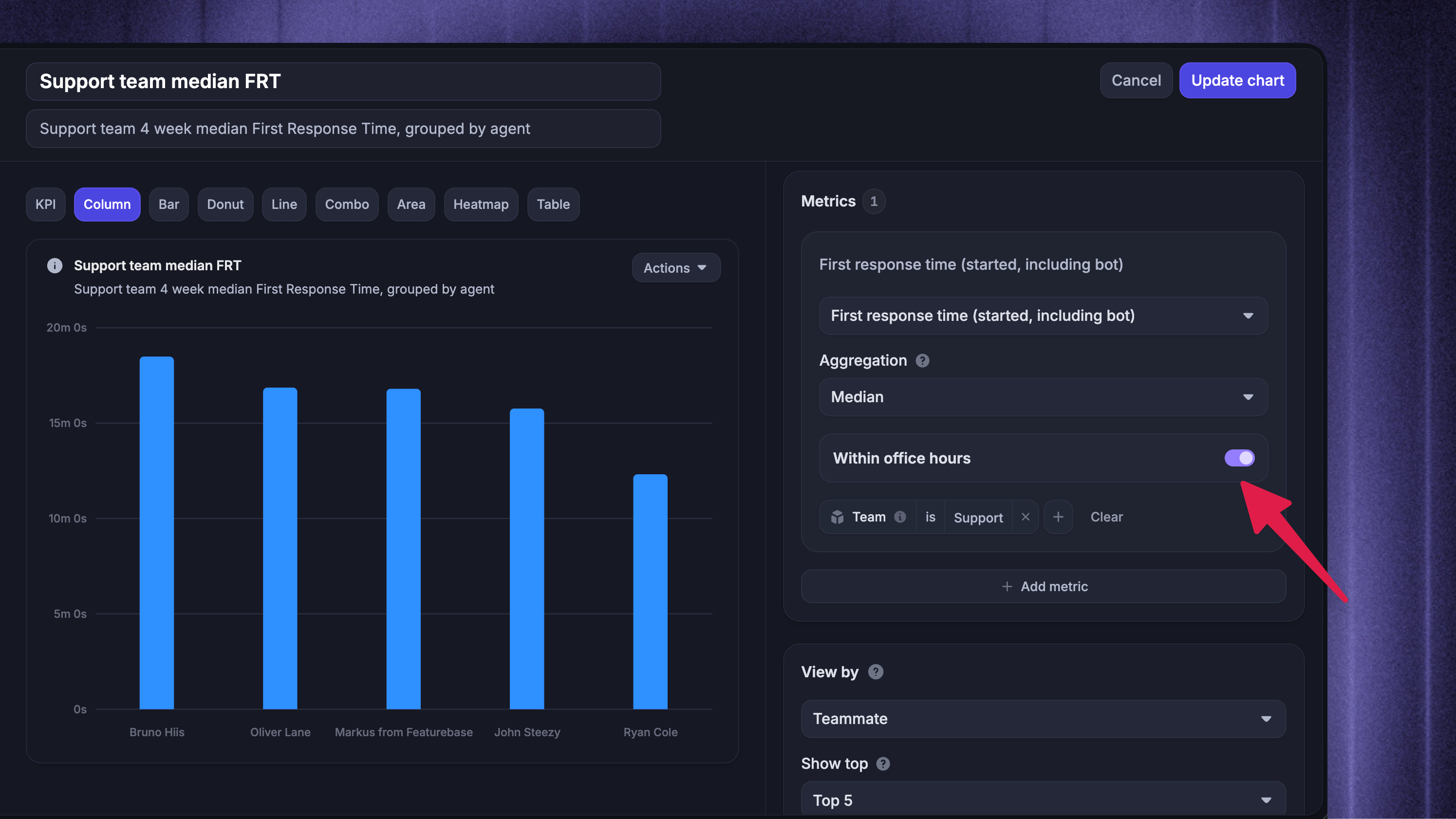
To enable office hours in the chart builder:
Create a chart or edit an existing one
Under ‘Metrics’, select a supported duration metric
Turn on ‘Within office hours’
Add or update the chart
The setting appears only when every metric on the chart supports it. If you add an unsupported metric, ‘Within office hours’ turns off automatically.
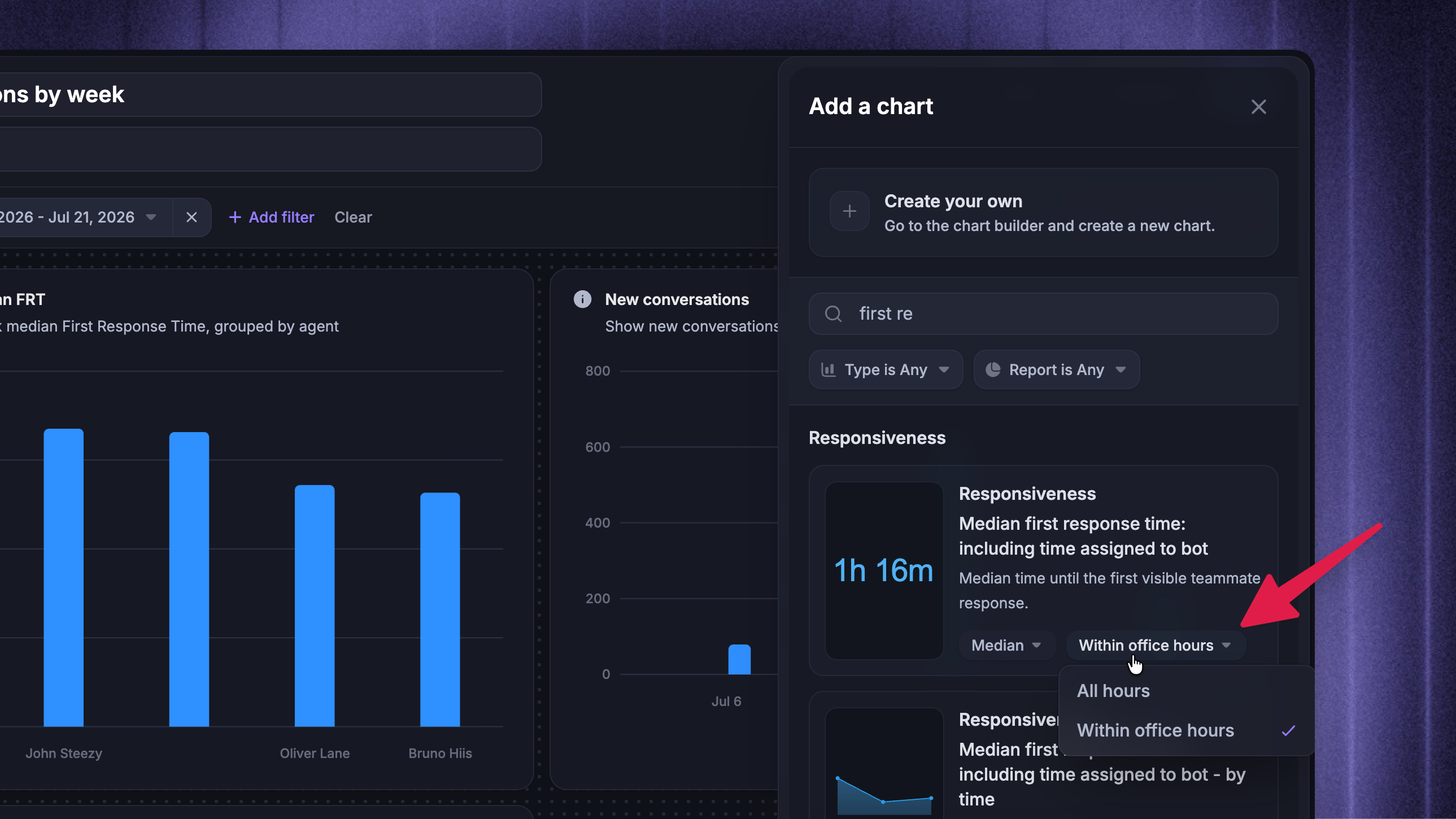
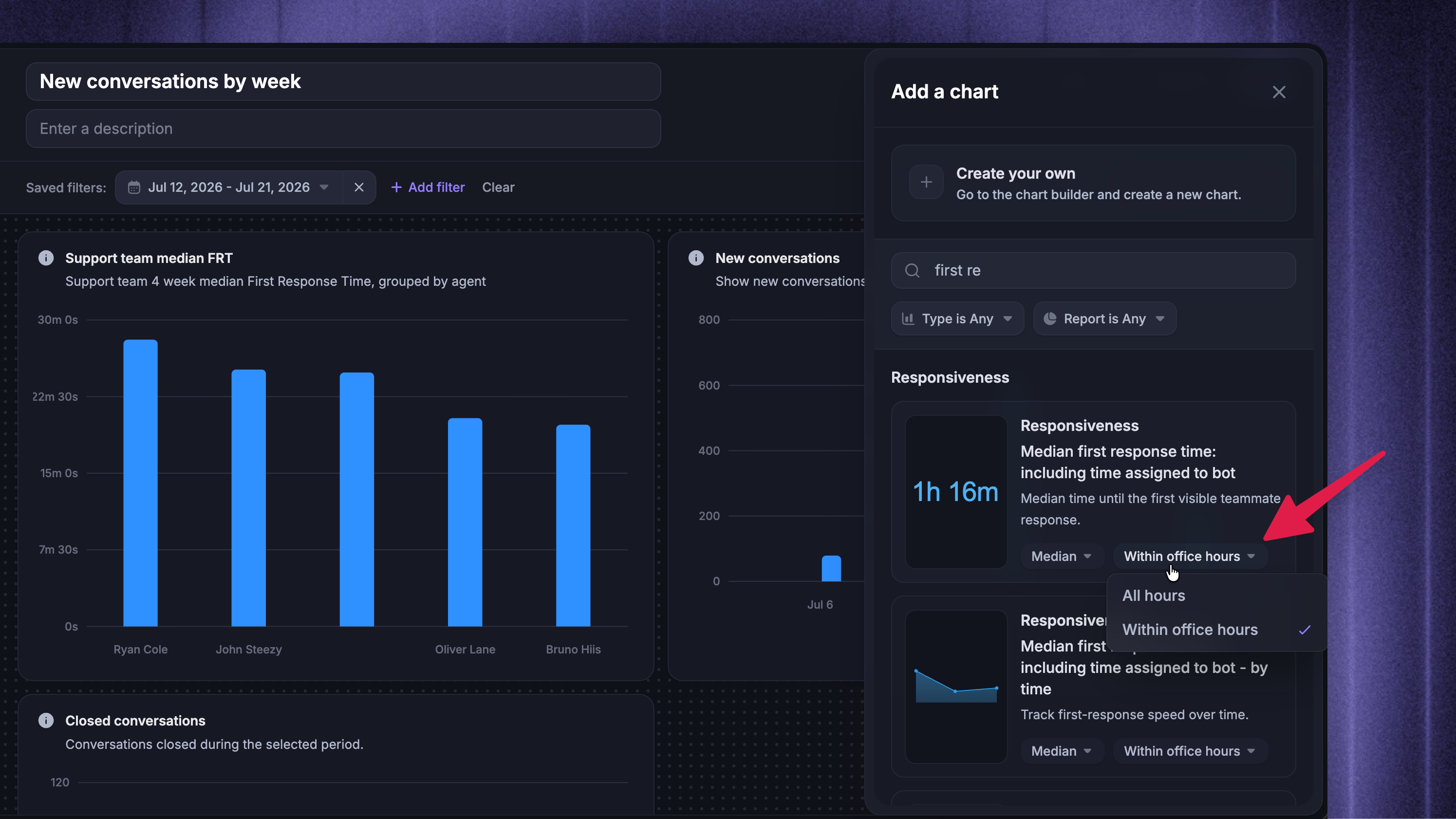
When adding a prebuilt chart from ‘Add a chart’, use its All hours / Within office hours selector to choose the calculation before adding it. Built-in template charts use ‘All hours’ by default, but you can change supported charts after creating your own copy of a template.
Tip: Select the information icon next to a chart title to check whether it uses ‘All hours’ or ‘Within office hours’, alongside its metric description, timestamp, aggregation, and filters.
How office hours affect metrics
Example calculation
Say your office hours are ‘Weekdays, 9:00 AM to 5:00 PM’:
A customer starts a conversation Friday at 4:00 PM
Your team sends the first reply Monday at 10:00 AM
The result is:
All hours - 66 hours from Friday afternoon to Monday morning
Within office hours - 2 hours: 4:00 to 5:00 PM on Friday and 9:00 to 10:00 AM on Monday
Note: If both the customer message and the teammate reply happen outside the applicable schedule, that response-time value is excluded from the chart instead of being counted as zero in its average or median.
Supported metrics
Office hours only change duration metrics. Counts, rates, and scores are not adjusted - a conversation created on a Sunday still counts toward ‘New conversations’.
Supported metrics and prebuilt charts include:
Conversation metrics - First response time, Response time, Time to close, Time to first close, Time to first assignment, and Time from first assignment to close
Teammate metrics - Teammate assignment to first response, Teammate assignment to subsequent response, Teammate assignment to close, Teammate handling time, and Adjusted teammate handling time
Team metrics - Team assignment to first response, Team assignment to subsequent response, and Team assignment to close
Ticket metrics - Ticket time to resolve
Some duration metrics always use calendar time, including ‘Fibi resolution time’ and ‘Ticket time in state’.
Office hours are applied before aggregation, so ‘Average’, ‘Median’, and ‘Percentile’ summarize the adjusted values. If a chart still looks wrong after checking its office-hours setting, troubleshoot the report.
FAQs
Do office hours affect SLA metrics?
Do office hours affect SLA metrics?
SLA metrics like SLAs hit and SLA miss rate count evaluations exactly as your SLA policies made them, and SLA timers already pause outside your office hours. There is no separate office-hours toggle on SLA metrics.
Do weekends count toward response times?
Do weekends count toward response times?
Only if weekends are included in your schedule. With a weekdays-only schedule, weekends never add to an office-hours duration.
Can different teams use different office hours?
Can different teams use different office hours?
Yes. A team can use custom office hours, and a teammate can use an individual reporting schedule. For teammate metrics, Reports first uses the teammate's schedule, then the team's custom office hours, then the workspace default.
A teammate on more than one team cannot inherit one team's schedule, so they use an explicit teammate schedule or the workspace default. Team metrics use the team's custom hours or fall back to the workspace default.
Was this helpful?
Still need help? Ask the team