Schedule report delivery
Send Featurebase reports to teammates, roles, and external email addresses on a recurring schedule, as read-only report snapshots.
Written By Markus Palm
Last updated 3 months ago
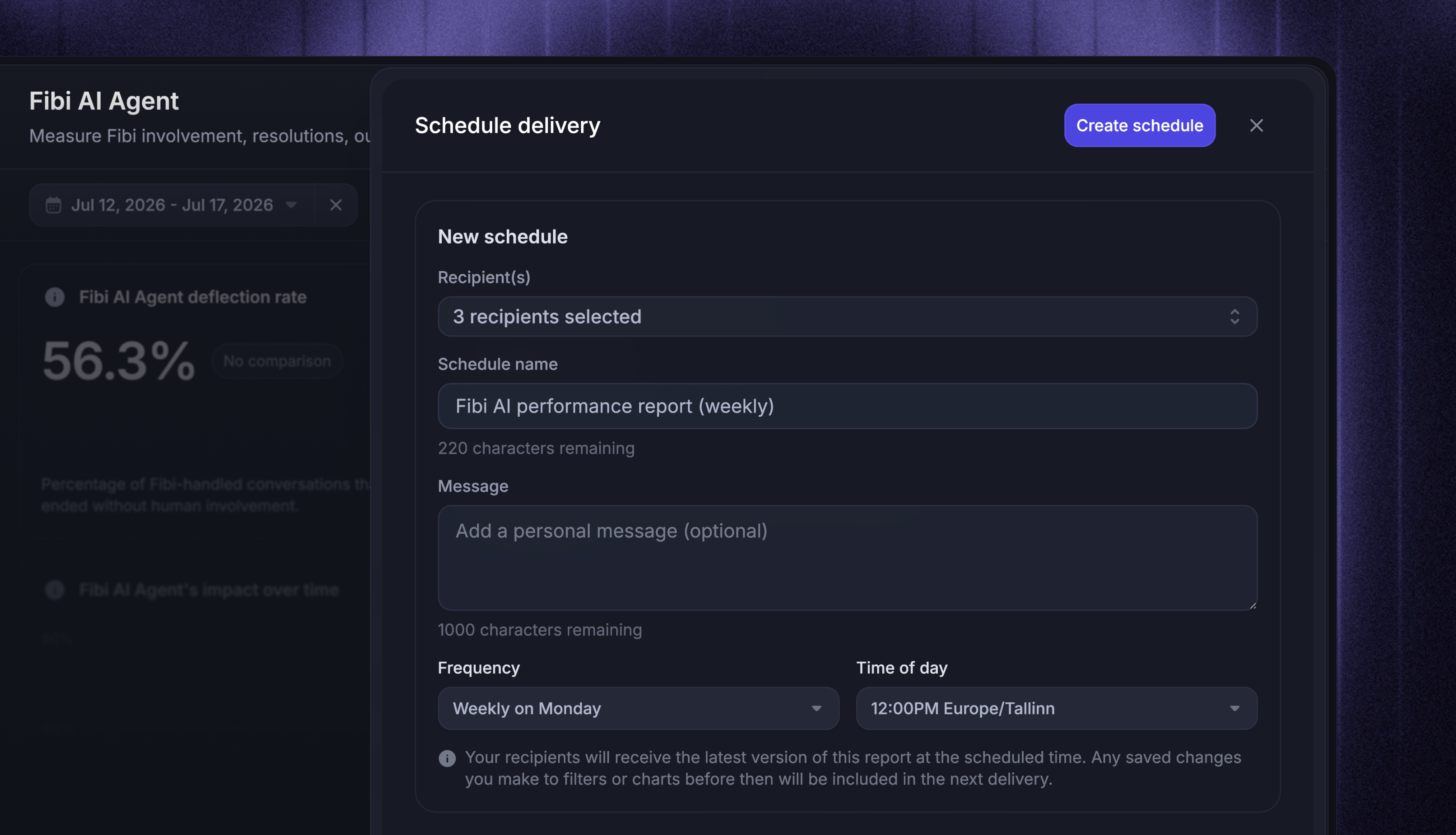
Overview
Scheduled delivery lets you send time-based snapshots of your reports by email to key stakeholders.
Recipients can be teammates, roles, or external email addresses - each delivery contains a link to a read-only snapshot of the report, so stakeholders see the real charts and numbers without opening the dashboard.
Common use cases:
Send the team's support metrics to everyone each Monday morning
Deliver a monthly performance report to a client or external stakeholder
Keep leadership updated on a cadence instead of on request
For a one-off link instead of a recurring email, share the report externally.
Create a schedule
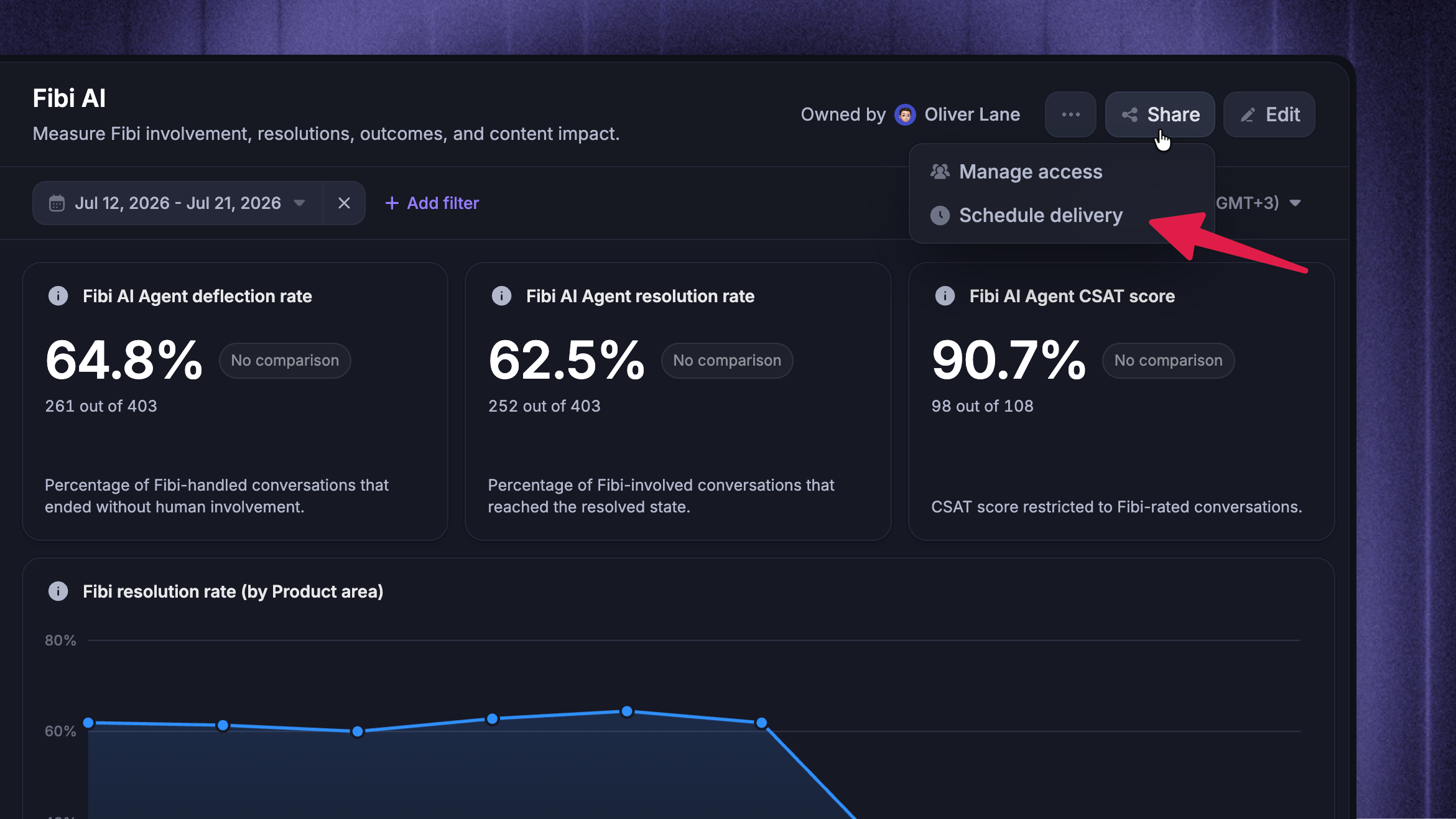
When you want to send a saved report on a recurring schedule:
Open a saved report from Reports
Click Share → Schedule delivery
Configure the schedule and click Create schedule
Note: Scheduling requires Full access to the report and the ‘Can schedule report deliveries’ role permission. If you don't see ‘Schedule delivery’ in the Share' menu, ask the report owner or an admin for access.
Configure the scheduling
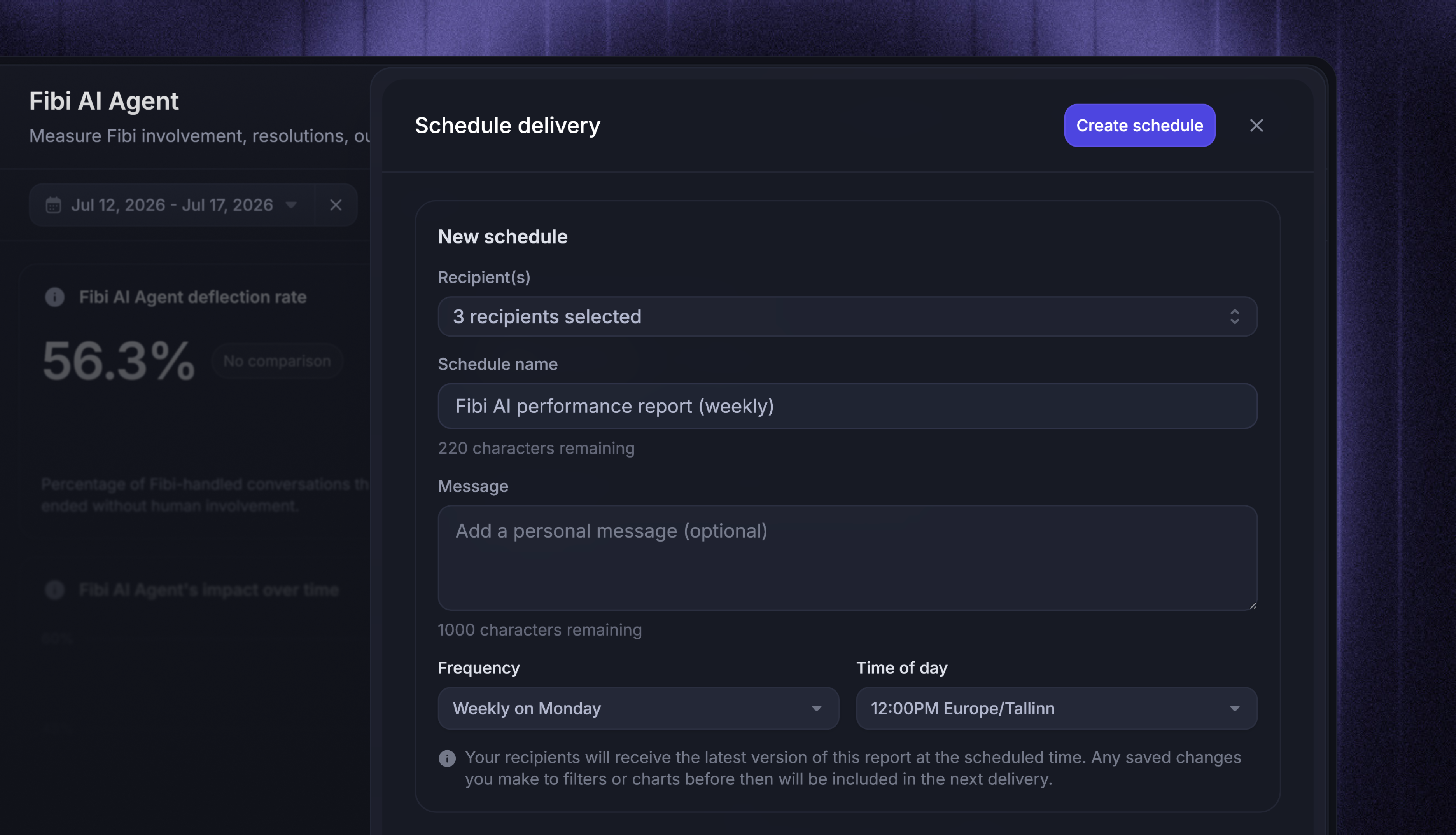
Add recipients:
Teammates - pick workspace members by name
Roles - deliver to everyone with that role. Membership is resolved at send time, so teammates who join the role later are included automatically
External emails - type any email address to add someone outside your workspace
Name the schedule - recipients see it in the delivery email's subject line
Add a message (optional) - give recipients context that appears at the top of every delivery
Choose a frequency:
Every day
Weekly on Monday or Friday
First or Last day of the month
Custom - completely custom scheduling
Choose a delivery time - pick the hour each delivery is sent. Times are shown in your device's timezone, and the schedule keeps that timezone when it runs
Click Create schedule on the top right
Manage your schedules
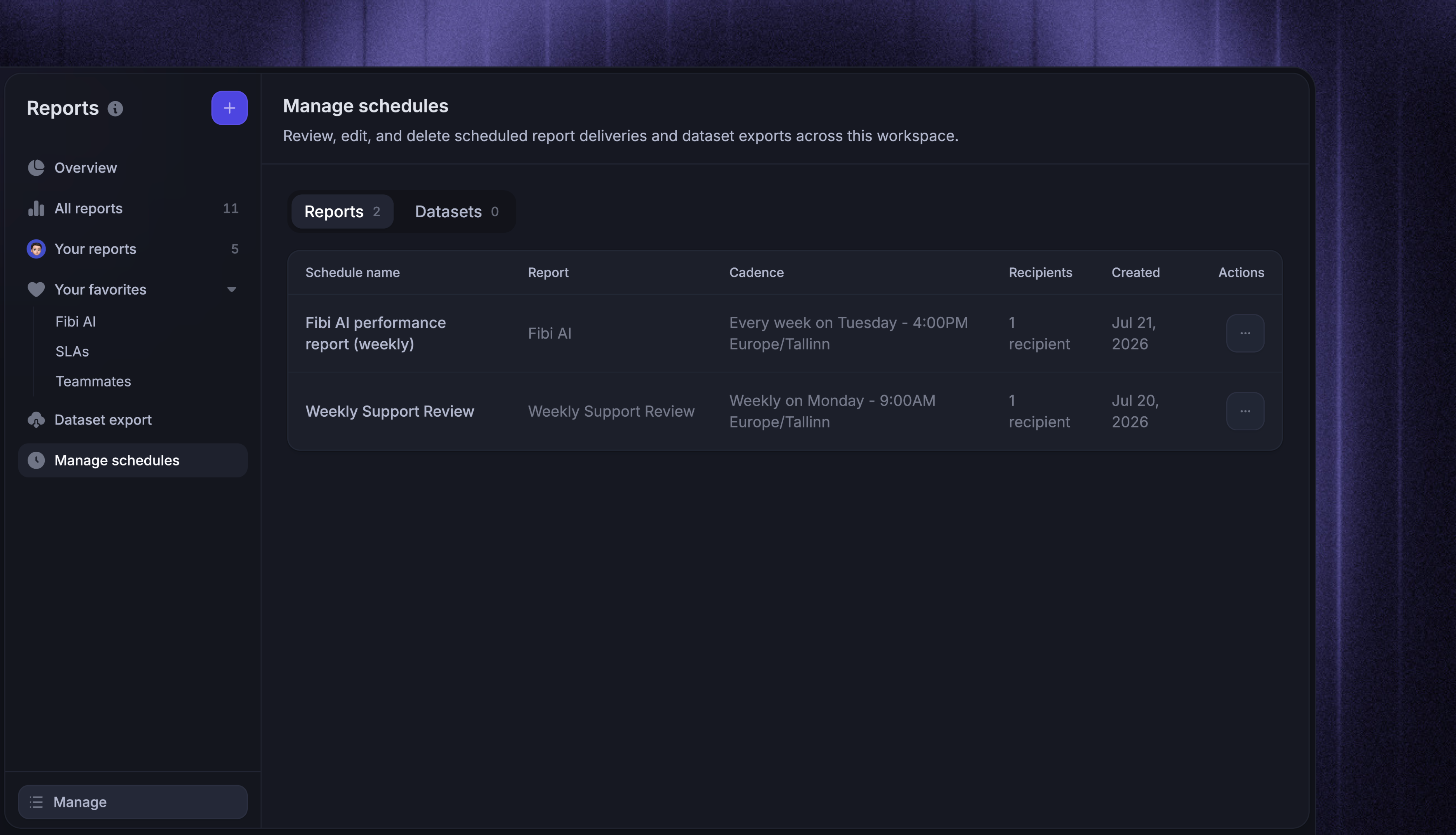
To manage all your schedules, go to Reports → Manage schedules.
The Reports tab lists scheduled report deliveries for every report you can access, with each schedule's name, report, cadence, recipient count, and creation date. The Datasets tab lists scheduled dataset exports, which deliver CSV files instead of report snapshots.
Open the actions menu on any row:
Edit schedule - update the schedule details shown in the drawer, then click Save changes
Delete schedule - stops all future deliveries. This can't be undone, but you can recreate the schedule from the report at any time
Note: If the report is deleted, its schedule stops sending and snapshot links that were already delivered stop working.
What recipients see
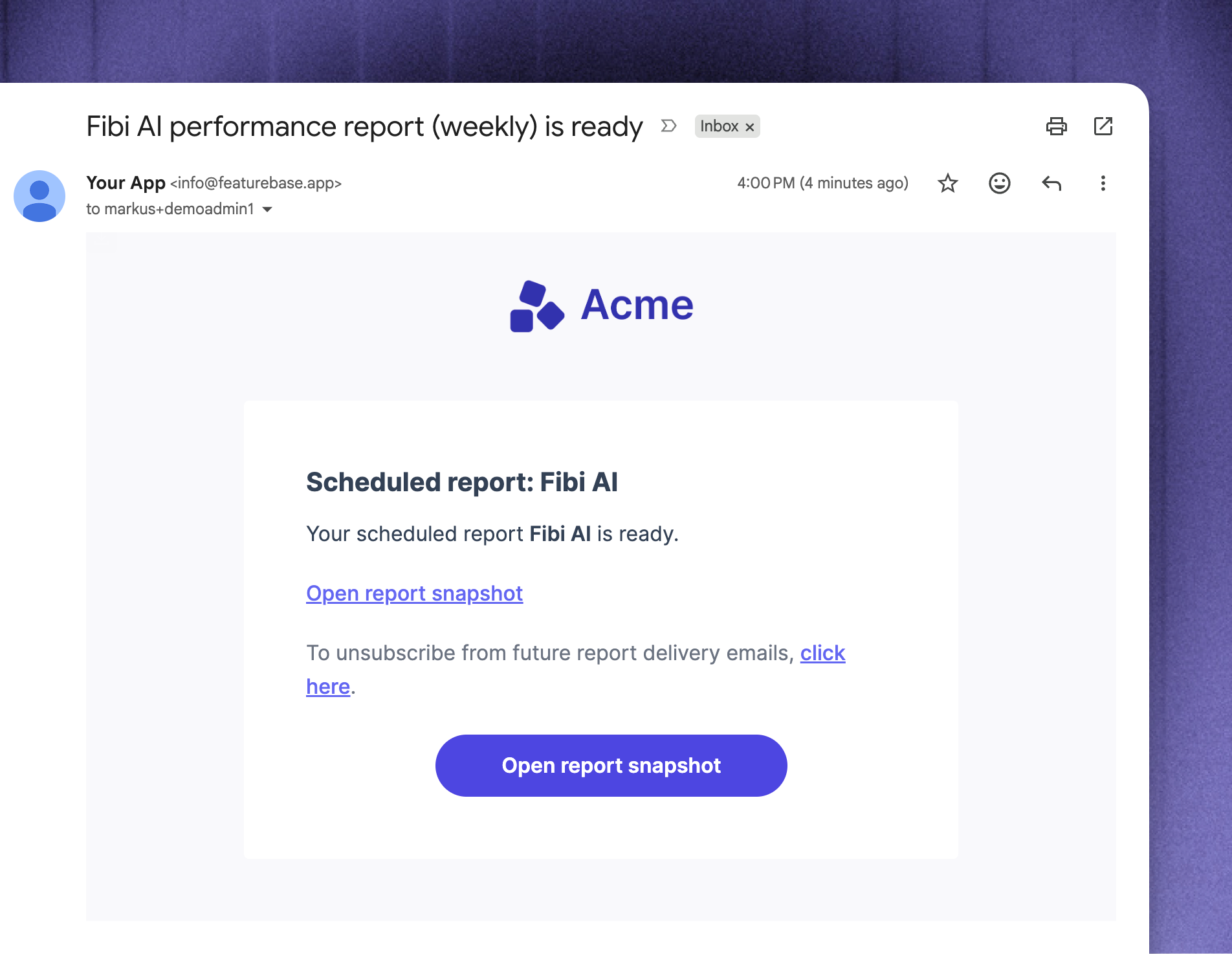
At the scheduled time, every recipient gets an email with your message and an ‘Open report snapshot’ link.
The snapshot is a read-only version of the report evaluated at delivery time. It shows the report's actual charts and values with its saved chart titles, descriptions, filters, date range, comparison, and breakdowns. Relative date ranges like Past 4 weeks are recalculated for each delivery, so recipients always see the current period.
Each delivery links to its own snapshot. Editing the saved report changes what future deliveries show - snapshots that were already sent stay exactly as delivered.
Delivery emails sent to teammates include an unsubscribe link that turns off future report delivery emails for that teammate. To stop receiving only one schedule, ask its creator to remove you from the recipients.
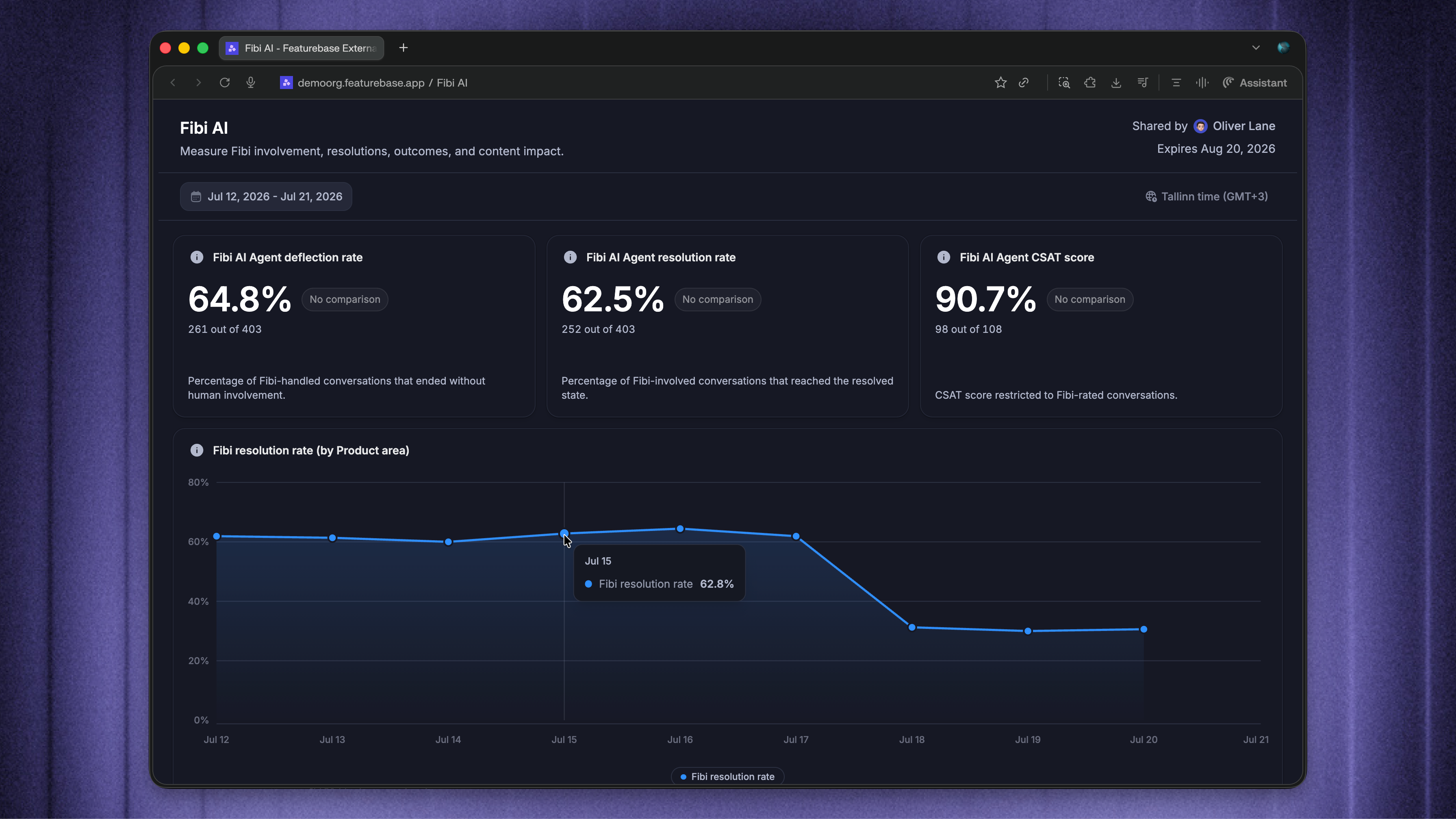
Note: Anyone with the snapshot link can view it without signing in. Review the report for sensitive information before scheduling it. Each link expires 30 days after delivery.
Was this helpful?
Still need help? Ask the team