Report sharing and access controls
Control who can see, explore, and edit your saved reports with private defaults, teammate and role sharing, and three access levels.
Written By Markus Palm
Last updated 27 days ago
Overview
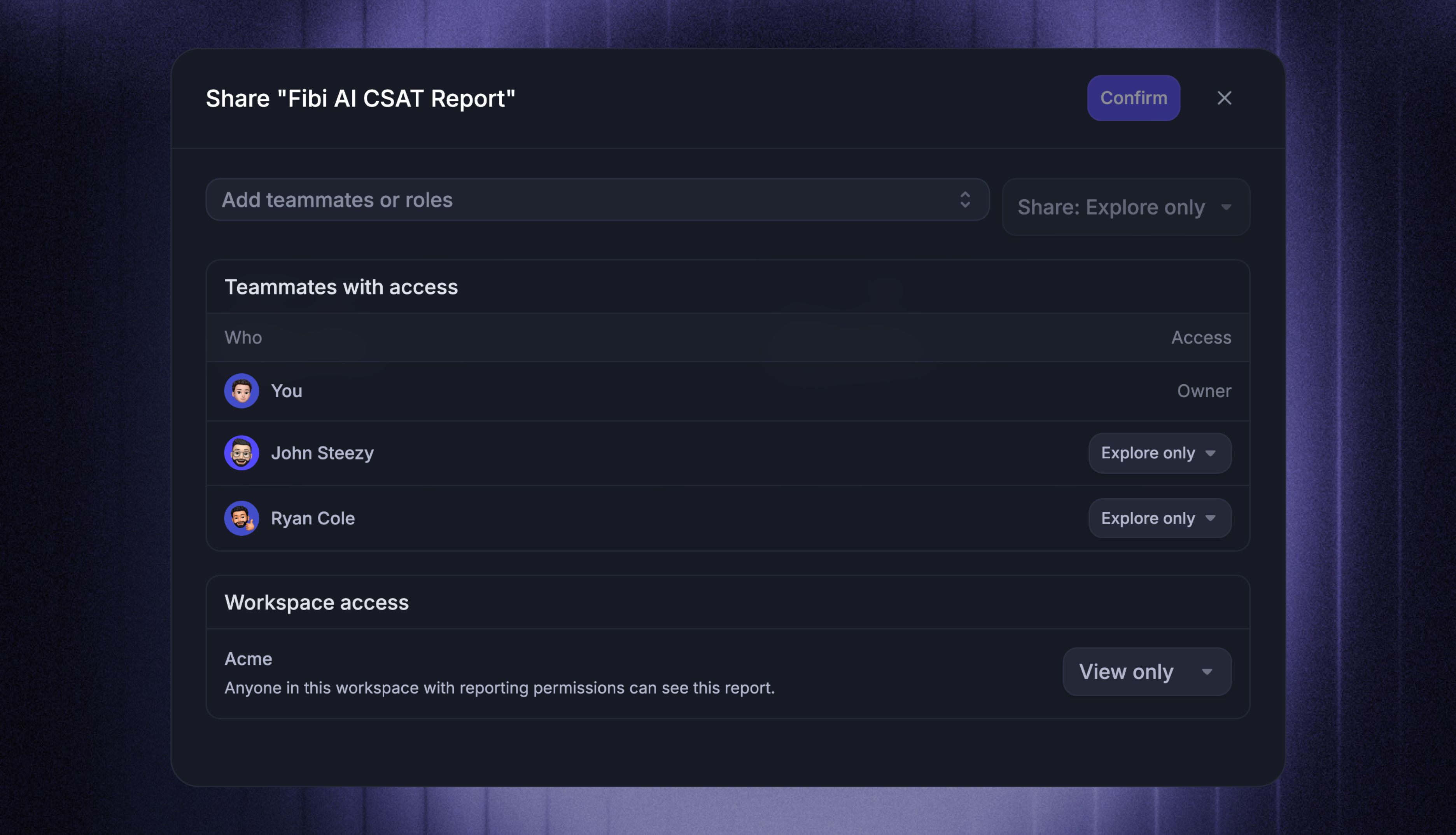
Share saved reports with the right people and control what each person can do. New saved reports are private by default, but you can give teammates, roles, or your whole workspace permission to view, explore, or manage them.
Common use cases:
Keep a report private while you iterate on it
Give your support team a dashboard everyone can explore
Share results with stakeholders as view-only
Let another teammate manage a dashboard by giving them Full access
To share with people outside your workspace, create a read-only snapshot or schedule report delivery.
Share a report
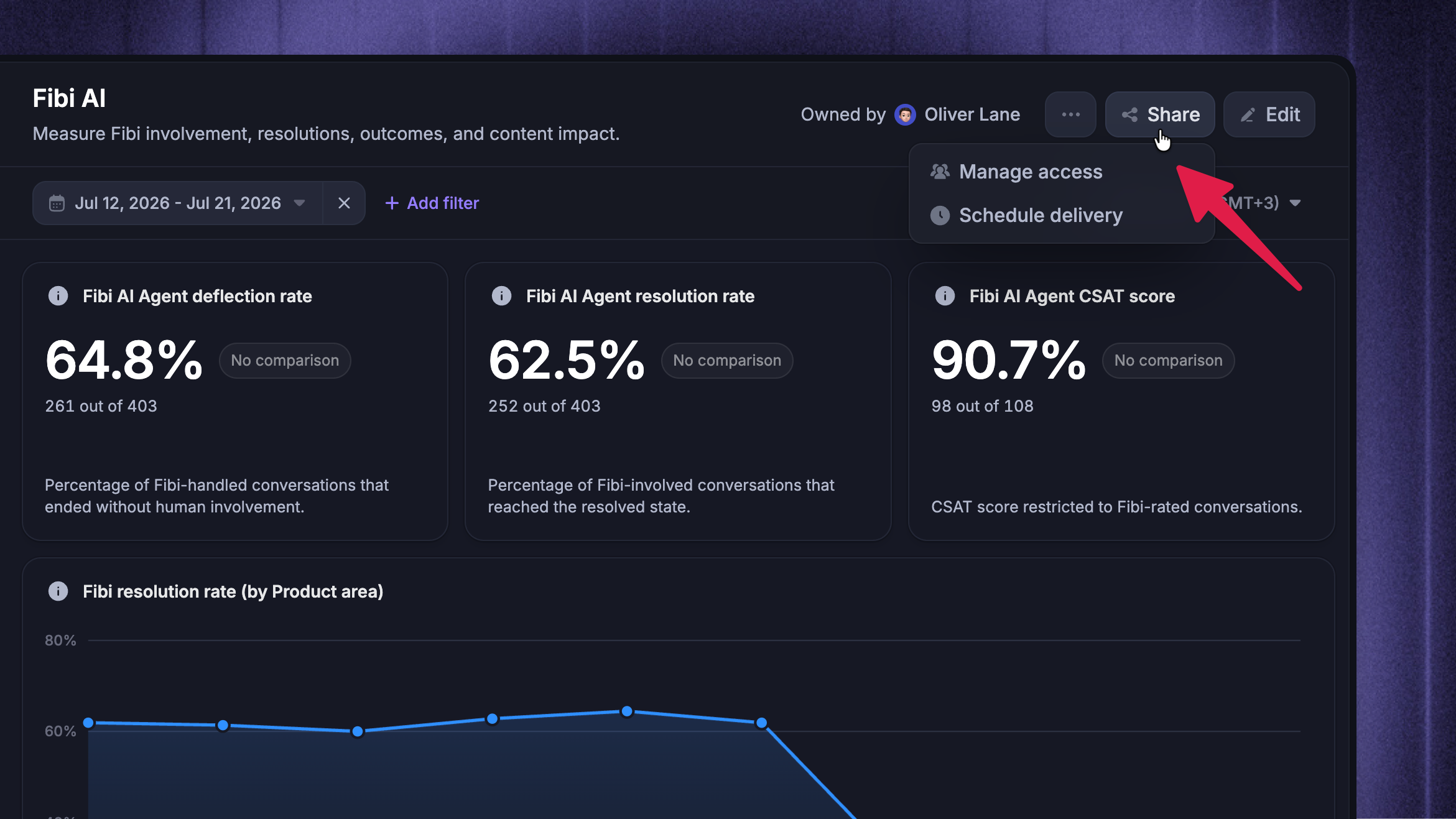
To share an existing report, open it and click Share → Manage access.
From there, you can add teammates or roles, share the report with your whole workspace, or update its access later. You can also choose initial access under ‘Who can access’ when you save a report for the first time.
As the report's creator, you are its owner. The owner always keeps full access, appears in the access list as Owner, and cannot be removed.
Note: Report access and workspace role permissions both apply. Teammates need Can access Reports to open a shared report, and actions such as editing, deleting, scheduling, exporting, and drill-in still require their matching Reports permissions in Settings → Members and teams.
Report access levels
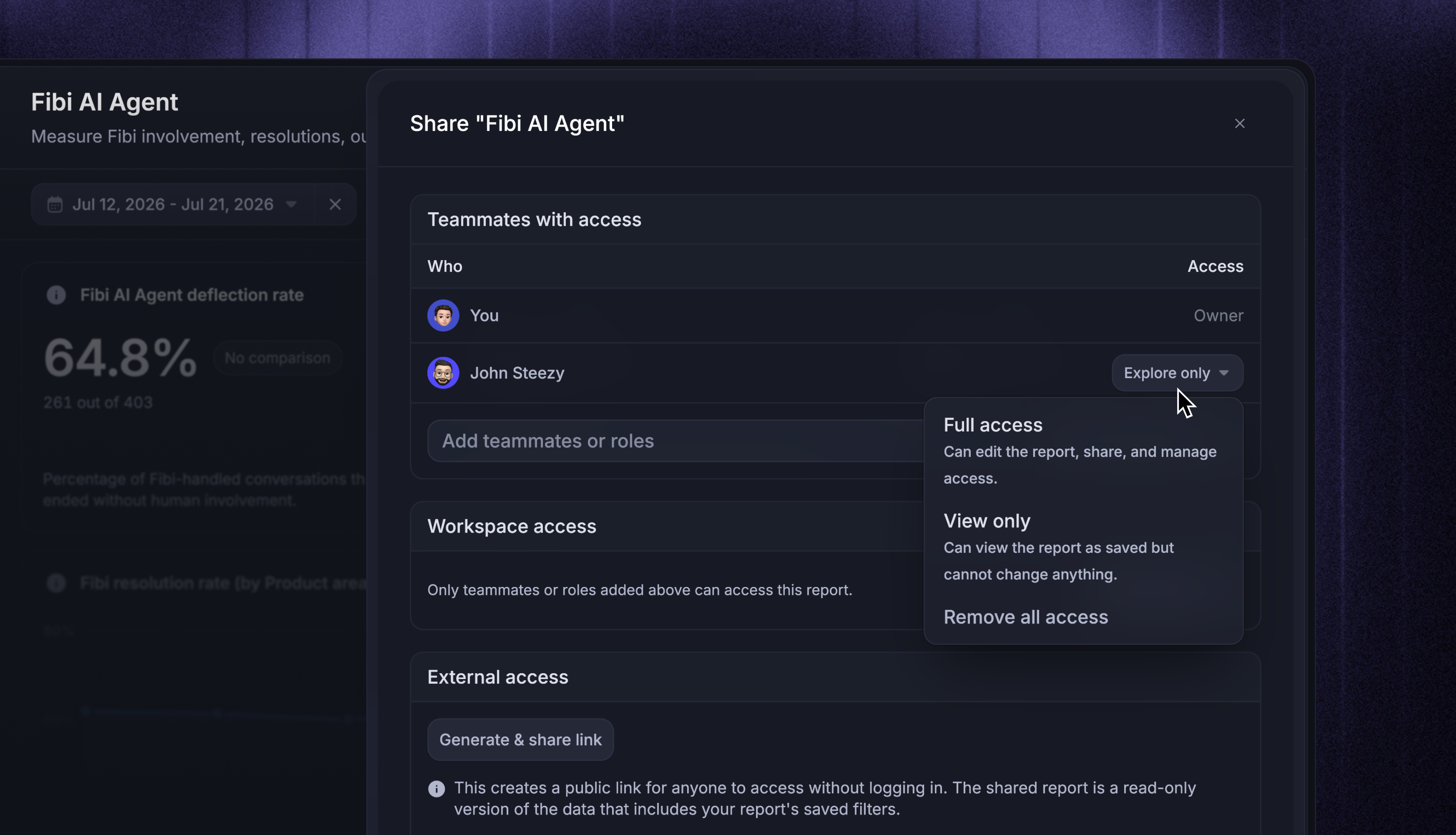
Each grant carries one of three access levels:
Full access - edit the report's charts, filters, and layout, share it, and manage who has access. Deleting the report and scheduling delivery also require Full access
Explore only - change filters and chart configs locally without saving. Explore-only teammates can adjust the date range and filters, drill in to the underlying rows, and export data. Their changes are temporary and never affect what others see
View only - view the report exactly as saved. View-only teammates cannot apply temporary filters or use drill-in
Teammates and roles
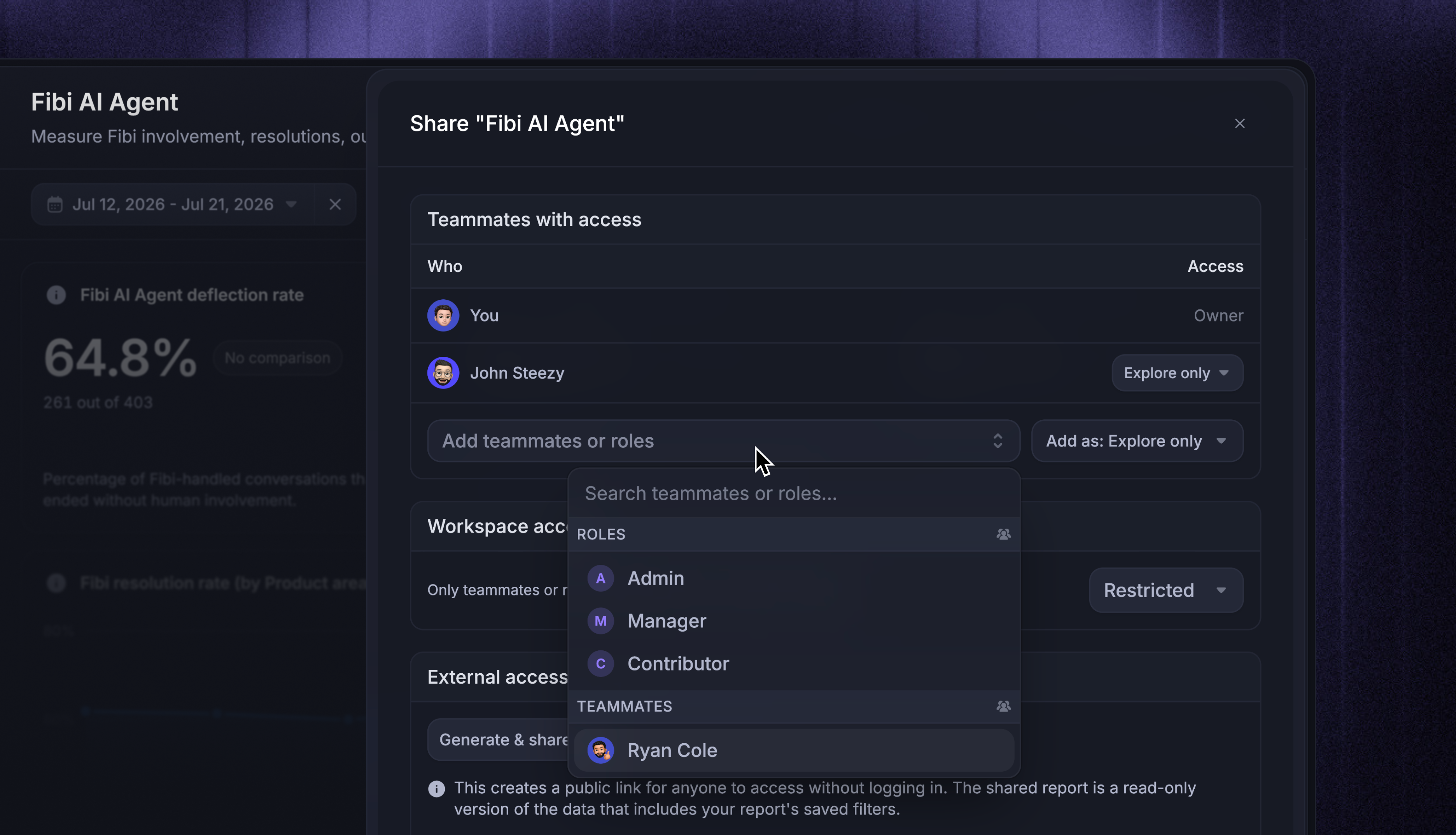
In Share → Manage access:
Use the ‘Add teammates or roles’ picker to select who should get access
Open ‘Add as’ picked and choose Full access, Explore only, or View only.
Review the ‘Teammates with access’ list - change any row's level from its dropdown, or select ‘Remove all access’ to take access away
All changes save automatically, so you can simply close the tab.
Sharing with a role grants access to every teammate with that role, including teammates who get the role later. If someone is covered by more than one grant, for example a role grant and a personal one, the highest access level applies.
Note: Sharing a report does not send an email notification. After the grant saves, use ‘Copy link’ to send the report's URL to teammates who already have access. The link itself does not grant access.
Workspace access
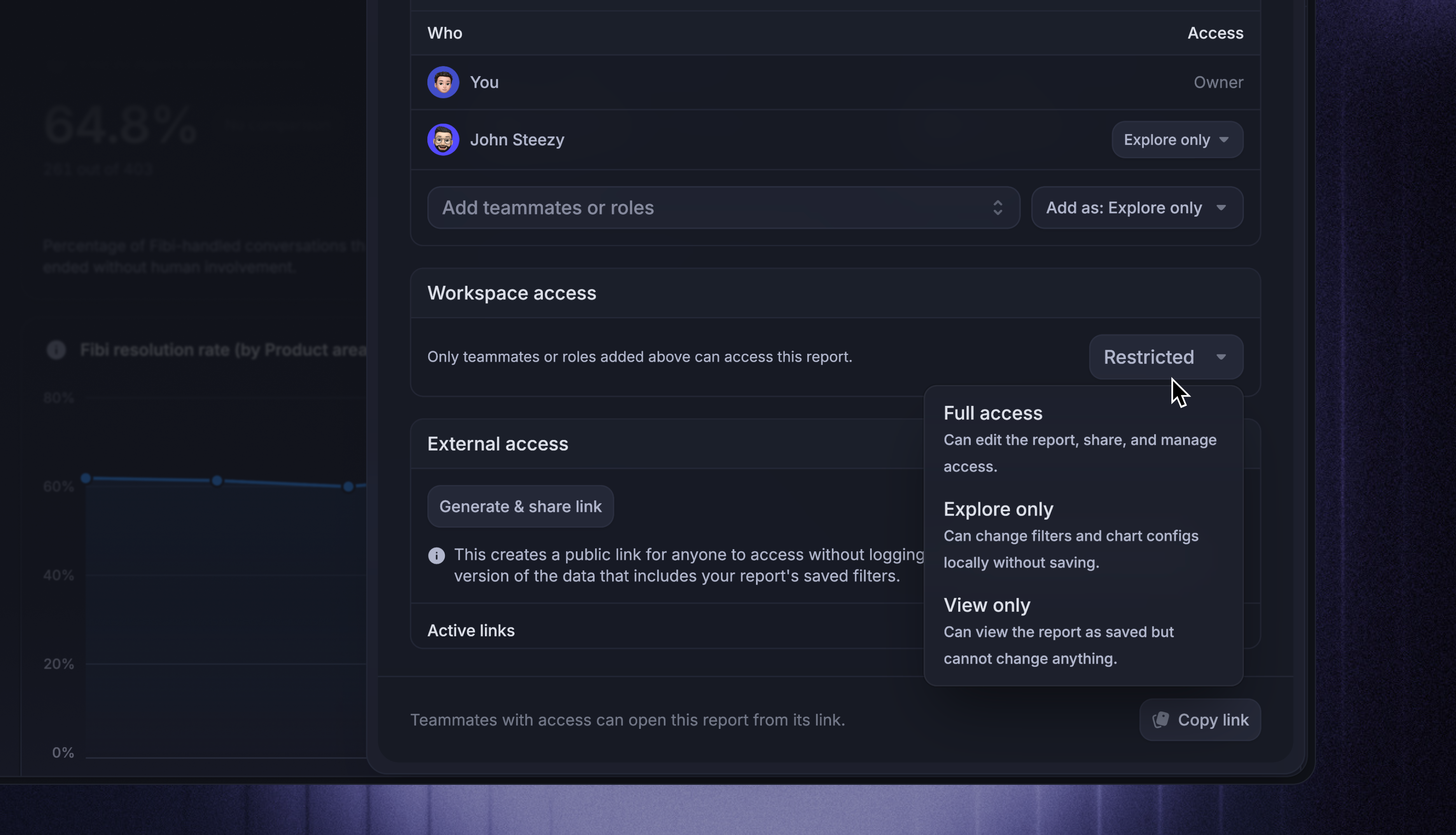
The Workspace access card, which shows your workspace's name, controls the default for everyone else in the workspace:
Restricted - only the owner and the teammates or roles you listed can access the report
Full access, Explore only, or View only - every teammate with reporting permissions gets that level
Individual grants apply on top of workspace access, so you can give the whole workspace View only and a few teammates Full access.
Find shared reports
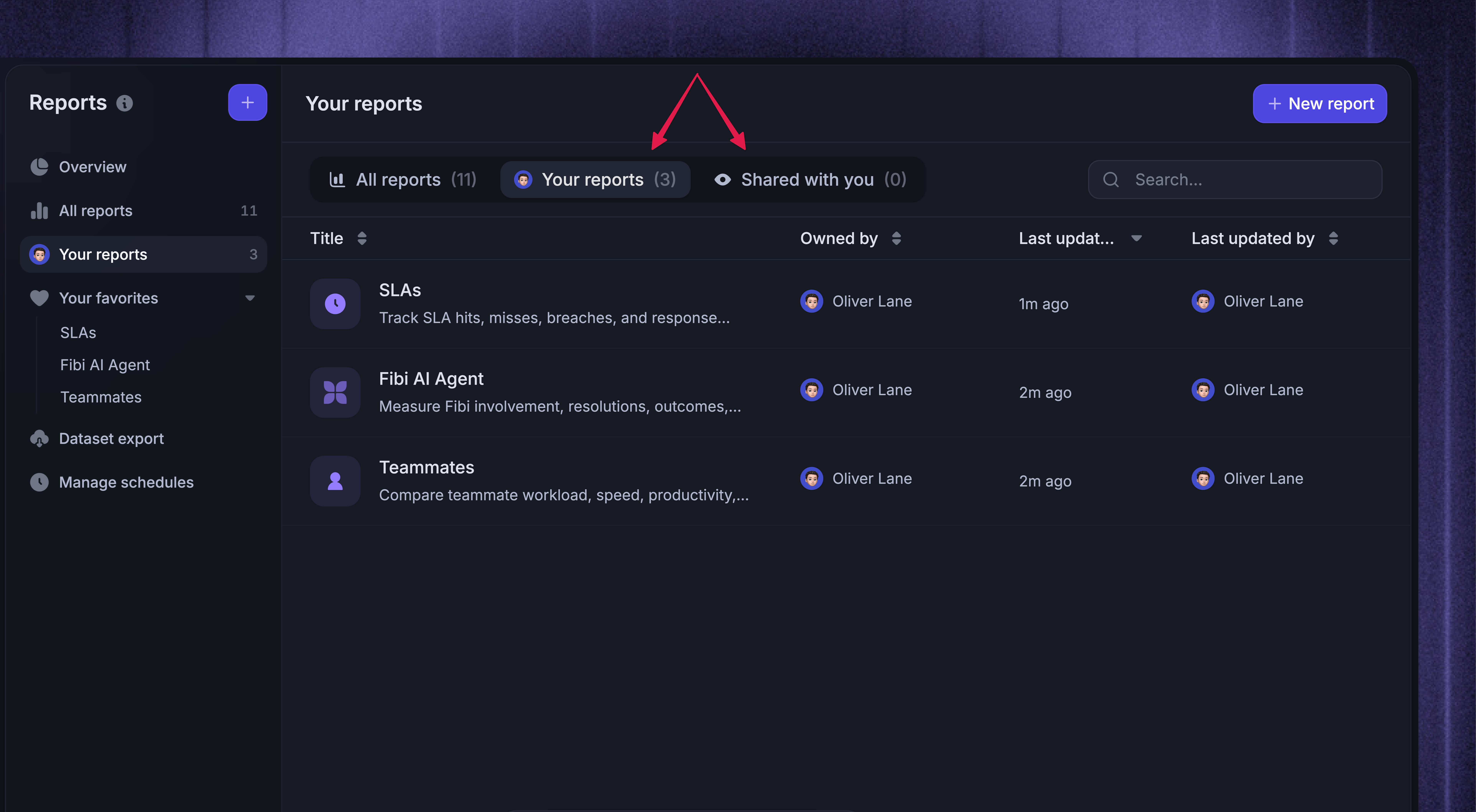
On the Reports page:
Reports you own appear under ‘Your reports’
Reports teammates share with you appear under ‘Shared with you’
Reports you cannot access stay hidden, including when they are inside a workspace folder.
FAQs
What happens when I delete a report teammates use?
What happens when I delete a report teammates use?
It is deleted for everyone immediately and disappears from their Shared with you tab and favorites. If someone still needs it, have a teammate with Full access Duplicate it first - the copy becomes their own report.
Why can't I share a report with a teammate or role?
Why can't I share a report with a teammate or role?
How do I request access to a report?
How do I request access to a report?
Featurebase does not send access requests from the report page. Contact the report owner or a teammate with Full access and ask them to add you under Share → Manage access.
You also need the ‘Can access Reports’ workspace role permission.
Why is a workspace folder empty?
Why is a workspace folder empty?
A workspace folder can contain saved reports you do not have access to. Those reports stay hidden, so the folder may appear empty or say that it contains hidden reports. Ask the report owner or a teammate with Full access to give you access to the report you need.
What happens when the report owner leaves the workspace?
What happens when the report owner leaves the workspace?
Featurebase transfers their saved reports to the workspace owner and removes personal report grants assigned to the departing teammate. Existing role and workspace access stay in place.
Was this helpful?
Still need help? Ask the team