Set up & customize the Inbox
Configure Featurebase Inbox experience to feel at home & get the context you need so you can support your customers faster.
Written By Markus Palm
Last updated 5 days ago
Overview
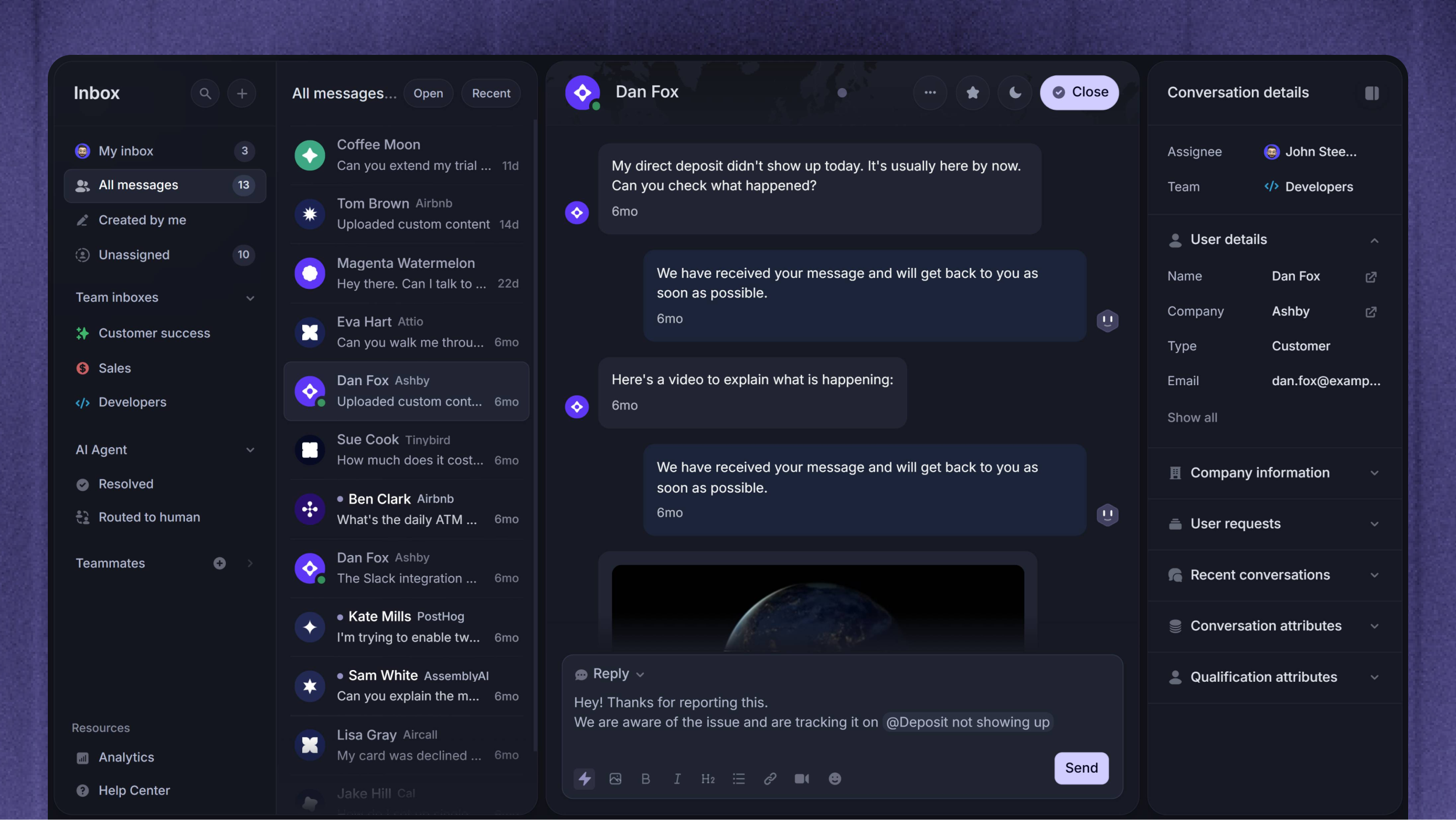
The Support Inbox is built to help your team respond faster, collaborate smarter, and automate your support with AI workflows.
Learn to set it up for your team and your own individual needs to get the context you need so you can support your customers faster.
General Inbox setup
Connect your support channels
Set up the Messenger widget
Provide frictionless support directly from your product, with Messenger, which allows your customers to chat with you, view help articles, access Updates, submit feedback, and more.
Connect your support email
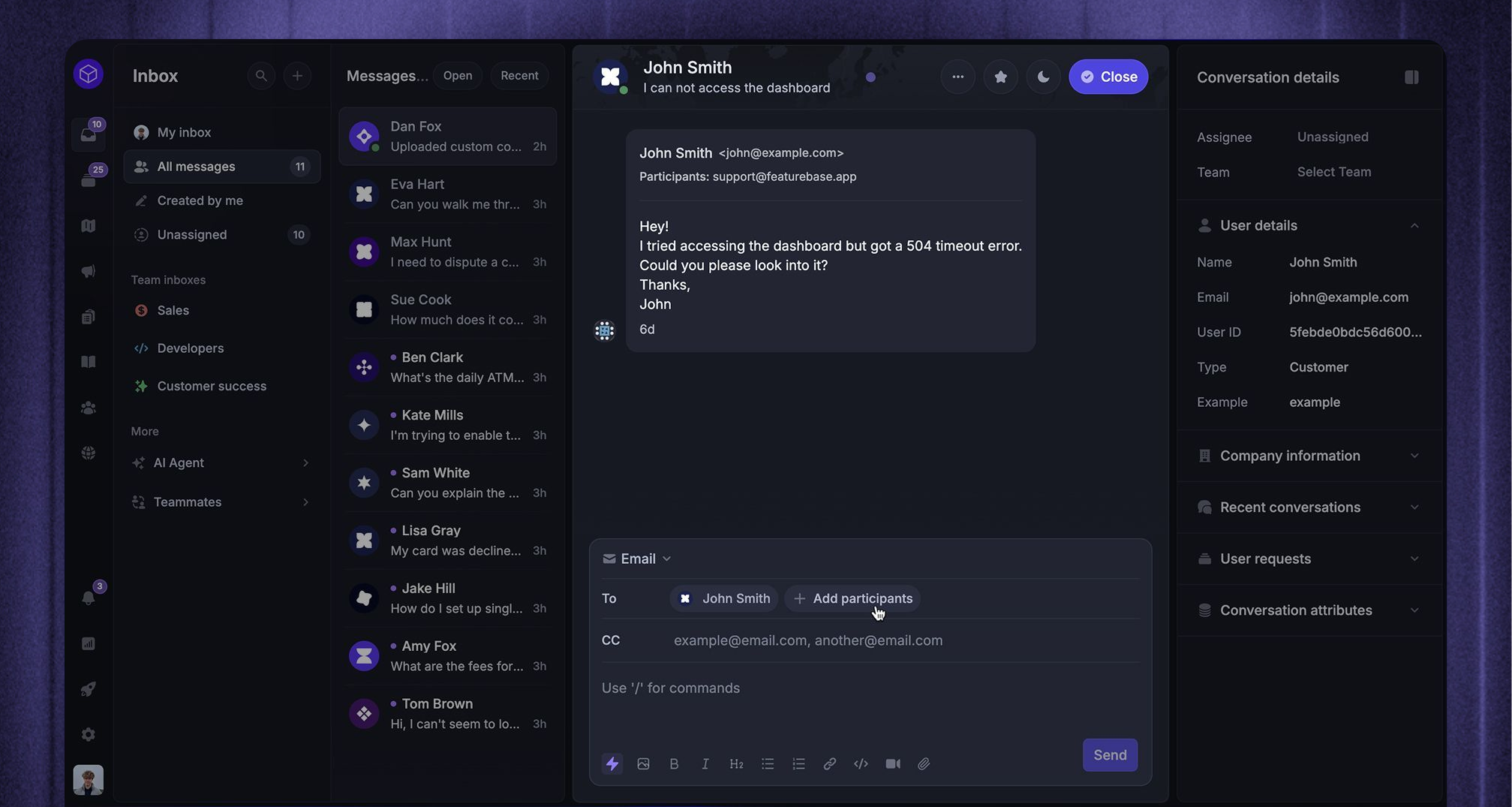
Want to enable customers to contact you via support email (e.g. support@yourcompany.com) directly inside the Featurebase Inbox? You can forward incoming emails to your Inbox and centralize all support in one place – ready to assign, respond to, and organize just like any other message.
Set up team inboxes
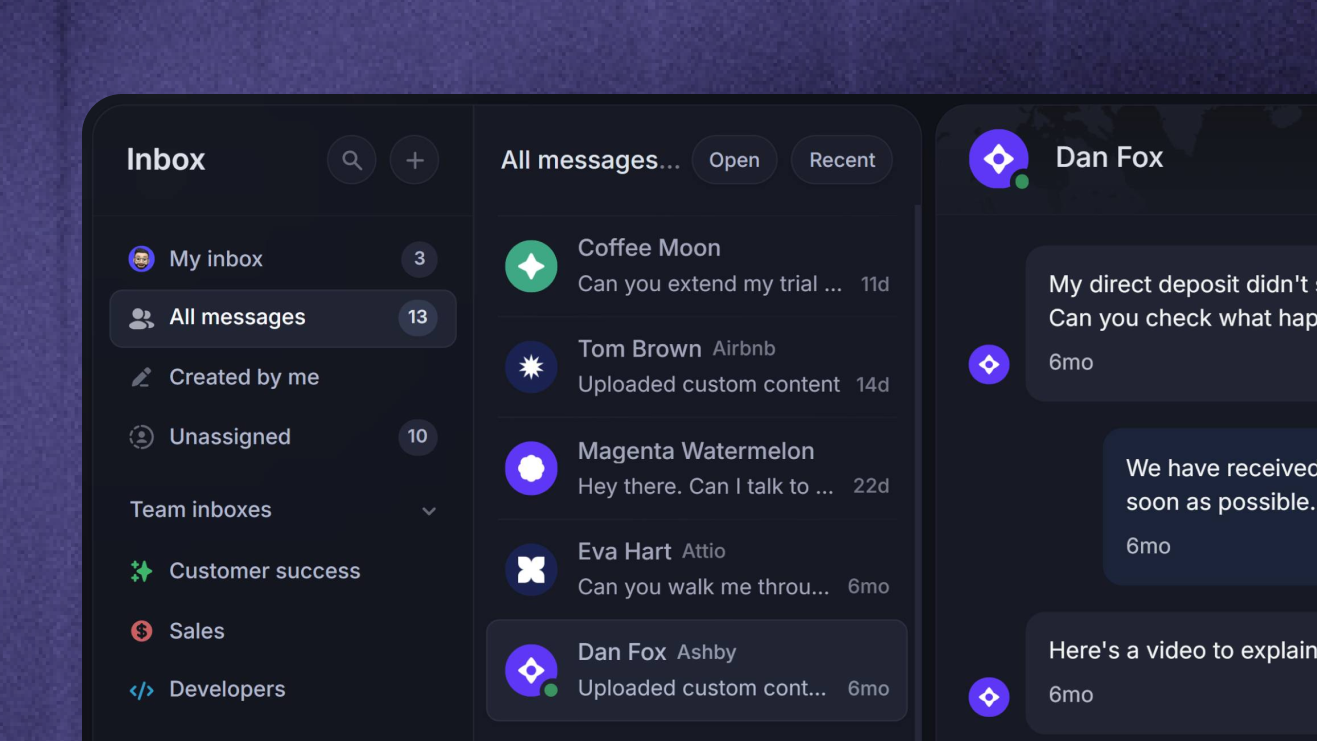
Team inboxes help you better divide the workload and maintain a focused view of relevant conversations. You can assign conversations to a team, rather than an individual teammate.
Every team has its own inbox, so members can easily see and manage the conversations assigned to the group. In a team view, you’ll only get notifications about conversations assigned to that team. You can configure teams from Settings → Members and teams → Teams.
Learn to set up teams: Setting up team inboxes
Set your office hours & expected response time
Set default office hours and share your reply time, so you can manage customers’ expectations and they know when you're out of the office.
Configure & learn to use AI replies & Macros
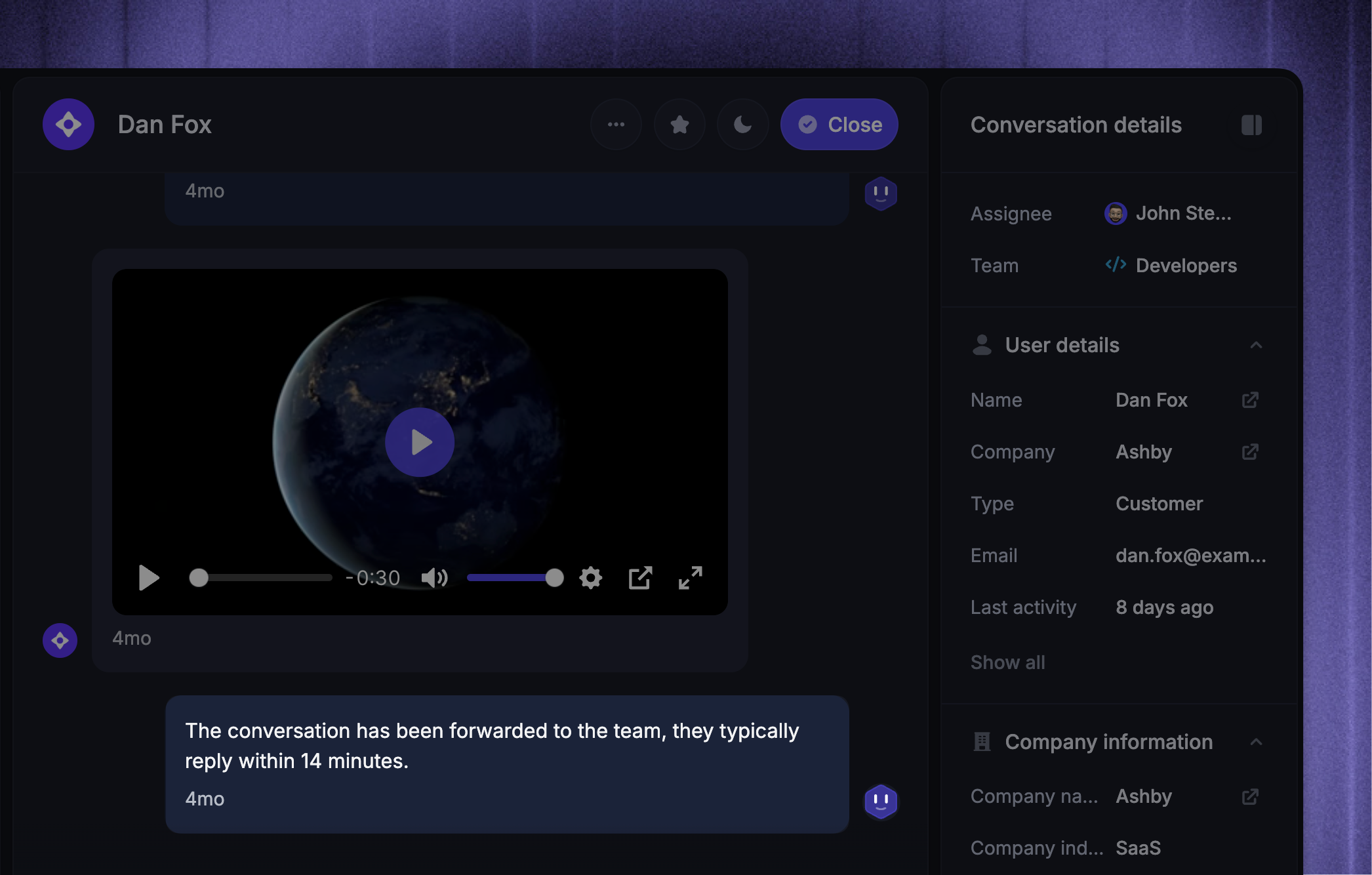
AI replies and macros are one of the most powerful features of the Featurebase Inbox, enabling you to answer customers in just seconds with CMD+K on Mac (CTRL+K on Windows):
AI replies: Instantly draft responses to customers’ messages using their background context, your Help Center, and past responses to generate smart replies in your tone of voice
Macros: Create reusable message templates to reduce your team’s time answering repetitive questions. You can configure Macros from Settings → Support → Macros.
Learn more from here: AI replies & Macros
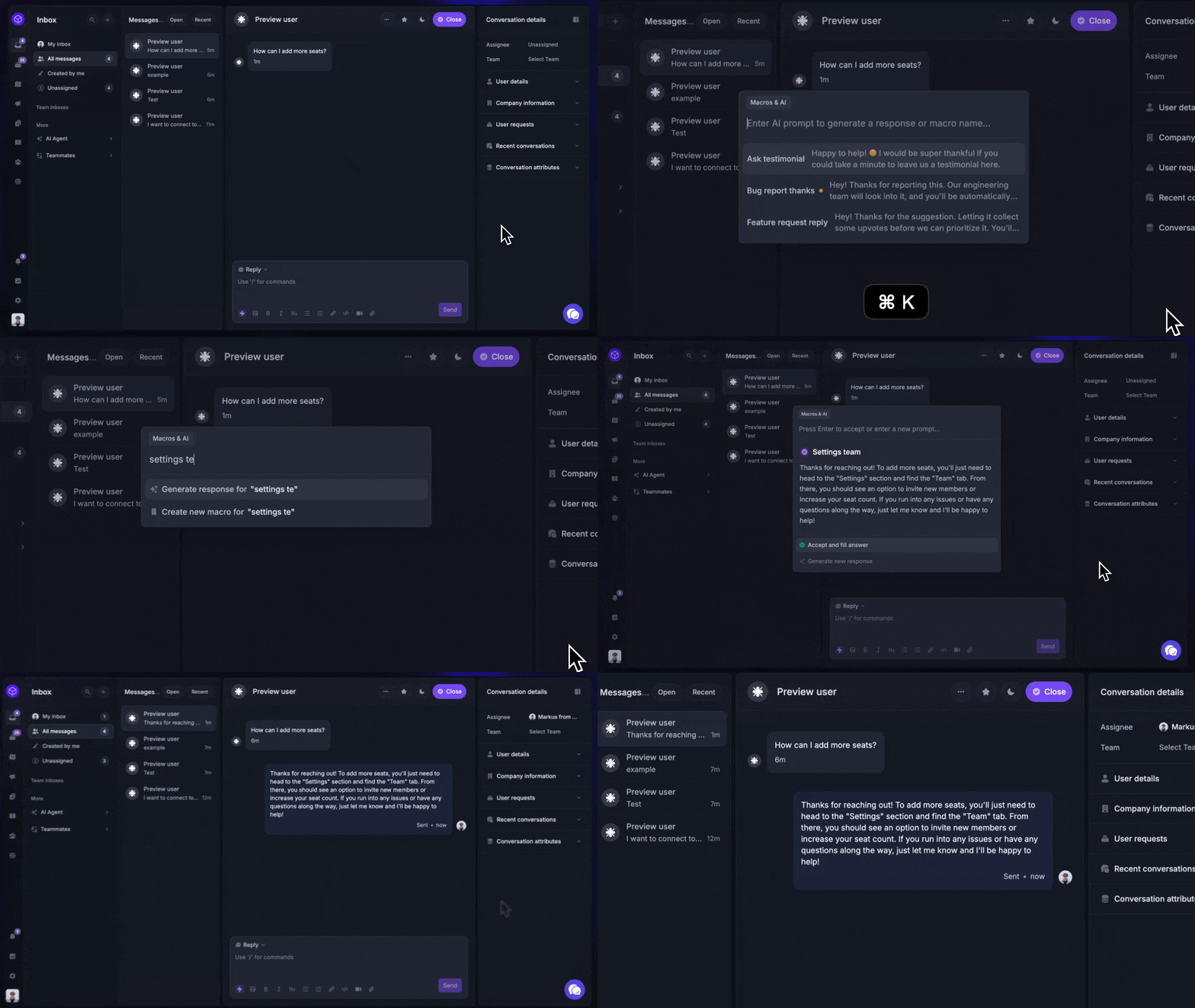
Tip: Answering customers can now just be a couple of keystrokes and two words, as shown in the video: CMD+K → type some words + Enter + CMD+Enter
Boost efficiency with Workflows
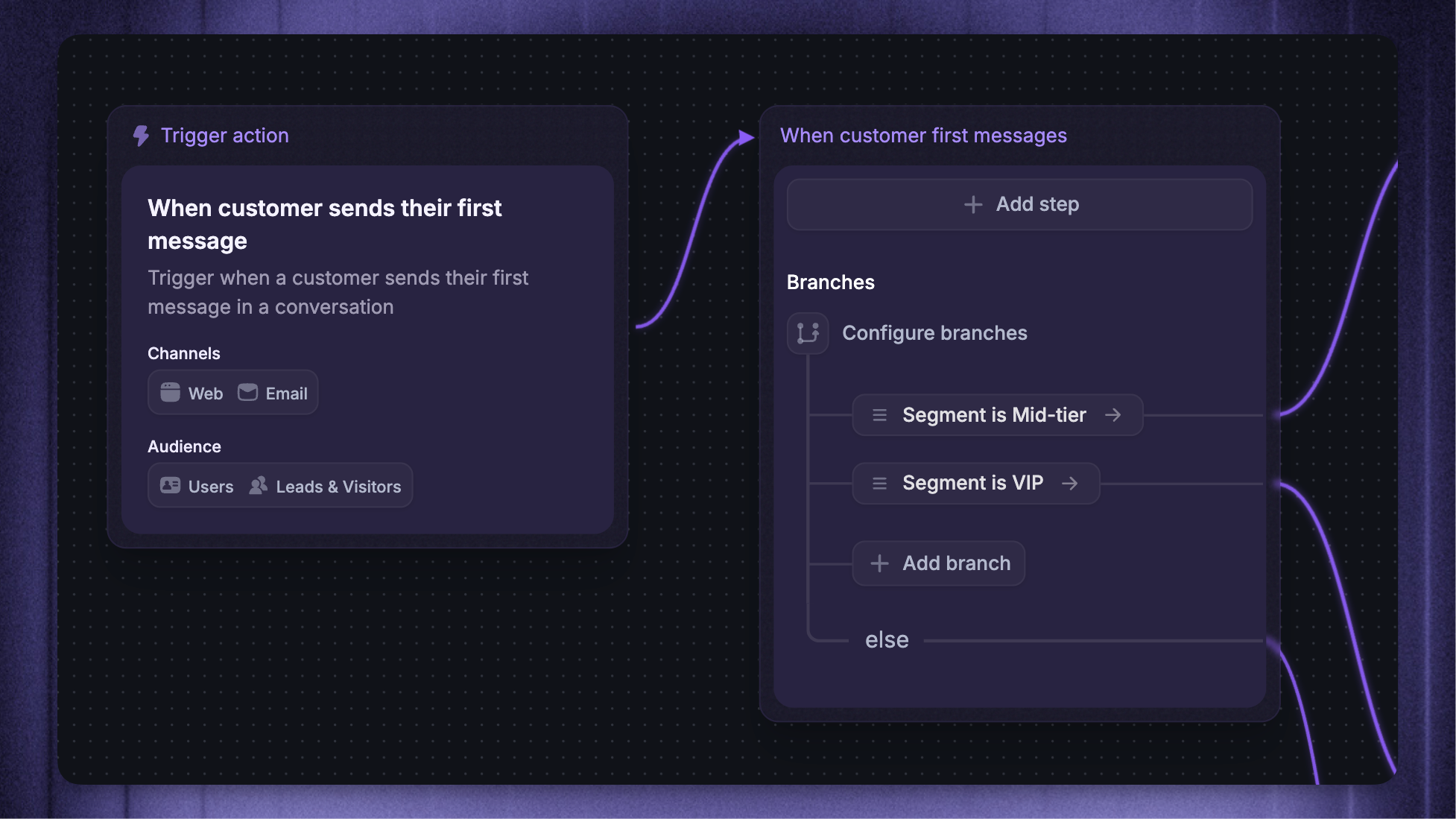
Workflows let you automate repetitive support tasks for your team with a no-code visual builder - right inside Featurebase.
Build inbox automations using Workflows to automate repetitive processes for your team. These can take actions on conversations (tag, close, assign, etc.), use conditional rules or branching, and track SLAs.
Learn more from here: Build inbox automations using Workflows
Personal preferences setup
Your Inbox layout, columns, sidebars, and reply toolbar are personal preferences. They are saved for your Workspace and follow you across devices without changing what your teammates see.
Choose your Inbox layout
Use the layout switch at the bottom left of the Inbox to choose how you work:
'List view' - Read and reply to Conversations beside the Conversation list
'Table view' - Scan Conversations and Tickets in rows, with columns for the details you need
To choose your table columns:
Select 'Table view'
Click 'Columns' above the table
Turn columns on or off to choose which details appear
Open the 'Visible' tab and drag columns into your preferred order
To resize a column, drag the right edge of its header. Click a row to open the Conversation or Ticket.
Customize left sidebar
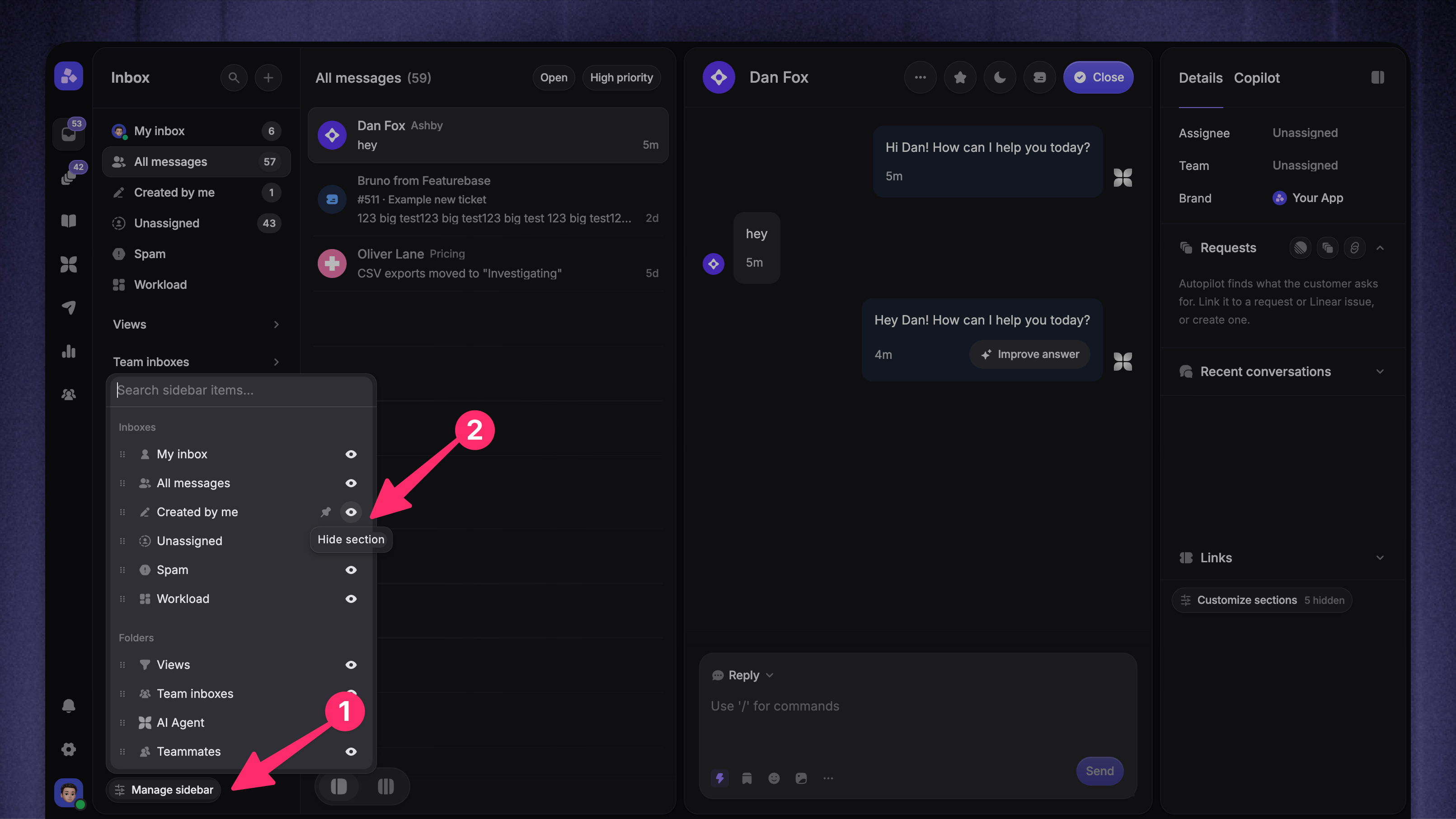
Use Manage sidebar at the bottom of the Inbox sidebar to keep the navigation focused on the queues and folders you use most.
Open the Inbox
Click Manage sidebar at the bottom of the left sidebar
In Inboxes and Folders, choose the items you want to show, hide, pin, or reorder
Close the panel when you are finished
The panel lists the items available to you in this workspace:
Inboxes: My inbox, All messages, Created by me, and Unassigned. Workload and Spam appear when they are available to your teammate and workspace
Folders: Views (including your available saved views), Team inboxes, AI Agent, and Teammates
Use the eye icon to show or hide an item. Use the pin icon to move an item to the top of its own group. Drag the handle to reorder items within the pinned or unpinned part of that group. Pin or unpin an item first if you want to move it between those two parts.
Your left-sidebar preferences are personal to you within the workspace. They follow you across devices and take effect in the Inbox when you close the customization panel. They do not change what your teammates see.
You can also create custom Inbox views to group the conversations you care about, such as urgent issues, your team's queue, or conversations tagged with a specific topic.
Customize conversation details
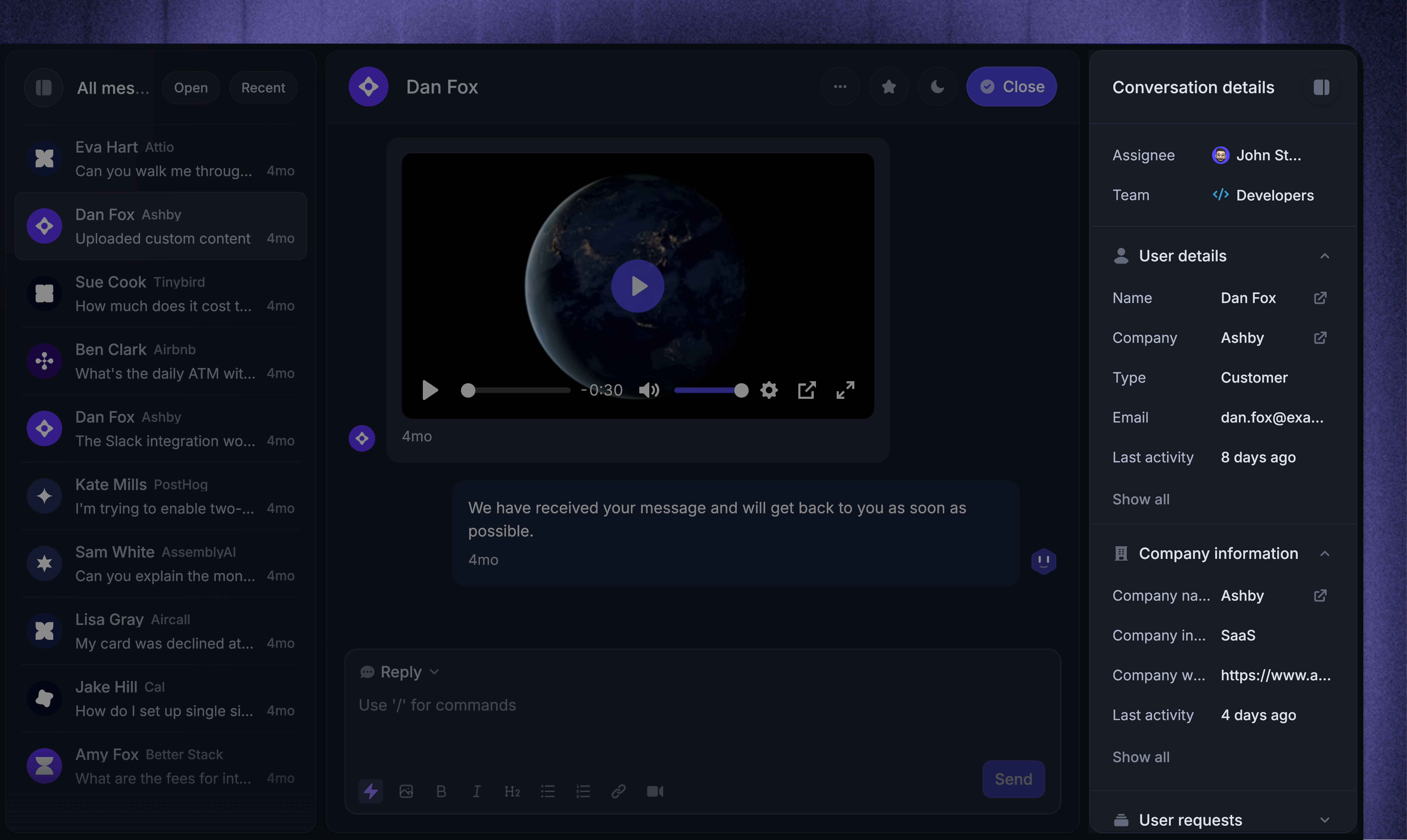
Choose which sections appear in the right sidebar when you open a Conversation or Ticket.
Open a Conversation or Ticket
Click 'Customize sections' at the bottom of the right sidebar
Use the eye icon to show or hide a section, and the pin icon to keep it above unpinned sections
Drag sections to change their order within a group
Close the panel to see your updated sidebar
The panel lists the sections available for the item you have open. You can return to it to show a hidden section again.
Choose which attributes are visible
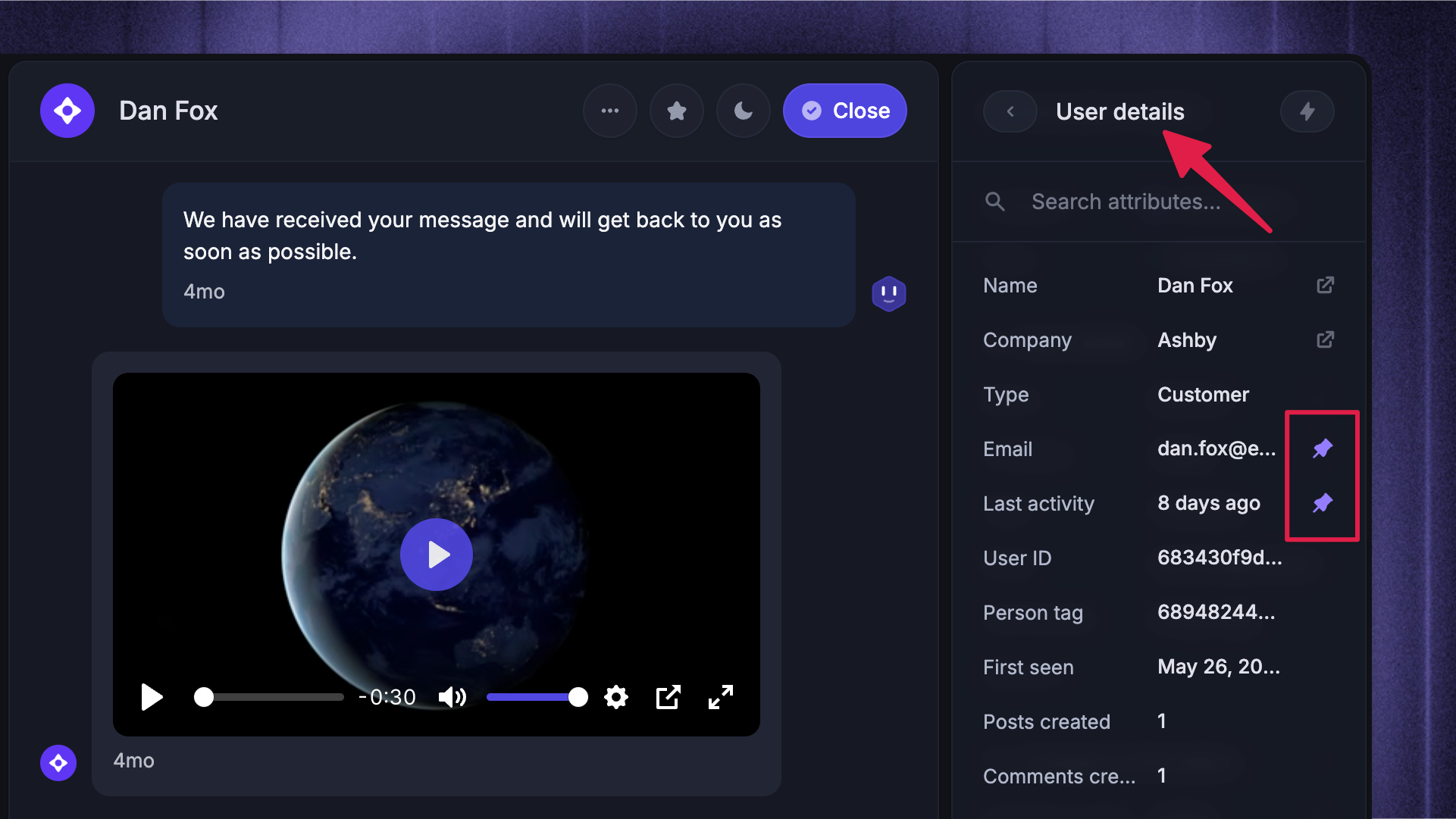
Pin individual attributes within User details, Company information, or Conversation attributes to keep the details you need visible.
Click 'Show all' in the relevant section
Use the pin icons to choose which attributes stay visible
Click the back arrow when you are finished
Customize the reply toolbar
Pin the tools you use most so you can reach them directly from the reply toolbar.
Open a Conversation
Click the three-dot menu in the reply toolbar
Click the pin icon beside a tool to pin or unpin it
Unpinned tools remain available in the three-dot menu.
Configure your notification preferences
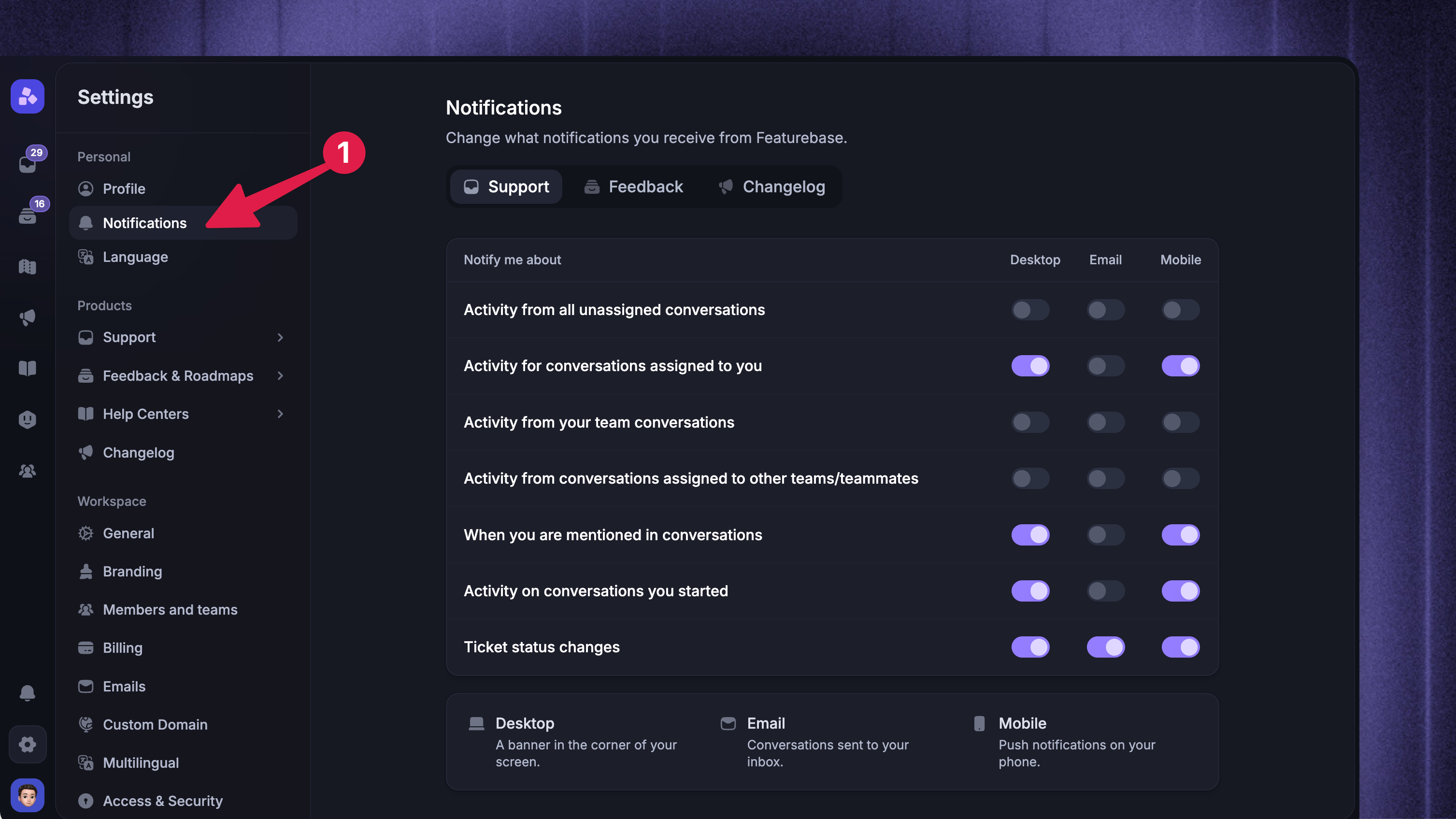
Notifications help you stay on top of customer conversations, ensuring you never miss an important support request.
Each teammate in your workspace can individually manage their desktop, email, and mobile support notifications from Settings → Notifications.
Learn more: Teammate notifications for support
Was this helpful?
Still need help? Ask the team