Organize your Inbox with custom views
Save sidebar filters for the conversations that matter most, pin them for quick access, and share them with your team.
Written By Markus Palm
Last updated 5 days ago
Overview
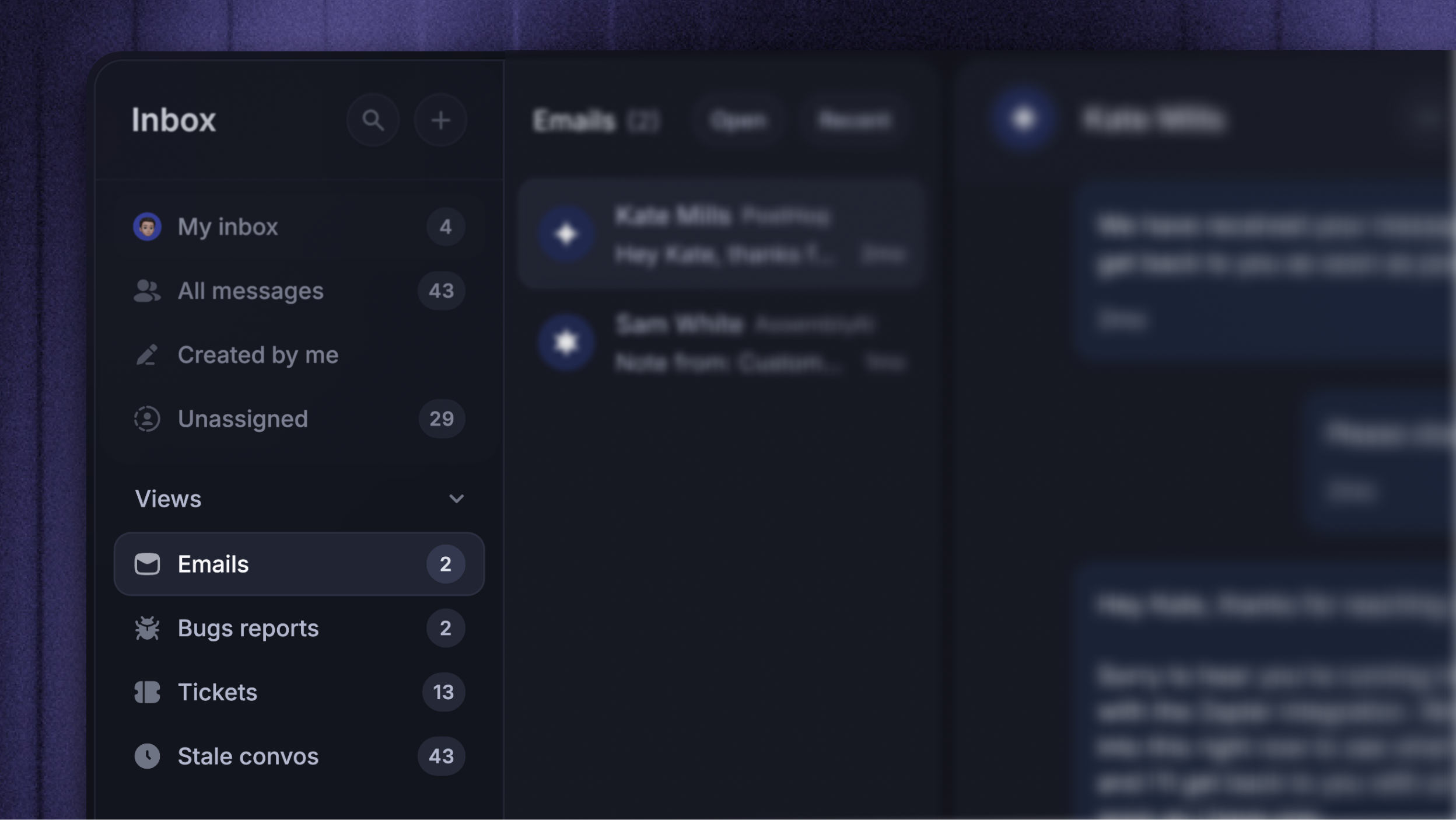
Views are saved filters on the Support Inbox sidebar. Use them to group the conversations you care about – urgent issues, your team's queue, anything tagged with a specific topic – so you can jump to them in one click.
Views are shared across your workspace, so every teammate can pin the ones they want to their own sidebar.
The view's filters are shared, but your Inbox layout and column preferences are personal. Switching between List and Table view does not change the view's filters.
Create a view
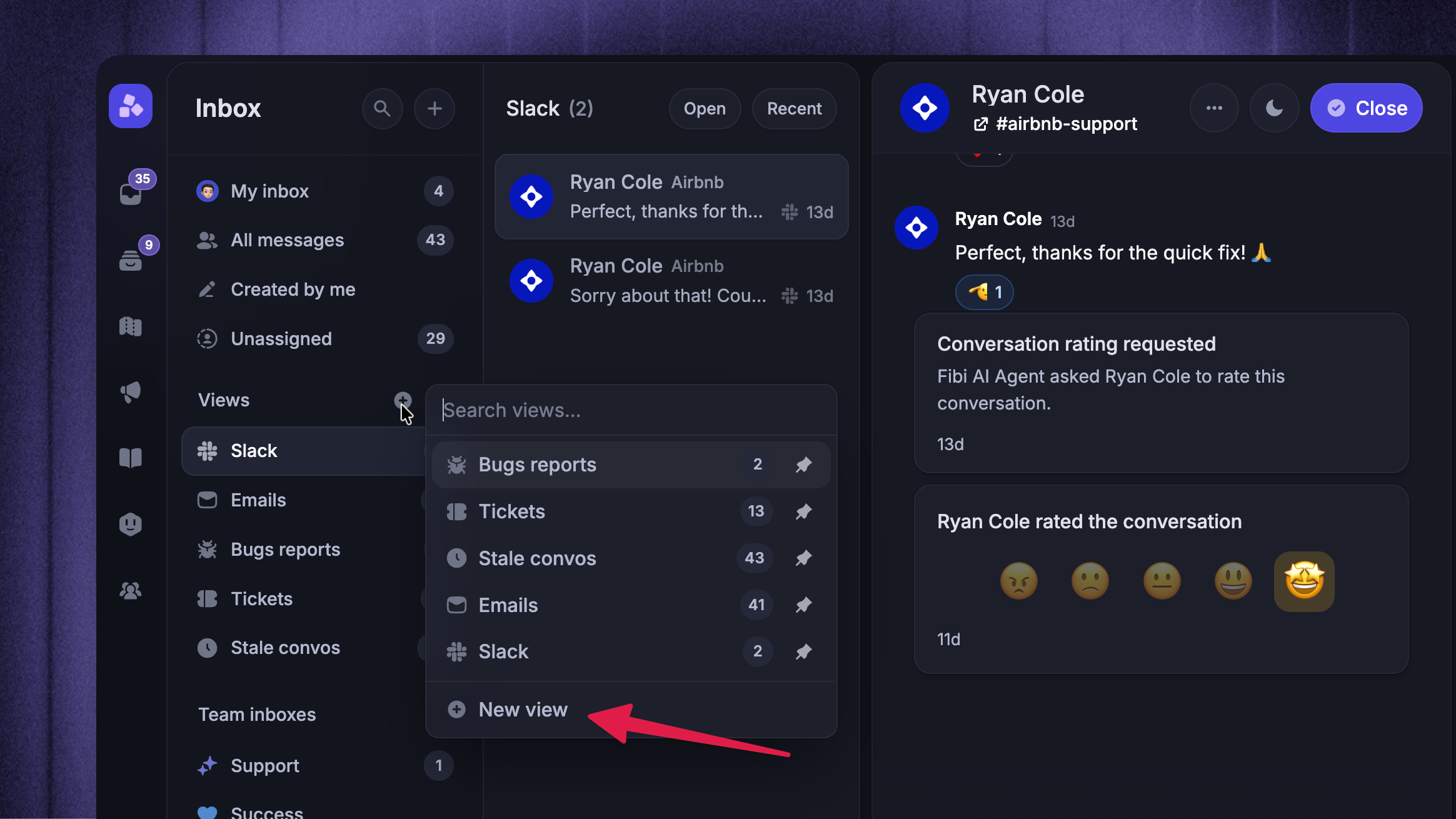
In the Inbox sidebar, hover over Views and click the + icon
At the bottom of the popover, click New view
Pick an icon and give your view a clear, descriptive name – other teammates will see it too
Add the filters that define which conversations the view should show
Click Create view
Your new view is pinned to your sidebar automatically. Other teammates can pin it from the same + popover whenever they want.
Note: View names must be unique inside your workspace. If a teammate already has a view with that name, you'll be asked to pick a different one.
Build your filters
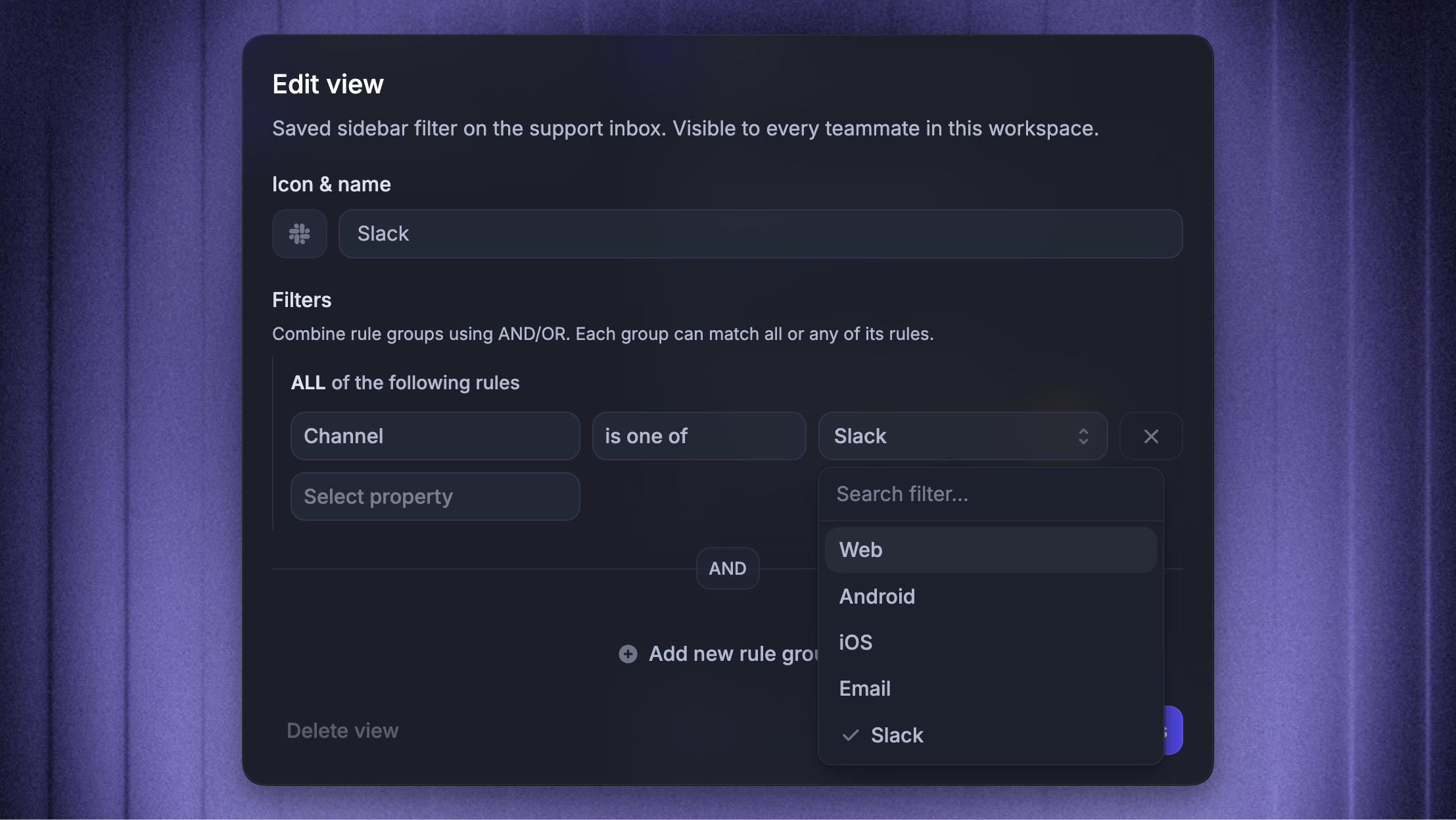
What you can filter by:
Conversation – Status, Assignee, Team, Has priority, Tags, Channel, Brand, Mentioned teammate
AI – AI agent involved, AI agent state (Active, Handed off to human, Resolved)
Ticket – Ticket type, Ticket state, Ticket category
Activity – SLA due, Last activity, Created, Waiting since
Custom attributes – any conversation data attribute configured for your workspace
Each filter is a rule like Status is “Open” or Tag is “Bug report”. You can combine multiple rules into a group, and combine multiple groups together using AND or OR to express more nuanced criteria.
For example, a "Needs attention" view might show all conversations where:
Status is “Open”, and
Either Has priority is “True”, OR Urgency is “High”, OR SLA due is in the “next hour”, OR Waiting since is more than “60 minutes ago”.
The hover card on a pinned view shows a summary of its filter, so you can verify at a glance what's included.
Tip: A view supports up to 15 filter rules. If you need more, split it into a few smaller views – they're faster to scan and easier to maintain.
Managing views
Edit or delete a view
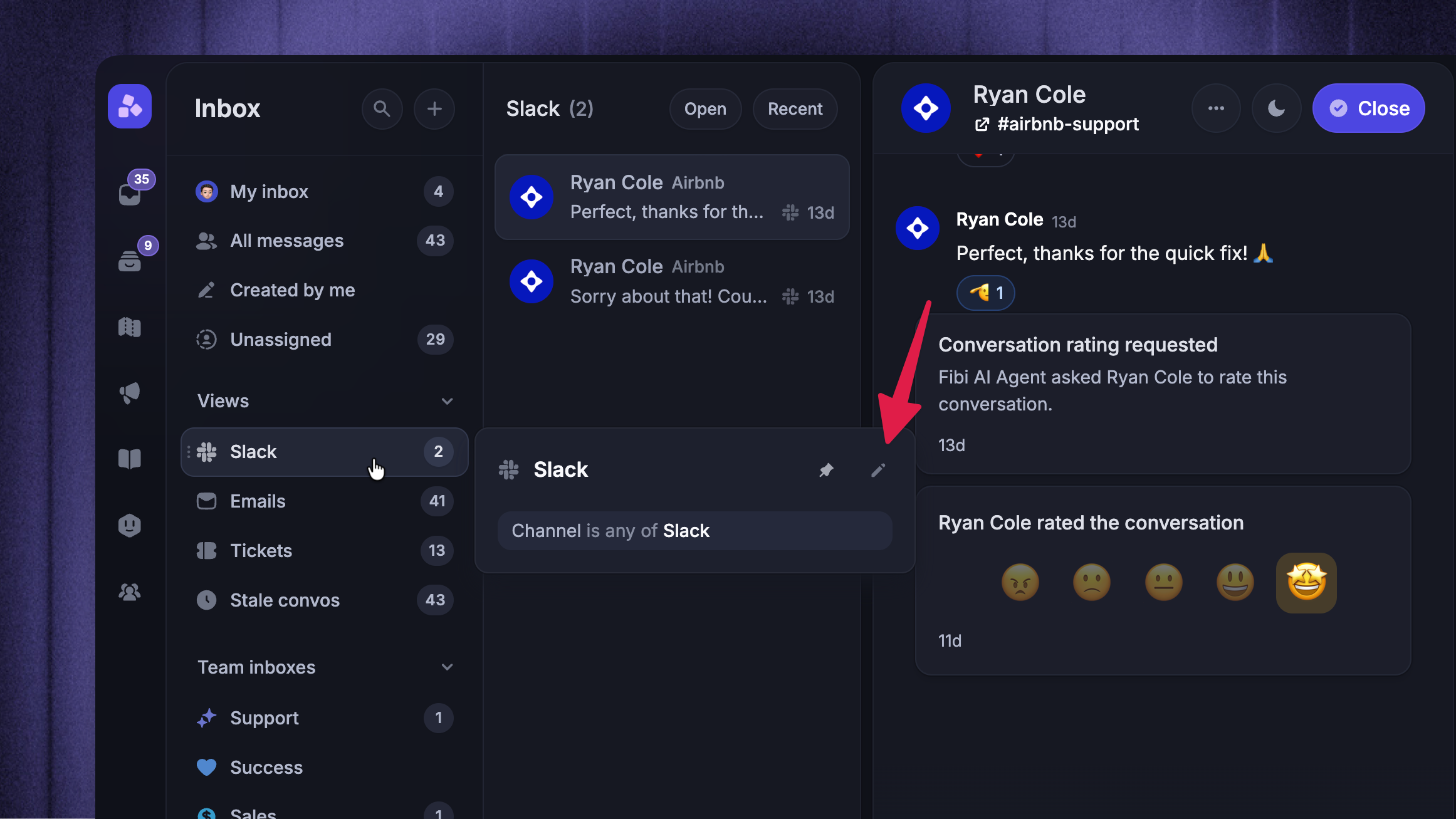
To edit or delete any view:
Hover over any view in your sidebar to open its hover card.
Click the pencil icon to edit the name, icon, or filters, or delete the view
To delete the view, click Delete view in the bottom-left corner
Note: Deleting a view removes it from every teammate's sidebar, not just yours. If you only want to hide it from your own sidebar, unpin it instead.
Pick which views show on your sidebar
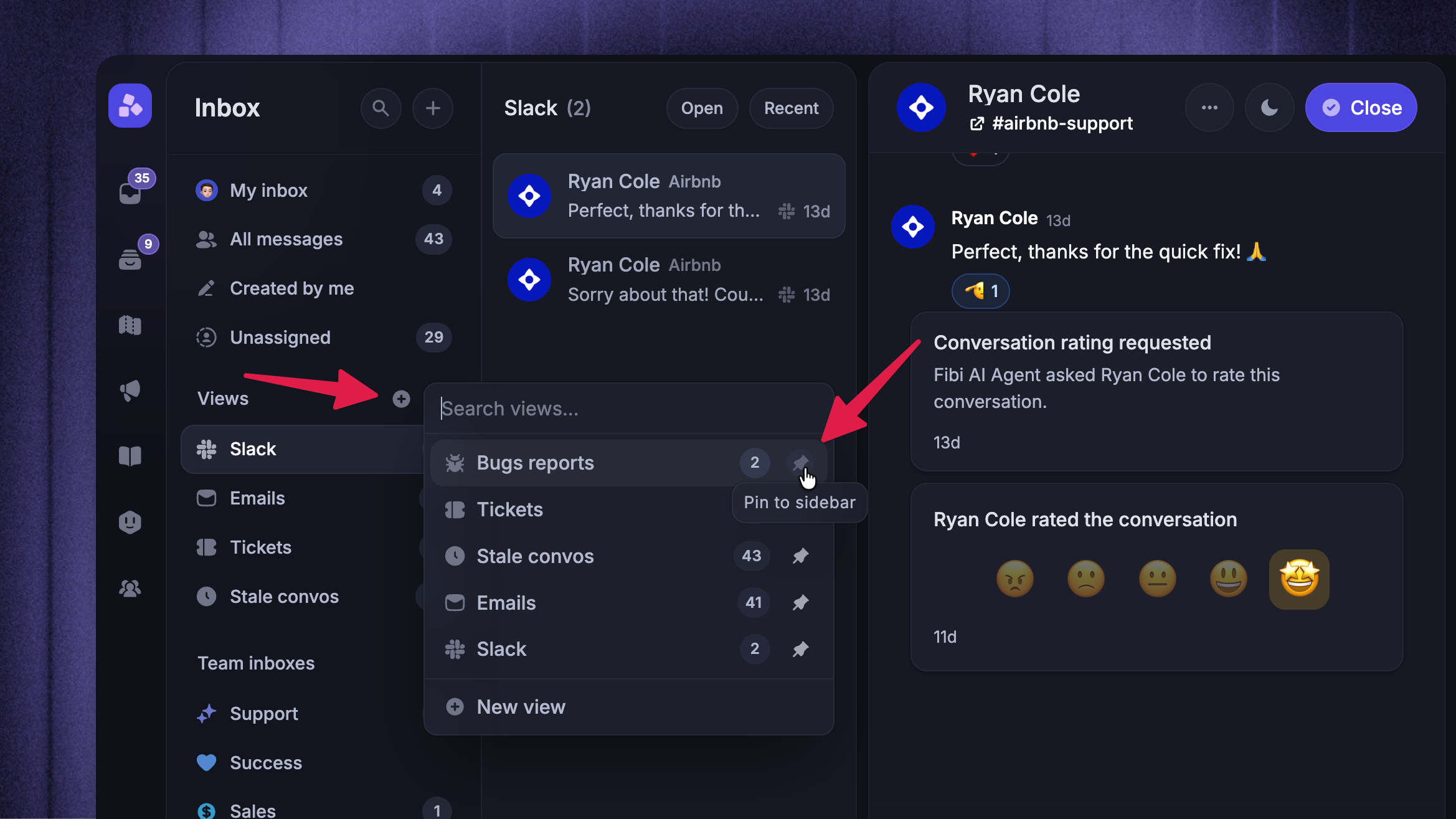
Every teammate picks their own selection of views:
Hover over the Views category and click the + icon
Browse or search the full list of workspace views
Click the pin icon on any view to pin or unpin it from your sidebar
The same popover has a + New view entry at the bottom if you want to create one from scratch.
Reorder views and sidebar sections
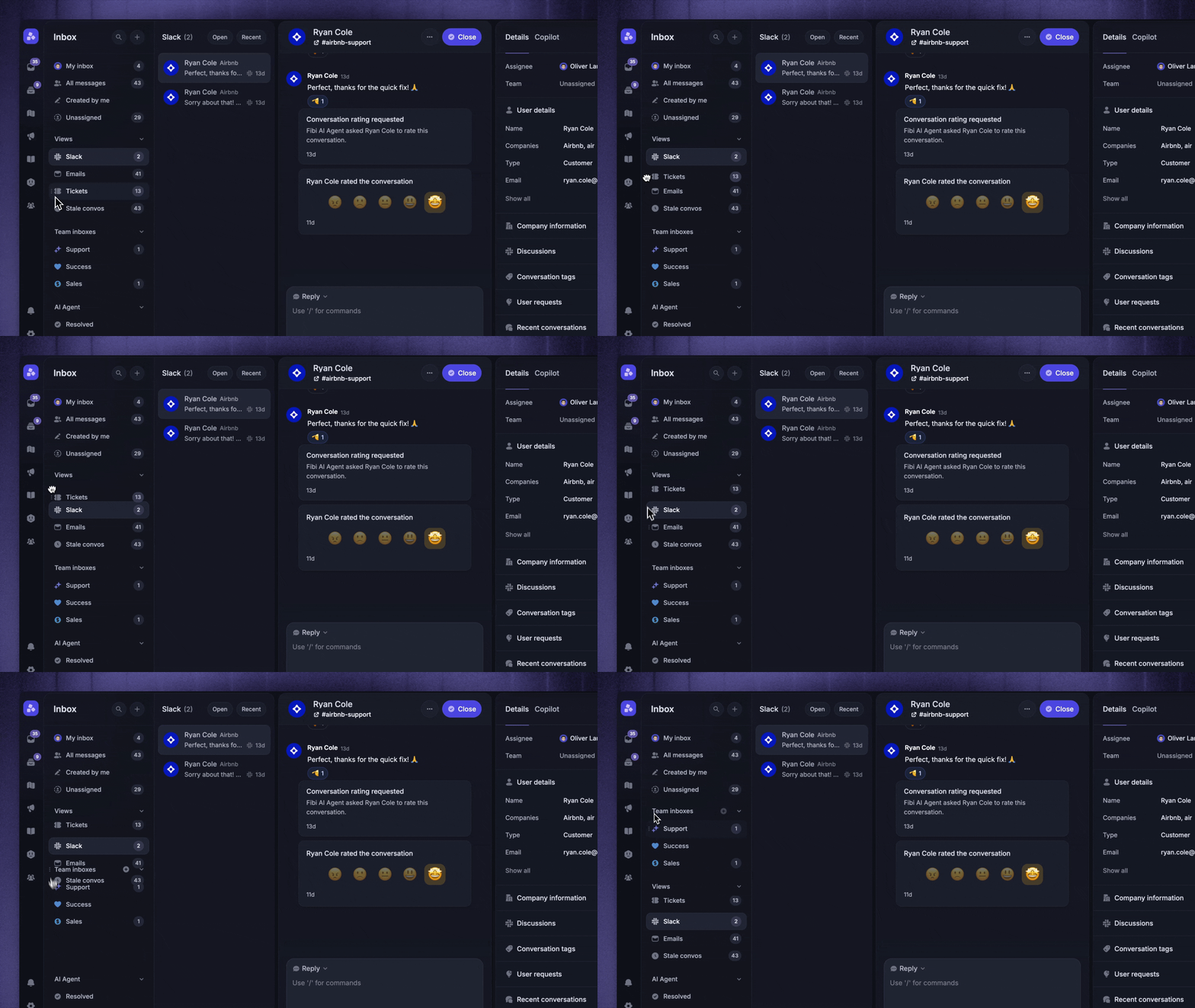
Drag pinned views within Views to change their order. Use 'Manage sidebar' to show, hide, pin, or reorder sidebar items.
These preferences are personal to you in the Workspace and follow you across devices.
How views interact with assignment
Views are read-only filters. A conversation showing up in your "High priority" view doesn't reassign it or change its state – it just changes what's visible in your sidebar. Conversations stay in the inbox of the teammate or team they're assigned to.
Because a view is just a filtered list, you can act on its conversations in bulk too. Select the conversations you want (or use Select all), then press ⌘/Ctrl K to assign, tag, snooze, close, or set priority without leaving the view.
That also means the same conversation can appear in several places at once: a teammate's personal inbox, the team inbox, and any view whose filter matches it.
Next steps:
Automate your inbox with Workflows. Ensure all conversations are handled by the right team, in the right order.
Start collecting conversation data up front from your customers, for more options to filter your views.
Was this helpful?
Still need help? Ask the team