Product Tours overview
Guide customers through your product with interactive messages and tooltips.
Written By Markus Palm
Last updated About 5 hours ago
Overview
Product Tours guide customers through your product with a sequence of messages and tooltips. Use them to help new users get started, introduce a feature, or show someone how to complete a task.
Once the Messenger is installed, you can build a tour on your website without writing code. Choose who sees it automatically, or share it when a customer needs help.
How it works
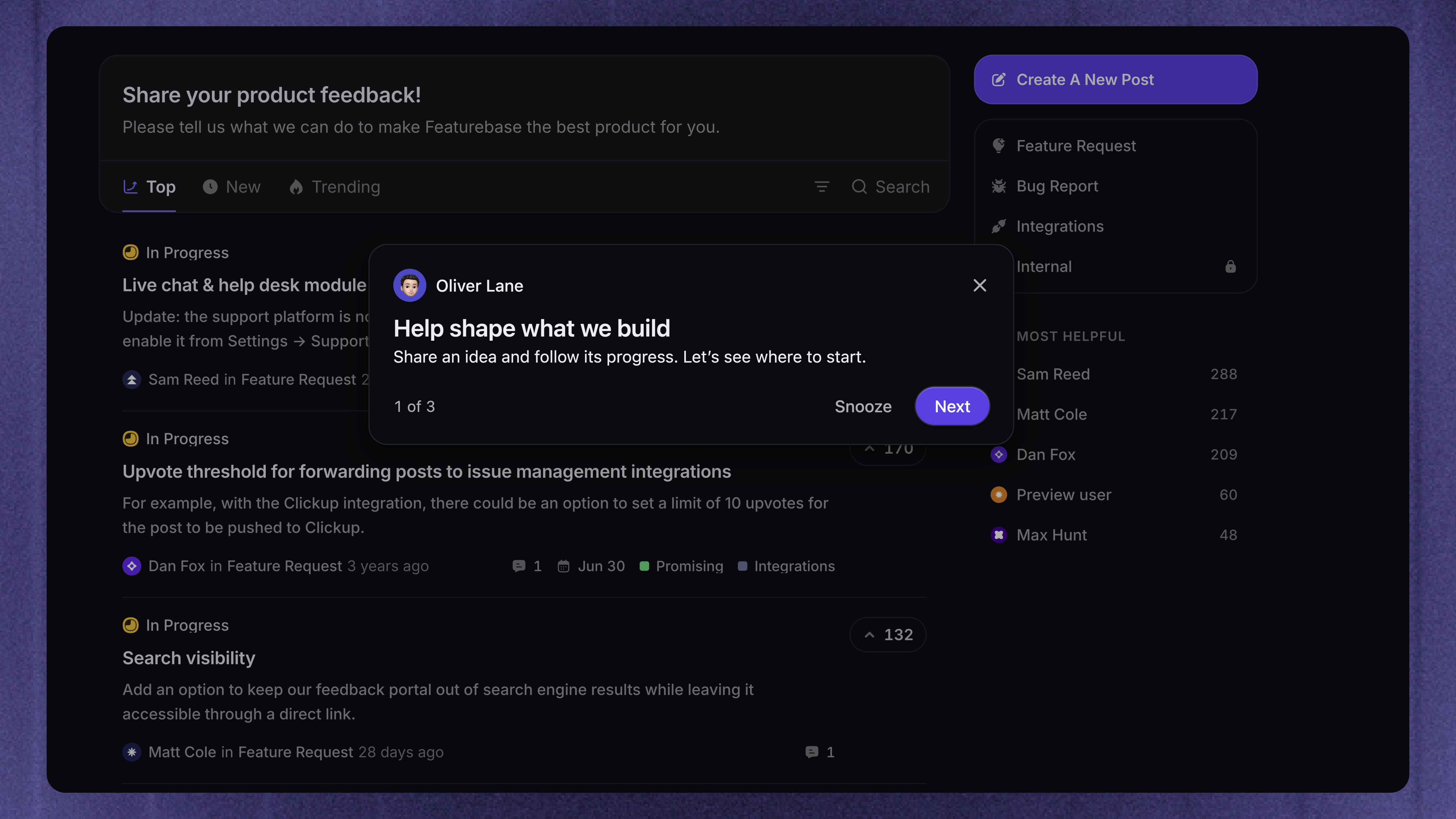
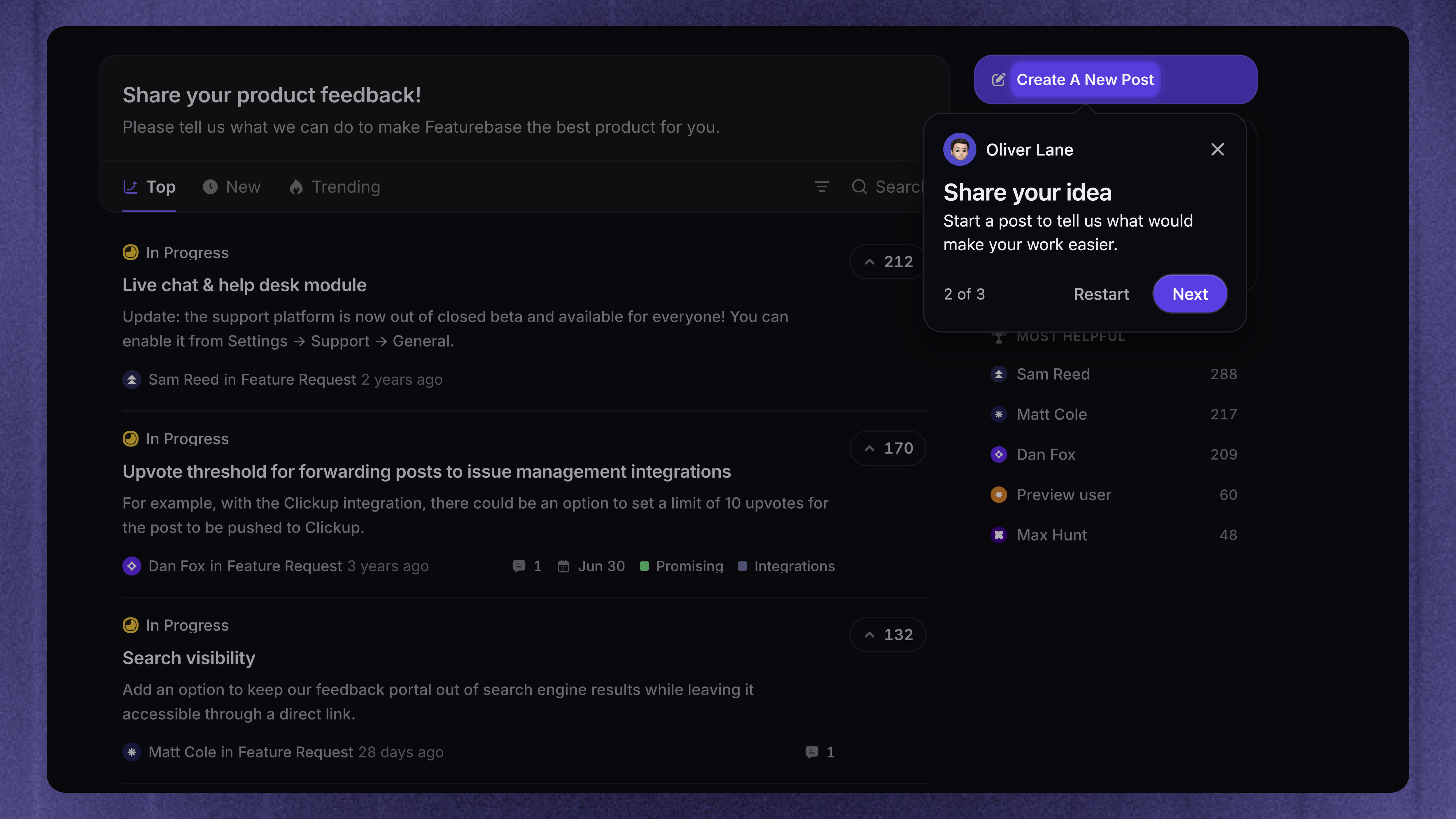
A tour appears over your product and guides the customer one step at a time. Each step can explain a feature, point to a button, or ask the customer to interact with your product before continuing.
Tours use two step types:
Message - A centered message for an introduction, explanation, or final next step
Tooltip - A message that points to an element on the page, such as a button, menu, or field
Getting started
Product Tours run on desktop websites and web apps with the Featurebase Messenger installed. Install it for the same workspace on each page the tour uses.
Create and manage tours from Dashboard → Outbound. Start from scratch or choose a template, then open your website to build the tour.
Note: Product Tours do not display in mobile browsers or native mobile apps.
Build interactive tours
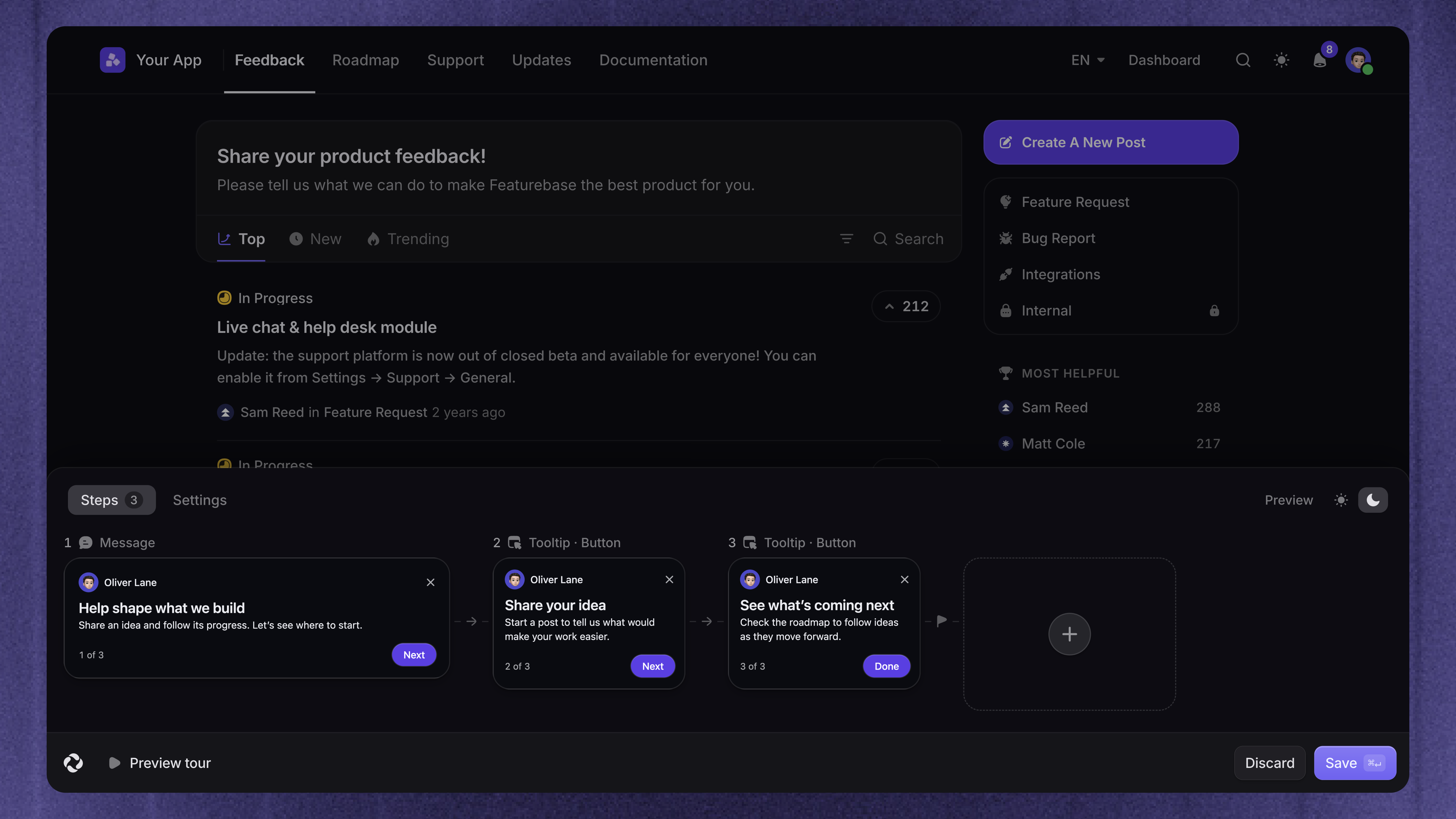
Choose elements on your website and write the guidance customers see beside them. You can format the text, add images, personalize messages with attributes, and translate the content.
For each tooltip, choose how customers continue:
Button - Click the tour's Next button
Click - Click the highlighted element in your product
Input - Fill in the highlighted field, then click Next
Tours can continue across pages or through menus. You can also add snooze and restart buttons, choose a sender and color, and show confetti at the end.
Preview the complete flow on your website before launch.
Reach the right customers
Show tours automatically
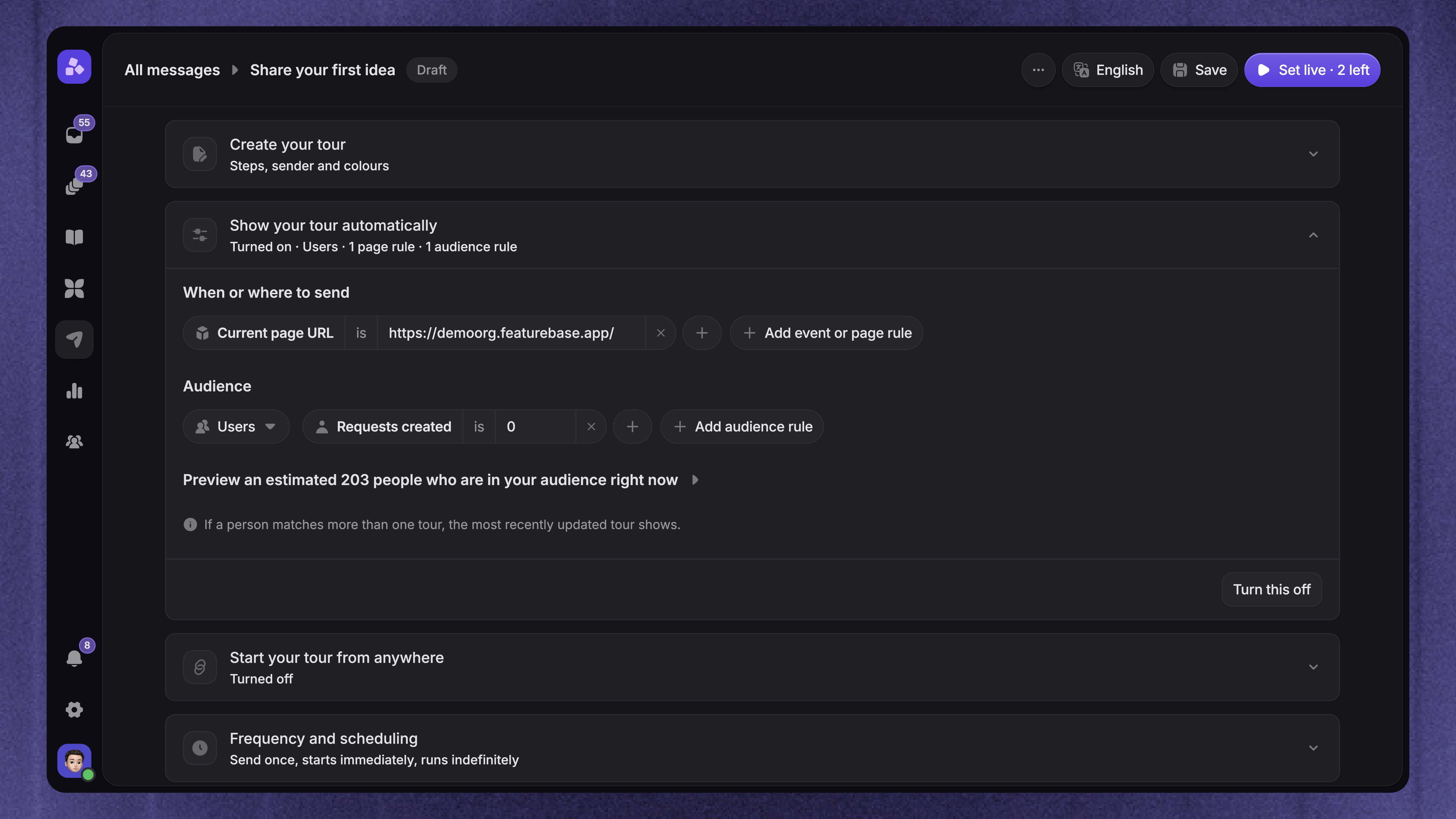
Use audience and trigger rules to show a tour when a customer reaches the right place in your product. For example, welcome new users on their first dashboard visit or introduce a feature to customers who have access to it.
Set the frequency and schedule to control repeat appearances and when the tour can run.
Share tours when they are needed
Share a tour link in a support reply, email, Help Center article, Banner, or Update. You can also start a tour from a button in your app.
This gives customers a way to request guidance themselves. Sharing and automatic display can be used separately or together.
Measure and improve tours
Product Tour analytics shows views, completions, and issues. The step funnel shows how many people reach each step and where they stop.
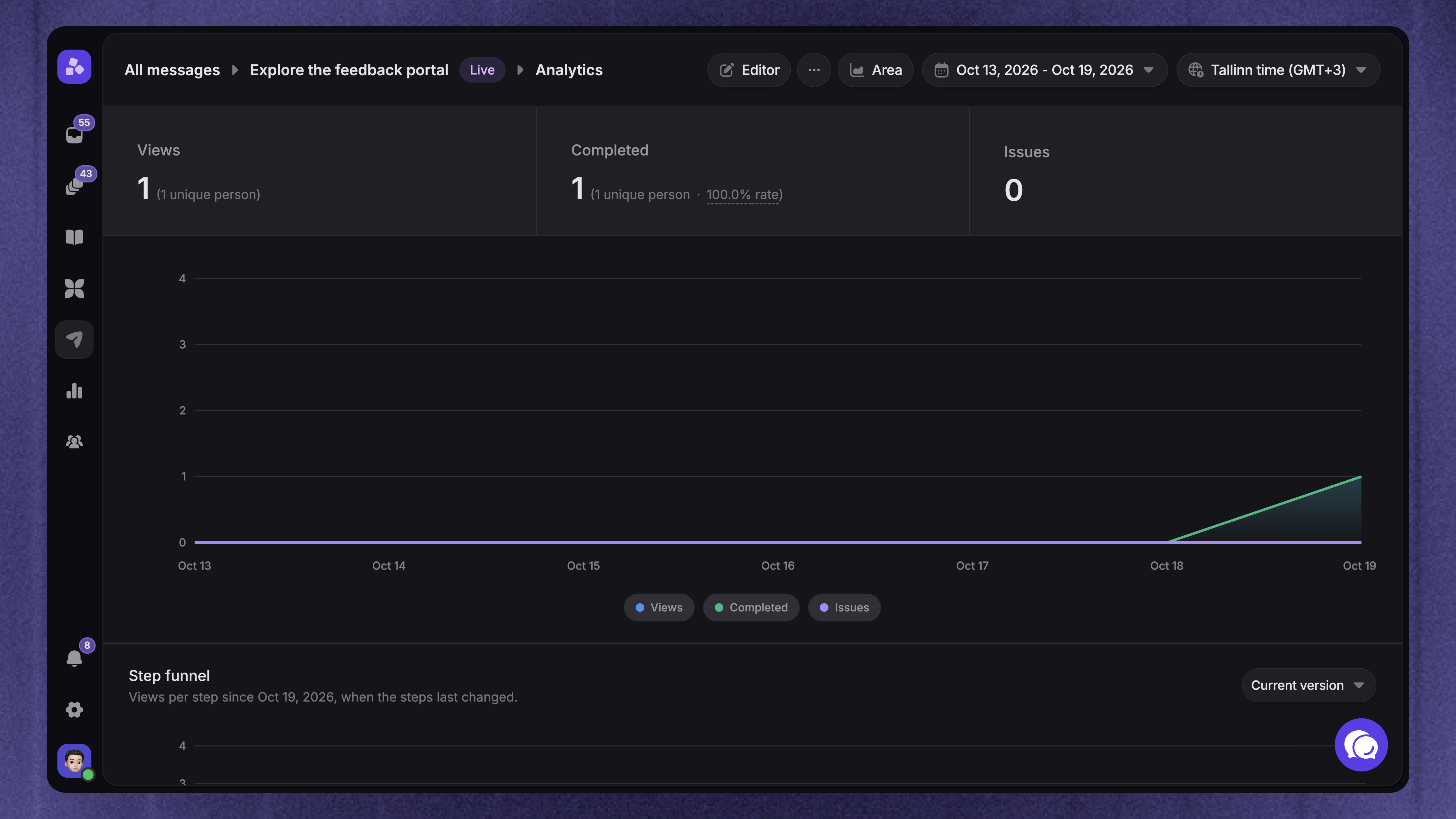
Use these results to shorten unclear steps, fix missing targets, and improve the flow. Start with the best practices, or use troubleshooting when a tour does not behave as expected.
Was this helpful?
Still need help? Ask the team