HubSpot Integration
Sync customer data, link deals & tickets to feedback, and close the loop – all without leaving HubSpot.
Written By Kateryna Babenko
Last updated 13 days ago

Overview
The Featurebase ↔ HubSpot integration connects your support, product, and sales teams, making customer feedback easier to track and act on.
Support teams can link HubSpot tickets to Featurebase posts, track how many users have requested a feature, and automatically keep them updated on the status
Product teams can see the Opportunity Value of posts linked to HubSpot deals, helping them prioritize the most valuable features
Sales teams can see customers' requests and feedback right in HubSpot, helping them close deals faster
You can 2-way sync customer data straight from HubSpot, with an initial bulk import to get started within seconds. Ongoing sync keeps everything up-to-date!
All HubSpot integration features are included in the Professional Plan, except linking deals to posts, which is available only on the Enterprise Plan.
Setting up the HubSpot integration
Install the HubSpot integration
First, you need to connect HubSpot with Featurebase:
Go to Settings → Integrations
Click on Connect To HubSpot
Give Featurebase permissions to access your HubSpot instance
That's it - you’ve successfully installed the HubSpot integration! You can now connect deals to posts, see your users’ requests, and prioritize posts by their Opportunity Value.
Sync customer data (optional)
You can sync contacts and their data two-way between HubSpot and Featurebase. This keeps customer records up to date in both tools without manual data entry.
Go back to Settings → Integrations → HubSpot
Choose the Contact matching method – Email address (recommended) or a custom unique identifier
Featurebase uses this attribute to match HubSpot Contacts to the correct Featurebase User records
Choose the Company matching method - has to be a Company ID that exists in both tools
Featurebase uses this attribute to match HubSpot Companies to the correct Featurebase Company records by their IDs
Set up data sync rules by mapping your HubSpot properties to Featurebase attributes
Use ‘Generate mappings’ to let AI suggest the best mappings automatically
Add mappings manually by clicking + New Mapping
For each attribute, you can customize its sync direction, matching Featurebase attribute, and whether it's enabled or disabled
Each mapping can be synced only from one direction
Once your mappings are configured, import your existing HubSpot data by clicking Start Bulk Sync
After your initial bulk sync, Featurebase automatically keeps data in sync between both tools in near-real-time. No manual work required!
Notes:
Some attributes (e.g. Country and City) can only be synced from Featurebase to HubSpot as we track them automatically for users through their web sessions.
If a HubSpot property is renamed or removed, Featurebase automatically detects the issue and disables the broken mapping. You'll see the error in your sync status so you can fix it
You can re-run the bulk sync at any time to re-import or refresh all records from HubSpot
Featurebase can automatically combine related HubSpot fields into a single attribute (e.g. merging first name and last name into a full name) without extra manual mapping
Example of customer data sync rules
Example of customer data sync rules

Sync HubSpot Tickets with Featurebase posts (optional)
This step is optional and only needed if you want to keep HubSpot tickets in sync with Featurebase posts.
Go back to Settings → Integrations → HubSpot
Next to Pipeline sync rules, click Configure rules
Select the desired pipeline from the top left (e.g. Support pipeline)
Start creating the sync rules by clicking ‘New Rule’ from top right
Choose the matching Featurebase status for each HubSpot ticket status
Tip: We recommend creating rules for each HubSpot ticket status so that linked posts are always in sync.
Example of ticket sync rules
Example of ticket sync rules

How to use
Aside from the 2-way data sync between HubSpot and Featurebase, there are many different actions that your team can take:
1. Link HubSpot tickets to Featurebase posts
You can easily log feedback from HubSpot tickets to Featurebase's voting boards for better management and prioritization.
Linking tickets to posts from HubSpot
To log feedback from HubSpot to Featurebase or subscribe users to existing posts:
Open the ticket in HubSpot
Scroll to the Featurebase section & click ‘Link/Create Feedback’
Search and link the ticket to an existing post or create a completely new post
Linking tickets to posts in Featurebase
To create new HubSpot tickets or link existing ones directly from Featurebase:
Open the post in Featurebase
Click the HubSpot icon in the top right
Select "Create new ticket" or "Link to existing ticket"
Linked HubSpot tickets will appear under the post’s content in Featurebase:
Linked HubSpot tickets will appear under the post’s content in Featurebase:
You can also unlink tickets from here if needed.
2. Subscribing users to posts to receive updates

You can also subscribe people to existing Featurebase posts to keep them updated about the status of their feature requests right from HubSpot:
Open up a contact tab in HubSpot
Scroll to the Featurebase section & click ‘Link/Create Feedback’
Create a completely new post or search for an existing one to add users as an upvoter
If you add the user as an upvoter, you can add a note with it, which defaults to a private comment in Featurebase.
3. Link HubSpot deals to Featurebase posts to prioritize by Opportunity Value
You can link HubSpot deals to Featurebase posts to prioritize the most valuable features & close deals faster. There are two ways to link HubSpot deals with Featurebase posts, depending on which tool you use:
This functionality is only available on the Enterprise plan.
Linking deals to posts from HubSpot
Open up a deal in Hubspot
Scroll to the Featurebase section & click ‘Link/Create Feedback’
Search and link the deal to an existing post or create a completely new post
Linking deals to posts in Featurebase
Open up a post & click ‘Manage upvoters’
Select ‘Opportunities’ from the upper dropdown
Click + Link new opportunity
Click ‘Link to deal’ next to the correct deal
Prioritizing by opportunity value
After a post has been linked with a deal, you can see the Opportunity Value from the Dashboard and in the post details. You can also sort posts by their Opportunity Value.
4. See customer requests in HubSpot

Featurebase activity appears in two places inside HubSpot:
Activities tab:
For contacts: Shows their Featurebase actions (posts, upvotes, comments)
For deals & tickets: Shows when they were linked to Featurebase posts
Side panel:
For contacts: Shows all their upvoted posts
For deals & tickets: Shows their linked posts
FAQs
Can I sync custom HubSpot properties?
Can I sync custom HubSpot properties?
Yes. Any HubSpot Contact or Company property can be mapped to a Featurebase attribute, including custom properties you've created in HubSpot.
Do HubSpot integration users count towards the Featurebase seat count?
Do HubSpot integration users count towards the Featurebase seat count?
No, you can have unlimited users in HubSpot using the integration, and they won't count towards our seat limit.
I’m not seeing users’ Featurebase activity in Hubspot…
I’m not seeing users’ Featurebase activity in Hubspot…
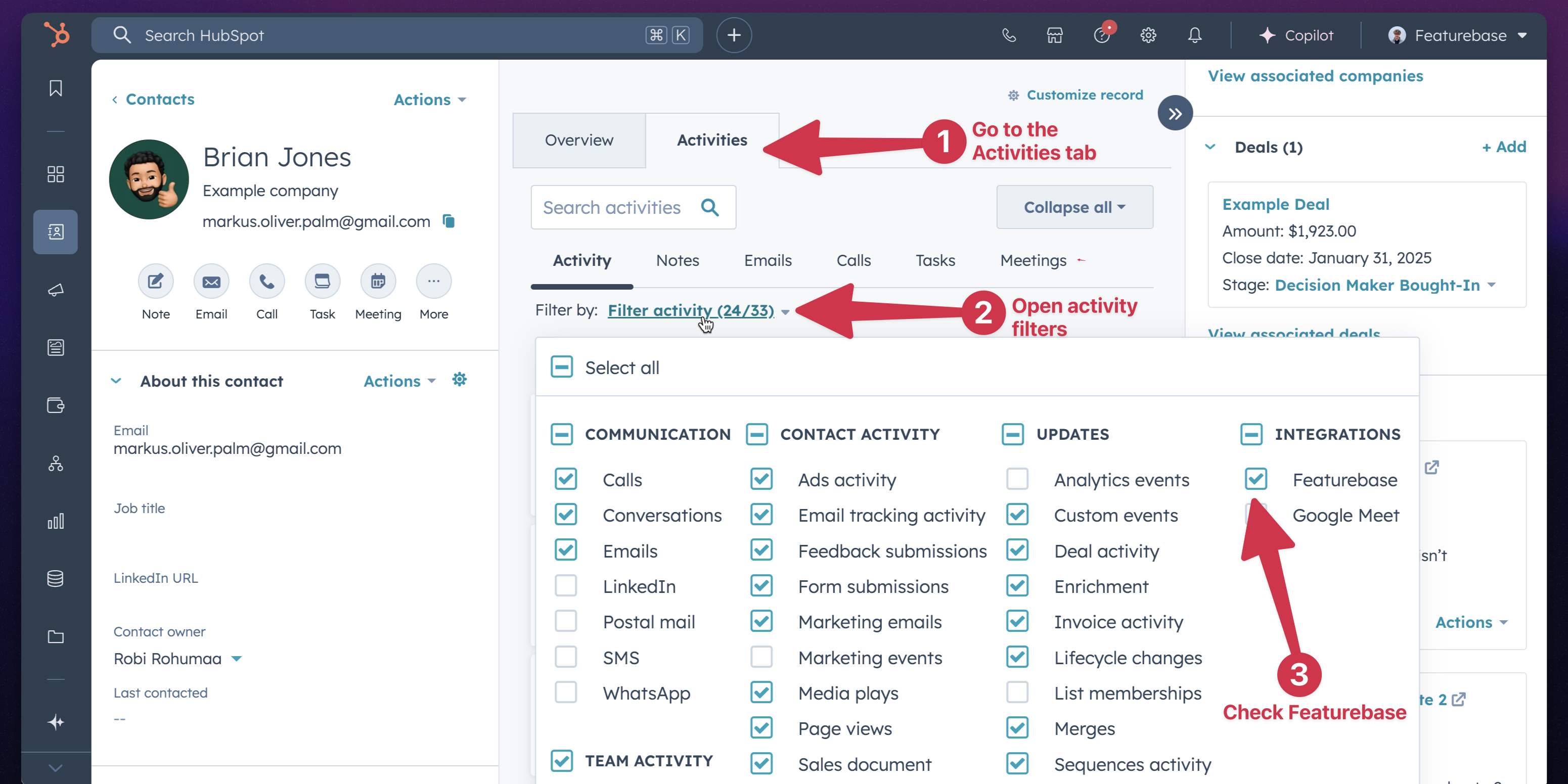
Make sure you're viewing the "Activities" tab
Check that Featurebase is selected under activity filters in HubSpot
Deals with multiple companies won’t automatically add an author to Featurebase posts.
Deals with multiple companies won’t automatically add an author to Featurebase posts.
If your HubSpot deal is linked to multiple companies, creating a post for that deal won’t automatically assign an author to the post. This is because it’s unclear which company you want the author to be associated with.
Will the sync overwhelm my HubSpot API limits?
Will the sync overwhelm my HubSpot API limits?
No. Featurebase batches updates intelligently (up to 100 at a time) and includes built-in safeguards that automatically slow down if your HubSpot API usage is high.
Does the sync include records that already exist in both tools?
Does the sync include records that already exist in both tools?
Yes. The bulk sync matches and updates existing records based on your configured matching rules. After that, ongoing sync handles all future updates.
Was this helpful?
Still need help? Ask the team