Customizing home cards in Messenger
Add, remove, and organize home cards in your Messenger widget.
Written By Markus Palm
Last updated 5 days ago
Overview
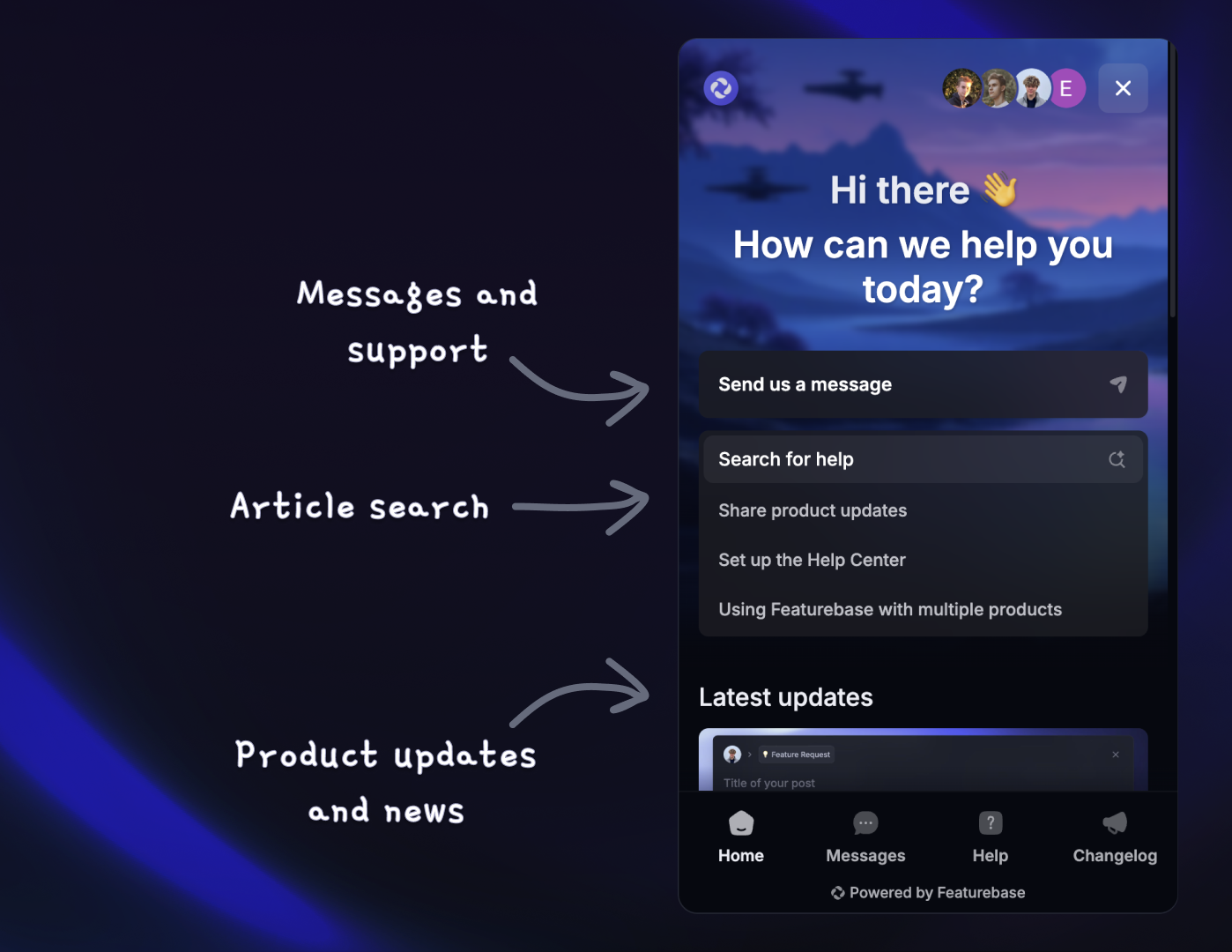
Home cards help customers find answers, start conversations, view updates, and open useful links from your Messenger Home tab.
Adding, removing, and organizing home cards
To add or remove home cards from your Messenger home:
Go to Settings → Support channels → Messenger and open Content
Expand Home cards and select Visitors or Users
Select 'Add card' and choose a card type, or use a card’s delete icon to remove it
Configure the card, then select 'Save changes'
Drag cards to change their order. You can also translate your card text.
You can show different home cards to visitors and existing users. For example:
Visitors just see basic ones like starting a chat.
Logged-in users see more advanced options.
Choosing the right cards to show your visitors & users
Here are a few tips when choosing which home cards to show your visitors and users:
Allow visitors and users to start new conversations
The New conversation card starts a chat. If your Messenger Home shows a message field, that field replaces the card. Conversation access rules control who can start a conversation.
Let customers submit tickets
Add a Ticket link card and choose the customer ticket types to show. Drag them to set their order.
Promote self-serve with Article search
Help customers find answers before they even start a conversation by using the “Article Search” card. If you have a Help Center, this card lets customers search or browse articles, view results, and read them – all without leaving Messenger. Keep the Help module enabled for this card to appear.
Share your updates and news
Share your updates, news, and product updates right on the home page to show customers you’re constantly improving and keep them up to date about the news.
These can be controlled by user segmentation to ensure only the relevant updates are shown to all users. (e.g., only product A users see updates about that product there.) Keep the Updates module enabled for this card to appear.
Linking to external sites
You can use custom cards to direct people to any external pages, like:
A status page so they can check system uptime
A demo booking page using tools like Calendly
Any other useful resource – API docs, webpage, etc
Open an External link card to edit its title, URL, and optional icon.
Was this helpful?
Still need help? Ask the team