AI replies & Macros
Speed up your support & feedback replies with powerful macros and AI replies.
Written By Kateryna Babenko
Last updated 4 days ago
Overview
AI replies and macros are two of the most powerful communication tools in Featurebase:
AI replies – Instantly draft responses to customers’ messages using their background context, your Help Center, and past responses to generate smart replies in your tone of voice
Macros – Reusable message templates that reduce your team’s time answering repetitive questions
They work both in the Support Inbox and Feedback Portal to help your team save time and make it easy to give closure to feedback submitters.
In the Inbox
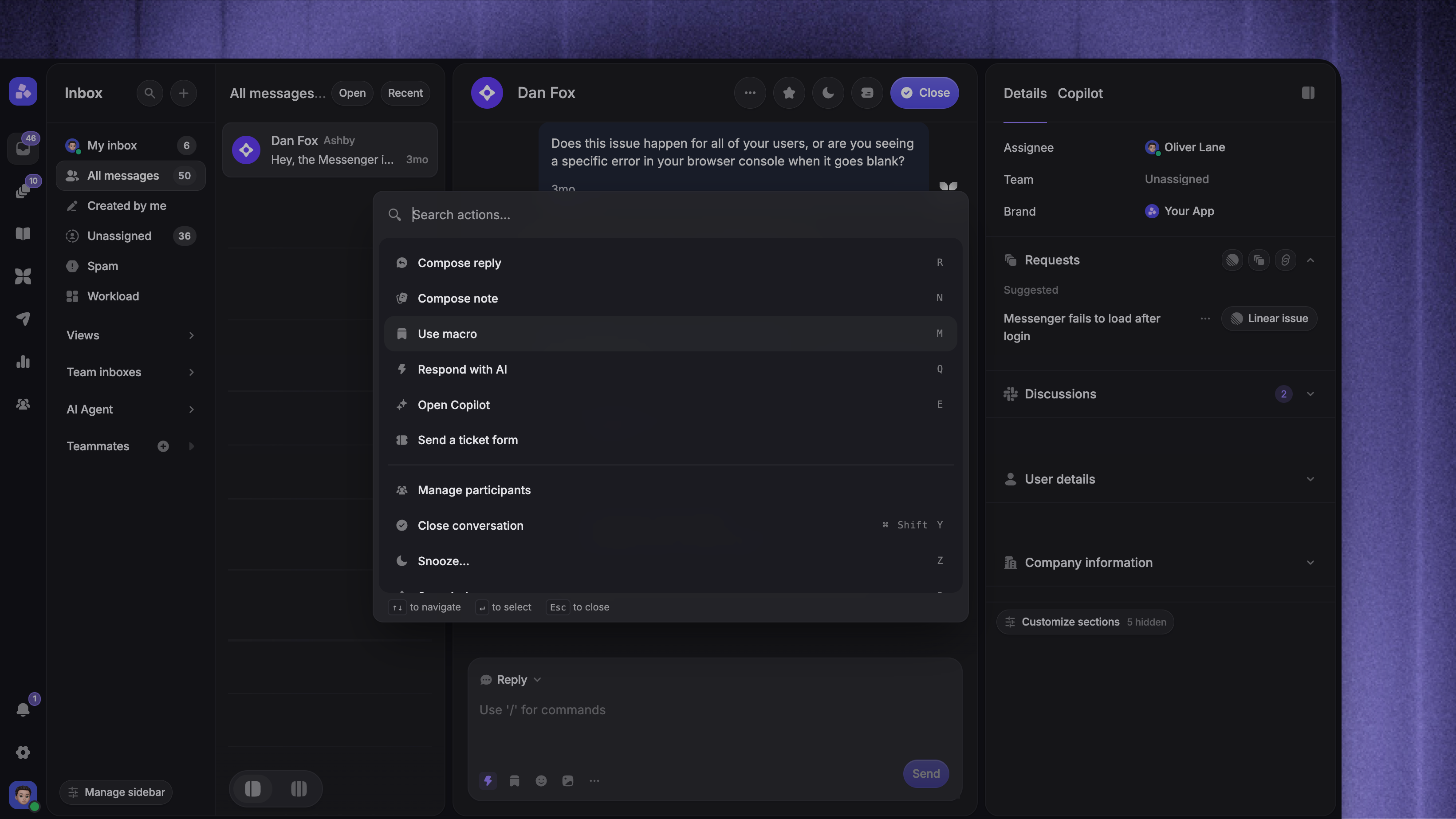
With focus outside the reply or note composer, press Q to open an AI reply prompt or M to open the macro picker. You can also open Using Command-K in the Inbox and choose Respond with AI or Use macro.
In Requests
On a Request, press ⌘ K to open AI replies and macros. On Windows, replace ⌘ with Ctrl. You can also click the lightning icon in the reply box.
AI replies
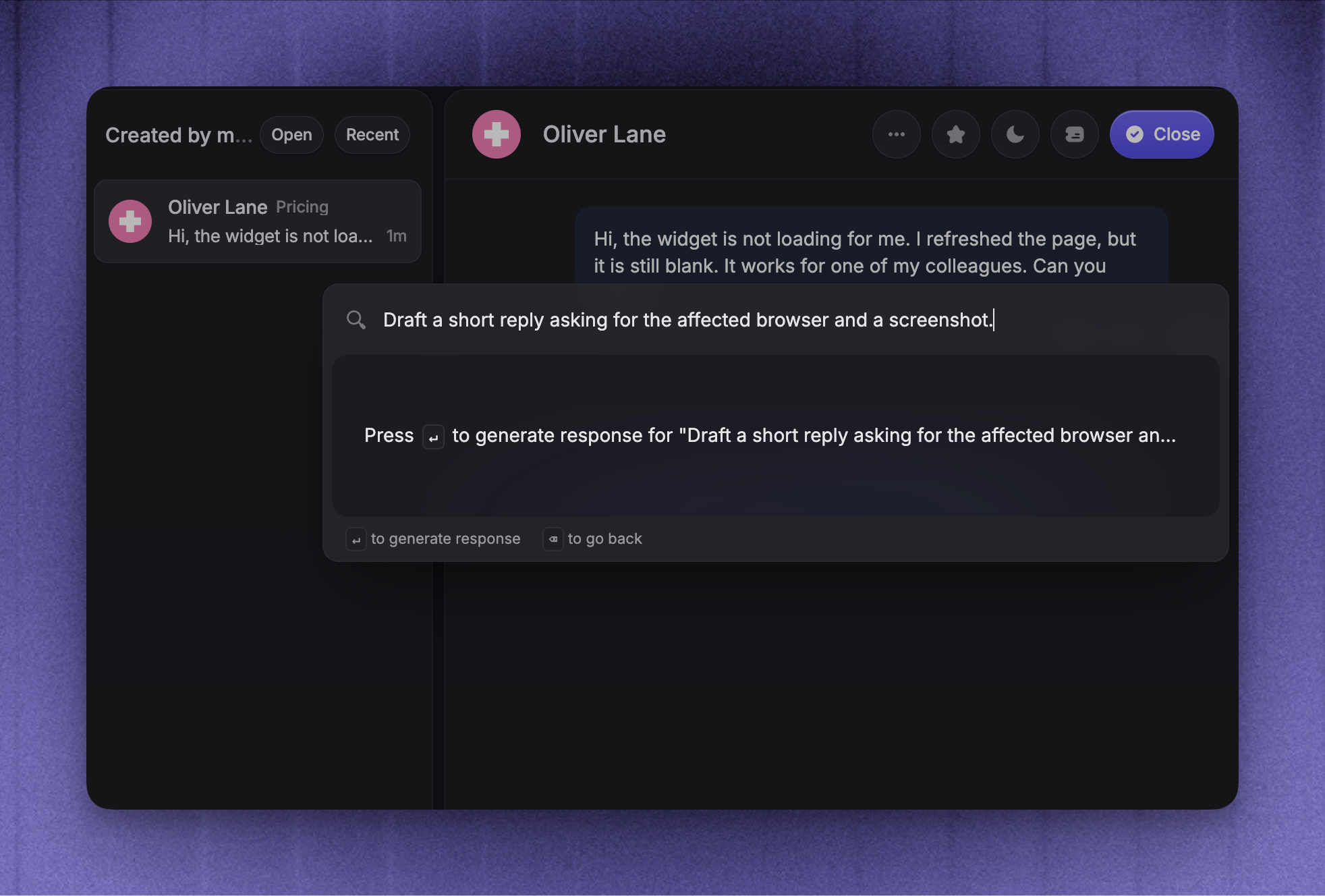
AI replies help you instantly draft responses to customers’ messages using their background context, your Help Center, and past responses to generate smart replies in your tone of voice.
Here are some cool things about AI replies:
Personalized messages – It personalizes the message using the name of the user.
Smart status updates for feedback – While replying to feedback, if your response mentions an action (such as fixing a bug or planning a feature), AI will automatically suggest a status change for the post. You can always respond without updating the status.
Macros
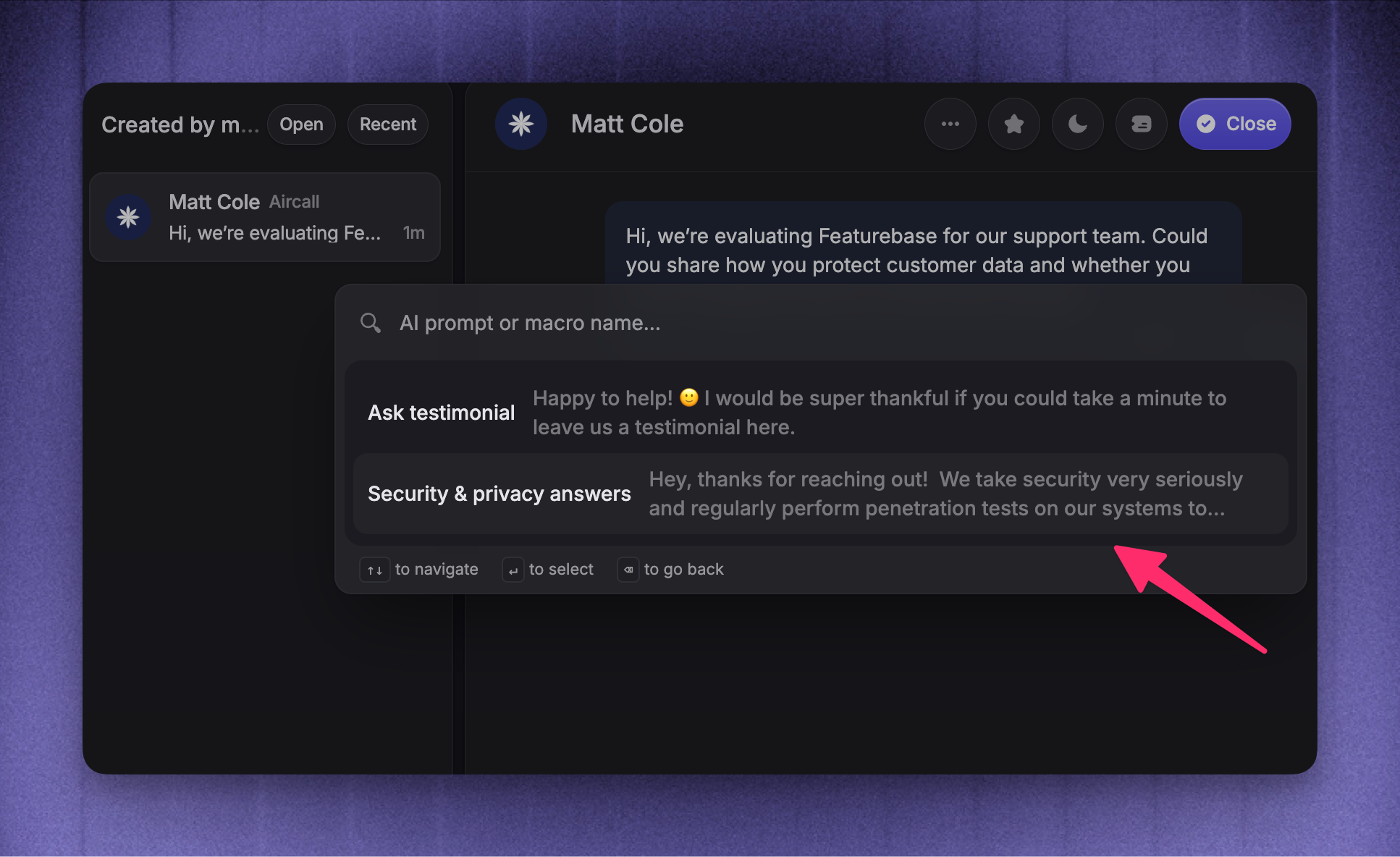
Macros are reusable message templates that help reduce your team’s time answering repetitive questions. This frees them up to focus on their strengths: solving problems.
In the Inbox, a Macro adds its text after your existing draft. You can insert several Macros and edit the combined reply before sending.
Note: You can use dynamic variables like {First name} to make the macros more personal to customers.
Use macros in notes
Use macros in notes
You can also insert Macros into internal notes. Discussion replies insert the Macro text without applying assignment actions.
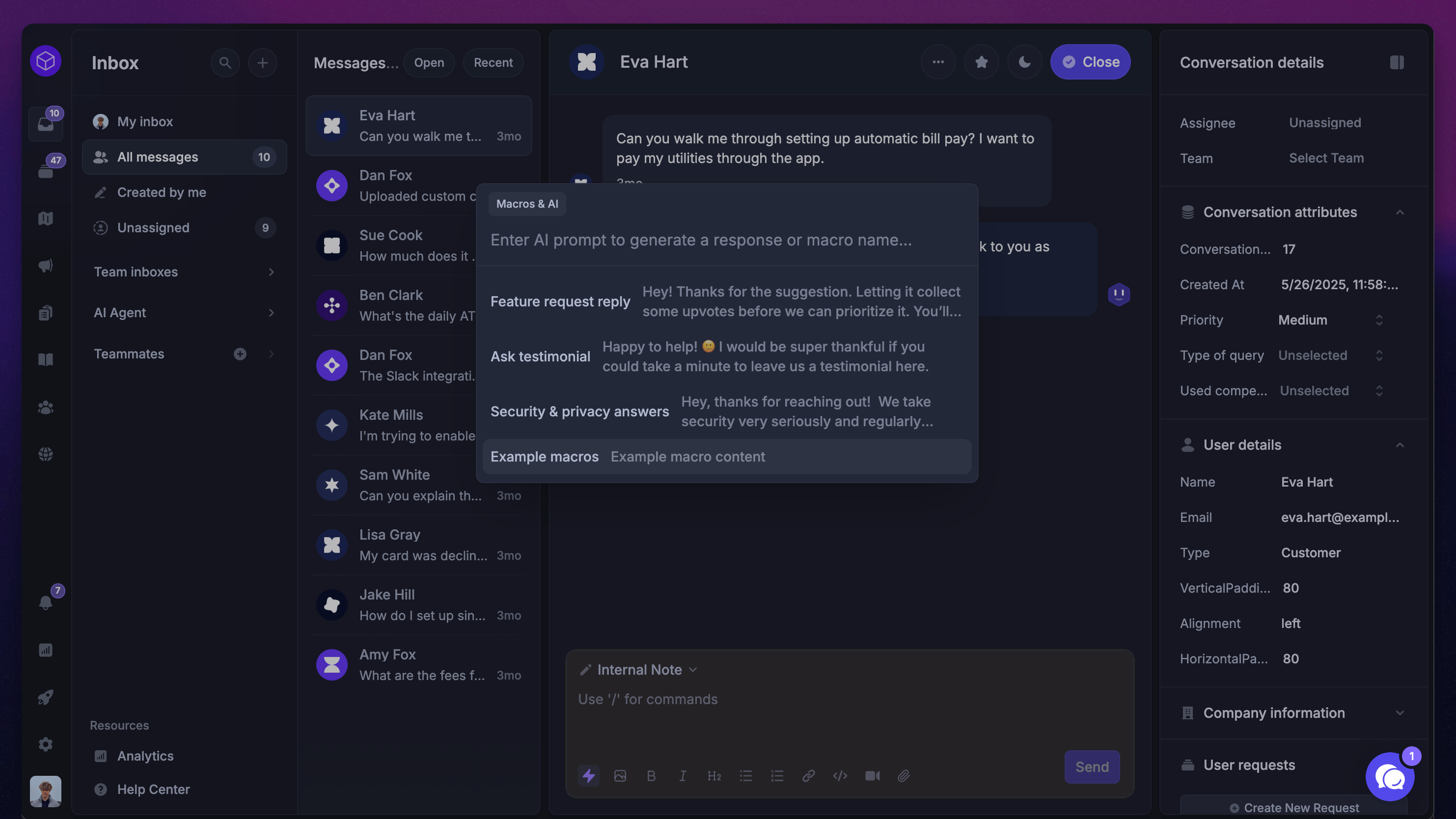
Status changes with macros
Status changes with macros
When replying to feedback, macros can also include a default status change along with your message. You can also customize or send the macro’s content without the status change:
Creating, editing, and deleting macros
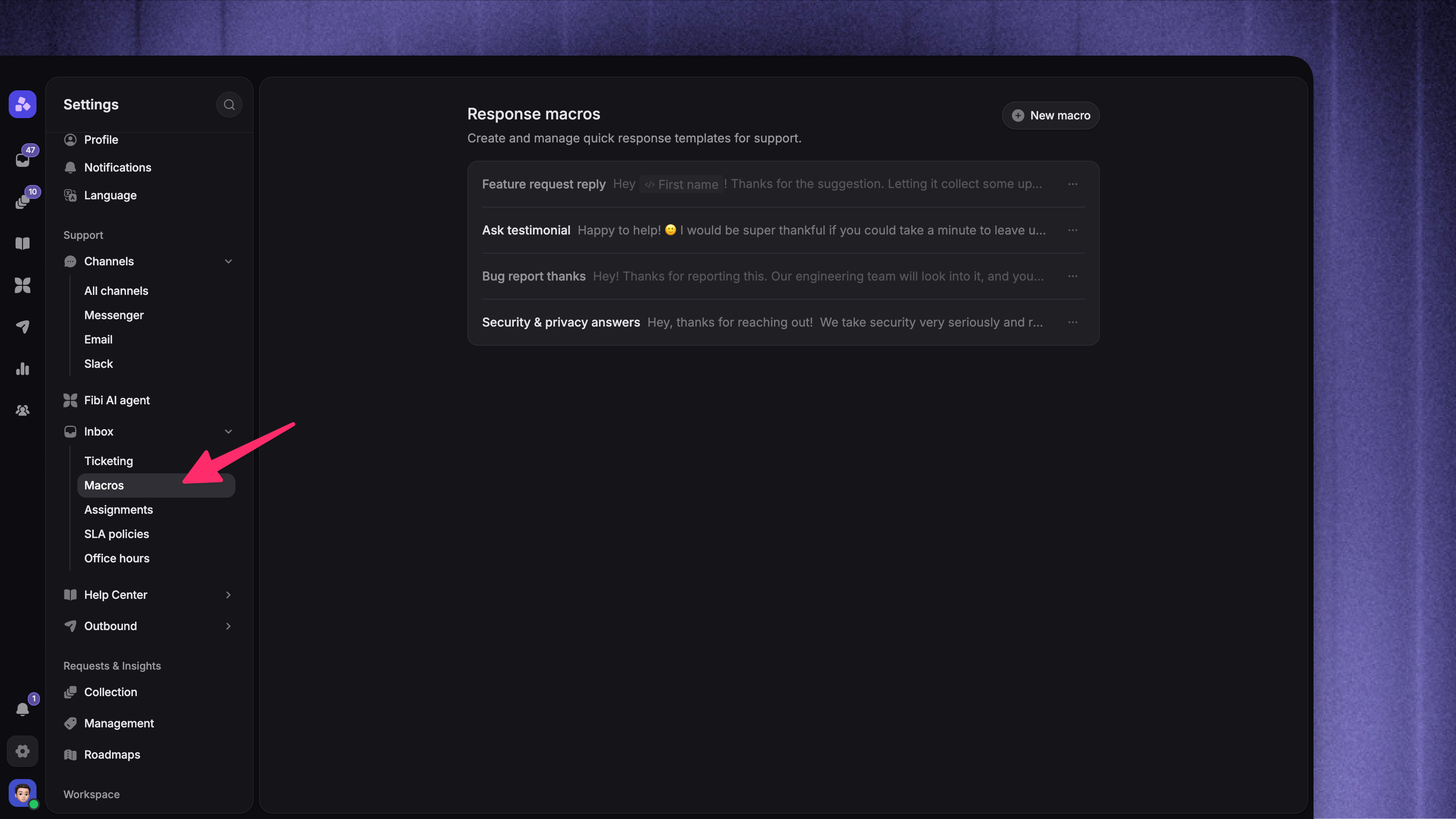
To create new macros:
Click 'New macro'
Enter the Macro name and Reply text
Optional: under Assign conversation, click 'Add assignment action' and choose a teammate or team. For a team, you can also enable Distribute with round robin
Click 'Create'
Assignment applies after you send the reply or internal note. Before sending, you can remove the pending assignment without deleting the Macro text. Selecting another Macro with an assignment replaces the pending assignment.
If 'Retry action' appears after sending, it retries only the assignment. Your reply is not sent again.
You can edit and delete Macros from the same place.
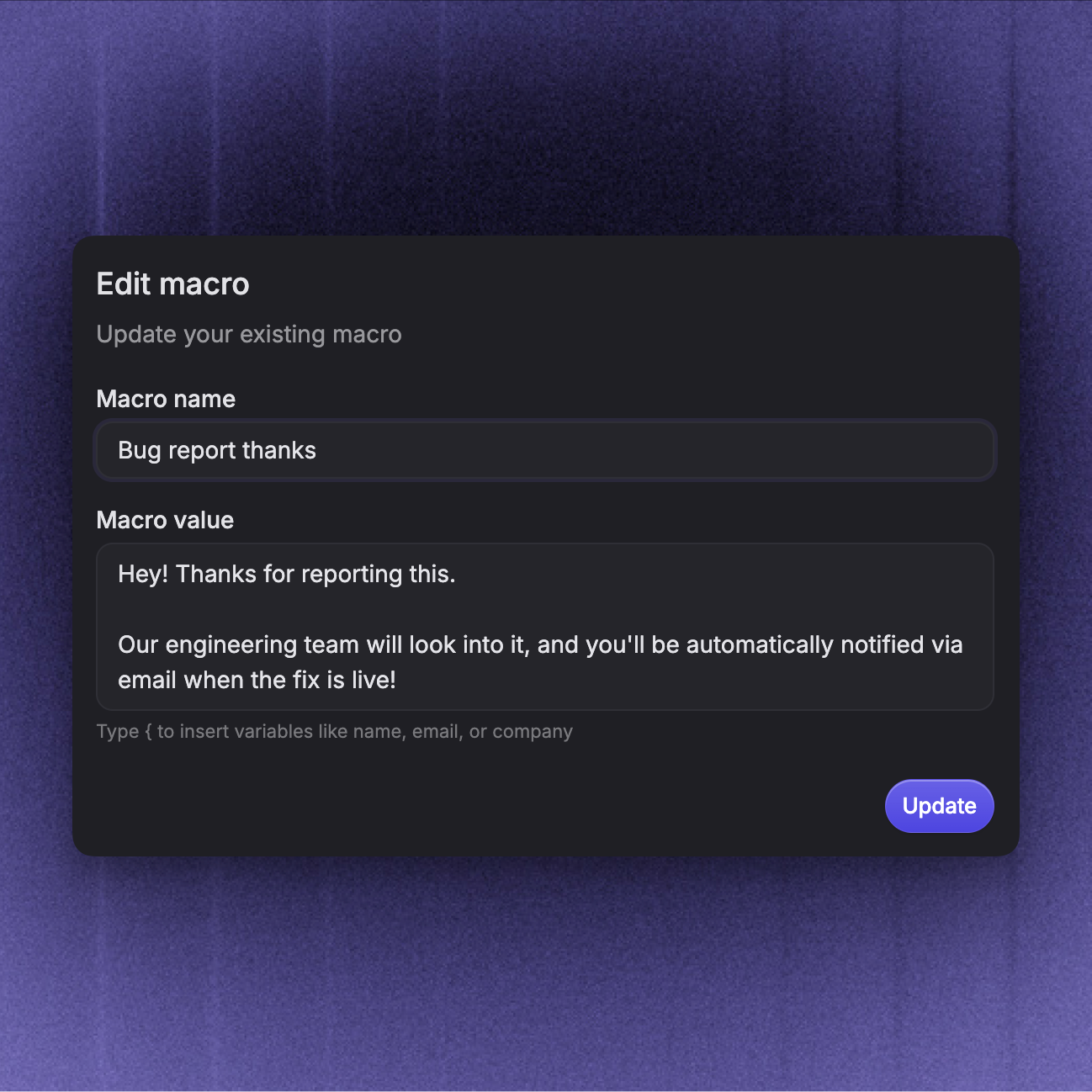
Use Macros in Requests
Create and manage Request Macros in Settings → Requests → Macros. Click 'New macro', enter the Macro name and Reply text, then set:
Available in - Select Requests. Select both Requests and Support to reuse the reply text in both places
Change request status - Optionally choose a status to prepare with the reply. Support assignment actions do not apply to Requests
Click 'Create' to save the Macro.
To use it in a Request:
Open the Request's comment editor
Click the lightning-bolt button, search for the Macro, and select it
Review the reply text, selected status, comment visibility, and notification settings
Send the comment
The text stays editable. Selecting a Macro does not send the comment.
Note: A selected status change makes the comment a public status update. Remove the selected status before sending a private comment.
Example macros for support & feedback replies
Testimonial ask
Happy to help! 🙂
I would be super thankful if you could take a minute to leave us a testimonial here.
Bug report default reply
Hey
{First_name}! Thanks for reporting this.Our engineering team will look into it, and you'll be automatically notified via email when the fix is live!
Escalating to another team with context [Internal note]
Summary: [Brief overview of the customer’s issue]
Steps taken: [What’s been tried so far]
Next steps: [Suggestions or what to investigate]
Feature request default reply
Hey
{First_name}! Thanks for the suggestion.Letting it collect some more upvotes before we can prioritize it. You’ll be automatically notified when we start working on it!
Clarify use case
Hey
{First_name}! Thanks for the suggestion.Could you share some more details on the specific use case of this feature for
{Company_name}? That’ll help us better understand the need.
Not planned
Hey
{First_name}! Thanks for the suggestion.We don’t have any specific plans on prioritizing it right now, but we’ll keep an eye on demand.
Workaround
Hey
{First_name}! While we don’t have this feature yet, you can try this workaround: [Explain workaround].Hope this helps!
Was this helpful?
Still need help? Ask the team