Tag conversations automatically with Workflows
Use Workflows to automatically tag conversations based on message content, source, user attributes, and more.
Written By Markus Palm
Last updated 16 days ago
Overview
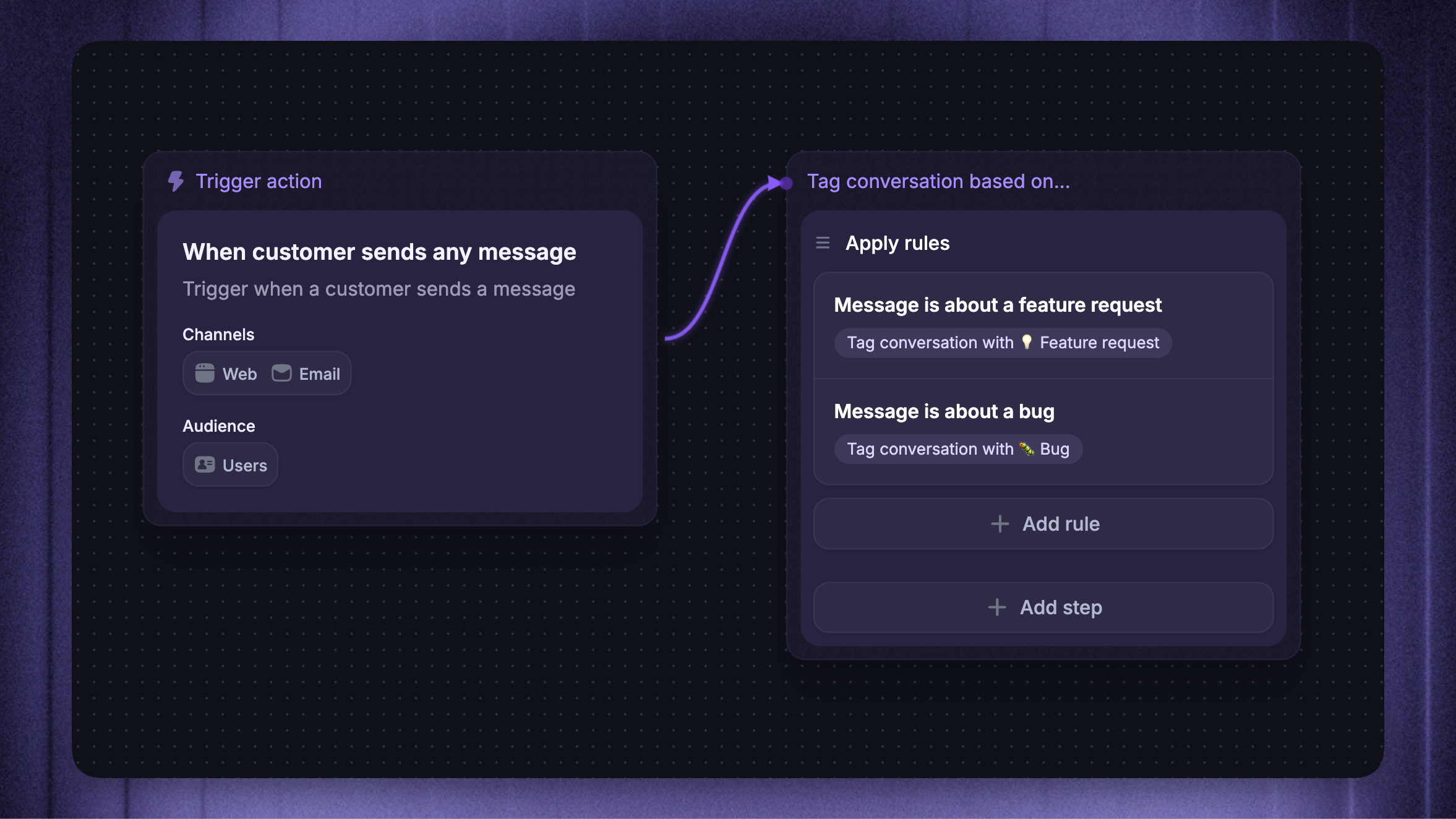
Tagging conversations manually is time-consuming and inconsistent across teammates. Workflows let you tag conversations the moment they meet specific conditions, so you can:
Track common bugs, errors, and feature requests
Categorize conversations by topic, channel, or customer segment
Prioritize conversations from VIP customers or specific plans
Build reliable, consistent data for reporting
Tag actions work on every conversation channel (Web, Email, etc).
Note: Before you can tag conversations with Workflows, the tag must already exist in your workspace. Create it from Settings → Conversations → Tags.
Common use cases
Tag by message content – Apply
Bugwhen a customer mentions bug, error, or brokenTag by request type – Apply
Feature request,Churn feedback, orCancelbased on keywordsTag by source or channel – Apply
Email,Mobile, orWebbased on where the conversation came inTag by user segment – Apply
VIP,Enterprise, orFree trialbased on the customer's plan or attributesTag by team – Apply
Sales,Billing, orTechnicalbased on the assigned team
Get started
Go to Automations → Workflows
Click + New Workflow
You can either:
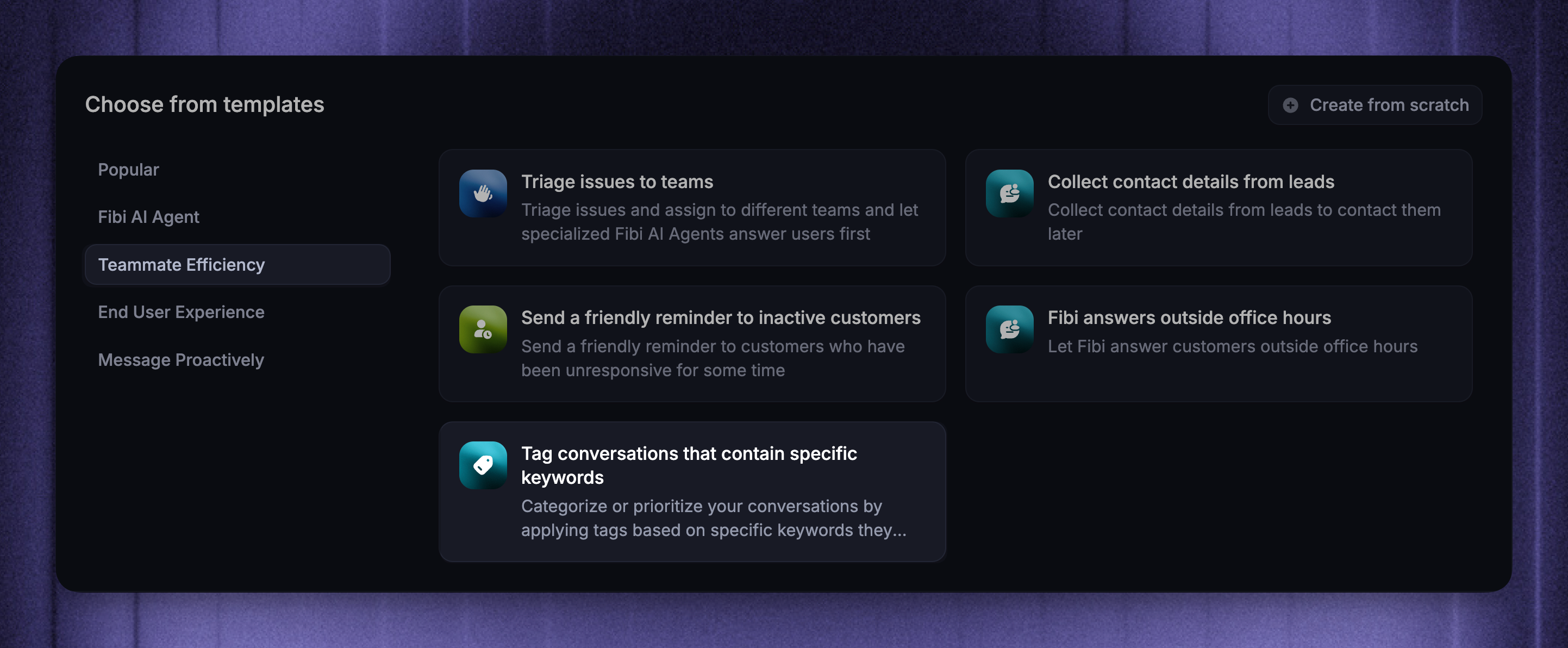
Use the built-in Tag conversations that contain specific keywords template, or
Select Create from scratch and choose a trigger that fits when you want the tag applied
Configure the trigger settings (audience, channel, scheduling)
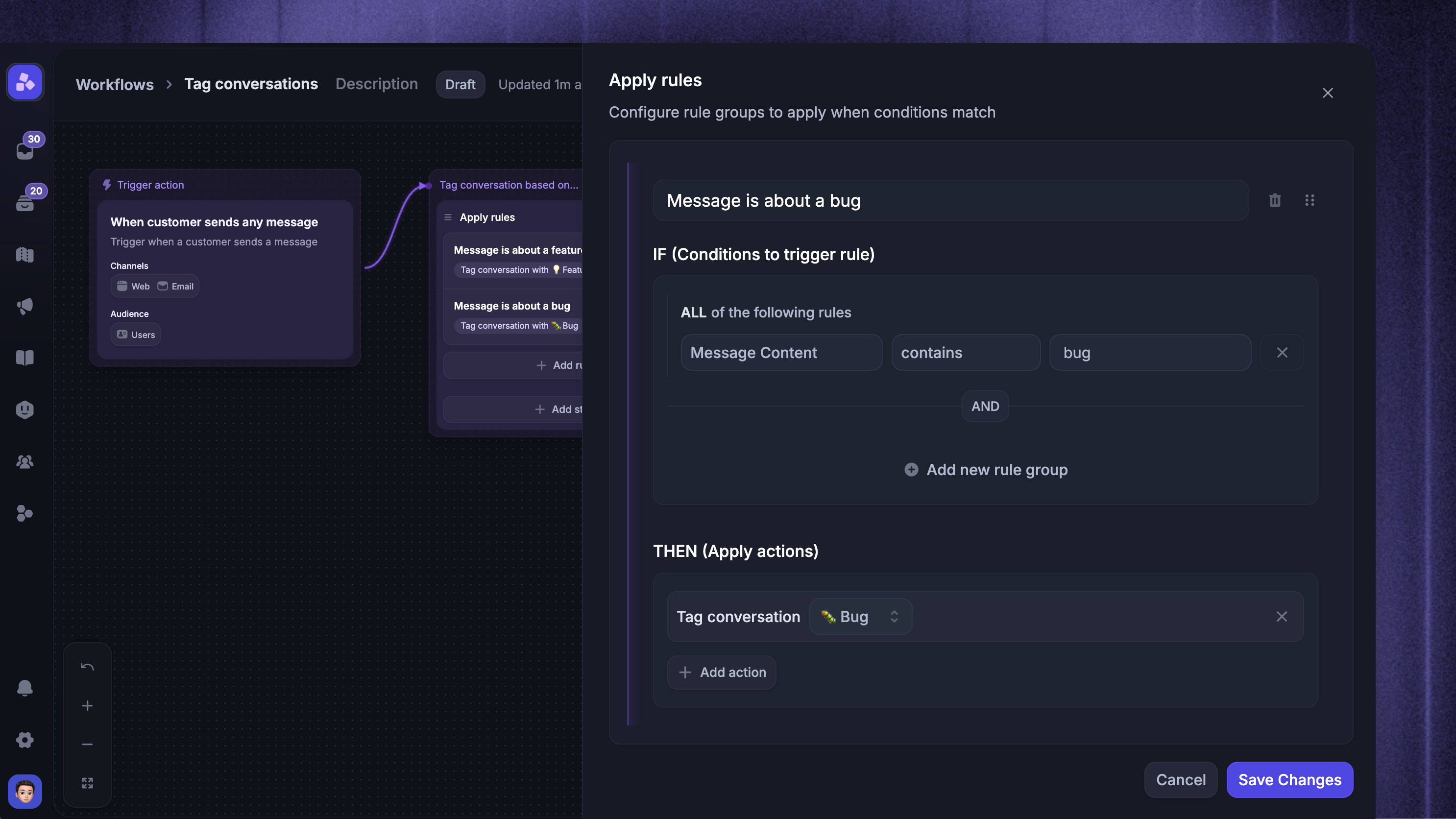
Add the Tag conversation action, or use Apply Rules for conditional logic
Select the tag to apply
Click Set live
Choosing the right trigger
Pick the trigger that matches when you want the tag applied:
When customer sends any message – Tag based on the content of any incoming message. Best for keyword-based tagging
When customer opens a new conversation in the Messenger – Tag at the start of every new Messenger conversation. Useful for tagging by audience or page
When teammate changes conversation state – Tag when a conversation moves to Closed, Snoozed, or another state. Useful for post-close categorization
Remove tags automatically
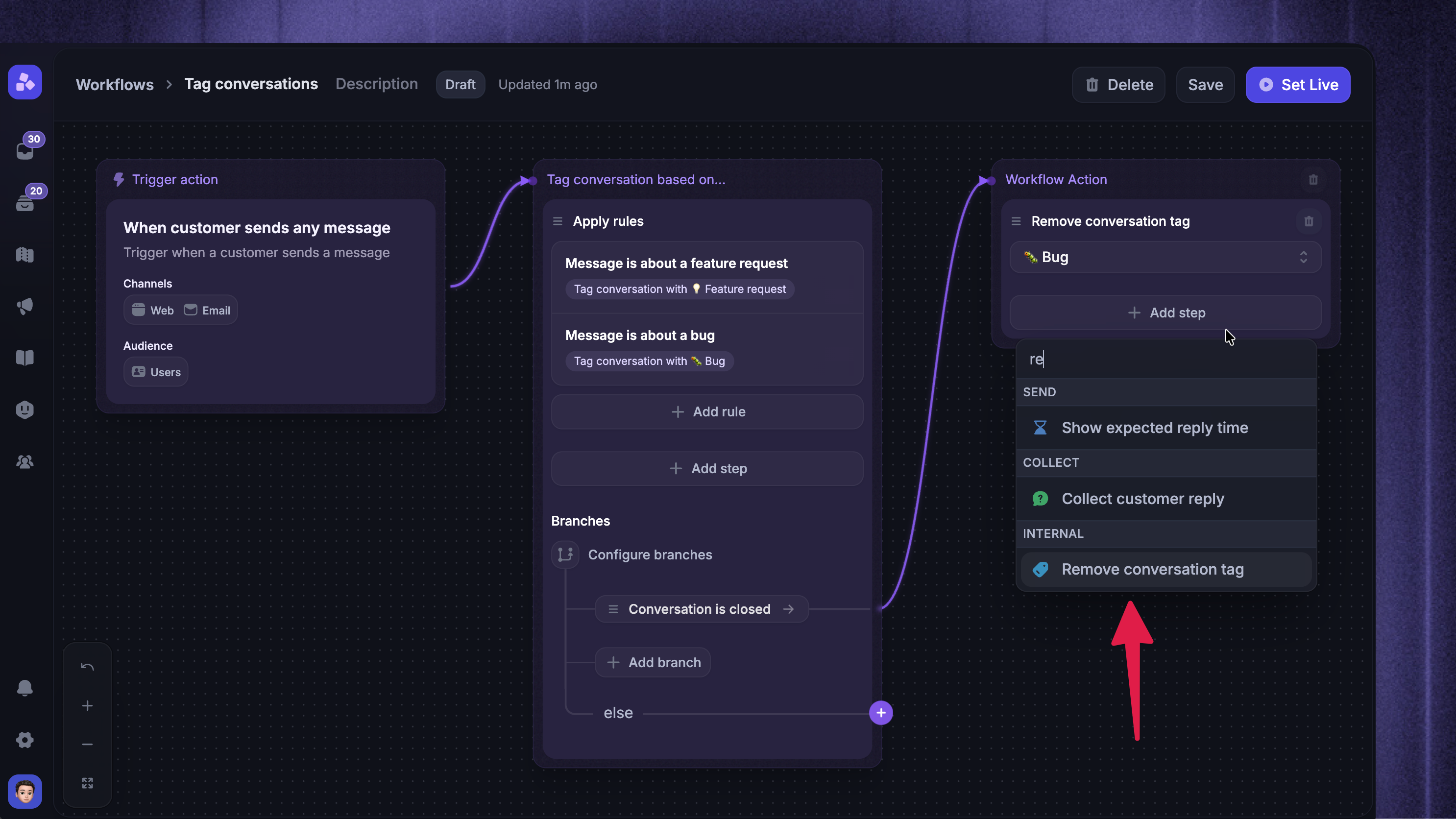
You can also remove a tag automatically once a condition no longer applies. Add the Remove conversation tag action anywhere in your Workflow path and select the tag to remove.
For example, you might:
Remove the Pending review tag once a teammate replies
Remove the Outage tag once a status update goes out
Remove a Needs follow-up tag after a workflow has run its course
The action removes the tag from every message it appears on in the conversation.
Important notes
Tags must already exist before you can use them in a Workflow – create them in settings first
A tag used in an active Workflow cannot be archived or deleted until it's removed from those Workflows
Tag actions work on every conversation channel
A single conversation can have any number of tags applied – multiple Workflows and rules can stack tags onto the same conversation
FAQ
Can a Workflow apply more than one tag to the same conversation?
Can a Workflow apply more than one tag to the same conversation?
Yes. You can use ‘Apply Rules’ with multiple rules in the same Workflow, or chain several ‘Tag conversation’ actions in a path. Each tag is applied independently.
What happens if I delete a tag that's still used in a Workflow?
What happens if I delete a tag that's still used in a Workflow?
You can't. Featurebase blocks archive and delete on tags that are referenced by Workflows, and shows you which Workflows reference the tag so you can update them first.
Can I see which tag was applied by a Workflow?
Can I see which tag was applied by a Workflow?
Yes. Every tag added or removed is logged as a Tag update event in the conversation timeline, including which Workflow applied it.
Will Workflows tag historical conversations?
Will Workflows tag historical conversations?
No. Workflows only run on conversations that match their trigger going forward. To tag past conversations, apply tags manually from the Inbox.
Was this helpful?
Still need help? Ask the team