How to create & manage Back-office tickets
Different ways you can create a Back-office ticket, sharing options, and any limitations.
Written By Markus Palm
Last updated 6 days ago
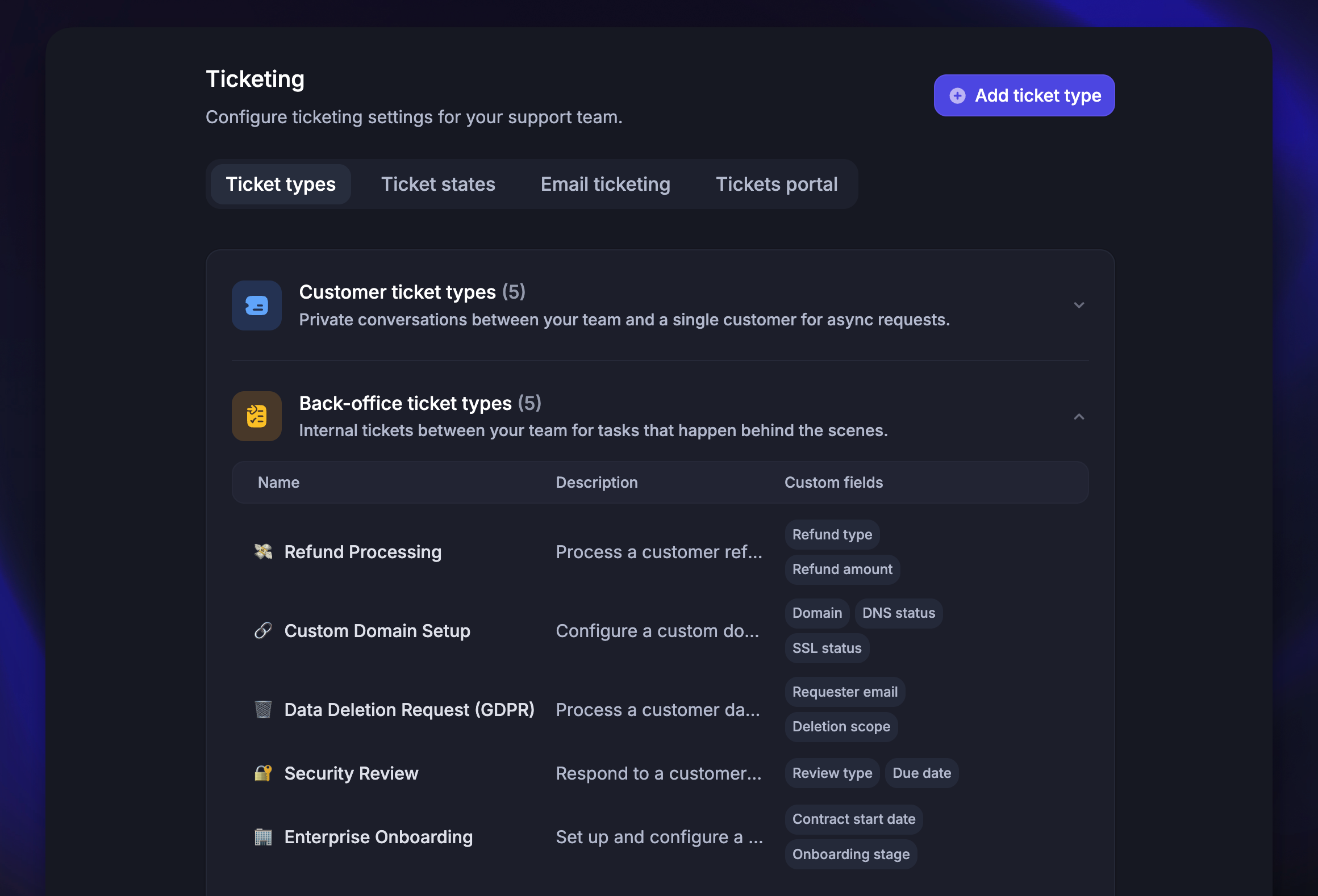
Overview
Back-office tickets are internal tickets used to track work behind the scenes – such as escalations, cross-team requests, or tasks that don't need to be visible to the customer.
There are several ways to create Back-office tickets:
Create a Back-office ticket from a conversation – when it requires collaboration with another team
Create a Back-office ticket via the API – to create tickets programmatically from your app or systems
Once a ticket is created, you can manage it directly from the Inbox – change statuses, add and cross-post notes, edit ticket details, and view linked conversations.
Before you can create tickets from the Inbox, you'll need to set up at least one Back-office ticket type →
Good to know
Back-office tickets are always internal – they are never visible to customers and do not trigger customer notifications
You can create multiple Back-office tickets linked to the same conversation or Customer ticket. Each one can track a separate issue or team task
Only internal notes are available on Back-office tickets. Replies are not supported since the customer has no visibility
Notes added to a Back-office ticket can be cross-posted to the original linked conversation, so the front-office teammate stays informed
Creating Back-office tickets
Create a Back-office ticket from a conversation
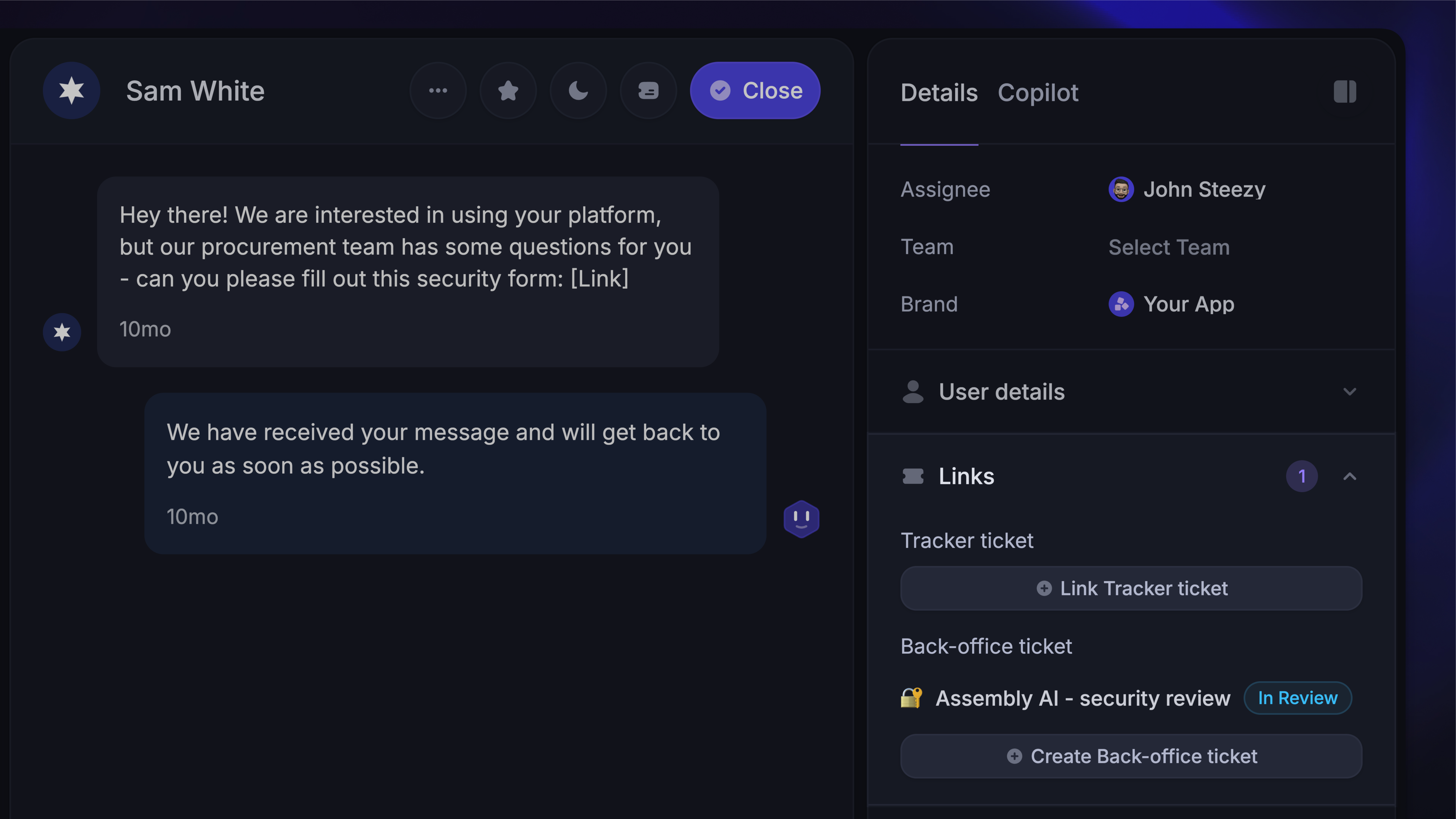
You can create Back-office tickets directly from the right-hand sidebar in any conversation:
Click Create Back-office ticket under the Links section
You can also open the command palette with
CMD+K/CTRL+Kand select Create Back-office ticket
Select the Back-office ticket type
Fill in the ticket form (title, description, and any custom fields)
Click Create
Note: Featurebase uses AI to auto-fill the ticket title, description, and custom fields based on the conversation context. You can review and edit the prefilled values before submitting.
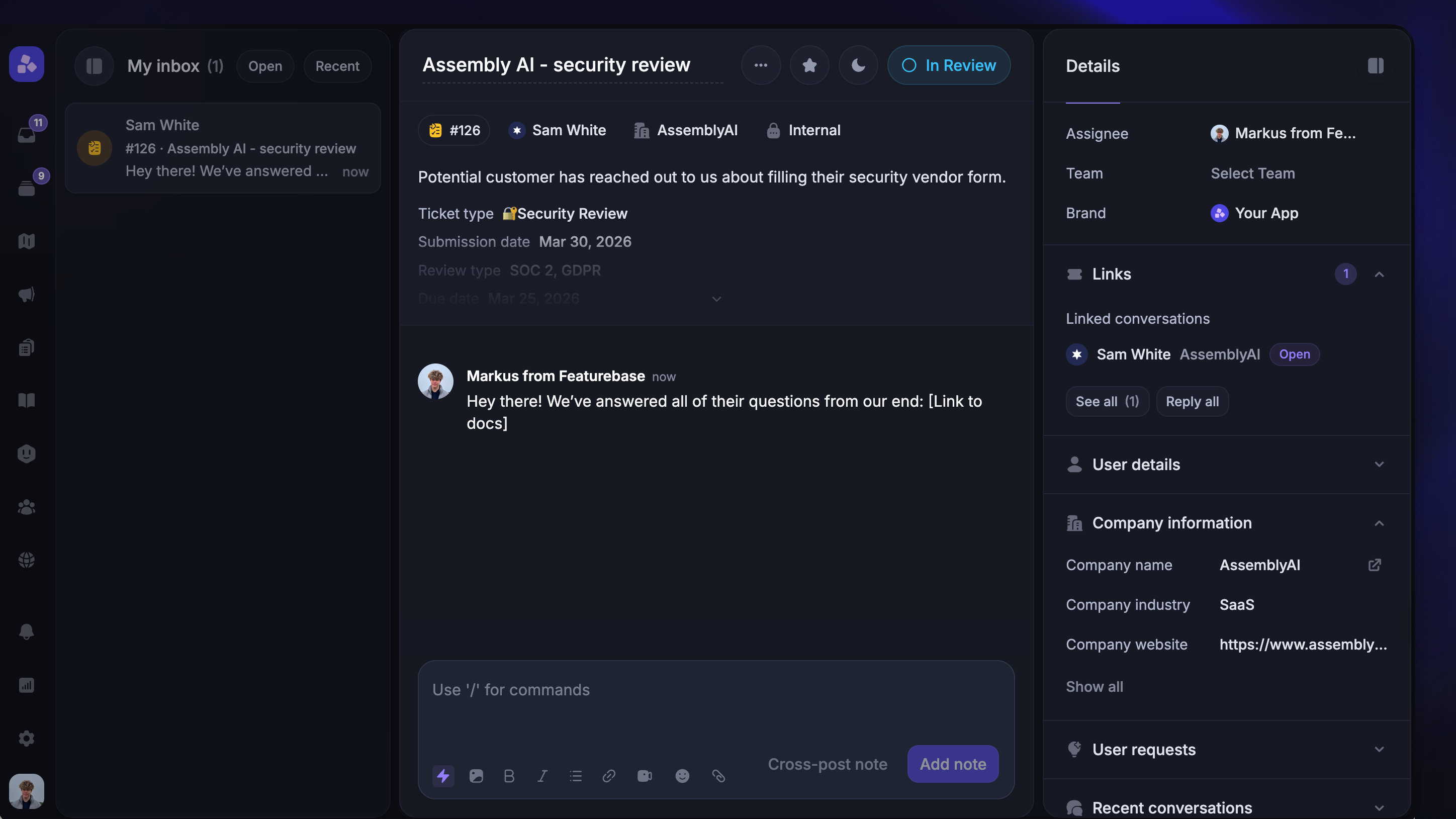
Once created, the Back-office ticket appears in the Links section of the original conversation. You can hover over it to see details like ticket type, status, and custom fields, or click it to open a side-by-side preview.
The back-office team assigned to the Back-office ticket will see the ticket title, ID, and description alongside internal notes in the middle panel. They can also access the original conversation from the right-hand sidebar:
Tip: Set up an automation in Workflows to automatically assign the Back-office ticket to the appropriate team upon creation.
Create a Back-office ticket via the API
You can programmatically create Back-office tickets using the Featurebase API (POST /v2/tickets). This is useful when you want to:
Create tickets from external systems or internal tools
Automate ticket creation based on events in your app
Migrate tickets from another tool
Set the ticketCategoryId to a Back-office ticket type. The linkedConversationId field is optional – you can create standalone Back-office tickets without linking them to a conversation.
Managing Back-office tickets
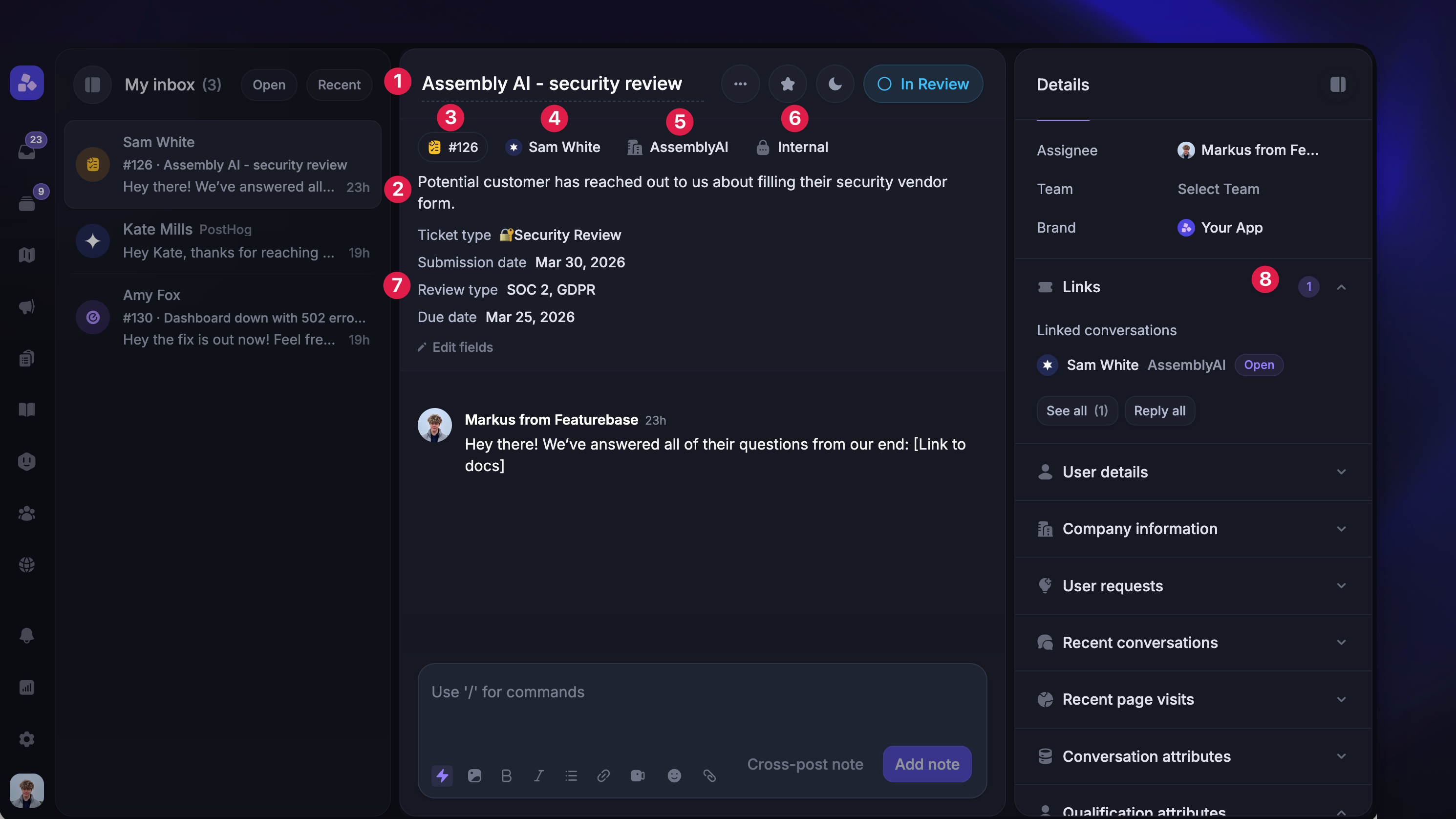
Once a Back-office ticket is created, you can manage it directly from the Inbox.
To help your team differentiate between Customer tickets, Back-office tickets, Tracker tickets, and regular conversations, the Inbox shows visual indicators for each type.
Back-office tickets always have the following default fields visible in the middle panel:
Ticket title (click to edit)
Ticket description (click to edit)
Internal ticket ID (click to copy)
User
Users company
Visibility label (Back-office tickets are always internal)
Custom fields (click to edit)
A back-office ticket can have multiple conversations / customer tickets connected to it, all of which will appear in the right-hand sidebar.
Changing the ticket status
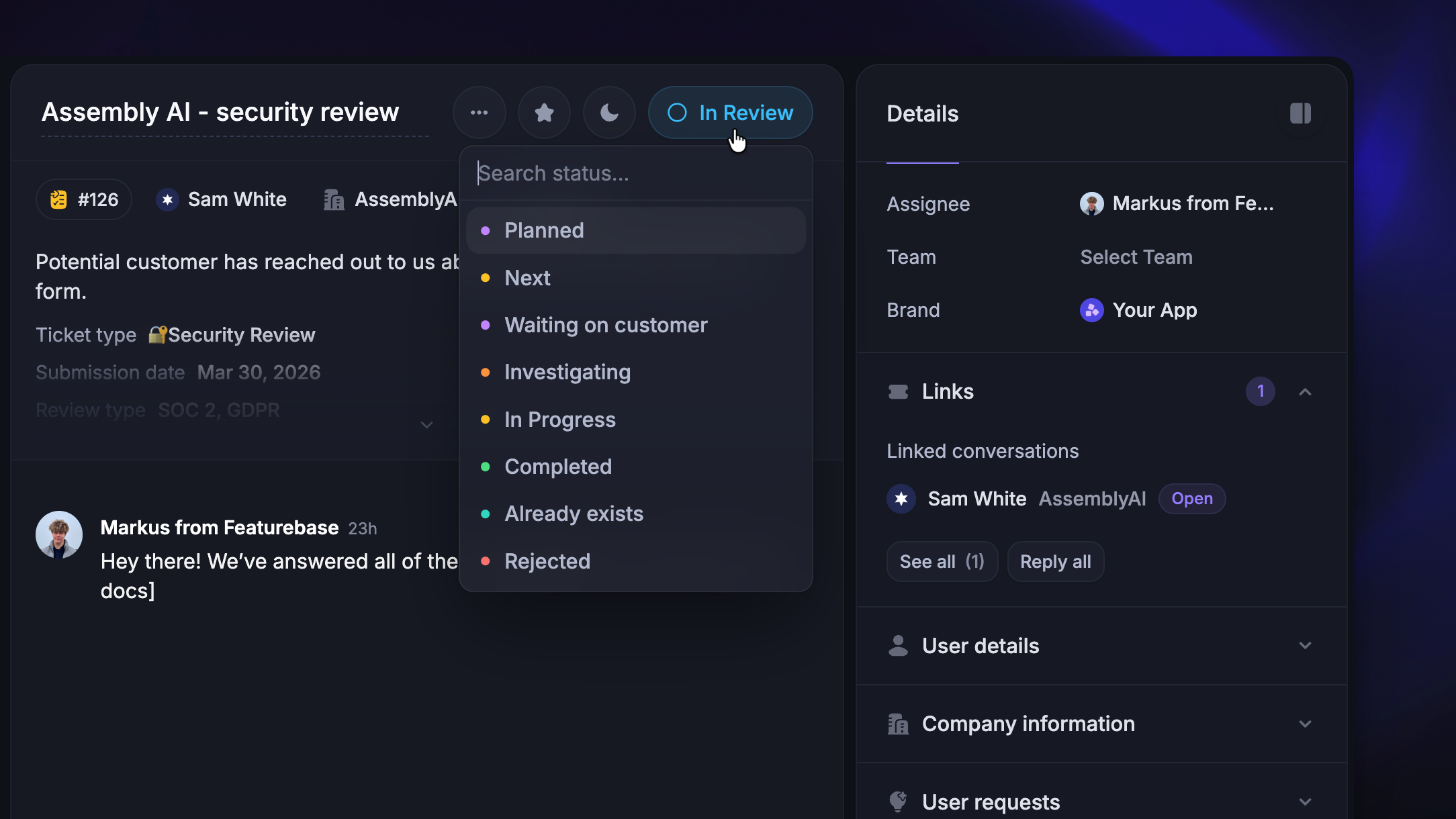
You can change a Back-office ticket's status directly from the conversation header using the status dropdown.
When you change the status, a status update event is posted to all linked conversations – so teammates working on the original conversation can see the progress.
Note: You can customize the ticket states for all ticket types separately from their own settings in Settings → Support → Ticketing → Ticket types tab.
Viewing linked conversations
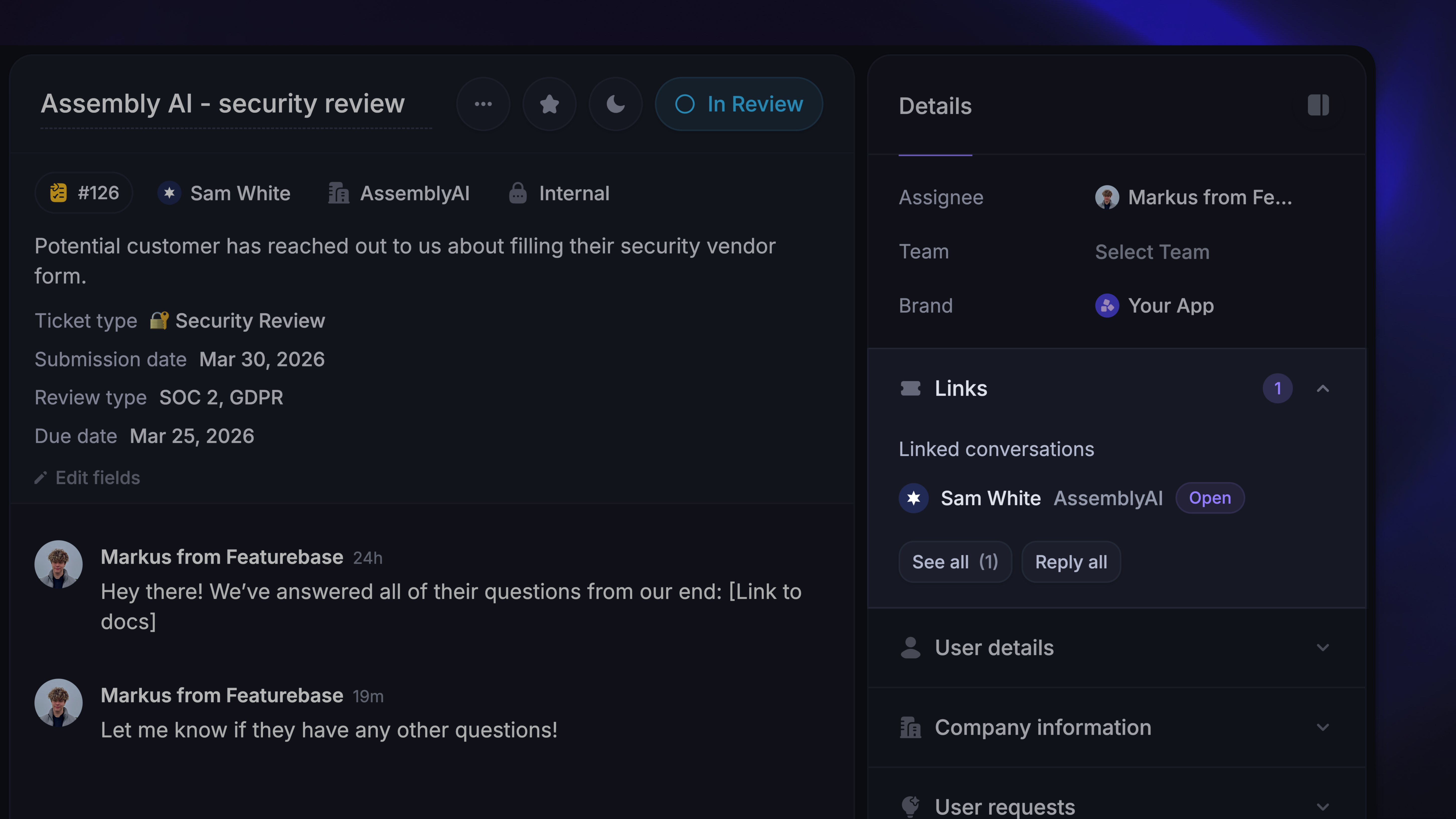
You can see all linked conversations / Customer tickets to the Back-office ticket from the Links section in the right-hand sidebar. Click any linked conversation to open it in a side-by-side view.
From the linked conversation view, you can also see the Back-office ticket listed in its own Links section – making it easy to navigate between the ticket and its linked conversations.
Adding notes
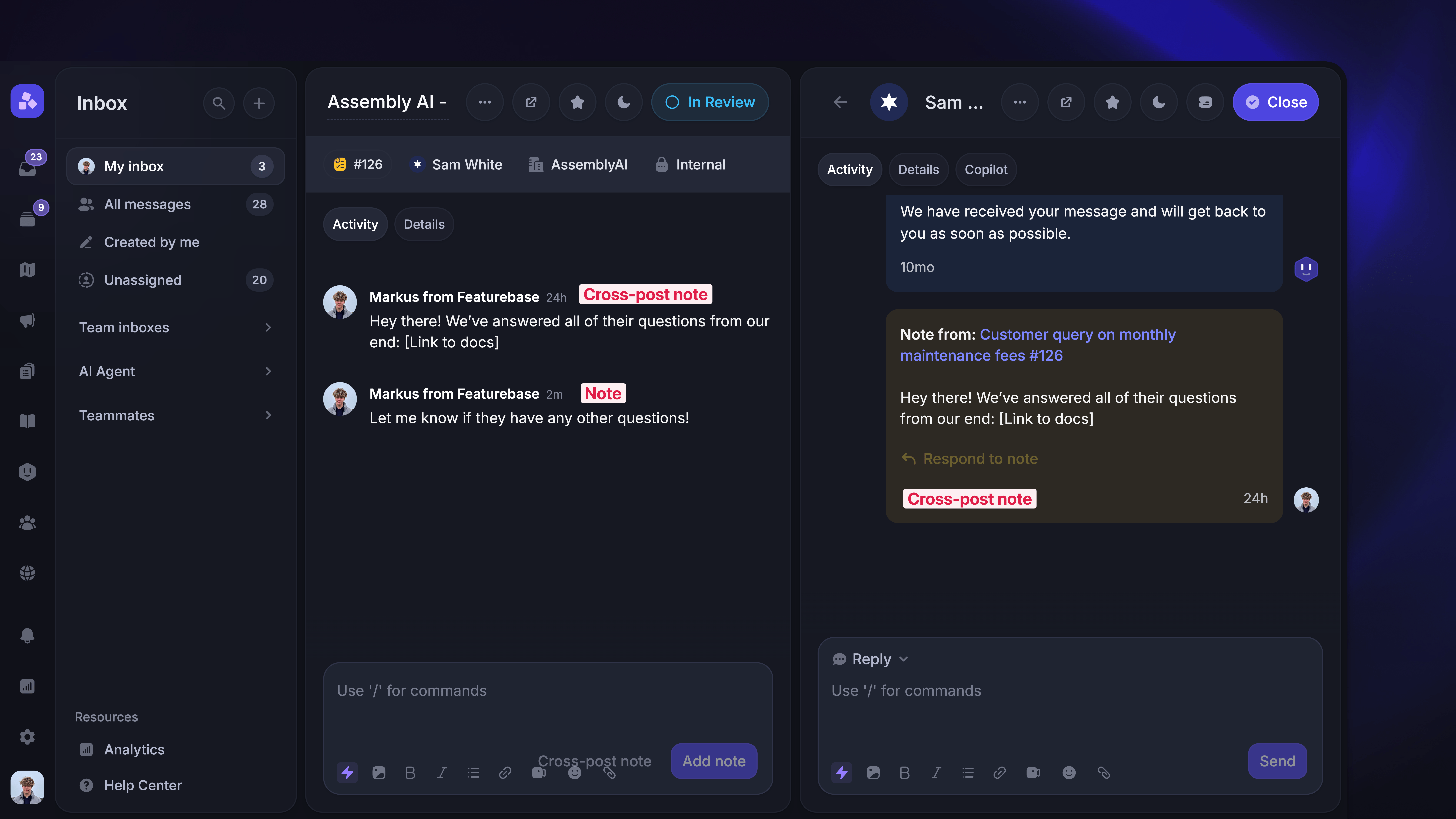
Back-office tickets only support internal notes – there's no option to send customer-facing replies in the editor, since these tickets are internal.
When a Back-office ticket is linked to one or more conversations, you'll see two options in the message editor:
Add note – adds the note to the Back-office ticket being worked on
Cross-post note – adds the note to the Back-office ticket and cross-posts it as an internal note to all linked conversations / Customer tickets.
Cross-posted notes appear in linked conversations with a Note from: [ticket title] header and a ↖Respond to note link that navigates back to the Back-office ticket.
Tip: Use cross-posting when you want to share internal updates with teammates working on the original customer conversation.
Unlinking a Back-office ticket
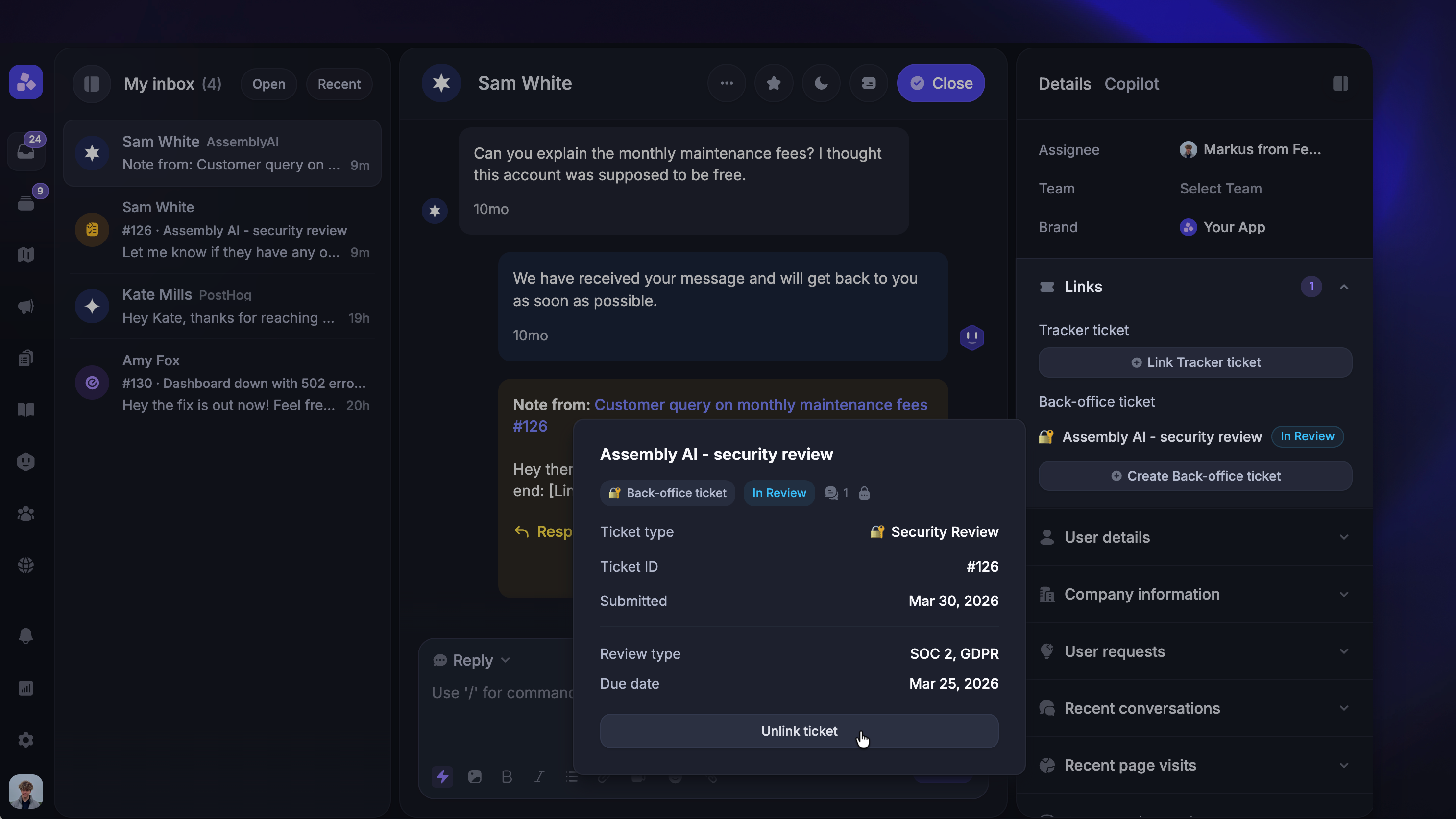
To remove the link between a Back-office ticket and a conversation:
Open the linked conversation / Customer ticket
In the Links section of the right-hand sidebar, find the Back-office ticket
While hovering over it, click the unlink option
Note: Unlinking removes the connection but does not delete the ticket – it continues to exist as a standalone conversation.
FAQ
Can I create a Back-office ticket without linking it to a conversation?
Can I create a Back-office ticket without linking it to a conversation?
Not from the Inbox – Back-office tickets are always created in the context of a conversation.
However, you can create standalone Back-office tickets via the API by omitting the linkedConversationId field.
Can I share a Back-office ticket with the customer?
Can I share a Back-office ticket with the customer?
Is there a limit on how many Back-office tickets can be linked to a conversation?
Is there a limit on how many Back-office tickets can be linked to a conversation?
No. You can create as many Back-office tickets as needed per conversation. This is different from Customer tickets (max 1) and Tracker tickets (max 1).
What happens when I add a note to a Back-office ticket?
What happens when I add a note to a Back-office ticket?
The note is cross-posted to the original linked conversation as an internal note, so the front-office teammate can see the update without switching tickets.
What happens when I change the status of a Back-office ticket?
What happens when I change the status of a Back-office ticket?
A status update event is posted to all linked conversations, visible to teammates who have conversation events enabled.
What's the difference between "Add note" and "Cross-post note"?
What's the difference between "Add note" and "Cross-post note"?
"Add note" keeps the note within the Back-office ticket conversation only. "Cross-post note" also posts it as an internal note to all conversations linked to that ticket.
Was this helpful?
Still need help? Ask the team