Automate ticket actions using Workflows
How to leverage Workflows to automate ticket actions and save time while providing better customer and teammate experiences.
Written By Markus Palm
Last updated 5 days ago
Overview
You can automate common ticket actions using Workflows – Featurebase's visual, no-code automation builder. This helps your team save time, standardize processes, and ensure consistent ticket handling.
Ticketing introduces 2 dedicated Workflow triggers and two ticket-specific actions that you can combine with all existing Workflow capabilities like branching, assigning, snoozing, and more:
A ticket is created – fires when any new ticket is created. You can filter by ticket type (Customer, Tracker, Back-office)
Teammate changes the state of a ticket – fires when a teammate manually changes a ticket's state. You can filter by ticket type
To create a Workflow with a ticket trigger, go to Automations → Workflows, create a new Workflow, and select the trigger.
Note: The "Teammate changes the state of a ticket" trigger only fires when a human teammate changes the state. Automated state changes from other Workflows do not trigger it.
Ticket-specific actions
Two Workflow actions are designed specifically for tickets:
Send ticket – sends a ticket creation form to the customer in the Messenger. When the customer submits the form, a Customer ticket is created with their inputs. This is useful for collecting structured information upfront
Convert to ticket – converts the current conversation into a Customer ticket behind the scenes, without requiring customer input. The conversation subject is used as the ticket title and the body as the description
Both actions only support Customer ticket types.
Note: Auto-created tickets from the Convert to ticket action won't have custom fields filled in, even if they're marked as required.
Common automation examples
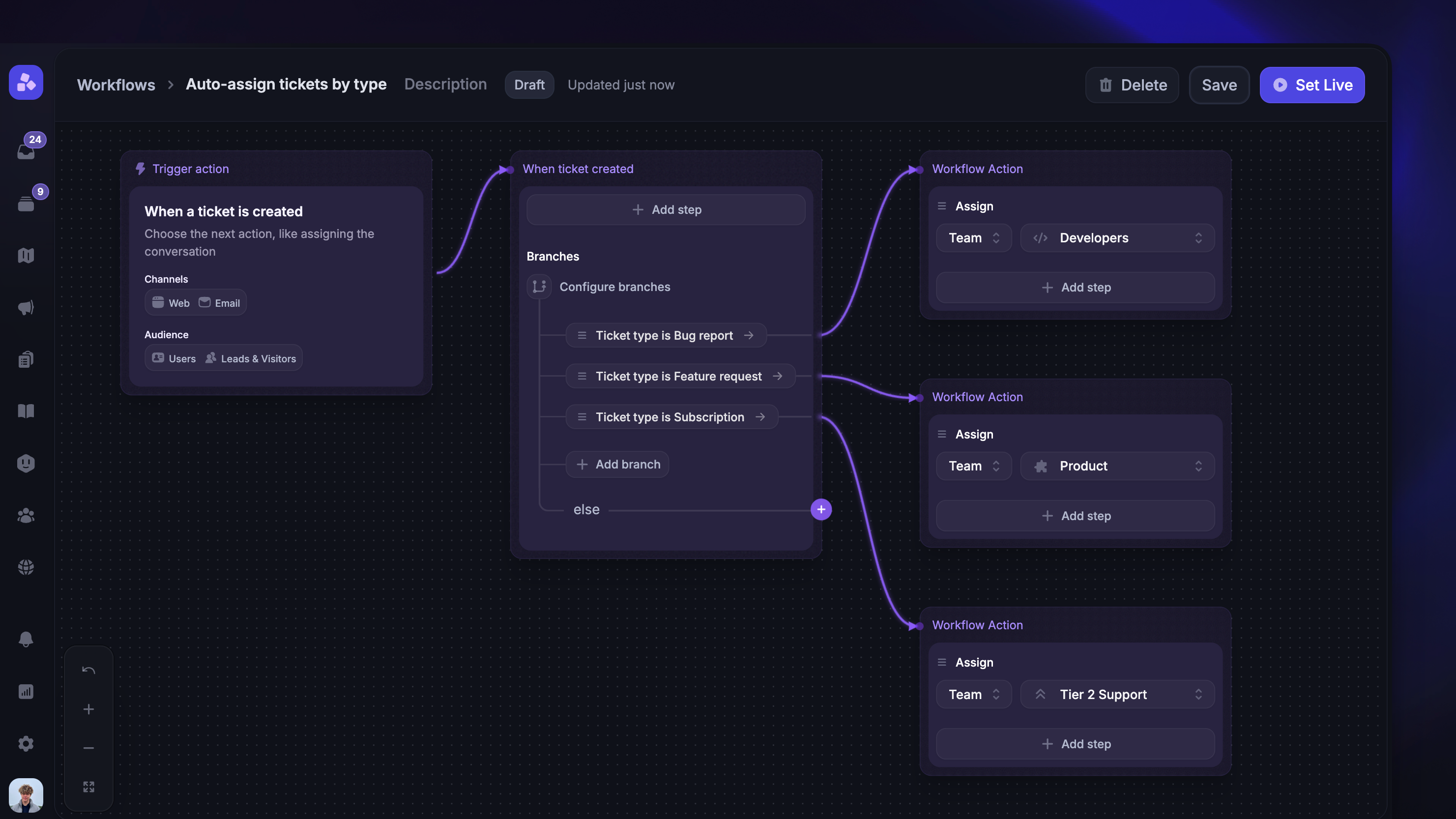
Auto-assign tickets by type
Automatically assign tickets to the right team based on their ticket type:
Trigger – When a ticket is created
Branch condition – Ticket type is X
Action – Assign to team Y
Add additional branches for other ticket types or specific ticket categories to route them to different teams.
Auto-close tickets after a waiting period
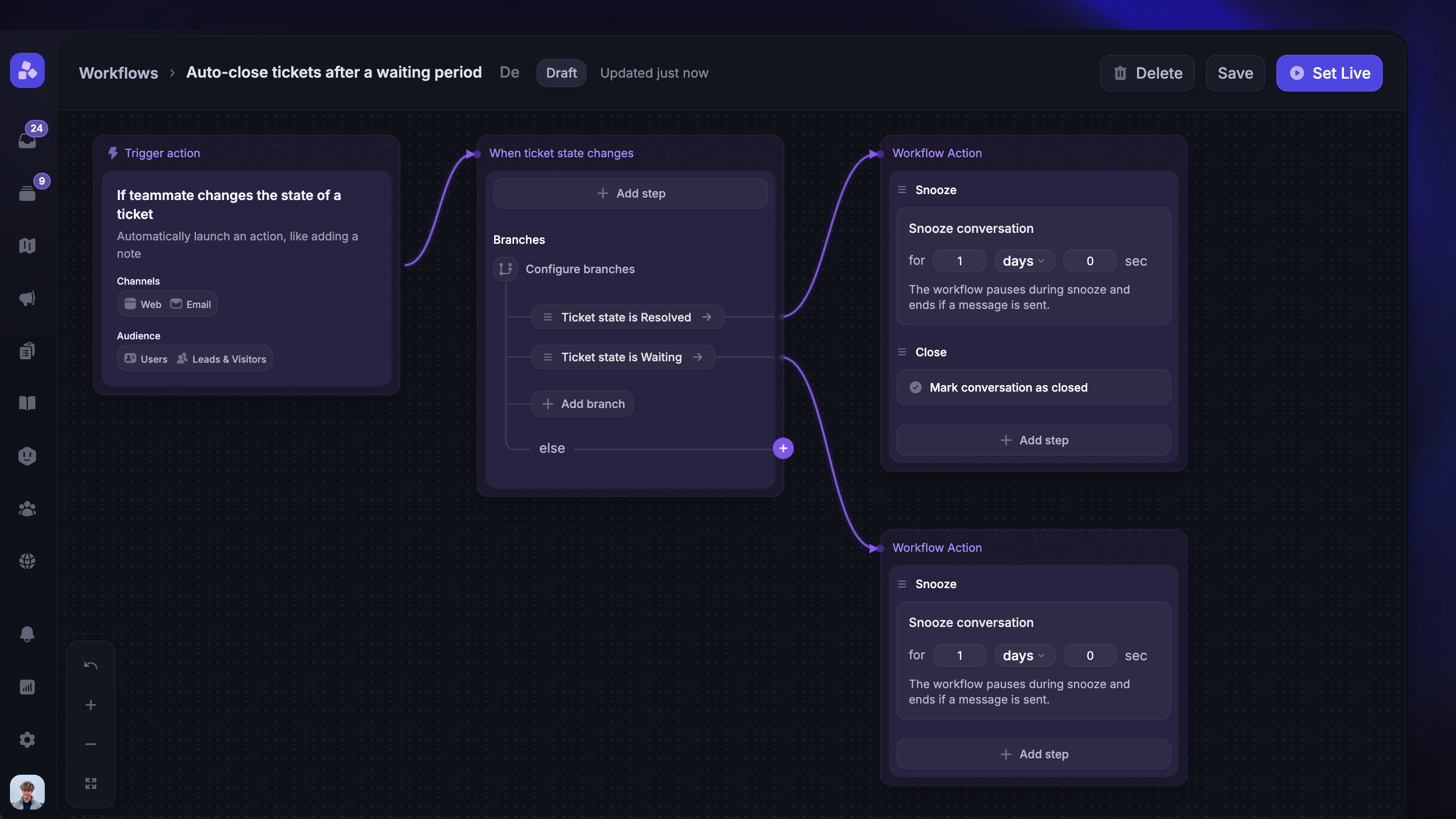
Close tickets automatically after they've been in a specific state for too long:
Trigger – If a teammate changes the state of a ticket
Branch condition – Ticket state is
Waiting on customerAction – Snooze for X days, then Close
You can set up a similar Workflow for resolved tickets – branch on the resolved state, snooze for your preferred period, then close.
Automatically send a ticket form
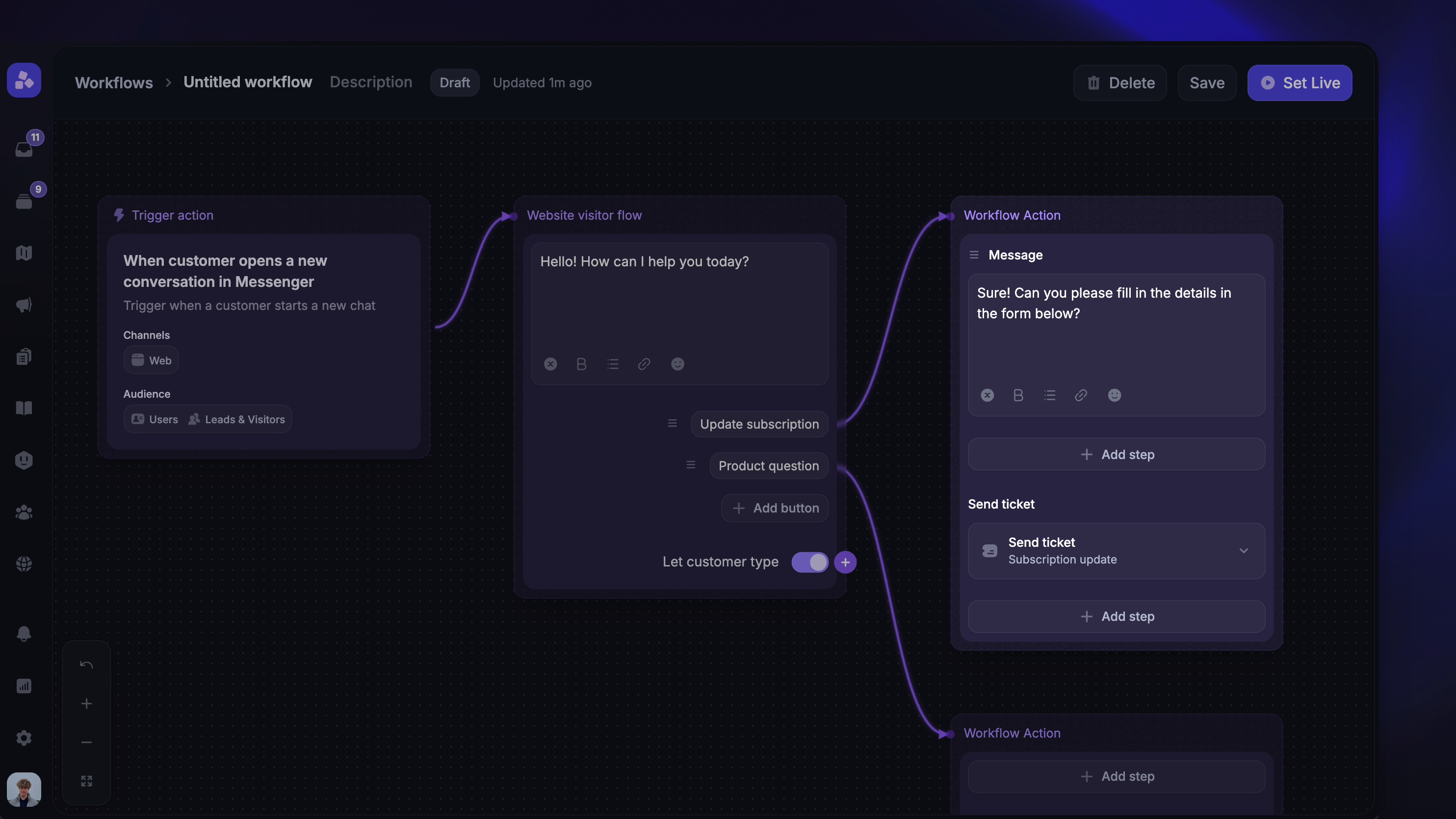
Prompt customers to submit structured ticket requests by sending a ticket form during a Messenger conversation:
Trigger – When the customer opens a new conversation in Messenger
Action – Use Reply buttons to let the customer choose the type of help they need
Action – In each branch, add the Send ticket action with the appropriate ticket type
Tip: Combine the Send ticket action with Reply buttons to let customers self-select the type of issue before presenting the appropriate ticket form.
From the customer perspective, here is what they will see when they open the Messenger:
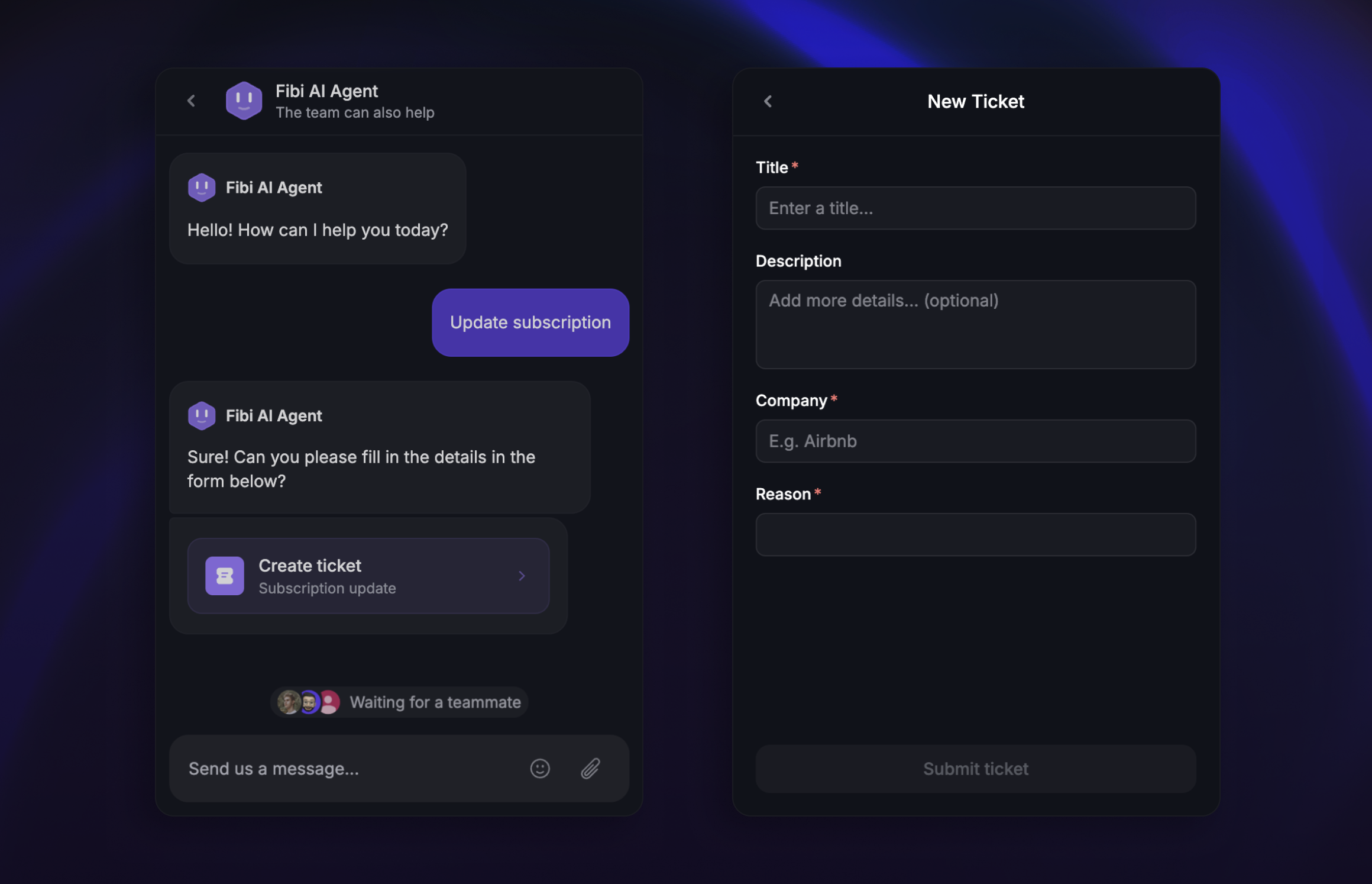
There are two options when sending ticket forms, send a ticket and convert to a ticket:
Send ticket: You send a customer a ticket form to fill in, usually from within a live conversation or via a Workflow, so you can collect structured details up front. When they submit it (or when a Workflow sends it), a ticket is created with their inputs. This is great for reducing back-and-forth and routing to the right team with complete info.
Convert to ticket: You turn an existing conversation into a ticket (typically a Customer ticket) directly from the Inbox. This moves the handling to an async ticket workflow while preserving all context and keeping it linked to the original conversation. It’s commonly used when an issue will take longer to resolve or needs collaboration beyond live chat/email.
FAQ
Branching on ticket attributes
Branching on ticket attributes
When using ticket triggers, you can use branches to route Workflows based on ticket attributes:
Ticket type – Customer, Tracker, or Back-office
Ticket state – the specific status name (e.g. "In progress", "Resolved")
Ticket state category – the broader status category (In review, Active, Waiting on customer, Done)
Assignee – the assigned teammate
These can be combined with all other branch conditions like user attributes, company attributes, and conversation properties.
Can I use the Convert to ticket action with any trigger?
Can I use the Convert to ticket action with any trigger?
Yes, but it's most commonly used with conversation triggers like "When customer sends their first message." If the conversation already has a Customer ticket linked, the action is skipped.
Does the "ticket is created" trigger fire for auto-converted emails?
Does the "ticket is created" trigger fire for auto-converted emails?
Yes. When the email auto-convert setting or a Convert to ticket action creates a ticket, the "When a ticket is created" trigger fires for that new ticket.
Was this helpful?
Still need help? Ask the team