Send targeted messages to visitors on your website
Reach visitors on your website with targeted Outbound messages based on who they are and what they do.
Written By Markus Palm
Last updated About 1 month ago
Overview
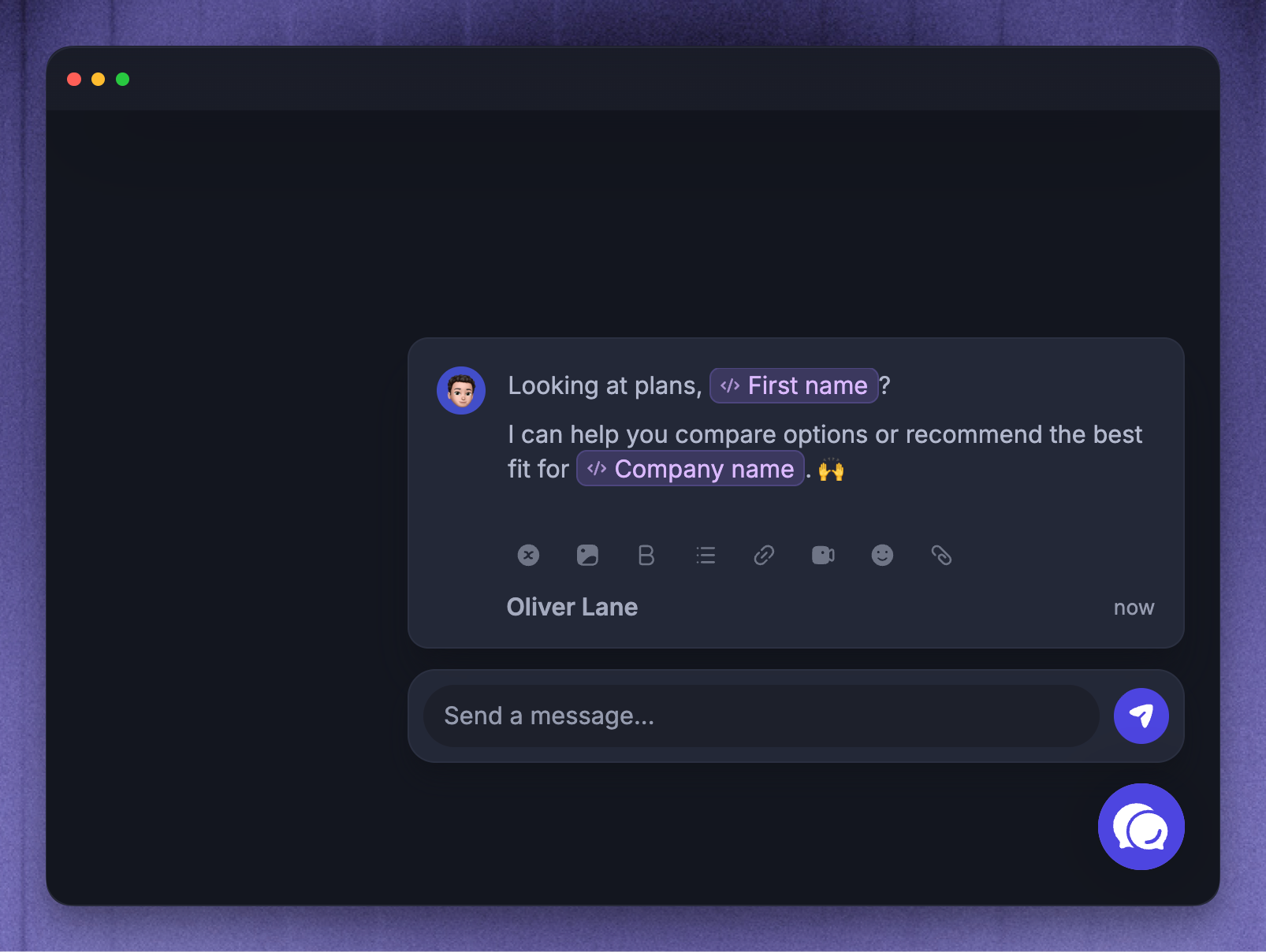
Use Outbound messages to proactively reach visitors on your website based on who they are and what they do. Use them to start conversations with high-intent visitors, offer help on pricing or signup pages, or show targeted notices while someone is browsing.
Visitor messages can target people who are not logged in, leads who have started a conversation, and users if you include them in the audience. You can target by profile type, audience rules, page URL, time on page, and CSS selectors.
Create a new message for visitors
Start from a new or existing Outbound message:
Go to Dashboard → Outbound
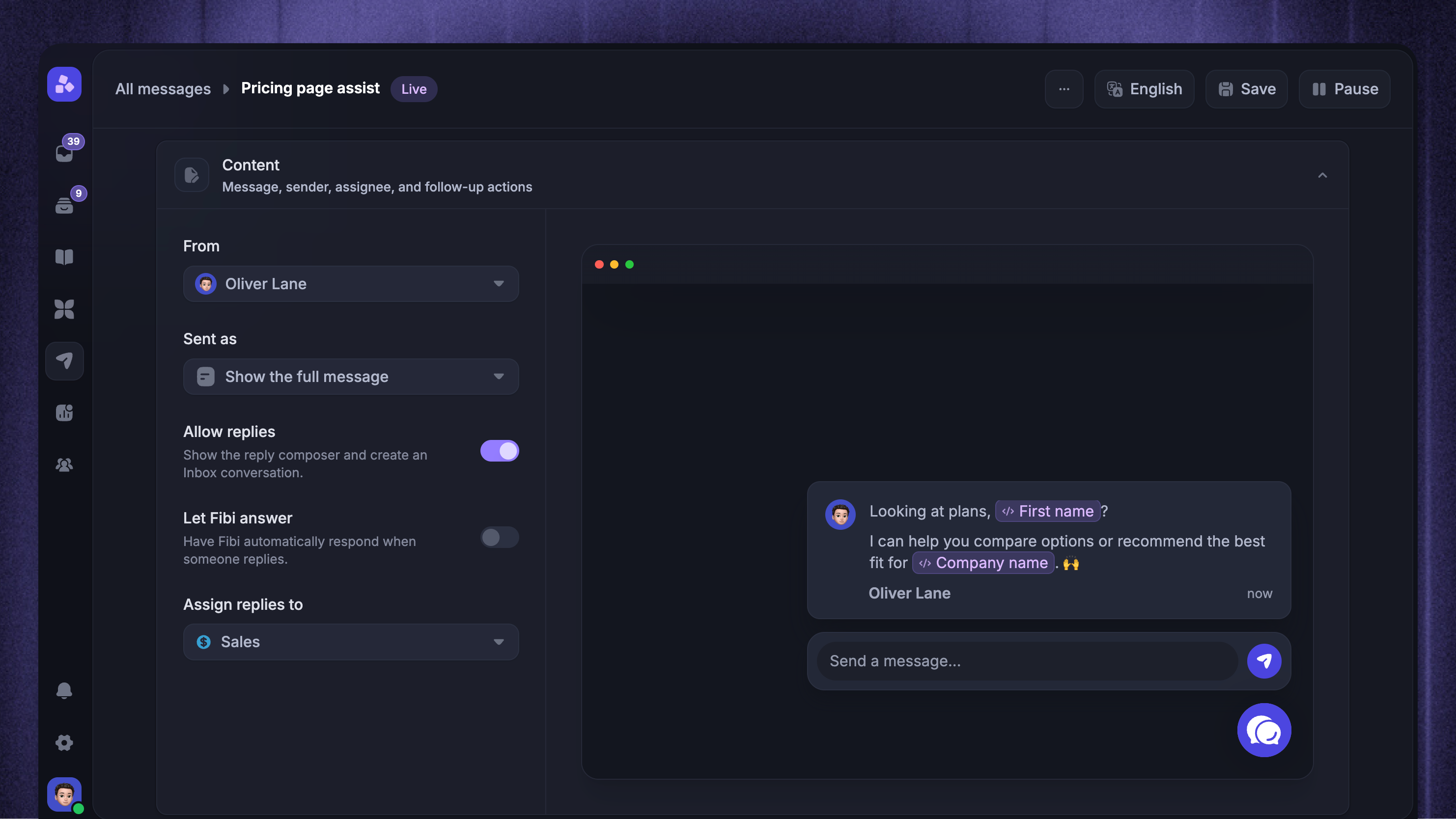
Click New Message and select Chat or Banner, or open an existing message
If you are creating a new message, choose Start from scratch or use a template
Create an engaging message (you can add videos, images, etc.)
Go to Rules
Use Chat messages when you want to start a Messenger conversation. Use Banner messages when you want to show a persistent notice on the page.
Set up triggers & audience rules
Use Rules to decide who can receive the message and what must happen on the page before it appears.
Add trigger conditions
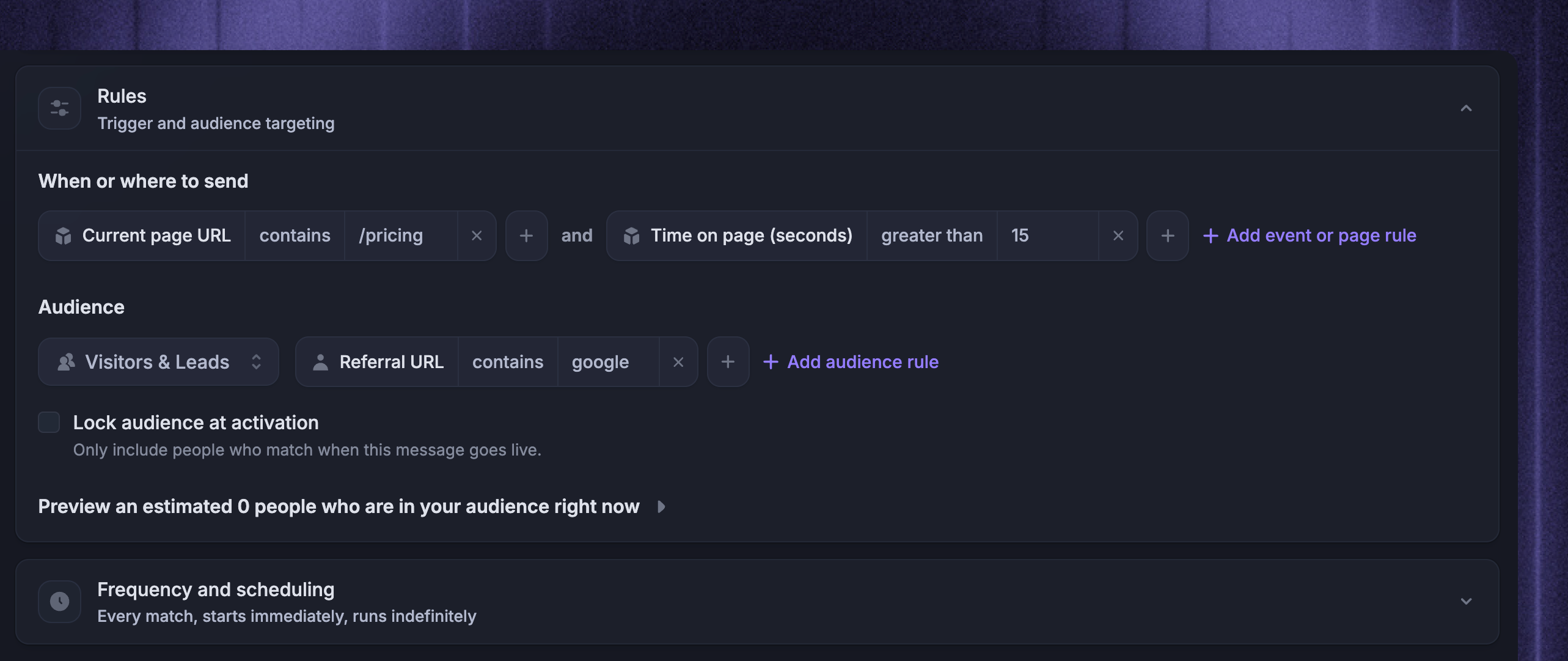
Trigger conditions decide where and when the message can appear during a website visit:
Current page URL - target a specific page or group of pages
Time on page (seconds) - wait until the visitor has stayed on the page for a set number of seconds
CSS selector - show the message when a matching page element exists
If you leave trigger conditions empty, the message can run on every visit, subject to its audience and scheduling settings.
Choose who can receive the message
In Audience settings, choose:
Visitors & Leads when the message is meant for anonymous website visitors or new leads
Everyone only when both logged-in users and visitors should be eligible.
For example, you might know that visitors who arrive on your pricing page after clicking a link from a Google Ad are more likely to convert to customers. To specifically message these folks, your filters would look like the screenshot above.
For example, you can target people by user and company attributes, such as plan, company size, lifecycle stage, or any custom attribute you send to Featurebase.
Keep audience rules focused. Use trigger conditions for page behavior, and use audience rules for profile or company data.
Tips:
Combine 'and' with 'or' filters for more powerful audience targeting.
You can also choose to send your message after a person has spent a certain amount of time on the page, like 15 seconds in this example.
Send the message when your team is available
Use Frequency and scheduling to control when the message can send or show.
For visitor Chat messages that allow replies, choose During office hours or Custom times when your team should be available to respond. Use Any time for Banners or one-way Chat messages that do not need an immediate teammate response.
Outbound schedules use your workspace timezone. Office hours are configured from Settings → Support → Office hours.
FAQs
Why did a user receive a message meant for visitors?
Why did a user receive a message meant for visitors?
It is possible for a user to receive a dynamic message designated for visitors under specific circumstances, like when they're logged out.
Here's how something like that can happen:
The customer visits your landing page as an anonymous visitor
This customer receives a visitor cookie
A visitor message is triggered
Then, the customer logs in
Featurebase identifies the visitor and the user as the same person (based on the tracking cookie) and we merge the visitor data into the user profile
The message that was sent to the visitor is visible on the user's profile
The user logs out and clears their cookies
Steps 1-7 could happen repeatedly in situations where the customer uses a shared computer and purposely clears all their cookies and browsing history to protect their data, or if they frequently browse incognito.
Although they are the same person in this instance, we are unable to tell that, as the user is not logged in and they no longer have the same tracking cookie they had the first time they've received the visitor message while logged out.
Something to help avoid messaging users while they're trying to log in would be setting a delay on the message so a visitor receives it only after being on the page for a set amount of time.
Was this helpful?
Still need help? Ask the team