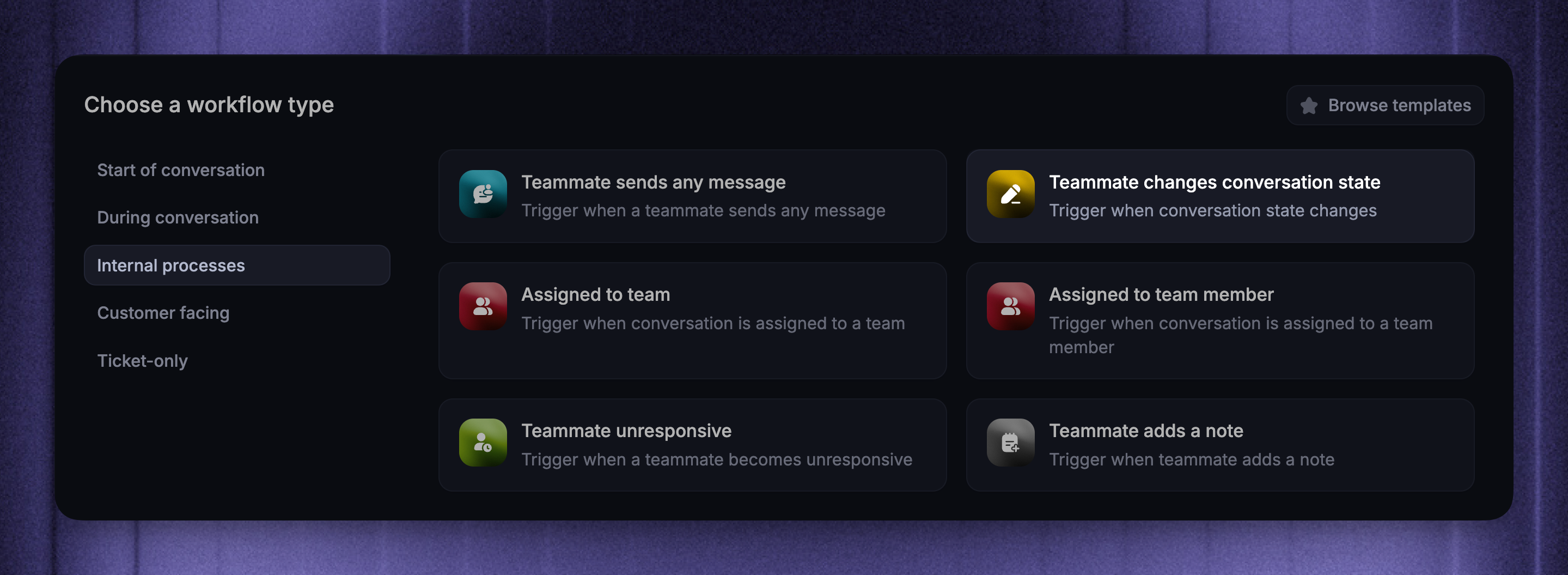
Teammate changes conversation state

Trigger workflows like CSAT surveys, follow-ups, or auto-tagging when a teammate closes, snoozes, or reopens a conversation.

Written By Markus from Featurebase

Last updated 3 days ago

Overview

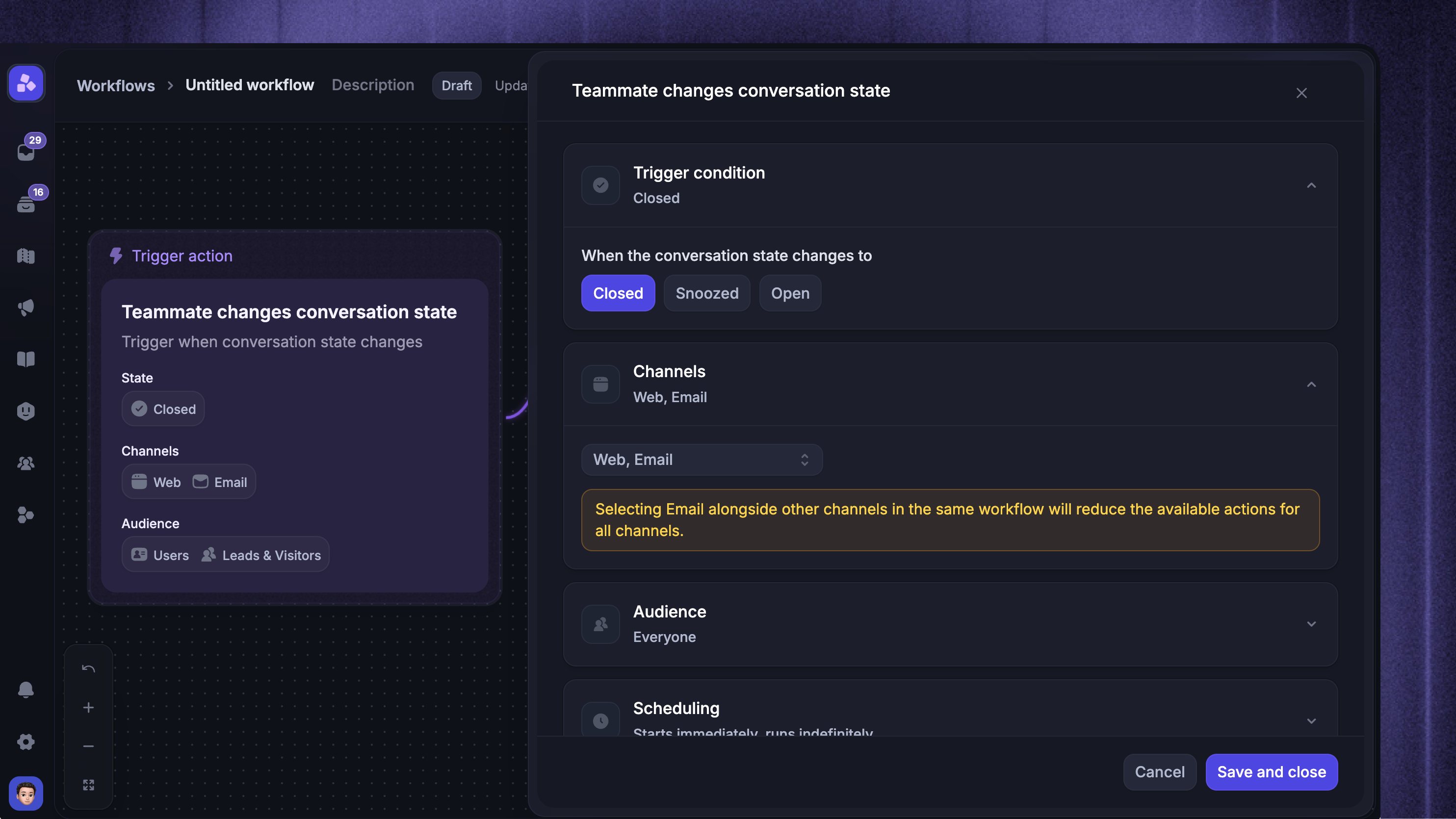
The "Teammate changes conversation state" trigger fires when a conversation moves between states – Closed, Snoozed, or Open (reopened).

It's most commonly used to send a CSAT survey after a teammate closes a conversation, but you can also use it for any other automation that should run when a conversation reaches a particular state.

By default, the trigger only fires when a human teammate changes the state, not when Fibi or another workflow does. You can switch this to Any if you want bot-driven state changes to trigger the workflow too.


Common use cases

  • Send a CSAT survey: Ask customers to rate the conversation after a teammate closes it

  • Tag closed conversations: Apply tags based on conversation attributes

  • Send a follow-up message: Reach out automatically when a conversation is reopened

  • Internal notes: Leave a note for the next teammate when a conversation is snoozed and reassigned


Get started

  1. Go to Automations → Workflows

  2. Click + New Workflow. You can either:

    • Choose Create from scratch and select the trigger "Teammate changes conversation state", or

    • Use the prebuilt template "Ask customers to rate their closed conversation (CSAT)" for the most common use case

Tip: The CSAT template comes with a default 2-minute wait, the right channels, and the Wait for rating toggle already on – usually the fastest way to get started.

Configure trigger settings

Click the trigger block to configure:

  • State to trigger on – choose Closed, Snoozed, or Open (reopened). When the workflow contains a CSAT action, only Closed is available

  • Who triggers itTeammate (default) or Any. Keep it on Teammate for CSAT so the survey isn't sent every time Fibi or a workflow closes a conversation

  • Channels – Web (Messenger), Email. CSAT is supported on Web and Email only; conversations on other channels are silently skipped

  • Audience – limit the trigger to specific customers, brands, segments, or teams

When finished, click Save and close to start building your workflow.

Build your workflow

By far the most common path is to add the Ask for conversation rating (CSAT) action so customers can rate the closed conversation. This action has 3 optional toggles:

  • Prevent customers from rating after a given period of time – sets an expiration on the rating request

  • Prevent customers from changing their initial rating after a period of time – locks the rating after the window passes

  • Wait for customers to give a rating before continuing the Workflow – pauses the workflow until the customer rates, so you can branch on the response

For a full walkthrough of the CSAT action, see Ask customers to rate closed conversations.

You can also use this trigger to chain other actions like:

  • Tag conversation – categorise closed conversations for later filtering

  • Add note – drop an internal note for the next teammate

  • Send a message – follow up after a reopen with a short message

  • Apply rules – route, tag, or assign based on conversation attributes

When you're done, click Save and Set live.


Examples

Send a CSAT survey and follow up on poor ratings

The classic CSAT setup. Send the survey on close, wait for the rating, and route unhappy customers to a senior teammate.

  1. Set the trigger as "Teammate changes conversation state" with state = Closed and actor = Teammate

  2. Add a Wait action (e.g. 2 minutes) so the workflow exits if the conversation is reopened during the buffer

  3. Add the Ask for conversation rating (CSAT) action with Wait for rating turned on

  4. After the rating step, add a Branch with these conditions:

    • If Conversation Rating is less than Okay → send a follow-up message and assign to the support lead

    • If Conversation Rating is greater than Okay → end the workflow

Send a CSAT survey and tag poor ratings for review

A useful pattern for support quality reviews. Tag every closed conversation with a 🔍 Quality review tag based on the customer's rating, so you can filter and review them later in batches – or surface the unhappy ones immediately.

  1. Create the desired conversation tags following this guide

  2. Create a new Workflow with the trigger "If teammate changes the conversation state" with state = Closed

  3. Add a Wait action (e.g. 2 minutes) so the workflow exits cleanly if the teammate replies again or the conversation reopens during the buffer

  4. Add the Ask for conversation rating (CSAT) action with Wait for rating turned on

  5. After the rating step, add a Branch with these conditions:

    • If Conversation Rating is less than OkayTag conversation as Quality review [Poor]

    • If Conversation Rating is greater than OkayTag conversation as Quality review [Good]

Now you can filter your inbox by the 🔍 Quality review [Poor] tag to spot conversations that need follow-up, or use the 🔍 Quality review [Poor] tag to review what your team did well.


With this trigger, you can turn every state change into an automation – measuring satisfaction, organising your inbox, and making sure no reopened conversation slips through the cracks.