Outbound FAQs
Written By Markus Palm
Last updated 24 days ago
General
How do I create a new Outbound message?
To create a Chat, Banner, Email, or Survey message:
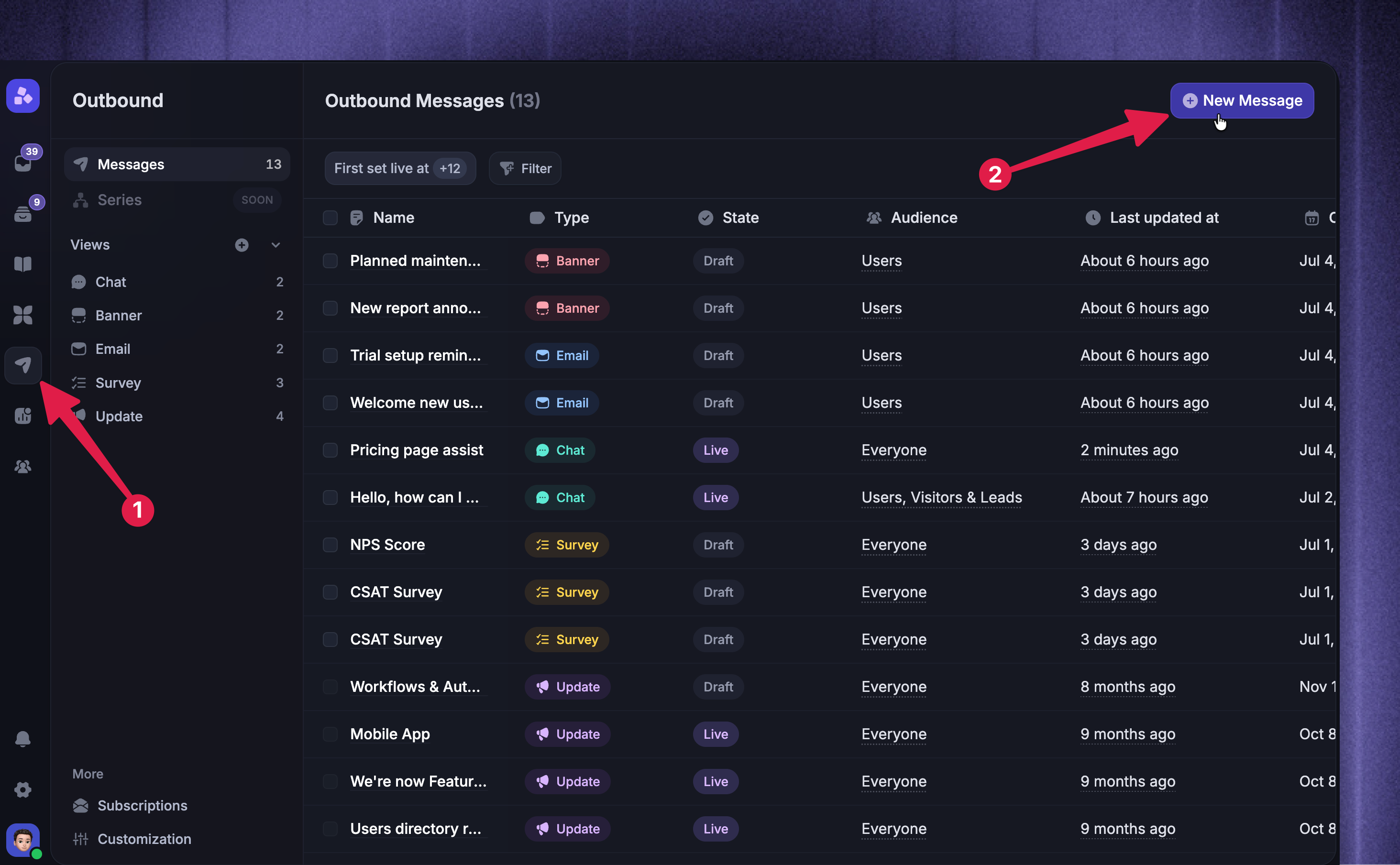
Go to Dashboard → Outbound
Click New Message
Choose Chat, Banner, Email, Update, or Survey
Choose Start from scratch or select a template
Configure the available Content, Rules, and Frequency and scheduling sections
Click Set live, Schedule, or Send now, depending on the message type and audience
Which Outbound message types support images?
Chat, Banner, Update and Email message types support uploaded images in the message body.
Email subject lines do not support images. Survey pages do not use the same message-body image uploader, so use Surveys for questions and response collection rather than image-heavy announcements.
For best results:
Keep most image uploads under 20 MB
Use Email images that stay clear in a 640 px-wide email body
Use Chat and Banner images that stay readable in smaller in-app surfaces
Avoid using one large image as the full message body
Add nearby text for any important context shown in the image
Message surfaces constrain images to fit the available space, so very wide, very tall, or text-heavy images can become hard to read after they scale down.
Data and exports
Can I export Outbound message data?
Featurebase does not provide a general CSV export for all Outbound message performance data.
Review message performance in Outbound analytics. You can export Survey responses to CSV from the Survey's Responses view.
Audiences
How can I check who matches an Outbound audience?
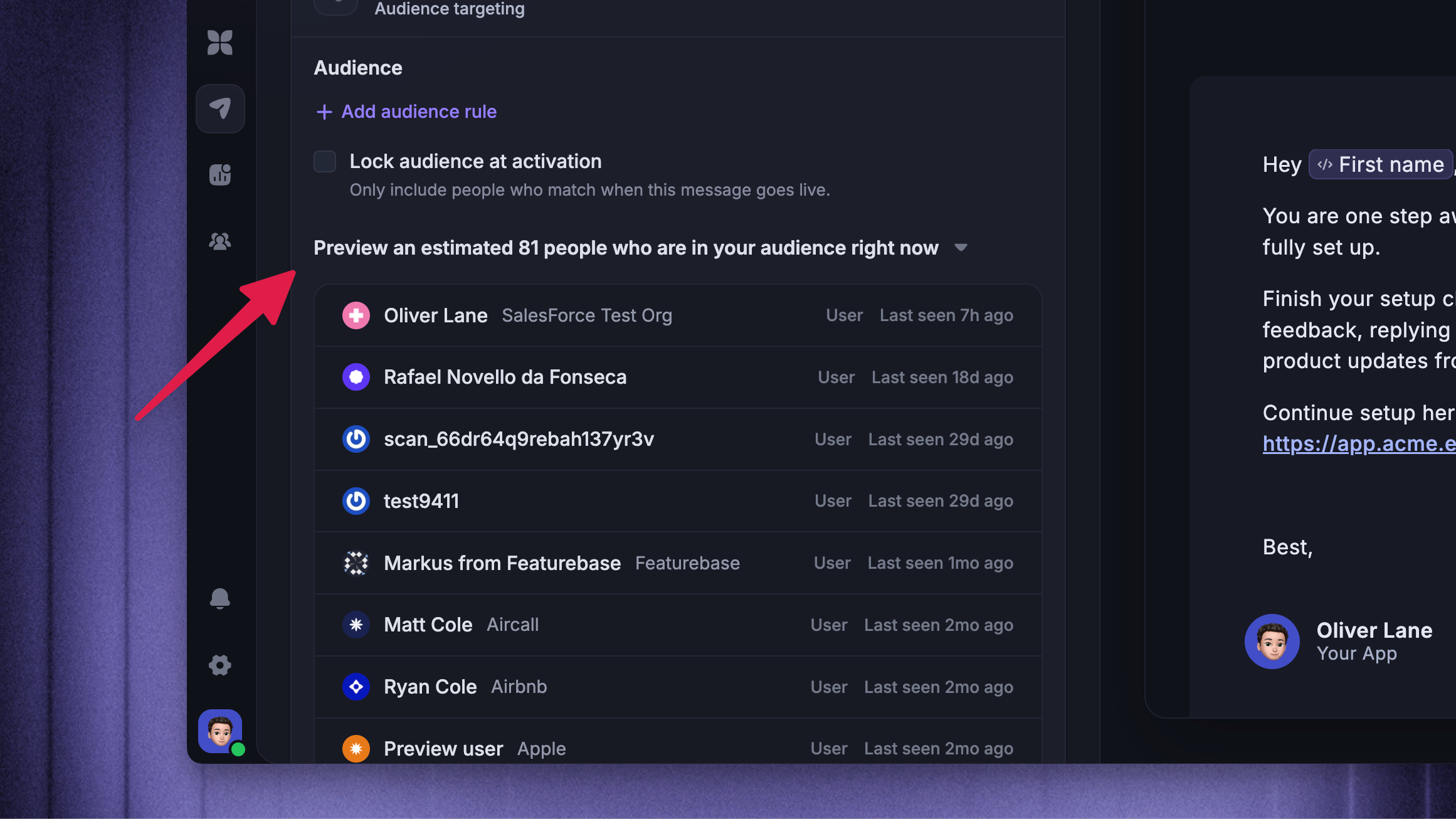
Use Preview audience in the Outbound builder.
The preview estimates how many people match the selected audience type and audience rules right now, and shows a sample of matching people. Use it to check whether your audience rules are too broad, too narrow, or pointed at the wrong type of person.
Audience preview does not check every delivery condition. It does not confirm:
Page URL, time-on-page, or CSS selector triggers
Start date, delivery window, frequency, match limit, or stop condition
Email approval, email subscription, unsubscribe, suppression, or sending-limit checks
Whether a specific person already received, dismissed, replied to, or responded to the message
If you are troubleshooting one person, use audience preview first, then check the delivery conditions for that message type.
Can I upload a CSV to filter an Outbound audience?
No. The Outbound builder does not support CSV audience upload or CSV audience filtering.
Build Outbound audiences from user and company attributes already stored in Featurebase. If you need to target a one-time group, add an identifying attribute to those records before creating the message, then target that attribute in the audience rules.
To review user data, go to Dashboard → Users.
If the group should stay fixed, use Lock audience at activation before the message goes live. A fixed audience is frozen when the message is activated, so people who match later are not added.
Delivery
Why didn't someone receive my Outbound message?
Start with the message state, audience rules, and schedule.
Check that:
The message is Live, or Scheduled with a start date that has arrived
The message is not Draft, Paused, Suspended, or already Sent as a completed one-time message
The person belongs to the selected audience type
The person matches the audience rules
A fixed audience includes the person from the moment the message was activated
A dynamic audience still includes the person when Featurebase evaluates delivery
The message is inside its allowed delivery window
The frequency, match limit, and stop condition still allow another send or display
For Chat, Banner, and Survey messages, also check the trigger rules:
Current page URL
Time on page
CSS selector
If no trigger rules are configured, the trigger section runs for every visit. If trigger rules are configured, the person must match those trigger rules in addition to the audience rules.
Why didn't someone receive an Outbound Email?
Email delivery has extra checks after the audience matches.
Check that:
The message is Live, or Scheduled with a start date that has arrived
The recipient is a User, not a Visitor or Lead
The recipient has a valid email address
The recipient has not unsubscribed from all emails
The recipient has not opted out of the selected subscription
The recipient's email address is not suppressed because of a bounce, spam report, block, or invalid email
The email is still within its sending limits, frequency settings, and stop condition
Outbound Emails do not use page URL, time-on-page, or CSS selector triggers. They send from the audience and scheduling settings only.
You can manage Outbound email subscriptions from Dashboard → Outbound → Subscriptions.
Why isn't my Chat, Banner, or Survey showing in the product?
For in-app messages, check both Featurebase settings and the page where the message should appear.
Check that:
The Featurebase Messenger and/or Survey widget are installed and loading on the page
The person is identified if your audience rules depend on user data
The person matches the selected audience type and audience rules
The message is Live and inside its schedule
The current page URL rule matches the actual page
The time-on-page rule has had enough time to pass
The CSS selector exists on the page when Featurebase evaluates the trigger
The person has not already reached the frequency, match limit, or stop condition
Another eligible in-app message is not appearing first while you test
If you are testing quickly, use a narrow audience, a simple page URL rule, and no CSS selector rule. Once the message appears, add the stricter rules back one at a time.
Replies and conversations
Can I turn off replies for an Outbound message?
For Chat messages, yes. In the Chat message content settings, turn off Allow replies.
To turn off replies:
Go to Dashboard → Outbound
Open the Chat message
In Content, turn off Allow replies
Save your changes
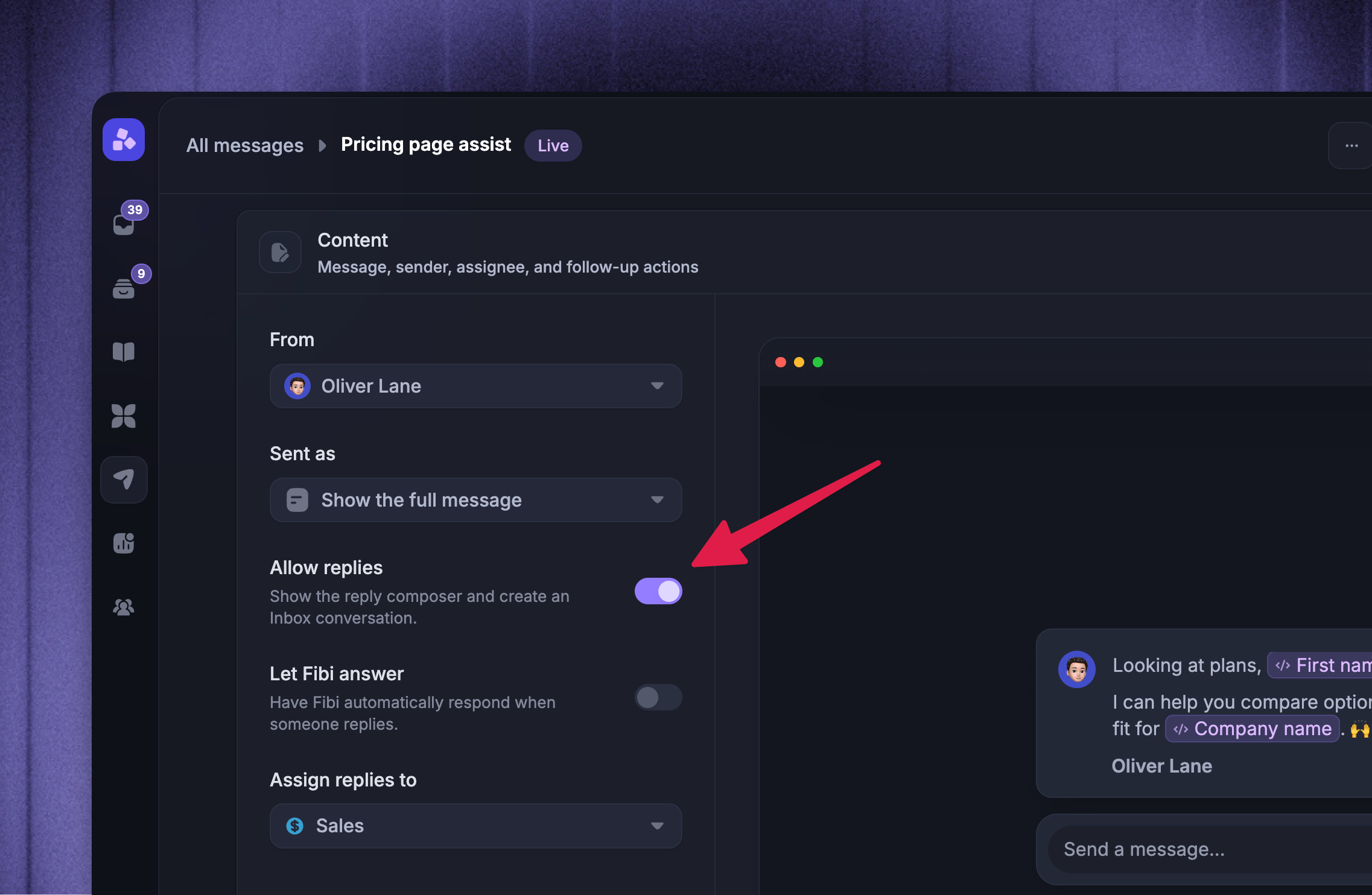
When replies are off, the Chat message does not show the reply composer to the recipient. When replies are on, you can assign replies to a teammate or team, or let Fibi answer when someone replies.
Outbound Email replies route back to Inbox. Banner messages do not accept replies. Survey messages collect structured responses instead of free-form replies.
What does creating a conversation mean for Outbound messages?
A conversation is the Inbox thread connected to an Outbound message when the recipient can reply or when an email reply is received.
For Chat messages, the message is delivered through Messenger. If Allow replies is on, the recipient can reply in Messenger and the reply can be assigned in Inbox.
For Email messages, customer replies thread back into Inbox so your team can continue the conversation from Featurebase.
Banner views, Banner clicks, Survey views, Survey dismissals, and Survey responses are tracked as Outbound activity, but they do not create a free-form customer conversation just because someone saw or clicked the message.
A sent, viewed, opened, clicked, dismissed, or responded event is not the same thing as a customer reply.
Display behavior
Why did my Chat appear as a badge instead of opening fully?
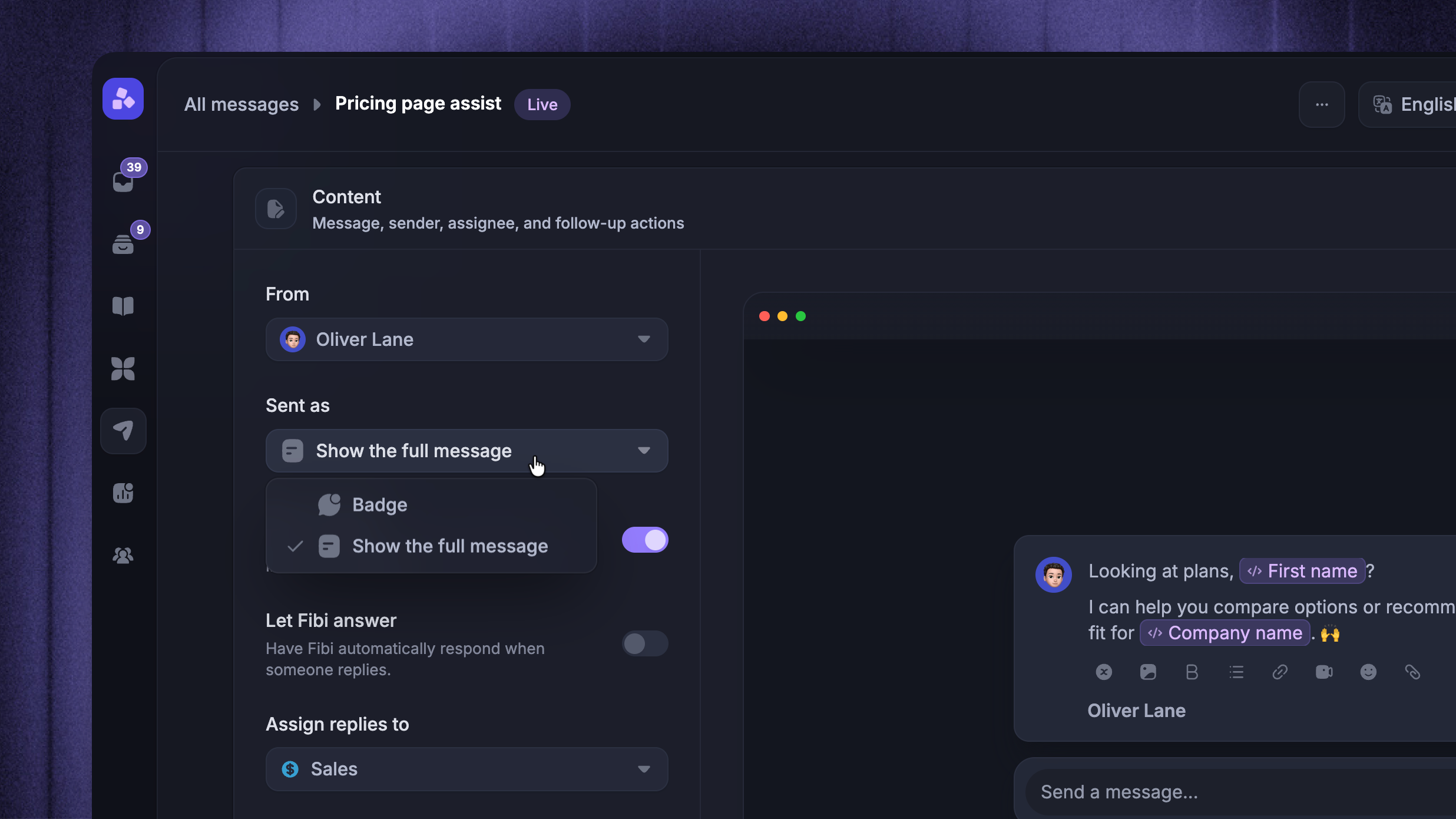
Chat messages have a ‘Sent as’ setting.
If the message is set to ‘Badge’, the recipient sees it as a Messenger badge. If it is set to ‘Show the full message’, the full Chat message opens for the recipient.
To change this:
Go to Dashboard → Outbound
Open the Chat message
In Content, change Sent as to Badge or Show the full message
Save your changes
Why does my Banner keep showing?
A Banner can continue showing while the person still matches the audience and trigger rules.
If you want people to be able to close it, enable Dismiss button. If the Banner has an action button, you can also enable Dismiss on click so the Banner closes after the action is clicked.
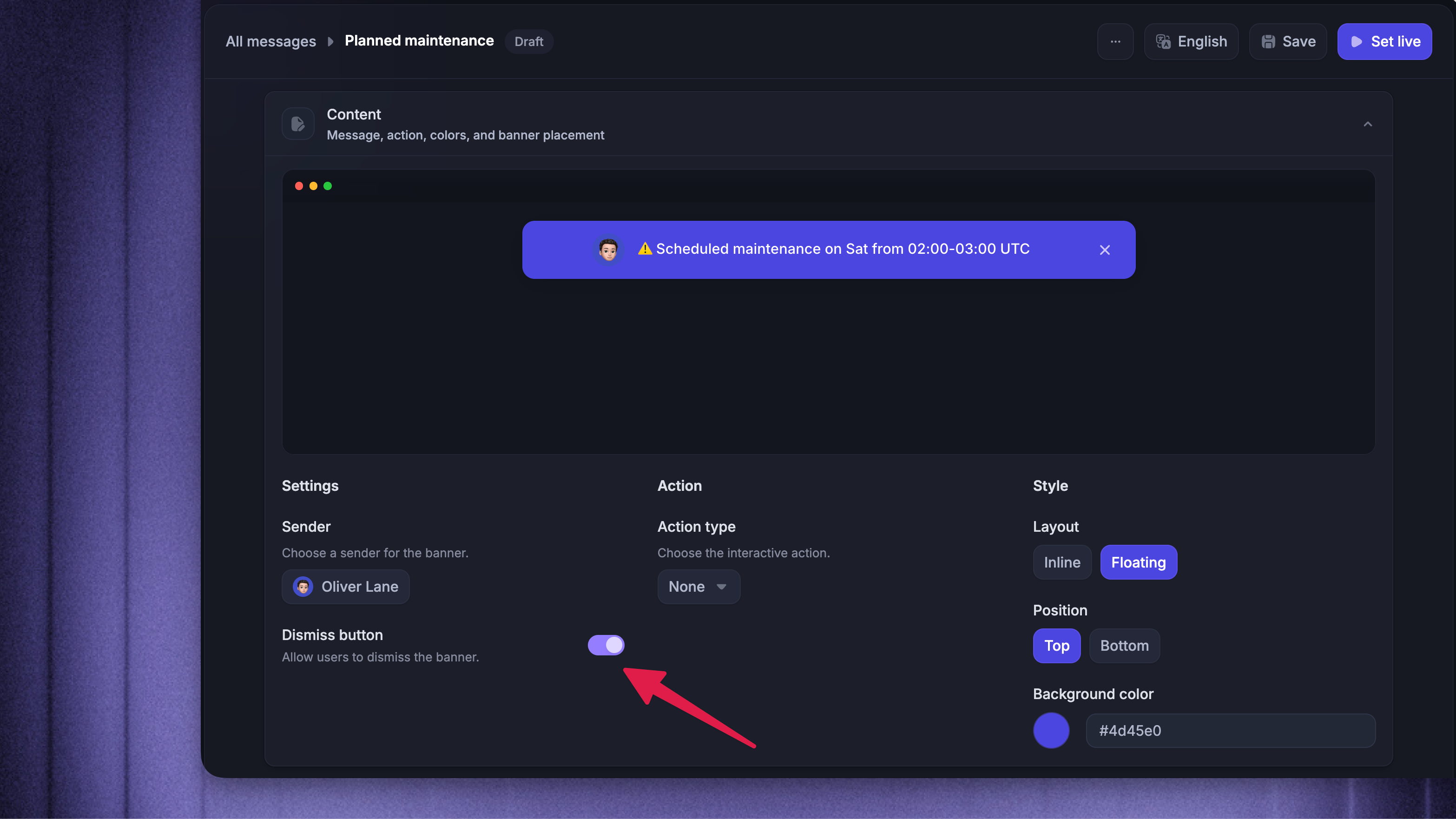
To update Banner dismissal:
Go to Dashboard → Outbound
Open the Banner message
In Content, turn on Dismiss button
If the Banner has an action, turn on Dismiss on click when the action should close the Banner
Save your changes
If a Banner has no dismiss button and no dismissing action, people can continue to see it until the message is paused or they no longer match the audience criteria.
Was this helpful?
Still need help? Ask the team