Ask customers for a conversation rating
Gather invaluable customer feedback via CSAT surveys after every interaction with this simple Workflows template.
Written By Markus from Featurebase
Last updated 8 days ago
Overview
A CSAT survey is the simplest way to measure how customers feel about their support experience.
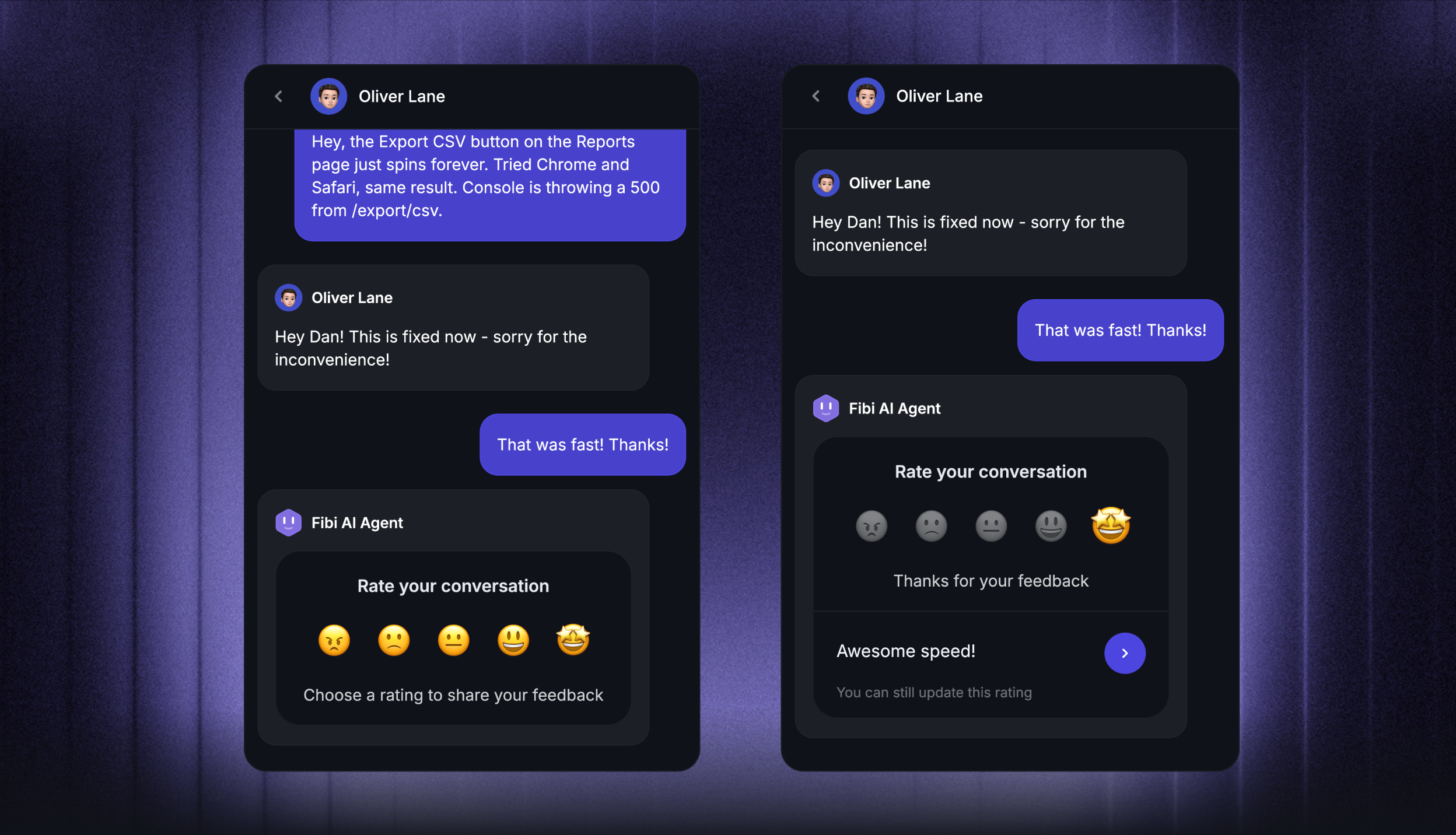
After a teammate closes a conversation, you can automatically send customers an emoji rating survey with an optional comment box – so you can spot patterns, follow up with unhappy customers, and track how your team is performing over time.
How it works
When a teammate closes a conversation, the workflow waits 2 minutes in case the conversation reopens or the teammate replies again. After that window, the customer receives the CSAT survey – inside the Messenger if the conversation was on Web, or as an email reply with five emoji buttons if the conversation was on email.
The customer picks an emoji:
If any teammate replied during the conversation, the rating is attributed to the most recent teammate.
If only Fibi participated, it goes to Fibi.
If only Workflows handled the conversation, it goes to the workflow.
The customer can then optionally leave a written comment to add context.
Note: CSAT is supported on Web (Messenger), Email, and Slack. Conversations on other channels are silently skipped.
Get started
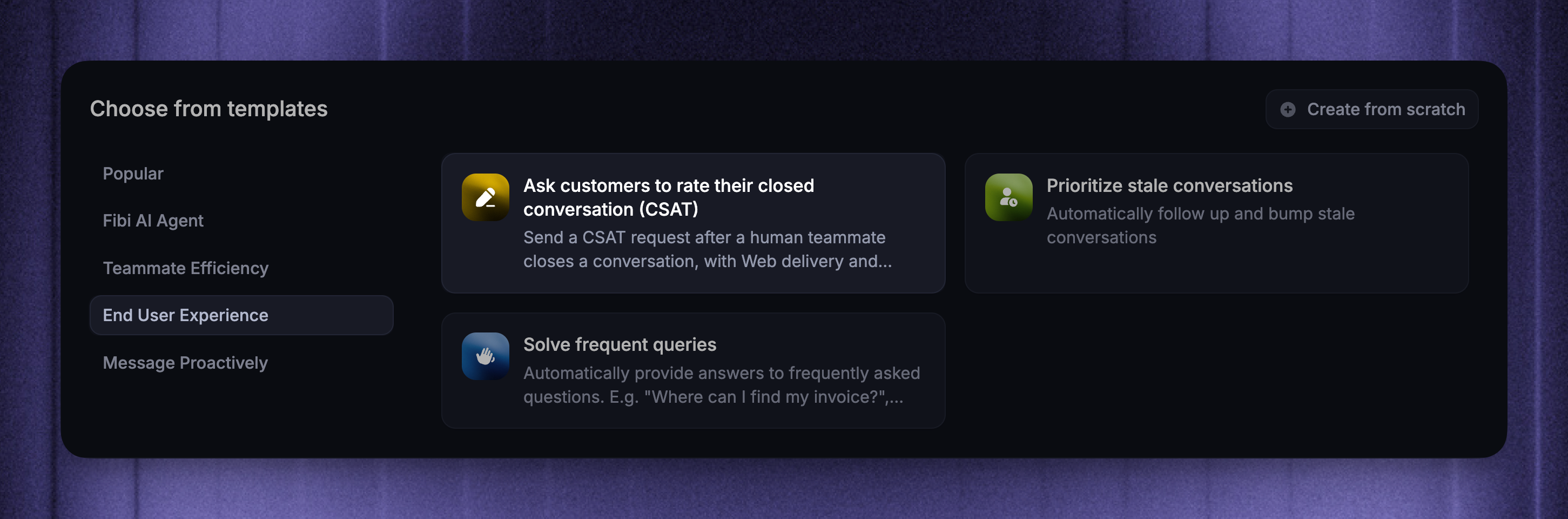
Go to Automations → Workflows
Click + New Workflow and select the template "Ask customers to rate their closed conversation (CSAT)"
Configure trigger settings
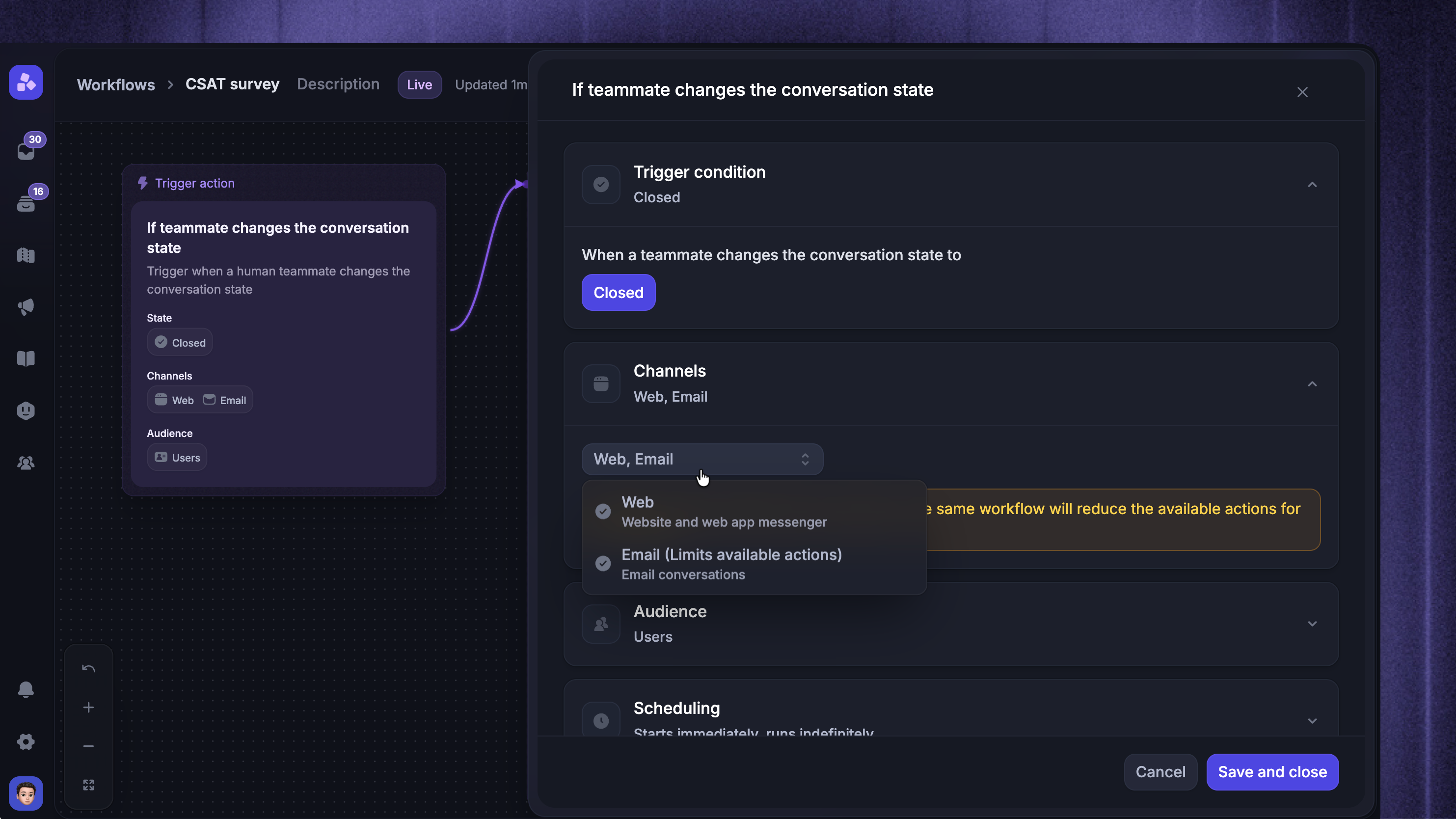
First, configure the Trigger settings to decide who, where, and when the Workflow should run:
Where to send (e.g. Web, Email)
Audience (e.g. users, visitors, or specific customer segments like ‘Paying customers’)
Scheduling (e.g. always, or only during/outside of office hours)
Notice that the trigger for this workflow is Teammate changes the state of a conversation and the only state selected is Closed. This means that this workflow will only ever trigger when a teammate has actively closed a conversation they consider resolved.
When finished, click ‘Save and close’ to start building your workflow.
Build your workflow
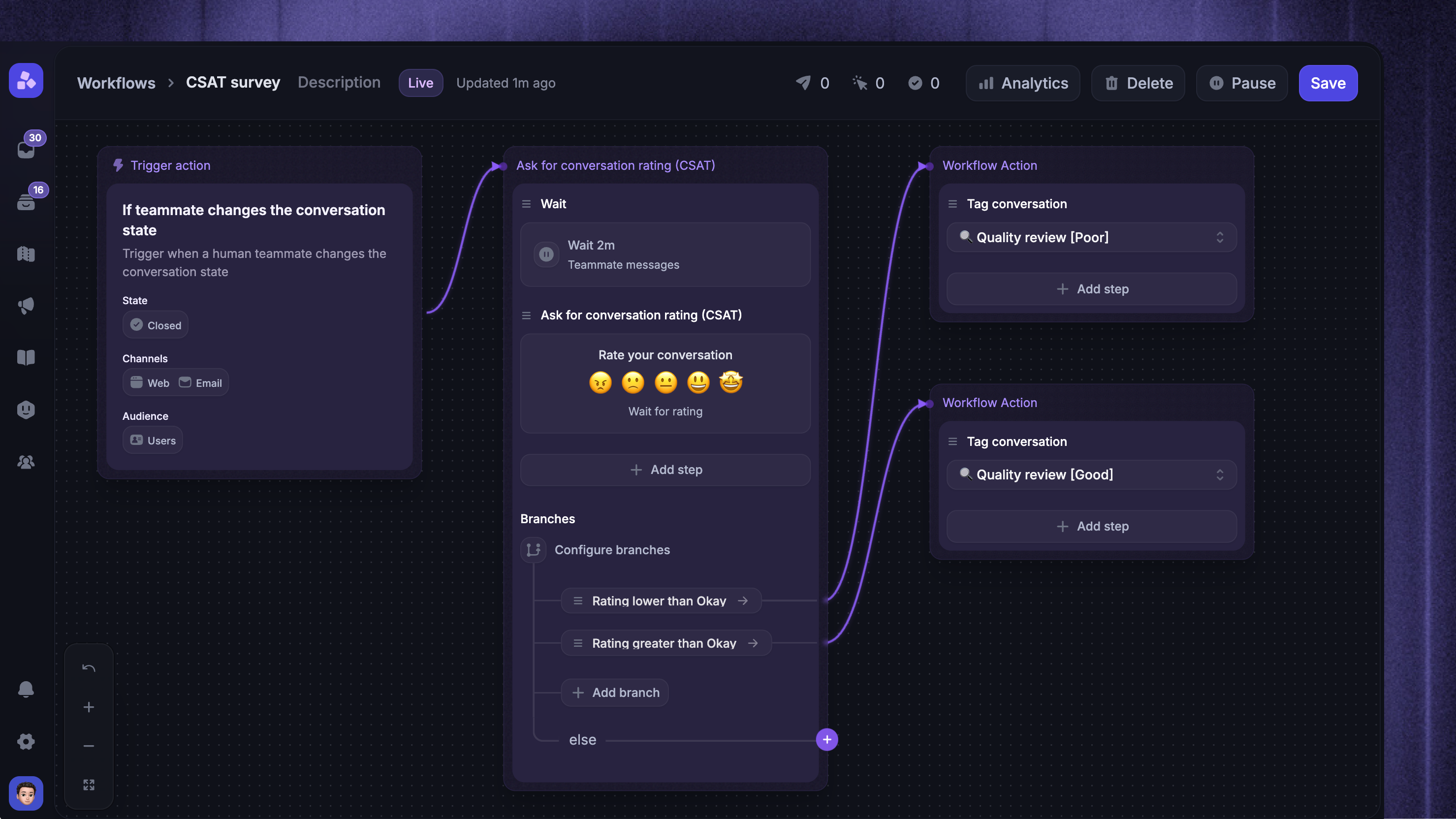
Once created, the template includes prebuilt steps you can edit to fit your tone and process:
Adjust the wait time – By default, the workflow waits 2 minutes after a conversation is closed before sending the CSAT survey. This buffer prevents the survey from going out if the teammate replies again or the customer reopens the conversation. You can shorten or extend this depending on how reactive your team usually is.
Configure the CSAT action – Click the Ask for conversation rating (CSAT) step to open its settings. Three optional toggles are available:
Prevent customers from rating after a given period of time – sets an expiration on the rating request. After this window, the customer can no longer rate
Prevent customers from changing their initial rating after a period of time – customers can rate any time, but once submitted they can only edit their rating within this window
Wait for customers to give a rating before continuing the Workflow – pauses the workflow until the customer rates, so you can branch on the response
When this is on, you can also enable Allow customers to type while the workflow is waiting for a rating. The composer stays enabled, and any message the customer sends will interrupt the workflow
Add branches for low and high ratings – After the CSAT step, you can split the workflow based on how the customer rated. Common pattern:
If Conversation Rating is less than Okay → send a follow-up message asking what went wrong, then assign the conversation to the support lead
If Conversation Rating is greater than Okay → end the workflow
Note: Branching only works when Wait for rating is turned on – the workflow can't branch on a rating it never waited for
Note: The Conversation Rating predicate evaluates the customer's most recent rating across all their conversations – not just the current one. To scope a branch to the current conversation, add a first branch that checks CSAT rating requested for any agent. If no rating was requested in this conversation, end the workflow there. Otherwise continue to your low / high rating branches.
Set it live – When you're happy with your setup, click Save and Set live.
With this workflow, every closed conversation turns into a chance to learn something – and dissatisfied customers don't slip through the cracks.