Email marketing best practices
Create targeted, personal, and measurable emails your customers open and read.
Written By Markus Palm
Last updated 4 months ago
Overview
Use Outbound Emails to send targeted, useful messages to users who should hear from you outside the product. The best emails have a clear purpose, a relevant audience, personal copy, obvious calls to action, and timing that matches the user's context.
Start with one clear purpose
Before writing an email, decide what the message should help the user do next. A clear purpose makes it easier to choose the audience, subscription, template, subject line, body, and schedule.
Good Outbound Email purposes include:
Helping new users finish onboarding
Teaching users about a feature they are ready to try
Asking active users for feedback
Re-engaging users who have gone quiet
Announcing an update to users who are likely to care
Keep each email focused on one main action. If you need users to do several unrelated things, split the message into separate emails with separate audiences and schedules.
Use the user's next best action as the filter for what belongs in the email. A measurable purpose also makes performance easier to interpret after the email sends.
For example:
Weak: "We launched a new onboarding checklist"
Stronger: "Finish setup faster with the checklist built for new admins"
Put the user's needs first
Good emails are about what the user needs to know or do, not everything you want to announce. Before writing, ask what makes the message useful from the user's point of view.
Useful questions:
What has this user already done?
What are they trying to accomplish?
What would help them take the next step?
Why is this message useful now?
What should they ignore because it is not relevant to them?
Write the email around that context. A message that starts from the user's situation is easier to make specific, shorter, and more actionable.
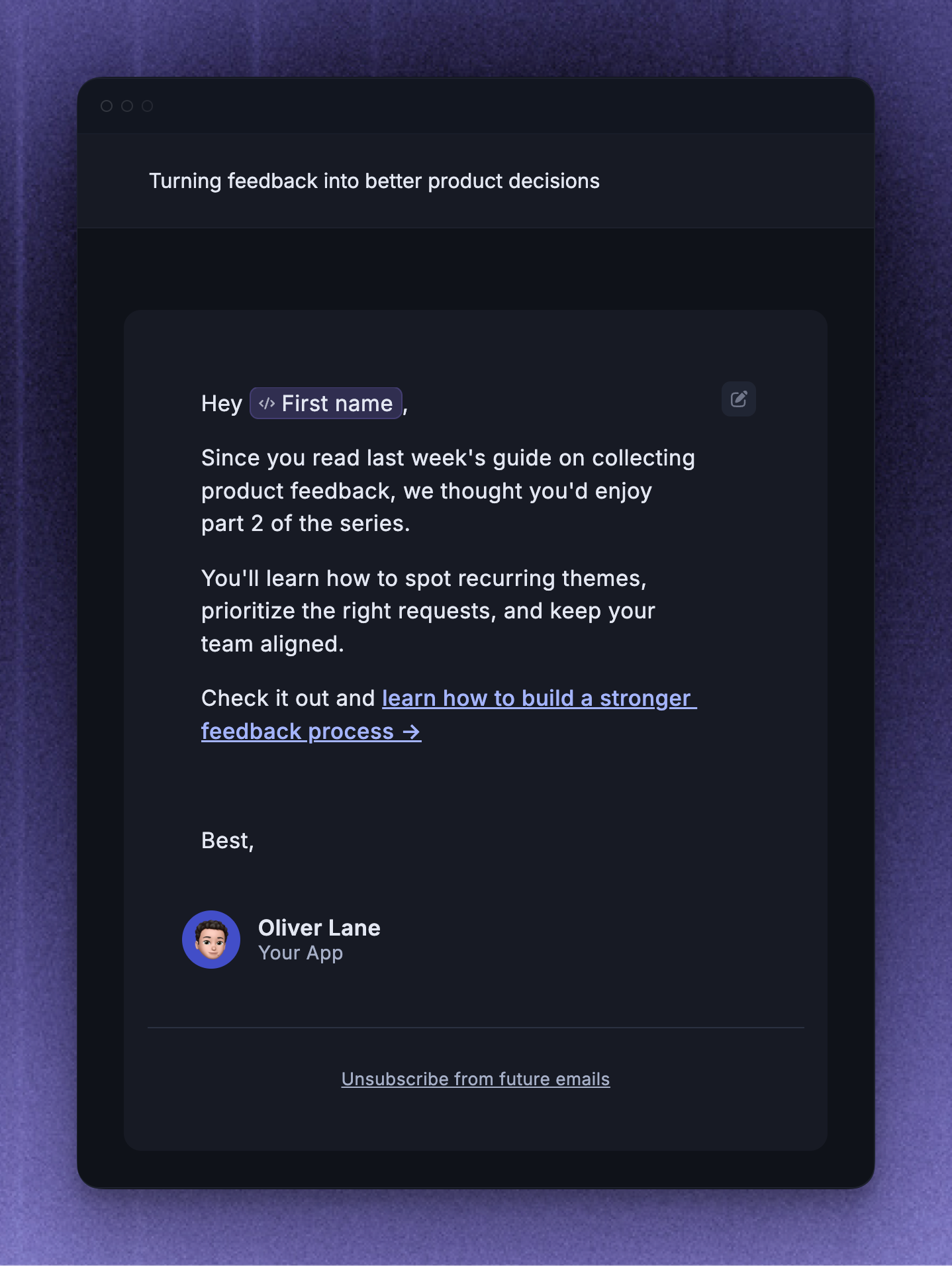
Make each email feel personal
Personalization should make the message more relevant, not just insert a name into generic copy. Write like a teammate would write to one user, then use audience rules and dynamic variables to scale that message.
Use these habits:
Choose Plain or Personal for direct lifecycle messages that should feel human
Use dynamic variables like {First name} or {Company name} when they fit naturally
Use available user or company context when it changes what the message says
Choose a From teammate who makes sense for the follow-up
Keep the tone direct, casual, and specific
For example:
Weak: "Hi, we have exciting news"
Stronger: "Hi First name, your team is close to finishing setup"
Note: Avoid using variables when the rest of the message could apply to anyone. If the email still feels generic after adding First name, narrow the audience or rewrite the message around a clearer reason.
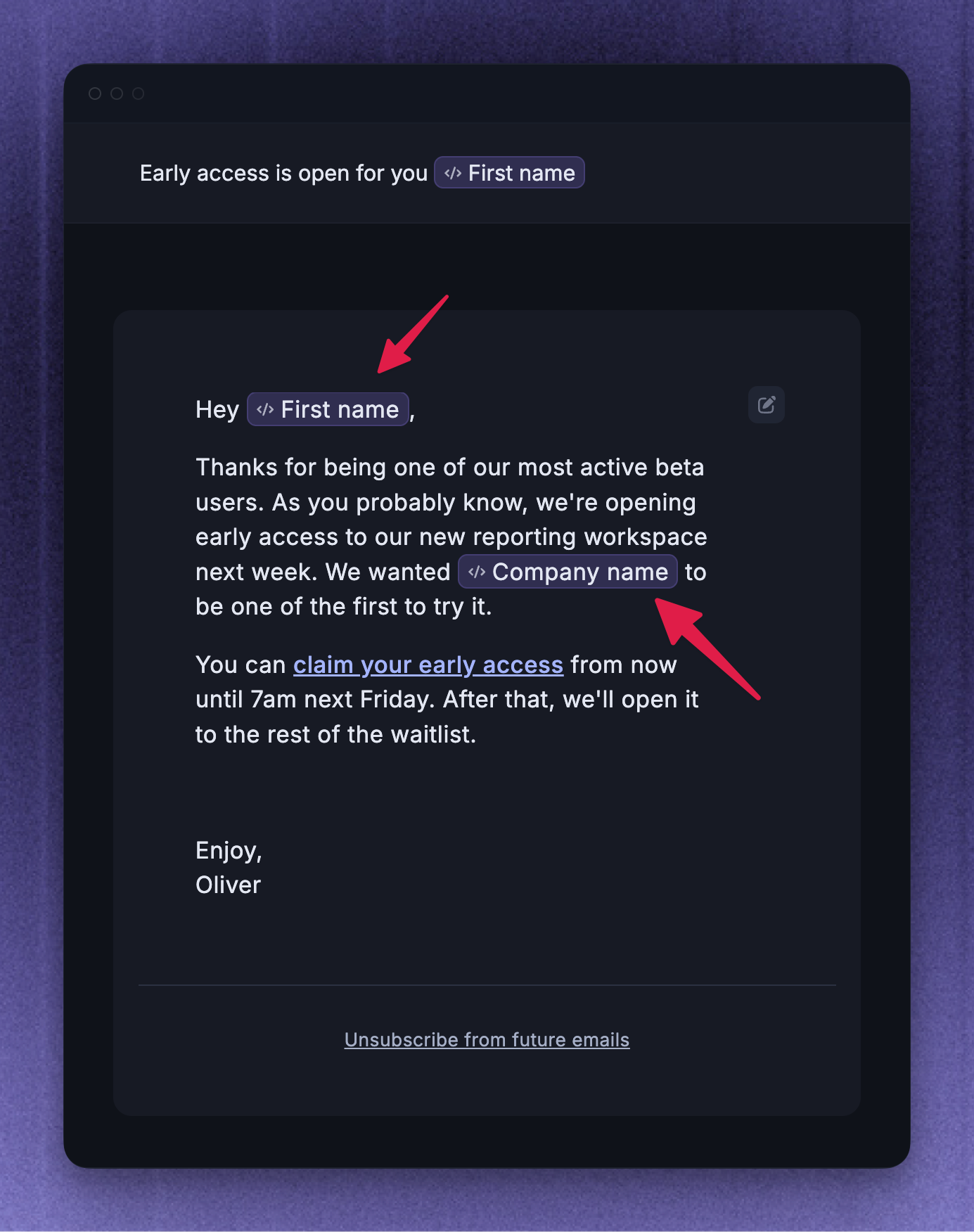
Focus on the outcome
The best email does not just describe a feature. It helps the user imagine what gets better after they act.
Instead of listing every product detail, focus on the outcome the user cares about:
Finish setup faster
Find the right accounts before renewal
Collect cleaner feedback
Save time on a repeated workflow
Get their team aligned before a launch
This keeps the email grounded in the user's goal. It also makes the call to action feel like the next useful step instead of a generic product pitch.
Use subject lines that pique interest
The subject line should tell the user why the email is worth opening. Keep it brief, specific, and connected to the reason they are receiving the message.
Good subject lines usually mention one of three things:
The action the user can take
The outcome the user cares about
The timing or context that makes the email relevant now
Examples:
Weak: "New feature update"
Stronger: "Review renewal risk before Friday"
You can also try a subject line that includes the user's name, company, or a deadline when that detail is genuinely relevant. Avoid vague subject lines that rely on curiosity without context. If the subject could apply to any user, make the audience narrower or rewrite the email around a more specific next step.
Make your links obvious
The reader should know what to click and why. Use one main call to action, place the link where the reader naturally expects it, and make the link text describe the action.
Good link text tells the reader what happens next:
Finish your setup
Review the new report
Book your onboarding session
Share feedback on the beta
Reserve your webinar seat
Avoid vague link text like Click here, Learn more, or Read this when a more specific action would fit.
If the email includes several links, make the primary action visually and verbally clear. Secondary links should support the same goal, not compete with it.
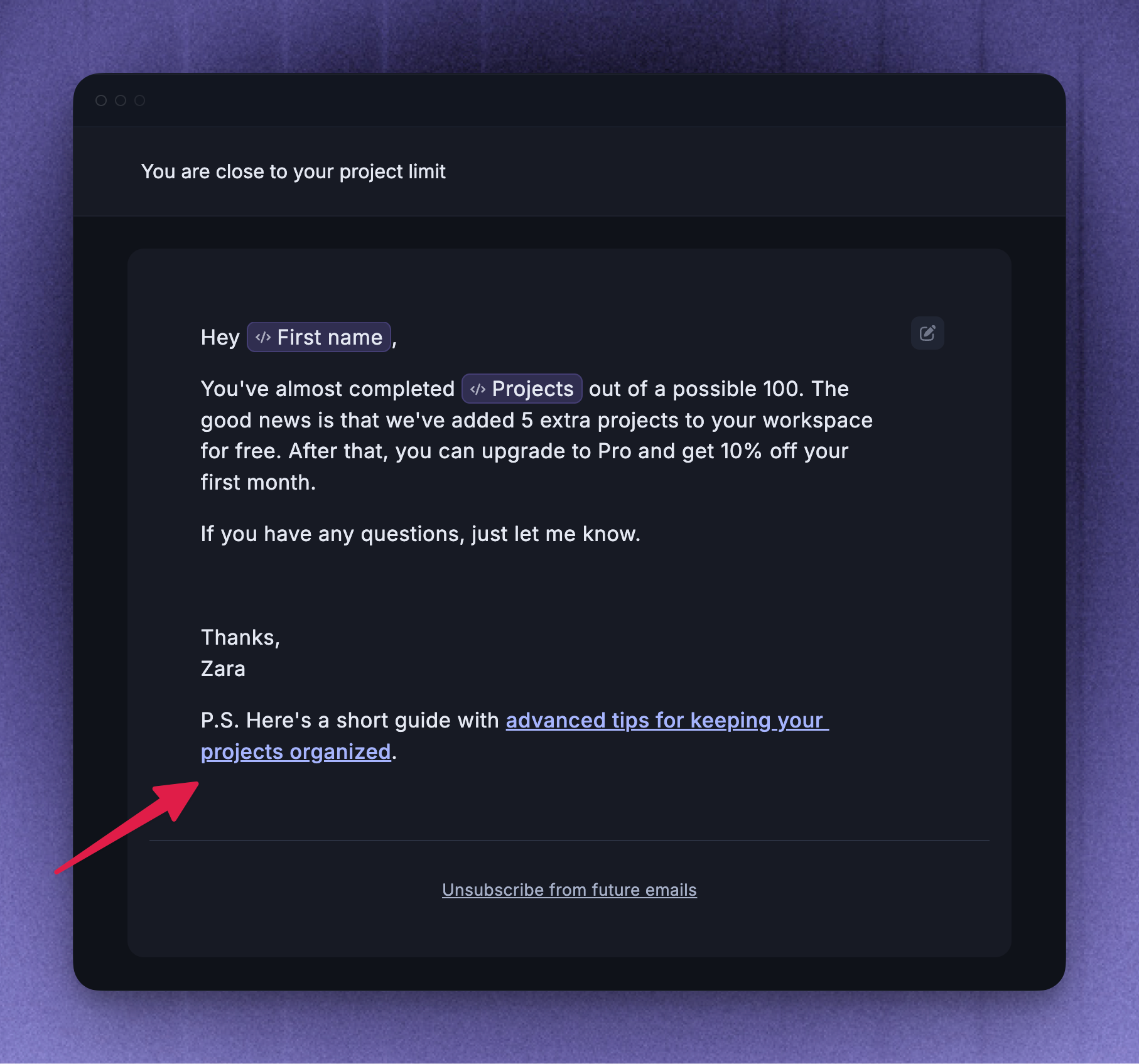
Use the P.S. for one useful extra
A short P.S. can work well when you have one optional reminder, resource, or secondary link that supports the main message.
Use a P.S. for:
A deadline reminder
A useful related resource
A low-pressure invitation to reply
A small bonus that supports the main action
Do not use the P.S. to introduce another unrelated call to action. If the extra point matters as much as the main message, it probably deserves its own email.
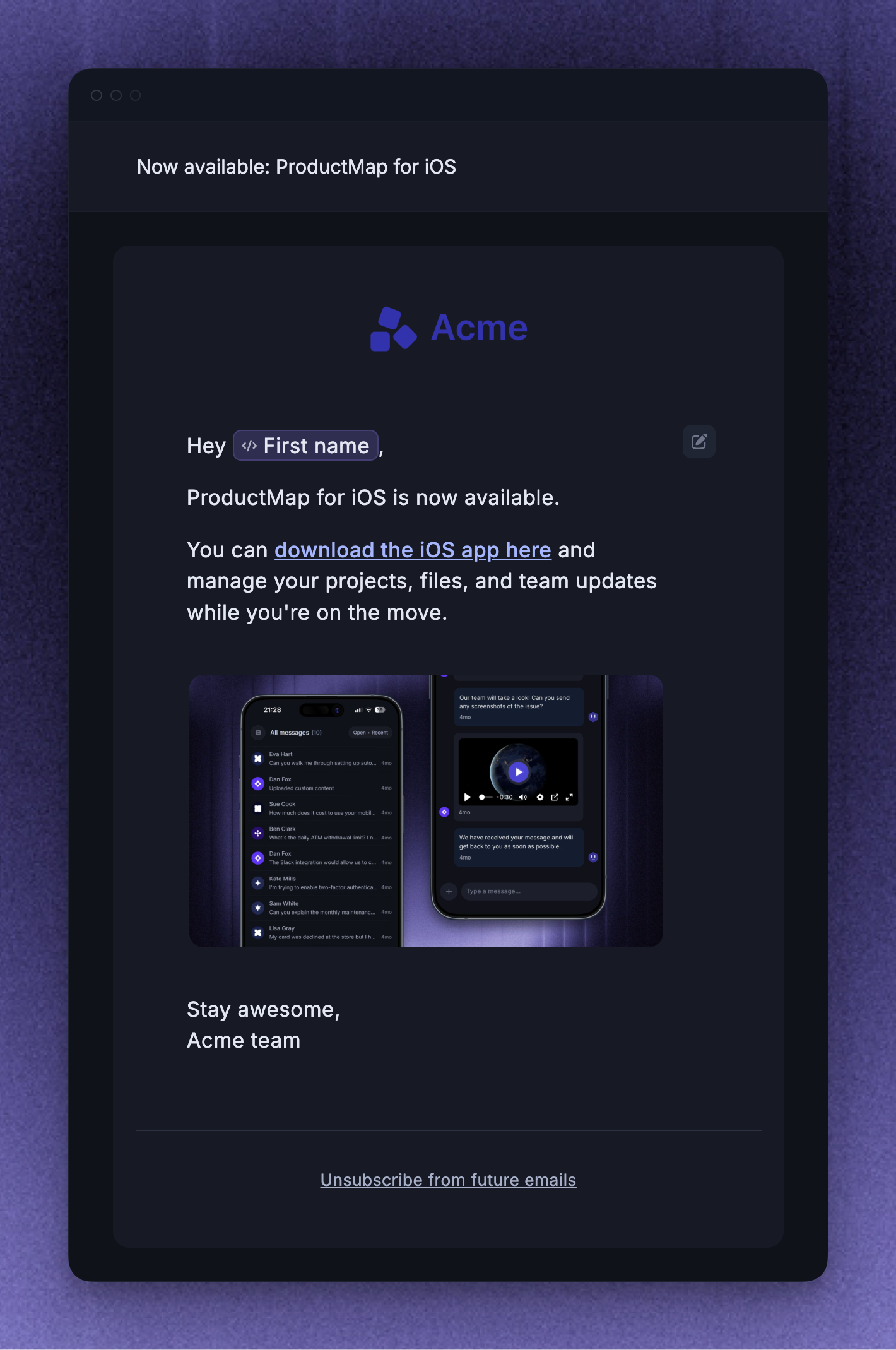
Use simple design for stronger impact
Emails with too many images, links, formatting choices, or calls to action can feel like mass marketing. Simple design usually makes the message feel more direct and easier to act on.
Choose the email template style based on how the message should feel to the recipient.
Plain - best for short, direct lifecycle messages
Personal - best for feedback requests, onboarding nudges, and messages that should feel like they came from a teammate
Company - best for official announcements or branded product updates
Match the design to the reader's expectation:
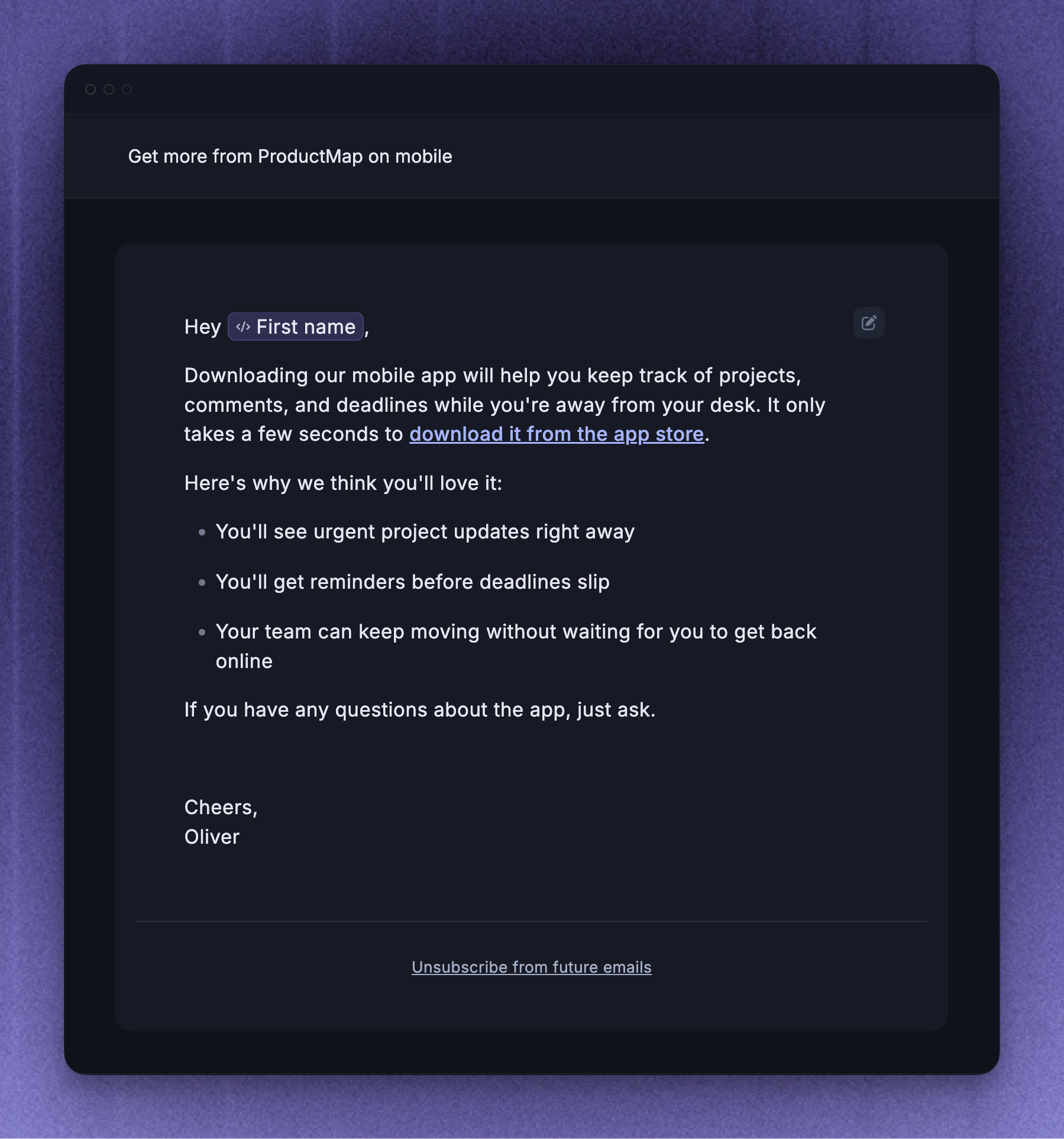
Use Plain for direct, low-friction messages like "You are one step away from finishing setup"
Use Personal when the message should feel like it comes from a teammate, such as a feedback request or invitation to a customer call
Use Company when brand context matters, such as a product launch, event invitation, or major update
When you use visual elements, keep them focused. One useful product image, short paragraphs, and one clear call to action usually work better than a heavily designed email with competing sections.
Send to the right users
Use the Rules section to target users based on user and company attributes, then decide whether the audience should stay dynamic or be locked at activation. A smaller, better-matched audience usually leads to clearer results than a broad list of users who do not all need the same message.
Tie the audience to the reason for the message. The more specific the audience, the easier it is to write an email that feels relevant.
Examples:
Onboarding nudge - users where Onboarding complete is false
Feature education - users who have access to a feature but have not tried it yet
Feedback request - active users who recently completed the workflow you want feedback on
Loyalty or anniversary email - users who have been active for a long time and match usage rules that make the offer relevant
Engaged trial user email - trial users who have reached a meaningful activity threshold but have not upgraded
Next-step reminder - users who have not taken an important next action
Before setting the email live:
Add audience rules that match the purpose of the email
Use the audience preview to check who currently matches
Remove users who are unlikely to care about the message
Use Lock audience at activation for one-off sends
Keep the audience dynamic for lifecycle emails that should continue matching users over time
Avoid sending marketing emails to stale or imported lists unless those users still expect to hear from you. Featurebase still checks email preferences, subscription status, valid email addresses, suppression, and scheduling before sending, so the final sent count can be lower than the audience preview.
Choose the right subscription
Choose a Subscription that matches the purpose of the email. This lets recipients opt out of one type of email without unsubscribing from everything your workspace sends.
Use a specific subscription whenever possible:
Updates for product and feature announcements
Best practices for tips and recommendations
Newsletter for recurring news or editorial updates
Operational for important product or account-related messages
If you choose None, the email is not tied to a subscription topic. If a recipient unsubscribes from that email, Featurebase treats it as an unsubscribe from all emails.
Send at the right time
Use Frequency and scheduling to decide when the email should send. For most one-off messages, send once to a focused Locked audience. For lifecycle emails, use a Dynamic audience and choose a frequency that avoids sending too often.
When scheduling, check:
Send frequency - send once, send on a schedule, or send every time a user matches
When to send - any time, during office hours, outside office hours, or custom times
Start sending - immediately or on a custom date
Stop sending - never or on a custom date
Good timing depends on the message:
Send onboarding emails while the user is still setting up
Send feature education after the user has enough context to care
Send event reminders before the deadline, not after interest has cooled
Send reactivation emails less often than lifecycle education emails
For emails that send every time a user matches, use the required repeat interval thoughtfully. A user who repeatedly matches the same rules should not receive the same email more often than the message deserves.
Review performance and improve the next send
After the email starts sending, use analytics to understand how users responded. Outbound Email analytics can include Sent, Opened, Clicked, and Replied counts. The Outbound list can also show failed delivery counts where available.
Use results to decide what to improve next:
Low sent count - check audience rules, subscription choice, and recipient eligibility
Low opened count - review the audience, subject, and sender
Low clicked count - make the message shorter and the call to action clearer
Many replies - make sure the assignee or team can handle the follow-up
Failed delivery count - check whether recipient emails are invalid, suppressed, or no longer reachable
Preview emails do not count toward message analytics.
Was this helpful?
Still need help? Ask the team