Outbound email templates
Send emails using our plain, personal, or company templates. Learn which template to use, and when.
Written By Markus Palm
Last updated 24 days ago
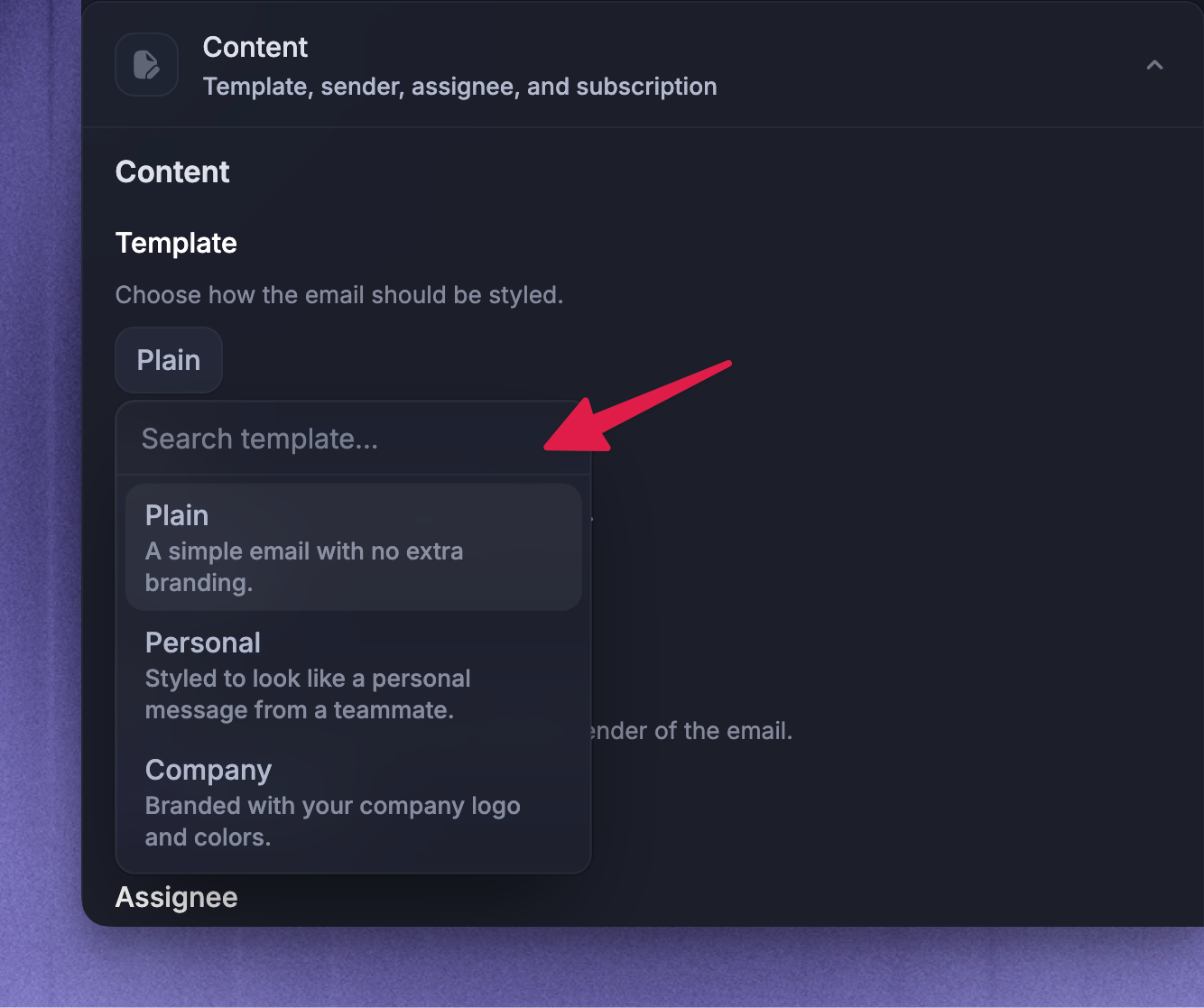
Overview
Outbound Email templates control how proactive emails look before you send them to users. You can choose from one of three template styles:
Company - branded with your company logo and colors. Use it for official product updates, announcements, event invites, and other messages that should come from your company.
Personal - styled like a message from a teammate, with the selected sender's name and profile photo where available. Use it for feedback requests, onboarding nudges, check-ins, and relationship-based messages.
Plain - a simple email with no extra branding. Use it for short lifecycle emails, direct prompts, and messages that should feel lightweight.
Email template styles are selected per message in the Content section. You can switch between Company, Personal, and Plain while editing the Email.
Company template
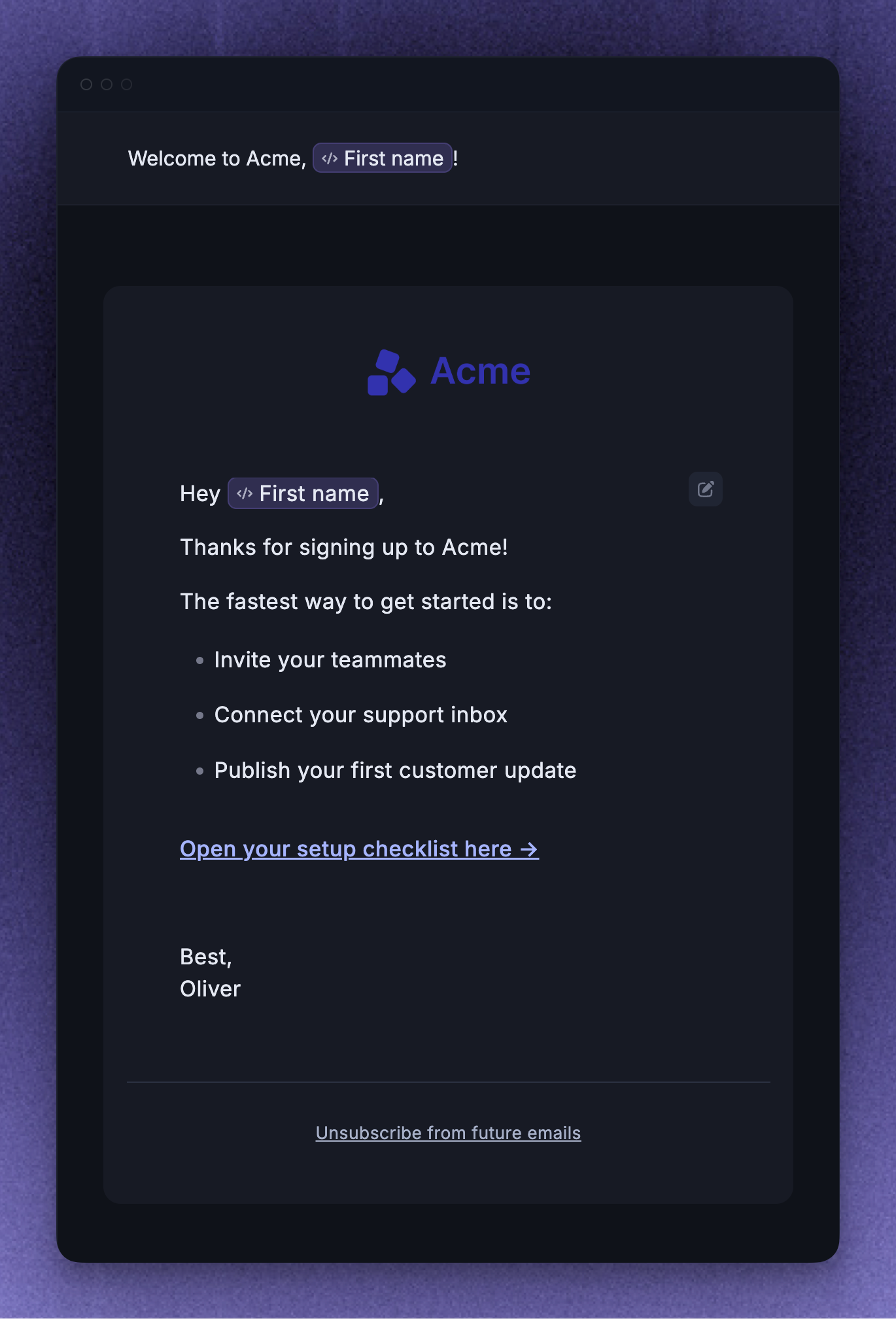
The Company template is branded with your selected brand logo and colors. It is best when the message should feel like it comes from your product or company, rather than a specific teammate.
Use the Company template for:
Official announcements
Company newsletters
Event or webinar invitations
Official account or product notices
Updates where brand recognition helps the reader understand the message
In the Content section, choose the Brand that should supply the logo and colors for the email. If no specific brand is selected, Featurebase uses your available organization branding where possible.
Keep Company emails focused. A branded layout can make an announcement feel more official, but the email should still have one main message and one primary call to action.
Personal template
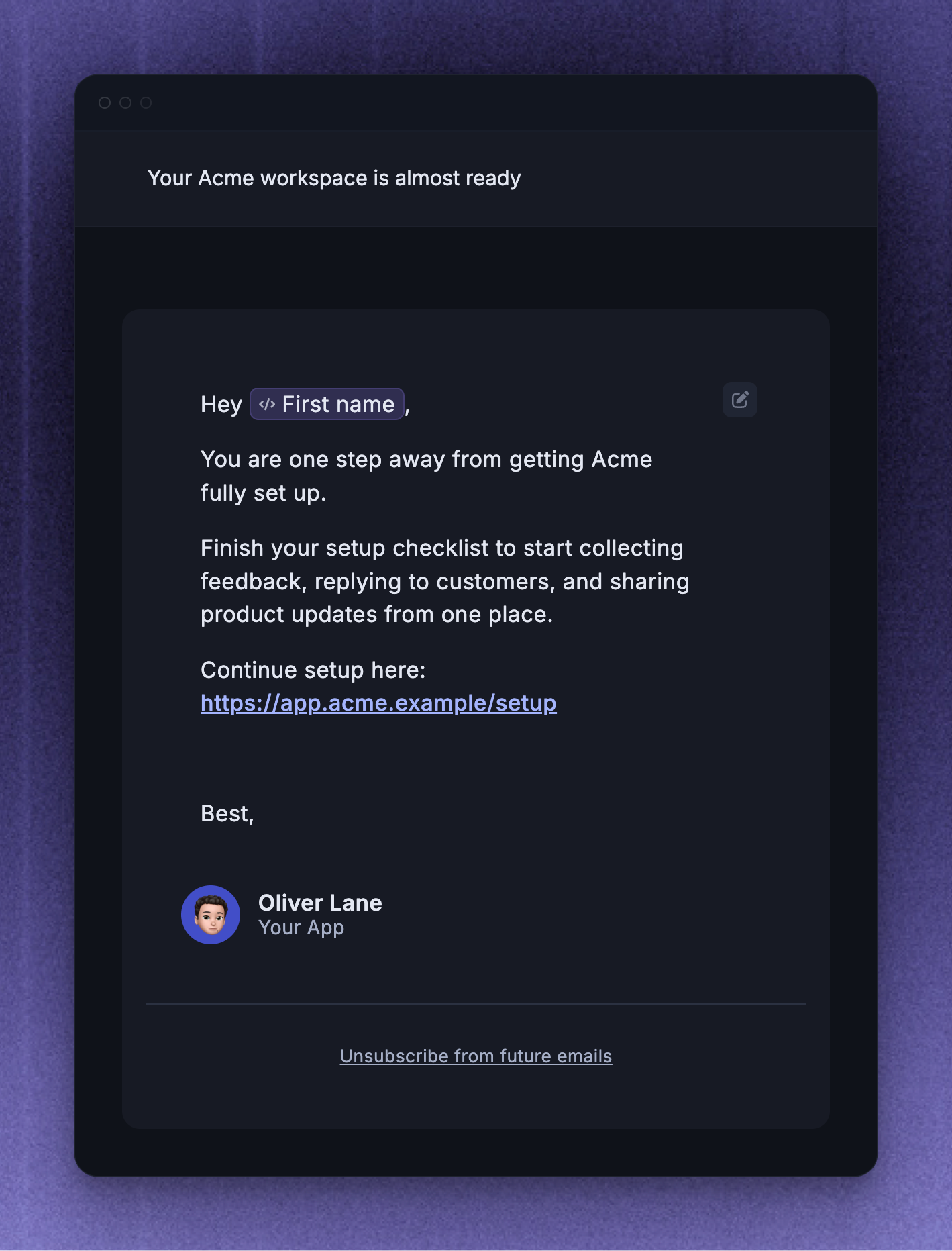
The Personal template is styled to feel like a message from a teammate. It can show the selected sender's name, profile photo, and company name in the email.
Use the Personal template when the sender relationship matters, such as:
Asking active users for feedback
Nudging users to finish onboarding
Inviting customers to a call, beta, or event
Following up after a user reaches an important milestone
Re-engaging users with a message that should feel more human than branded
Choose a sender who makes sense for the message. A feedback request might come from a product teammate, while an onboarding nudge might come from the teammate responsible for customer success or implementation.
Personal emails work best when the copy is direct and specific. Use the user's context, a clear reason for the email, and one action you want them to take.
Plain template
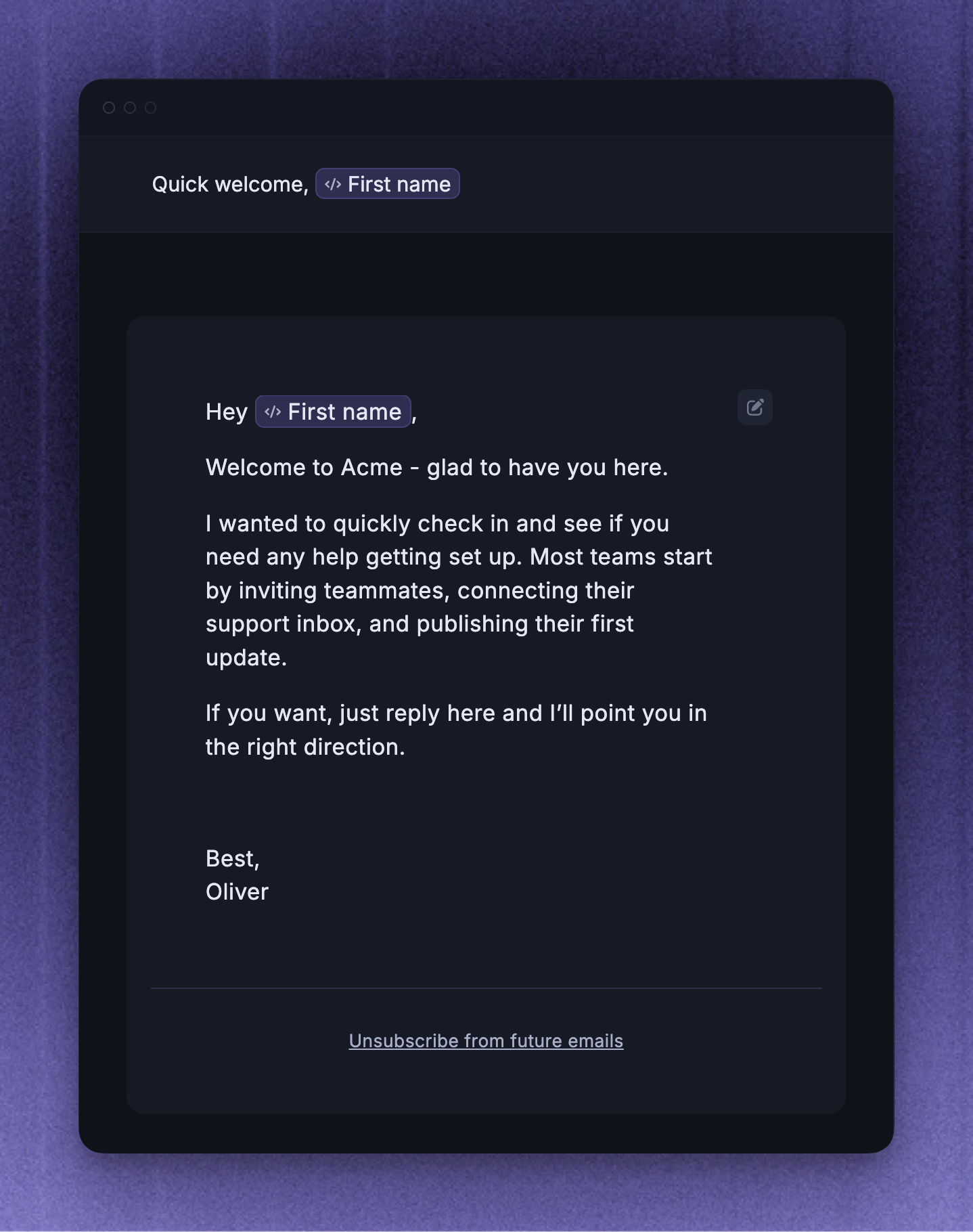
The Plain template sends a simple email with no extra branding around the body. Blank Emails start with the Plain template by default.
Use the Plain template for:
Short lifecycle messages
Direct prompts or reminders
Low-friction onboarding nudges
Messages where clarity matters more than visual branding
Emails that should feel lightweight and easy to respond to
Plain emails should still be intentional. Keep the subject specific, make the first sentence explain why the user is receiving the email, and use one obvious link or button if you want the user to take action.
If the message is promotional or falls under a specific email category, choose the appropriate subscription topic before setting it live.
FAQs
Can I switch templates after writing the Email?
Can I switch templates after writing the Email?
Yes. You can switch between Company, Personal, and Plain in the Content section while editing the Email. The subject and body stay editable while the surrounding template style changes.
What template does a blank Email use?
What template does a blank Email use?
A blank Email starts with the Plain template. You can choose Company or Personal in the Content section before setting the Email live.
Was this helpful?
Still need help? Ask the team