Customer visits a page
Use Workflows for customer outreach to target and upsell when a customer visits a page on your website.
Written By Markus Palm
Last updated About 9 hours ago
Overview
Workflows aren’t just for support - they’re also a powerful way to upsell users, announce new features, and drive engagement directly inside your product.
By using targeted workflows, you can encourage upgrades, offer proactive help, or let customers self-serve with dynamic content.
Common use cases
Upsell customers: Encourage users to try premium features or upgrade their plan.
Provide proactive support: Help users who haven’t finished setup by suggesting guides or Product Tours.
Announce new features: Introduce new functionality in an engaging way using videos or GIFs.
Enable self-service: Let users perform actions like checking an order status or rescheduling a delivery.
Book meetings: Invite high-intent users to schedule a call after they visit key pages, like your upgrade or pricing page.
Note: Workflow messages always appear to be sent from Fibi AI Agent. You can personalize Fibi’s name and avatar under Dashboard → Automations → Personality & Branding, but it cannot be replaced with a teammate.
Get started
Go to Automations → Workflows
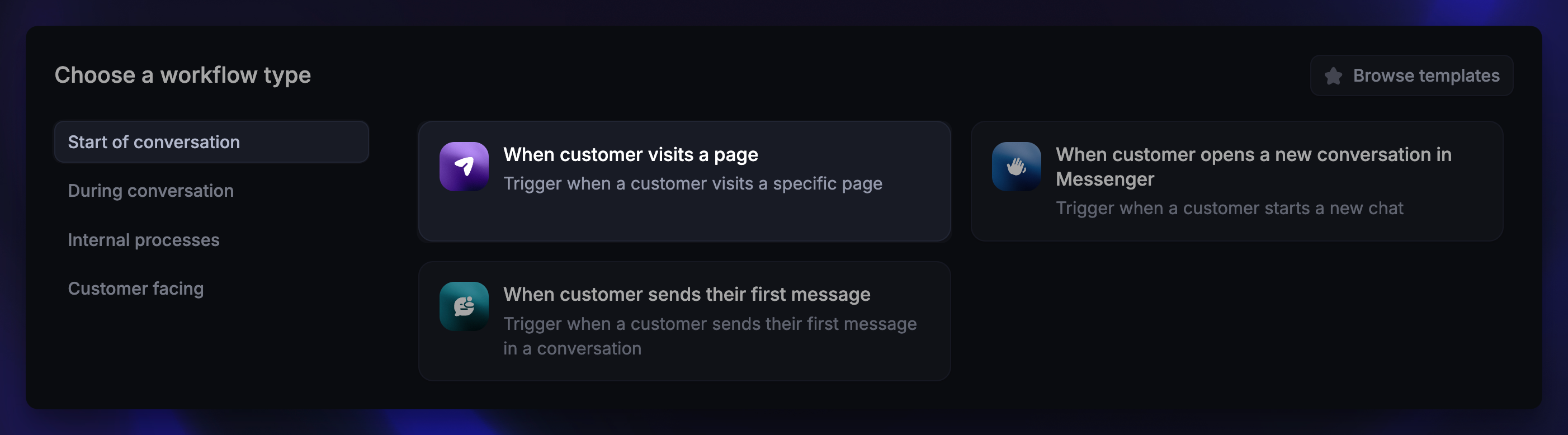
Click + New Workflow and choose Create from scratch
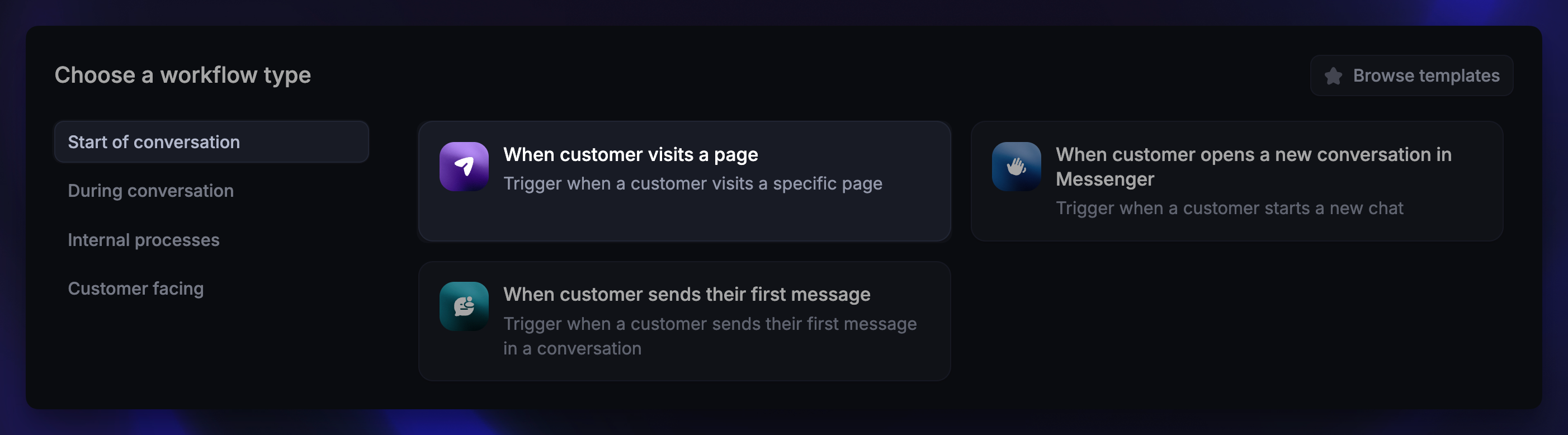
Select the trigger When customer visits a page
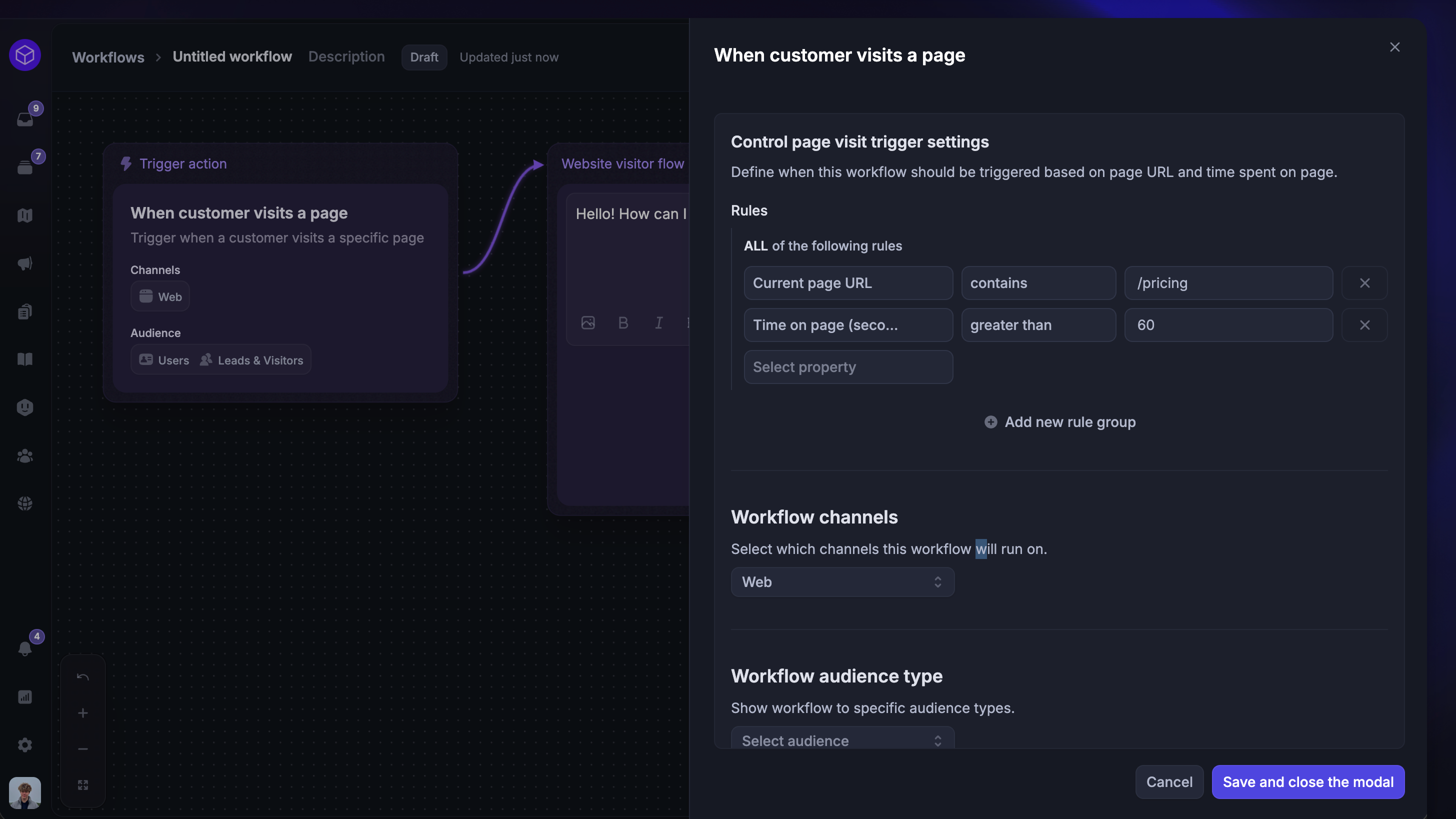
Configure trigger settings
First, configure the Trigger settings of this workflow to decide:
When to send (e.g. current page URL contains /pricing)
Where to send (e.g. Web)
Audience (e.g. users, visitors, specific customer segments)
Scheduling (e.g. how often and when your workflow triggers)
When finished, click Save and close to start building your workflow.
Build your workflow
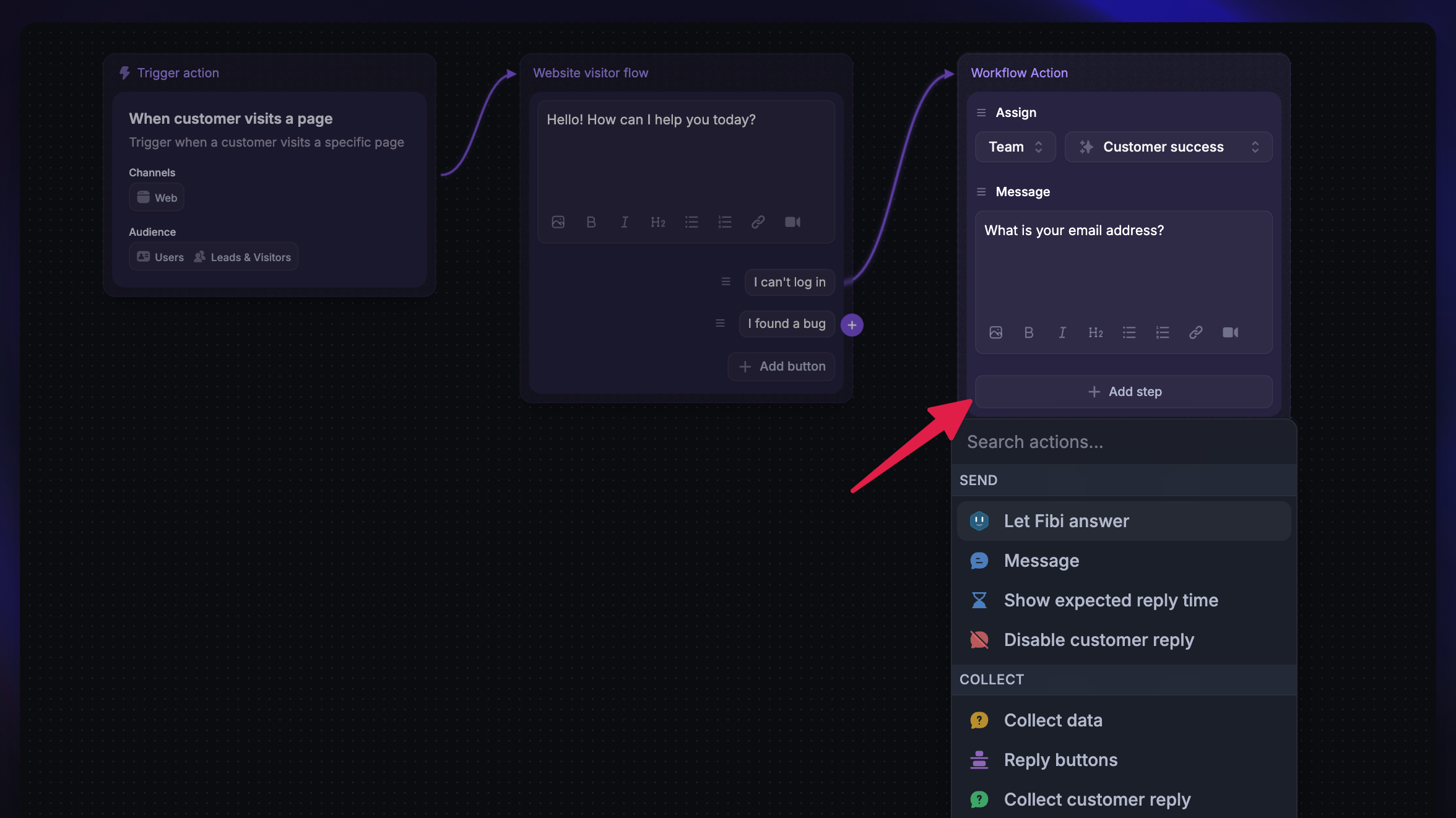
Now you can start building your Workflow:
Begin with a welcome message that grabs attention. You can add text, emoji, GIFs, attachments, images, and even videos.
Add interactive paths - If you end a workflow path with follow-up actions, you can tag customers, assign to teams, close conversations, etc.
Provide an exit option - Give uninterested users an easy way to exit the workflow. For example, if a user selects “Not right now”, share a link to an upcoming webinar and then close the conversation.
Was this helpful?
Still need help? Ask the team