Build Inbox automations using Workflows
Automate repetitive Inbox tasks – tag, assign, snooze, and route conversations using background Workflows.
Written By Markus Palm
Last updated 5 days ago
Overview
Automate repetitive tasks in the Inbox using Workflows. Background Workflows can tag, assign, snooze, close, prioritize, and apply SLAs to conversations behind the scenes, with conditional logic to route the right cases to the right teammates.
A few common background Workflows to start with:
Create an inbox automation
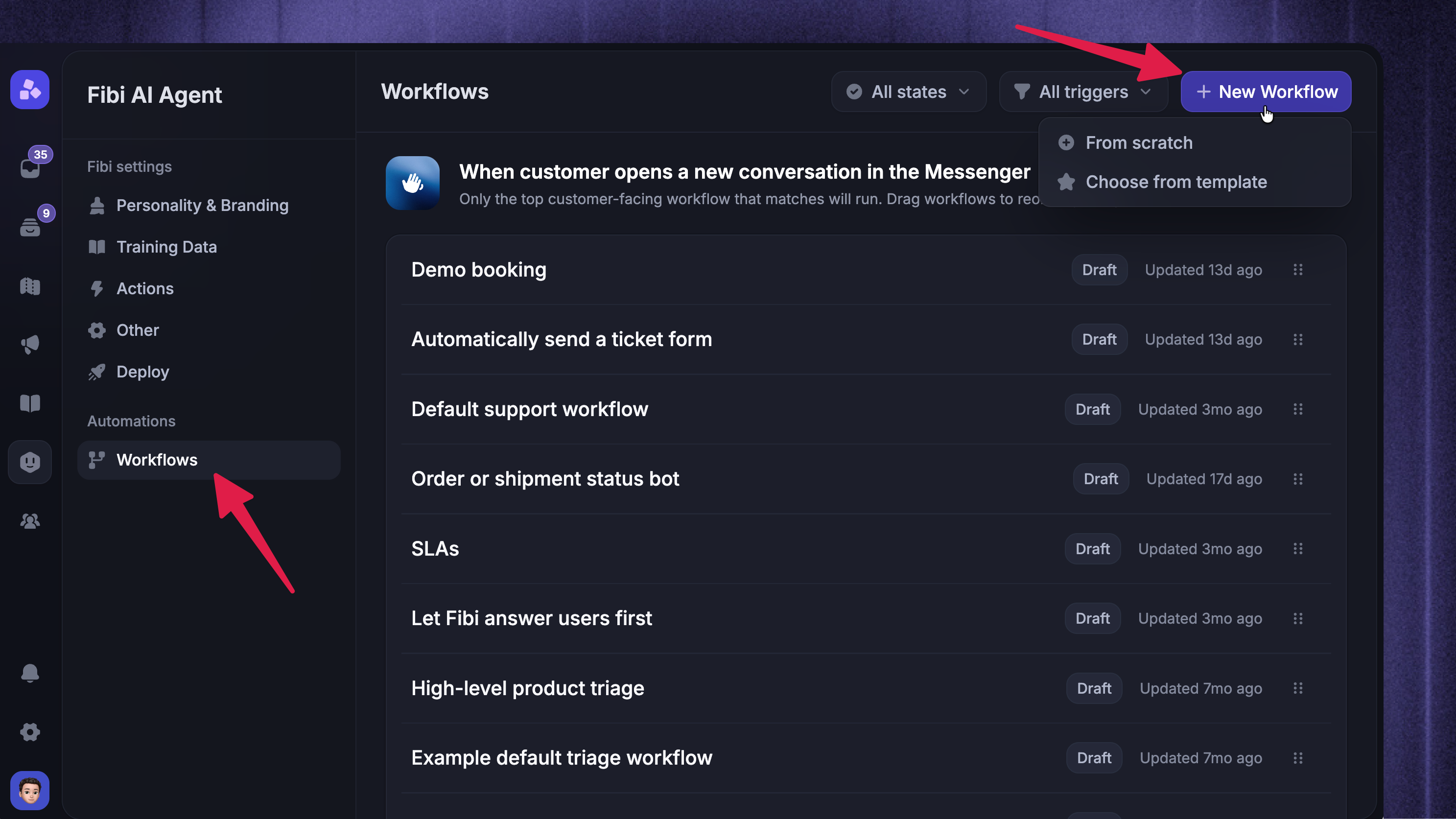
To build an inbox automation:
Go to Automations → Workflows
Click + New workflow in the top right
Pick a prebuilt template, or build from scratch by choosing a trigger
Common triggers for inbox automations:
Customer opens a new conversation in Messenger
When customer sends their first message
Customer sends any message
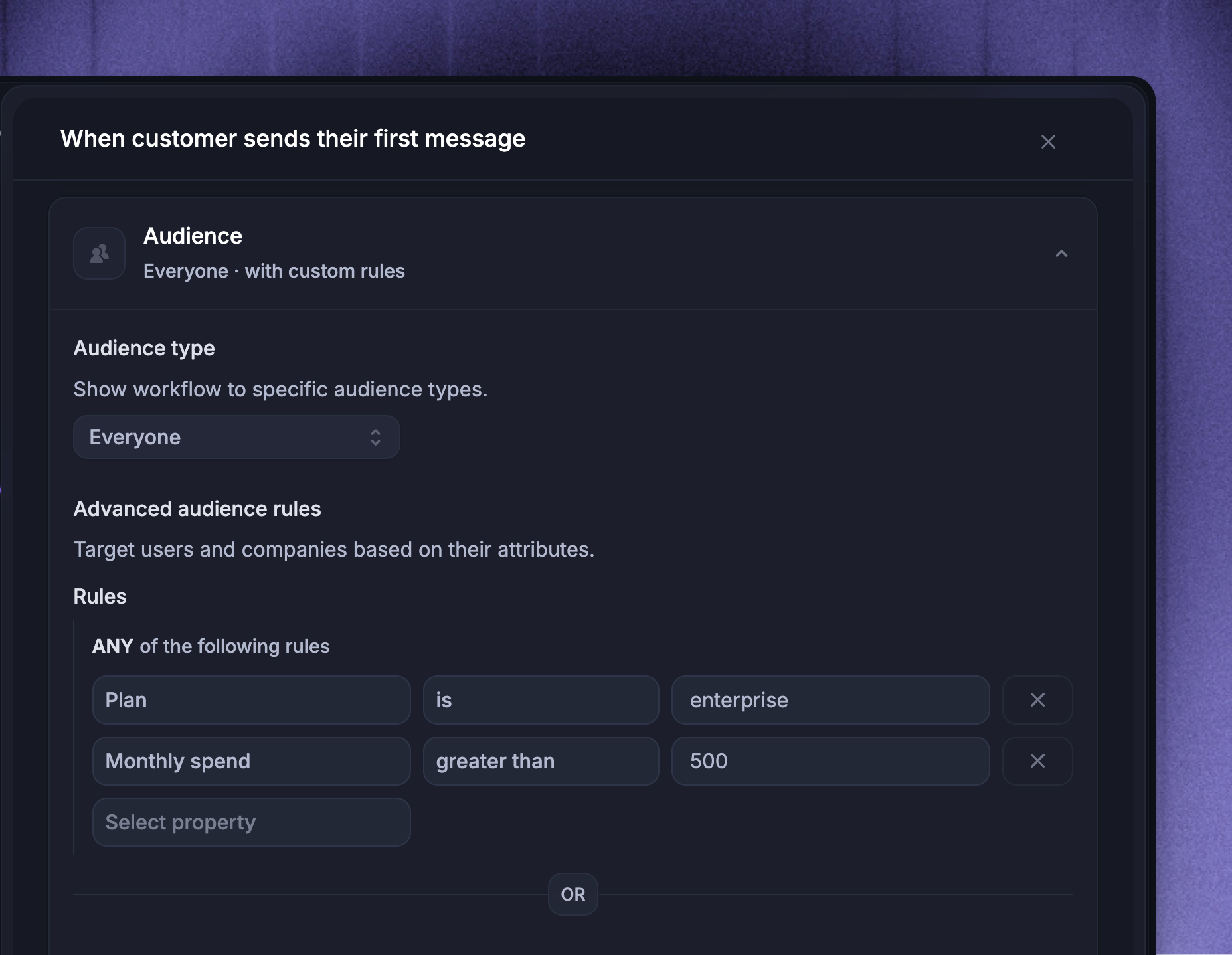
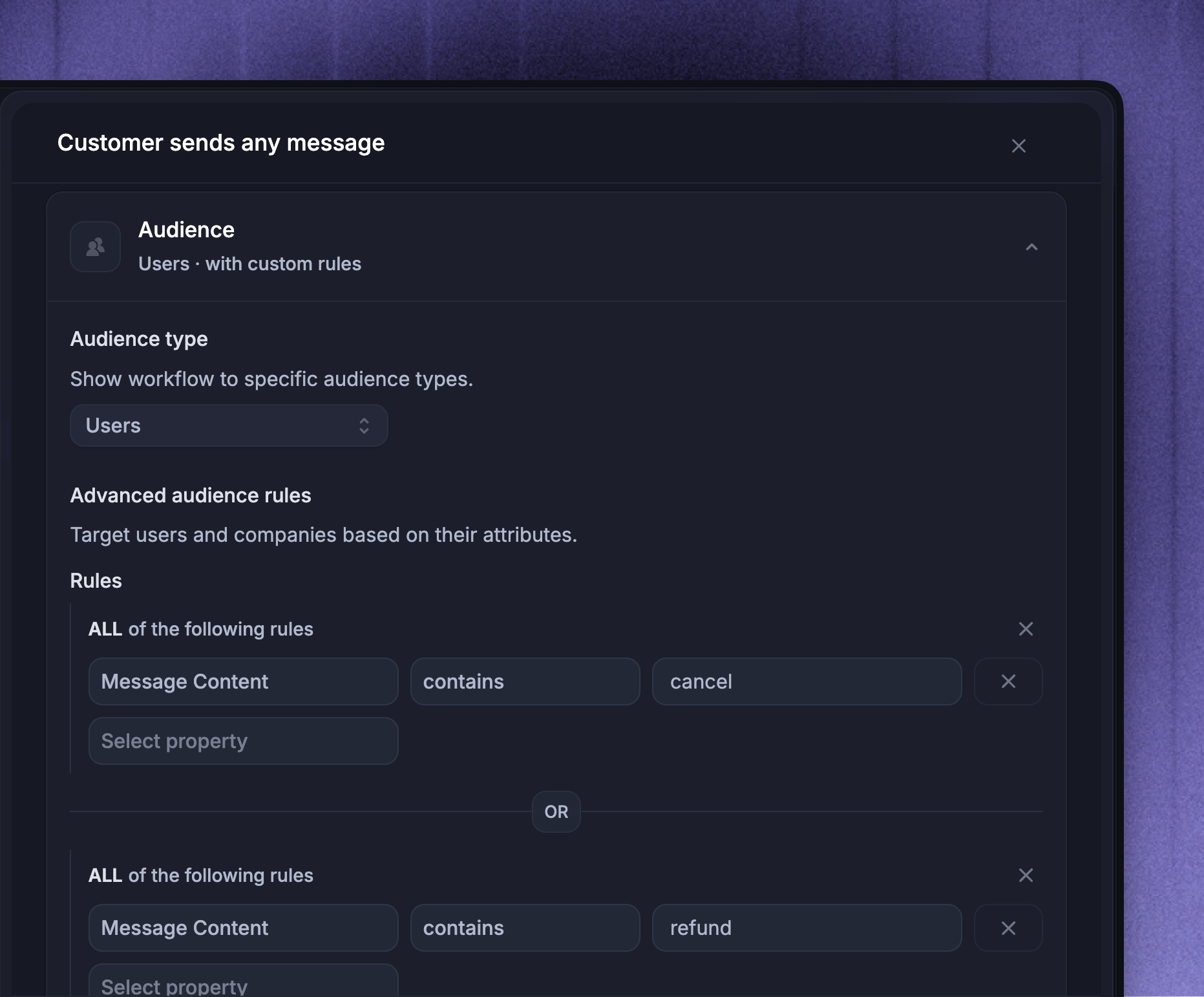
In the trigger settings, you can narrow when the Workflow runs. For example, only fire for users on the Enterprise plan with a monthly spend greater than 500:
Add workflow actions
Open the Workflow in the builder and click + Add step to add an action. Common background actions for inbox automations:
Tag conversation
Tag end user
Assign
Snooze
Wait
Mark as priority
Apply SLA
Add note
Close
Convert to ticket
Actions in a path run in order from top to bottom. You can also add Branches to route conversations down different paths, or Let Fibi answer to hand off to the AI agent.
Apply rules to an existing workflow
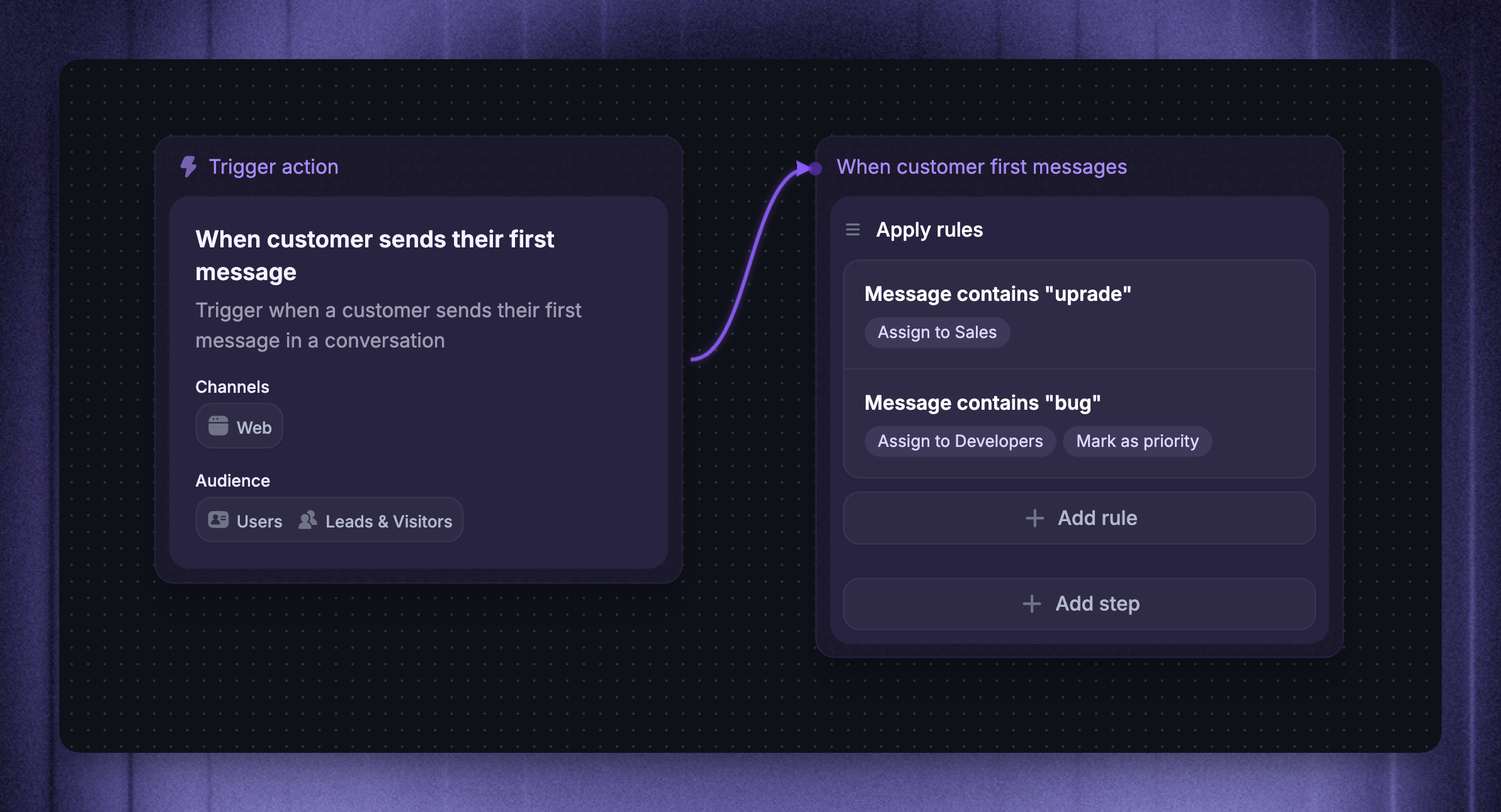
Instead of creating a separate Workflow for each condition, you can use the Apply rules action to evaluate conditions on a single path and run actions only for the cases that match.
The Apply rules action supports:
Assign to user/team
Tag person
Remove person tag
Tag conversation
Remove conversation tag
Set conversation attribute
Mark as priority
Apply SLA
Each rule has an IF condition and one or more THEN actions. The Workflow checks every rule in the block and runs the THEN actions for every rule whose condition matches – multiple rules can apply to the same conversation.
Use Branches instead if you want the Workflow to send a customer down a single path based on a condition. Branches follow only the first matching path; Apply rules runs all matching effects on the same path.
Example:
Workflow that routes new conversations to your Support team could include an Apply rules block:
If Plan is Pro → Apply SLA: Premium Support
If Message content contains "login" → Assign to Cross-Functional Support
How Workflow priorities work
When a conversation matches multiple Workflows, the Workflow type determines which runs:
Customer-facing Workflows - These contain actions a customer sees, like
MessageorReply buttons.Only one customer-facing Workflow runs per conversation
If multiple match, the first one in your Workflows list wins
Once one is running, no other customer-facing Workflow can take over
Drag and drop in the Workflows list to change which one takes precedence
Background Workflows - These contain only internal actions like
Assign,Tag,Mark as priority, orApply SLA.All matching background Workflows run in parallel on the same conversation
There's no guarantee which order their actions resolve in
This is intentional – it's common to run several tagging or routing Workflows side by side
A conversation can match one customer-facing Workflow and several background Workflows at the same time.
For consistent assignments, put the Assign action inside the customer-facing Workflow that owns the conversation – background assignments can race each other.
Examples
Use these as starting points for your own inbox automations.
SLA + assign for high-spend customers
Trigger: Customer opens a new conversation in Messenger
Audience: Plan is Enterprise, or monthly spend greater than 500
Actions: Apply SLA → Assign to your premium support team
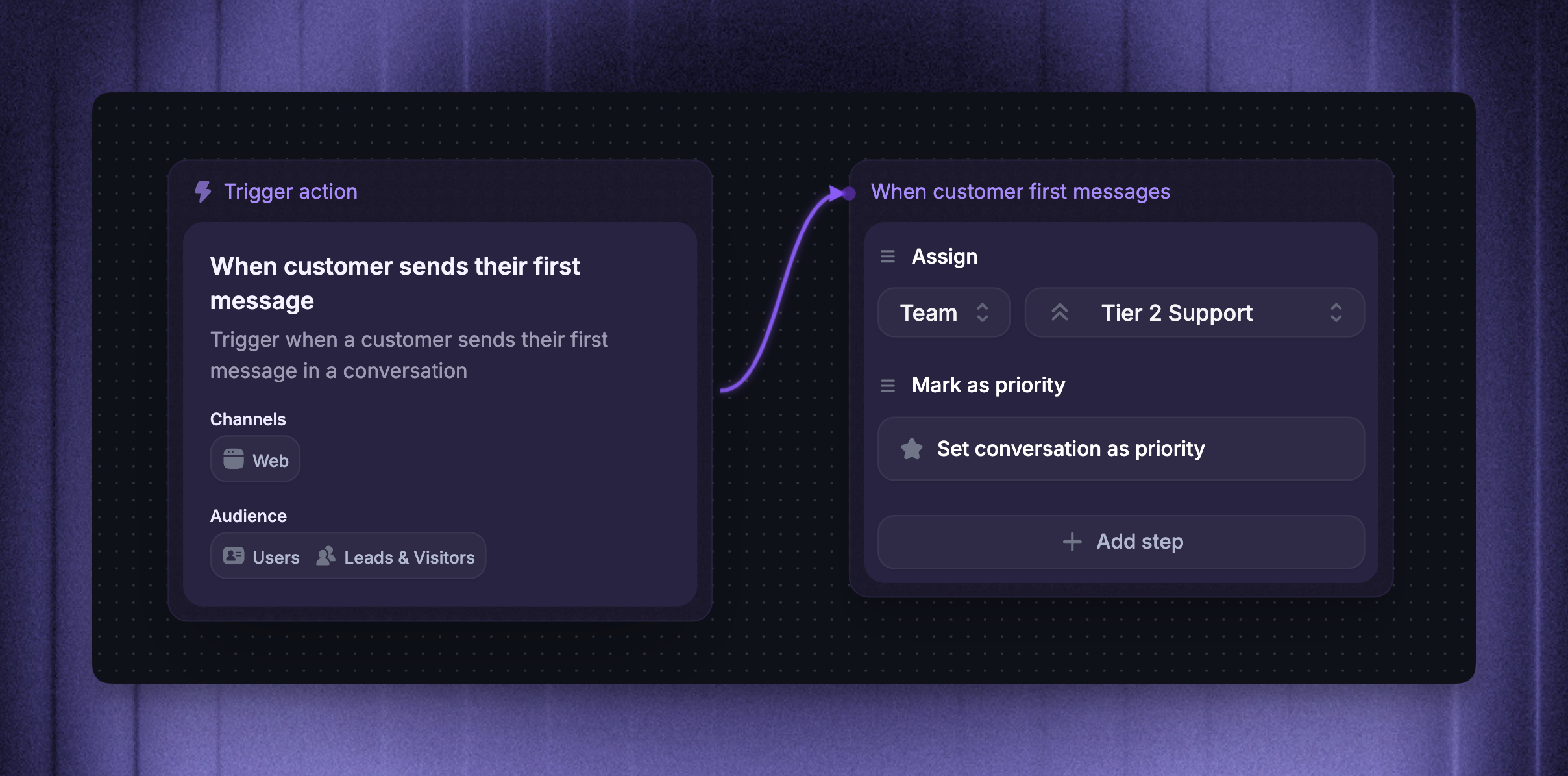
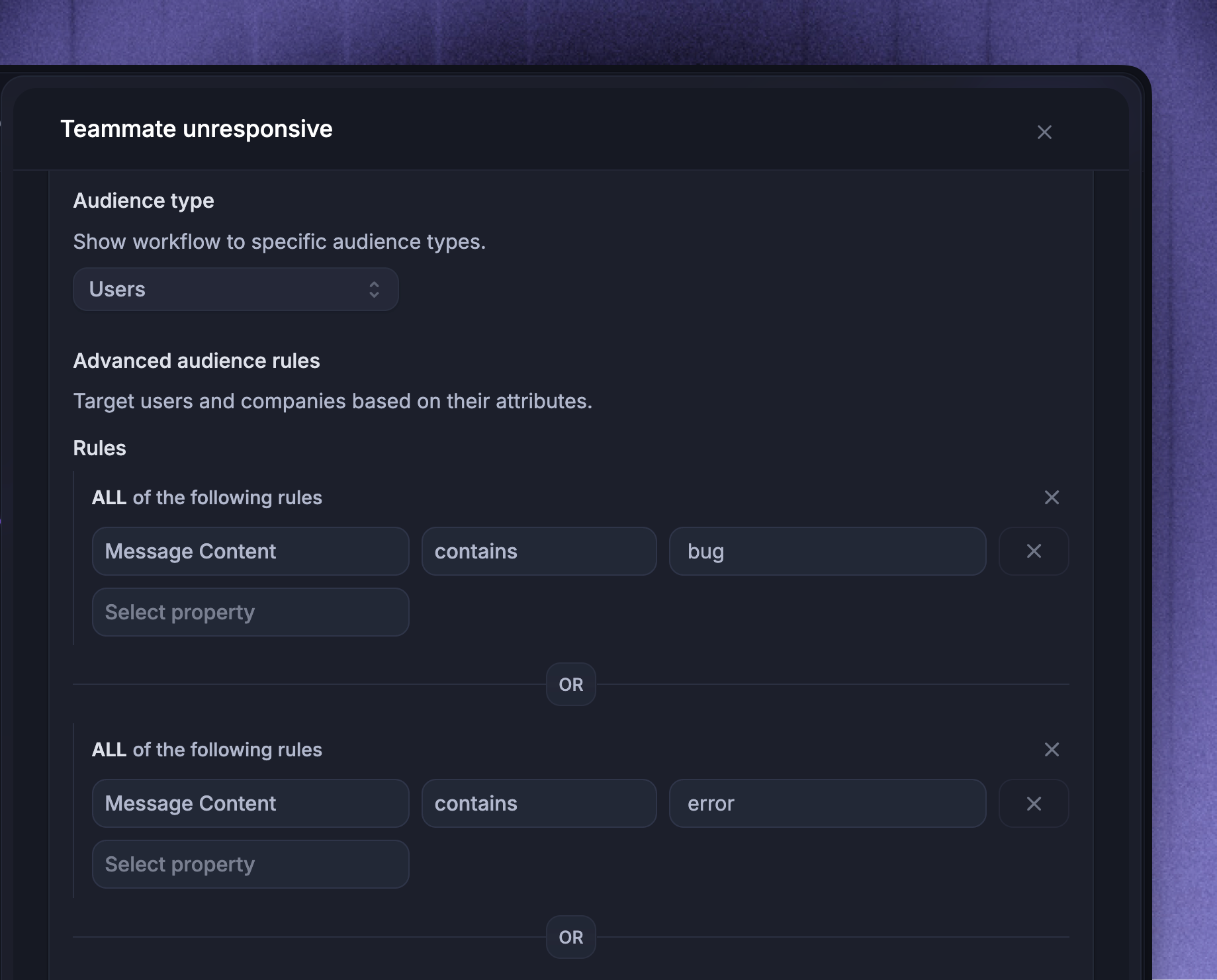
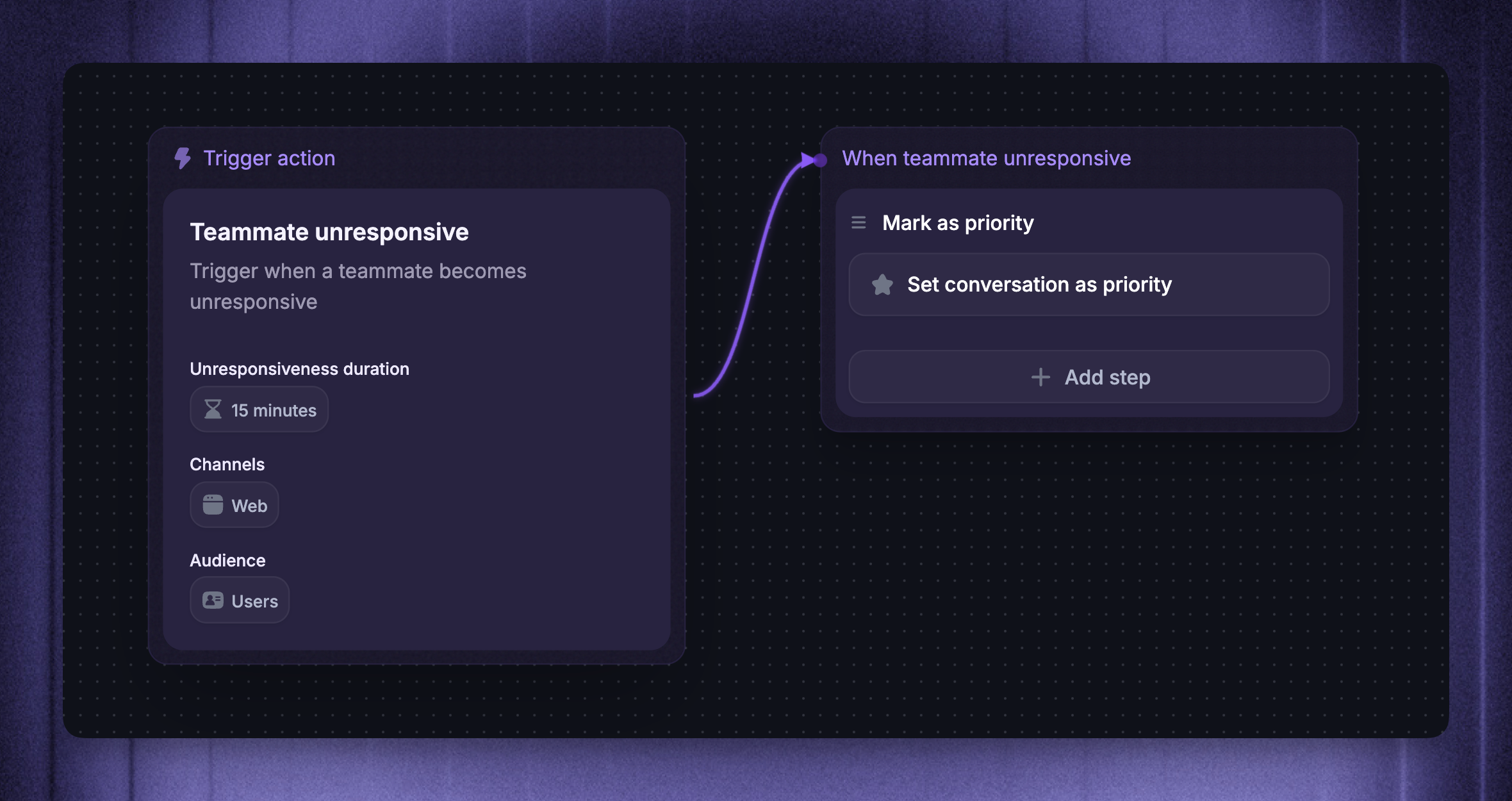
Prioritize unanswered bug reports
Trigger: Teammate has been unresponsive for 15 minutes
Apply rules: Message content contains "bug", "error", or "broken"
Action: Mark as priority
Route by customer language
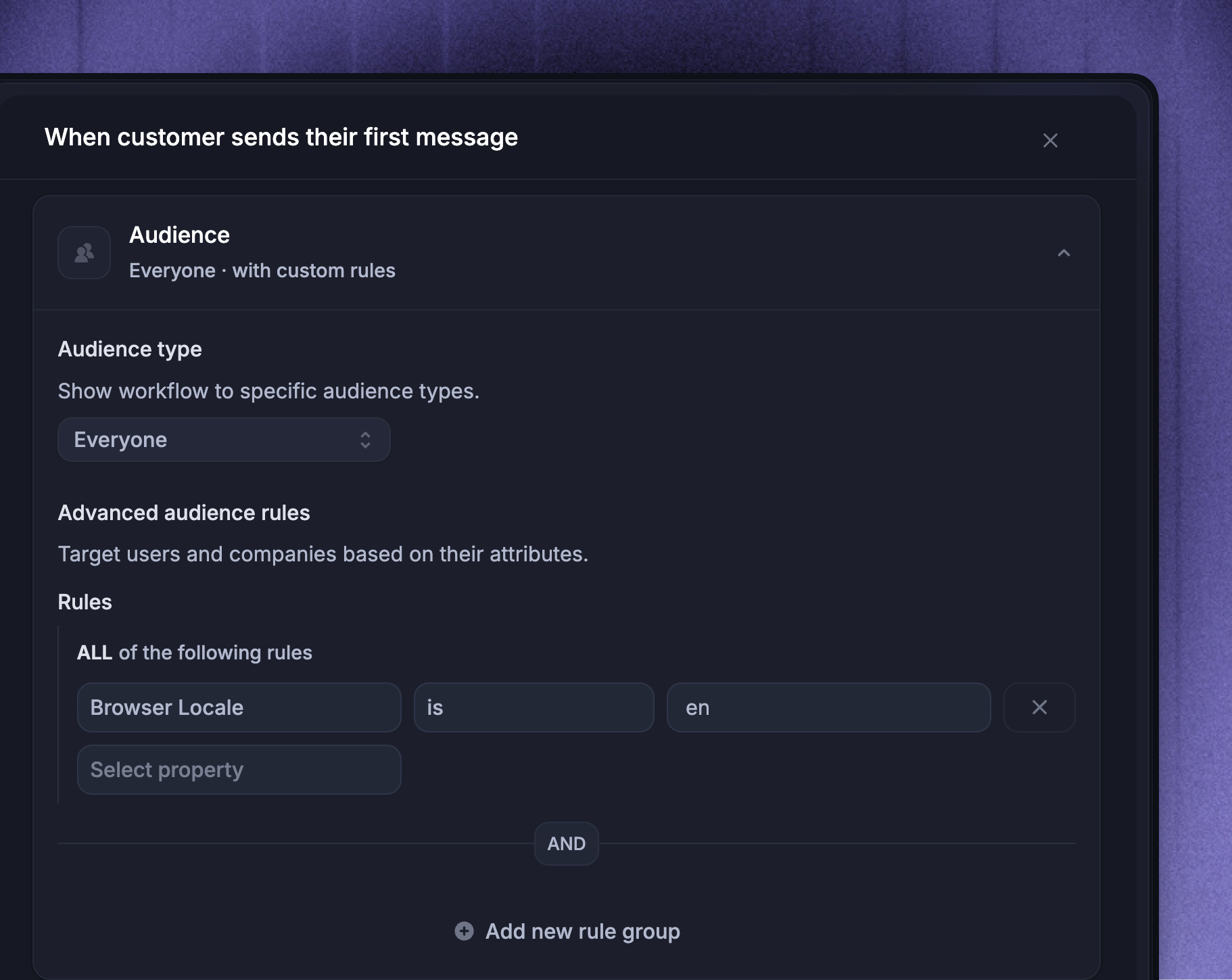
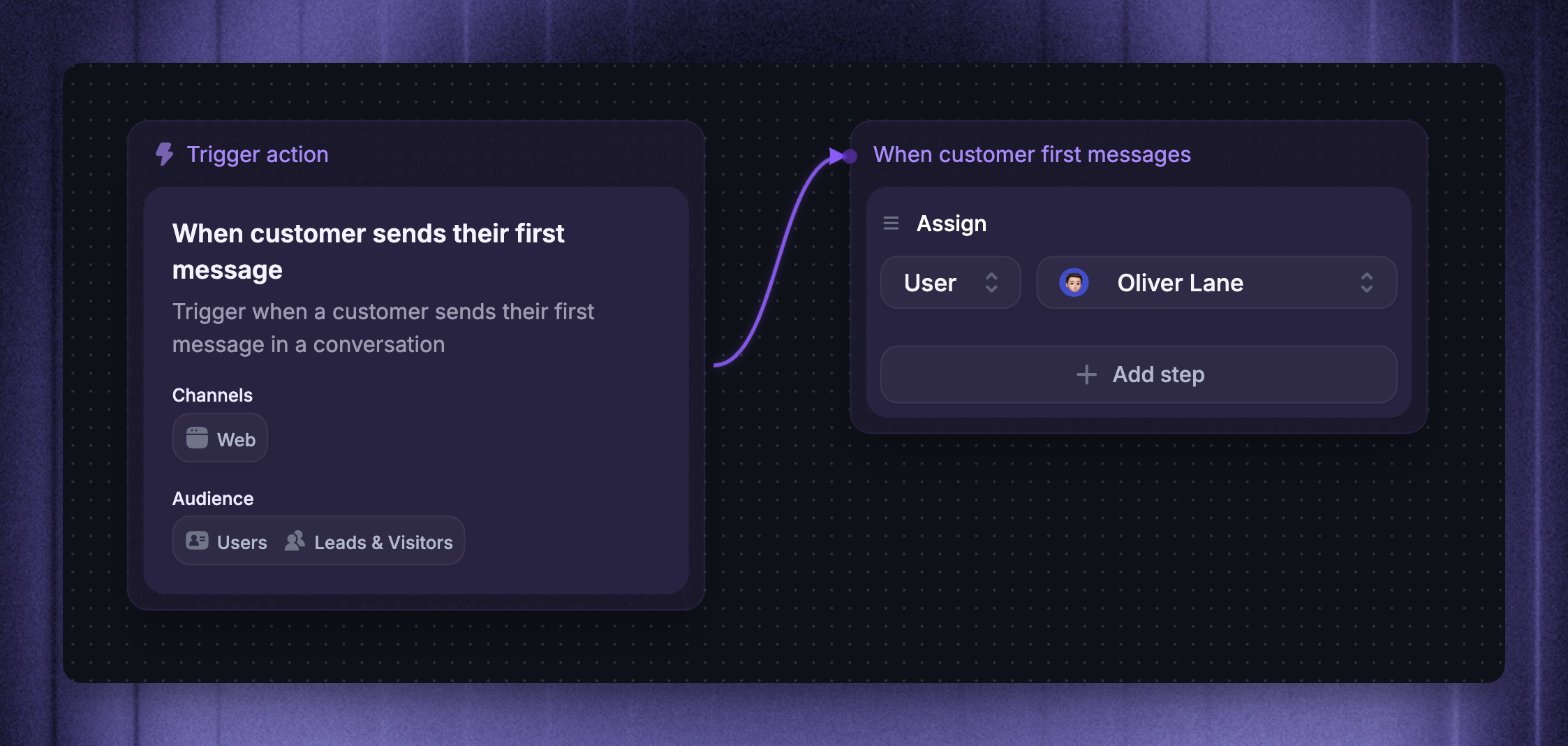
Trigger: Customer sends their first message
Audience rule: Browser locale is XYZ
Actions: Assign to a teammate/team who speaks that language → Tag conversation with the language
To only run this while your team is online, set the send time to During office hours in the trigger settings.
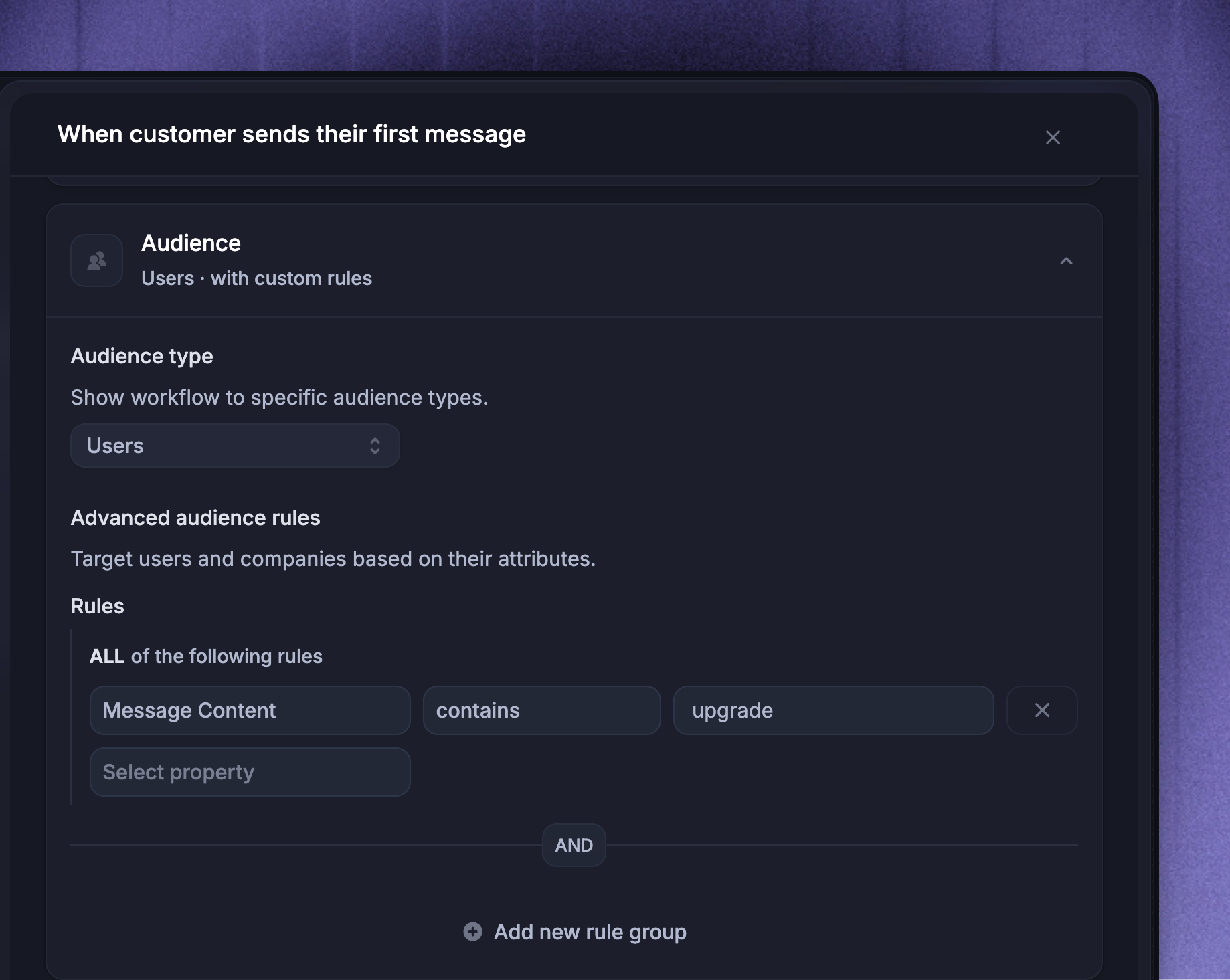
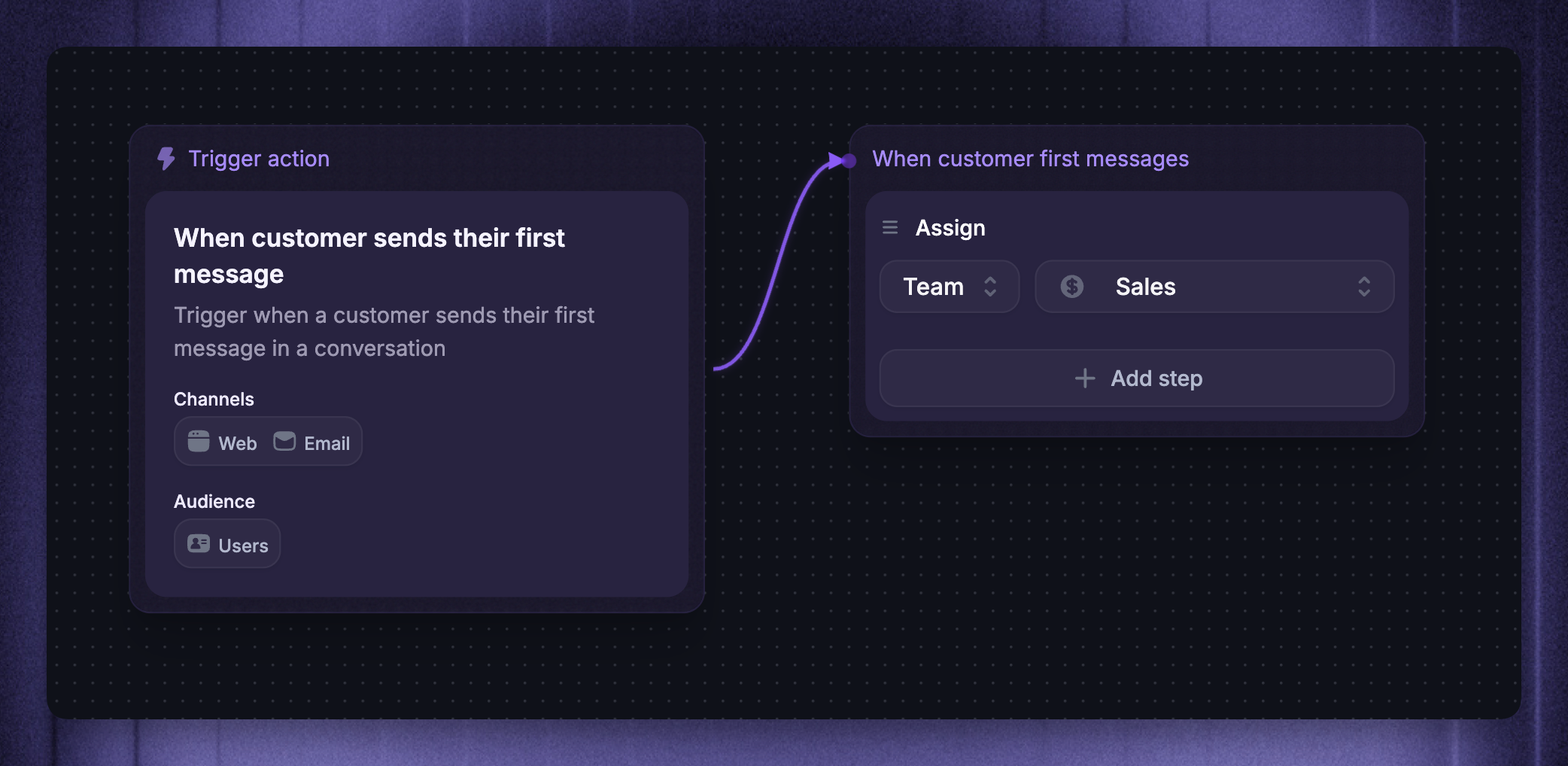
Assign by message keyword
Trigger: Customer sends any message
Audience rule: Message content contains "upgrade"
Actions: Assign to your Sales team
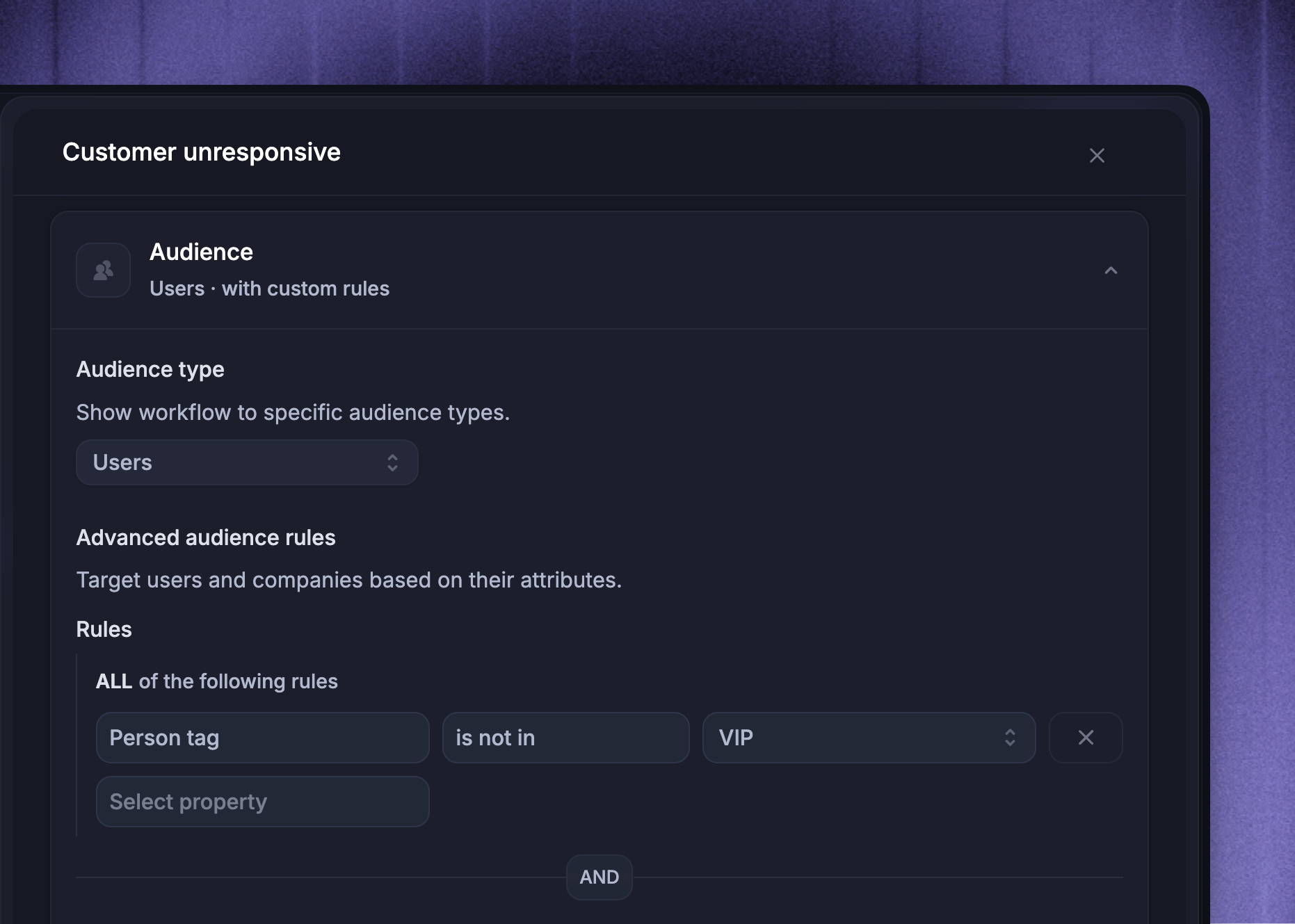
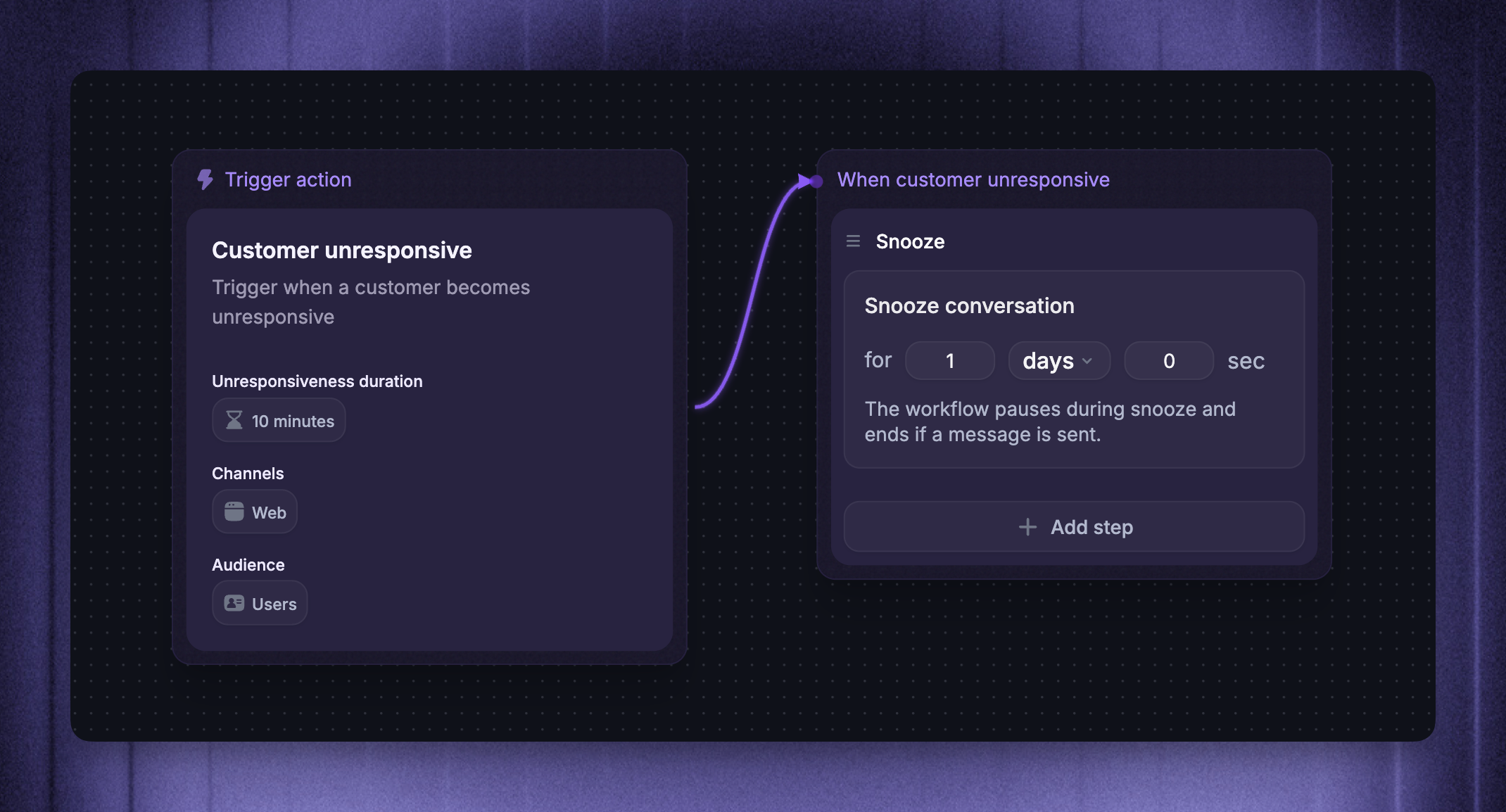
Snooze unresponsive customers
Trigger: Customer unresponsive (set the inactivity duration, e.g. 10min)
Audience rule: Customer is not a VIP (attribute or tag)
Actions: Snooze for 1 day
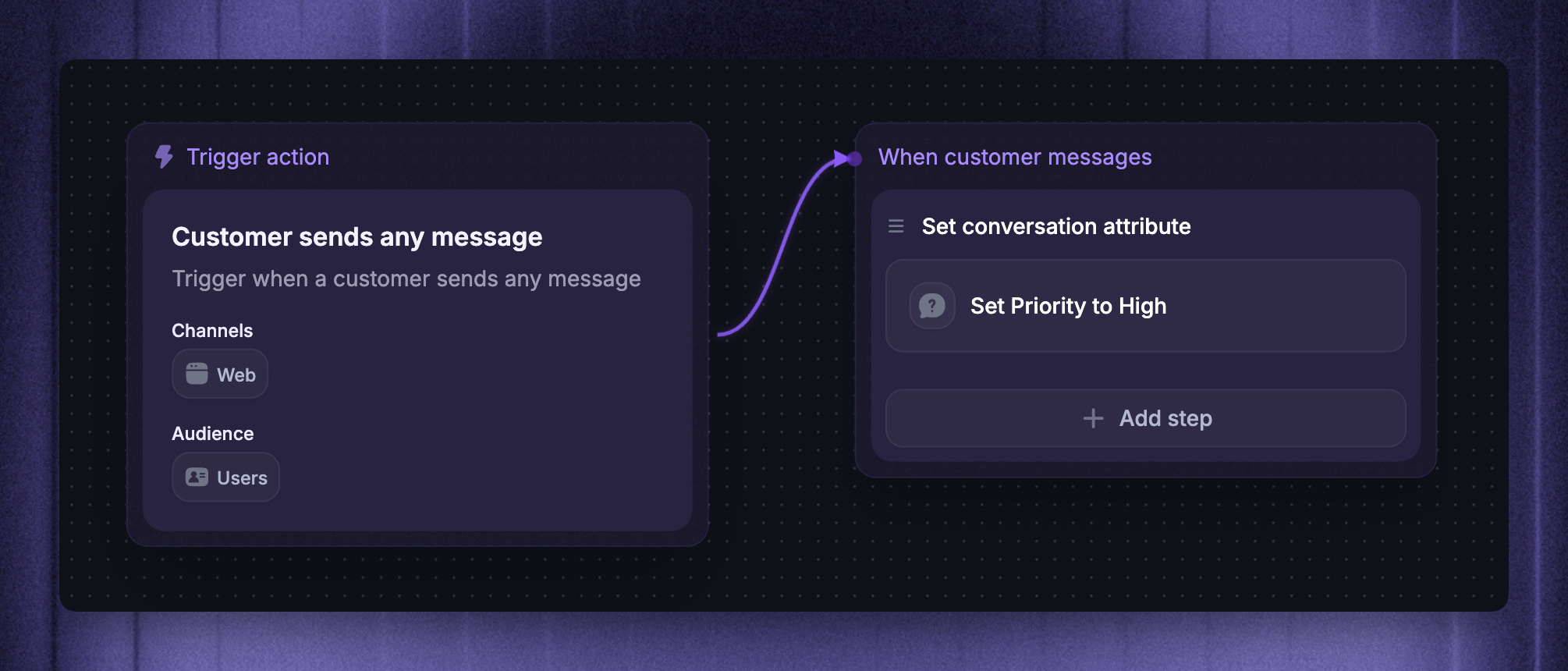
Set conversation data from keywords
Trigger: Customer sends any message
Audience rules: If Message content matches "urgent" or "blocked"
Actions: Set conversation attribute (e.g. urgency)
Route to live chat during office hours
Trigger: Customer opens a new conversation in Messenger
Audience rules: Conversation urgency is not Low (using CvDAs)
Send time: During office hours (set in trigger settings)
Actions: Assign to your live chat team
Was this helpful?
Still need help? Ask the team