Manage multiple brands in Featurebase
How to set up and manage multiple brands in Featurebase.
Written By Markus Palm
Last updated About 1 month ago
Overview
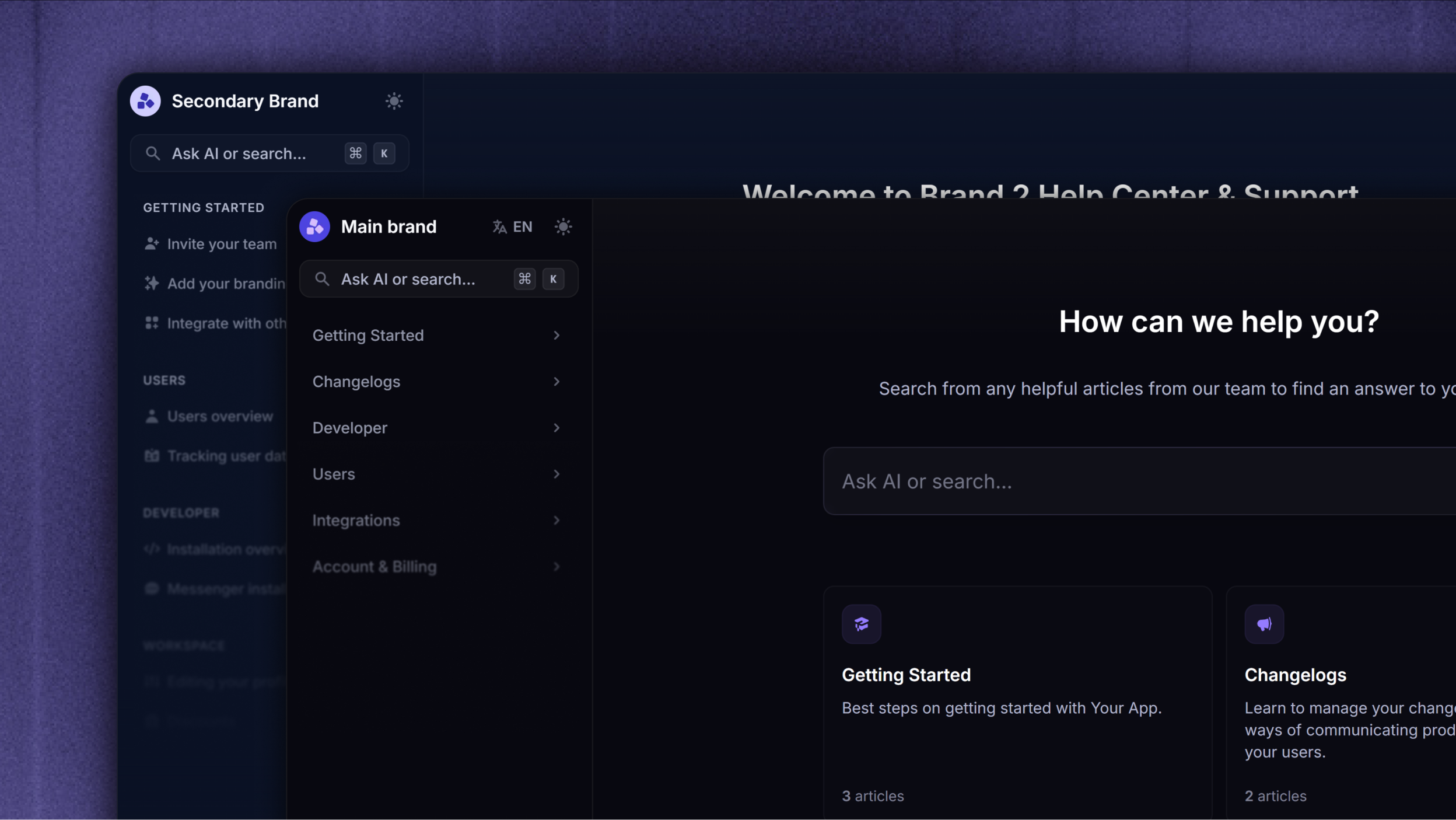
With multi-brand support, you can represent different products or companies while keeping operations centralized. Each brand can have its own styling, domains, Help Center, and email configuration.
Note: Multi-brand workspaces are available on the Enterprise plan.
How to manage multiple brands in Featurebase
There are two main ways to manage multiple brands:
1. Single workspace
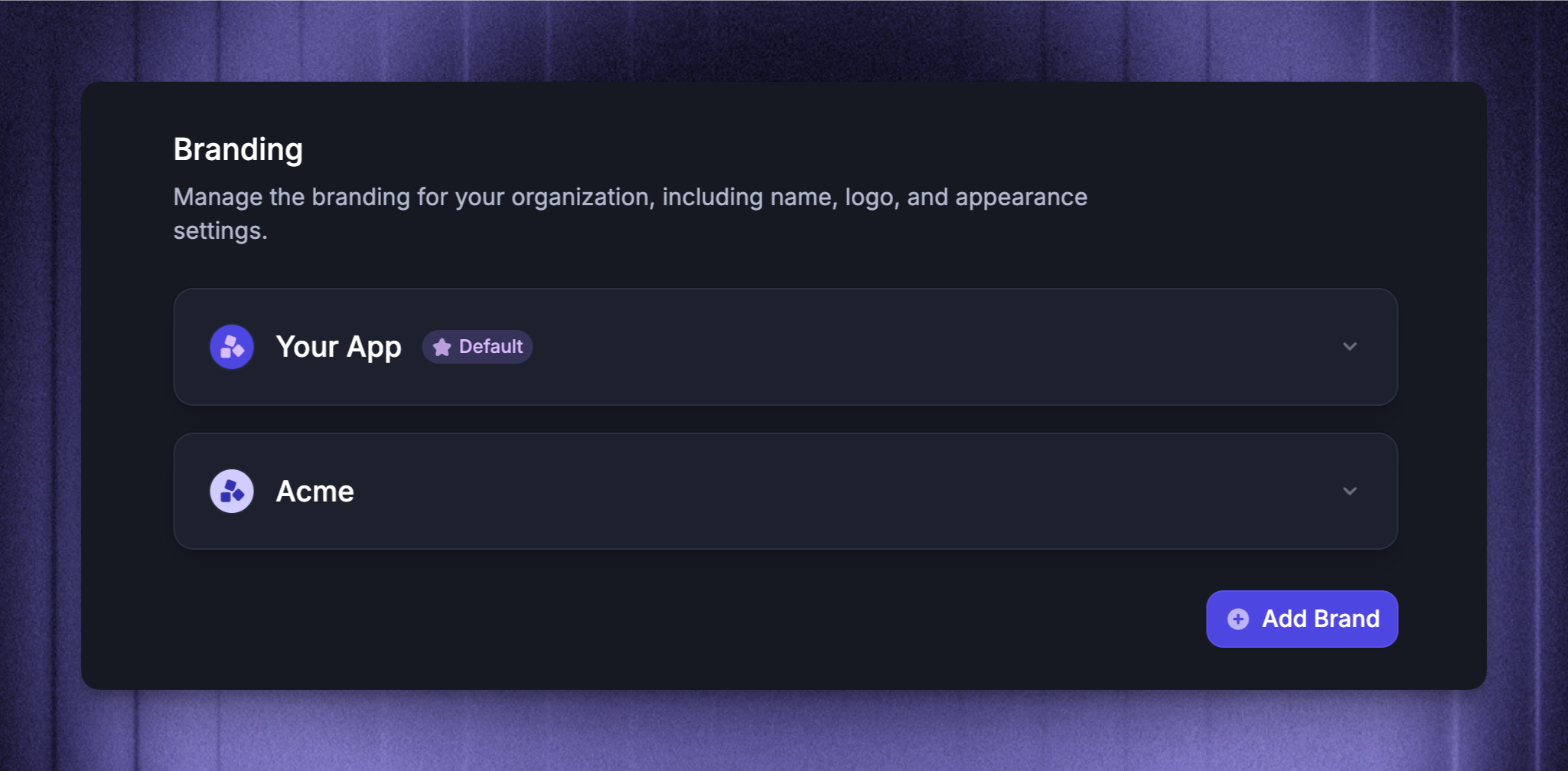
Using a single workspace is the most efficient approach for teams managing multiple brands. This setup is currently primarily supported for Featurebase’s support products (support inbox, live chat, help center).
You can customize per brand:
Help Center
Messenger widget styling
Email sender addresses and domains
Fibi AI Agent knowledge
Key benefits:
Centralized support across all brands
Easier collaboration between teams
Assign conversations / tickets to any teammate regardless of brand
Notes:
You currently can’t have a multi-brand setup in a single workspace for the Feedback portal, Roadmaps, Updates, and Surveys. For that, you’ll have to use multiple workspaces.
Each brand must have a unique name
Each domain can only be associated with one brand (each brand can have up to 50 domain rules)
2. Multiple workspaces
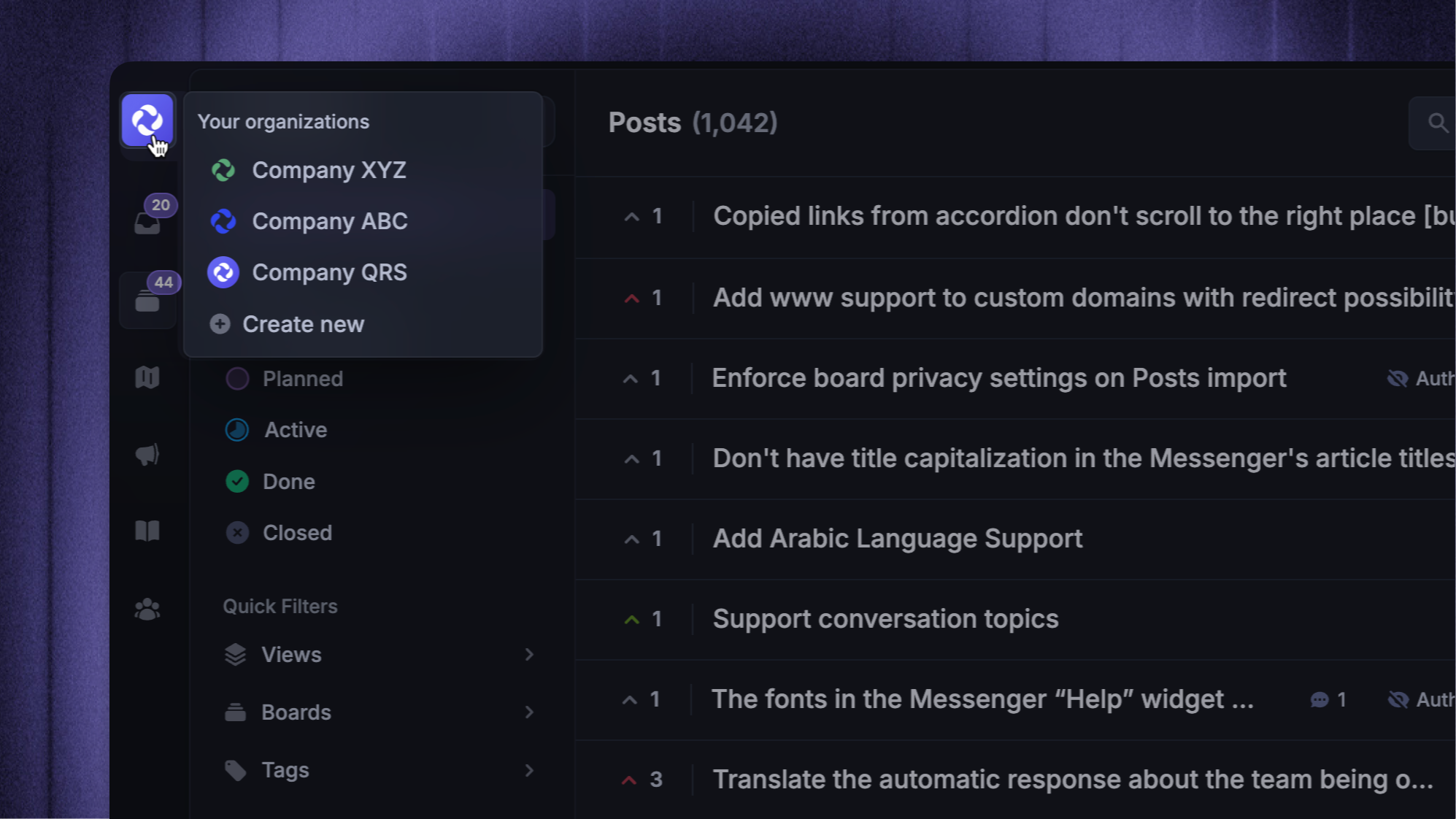
Use separate workspaces if you need full separation between brands / products, and their user bases don’t overlap at all.
Key benefits:
Full control over how a brand appears in Featurebase (separate customizations for Feedback portal, Updates, Surveys, etc., that don’t support multiple brands in a single workspace currently)
Separate support conversations, feedback items, users, permissions, and data
Ideal if different teams manage different brands
Learn more: Feedback setup with multiple products
Use multiple brands in a single workspace
In Featurebase, you can reflect multiple brands in the same workspace through the following capabilities:
Multi-brand Messenger
Set up brands in brand settings
Configure styles for each Messenger and connect them to your brands
Multi-brand email
Set up brands in brand settings
Configure email addresses and domains and connect them to your brands
Multi-brand Help Center
Set up brands in brand settings and connect them to each Help Center
Set up relevant brands in your workspace
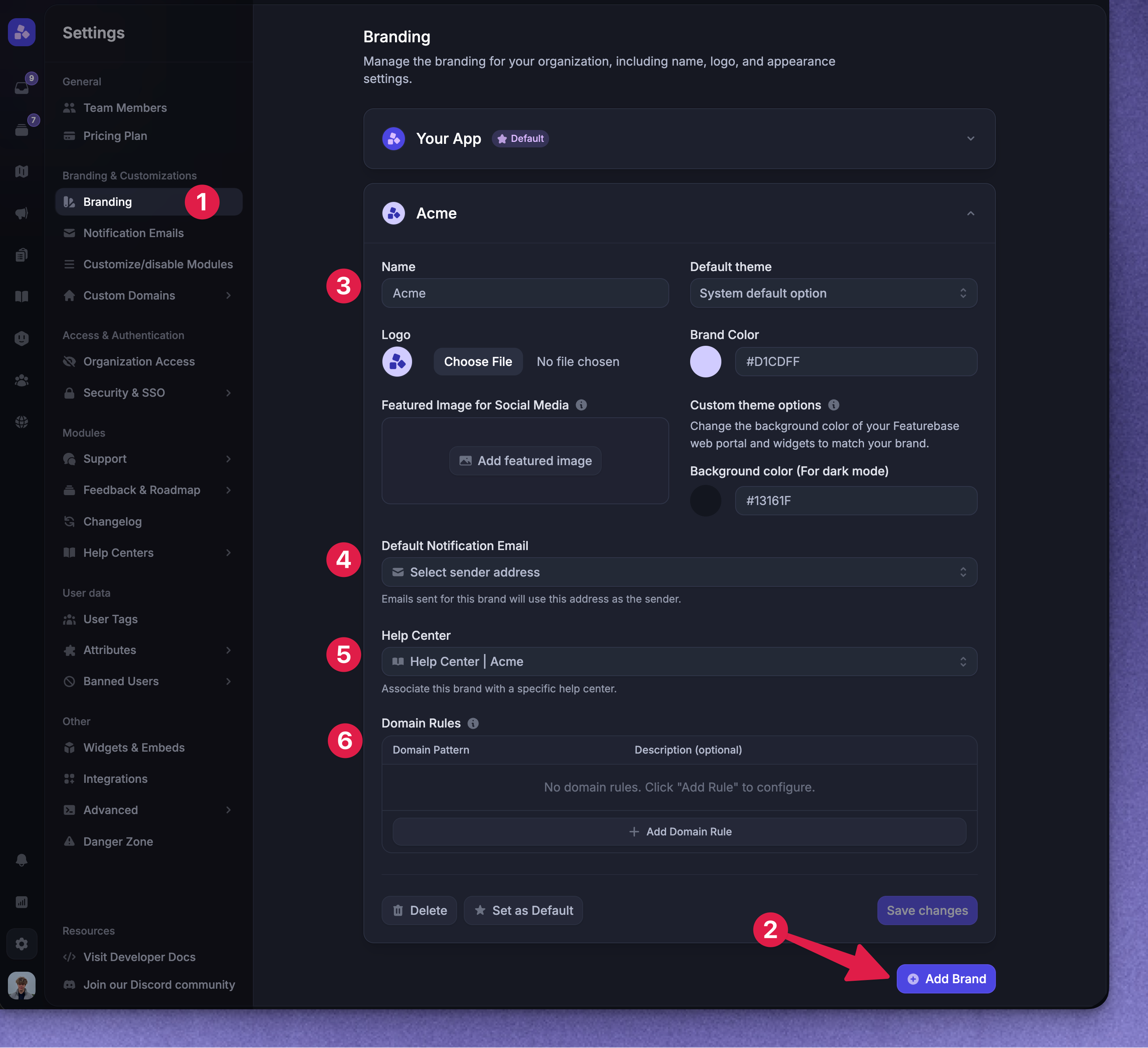
Your default brand uses your workspace name. You can create new brands to represent each unique customer-facing identity. The Brands you set up here are directly connected to multi-brand messenger, multi-brand email, and multiple help centers.
To create or edit a new brand:
Go to Settings → Branding
Click + Add Brand at the bottom of the brand list
Give this brand a name, logo, and colors that will be visible to customers
Select a default notification email address that this brand will use for notifications and automatic emails
Select the Help Center you want to connect this brand to, so the correct articles are visible to your customers in Messenger and used in conversations with the Fibi AI Agent
Configure domain rules by adding the website domains where this brand’s Messenger should appear, so visitors on those sites see the correct brand version
Click Save
Using brands in your workspace
Once you’ve set up multiple brands, you can manage how they apply to conversations, workflows, and more.
Brand support in the Inbox
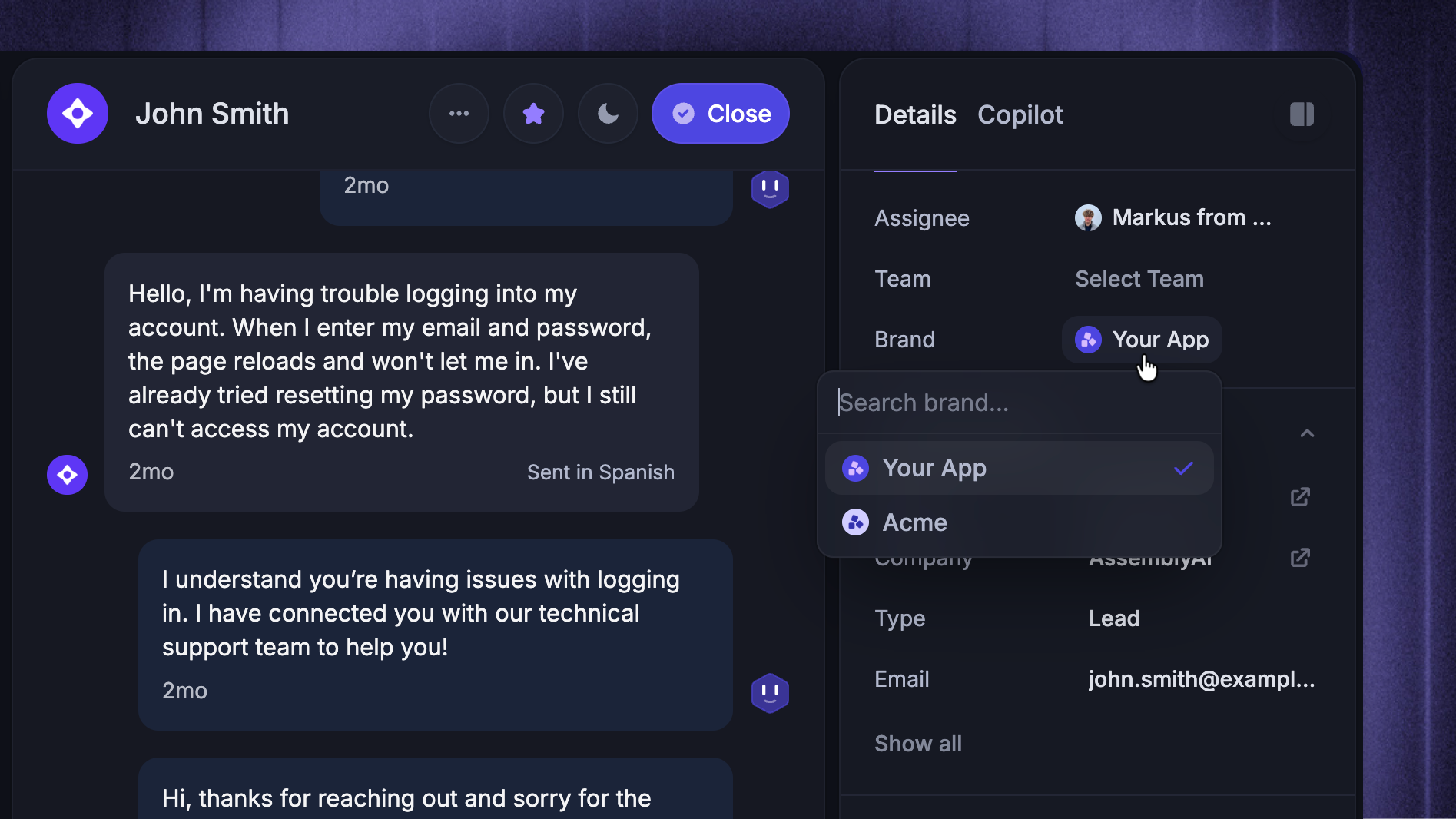
If the wrong brand is assigned to a conversation (e.g. if a customer contacted the wrong support email), you can change that in the right sidebar of the conversation in the Inbox.
For Messenger conversations:
The customer will still see the conversation in the original Messenger brand, but if the conversation falls back to email, replies will use the newly selected brand’s sender email and name
Reporting, search, and workflows will use the updated brand attribute
For email conversations:
Changing the brand updates the sender email for all future replies
The sender will use the default email address configured for that brand
Brand support in the Inbox search
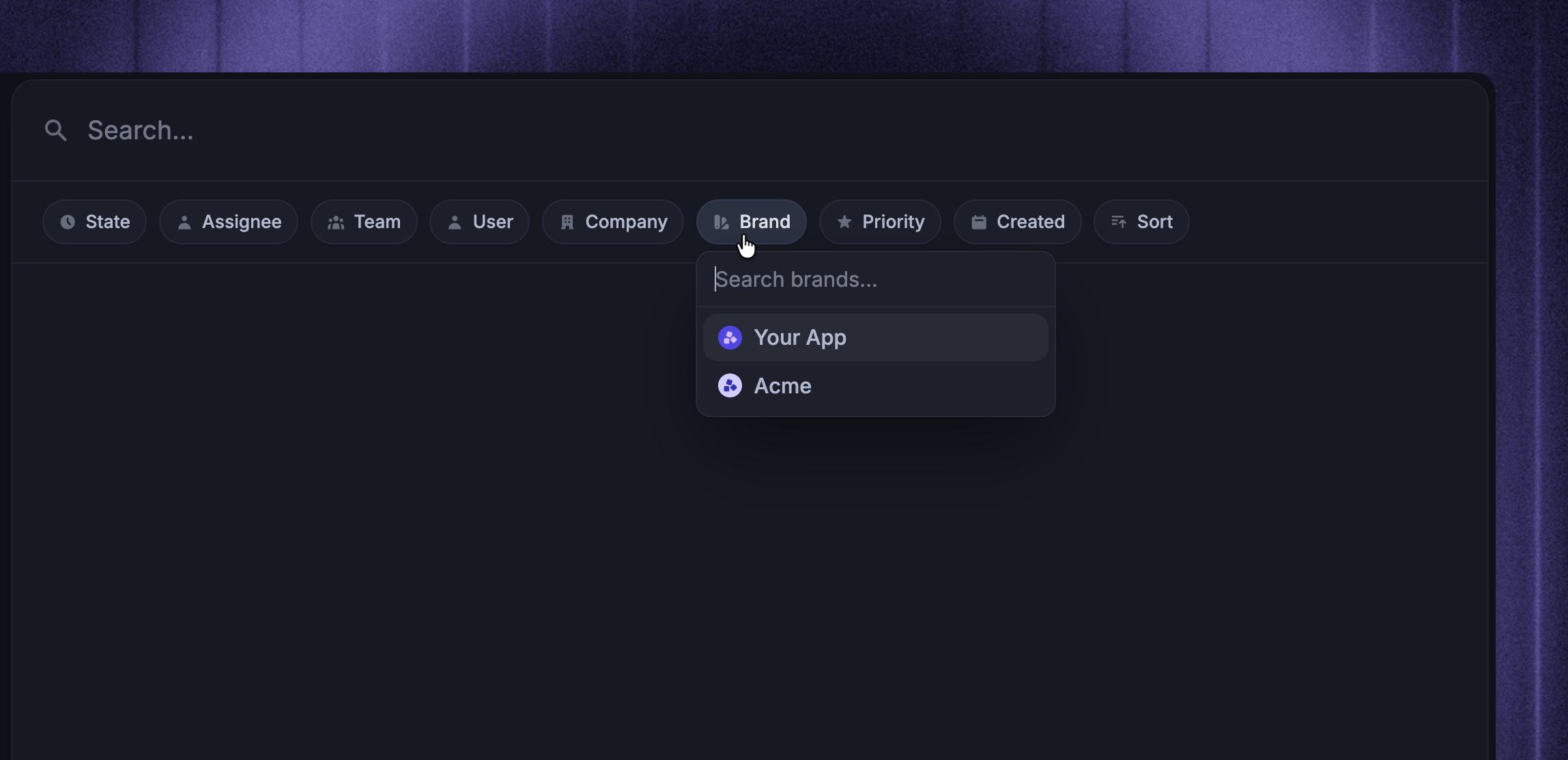
If you want to search for all Messenger and email conversations & tickets associated with a specific brand, you can do that by selecting the Brand filter in the Inbox search.
Brand support in the Workflows
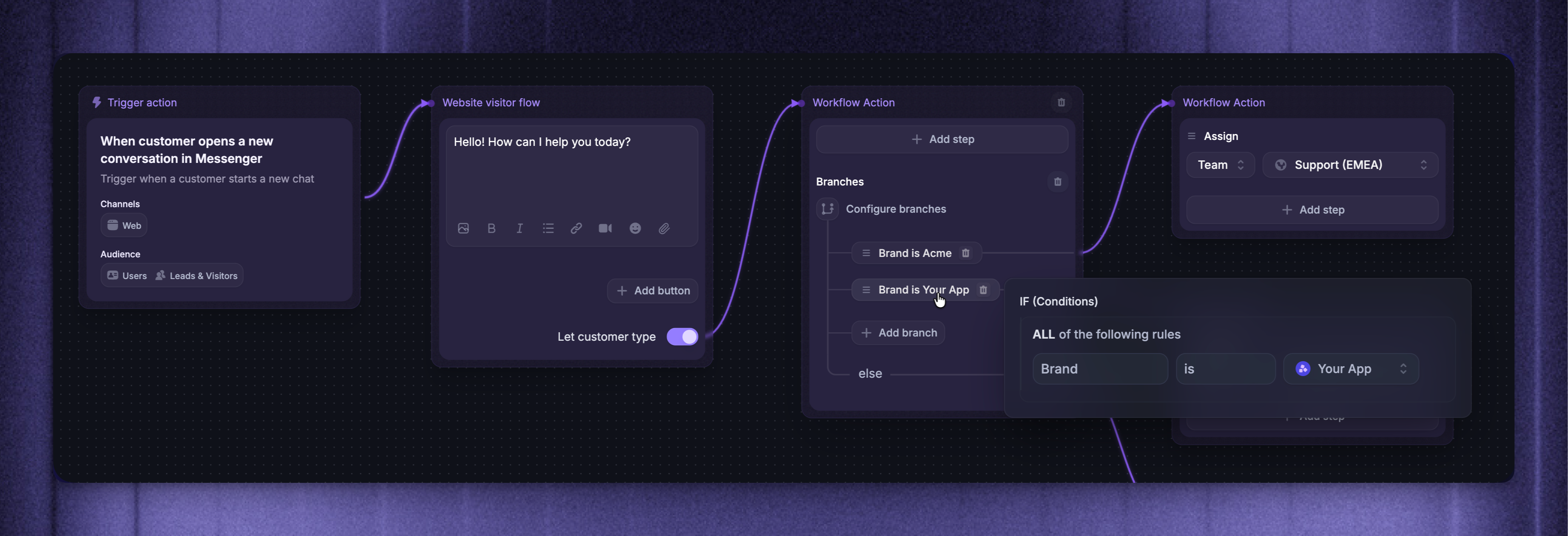
When creating or managing a Workflow, you can use Brand as a condition and to apply rules. See more about using conditions and actions in workflows.
You can use Brand as a condition in Workflows to apply rules based on the assigned brand. See more about using conditions and actions in workflows.
Important:
Brand is a conversation attribute and is only available after a conversation / ticket has been created
If you try to use Brand in workflows that trigger before a conversation starts (e.g.
When a customer visits a pageorWhen a customer opens a new Messenger conversation, the brand will not yet be defined, and the rule will not match.Instead, use
Current page URL contains [your brand domain]rule in the workflow after the conversation has started. This ensures the workflow targets users based on the website domain that maps to your brand.