Send Outbound messages on a recurring schedule
Send messages to your customers at regular intervals, like once a month, on their birthday, or the week before an important moment.
Written By Markus Palm
Last updated 16 days ago
Overview
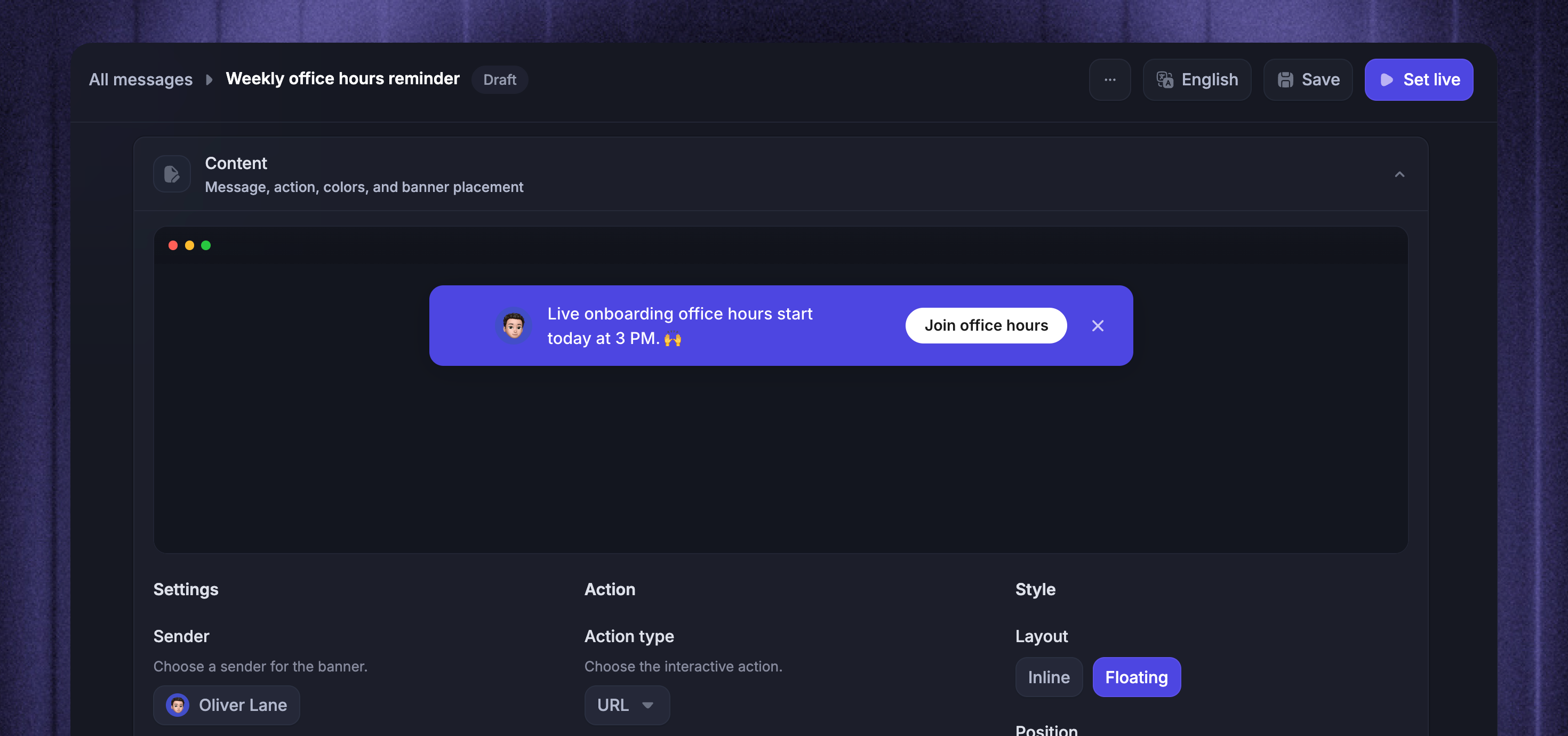
Use schedule-based messaging when you want to contact customers at regular moments, such as once a month, after signup, or after enough time has passed since they last received a message.
For Chat and Banner messages, there are 3 main ways to do this:
Date attribute - send based on a date stored on the person or company, such as a trial start date, signup date, or account creation date
Calendar - send on a fixed weekly, monthly, or yearly schedule
Relative time - send again based on how long it has been since the person last received the message
Start by opening your message from Dashboard → Outbound, then configure Rules and Frequency and scheduling.
Recurring delivery only works with dynamic Chat messages, so make sure to enable Dynamic audience. Banner messages are always dynamic.
Date attribute
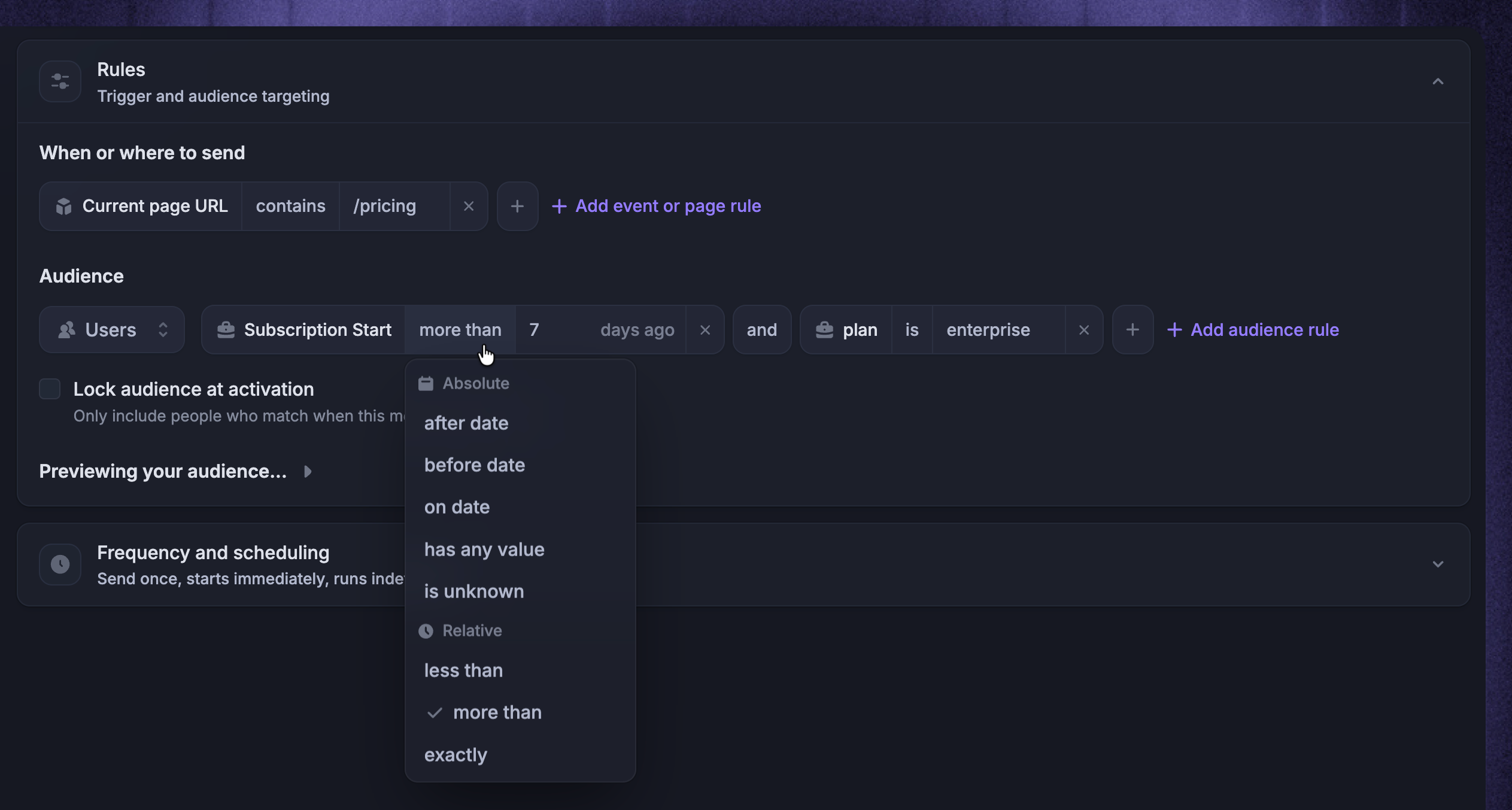
Use a date attribute when a message should depend on a date stored on the person or company, such as a trial start date, signup date, or account creation date.
In Rules, add an Advanced audience rule based on a date-type user or company attribute. Then choose the date condition that matches your use case, such as an absolute date rule or a relative date rule.
Use date attributes for messages like:
Trial follow-ups
Onboarding nudges based on signup date
Check-ins after a customer reaches a date-based milestone
After the rule is set, use Frequency and scheduling to decide what happens when someone matches:
Send once when the person matches the rules - sends a dynamic Chat one time per person
Send every time the person matches the rules until dismissed - lets the message send or show again when the person becomes eligible again
Banner messages do not support Send once. They can show again when someone matches the rules, subject to the Banner's schedule and dismissal behavior.
Calendar
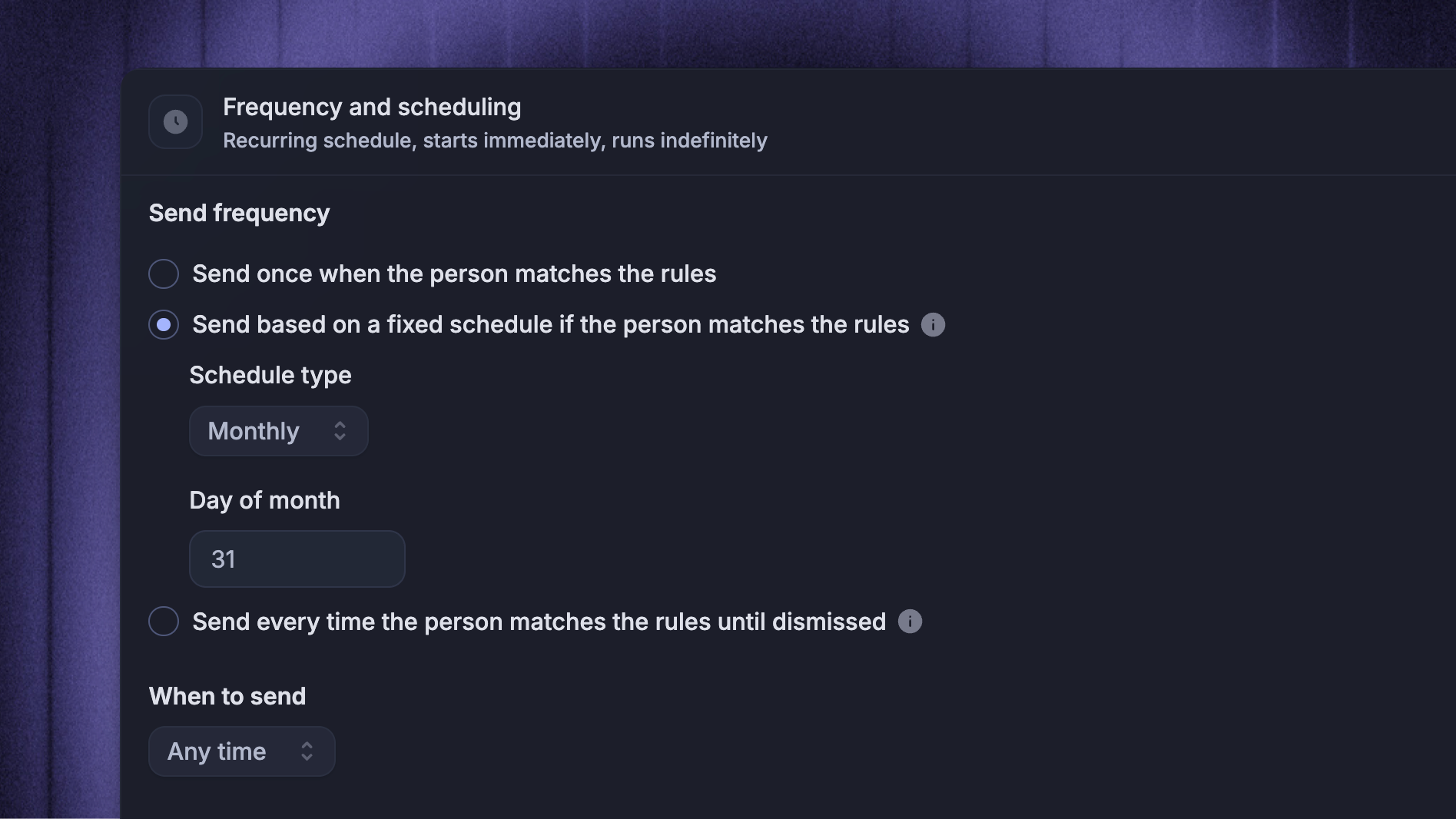
Use calendar-based scheduling when the message should run on a fixed weekly, monthly, or yearly cadence.
In Frequency and scheduling, choose “Send based on a fixed schedule if the person matches the rules”. Then choose the schedule:
Weekly - select one or more days of the week
Monthly - select a day of the month
Yearly - select a month and day
The message only sends or shows when both are true:
The current date matches the schedule
The person matches the message rules at that time
Use this for recurring campaigns that should happen on known dates, such as weekly onboarding prompts, monthly account reminders, or yearly renewal notices.
Note: For calendar-based scheduling, you don’t need to select any date attributes to trigger the message, but you can still define any rules that a person must meet to receive the message.
Relative time
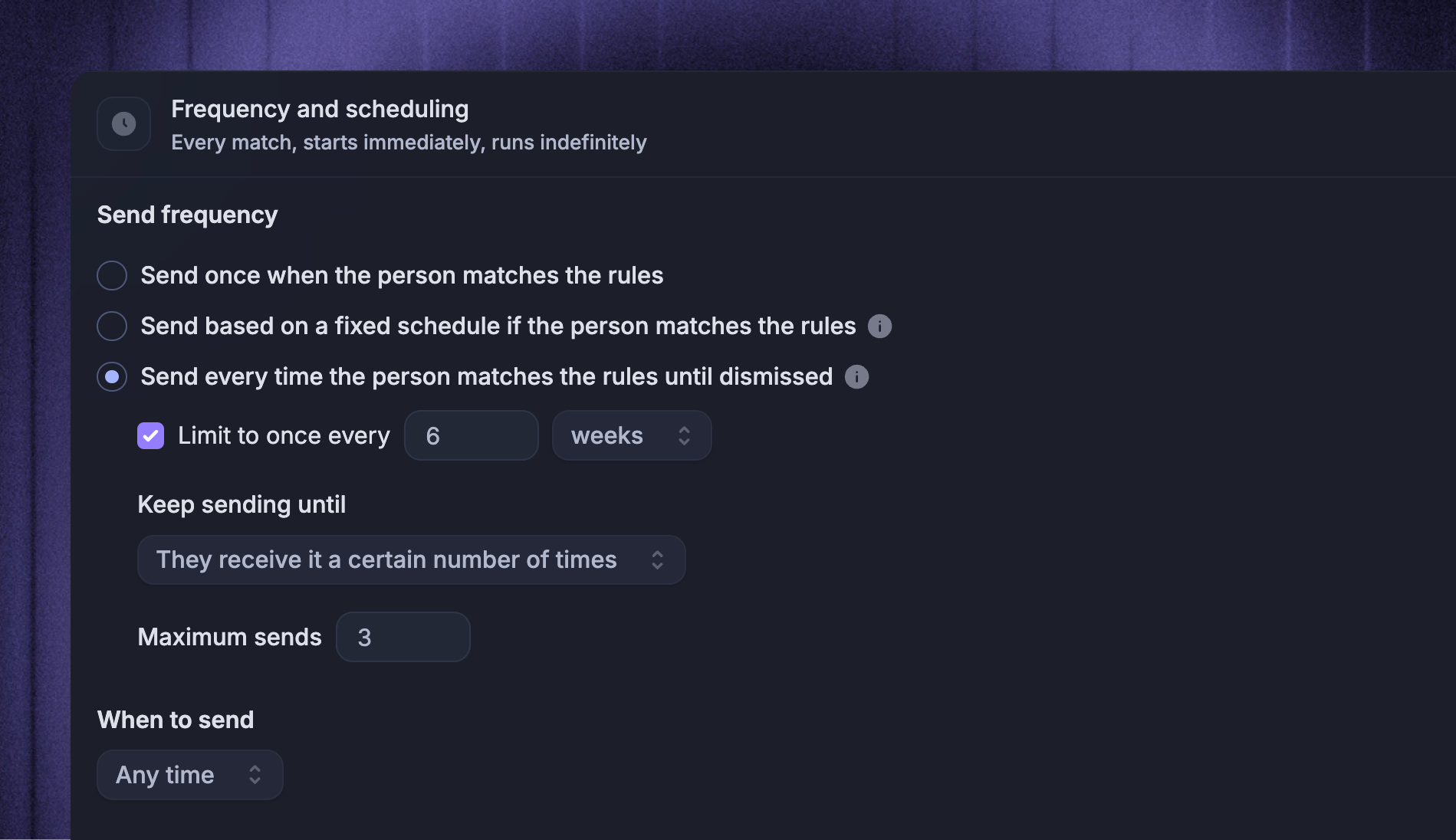
Relative scheduling lets you set how often a user should receive a message, relative to the last time they received it.
In Rules, add any audience or page rules the person must match. Then, in Frequency and scheduling, choose Send every time the person matches the rules until dismissed.
For Chat, you can limit repeat sends so the same person does not receive the message too often:
Turn on Limit to once every X days/weeks
Choose the interval and unit: days, weeks, or months
Use Keep sending until to stop after the message is stopped or after the person receives it a certain number of times
For Banner, repeat delivery is based on audience eligibility, trigger rules, scheduling, and dismissal behavior. Banners do not expose match limits or maximum send limits.
FAQs
Can I make a fixed Chat recurring?
Can I make a fixed Chat recurring?
No. Fixed Chat messages are one-off messages. Featurebase locks the audience when the message is activated, so people who match later are not added.
Use a dynamic Chat if you want the message to keep reaching people as they match your rules.
Can I send a Banner only once?
Can I send a Banner only once?
No. Banner messages are dynamic only and do not support Send once.
To limit how long a Banner appears, use audience rules, trigger rules, dismissal behavior, and a custom stop date.
What happens if nobody matches on a scheduled date?
What happens if nobody matches on a scheduled date?
The message does not send or show to anyone who does not match your rules at that time.
For a fixed schedule, Featurebase checks again on the next matching schedule date. For every-match delivery, Featurebase checks again when someone becomes eligible through your rules and timing settings.
Which timezone does the schedule use?
Which timezone does the schedule use?
Outbound schedules use your workspace timezone. This applies to custom start dates, custom stop dates, fixed schedules, and custom send windows.
Was this helpful?
Still need help? Ask the team