Inbox FAQs
Questions & answers about using Featurebase's support inbox.
Written By Markus Palm
Last updated 5 days ago
General
Does Featurebase have keyboard shortcuts?
Yes, Featurebase’s Inbox has several keyboard shortcuts that let you perform common actions without using your mouse. It currently isn't possible to disable or customise the shortcuts.
Press ? while focus is outside the reply or note composer to open the Keyboard shortcuts panel. Alternatively, press ⌘ + K on Mac or Ctrl + K on Windows and select Keyboard shortcuts.
What's the difference between My inbox, Unassigned, and team inboxes?
The sidebar groups conversations by who's responsible for them. My inbox holds conversations assigned to you, Unassigned holds open conversations with no teammate assigned, and each team inbox holds conversations assigned to a team you belong to. A conversation can be assigned to a team, to an individual teammate, or both.
You can also save your own filters as custom views and pin them to the sidebar.
Why did a conversation disappear when I changed its status?
Every conversation is either Open, Snoozed, or Closed, and each inbox or view shows one status at a time. Changing a conversation's status moves it out of your current list and into the matching one.
For example, snoozing a conversation while you're viewing open conversations moves it from the open list into Snoozed. Switch status to find it again.
Can I action multiple conversations at once?
Yes. In the desktop Inbox, you can select several conversations and action them together in both the list and table layouts. Select conversations using their checkboxes, then press ⌘ K to open the bulk action menu. You can assign, reply or add an internal note, add tags, snooze, close or reopen, set or remove priority, and mark email Conversations as spam.
Note that Select all selects the conversations currently loaded in the list, not every conversation that matches your filters.
Can I reply to internal notes by email?
Yes. When you’re @mentioned in a note – or a note is added to a conversation – you get an email notification you can reply to directly. Your reply is added as another internal note and is never sent to the customer, as long as you write above the Write above to add a note line in the email.
How do I block Inbox spam?
To remove an unwanted email Conversation without blocking its sender, mark the Conversation as spam. Marking it as spam closes only that Conversation, so future messages from the sender can still reach your Inbox.
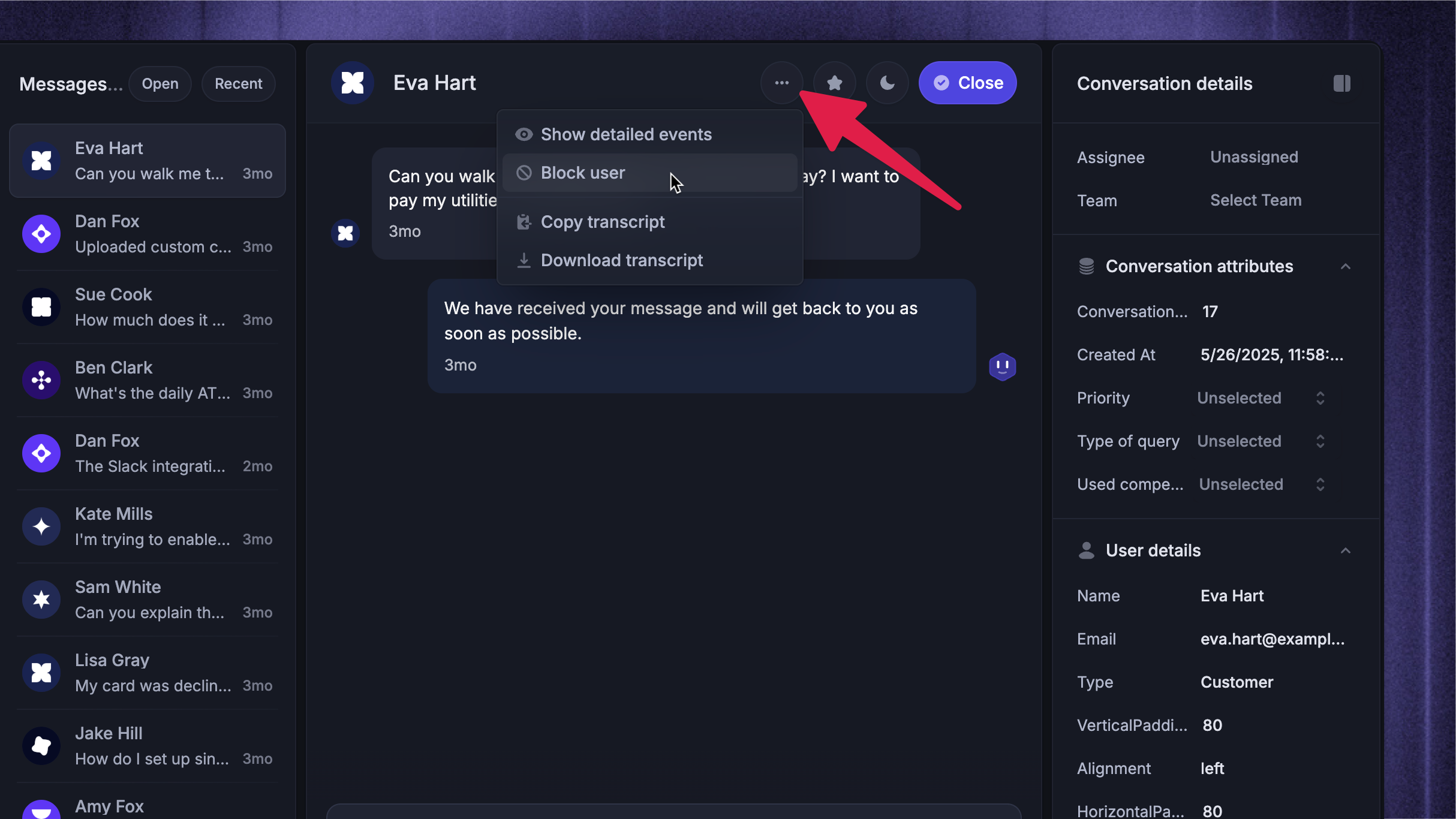
To prevent a person from starting or replying to Conversations, block the user who sent the message:
Open the conversation with the user
Click the
・・・three dots from the top right corner of the conversationChoose ‘Block user’
All of the information stored about that user, including their messages, will be archived from Featurebase. The user can only be restored manually by you and any new messages from that email address will be rejected. The user will also be prevented from creating a new user account in the future.
How to unblock a user
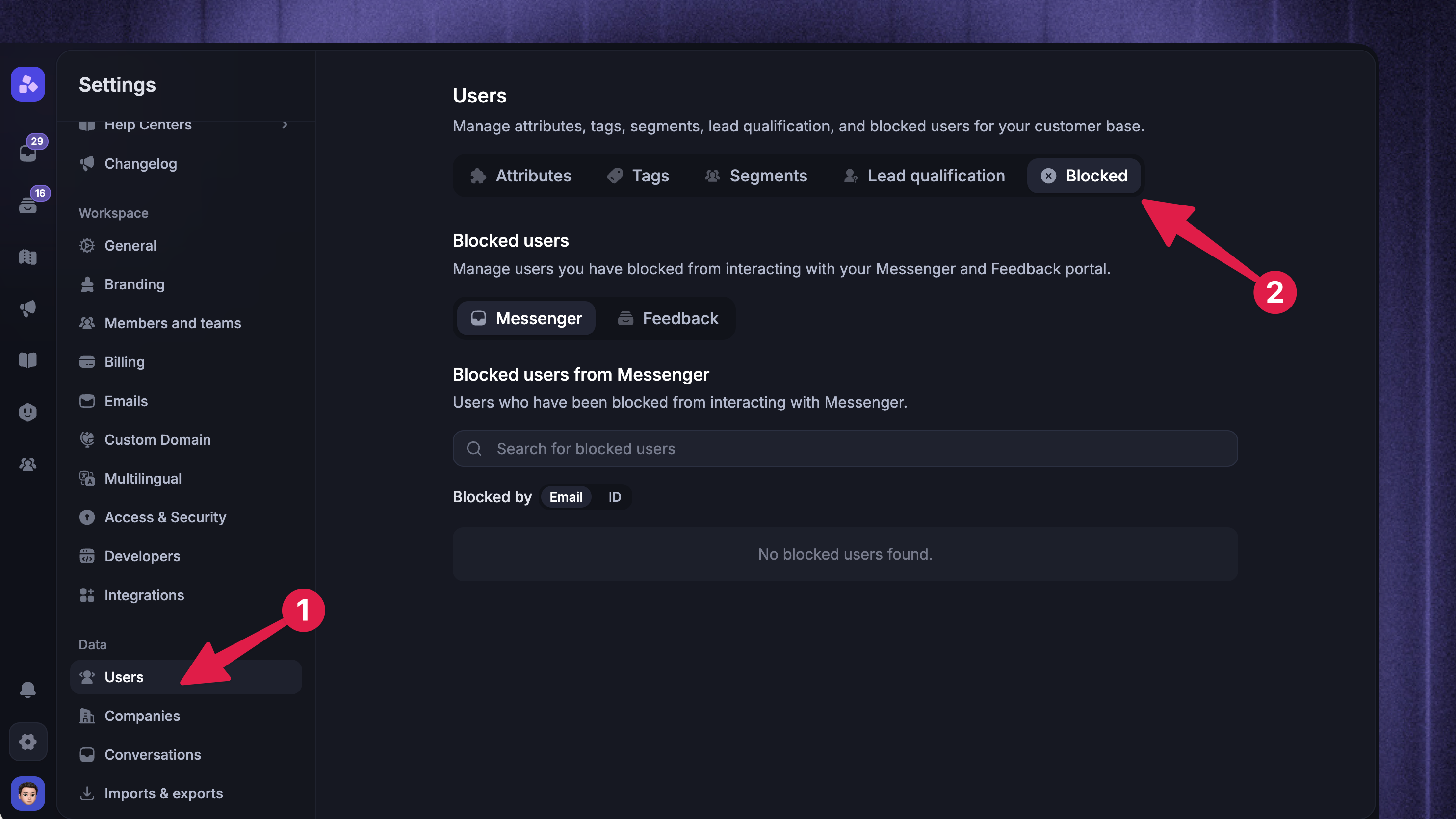
If, however, you block a user by accident, you can easily unblock them from Settings → Users → Blocked.
You’ll see a list of your blocked users. You can click the ‘Unban’ button next to the profile you would like to reactivate. Your user's information will now be restored.
After you unblock the user, they'll immediately return to the Users module.
Why did a reply fail to deliver?
When an email reply can't be delivered, it's marked “Failed to send” in the conversation, along with the error returned by the recipient's email provider. Click the “Failed to send” label on the reply to try sending it again.
These failures almost always come from the recipient's side rather than from Featurebase – for example:
The address no longer exists
The mailbox is full
The recipient's provider rejected the message
You can try again later, or reach the customer through another email address or channel.
After repeated permanent failures, an address may be suppressed so Featurebase stops sending to it, which protects your sending reputation. You can't manage this list yourself – if you think an address is being suppressed incorrectly, contact us at support@featurebase.app once the underlying issue is fixed.
What AI features can I use in the Inbox?
Three AI features help you work through conversations faster:
Copilot – an AI assistant in the right sidebar that can draft a response in your tone using your knowledge base, summarise the conversation, and research relevant context.
AI replies – generate a draft reply from your knowledge base directly in the composer.
AI translation – translates incoming customer messages into your language and your replies into theirs.
What does 'Copy as prompt' in the Inbox do?
Copy as prompt copies messages, internal notes, Conversation details, and available customer and company details to your clipboard. Images are kept in the copied content; files and videos are included as links.
Open the Conversation in the Inbox, click the three-dot menu at the top right, and select 'Copy as prompt'.
Finding information
How can I locate an email I sent to a customer through the Featurebase Inbox?
If you sent the email from the Inbox, you can access it from the user's profile in Featurebase.
If you are unable to find it there, you can also try searching for the user’s name or email address using the search function in the Inbox.
How do I find a past conversation?
Press ⌘/Ctrl P to search. Search matches keywords in conversation content, and you can narrow results with filters for status, assignee, team, customer, company, brand, conversation attributes, priority, tags, and date range.
How do I see which company a conversation belongs to?
Open the conversation and expand the Company information section in the right sidebar. From there you can view the company's details and open its full profile.
How can I see when a message was sent?
Hover over the time shown next to any message to see the full date and time it was sent or received.
Was this helpful?
Still need help? Ask the team