Deploy Fibi AI Agent over email
Provide your customers with instant email resolutions using Fibi AI Agent.
Written By Markus Palm
Last updated 5 days ago
Overview
Fibi AI Agent can handle customer queries over email – resolving detailed questions, filtering out spam and phishing attempts, and handing over to a teammate when needed. The seamless AI-to-teammate handover ensures that only complex issues reach your support team.
Fibi AI Agent can only be deployed over email through Workflows. This gives you the needed control over complex routing, branching logic, and integration with existing automation flows.
Review your email settings for Fibi
Before using Fibi over email, check your setup in Settings → Support channels → Email:
Sending address - Confirm that your Featurebase or custom sending address is ready
Email-sending approval - Your Workspace must be approved before Fibi can email customers
Automatic email forwarding is set up and verified - Ensures your support emails are received into your Featurebase Inbox
For multi-brand setups - Configure each brand’s Help Centers and email addresses. Fibi references Help Centers based on the brand assigned to a conversation. Connecting email addresses to brands ensures conversations are assigned the correct brand, so Fibi knows which Help Center to reference.
Train Fibi to handle email conversations
1. Train Fibi on content
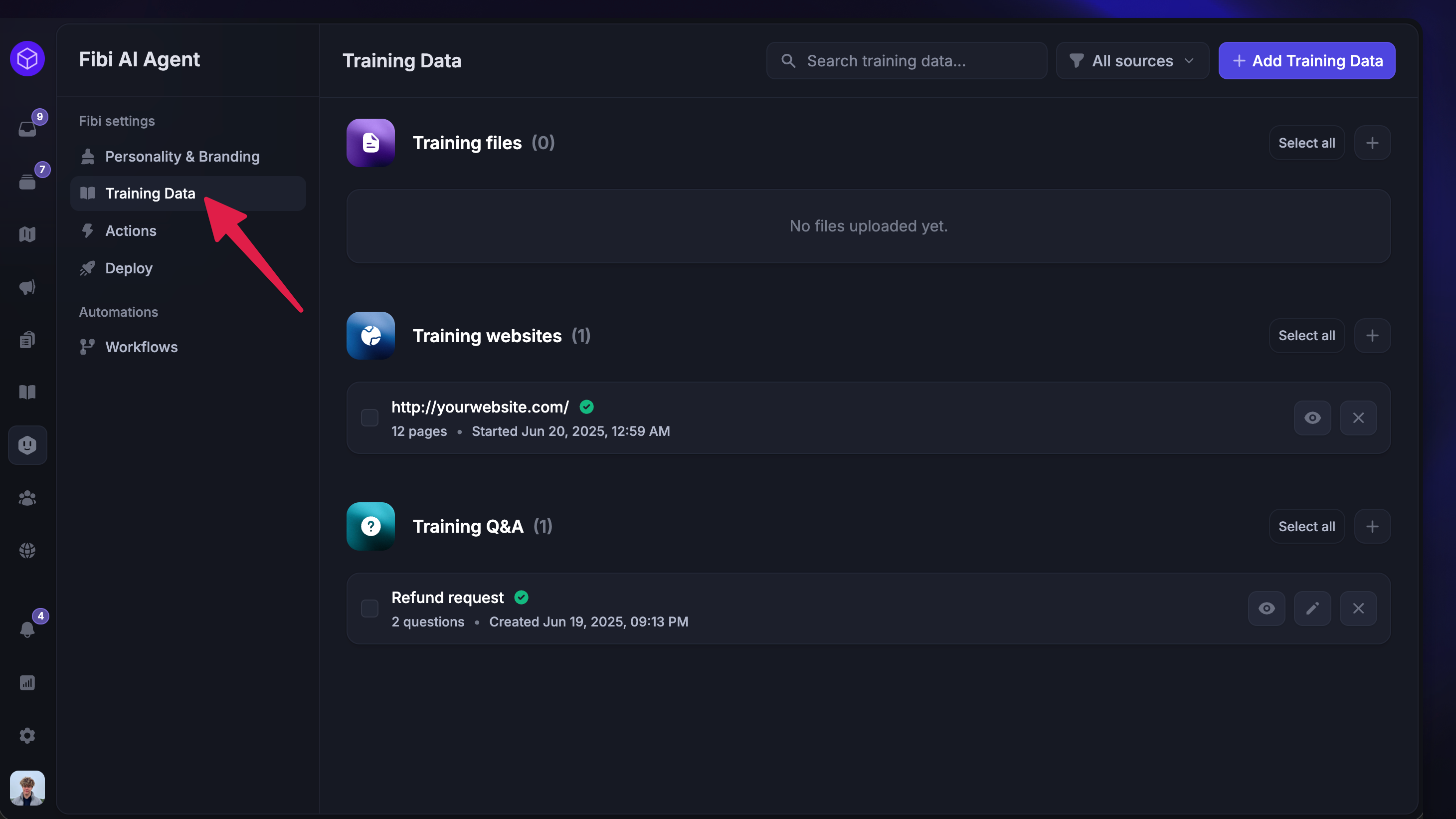
Beyond your Featurebase’s Help Center, Fibi AI Agent can be trained on Custom sources, including internal files, website content, or custom Q&A snippets, to help Fibi better assist your customers.
This can be configured from Automations → Training Data.
Notes:
Even if an email has no content in its body, Fibi can still read and respond to the email's subject line
For forwarded emails, Fibi generally does not read forwarded content. A workaround is to copy and paste the forwarded content directly into the email body
2. Custom instructions

You can add custom instructions to train Fibi how to speak in your brand's voice, follow your policies, and handle conversations the way you want using simple, natural-language instructions.
You can set clear rules for what Fibi should say and do – from using the right terminology to handing sensitive topics over to your support team.
This can be configured from Automations → Branding & Personality.
3. Custom actions (optional)

You can also make Fibi handle completely custom workflows (e.g. extending trials or offering discounts) with external APIs to save time on your support loads.
These often involve actions in your external systems that need to follow your specific business rules (e.g. cancel an order, refund a subscription). Fibi will trigger the task and stay actively involved to resolve the customer's query.
This can be configured from Automations → Actions.
Deploy Fibi over email
Fibi AI Agent can only be deployed over email through Workflows. This gives you the needed control over complex routing, branching logic, and integration with existing automation flows.
We recommend creating separate workflows for Fibi over email:
Go to Automations → Workflows
Click + New Workflow and choose Create from scratch
Select the ‘Customer sends their first message’ trigger
Click on the workflow trigger settings (first block in the Workflows builder) and select only Email from the workflow channels
Optional: You can also add audience rules using email predicates (e.g. only when the email is
CcorBcc).Add Fibi to your workflow by creating a path and selecting “Let Fibi answer”. This inserts a Let Fibi answer step, which can then be configured to control the behavior and handover. This step will trigger an answer after a customer has sent a message in the conversation.
Customize Fibi's behavior in your email Workflow

To customize Fibi's behavior in an email Workflow, click on the Let Fibi answer step in the Workflow path. Here, you can:
Ask for conversation rating (Fibi CSAT) – choose whether to send the survey after Fibi resolves the conversation, before handoff, or both
Auto-close pending conversations
Customize what Fibi says when closing conversations
Have Fibi respond to a specific audience
By using branching, you can create different Fibi experiences for different audiences.
For example:
For paying customers, you might want to hand over to a teammate when Fibi can't answer, but for non-paying customers, you might direct them to your Help Center
You can use email predicates to exclude specific email addresses or domains if you don't want Fibi to engage with a certain company or person
For greater flexibility, use "Email to", "Email cc", and "Email bcc" predicates to create different auto-reply messages depending on the email address a customer sends their message to
Apply tags like
converted-ticketfor follow-up emails to ensure Fibi bypasses these conversations entirelyDesign Workflows that skip emails from internal company addresses by using rules such as Email domain does not contain [COMPANY DOMAIN]
Add as many branches as you need to create different experiences for different customers.
Tip: While you can also determine audience rules within the Workflow trigger settings, we recommend only doing this if you have an additional Workflow to cover everyone who doesn't match those rules.
Have Fibi respond to a specific topic
You can also use branching to create different Fibi experiences and paths based on your different email topics.
Click Add step to start creating your branching logic
Select Branches under "Proceed to another path"
Click on Missing condition to open your branch settings
Click + Add condition to set different conditions – for example, if you want to escalate conversations based on a keyword in the message, select "Message Content" as a condition
Repeat this step to add multiple branches per keyword
Click on the arrow to the right to determine the path specific to that branch (e.g. assign to a teammate or let Fibi answer)
For example, you can use a "Message Content" filter to escalate conversations containing the keyword "billing" directly to your Billing team.
Note: Any message added to the Workflow immediately before Let Fibi answer will be included in the same email notification as Fibi's response.
Tip: Fibi can classify conversations by topic and use these attributes as conditions in Workflows to automatically escalate conversations to the right team.
Test Fibi with email conversations
It's a good idea to set Fibi live for a small test or internal audience (e.g. yourself and teammates) and monitor replies for quality and accuracy.
Go to Automations → Workflows
In your email workflow, open the trigger block
Add an audience rule for
Email contains [yourcompany.com]– this makes Fibi answer only to you and your teammates when sending emailsSave your Workflow and Set it Live from the top right
Email a question to your default workspace address to see Fibi's response

Note: If you test Fibi in live environment, you will be billed per outcome. However, if you or your teammate has asked to "Get more help" or speak to your team, the conversation is considered "unresolved" and you will not be charged.
Good to knows
Best practices for email Workflows
Simple deploy takes priority and will trigger before the Advanced setup through Workflows. Keep this in mind if setting Fibi live via Workflows.
Not all Workflow steps are available over email. We recommend creating a separate Workflow solely for email as a channel – don't add email to a Workflow that has been set up for the Messenger
We don't recommend having multiple Workflows per topic. Use one Workflow for your email channel, with each topic defined using branches
Always set a path for "Else" in your Workflows. If a customer doesn't fall under a specific topic or audience, this ensures there is a fallback option to support them
How Fibi responds to emails
Fibi AI Agent replies to customer questions over email the same way it does in the Messenger. Every email response from Fibi will:
Indicate that it's an AI agent
Provide the source of the answer inline (if public to your audience)
Give customers options for next steps, including speaking to a teammate
Show your email signature
Show the AI disclosure in a footer below the signature
Fibi over email customer experience
You can choose how Fibi follows up with customers over email. By default, Fibi will ask a relevant question to encourage a natural conversation.
If the customer's message is not clear, Fibi will send a message asking to clarify what they need assistance with:
[image]
If Fibi doesn't have an answer, it will let the customer know and give them the option to talk to a person. Fibi will not send error messages over email – instead, it will immediately escalate to your team.
When the customer responds, they have the following options:
Reply with additional information
Reply confirming the answer helped, which marks the conversation as a confirmed resolution
Reply asking for help, which triggers the handover process
Customers will receive a follow-up email confirming the action:
When a customer asks for more help or requests a person, the handover between Fibi AI Agent and a teammate will be triggered
When a customer confirms the answer helped, Fibi AI Agent will respond and close the conversation – unless otherwise configured
Note: The email will always include a sentence indicating it was generated via AI to ensure transparency with customers. This helps set the right expectations by informing customers that they are interacting with an AI agent rather than a human. It also aligns with best practices for AI communication, where clarity about the nature of the interaction is crucial.
FAQ
Is multilingual Fibi available over email?
Is multilingual Fibi available over email?
Yes, Fibi is multilingual and can assist your customers in different languages.
How are Fibi email conversations and resolutions billed?
How are Fibi email conversations and resolutions billed?
Fibi AI Agent email conversations are charged per resolution, the same as all other channels.
A resolution is counted when Fibi resolves the customer's issue without human handoff (a resolution).
How does Fibi over email work with customer tickets?
How does Fibi over email work with customer tickets?
Fibi AI Agent over email responds to customer tickets the same way it does with conversations.
This includes the email setting to auto-convert emails into tickets, where emails will be automatically converted into tickets, and Fibi will handle the ticket conversation as normal.
Why is Fibi replying to emails as "Acme at Acme"?
Why is Fibi replying to emails as "Acme at Acme"?
This happens when your AI agent uses the same name as your brand. If both the bot and the brand name are set to "Acme" the email sender name will appear as "Acme from Acme."
To fix this:
Under AI assistant name, update the bot's name to something different from your brand name
The sender name will now appear correctly in emails sent by Fibi
Was this helpful?
Still need help? Ask the team