Merge lead & user profiles
How to manually and automatically merge lead and user profiles, so a user's information is tied to a single profile.
Written By Kateryna Babenko
Last updated 7 days ago
Overview
If an existing user contacts you anonymously in the Messenger (e.g. in incognito mode or while logged out), a new lead profile is created in Featurebase. This can result in both a lead and a user profile for the same person.
Leads are typically created when someone starts a conversation without being signed in. These profiles may not have verified email addresses or consistent user IDs, which can lead to duplicates.
When this happens, you can merge the lead profile into the user profile so all conversations, events, and attributes are stored in one place.
Learn more about how leads and users work in Featurebase: How do visitors/leads/users work in Featurebase?
How profile merging works
When you merge a lead into a user:
All conversations from both profiles are combined
Lead attributes are transferred if the user profile does not already have a value
There are specific rules for merging:
A lead can be merged into a user profile
A user cannot be merged back into a lead profile
2 leads cannot be merged
2 users cannot be merged
Duplicate profiles can also occur if:
Cookies are cleared
Inconsistent user IDs are passed
Only email communication is used without proper identification
Merging lead and user profiles
Manually merge profiles
You can merge profiles manually in 2 ways:
1. Update the lead’s email address
You can edit the lead’s email address from their profile to match the email of an existing user:
Open the lead profile
Update the email address to match the existing user
Pick the correct user profile
Confirm merge
The next time the person visits your website (or refreshes the page if they’re already online), the lead will merge into the existing user. If multiple users share the same email, the most recently active user will be merged with the lead.
2. Merge potential duplicates from the Inbox
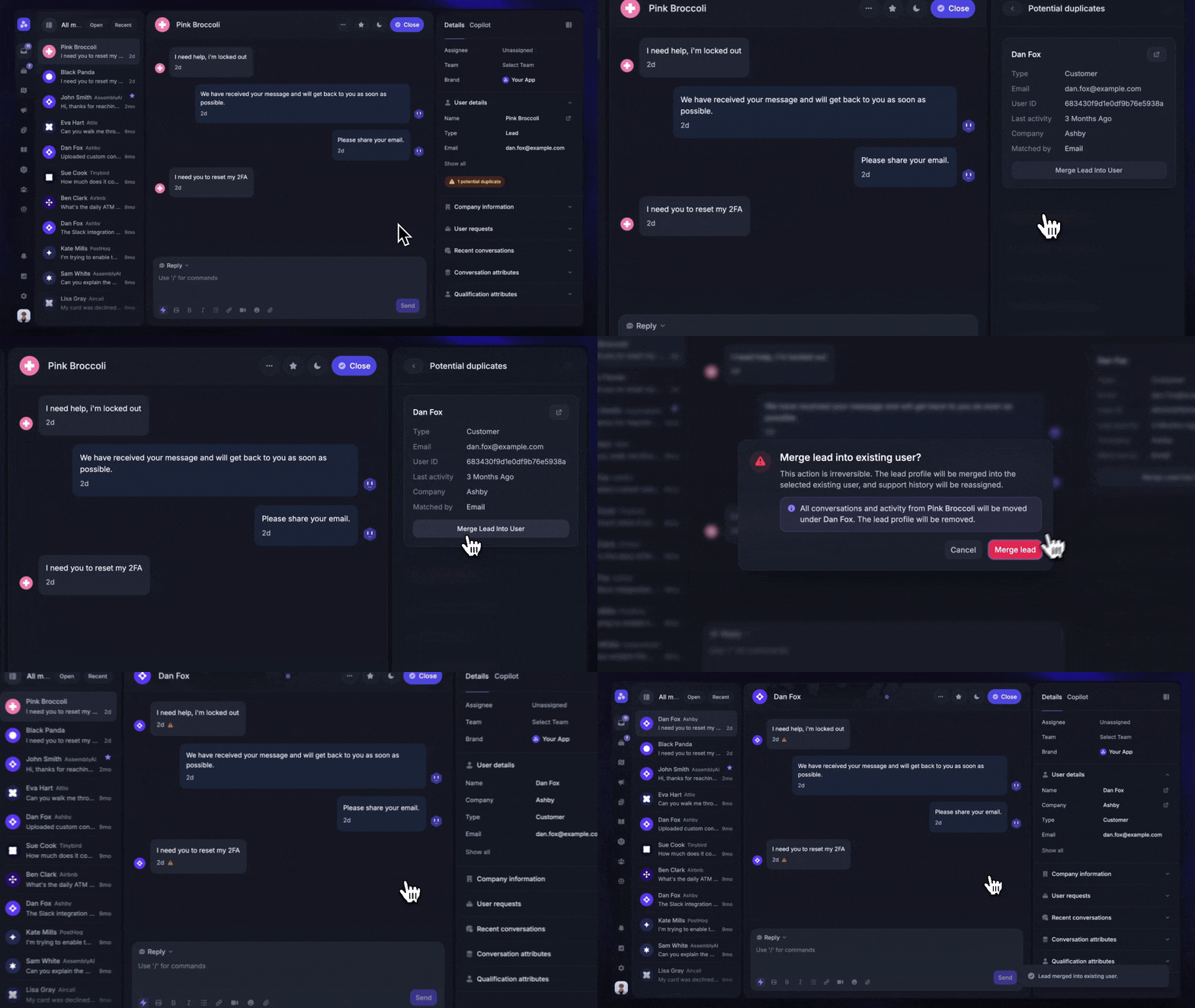
If there are duplicate profiles for the person you are speaking with, you will see a potential duplicates warning in the Inbox.
If the conversation is with a lead and a duplicate user is detected, click ‘Merge lead into user'
The conversation will refresh and display the merged user profile, including previous conversations and data.
Automatically merge profiles based on cookies
Automatic merges can happen without manual action:
When someone visits your website while logged out, they are assigned a unique cookie
If they start a conversation, they become a lead
If they later log in or sign up while that cookie is still present, the lead profile will automatically merge into their user profile.
Identify duplicate users in conversations
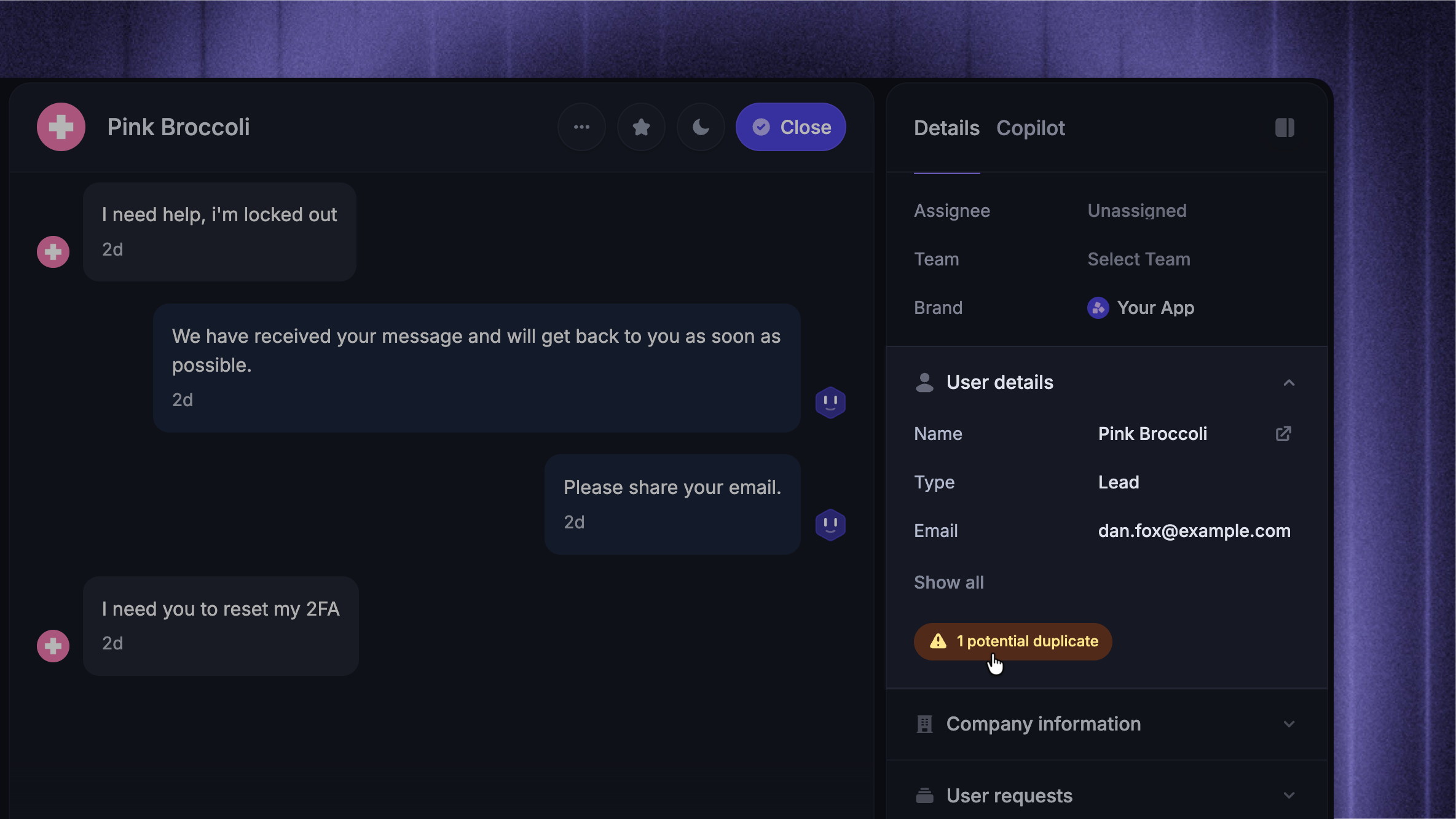
View details about potential duplicate users from the Inbox right sidebar and access better context across those potential duplicates’ other conversations.
Teammates will see a warning in the User Details section of the right sidebar when potential duplicates are present. Clicking the warning will show details about potential duplicates, including the option to open each user's profile page.
An alert icon beside the Potential Duplicate’s Phone and/or Email will show what attribute they matched on.
Potential duplicates are identified by:
User or Lead’s Phone attribute matching Potential Duplicate’s Phone attribute
User or Lead’s Email attribute matching Potential Duplicate’s Email attribute
FAQs
Does a merged lead see the user's previous conversations?
Does a merged lead see the user's previous conversations?
No. When a lead is merged into a user, the lead will not see any of the user's previous conversations.
Merging is purely an admin-side action - it combines profiles into one record so your team can see all conversations, attributes, and details in one place.
What data is included in a merge?
What data is included in a merge?
When a lead is merged into a user:
Lead attributes are copied if the user profile does not already have values
All conversations from both profiles are combined
Events are merged, including first and last occurrence and event count
Event metadata is not included
Why didn’t a lead merge?
Why didn’t a lead merge?
Most merges happen immediately, but the process is asynchronous and may have small delays.
For automatic merges:
The user must send a new ping, such as refreshing the page or logging in
Identifiers such as user_id and email must be passed correctly
Required cookies must be present and not expired or deleted
For leads created via the API:
Leads created via API do not have cookies
Automatic merging based on anonymous_id will not occur
If a lead and user share the same email but were created via API, they will not merge automatically
Manual merging is required in these cases
Why do I have duplicate users with the same email address?
Why do I have duplicate users with the same email address?
If you have multiple customers in your Featurebase workspace with the same email address, it may be because you’re passing a different user_ID for each one. Additionally, Featurebase may associate incoming communications with the most recently updated user profile if multiple profiles use the same email address. To avoid confusion, ensure that each user is uniquely identified by a consistent and unique user ID.
When you define both an email address and user_ID for a user, Featurebase uses the user_ID as a unique identifier. Featurebase may also use cookie-based identification to merge profiles without emails, which helps unify Visitor/Lead and User profiles automatically based on device behavior.
For example, if you have two users, both with the email address test@example.com, but they have different user_IDs, Featurebase will recognise these customers as two unique users.
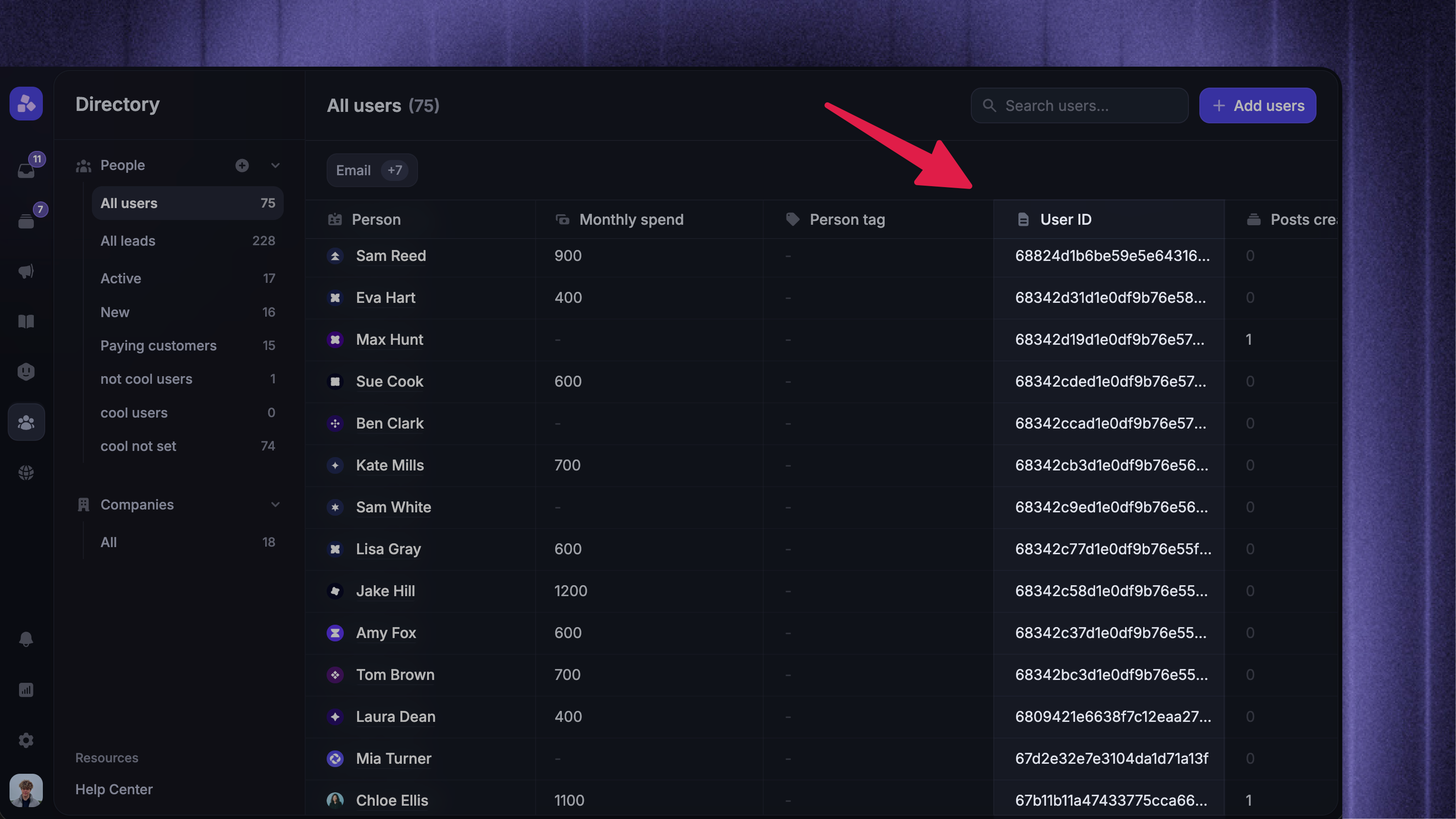
Do you use user IDs in your own product? You can check from your Users directory:
It's currently not possible to merge two Users in Featurebase. You can merge a lead into a user, but you cannot merge two users. When merging a Lead into a User, any data associated with the Lead is attributed to the User, and the Lead profile itself is deleted.
Was this helpful?
Still need help? Ask the team