Ticket form options
Different ways to send ticket forms to customers and collect structured information.
Written By Kateryna Babenko
Last updated 13 days ago
Overview
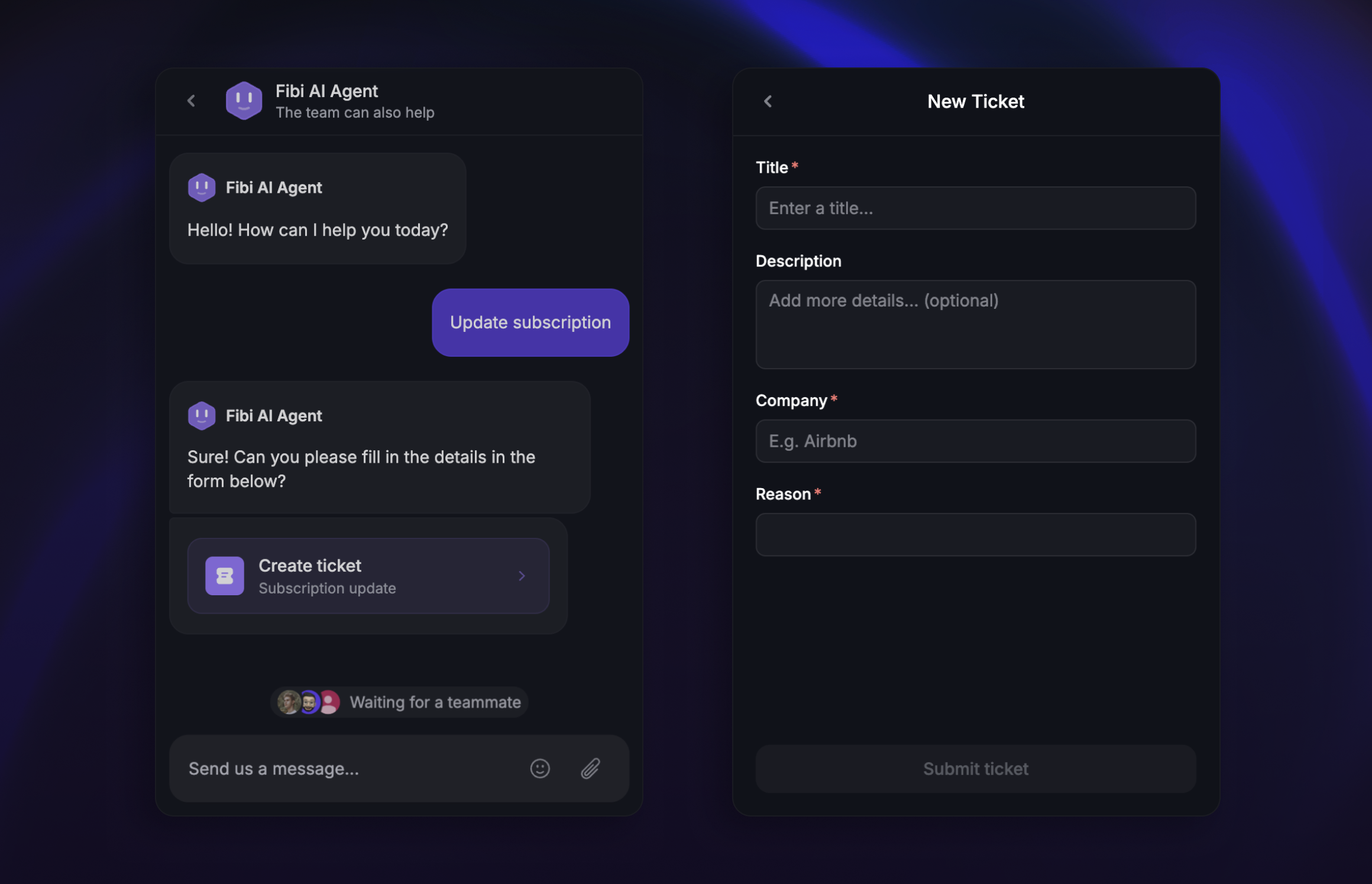
Ticket forms let you collect structured information from customers – like issue details, account info, or file attachments – in a consistent format. Instead of going back and forth in conversation to gather what you need, you can send a ticket form that prompts customers to fill in the right fields up front.
There are 4 ways to present ticket forms to your customers:
Automatically through Workflows
Manually from the Inbox during a conversation
Self-service from the Messenger widget
Self-service from the Ticket Portal
Embedded in your product via API
1. Automatically send a ticket form using Workflows
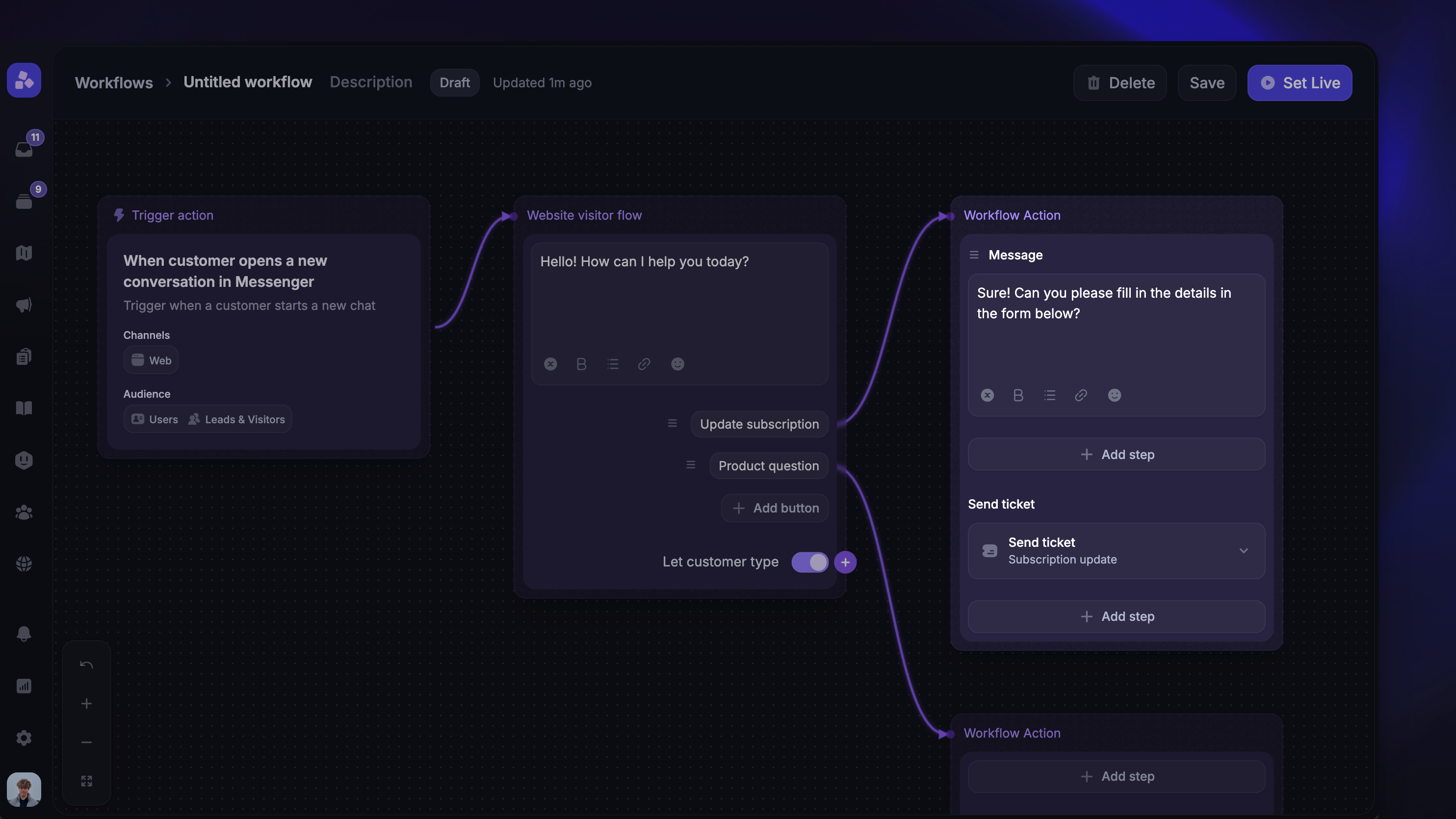
You can use Workflows to automatically send a ticket form to customers based on conditions you define – like when a new conversation starts or a specific keyword is detected.
To set this up:
Go to Automations → Workflows
Create a new Workflow or edit an existing one
Add the Send ticket action to your Workflow
Select the Customer ticket type you want the form to use
When the Workflow triggers, the customer receives a ticket creation card directly in the conversation. They can click it to open the form, fill in the required fields, and submit their ticket – all without leaving the Messenger.
2. Manually sending a ticket form in the Inbox
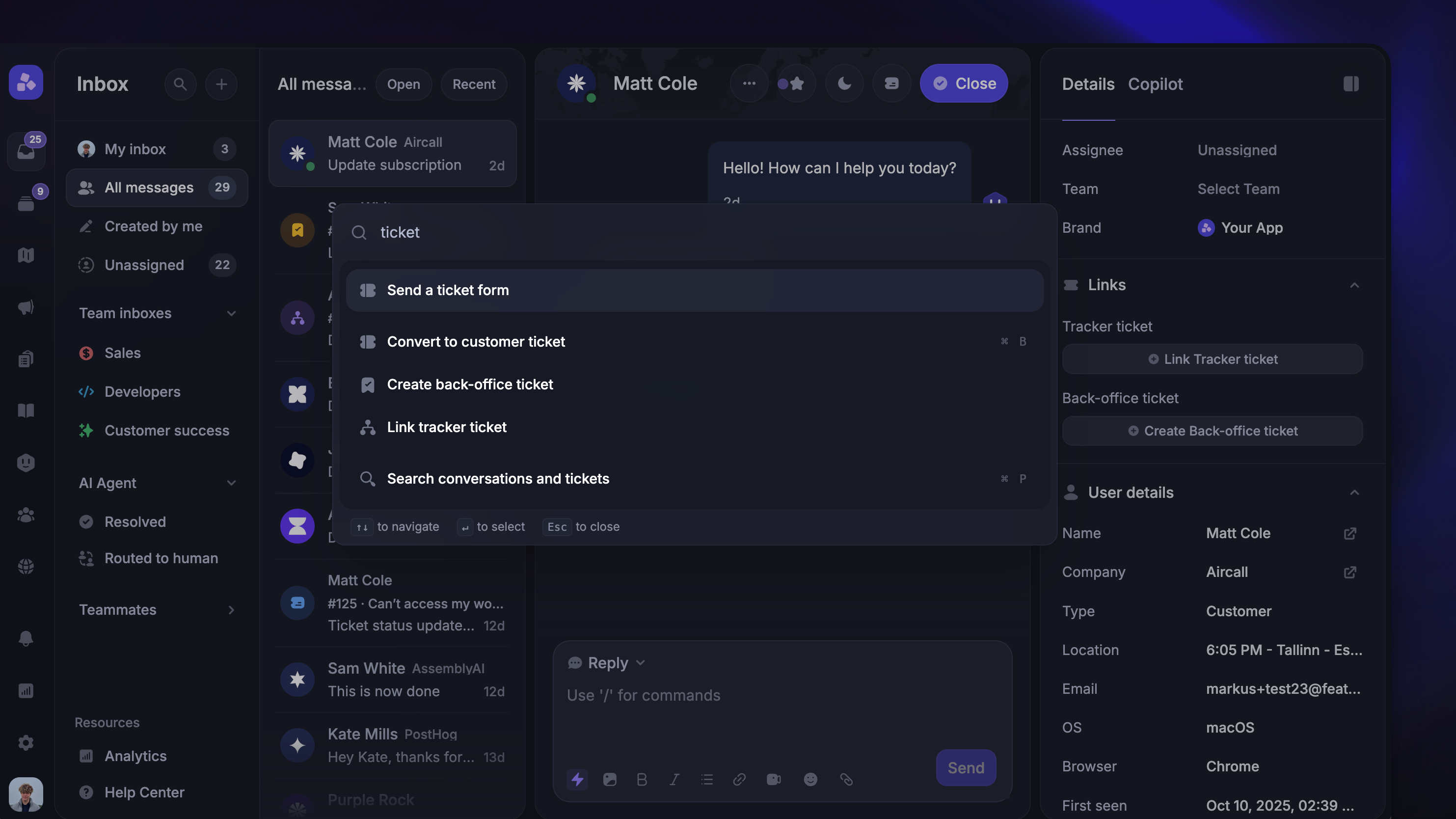
During any conversation, teammates can manually send a ticket form to collect information from the customer.
To send a ticket form from the Inbox:
Open a conversation in the Inbox
Open the command palette with
CMD+KSelect Send a ticket form
If you have multiple Customer ticket types, choose which one to send
This inserts a ticket form prompt directly into your message. When you send it, the customer sees a clickable card they can use to open and fill out the form.
Note: You can only send a ticket form if there isn't already a ticket linked to the conversation. Only Customer ticket types are available.
3. Customers submit tickets from the Messenger widget
You can add a ticket card to your Messenger home screen, giving customers a quick way to create and view tickets without leaving your product.
4. Customers submit tickets from the Ticket Portal
If you've enabled the Ticket Portal, customers can submit tickets on their own without needing to start a conversation first. The Ticket Portal provides customers with a self-service page to browse their existing tickets and create new ones.
When a customer clicks New Ticket on the Ticket Portal, they're presented with a ticket form based on the custom fields you've configured for that ticket type. They fill in the details and submit – no back-and-forth needed.
The Ticket Portal lives alongside your Feedback portal, Product updates, and Help Center, giving customers a single destination for all interactions with your team.
Learn to set it up here: Tickets portal setup
5. Presenting a ticket form in your product
You can create tickets programmatically using the Featurebase API. This is useful when you want to embed ticket creation directly into your product's UI – like a custom support form, an in-app issue reporter, or an automated system that generates tickets based on user actions.
This gives you full control over the ticket-creation experience while still routing everything to your team's Inbox for triage and response.
Was this helpful?
Still need help? Ask the team