Auto-close incomplete Worklows conversations
Close conversations with customers who have stopped interacting with a customer facing workflow.
Written By Markus Palm
Last updated 17 days ago
Overview
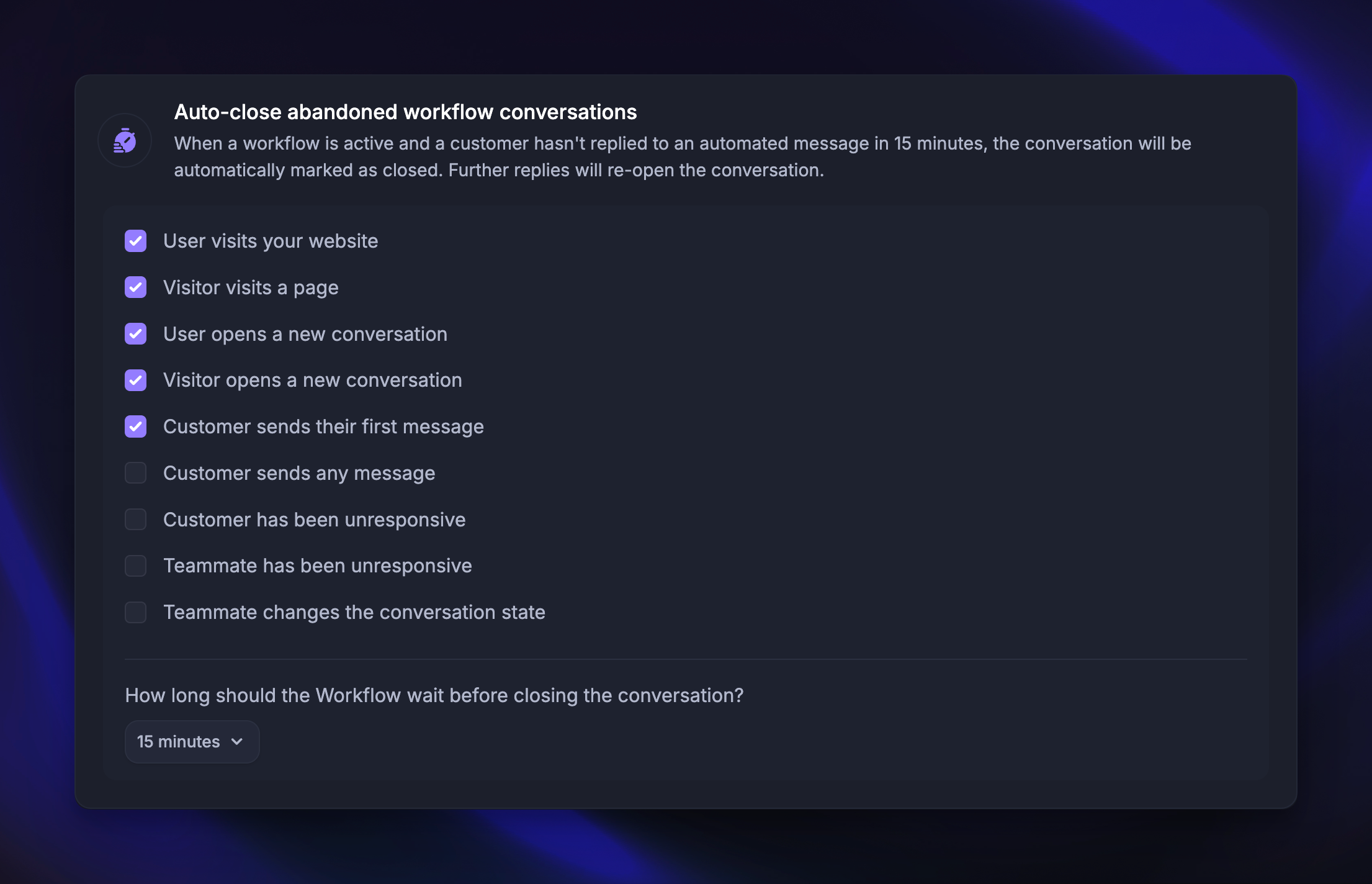
Automatically close conversations where customers stop interacting with your customer-facing Workflows to keep your Support Inbox organized and focused.
This helps your team stay efficient by clearing out inactive threads so they can focus on conversations that actually need attention.
Configure auto-closing
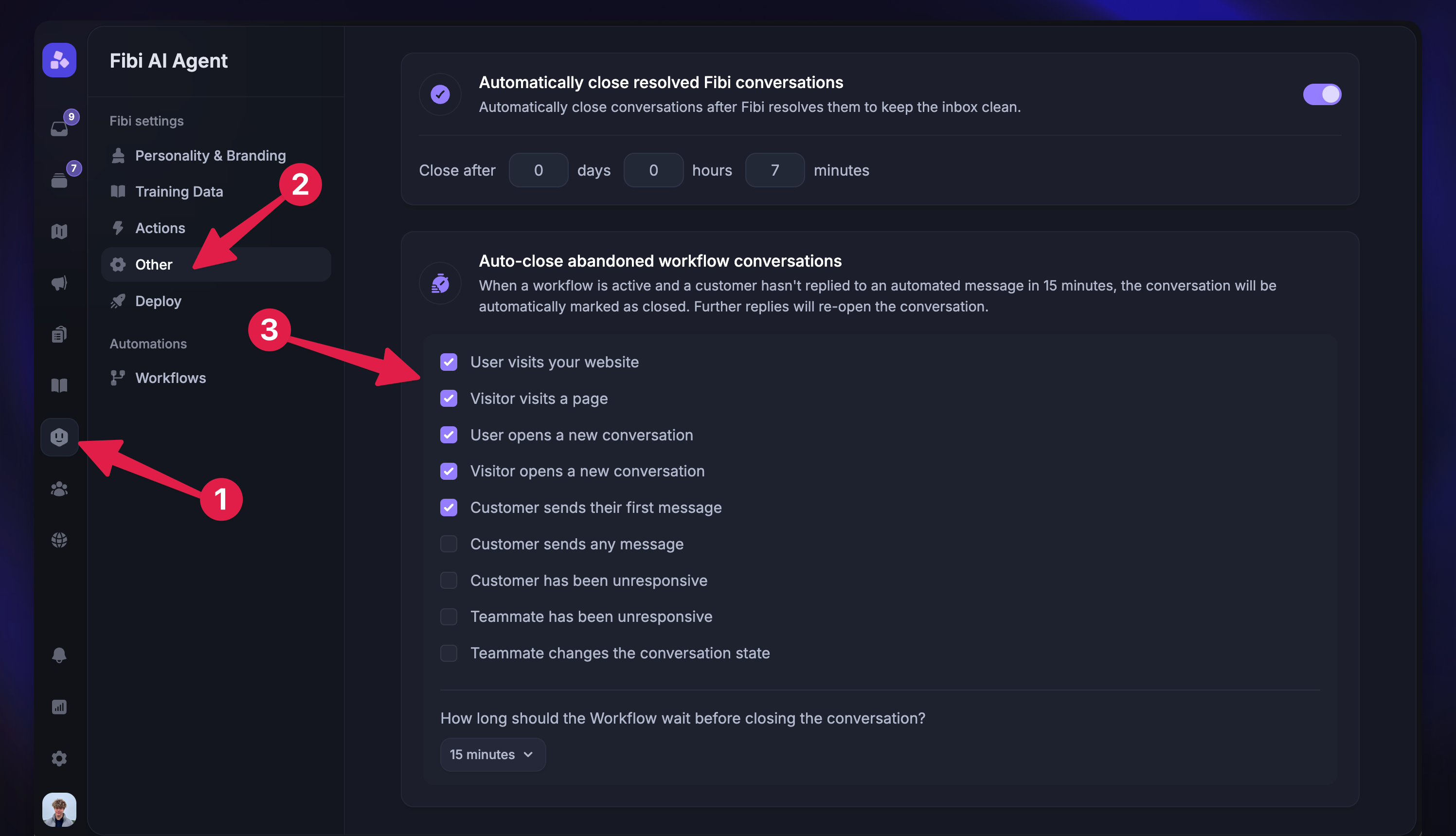
Go to Automations → Other
Find the ‘Auto-close abandoned Workflow conversations’ section
Tick the box for each Workflow trigger where you want conversations to auto-close
Choose a wait time before automatically closing the conversation
Available options: 1, 3, 5, 7, 10, 15, 30, or 60 minutes
Click ‘Save’ to set it live
Things to keep in mind
Inbox behavior
By default, conversations started by Workflows appear in your “Unassigned” inbox. Once auto-closed, they move automatically to the Closed list - helping your team focus on active conversations that require action.
How the wait timer works
At each point where the Workflow pauses for customer input, a timer begins. If the customer doesn’t reply or interact with a Workflow button within the selected time, the conversation closes automatically.
This ensures inactive users are managed efficiently, while still allowing them to re-engage later by starting a new conversation.
Lead and visitor conversations
For visitor or lead conversations, if an email or phone number has been collected, the conversation stays open.
This allows your team to follow up with qualified leads who provided contact information, even if they stopped engaging with the Workflow.
How Workflow interaction completion works
A Workflow interaction is considered complete when:
The customer reaches the end of the Workflow
The customer reaches an end path within the Workflow
The customer stops interacting with a Workflow for 3 minutes, and the auto-close feature is not enabled
The customer can resume interacting with Workflow after 3 minutes, but assignment rules will have been run, and the conversation will now appear in a teammate-watched inbox, such as “Unassigned”.
Prevent unwanted closures
The auto-close feature is designed for efficiency, but there are situations where you need to prevent a conversation from closing prematurely.
While the auto-close feature cannot be completely disabled, you can customize how it behaves to avoid closing important conversations, especially when using Fibi.
Reconfigure Workflow triggers
Navigate to Automations → Other and review your workflow triggers. For Fibi-powered workflows, deselect ‘Auto-close abandoned workflow conversations’ unless it’s required for that workflow.
Use tag-based exemptions
Add a tag (e.g. no auto-close) to conversations that should remain open. Then, configure your workflow to end or hand off to a teammate if that tag is present. This prevents the auto-close rule from firing, as the conversation is no longer considered “abandoned.”
Create audience-specific rules
Exclude certain customers or groups from automatic closure by using audience filters in your workflows. For example, tag VIP customers and set a rule to exclude them from Fibi or auto-close triggers.
FAQ
Can I customize the auto-close timing for a specific workflow?
Can I customize the auto-close timing for a specific workflow?
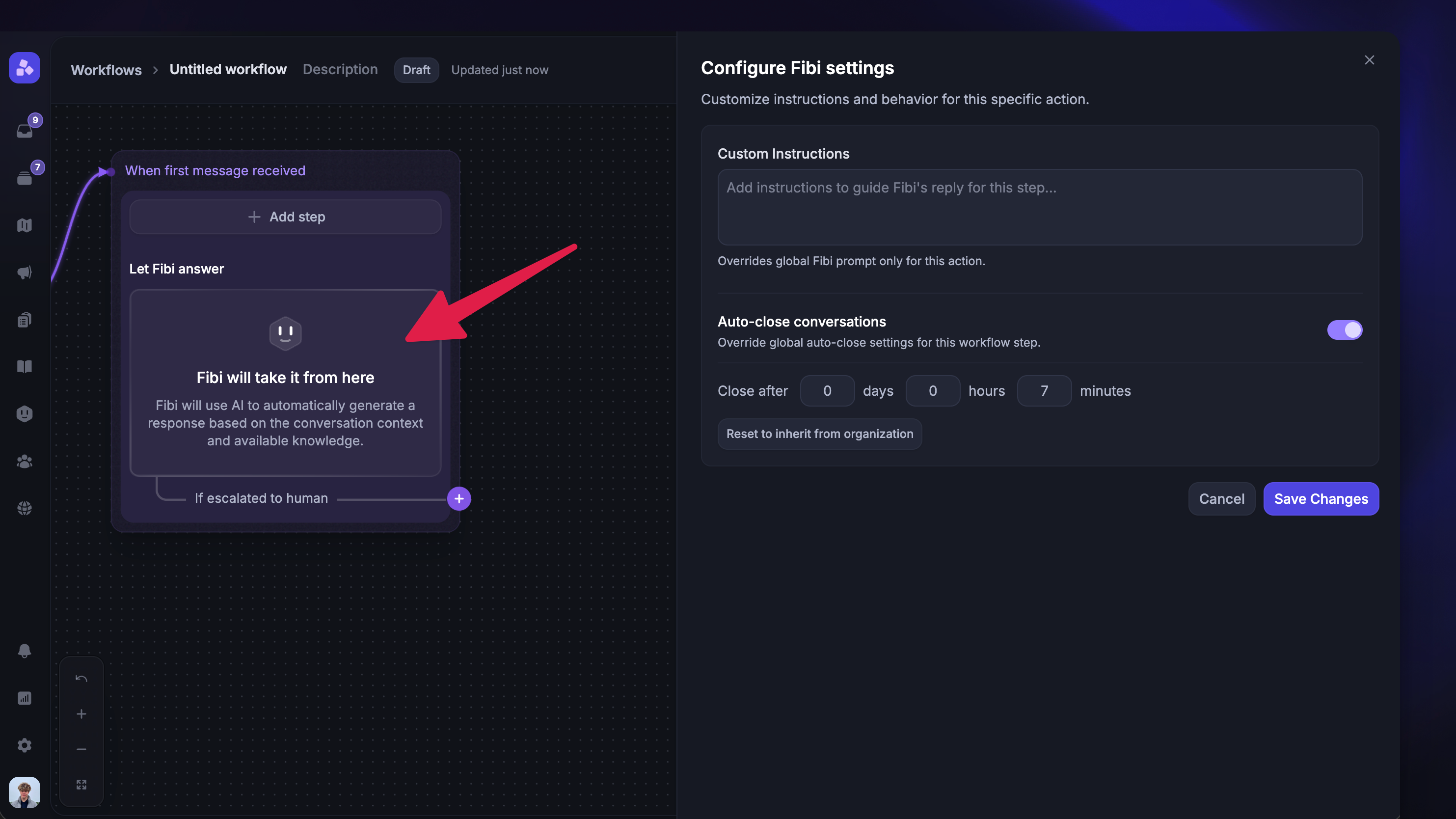
Yes. The "Let Fibi Answer" workflow step has its own auto-close setting that you can configure by clicking on it.
When set, this overrides the global Fibi auto-close setting for conversations going through that specific workflow step.
This is useful if you want different auto-close timings for different workflows or customer segments.
Conversations are closing unexpectedly
Conversations are closing unexpectedly
If conversations are closing unexpectedly, double-check that your settings, such as tags and triggers, are correctly applied. The most common issue is a workflow step or trigger that hasn't been updated to account for the new auto-close rule.
How do auto-close settings for Fibi and Workflows interact with each other?
How do auto-close settings for Fibi and Workflows interact with each other?
Both settings can apply, but at different times:
"Auto-close abandoned workflow conversations" applies when the workflow is waiting for the customer to respond (before Fibi has engaged). For example, if the customer never sends a message to trigger Fibi, this timer will close the conversation.
"Automatically close resolved Fibi conversations" applies once Fibi starts responding to the customer. After Fibi sends a reply, this timer takes over.
In short: The workflow auto-close handles abandoned conversations, while the Fibi auto-close handles resolved conversations. Once Fibi is actively responding, Fibi's auto-close setting takes priority.
What triggers are supported for the auto-close abandoned workflows setting?
What triggers are supported for the auto-close abandoned workflows setting?
You can enable auto-closing for abandoned workflows for all of the Workflow triggers:
User visits your website
Visitor visits a page
User opens a new conversation in the Messenger
Visitor opens a new conversation in the Messenger
Customer sends their first message
Customer sends any message
Customer has been unresponsive
Teammate has been unresponsive
Teammate changes the conversation state
Was this helpful?
Still need help? Ask the team