Merge conversations and tickets
Combine duplicate conversations or tickets into one, and undo a merge when you need to.
Written By Bruno
Last updated 6 days ago
Overview
If a customer reports the same problem by chat and email, merge the duplicates so your team can reply in one place. The conversation or ticket you merge closes and links to the one you keep. You can unmerge it later.
If a customer and an outside provider need separate replies about the same issue, link both conversations to one Internal ticket.
Merge a conversation or ticket
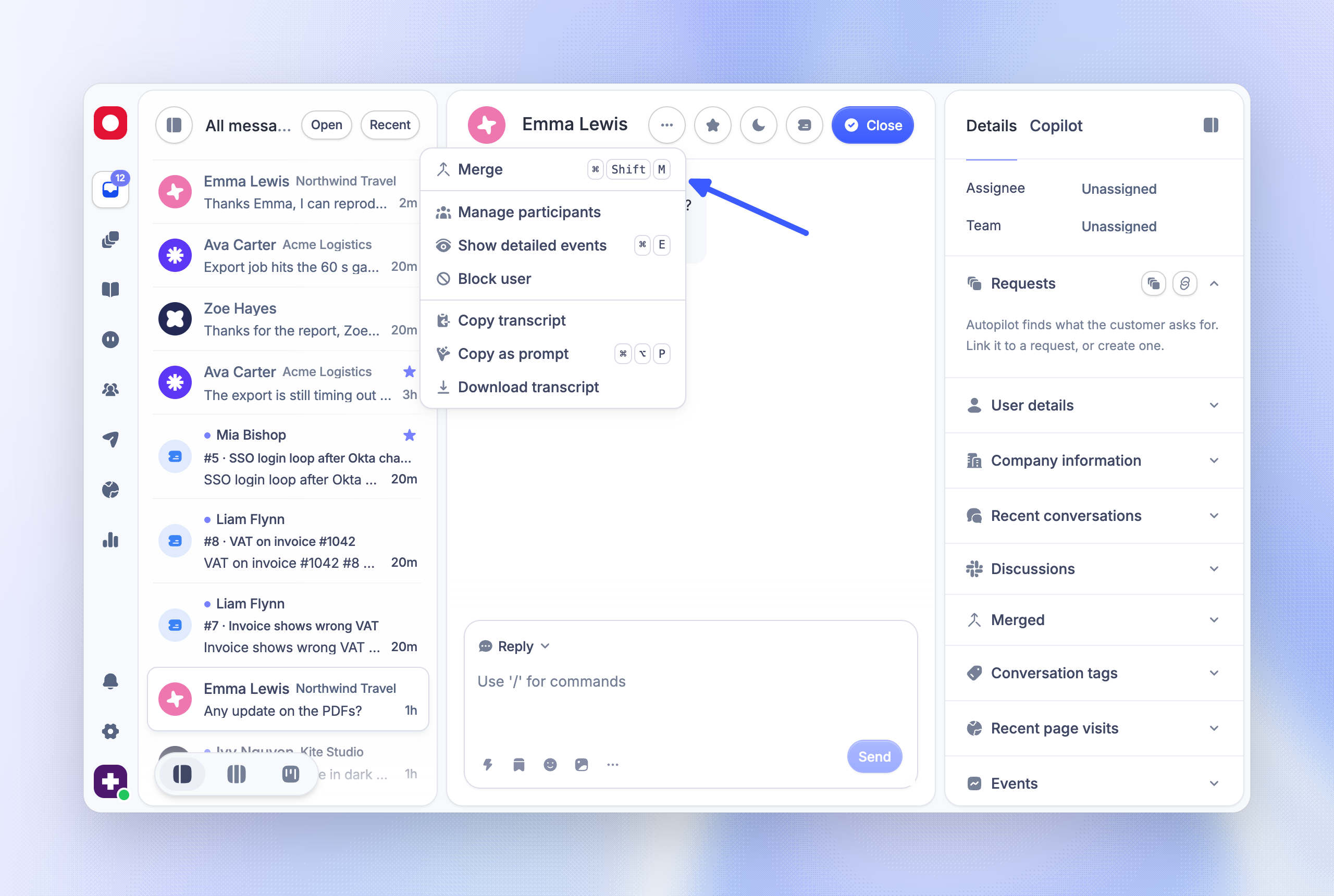
Open the conversation or ticket you want to merge in the Inbox
Open the menu at the top of the conversation and choose Merge, or press
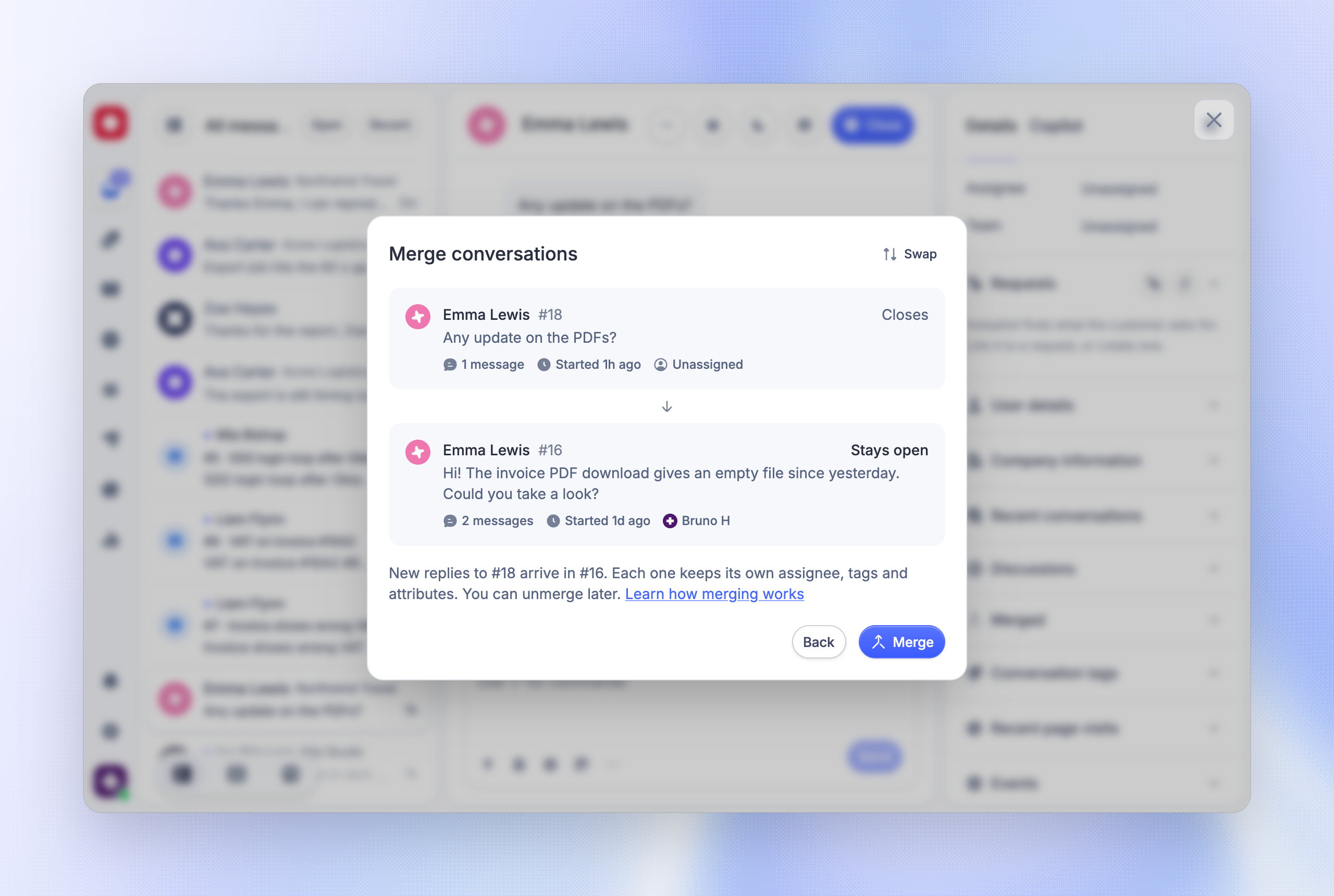
⌘/Ctrl Shift MPick the conversation or ticket to merge into. Search by number or title, or search the message text
Check which one closes and which one stays open. Swap them if you want to merge the other way
Click 'Merge'
You can also drag one conversation onto another in the list.
Merge several at once
Select the duplicates in the Inbox list. If you select three or more, leave the conversation or ticket you want to keep unselected
Choose Merge in the bulk actions bar
With two items selected, check the preview and use Swap if needed. With three or more, choose the conversation or ticket to keep
Click 'Merge'
You can merge up to 10 conversations or tickets into one at a time. A row marked Skipped cannot be merged, and the dialog shows the reason. The other rows still merge.
What happens after a merge
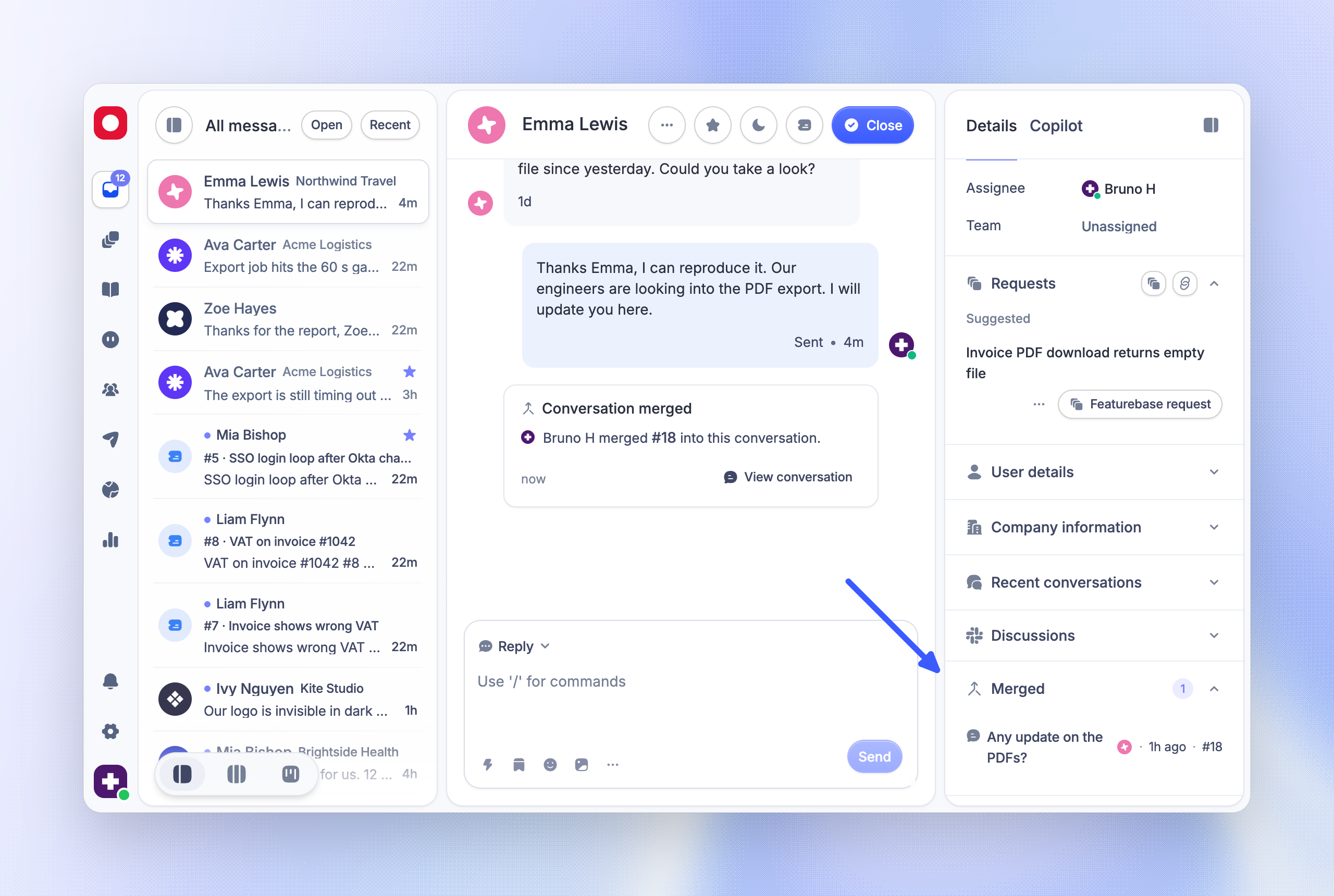
The merged conversation or ticket closes. You can no longer reply in it, and it shows a link to the one you kept
Messages stay where they are. The one you kept shows a merge event with a link to the merged one, and lists it under Merged in the side panel
New replies from the customer arrive in the one you kept
If the one you kept was closed, it reopens when the merged one was open or snoozed
Each one keeps its own assignee, tags, and attributes
A merged ticket gets the Status for merged tickets of its ticket type
The SLA of the merged one stops. The one you kept keeps its own SLA
The AI agent and workflows stop in the merged one. If the AI agent handles the one you kept, the merge hands it over to your team
What the customer sees
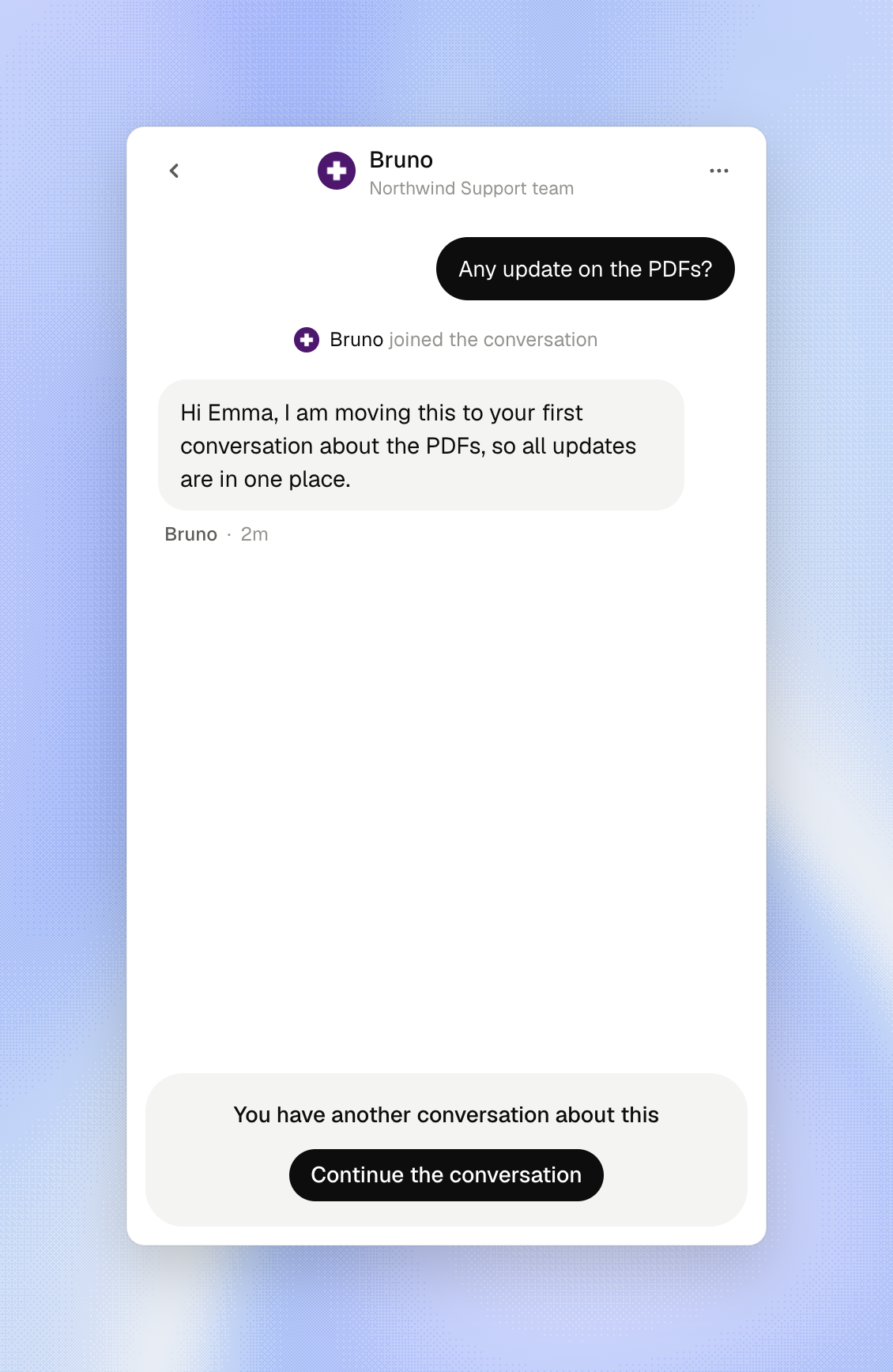
The merge does not send a message to the customer
In the Messenger, the merged conversation stays in the customer's list. They cannot reply in it. It shows You have another conversation about this and a Continue the conversation button that opens the one you kept
When the customer replies by email to the merged conversation, the reply arrives in the one you kept
A customer who was added to another customer's conversation follows it by email. In the Messenger, their merged conversation tells them that they get updates by email
What you can merge
Conversations and tickets from the same customer
A conversation into another conversation, a conversation into a ticket, or a ticket into another ticket
A conversation that already has merged conversations. They stay merged under it
You cannot merge:
A ticket into a conversation. Merge the conversation into the ticket instead
Into a conversation that is merged itself. Merge into the one it points to
Telegram conversations
Slack conversations from different Slack channels
Conversations from different brands
Conversations in Spam. Mark them as not spam first
Internal ticket threads
Merge between different customers
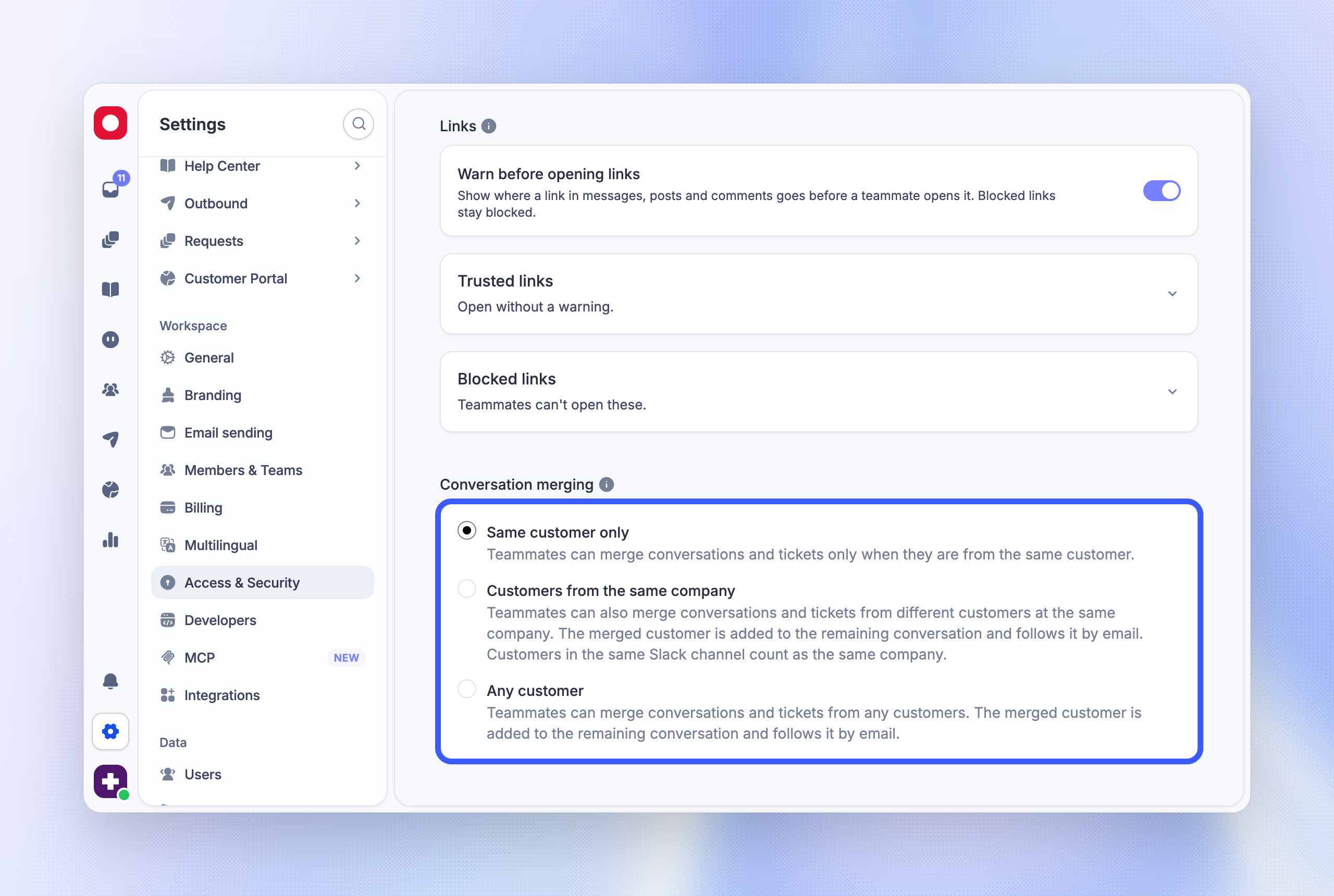
By default, you can merge only conversations and tickets from the same customer. To change this, go to Settings → Access & Security → Security → Conversation merging and choose one option:
Same customer only - the default
Customers from the same company - also merge between different customers at the same company. Customers in the same Slack channel count as the same company
Any customer - merge between any customers
A merge between two customers has these limits:
One merge can add only one new customer
The customer needs an email address, because they follow the conversation by email
You need the Add or remove people on a conversation permission
Important: The customer you add gets future replies by email. Everyone in the conversation can see their new messages. If you keep an email conversation, replies can quote earlier messages and show other recipients' email addresses.
Find merged conversations
In a conversation, open Merged in the side panel to see everything that is merged into it
In the Inbox search and in Inbox views, use the Merged filter
In reports, use the Merged attribute. Reports include merged conversations unless you filter them out
Unmerge
Open the merged conversation or ticket
Open the menu at the top of the conversation and choose Unmerge
Click 'Unmerge' to confirm
It reopens as a separate conversation or ticket. Replies received after the merge stay in the conversation you kept. A ticket gets the Status for unmerged tickets of its ticket type.
You can also unmerge from the one you kept: open Merged in the side panel, click the merged conversation, and click Unmerge.
Unmerging removes a customer who was added only by that merge. If another merged conversation still includes them, they stay.
Permissions
Merge and unmerge need a full seat
A merge that adds a customer also needs the Add or remove people on a conversation permission
The Conversation merging setting needs the Manage branding permission. See admin roles
FAQ
Are messages moved or deleted when I merge?
Are messages moved or deleted when I merge?
No. Each conversation keeps its own messages. The one you kept links to the merged one, so your team can read both.
Does the customer get a notification about the merge?
Does the customer get a notification about the merge?
No. The merge does not send a message. In the Messenger, the customer sees a Continue the conversation button in the merged conversation.
What happens when the customer replies to the merged conversation?
What happens when the customer replies to the merged conversation?
An email reply arrives in the one you kept. In the Messenger, the customer cannot reply in the merged conversation and continues in the one you kept.
Can I undo a merge?
Can I undo a merge?
Yes. Unmerge it, and it reopens as a separate conversation or ticket.
How many conversations can I merge at once?
How many conversations can I merge at once?
Up to 10 into one. To merge more, repeat the merge.
Why is a row marked Skipped?
Why is a row marked Skipped?
That conversation or ticket cannot be merged, for example because it is from another customer or channel. The dialog shows the reason. See What you can merge.
Can I delete a conversation that has merged conversations?
Can I delete a conversation that has merged conversations?
Not directly. Unmerge them first, then delete it.
Do reports count merged conversations?
Do reports count merged conversations?
Yes. Reports include them unless you filter them out with the Merged attribute.
Can I merge with the API?
Can I merge with the API?
Yes. The API has merge and unmerge endpoints, and the webhooks conversation.merged and conversation.unmerged.
Can I merge in the mobile apps?
Can I merge in the mobile apps?
Not yet. Use the web dashboard to merge and unmerge.
Was this helpful?
Still need help? Ask the team