Set up qualification data to collect about your leads
Automatically and manually capture meaningful data about your new leads.
Written By Kateryna Babenko
Last updated 12 days ago
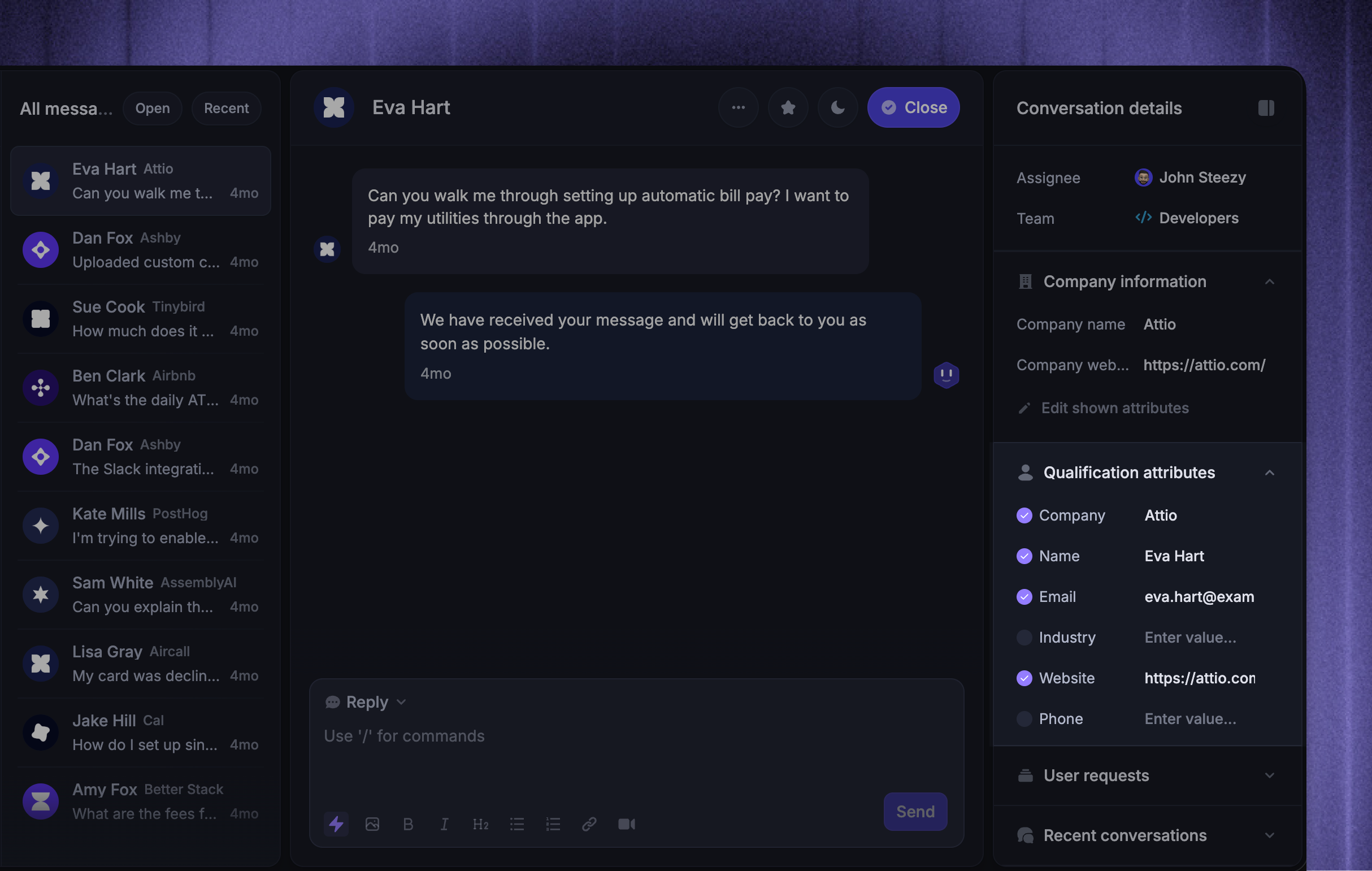
Overview
There are two ways you can qualify your leads in Featurebase:
Manually qualify your leads in the Inbox as you chat to them
Set up automations to qualify leads on your behalf, based on whatever data is most important for your business.
Before you do either, you’ll need to define the qualification data that’s most useful to collect about your leads. The data you add should help your Sales team quickly identify and focus on promising prospects.
Define the characteristics of your ideal customer (ICP)
First, define the characteristics of your ideal customer with your team. Here are some questions to guide you:
What’s their goal for using your product?
Do they have a specific role in an organization? For example, are they a CEO or a marketer?
Do they work in a specific industry?
How big is their company?
Do they work for a B2B or B2C company?
Do they work in a specific location?
What scale do they want to use your product? For example, if you have a B2B messaging service, do they hope to send over 50 messages a month?
How long do they want to use your product for?
Are there any products or services your customers require to use your product? For example, if you have a mobile messaging service, you’ll want to make sure your lead has a phone.
Add your qualification data to Featurebase
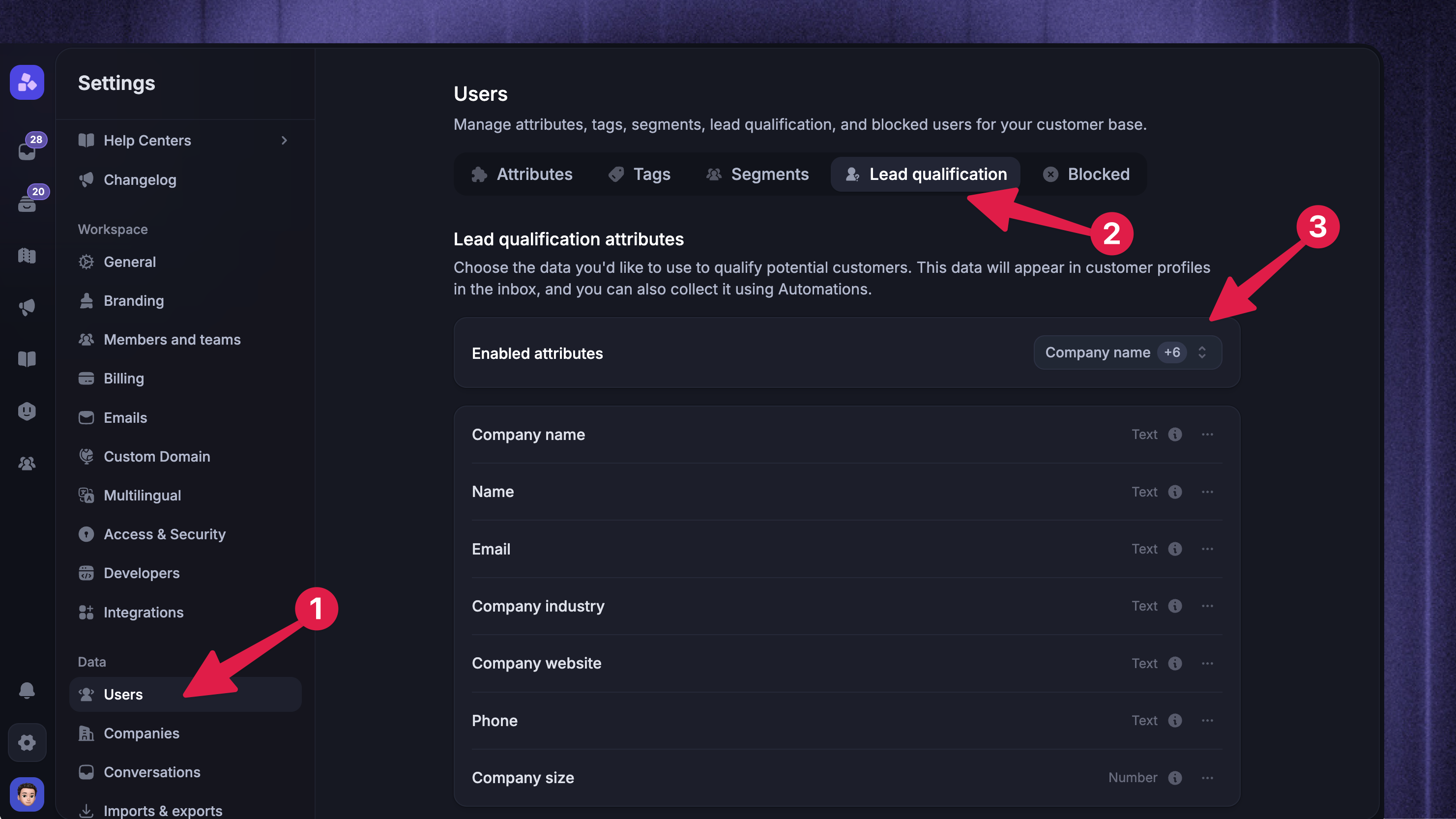
Once you’re clear on who you’d like to prioritize chatting with, it’s time to choose your qualification data in Featurebase:
Click the filter button above and select existing user or company attributes that you wish to make manually editable for qualification
If you want to create new qualification data attributes, you first have to create them for the user/company record
By default, we’ve set up the following qualification attributes for you:
Company name
Person name
Email
Phone
Company industry
Company website
Company size
Good to know: You can’t add more than 30 qualification attributes to Featurebase.
Manually qualify your leads as you chat to them
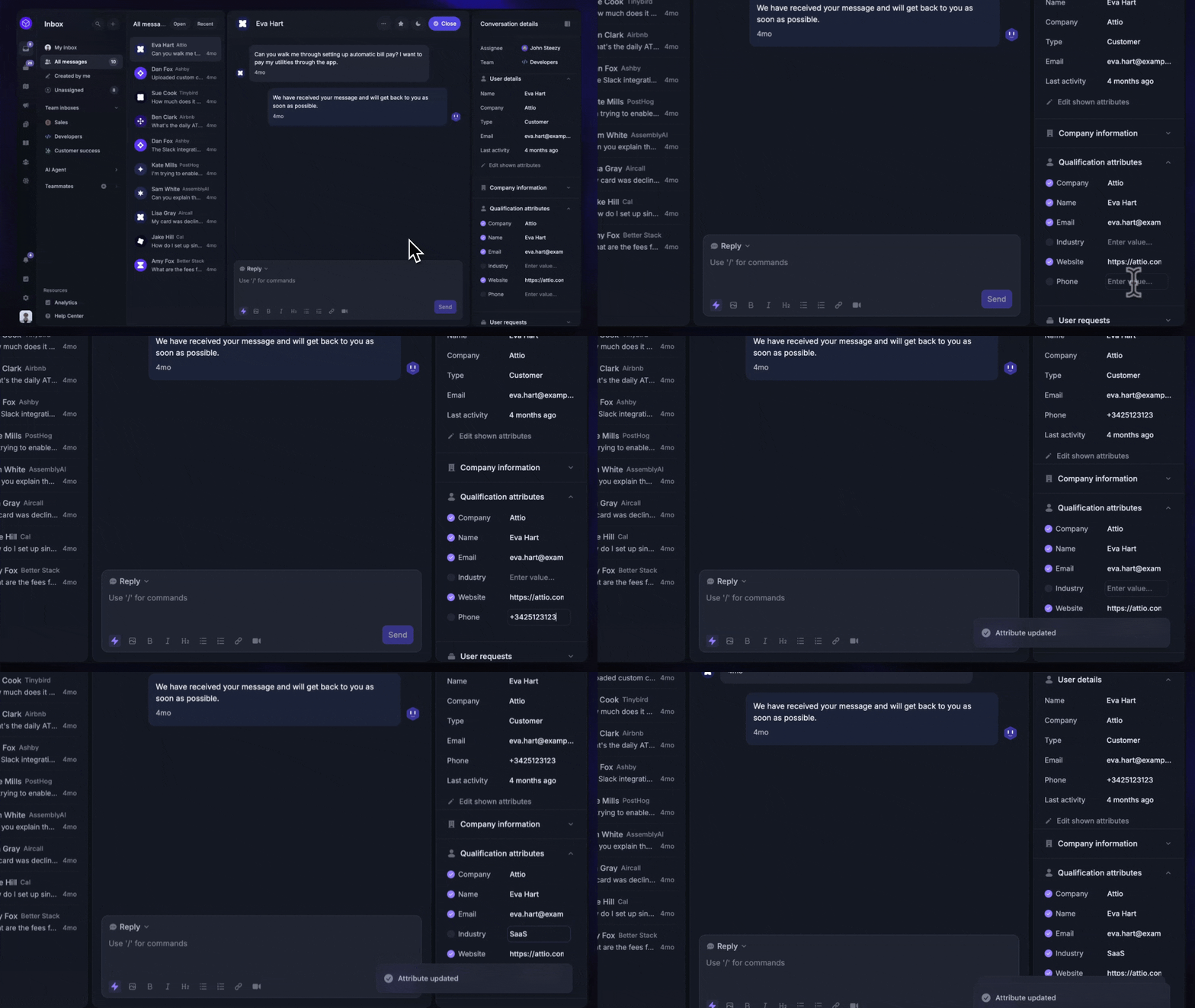
Your qualification attributes will appear in each lead’s qualification profile, ready for your team to fill in.
As you chat to your leads and gather qualification data about them, make sure to add that data to each lead’s profile.
Set up automations to qualify leads on your behalf
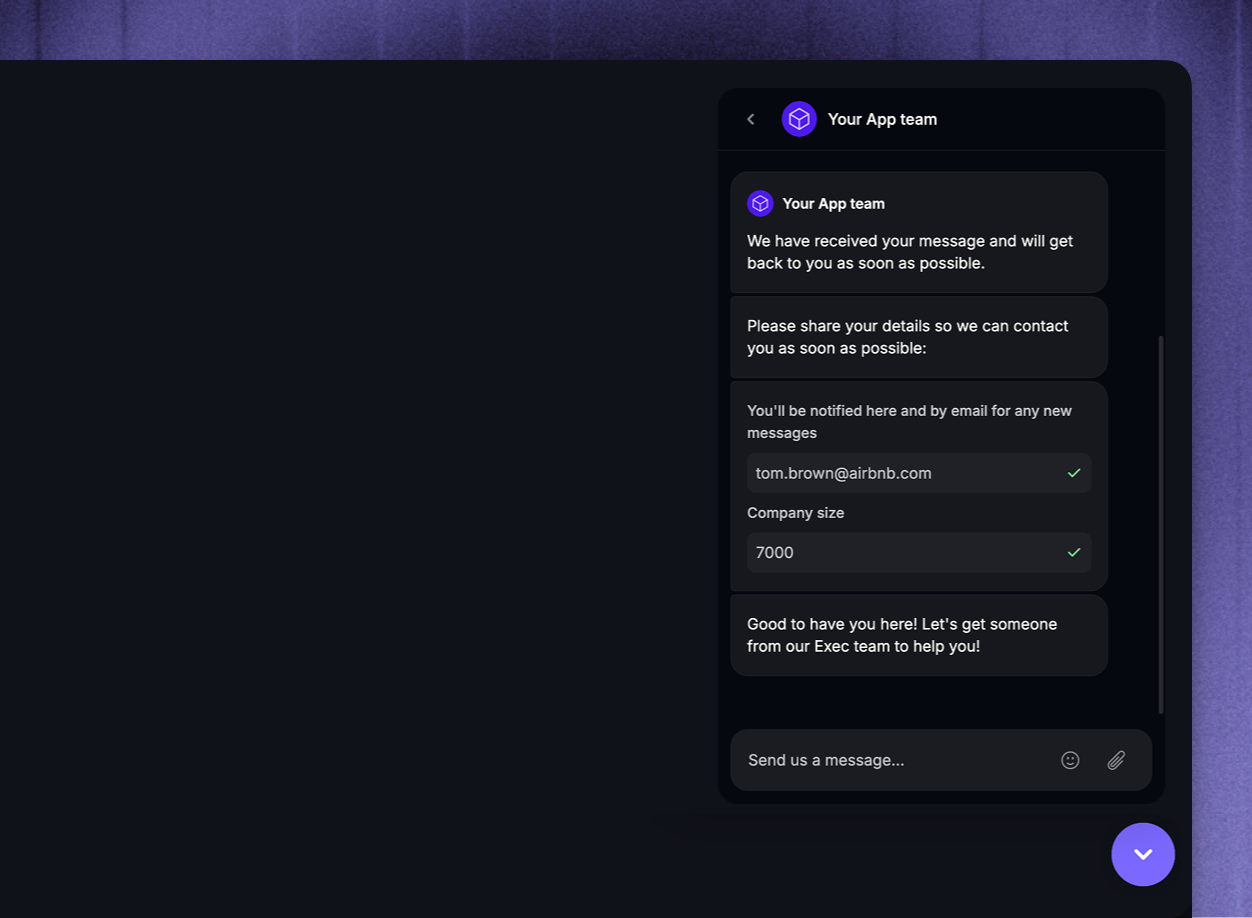
Use Workflows to automatically qualify new leads, collect their contact details, and route them to the right team - so your sales reps can focus on meaningful conversations.
Best practices
Keep it relevant - Don’t overwhelm leads with unnecessary questions - only collect data that helps your team understand who they are and whether they’re a good fit.
Keep qualification data names simple - Use clear, clear names that teammates and leads can easily recognize (e.g. “Job title” instead of ‘Current working position’). These names will appear in Messenger for leads and in profiles for teammates! If you set up Workflows to qualify this data, leads will see these names in the Messenger.
Format your data correctly – When you’re configuring user attributes to use for qualification, choose the right input type for each attribute:
Text for freeform answers, like role or goals
Number for things like company size or spend
Select for predefined choices (keep options short and clear)
True/false for simple yes/no checks (e.g. “Has a mobile phone?”)
FAQ
Can I manually edit users’ names and other data?
Can I manually edit users’ names and other data?
Yes, you can edit user and company data manually using qualifying attributes.
Just open their profile and change the editable qualifying attributes on the left-hand side:
By default, you can already edit the names, emails, and websites, but you can make any custom attribute an editable qualifying attribute from Settings → Users → Lead qualification.
Was this helpful?
Still need help? Ask the team