Customer sends their first or any message
How to create Workflows to manage inbound conversations or replies over a broad range of channels.
Written By Markus Palm
Last updated 17 days ago
Overview
The “Customer sends their first message” and “Customer sends any message” triggers let you build powerful, flexible automations for inbound messages.
You can use them to tag conversations, update data, or take automated actions when specific keywords appear in a customer’s message - helping your team save time and stay organized.
Common use cases
Tag conversations: Automatically tag messages that contain keywords like price or billing
Set conversation data: Update attributes based on what customers mention
Route messages: Assign conversations to the right team depending on content or intent
Language-based automation: Trigger workflows based on detected language
Email auto replies: Automatically reply to email support queries to set expectations
Get started
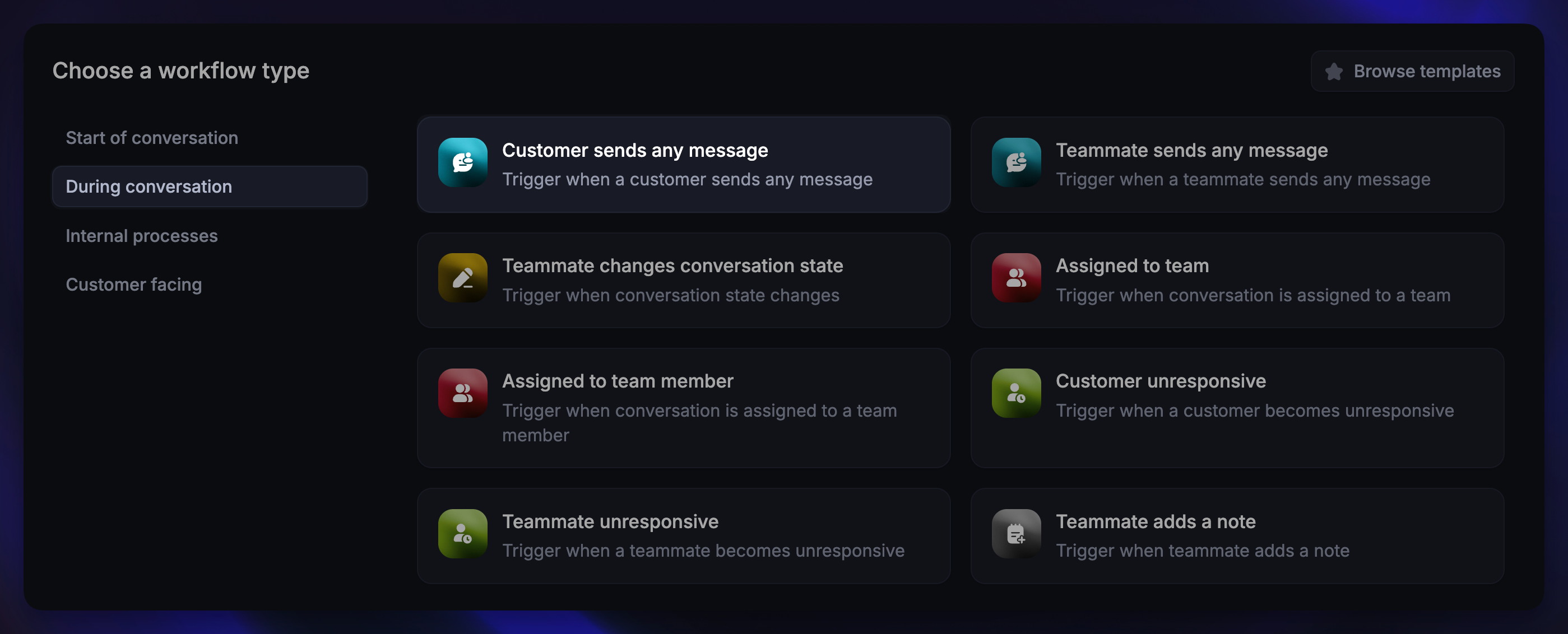
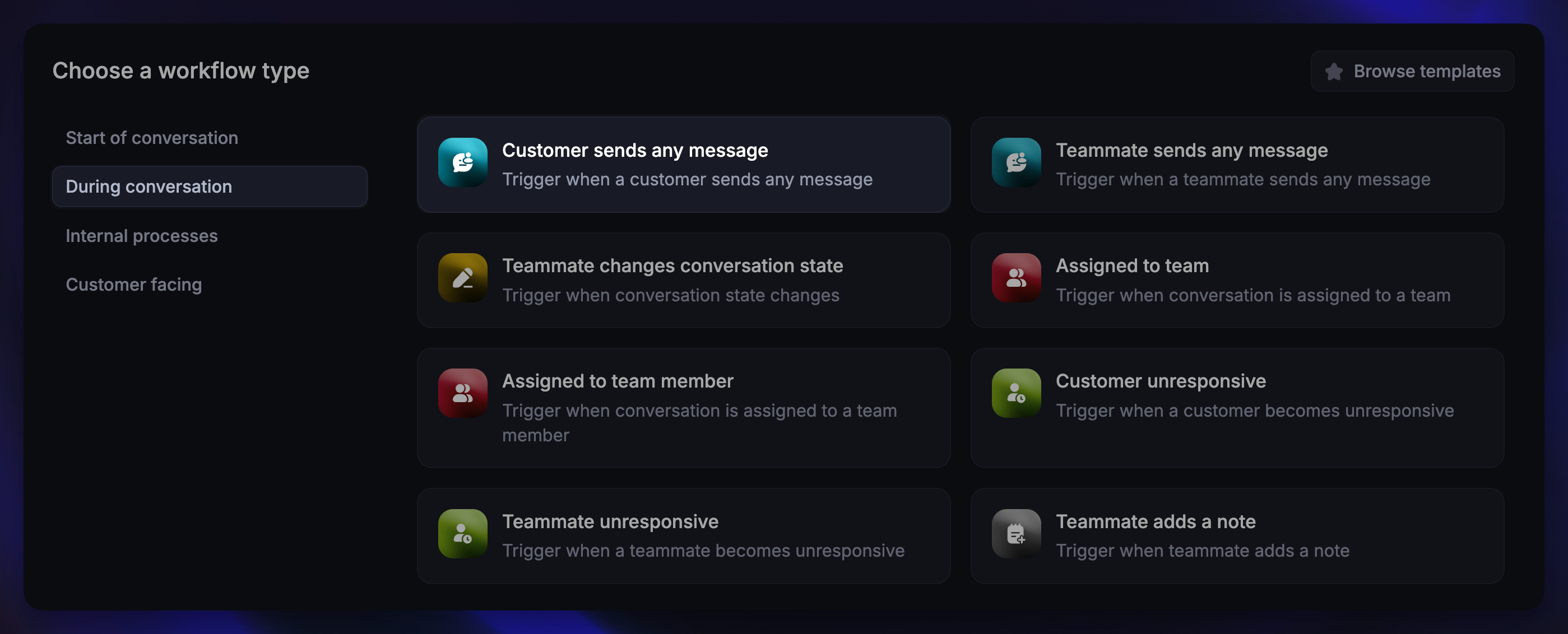
Go to Automations → Workflows
Click + New Workflow and choose Create from scratch
Select the trigger Customer sends their first reply or Customer sends any message
With “Customer sends any message”, the trigger runs whenever a customer sends any message, including their first message or follow-ups in an ongoing conversation.
Configure trigger settings
First, configure the Trigger settings of this workflow to decide:
Where to send (e.g. Web, Email)
Audience (e.g. users, visitors, or specific customer segments)
Scheduling (e.g. always, or only during/outside of office hours)
For example, you could trigger different workflows for logged-in users, trial customers, or high-value accounts through email or the Messenger widget.
When finished, click Save and close to start building your workflow.
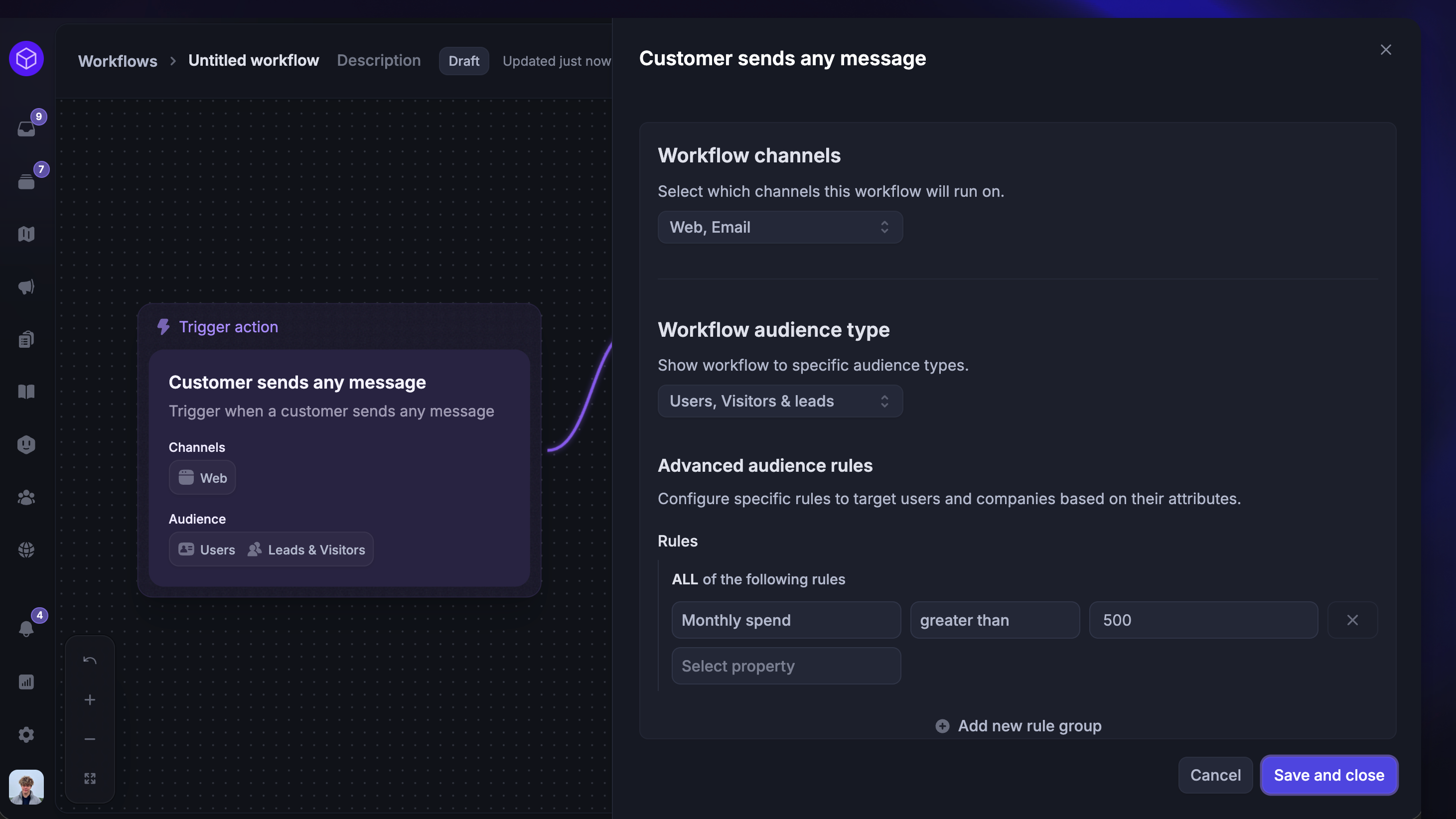
The workflow will trigger whenever a message is received on the selected channels and the customer matches your defined Audience rules.
Build your workflow
Now you can start building your Workflow by adding actions such as:
Apply rules (e.g. tag a conversation if the message contains “price.”)
Assign conversation (route messages to specific teams based on intent)
Add note (leave internal notes for teammates)
And much more.
Examples
Tag and route keyword-based messages
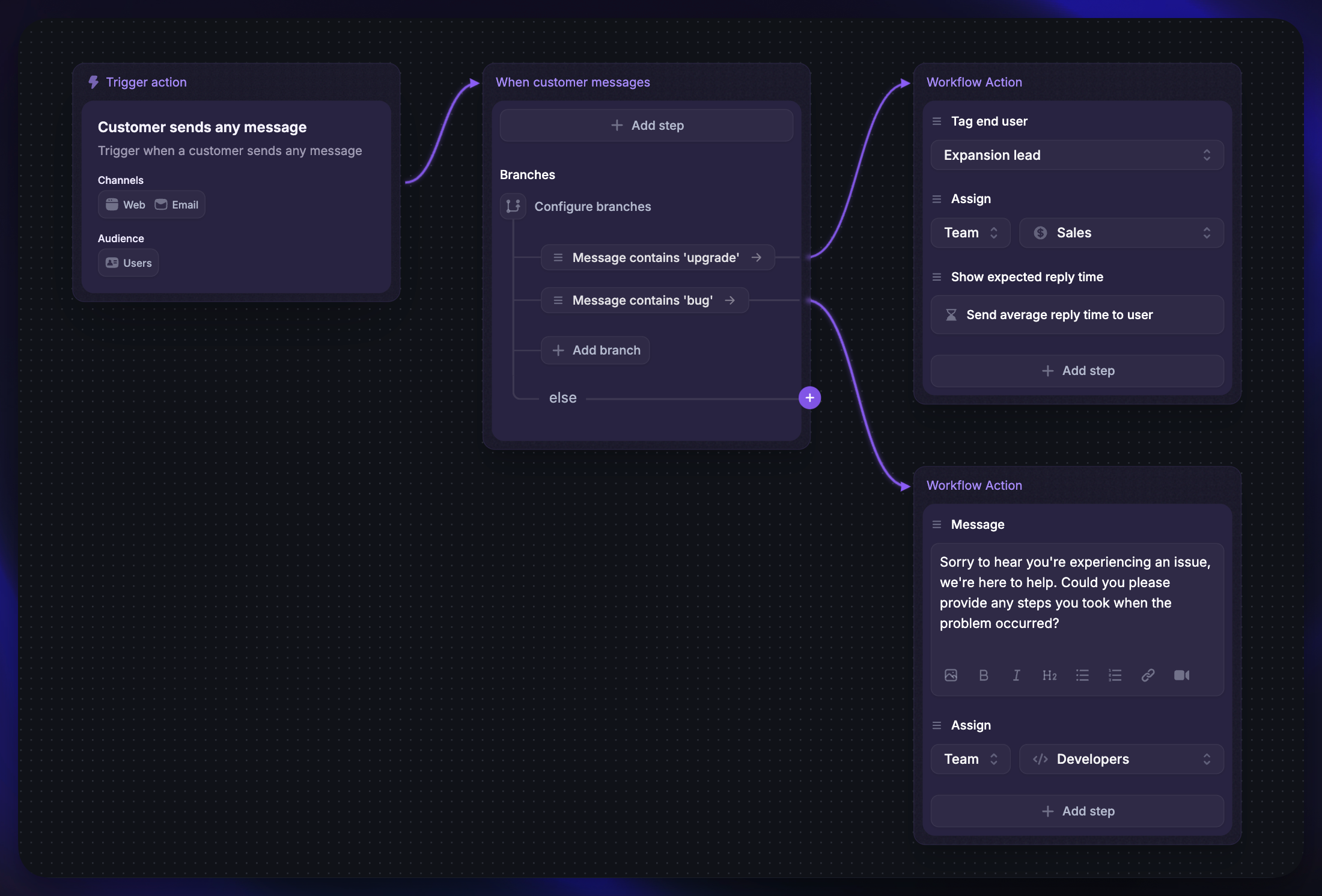
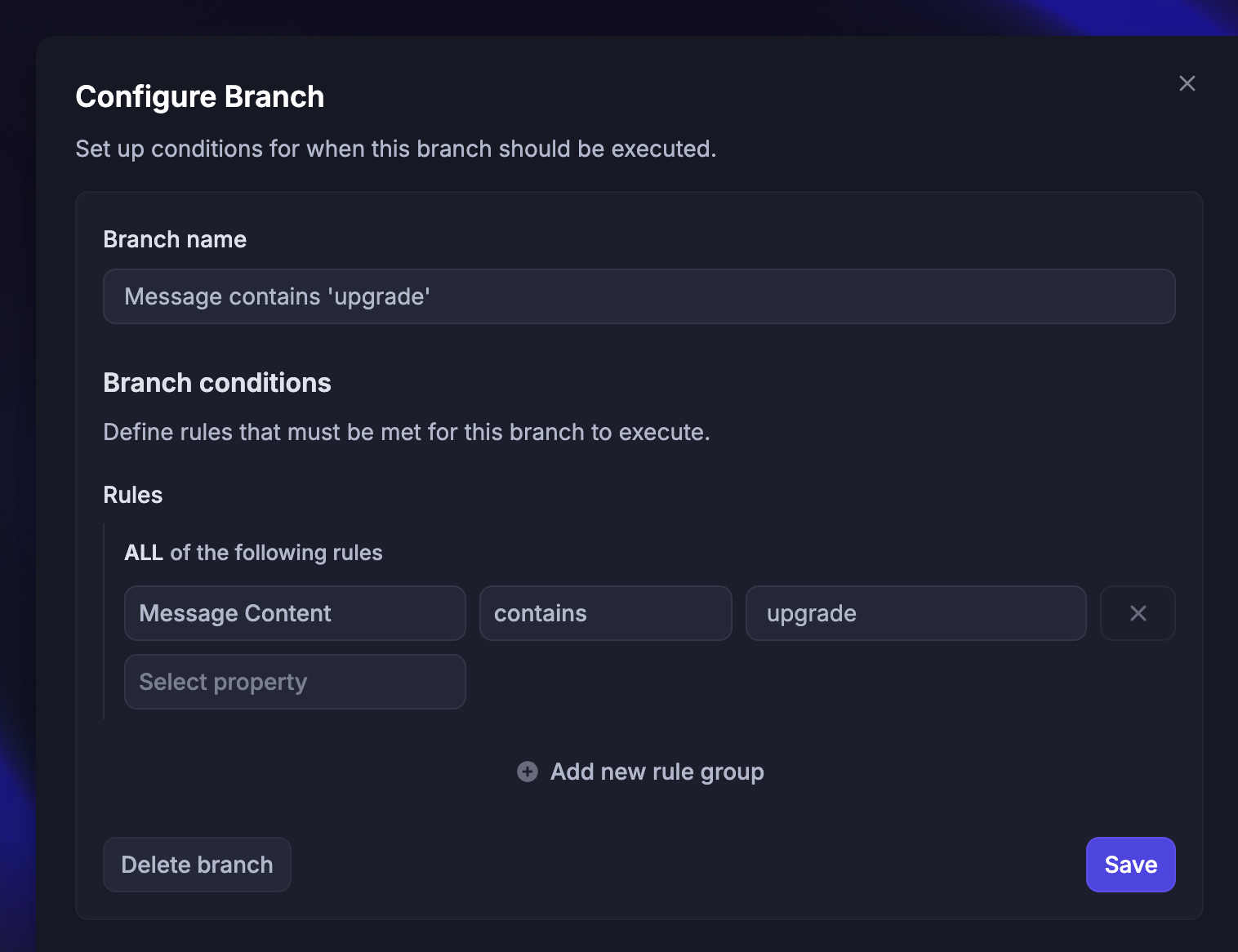
You can automatically tag and route conversations based on message content. For example, when a customer message contains the word ‘upgrade’, tag them as ‘Expansion lead’ and assign the conversation to the Sales team:
Set the trigger as “Customer sends any message”
Add a Branch rules action with these conditions:
If message contains ‘upgrade’ → Tag end-user as ‘Expansion lead’ and assign to Sales
If message contains ‘bug’ → Set Type of query to ‘Bug report’ and assign to Technical support
Example branch rule
Example branch rule
Route conversations based on customer's timezone
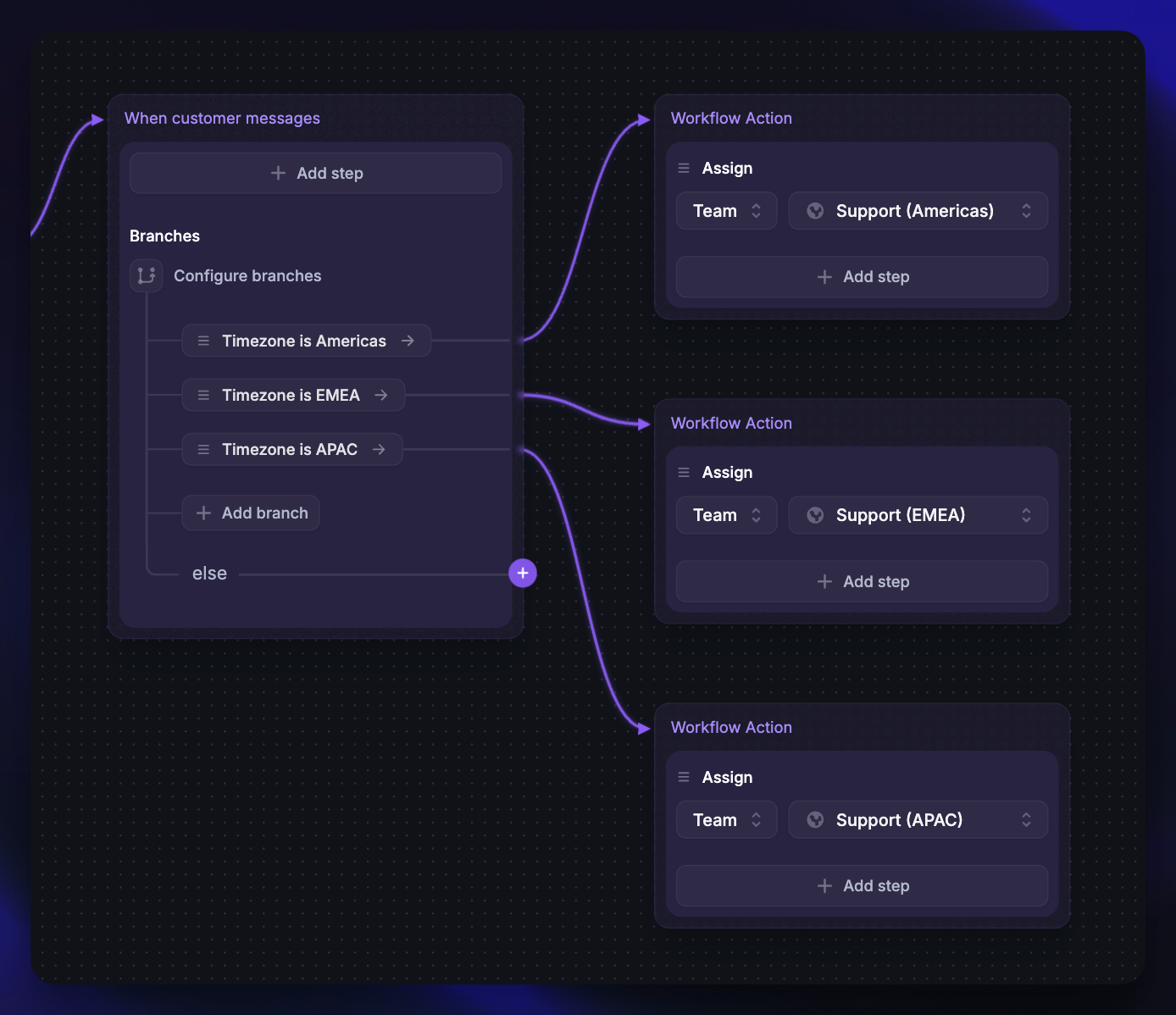
YYou can automatically assign conversations to the correct regional team depending on the customer’s detected timezone.
Set the trigger as “Customer sends their first message”
Add a Branch rules action with these conditions:
If customer timezone contains ‘america’ → assign to Support (Americas)
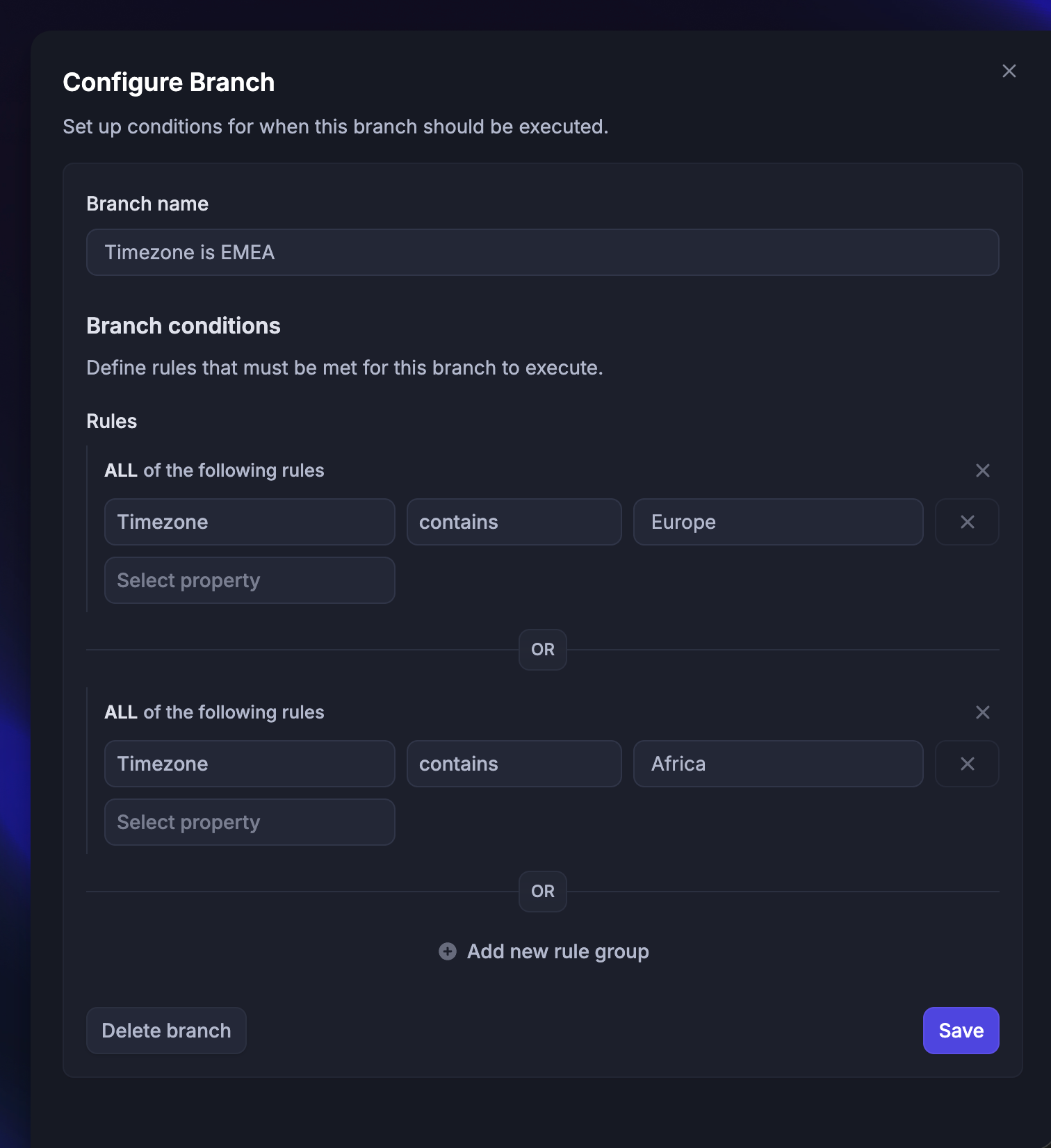
If customer timezone contains ‘europe’ or 'africa’ → assign to Support (EMEA)
If customer timezone contains ‘asia’ or 'australia’ → assign to Support (APAC)
Or add the Branch rules based on languages, for example:
If Locale contains French → Assign to French Support
Example branch rule
Example branch rule
Was this helpful?
Still need help? Ask the team