Tickets portal setup
Enable and configure the Ticket Portal so your customers can view and manage their support tickets.
Written By Markus Palm
Last updated 6 days ago
Overview
This guide walks you through enabling the Ticket Portal and configuring it to match your brand.
Before you start, make sure you have created at least one Customer ticket type in Settings → Support → Ticketing → Ticket types.
Configure ticket visibility
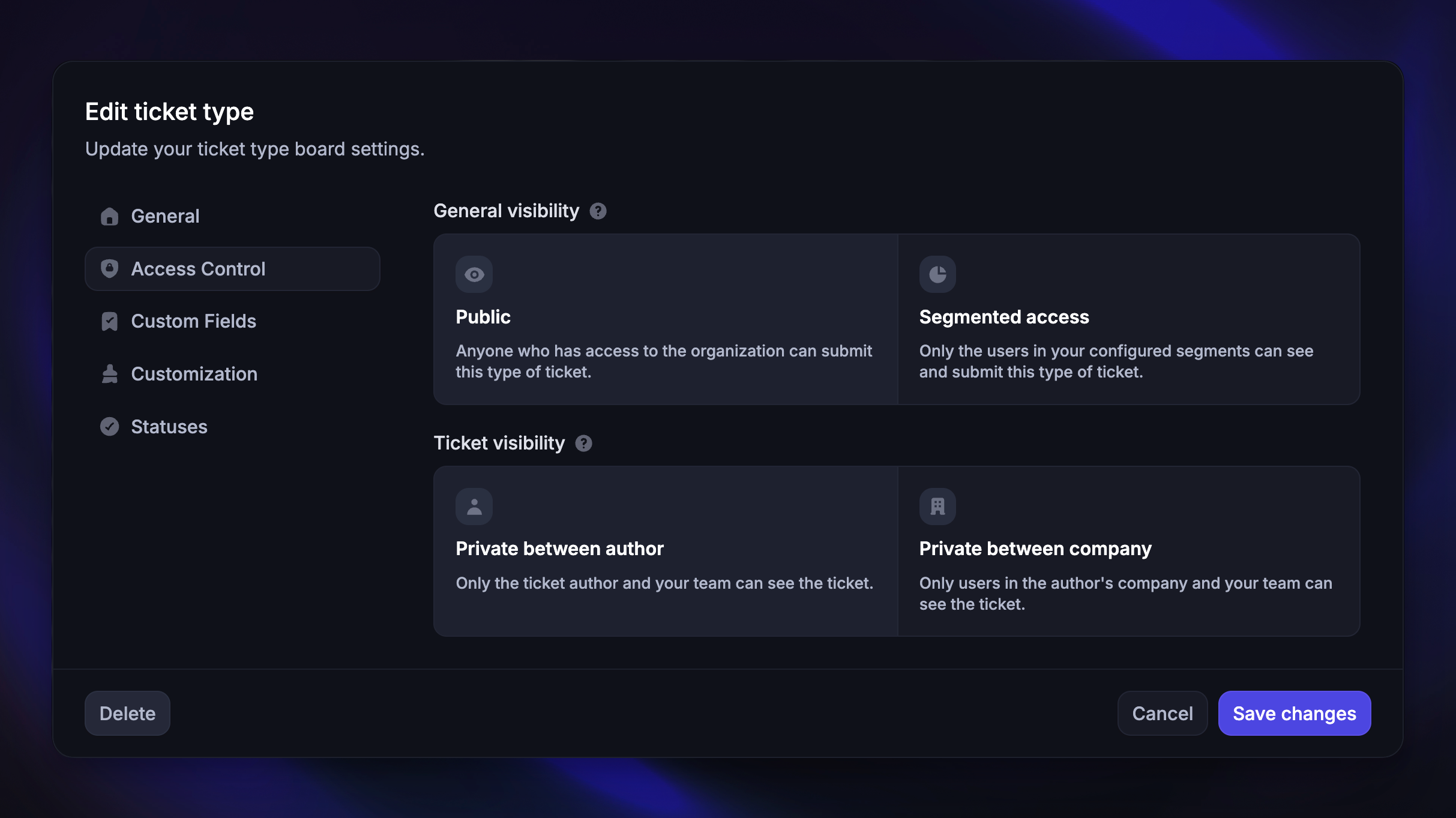
Which tickets a customer sees in the Ticket Portal depends on the visibility rules of each ticket type. These rules are configured per ticket type in Settings → Support → Ticketing → Ticket types.
There are two layers of visibility settings that affect the tickets that show up in the portal, ensuring every end-user only sees the tickets that are relevant to them:
General visibility controls who can see and submit this ticket type:
Public - Anyone who has access to your workspace can submit this type of ticket
Segmented access - Only users in specific segments can see and submit tickets
Ticket visibility controls who can see individual tickets after they're submitted:
Private between author (default) - Only the ticket author and your team can see the ticket
Private between company - Only the user, their company, and your team can see the ticket
For Customer tickets linked to a Conversation, managing Conversation participants also updates who can access the ticket.
Setting up the Ticket portal
To get started with the Ticket portal, go to Settings → Support → Ticketing → Tickets portal:
Enable the Ticket Portal
Once enabled, the Ticket Portal is available at
https://yourcompany.featurebase.app/tickets, or its configured custom domain. Customers can find it through the Tickets item in your Customer Portal menu
Customize branding
Set the logo, colors, fonts, and theme under Settings → Customer Portal → Brand & colours. These appearance settings also apply to the shared Customer Portal.
Customize text - From the Typography tab, customize the text shown on the Ticket Portal:
Portal title - The heading at the top of the portal
Portal description - A short description shown below the title
New ticket button - The text on the create ticket button
If you've configured multiple languages, you can set different text for each language from the same section
Configure languages
From the Available languages tab, set your default language and add additional languages as needed. Each language can have its own portal title, description, and button text.
Secure customer identification
Secure customer identification before signing customers in through your app. Use the guide's JWT setup for a new integration. Existing HMAC integrations remain supported.
Customers who sign up directly on the portal with email and password must verify their email before they can view or create tickets. This email check is separate from securing your app's integration.
Set up a custom domain
By default, the Ticket Portal uses /tickets on your Featurebase or Customer Portal domain. To use a separate address, such as tickets.yourcompany.com, go to Settings → Customer Portal → Custom domains → Ticket portal.
Connect the custom domain, add the DNS record, and check its certificate status before sharing it. The Ticket Portal opens at the root of its dedicated domain.
Configure portal discovery
Once the Ticket Portal is enabled, there are several ways to make it discoverable for your customers:
1. Share the portal URL
Enabling the Ticket Portal automatically generates a portal URL. You can find and copy it from Settings → Support → Ticketing → Tickets portal when it's enabled.
The default URL follows the format https://example.featurebase.app/tickets, or uses your custom domain if you've configured one.
2. Portal navigation tab
Customers can open Tickets from the Customer Portal menu, alongside the Feedback Portal, Roadmaps, Updates, and Help Center pages you make available.
Rename, reorder, or hide menu items in Settings → Customer Portal → Menu & footer.
3. Link from your Help Center
You can add a custom link to your Help Center navigation that points directly to the Tickets portal from Go to Settings → Help Centers.
FAQ
What happens if I visit the portal as an admin?
What happens if I visit the portal as an admin?
When you visit the Ticket portal as an admin, you won't see tickets. Admins manage tickets from the Inbox in the dashboard.
What if a customer hasn't verified their email?
What if a customer hasn't verified their email?
The Ticket Portal shows Verify your email instead of the ticket list. The customer can use 'Resend verification email', open the email, and verify their address before continuing.
Was this helpful?
Still need help? Ask the team