Set your default office hours
Set default office hours for the Messenger, so customers know when you're out of office.
Written By Kateryna Babenko
Last updated 6 days ago
Office hours are not set by default, meaning availability is set to 24/7, always-on. To set up custom office hours:
Select 'New' from the top right
Set the different hours for weekdays, weekends, or specific days of the week
Choose the correct timezone for your office hours
Notes:
The weekdays option is Monday – Friday and weekends is Saturday – Sunday.
Office hours are automatically adjusted for daylight savings.
Office hours are only shown to customers when the conversation is handed over to a human.
We use these office hours to calculate your automatic reply time.
SLAs count time in these office hours unless an SLA has its own schedule.
FAQs
What do office hours look like for customers?
What do office hours look like for customers?
When customers get handed over to a human in the Messenger outside of office hours, they’ll see when your team will be back online:
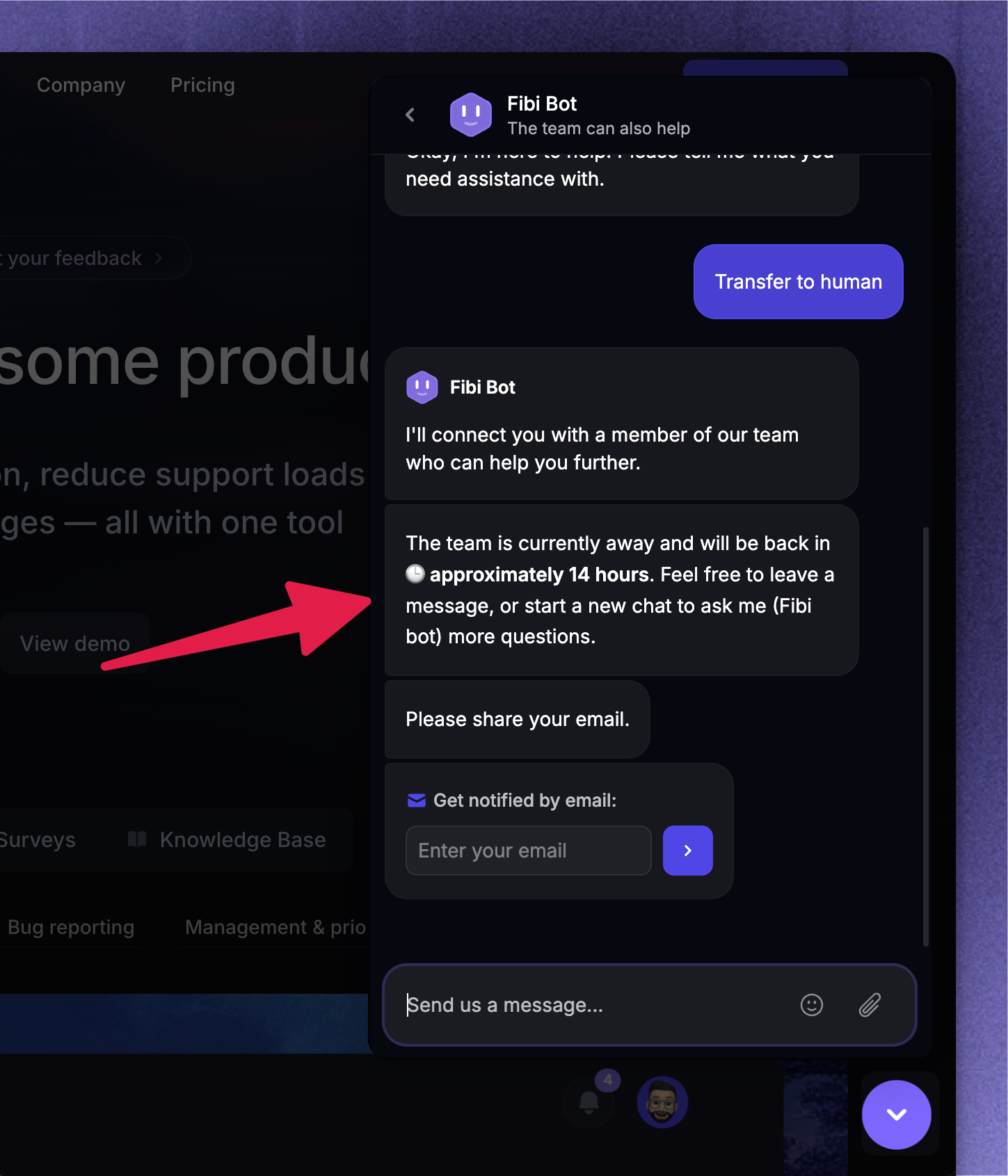
For example, if you’ve selected "Weekdays" as your office hours and a customer opens the Messenger during the weekend, we’ll let them know you’ll be back on Monday.
Not showing the office hours immediately when Messenger is opened is a conscious design decision, as the Fibi AI agent can likely answer their question. Showing that the customer is reaching out outside the office hours can disincentivize them from explaining their problem.
Can I add holidays?
Can I add holidays?
Yes. Go to Settings → Inbox → Office hours and add the days your team is closed or keeps different hours under Holidays & closures. SLA timers skip those days, and the Messenger, Workflows, and office-hours report metrics use the holiday instead of your usual office hours.
Reports use holidays for new data only. Outbound and Journeys send windows do not follow holidays.
Was this helpful?
Still need help? Ask the team