User tags
Manually tag end-users to easily create segments, filter users, and limit end-users access to boards, updates, and more.
Written By Markus Palm
Last updated 5 days ago
Overview
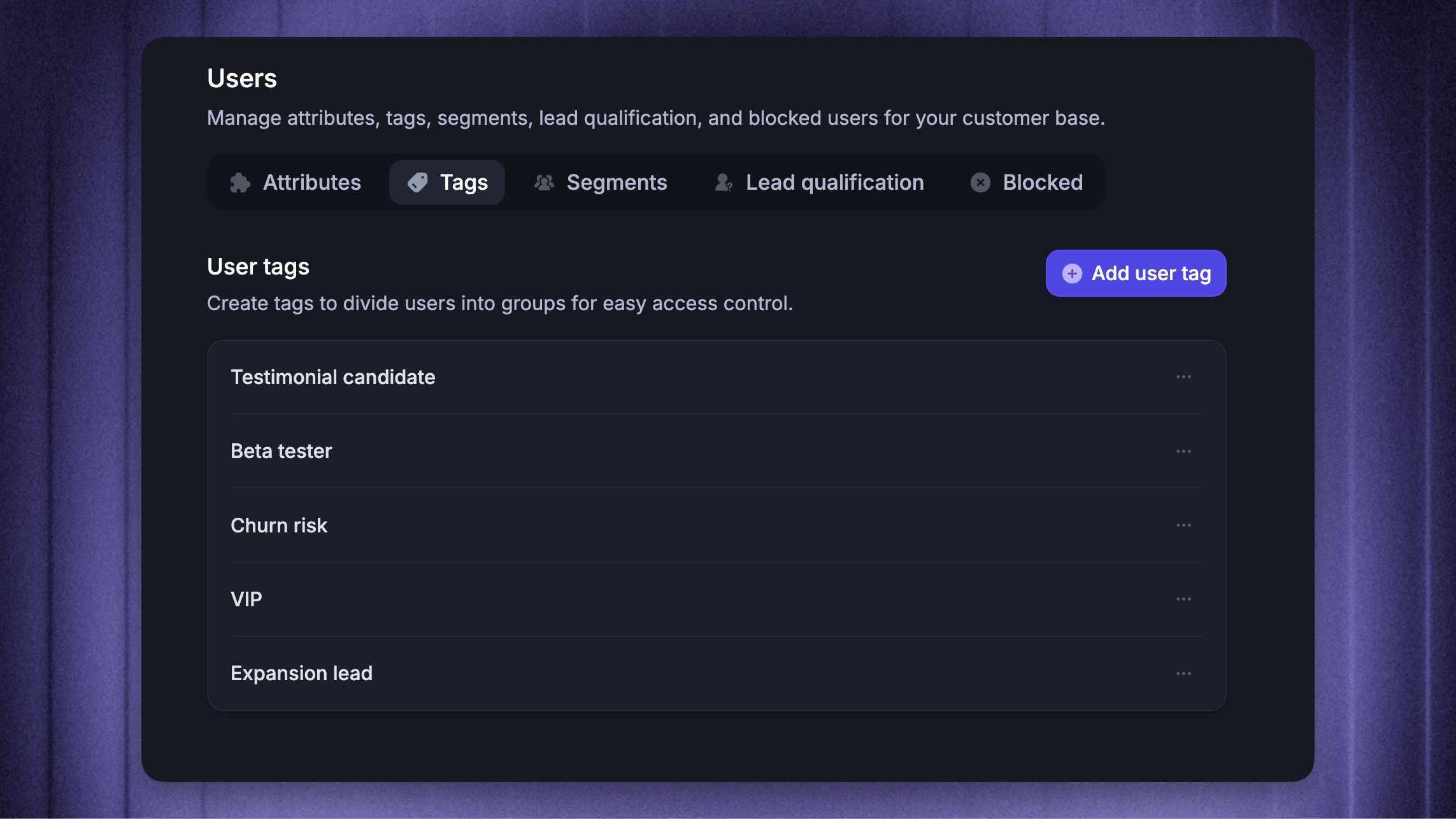
User tags enable you to categorize users by assigning labels such as Testimonial candidate, Beta tester, or VIP customer, which can be seen under their profile in the Users module.
You can then use these tags to easily create segments, filter users, and limit their access to specific boards, updates, articles, and more. You can add tags manually, include them in a CSV import, or send them through the API, SDK, or SSO.
Examples:
Tag users with
Testimonial candidatebased on support chats to automatically trigger a Featurebase survey.Tag users with
At riskif they’re showing signs of dissatisfaction. This lets you group them into a segment, monitor their feedback closely, and take action to prevent churn.Tag users with
Beta testerto automatically include them in a “Beta testers” segment and grant access to restricted help articles.
…and much more.
Creating user tags
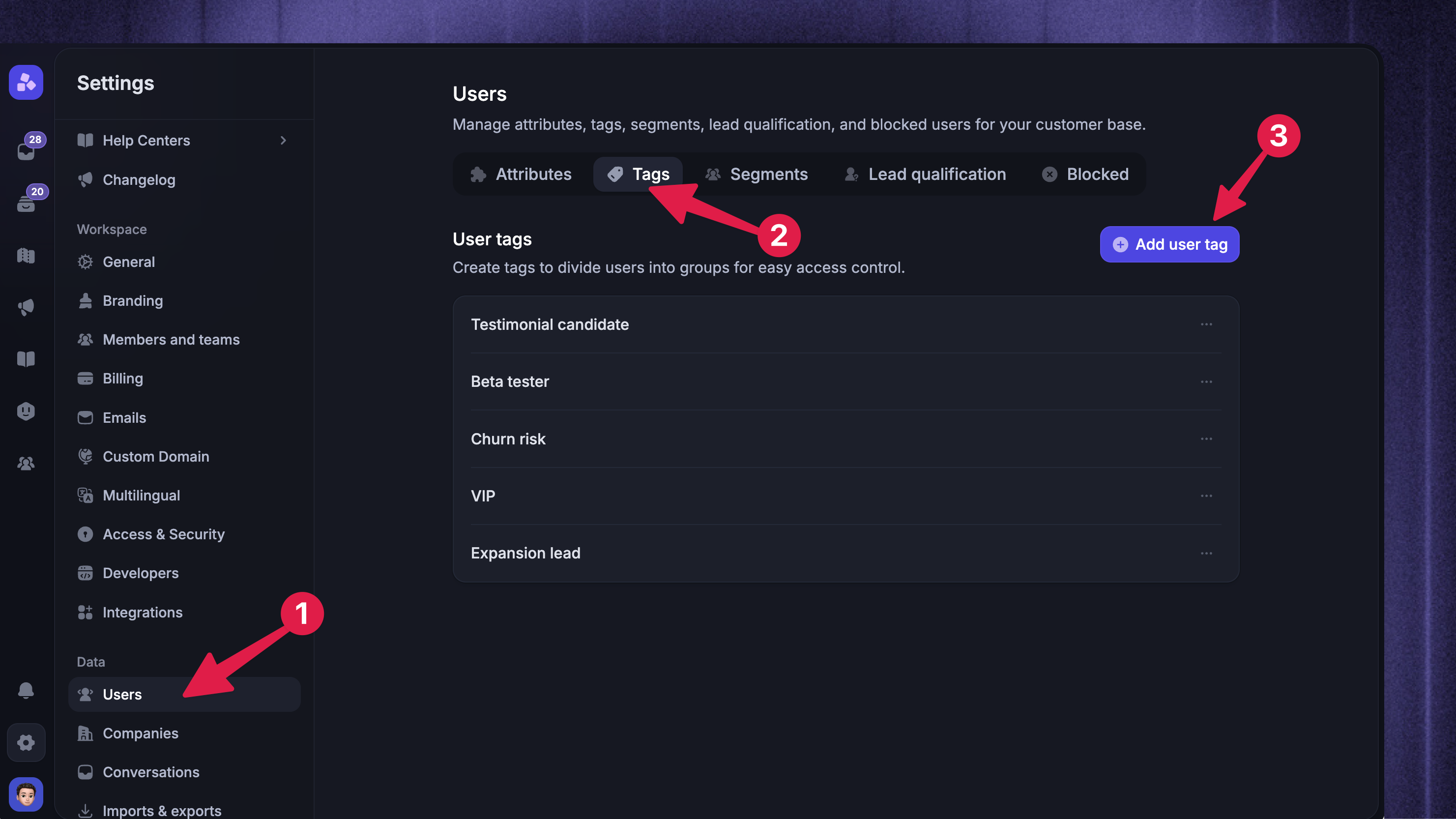
Go to Settings → Users → Tags
Click on ‘Add User Tag’ on the top right
Enter a name for the tag, such as ‘Product A users’
Click on ‘Create user tag’
Assigning tags to users
1. Add user tags manually
While not intuitive at scale, you can assign user tags manually to users:
Go to the Users module
Use the search bar to enter the user's name, email, or company
Click on the user to open their profile
From the User tags toggle, select the desired role
2. Add user tags via API
Go to Settings → Developers → API to copy the API key
Then, assign the user tags using the API
3. Add user tags via SSO
To add user tags via SSO:
Set up our SSO by following this guide: @Public Portal Single Sign-On (SSO)
When you’ve completed that, modify the JWT body to include the user tag:
{name: "Jane Doe",email: "jane.doe@example.com",role: "Member" // Change this to the role you want to add the user}👨💻 You'll need to write custom code for adding users through API and SSO. If you're uncomfortable with this, share these guides with a technical team member who can assist.
Was this helpful?
Still need help? Ask the team