Auto-close inactive conversations
Follow up, manage, and close abandoned conversations automatically.
Written By Markus Palm
Last updated 12 months ago

Overview
If a customer doesn't reply to a teammate within a set period, you can automatically prompt them for a response and close the conversation if necessary.
This simple yet powerful workflow template helps your team stay organized, maintain accurate resolution metrics, and save time on manual follow-ups.
Featurebase includes a ready-made workflow template for this: ‘Send a friendly reminder to inactive customers’
Get started

Go to Automations → Workflows
Click + New Workflow and Choose from template
Select the template ‘Send a friendly reminder to inactive customers’
Set how long to wait for a customer reply before the workflow starts
The default is 3 days, but you can adjust it based on your support volume or response expectations
Choose the channel(s) where this workflow runs (e.g. Email, Web)
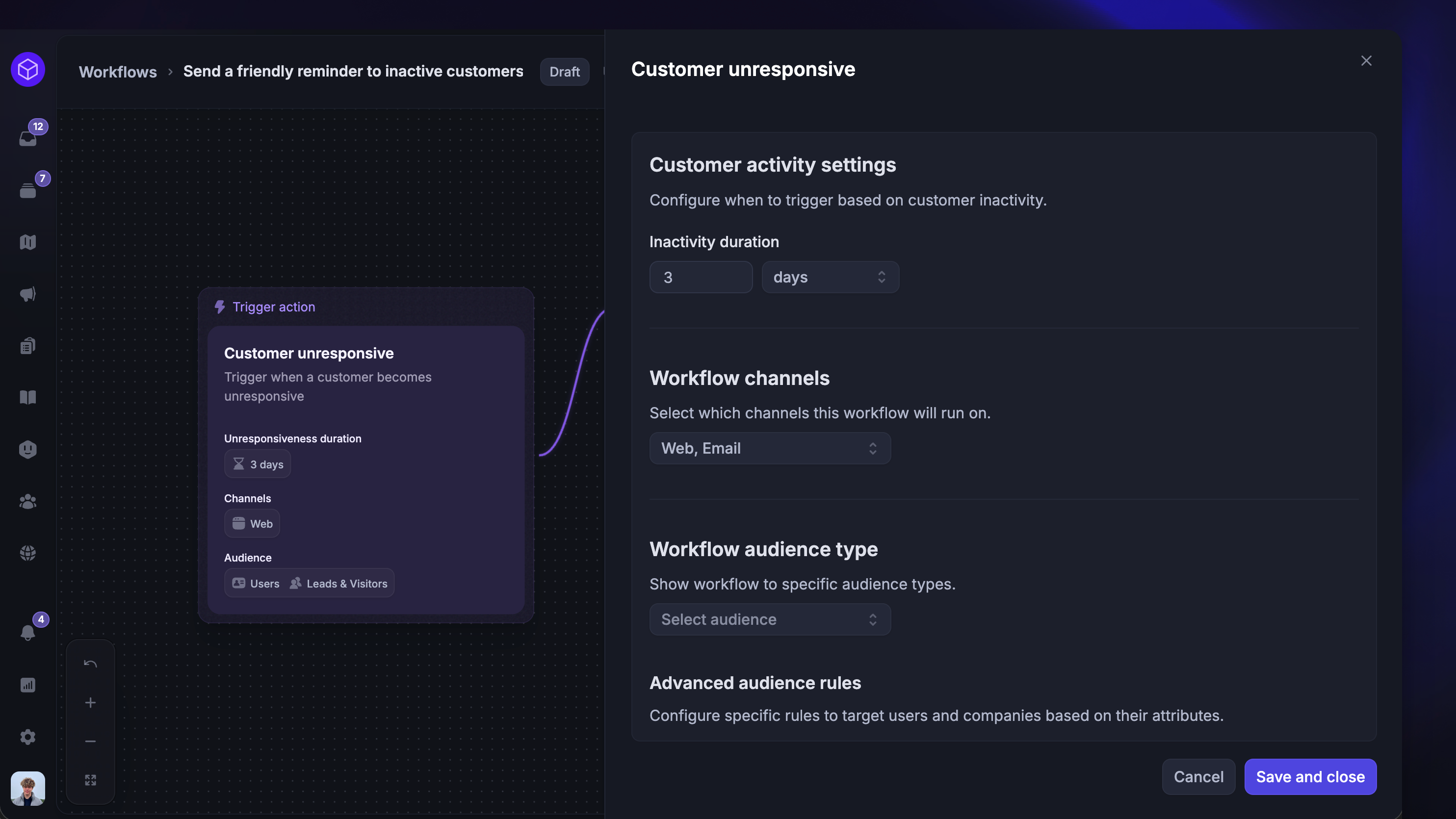
Tip: Start with one channel (e.g. Web) before expanding to others. You can always adjust timing or channels later by editing the workflow trigger.
Customize your workflow
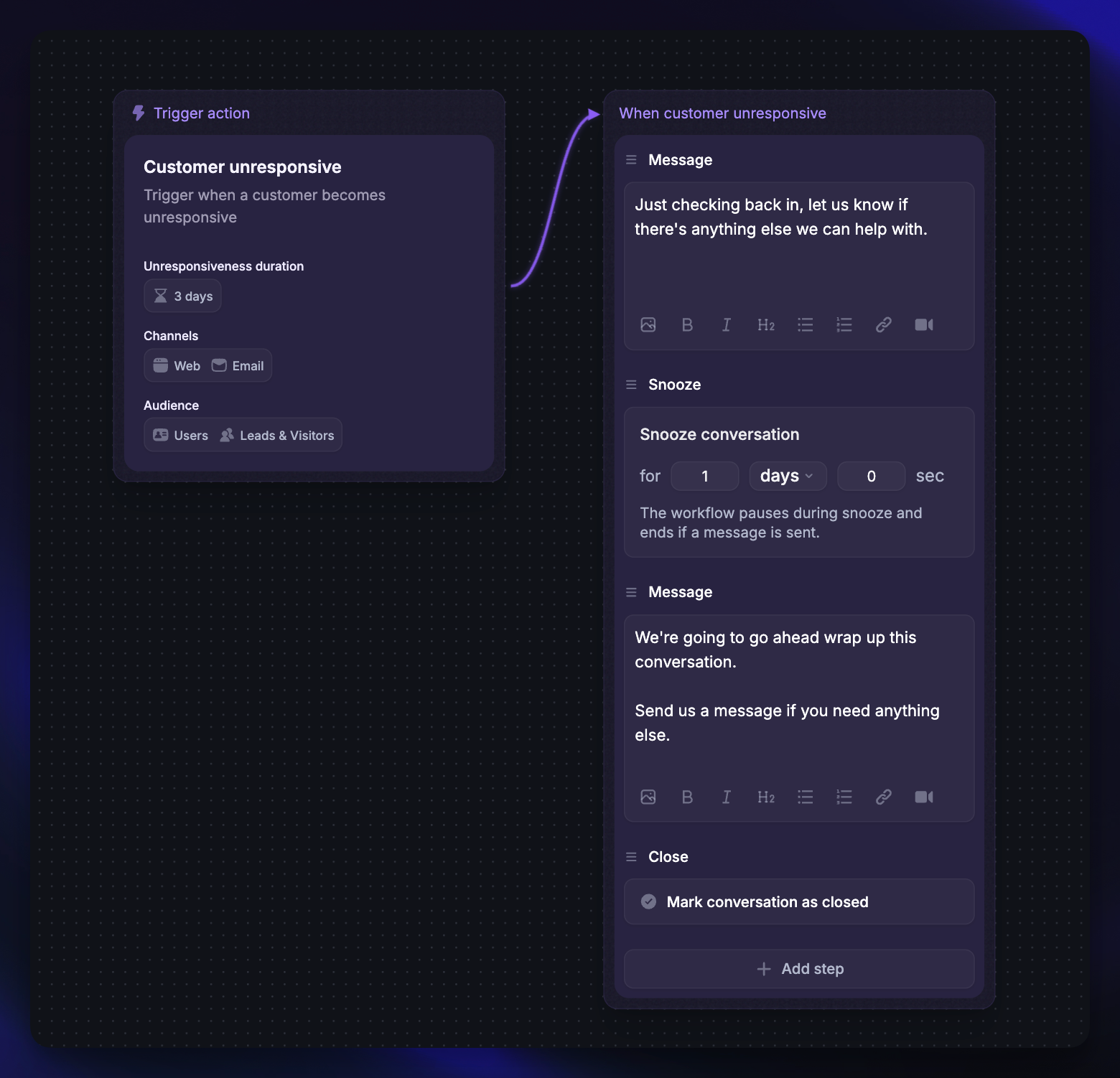
Once created, the template includes a set of prebuilt steps you can customize to fit your tone and process:
Add a follow-up message – When a customer hasn’t replied within the set time, send them a reminder.
By default, it’s “Just checking back in, let us know if there's anything else we can help with.”, but you can edit this message to reflect your brand’s tone and personality.
Snooze the conversation – After sending the reminder, snooze the conversation for a set time (the default is 1 day).
This gives the customer a final chance to respond. You can change the snooze period to match your typical response cycles.
Add a final message – If the customer doesn’t reply before the snooze ends, send a closing message.
By default, it’s “We're going to go ahead wrap up this conversation. Send us a message if you need anything else.” but you can fully customize this or add follow-up instructions (like a Help Center link).
Close the conversation – Once the closing message is sent, add a Close conversation action.
This automatically moves the conversation to your closed list.
Set it live – When you’re happy with your setup, click Save and Set live.
Your auto-close workflow will now automatically handle inactive conversations across the selected channels!
Automating simple but repetitive tasks like this helps your team stay focused on high-priority issues - while ensuring every customer conversation ends cleanly and consistently.
Was this helpful?
Still need help? Ask the team